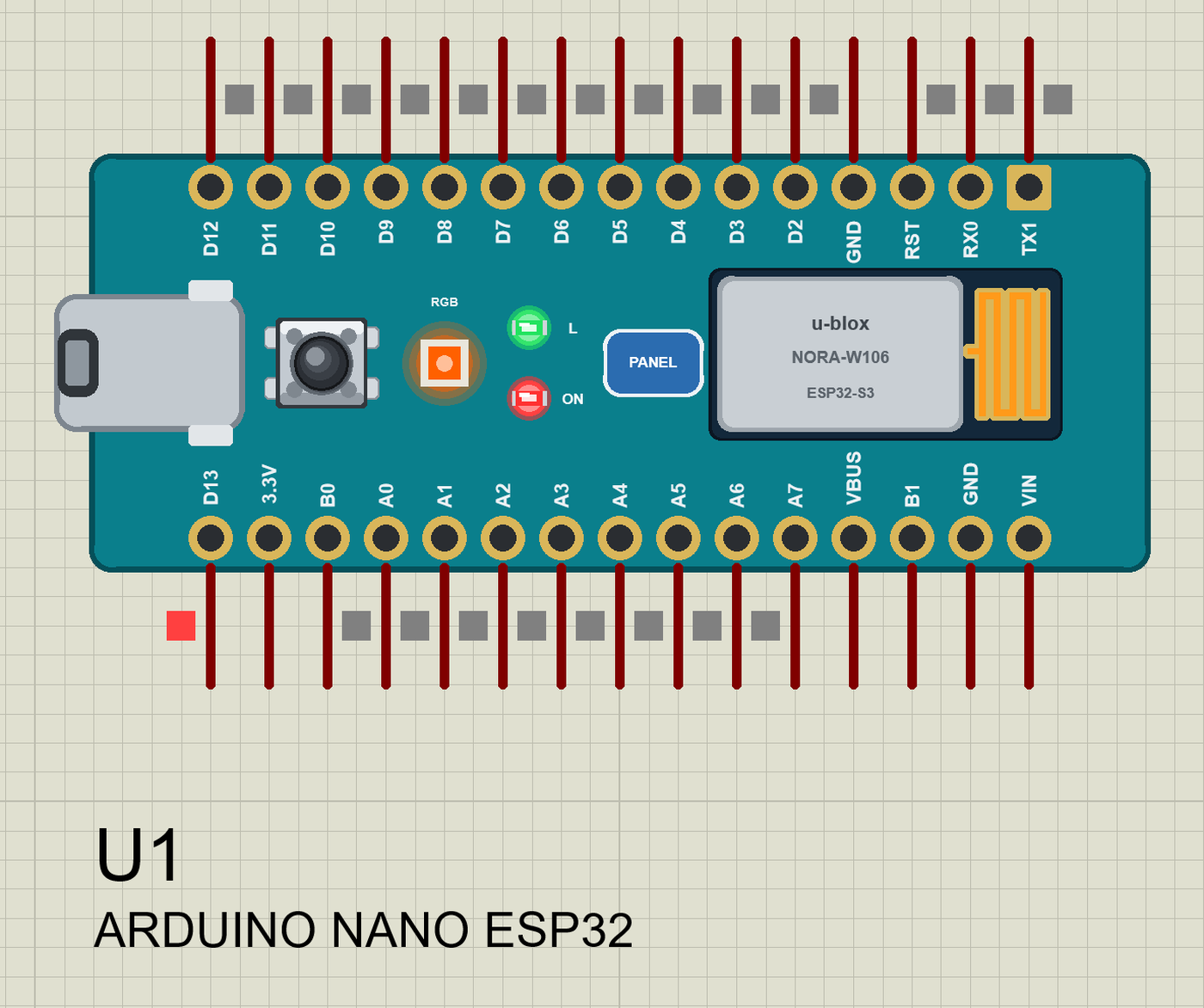
Hello friends, I hope you all are doing great. Today, I am going to share the Arduino Nano ESP32 Library for Proteus. The Nano ESP32 is Arduino's official ESP32 board: the classic Nano's size and its 2 x 15 pins, with a u-blox NORA-W106 module (an ESP32-S3 with Wi-Fi), USB-C and an RGB LED on the board. With this library it runs your Nano ESP32 sketch in Proteus - the Arduino-ESP32 libraries WiFi, WebServer and ESPmDNS, the Arduino pin numbers D0 to D13 and A0 to A7, LED_RED, LED_GREEN and LED_BLUE - and shows the mixed colour on the board's RGB LED.
Arduino Nano ESP32 Library for Proteus
Latest version: V1.0 (October 2026, this tutorial)
Other Arduino Wi-Fi boards: UNO R4 WiFi · UNO WiFi Rev2 · Nano 33 IoT
ESP32 boards and modules: ESP32 DevKit V1 · ESP32-DevKitC V4 · ESP32-S3 DevKitC-1 · ESP32-C3 SuperMini · TTGO T-Display · ESP32-WROOM-32 · AirLift WiFi Shield · AirLift ESP32 Breakout · WT32-ETH01
ESP8266 modules: ESP-01 · ESP-01S · ESP-07 · ESP-07S · ESP-12E · ESP-12F · ESP-01 Adapter · WiFi Shield · NodeMCU · NodeMCU V2 · D1 Mini · D1 R2
Arduino boards: UNO · Mega 2560 · Mega 1280 · Nano · Pro Mini · Mini (V4.0)
Helping Tools
- Laptop WiFi Monitor: a laptop on the Wi-Fi of your design: a browser, a TCP / UDP terminal and ping
- Mobile WiFi Monitor: a smartphone that opens the pages of your ESP32 and sends it commands
- Serial Monitor Advance: a serial terminal window for the UART of your board
This is the twenty-fourth library of our Wi-Fi series and the second Arduino Wi-Fi board, after our Arduino UNO R4 WiFi Library for Proteus. Its demo is a Wi-Fi RGB colour mixer: our Laptop WiFi Monitor sets an orange through a URL, our Mobile WiFi Monitor picks colours from a web page at nano.local, and the serial monitor mixes any colour or starts a rainbow fade - three PWM channels on three pins, the way the real board does it.
NOTICE: Proteus has no ESP32-S3 processor, so this is not a real ESP32-S3 chip: your sketch is compiled for a hidden ATmega2560 inside the board (16 MHz, 8 KB of RAM). The Arduino-ESP32 API, the RGB LED and the Wi-Fi are our model. The antenna colours, the PANEL pad and the panel are TEP additions. Your feedback is the fuel that keeps us going, so please tell us what you think in the comments below or in the Nano ESP32 board of our forum. And if our free libraries help you, you can buy us a coffee. So, let's get started with the Arduino Nano ESP32 Library for Proteus:
What is Arduino Nano ESP32?
The Nano ESP32 keeps the Nano's footprint - 45 x 18 mm, two rows of 15 pins 0.6 in apart, the same pin names - so it drops into a breadboard or a Nano shield like any Nano. Inside is a different world: the NORA-W106 module carries an ESP32-S3 with two Xtensa cores at 240 MHz, 512 KB of RAM, Wi-Fi and Bluetooth, and the pins are 3.3 V logic. Arduino gives it its own pin numbering - "By Arduino pin", so D2 is 2 and A0 is a pin number of its own, not the ESP32-S3's GPIO numbers. For the classic Nano in Proteus, see our Arduino Nano Library for Proteus V4.0.
| Real Arduino Nano ESP32 | This library in Proteus | |
|---|---|---|
| Processor | ESP32-S3 (NORA-W106), 240 MHz, 512 KB RAM | a hidden ATmega2560 at 16 MHz, 8 KB RAM |
| Sketch | Arduino ESP32 core | the same API from our board package TEP Boards for Proteus 1.10.0 |
| Pin numbers | "By Arduino pin" (default) or GPIO | by Arduino pin: D0 to D13, A0 to A7 |
| Wi-Fi | 802.11 b/g/n, 2.4 GHz | our model: a router, DHCP, TCP, UDP, mDNS, NTP, an internet host |
| RGB LED | three LEDs, LED_RED / GREEN / BLUE, lit when LOW | the same, its colour mixed from the three pins |
| Logic | 3.3 V | 3.3 V |
| A0 to A7 | 12 bits, 0 to 3.3 V | 0 to 4095 for 0 to 3.3 V |
| Serial | Serial on the USB, Serial0 on RX0 / TX1 | the same: Serial is the built-in monitor |
| Buttons | RESET (B0 / B1 pads for the bootloader) | RESET, clickable; B0 / B1 drawn |
How Your Nano ESP32 Sketch Runs in Proteus
Proteus 8 simulates many processors, but not the ESP32-S3. So, as for our other sketch boards, the Nano ESP32 in Proteus has a hidden ATmega2560 inside, and our board package for the Arduino IDE compiles your sketch for it. The package gives the sketch the Nano ESP32's pin numbers and the Arduino-ESP32 libraries, which talk to our model in TEPNET.DLL. The model is the radio and the board around the chip: it joins the router, keeps the sockets, answers mDNS names, and reads the three RGB pins - their levels and PWM duties - to paint the LED's colour.
Know the price before you start: the sketch runs at 16 MHz with 8 KB of RAM, an int is 16 bits (use long above 32767), and there is no FreeRTOS, no Bluetooth, no PSRAM and no real TLS. For web pages, sockets, sensors and LEDs it is plenty, and the same sketch compiles for a real Nano ESP32 without a change.
Features of the Arduino Nano ESP32 Library for Proteus
- The Nano ESP32 as it looks: the teal board with USB-C on the left, RESET, the RGB LED, the L and ON LEDs and the NORA-W106 with its antenna, and the Nano's two rows of 15 pins with their labels.
- The RGB LED:
LED_RED,LED_GREENandLED_BLUE, lit when LOW;analogWritemixes any colour, and the board shows it with its glow. - The Arduino-ESP32 API: WiFi, WebServer, ESPmDNS, HTTPClient, Preferences,
analogWrite,attachInterrupt,Serial.printfand more, with the Nano ESP32's own pin numbers. - Wi-Fi: a virtual router (TEP-WiFi) with DHCP, mDNS names, NTP time, TCP clients and servers, UDP, and an internet host - every TEP Wi-Fi part in the design is on the same network.
- The L LED on D13, the ON LED, the RESET button and an antenna that changes colour with the traffic.
- A built-in serial monitor on the USB (Serial) at 115200 baud with Monitor, Plotter and Board tabs.
- Our pop-up panel: a phone with a browser, the router list and the cloud requests, the board, Wi-Fi and traffic cards, every pin live, a Test page, Settings and Help.
- Our Laptop and Mobile WiFi Monitors in the package: a browser, TCP and UDP terminals and ping on the same network.
- A compact package: about 2.19 MB with the board package for the Arduino IDE, without the C++ source code of the models.
The Arduino Nano ESP32 in Proteus
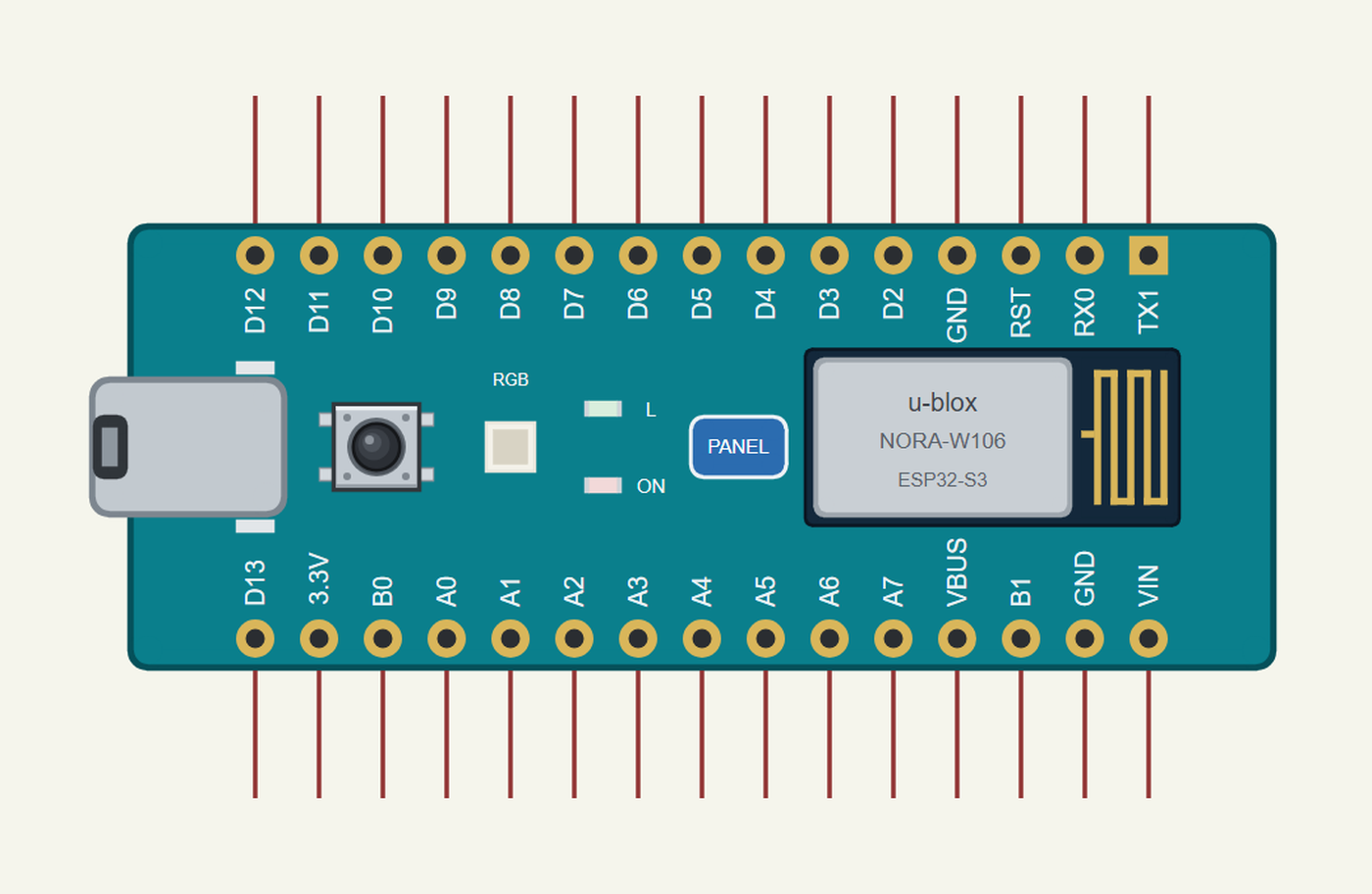
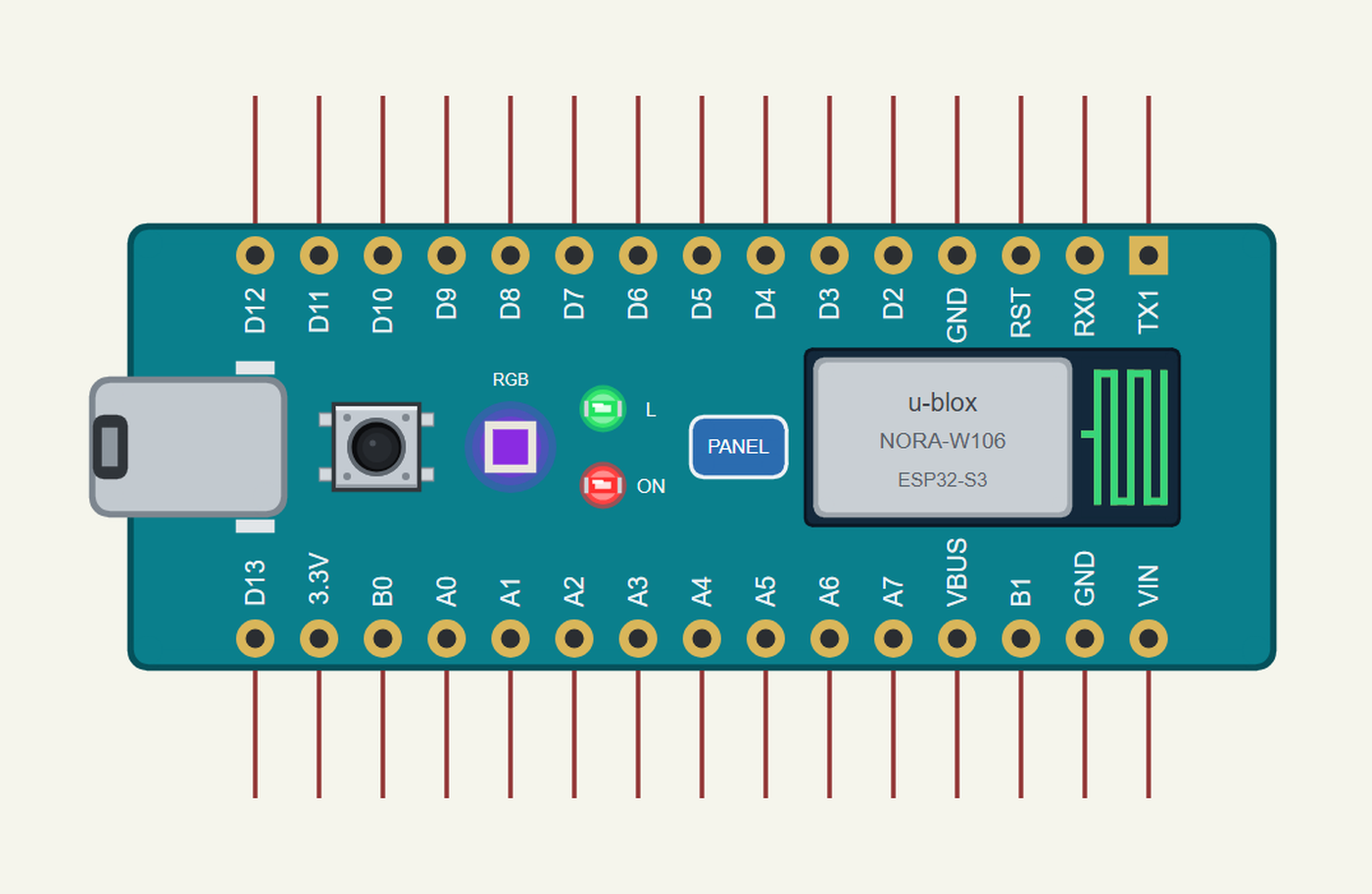
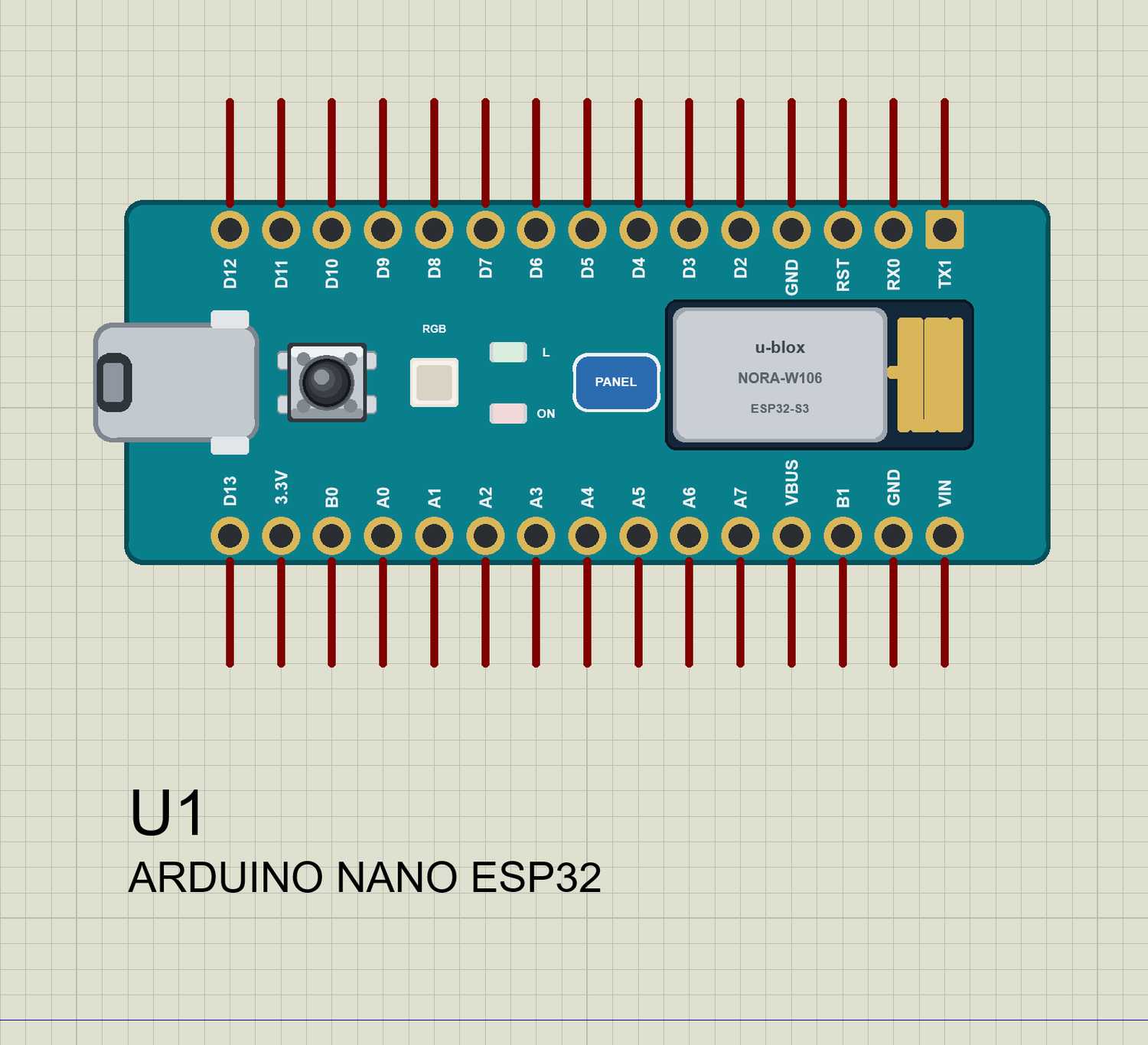
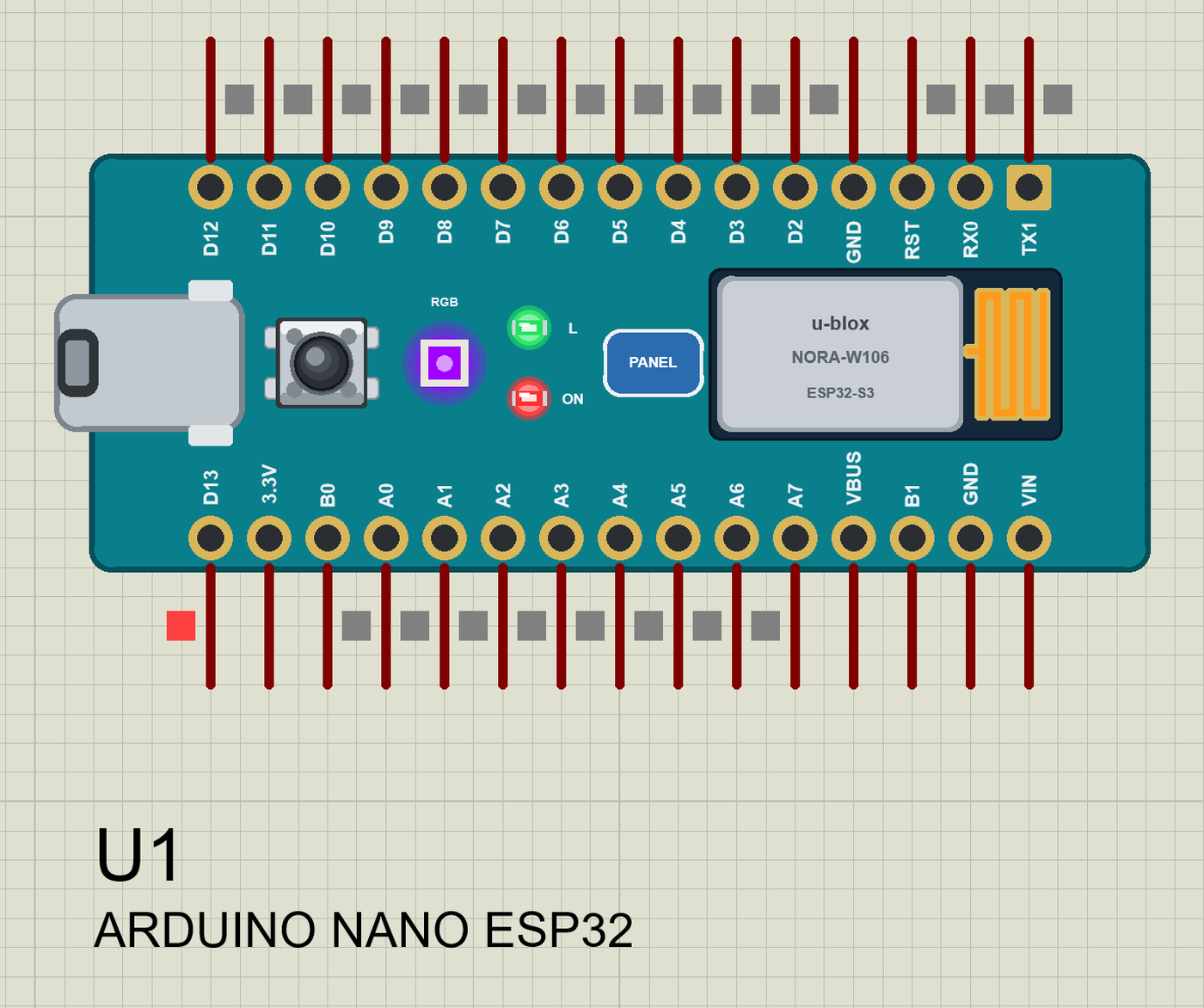
Search NANO ESP32 in Pick Devices; the device ARDUINO NANO ESP32 is in TEPNANOESP32.LIB (Microprocessor ICs, Arduino Wi-Fi Boards). Click USB-C to open the serial monitor and the PANEL pad or the module to open the panel. The RGB LED shows whatever the three pins mix - here a purple, as the library's preview draws it:
Every State of the Nano ESP32
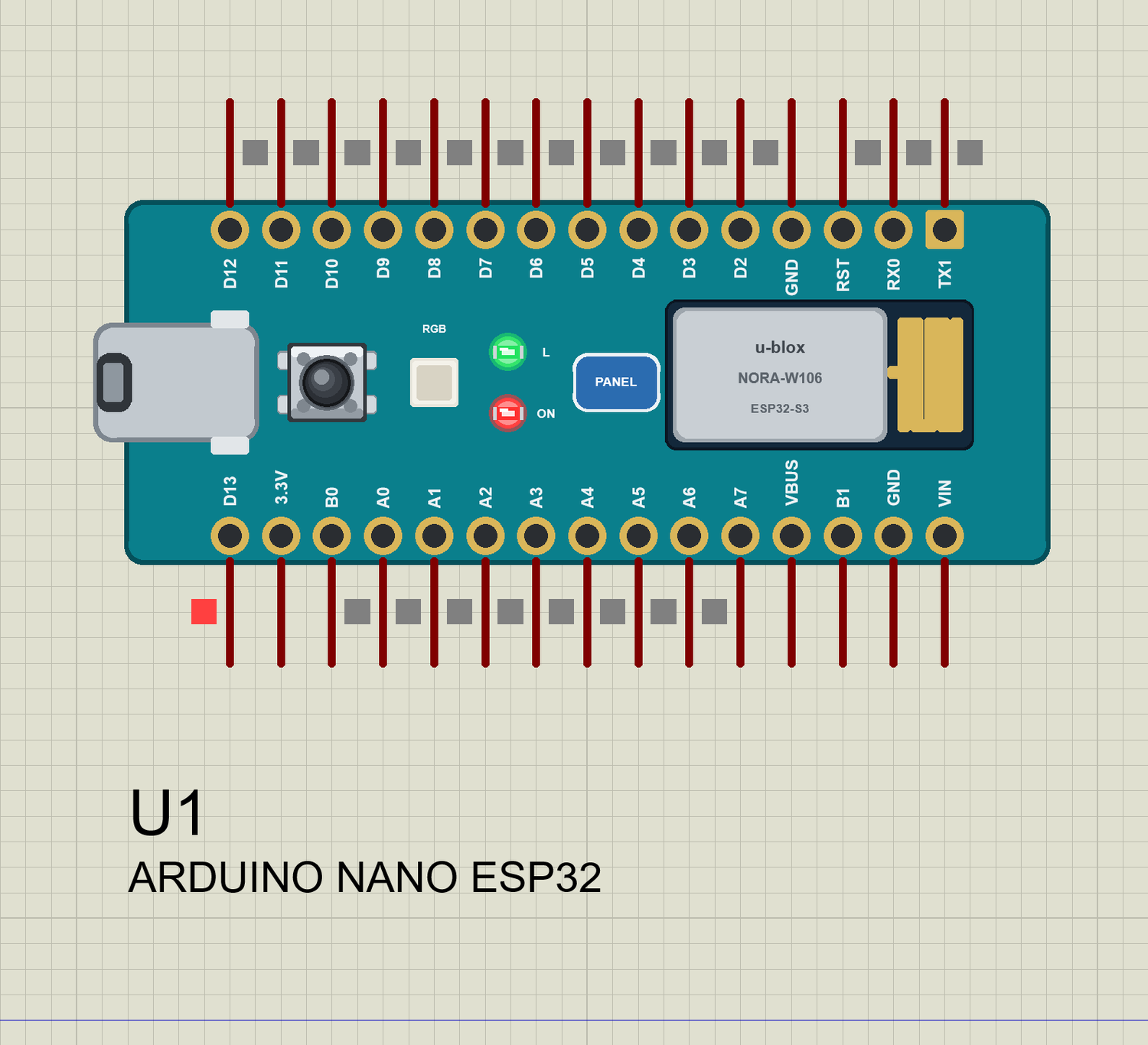
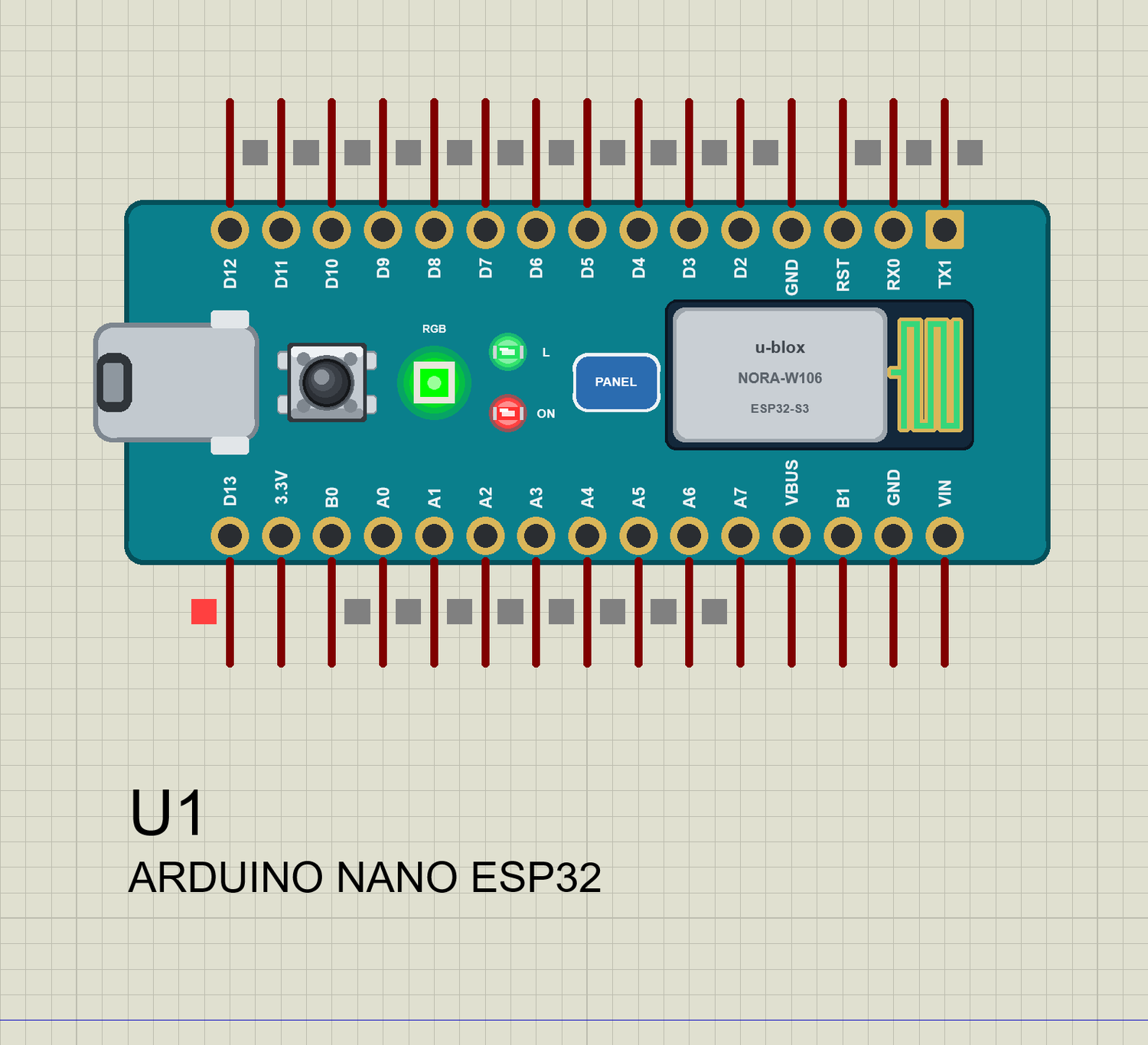
We ran the board with the demo sketch and paused the simulation for each picture. The sketch blinks L while it joins the router; when it is on Wi-Fi, L stays on and the RGB LED turns green:
Download Arduino Nano ESP32 Library for Proteus
Click the button below to download Arduino-Nano-ESP32-Library-for-Proteus-v1.0.zip (about 2.19 MB, without the C++ source code of the models):
Arduino Nano ESP32 Library for Proteus V1.0- README.txt: the device, installation, the demos, the pins, the properties, troubleshooting and the limits.
- Proteus Library Files:
TEPNANOESP32.LIB(the board),TEPLAPTOP.LIBandTEPMOBILE.LIB(our Laptop and Mobile WiFi Monitors). - Proteus Model Files:
TEPNET.DLL(the board, the RGB LED, the two monitors and the Wi-Fi network). - Proteus Simulation: the two demo projects, the HEX file and a copy of the DLL.
- Arduino Code: the demo sketch and TEP Boards for Proteus 1.10.0, our board package for the Arduino IDE with the Arduino-ESP32 libraries.
No Proteus yet? Read How to Download and Install Proteus 7 and 8. New to libraries? Follow How to Install a New Library in Proteus.
How to Install Arduino Nano ESP32 Library for Proteus
- Close Proteus and extract the whole zip file, for example to your Desktop.
- Copy the three files from Proteus Library Files into the LIBRARY folder of Proteus (usually
C:\Program Files (x86)\Labcenter Electronics\Proteus 8 Professional\LIBRARY). - Copy
TEPNET.DLLfrom Proteus Model Files into the MODELS folder - replace an older copy (this one is the first that knows the Nano ESP32 and its RGB LED, and it still runs every earlier board, the modules, the shields and the two monitors). - Delete
TEPNANOESP32.IDX,TEPLAPTOP.IDXandTEPMOBILE.IDXfrom the LIBRARY folder if they are there. - Start Proteus, press P and search for NANO ESP32.
The Board Package for the Arduino IDE
The demo has its HEX file, so you need the Arduino IDE only for your own sketches. Copy the folder Arduino Code\TEP Boards for Proteus\hardware into your sketchbook folder (normally Documents\Arduino), so that Documents\Arduino\hardware\tep\avr\boards.txt exists, and restart the IDE; the Arduino AVR Boards platform must be installed. Version 1.10.0 adds the Nano ESP32 and replaces 1.9.0 (it still has every earlier board). Choose Tools > Board > TEP Boards for Proteus > Arduino Nano ESP32 (TEP Proteus), write your sketch and use Sketch > Export Compiled Binary; double-click the board in Proteus and set its Program File to the HEX (see How to get the HEX file from Arduino).
Demo: A Nano ESP32 Wi-Fi RGB Colour Mixer
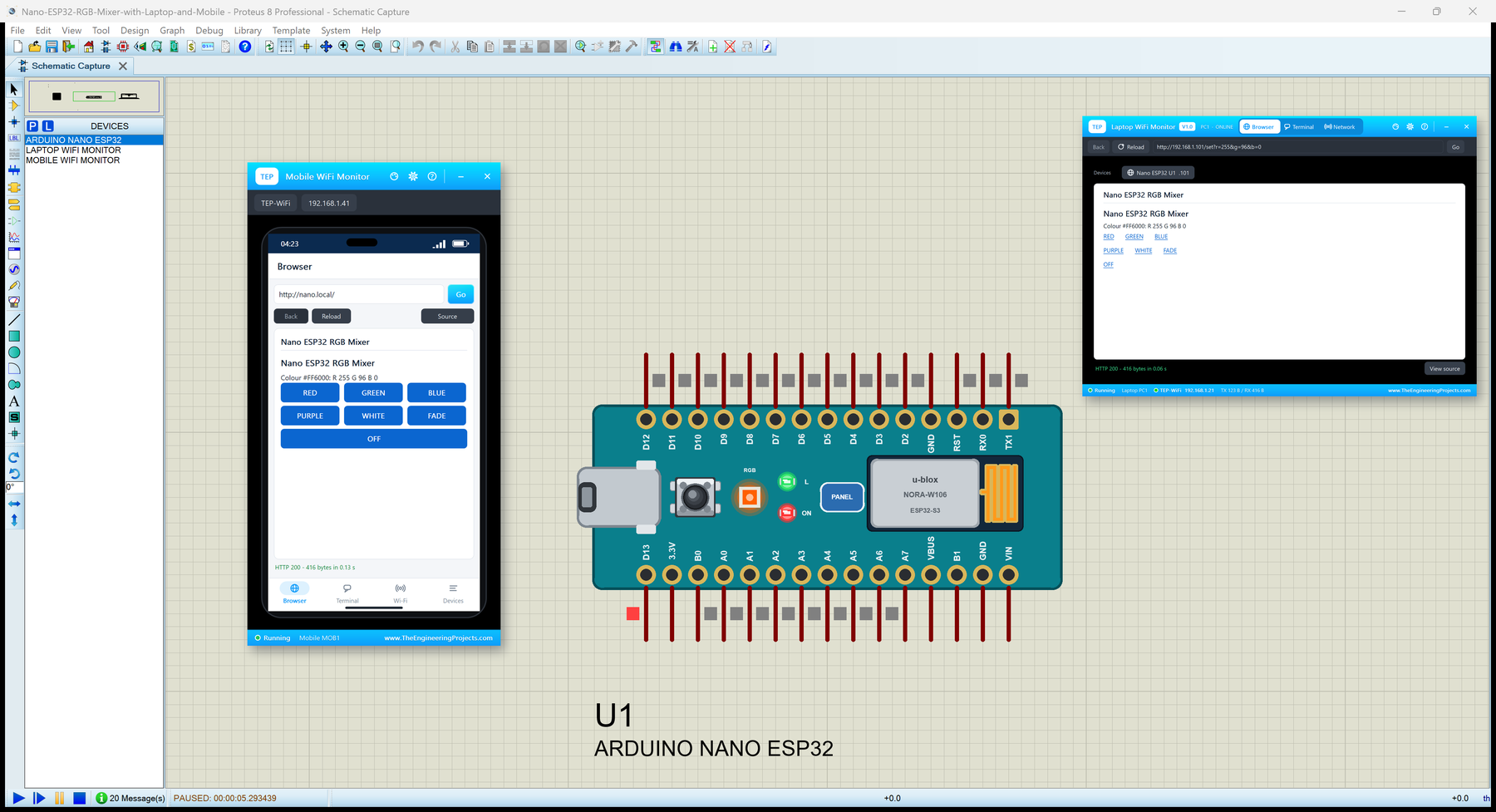
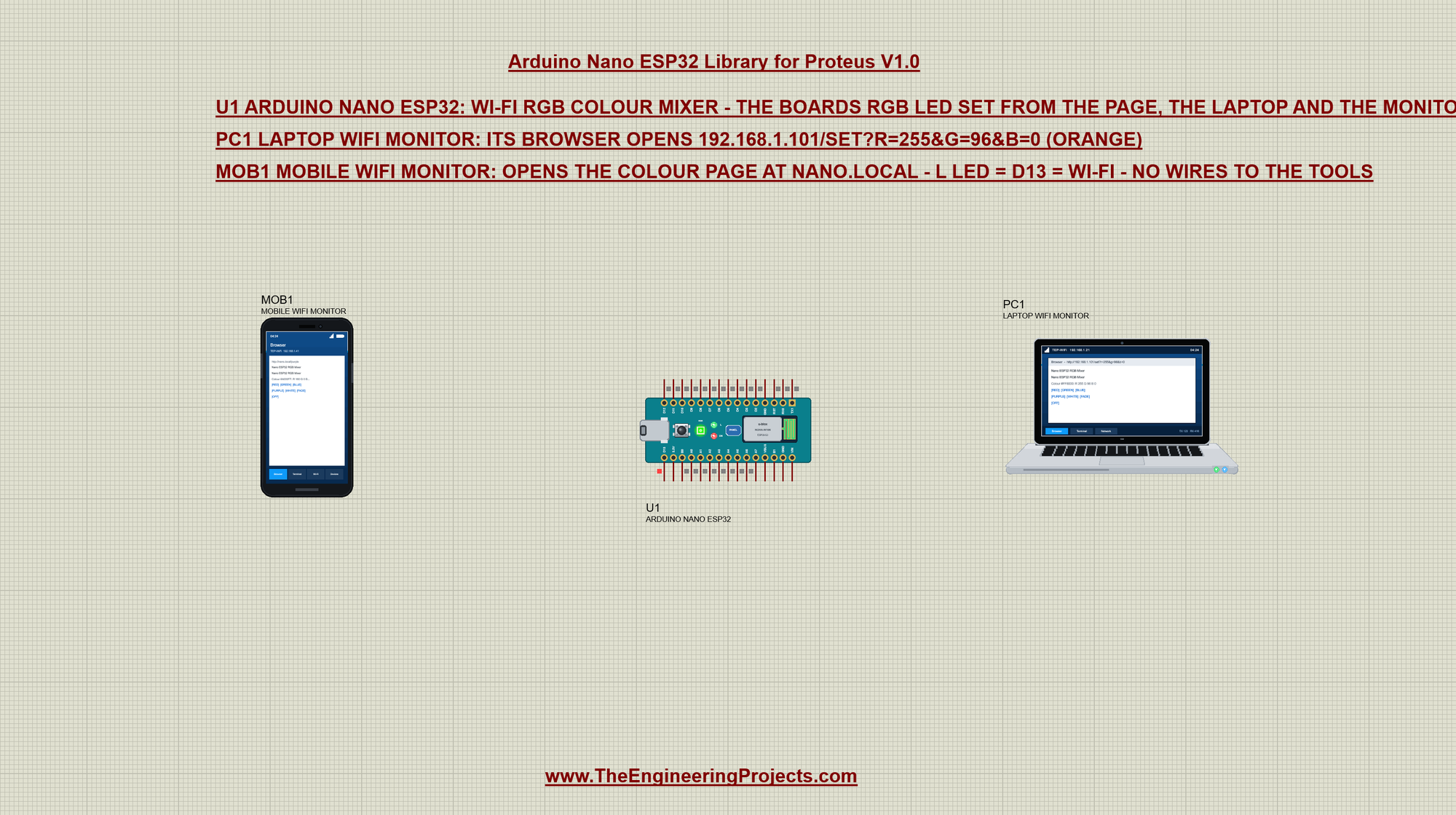
Open Nano-ESP32-RGB-Mixer-with-Laptop-and-Mobile.pdsprj. In the middle is the Nano ESP32 (U1), on the left our phone (MOB1) and on the right our laptop (PC1). There are no wires and no other parts: the RGB LED is on the board, and the two tools are on the TEP-WiFi network. The package also has Arduino-Nano-ESP32-Board.pdsprj, the board alone with the same sketch.
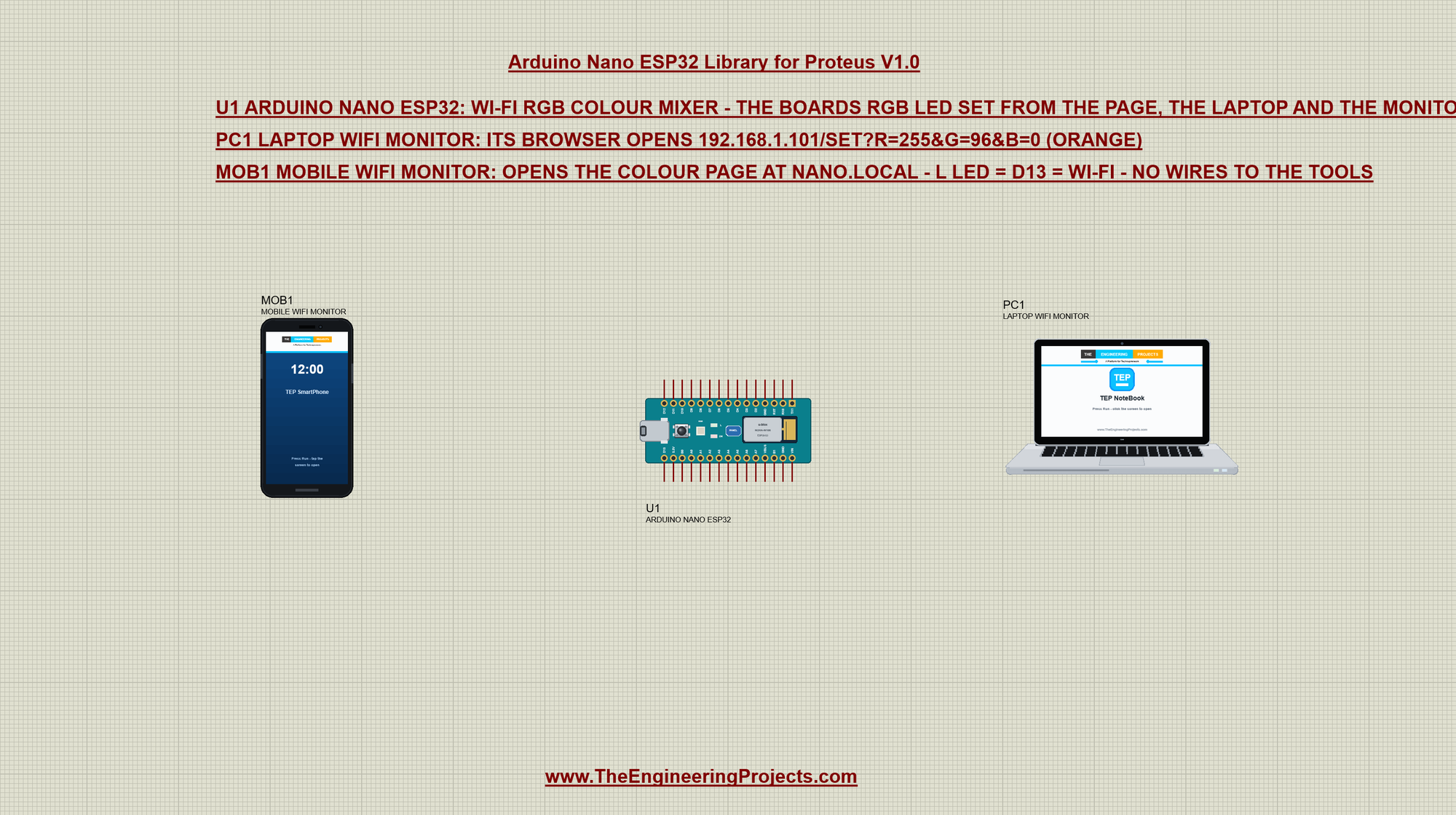
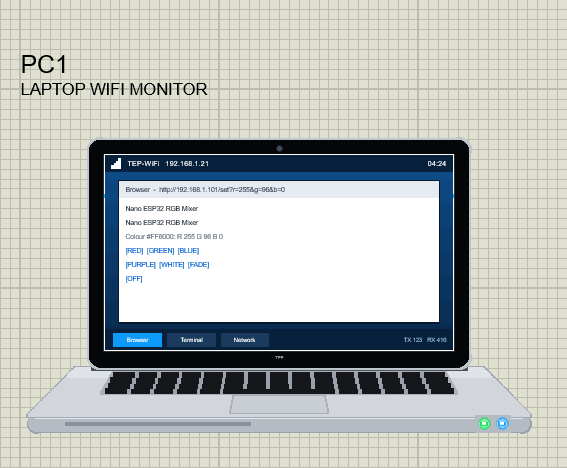
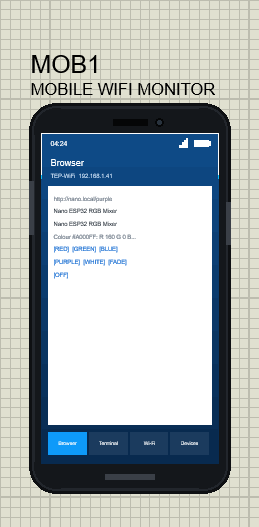
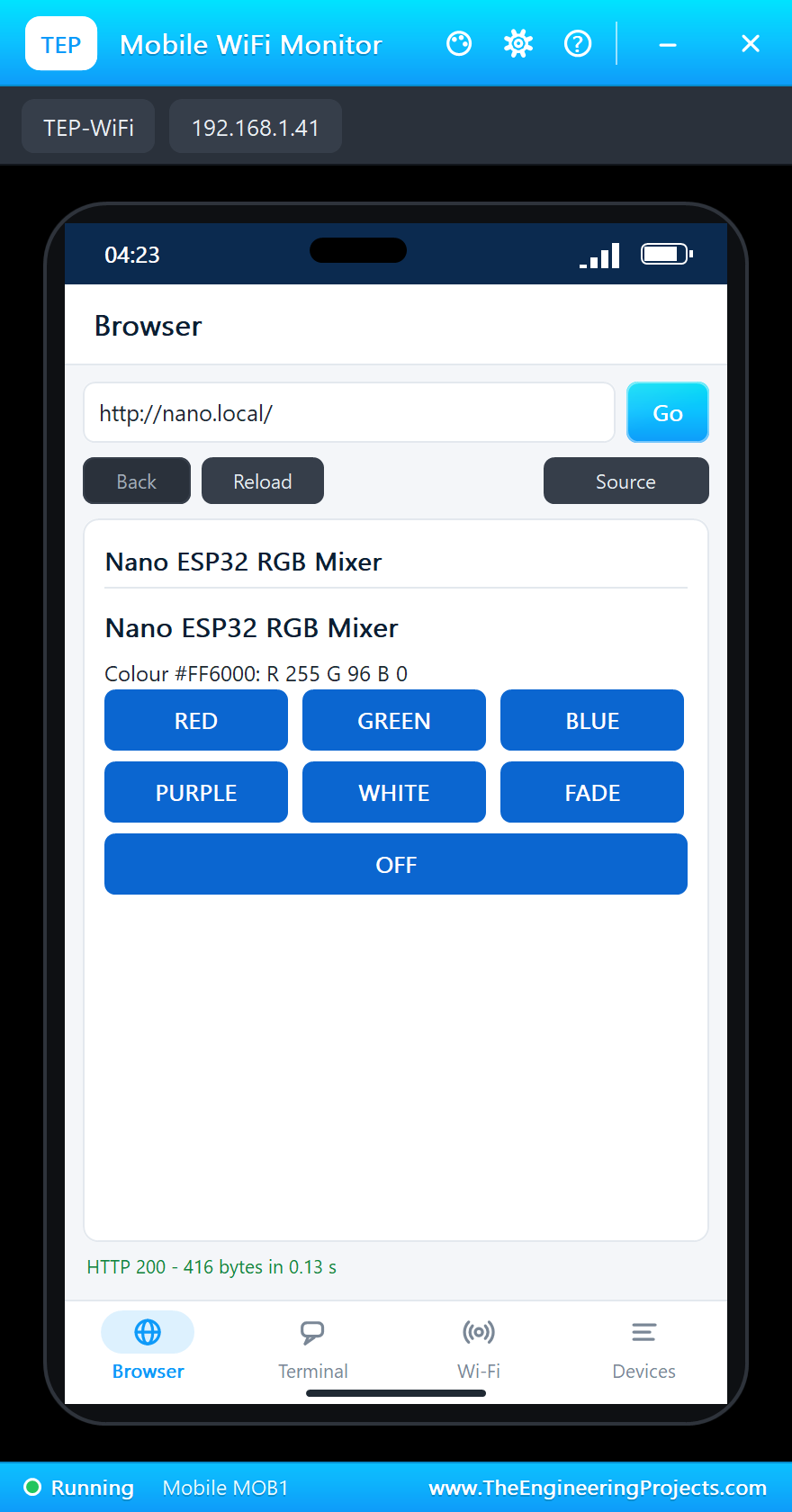
The two tools come from our Laptop WiFi Monitor Library for Proteus and Mobile WiFi Monitor Library for Proteus. The laptop is 192.168.1.21 and its browser's home page sets an orange; the phone is 192.168.1.41 and opens the board by its mDNS name, http://nano.local/:
The Sketch: an RGB LED Lit When LOW
The sketch is written as for a real Nano ESP32, with the Arduino-ESP32 core's libraries:
#include <WiFi.h>
#include <WebServer.h>
#include <ESPmDNS.h>
The board's RGB LED is three LEDs with a common anode: each colour lights when its pin is LOW. So full brightness is a duty of 0, and the sketch writes 255 - level to each pin with analogWrite:
void showColour() {
  analogWrite(LED_RED, 255 - red);
  analogWrite(LED_GREEN, 255 - green);
  analogWrite(LED_BLUE, 255 - blue);
}
setup() makes the three pins outputs and writes them HIGH first - all three colours off:
  pinMode(LED_RED, OUTPUT);
  pinMode(LED_GREEN, OUTPUT);
  pinMode(LED_BLUE, OUTPUT);
  showColour();                        // all three HIGH: the RGB LED off
One function sets a colour, from anywhere, and logs who set it. Serial.printf works as on the ESP32:
void setColour(int r, int g, int b, const char *by) {
  fading = false;
  red = constrain(r, 0, 255);
  green = constrain(g, 0, 255);
  blue = constrain(b, 0, 255);
  showColour();
  Serial.printf("Colour R %d G %d B %d by %s\n", red, green, blue, by);
}
Joining the Router
While the board joins, L toggles every 250 ms; when it is on Wi-Fi, L stays on:
  WiFi.begin(ssid, password);
  while (WiFi.status() != WL_CONNECTED) {
    digitalWrite(LED_BUILTIN, !digitalRead(LED_BUILTIN));
    delay(250);
  }
  digitalWrite(LED_BUILTIN, HIGH);     // L on: joined
  Serial.print("IP address: ");
Then the name, the pages and a green LED that says "ready":
  if (MDNS.begin("nano")) Serial.println("mDNS: http://nano.local/");
  server.on("/", sendPage);
  server.on("/set", handleSet);
  server.onNotFound(handleOther);
  server.begin();
  setColour(0, 255, 0, "start");       // green: ready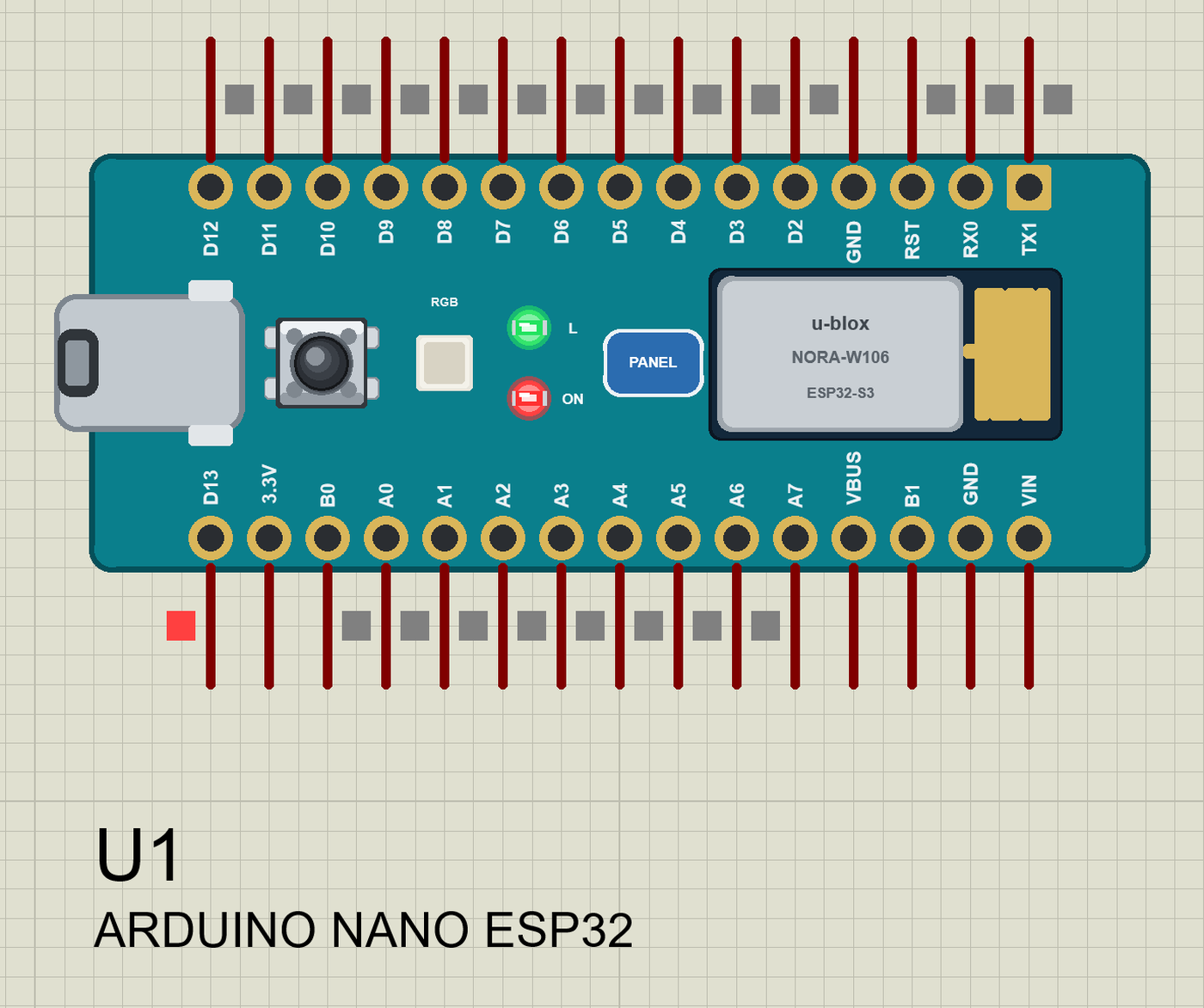
Press Run and watch the monitor (115200 baud):
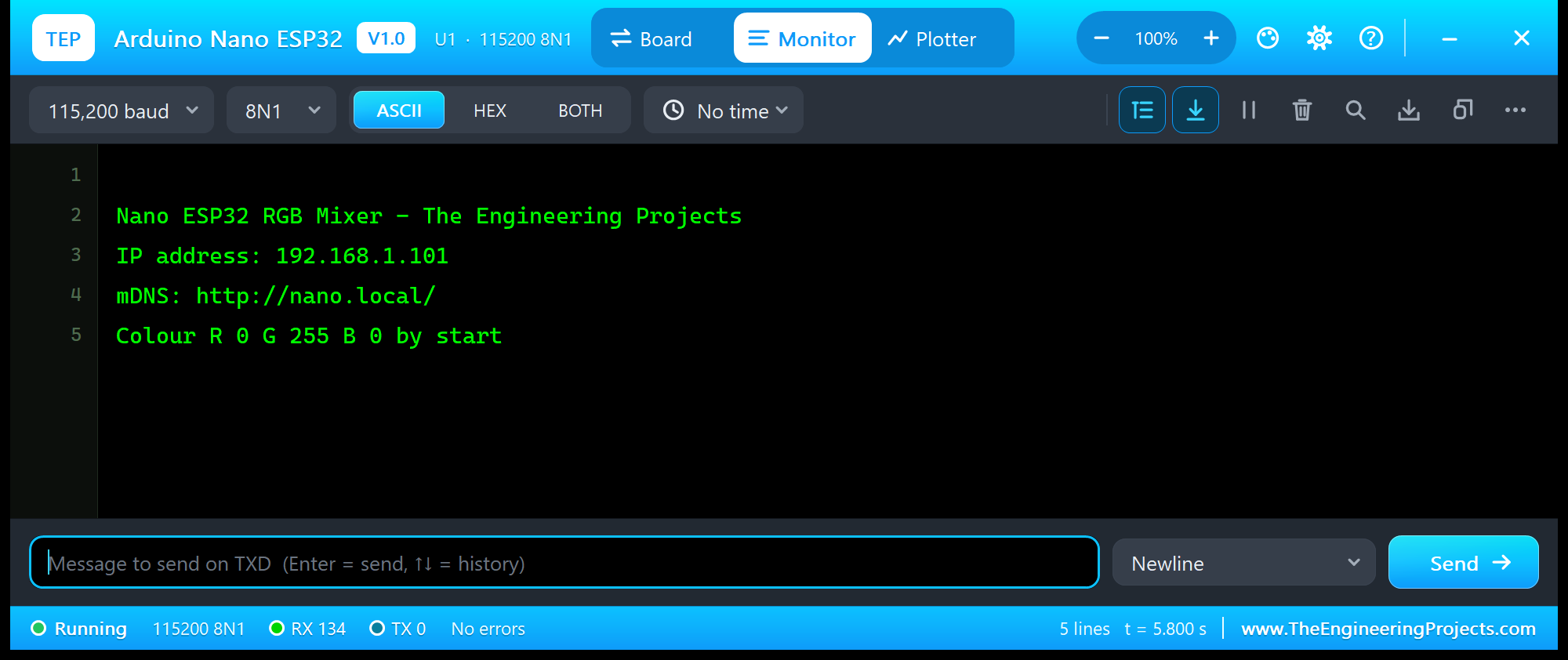
Nano ESP32 RGB Mixer - The Engineering Projects
IP address: 192.168.1.101
mDNS: http://nano.local/
Colour R 0 G 255 B 0 by start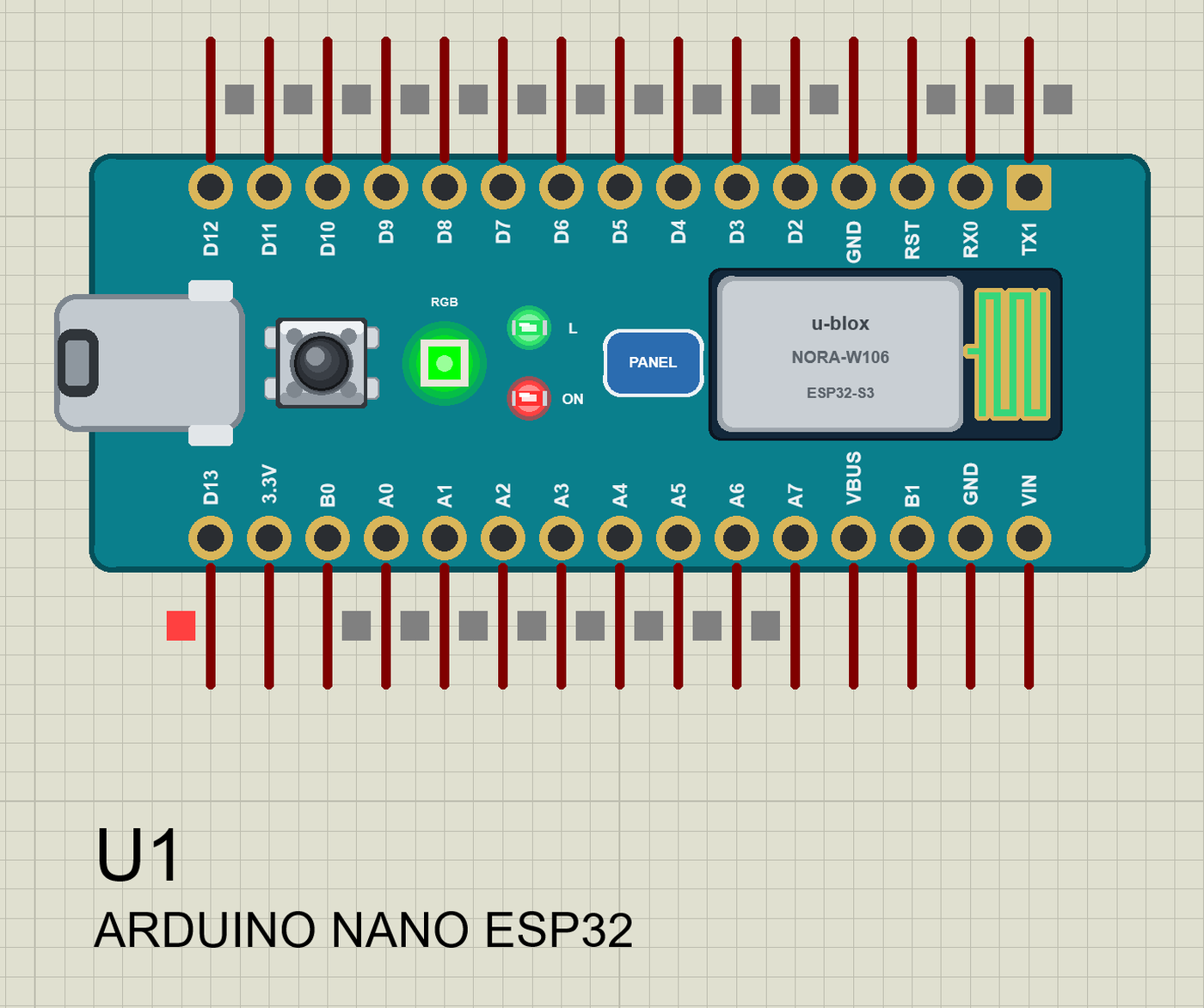
Any Colour from a URL: the Laptop
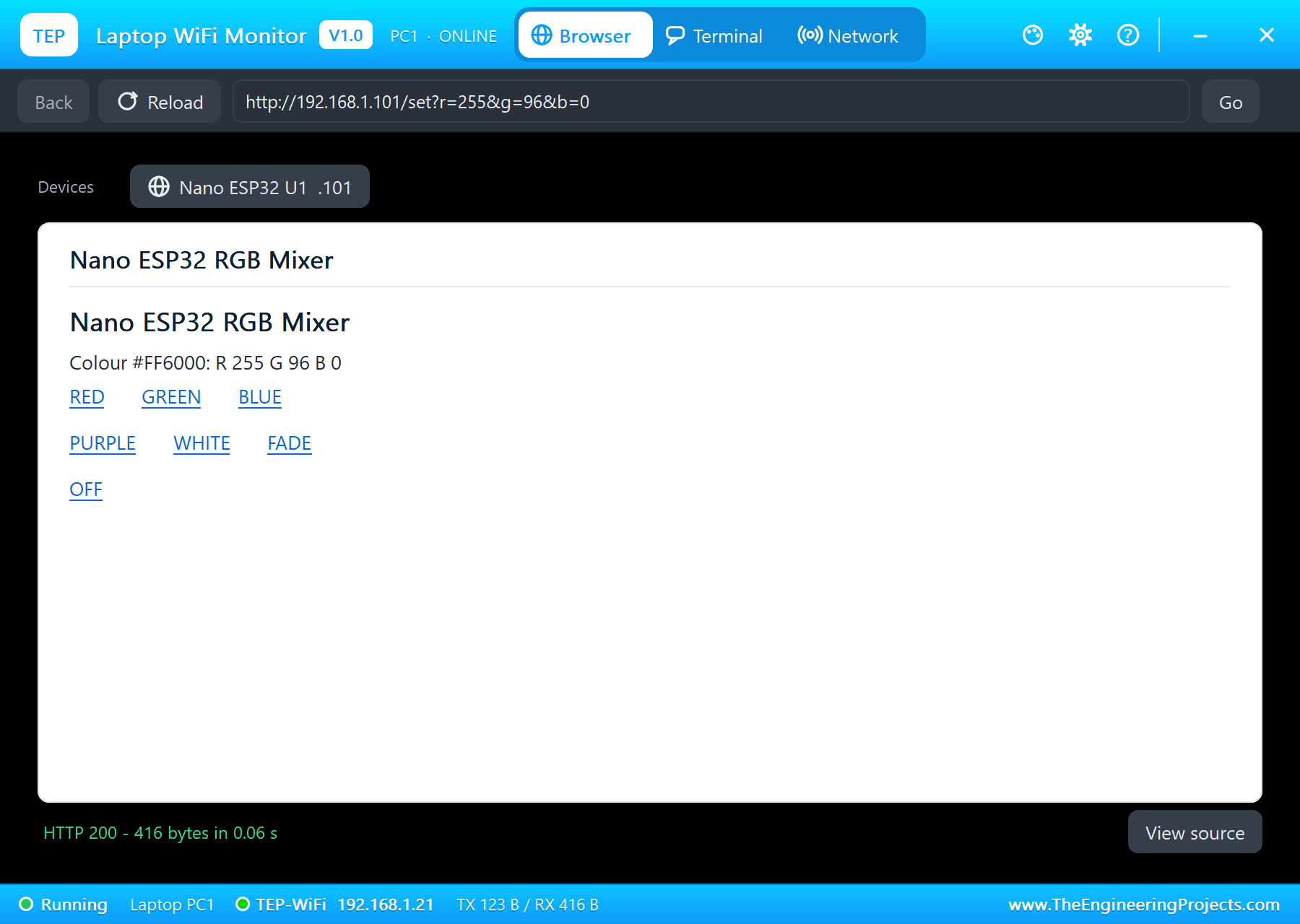
/set?r=255&g=96&b=0 sets any colour: the WebServer hands the three arguments to setColour() and sends the page back:
void handleSet() {                     // /set?r=255&g=96&b=0
  setColour(server.arg("r").toInt(), server.arg("g").toInt(), server.arg("b").toInt(), "page");
  sendPage();
}
The page shows the colour as a hex code too, the way web colours are written:
  char swatch[8];
  snprintf(swatch, sizeof swatch, "#%02X%02X%02X", red, green, blue);
  String html = F("<html><head><title>Nano ESP32 RGB Mixer</title></head><body><h1>Nano ESP32 RGB Mixer</h1><p>Colour <b>");
In the laptop, open the Browser and press Go - its home page asks for orange:
Colour Buttons on the Phone
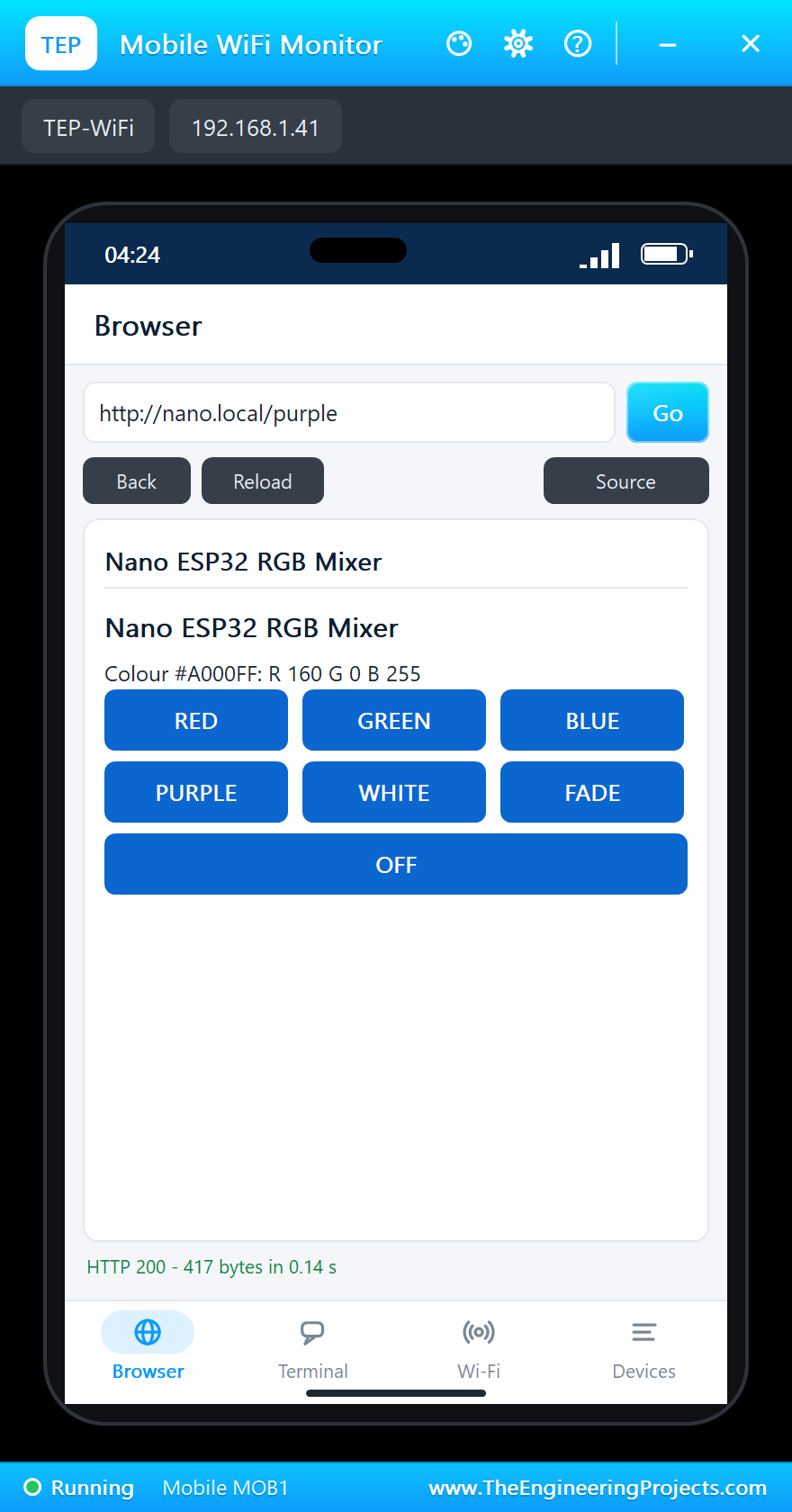
Every other address is a colour name - /red, /purple, /off - or the fade. The WebServer's onNotFound handler catches them all, and a name it does not know gets a 404:
void handleOther() {                   // /red, /green ... /fade, or an unknown page
  const String name = server.uri().substring(1);
  if (name == "fade") startFade("page");
  else if (!namedColour(name, "page")) {
    server.send(404, "text/plain", "Not found - try /red, /set?r=255&g=96&b=0 or /fade");
    return;
  }
  sendPage();
}
The names themselves are one small function, used by the page and the monitor alike:
bool namedColour(String name, const char *by) {
  name.toLowerCase();
  if (name == "red") setColour(255, 0, 0, by);
  else if (name == "green") setColour(0, 255, 0, by);
  else if (name == "blue") setColour(0, 0, 255, by);
  else if (name == "purple") setColour(160, 0, 255, by);
  else if (name == "white") setColour(255, 255, 255, by);
  else if (name == "off") setColour(0, 0, 0, by);
  else return false;
  return true;
}
In the phone, open the Browser and press Go - http://nano.local/, which the board's mDNS answers:
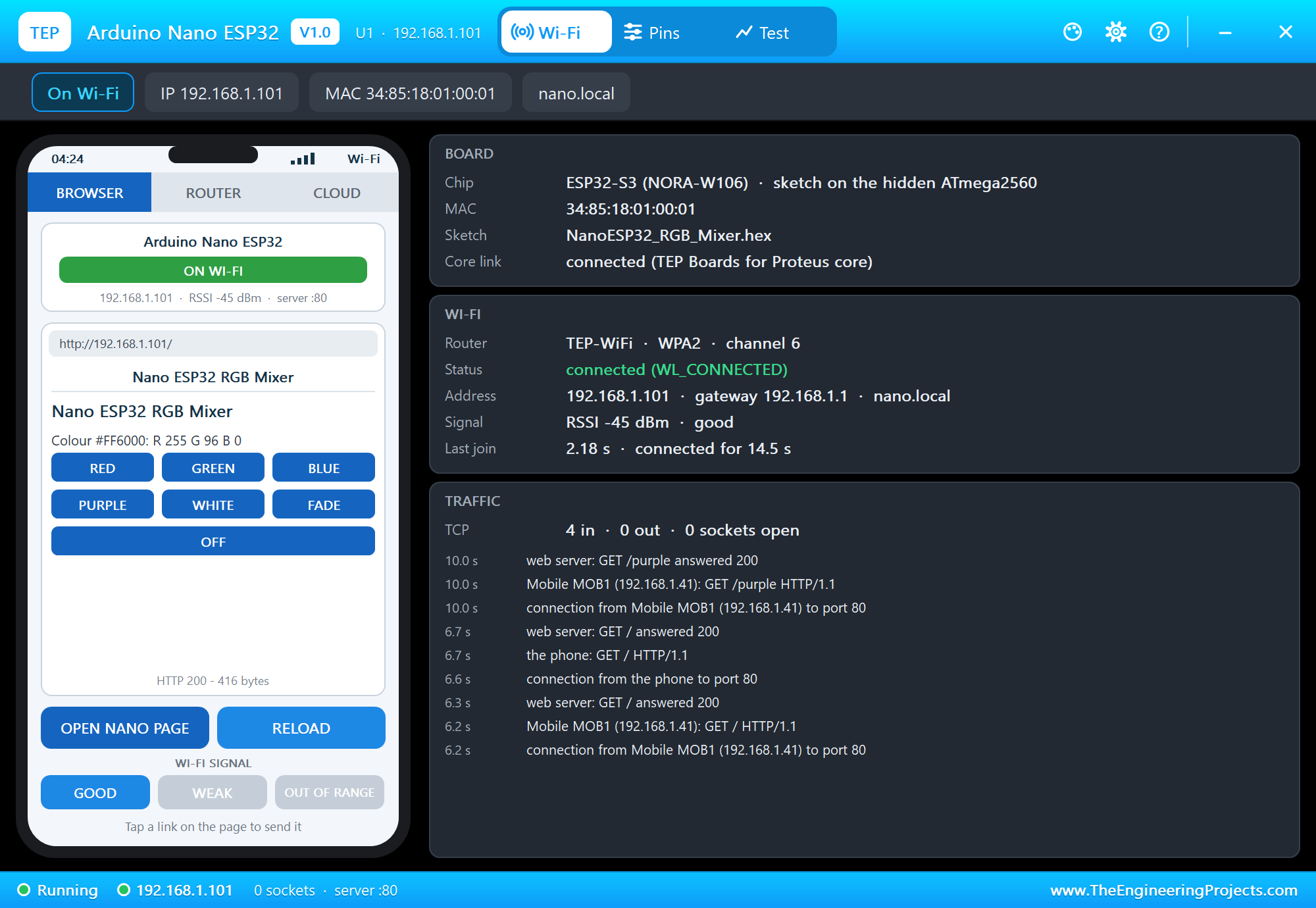
We tapped PURPLE:
The Monitor and the Rainbow Fade
In the serial monitor, RGB r g b sets any colour - sscanf reads the three numbers - and FADE starts the rainbow:
void command(String cmd) {
  cmd.trim();
  if (cmd.startsWith("RGB") || cmd.startsWith("rgb")) {
    int r = 0, g = 0, b = 0;
    sscanf(cmd.c_str() + 3, "%d %d %d", &r, &g, &b);
    setColour(r, g, b, "monitor");
  } else if (cmd.equalsIgnoreCase("FADE")) startFade("monitor");
  else if (cmd.equalsIgnoreCase("STATUS")) Serial.println(status());
  else if (!namedColour(cmd, "monitor")) Serial.println("Commands: RGB <r> <g> <b>, RED, GREEN, BLUE, PURPLE, WHITE, OFF, FADE, STATUS, HELP");
}
The rainbow walks around the colour wheel in six parts - red to yellow, yellow to green, and so on - one small step every 40 ms. It runs from loop() with millis(), so the web server keeps answering while the colour moves:
void fadeStep() {
  if (!fading || (long)(millis() - nextStep) < 0) return;
  nextStep = millis() + 40;
  hue = (hue + 4) % 1536;
  const int part = hue / 256, x = hue % 256;
  switch (part) {
    case 0: red = 255; green = x; blue = 0; break;
    case 1: red = 255 - x; green = 255; blue = 0; break;
    case 2: red = 0; green = 255; blue = x; break;
    case 3: red = 0; green = 255 - x; blue = 255; break;
    case 4: red = x; green = 0; blue = 255; break;
    default: red = 255; green = 0; blue = 255 - x; break;
  }
  showColour();
}
void loop() {
server.handleClient();
readMonitor();
fadeStep();
}We typed RGB 0 255 255, then FADE, STATUS and HELP:
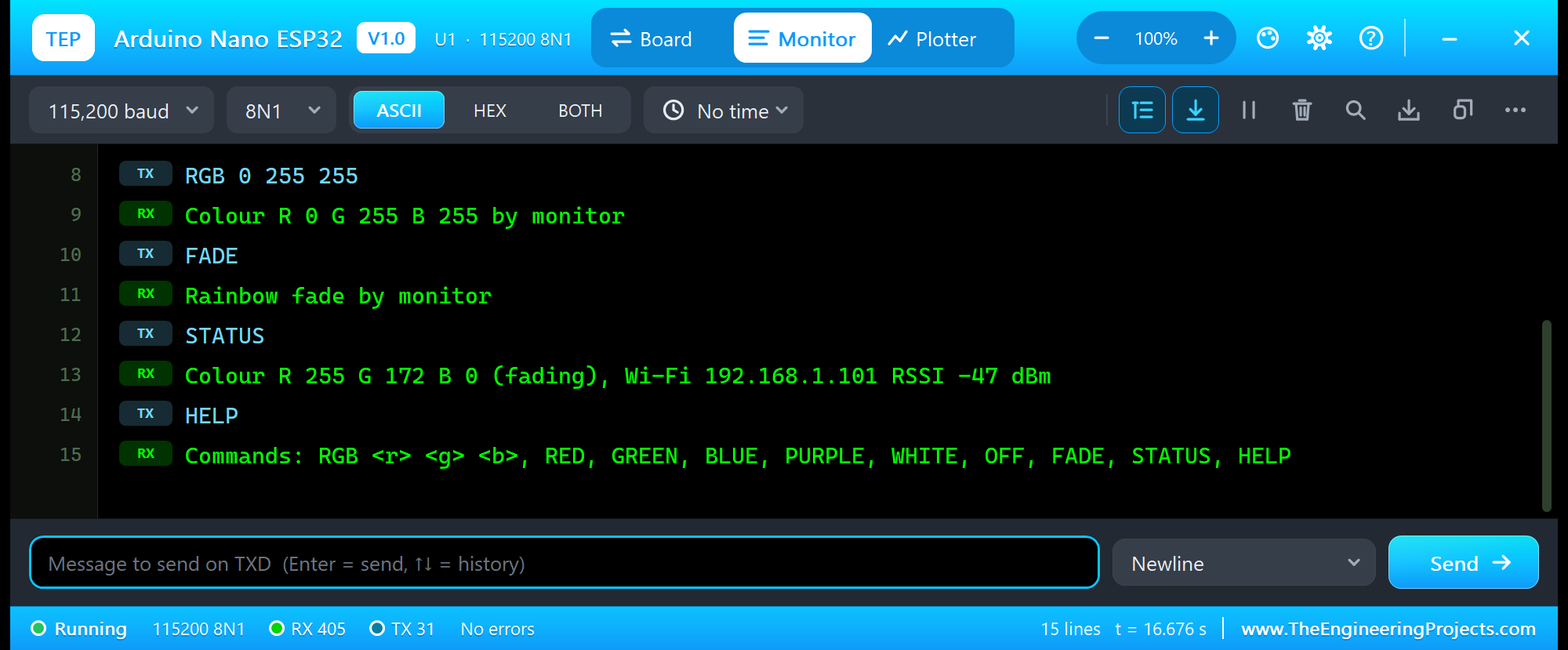
RGB 0 255 255
Colour R 0 G 255 B 255 by monitor
FADE
Rainbow fade by monitor
STATUS
Colour R 255 G 172 B 0 (fading), Wi-Fi 192.168.1.101 RSSI -47 dBm
HELP
Commands: RGB <r> <g> <b>, RED, GREEN, BLUE, PURPLE, WHITE, OFF, FADE, STATUS, HELP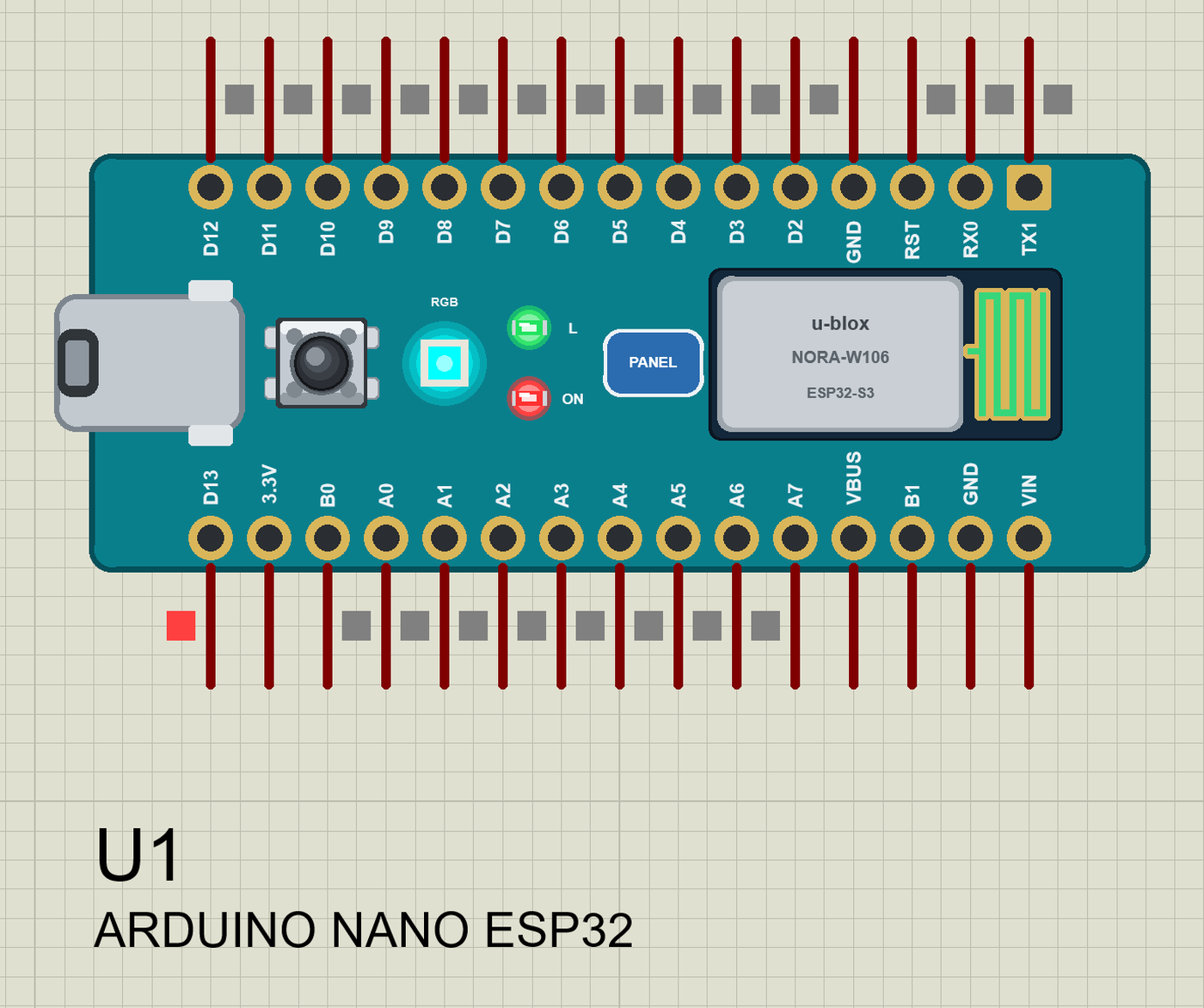
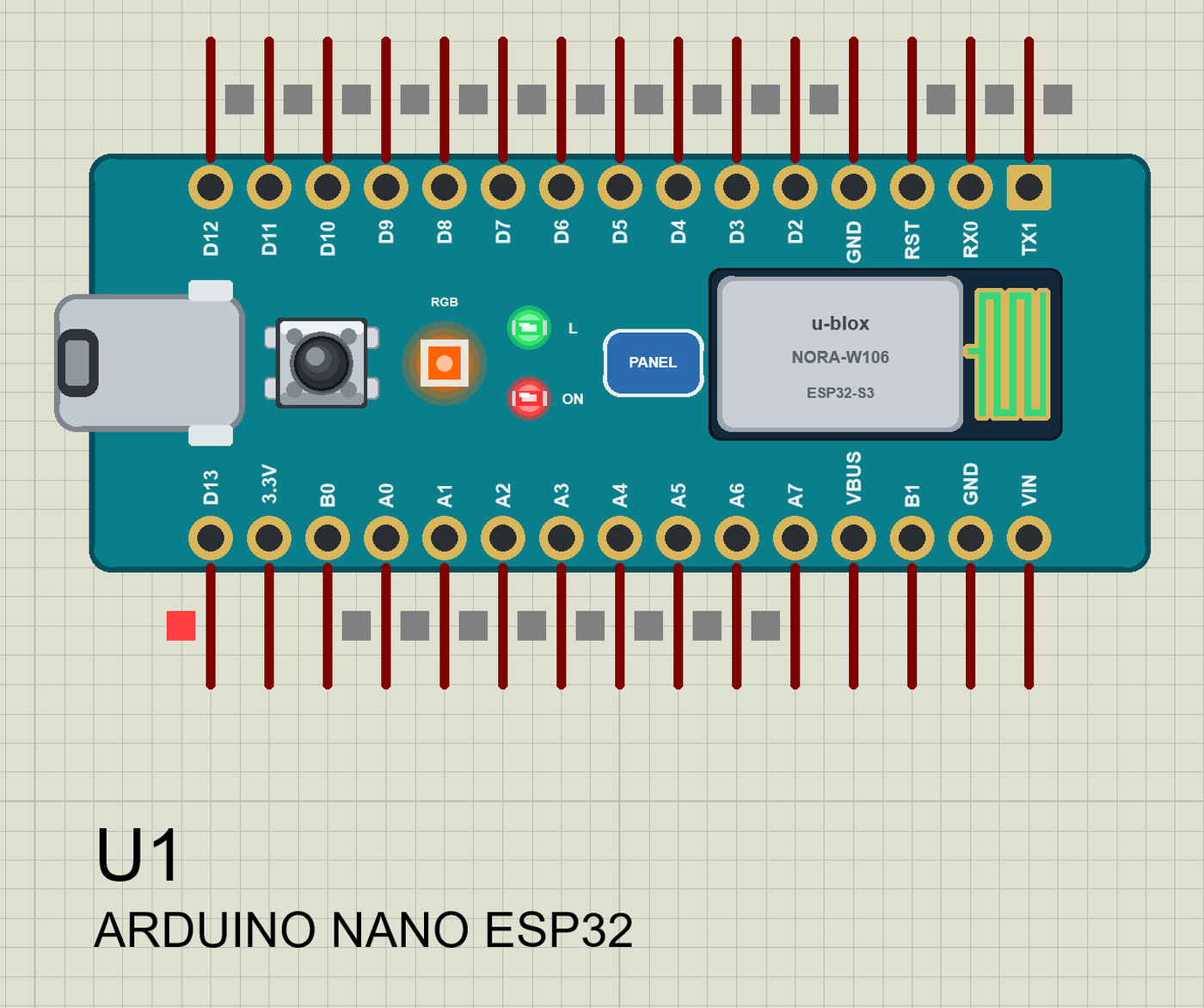
The status line is built with the String class, as the rest of the sketch:
String status() {
  return String("Colour R ") + red + " G " + green + " B " + blue + (fading ? " (fading)" : "") + ", Wi-Fi " +
         WiFi.localIP().toString() + " RSSI " + WiFi.RSSI() + " dBm";
}
And the whole demo after the run:
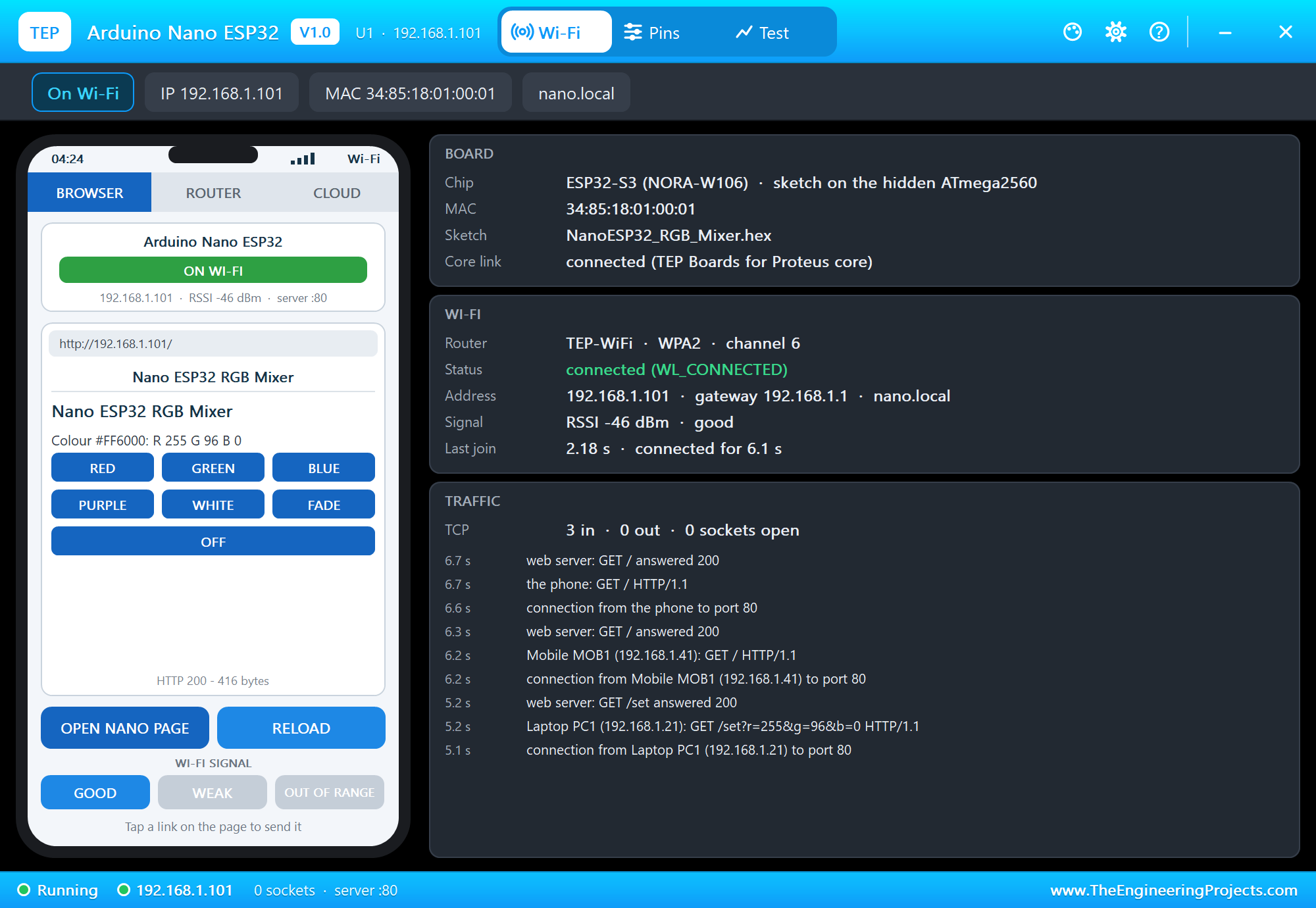
The Nano ESP32 Panel
The panel opens at Run, in the look of our TEP Serial Monitor Advance for Proteus. Its Wi-Fi page has a small phone and three cards: BOARD, WI-FI and TRAFFIC. OPEN NANO PAGE opens the sketch's page on the panel's phone:
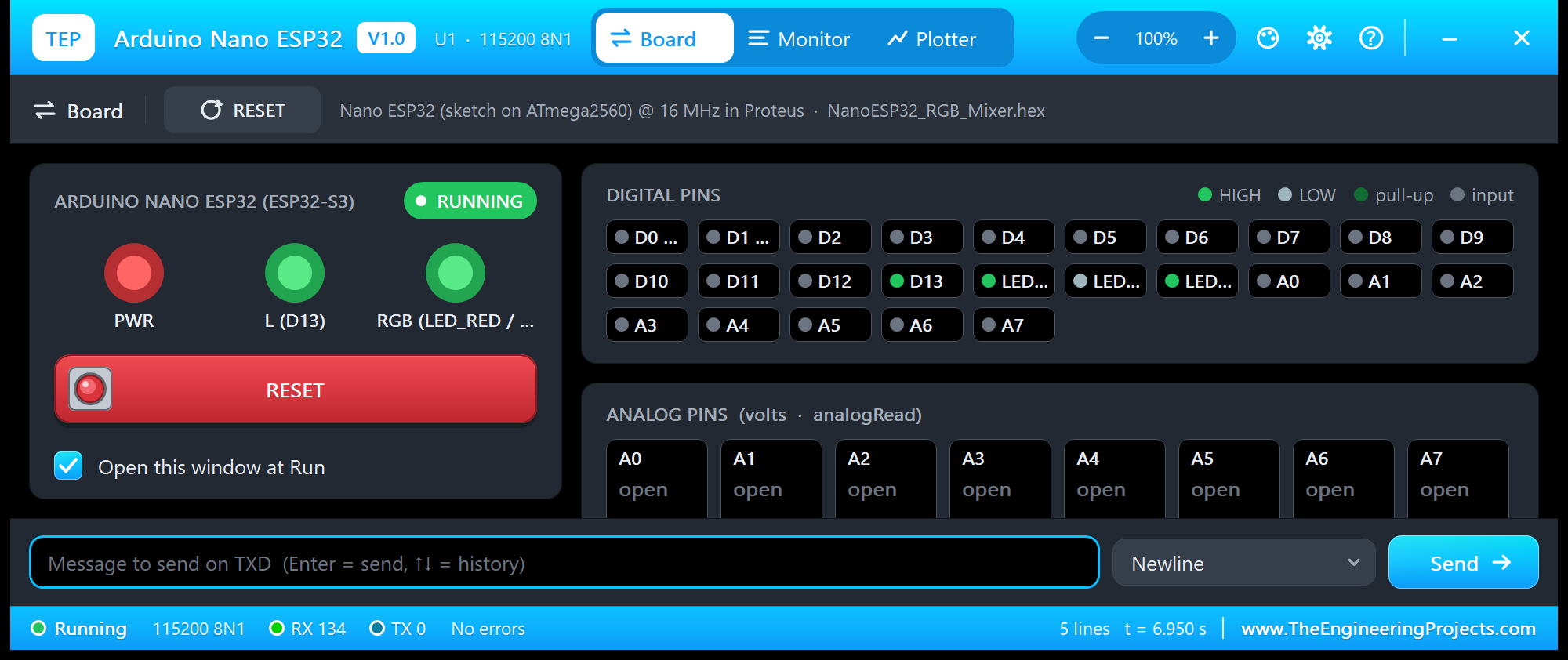
The Pins page shows every pin live - the three RGB pins with their PWM duties among them:
The monitor's Board tab shows the ON, L and RGB LEDs, the RESET button you can click there too, and every pin:
Pins of the Arduino Nano ESP32
| Pin | Number | What it does in the simulation |
|---|---|---|
| RX0, TX1 | 0, 1 | Serial0 (as on the Nano ESP32), GPIO, interrupt |
| D2 to D13 | 2 to 13 | GPIO, PWM, interrupt; D13 drives the L LED |
| D10 to D13 | 10 to 13 | also SPI SS, MOSI, MISO, SCK |
| A0 to A7 | 17 to 24 | analogRead 0 to 4095 for 0 to 3.3 V; also GPIO; A4 / A5 = Wire |
| LED_RED, LED_GREEN, LED_BLUE | 14, 15, 16 | the RGB LED (not on the header), lit when LOW |
| 3.3V, VBUS | 3.3 V logic supply, 5 V from USB | |
| GND, RST | ground; reset (LOW holds the board in reset, as the RESET button) | |
| B0, B1, VIN | drawn, not modelled |
Serial is the USB - the board's monitor - not RX0 / TX1, as on the real Nano ESP32. All pins are 3.3 V logic.
Properties of the Arduino Nano ESP32
| Property | What it does |
|---|---|
| PROGRAM | the sketch's HEX (Export Compiled Binary with the board Arduino Nano ESP32 (TEP Proteus)) |
| WIFISSID / WIFIPASS | the router in range (TEP-WiFi / 12345678) |
| MONITOR | YES = the built-in serial monitor on the USB (Serial) |
| BAUD | the monitor's speed (115200, or AUTO) |
| AUTOOPEN | YES = the monitor opens at Run (the demos: YES) |
| TIME | the clock NTP gives the sketch: PC, or a start time in UTC |
The IP address follows the part's number: U1 gets 192.168.1.101, U2 .102 and so on. Use one Nano ESP32 per design: its USB serial and RGB lines are hidden pins, and Proteus joins hidden pins of the same name across parts.
Your Own Sketch on the Nano ESP32
The demo is only a start. Any sketch written for the real Nano ESP32 with the libraries of our board package runs the same way - a web page that reads a sensor, a status light for a project, a UDP logger. A first sketch of your own takes five minutes:
- In the Arduino IDE, choose Arduino Nano ESP32 (TEP Proteus) and start a new sketch.
- Use the Nano ESP32's names:
D2,A0,LED_BUILTIN,LED_RED. A potentiometer on A0 reads 0 to 4095, andanalogWriteon D5 dims an LED. - Use Sketch > Export Compiled Binary; the HEX file lands in the sketch's folder.
- In Proteus, place ARDUINO NANO ESP32, wire your parts to its pins (3.3 V logic), double-click it and set the Program File to the HEX.
- Press Run: the board joins TEP-WiFi, and the monitor shows what your sketch prints on
Serial.
Add our Laptop or Mobile WiFi Monitor to the same design and you have a browser, TCP and UDP terminals and ping on the same network, so a page or a socket of your sketch can be tested at once - no router, no phone and no board on your desk.
Troubleshooting
- Nothing happens at Run: the HEX was not built with our board package - choose Arduino Nano ESP32 (TEP Proteus) and export it again.
- "LED_RED was not declared": an older copy of the board package is installed - 1.10.0 adds the Nano ESP32.
- The RGB LED is white when it should be off: the pins are LOW-active - write HIGH, or analogWrite 255.
- A sketch from an ESP32 DevKit uses GPIO numbers: on this board the numbers are the Arduino ones - D2 is 2, A0 is 17.
- The board does not join: the network name or password differs from WIFISSID / WIFIPASS, or the panel's WI-FI SIGNAL is OUT OF RANGE.
- A number goes wrong above 32767: an int is 16 bits on the hidden AVR - use long.
Things to Know Before Using a Real Nano ESP32
- 3.3 V logic: unlike the classic Nano, the pins are 3.3 V. A 5 V sensor output needs a level shifter or a divider.
- Pin numbering: in the Arduino IDE, Tools > Pin Numbering chooses "By Arduino pin" (the default, as here) or "By GPIO number". Libraries written for the ESP32 often expect GPIO numbers.
- Uploading: the board uploads through its native USB (DFU). If an upload fails, double-press RESET to enter the bootloader, or bridge B1 to GND while plugging it in.
- The RGB LED: it is three plain LEDs, not an addressable WS2812 - for an addressable strip, see our WS2812B NeoPixel Library for Proteus.
- Our ESP32-S3 board: the same chip on a DevKit, programmed by GPIO number, is in our ESP32-S3 DevKitC-1 Library for Proteus.
- The same sketch: the demo compiles for the real board without a change.
Limitations of the Simulation
- The board runs your sketch on a hidden ATmega2560 at 16 MHz with 8 KB of RAM - not on the ESP32-S3. Long strings and big buffers that fit in the ESP32-S3's 512 KB may not fit here, and an int is 16 bits.
- Not modelled: PSRAM, Bluetooth, the USB keyboard and mouse, DFU upload and the B0 / B1 pads, deep sleep timing, the soft AP, real TLS, the radio itself - the join and network times are realistic values, not a radio simulation.
- The antenna colours, the PANEL pad, the panel, its phone, the router, the internet host and the two monitors are TEP additions; the MAC address is a TEP address.
- Arduino and Nano are trademarks of Arduino SA, ESP32-S3 a name of Espressif Systems, NORA-W106 of u-blox; this library is not made or endorsed by them or by Labcenter.
- Tested in Proteus 8.5 in October 2026 (the demos as shipped, the Nano ESP32, the laptop and the phone together at about 0.4 x real time on our PC). Proteus 7 is not supported.
So, that was all about the Arduino Nano ESP32 Library for Proteus. I hope it lets you try the Nano ESP32's Wi-Fi and its RGB LED before the real board is on your desk - colour mixers, status lights, web pages, sensors - with the same sketch that runs on the hardware. If you use the Arduino Nano ESP32 Library for Proteus in a project, please share it in the comments or in our forum, and if you have any questions, ask in the comments and I will help you out. Till the next tutorial, take care and have fun!