Hello friends, I hope you all are doing great. Today, I am going to share the Raspberry Pi 4 Model B Library for Proteus. The Raspberry Pi 4 Model B is the board that turned the Pi into a small desktop computer: the BCM2711 with four Cortex-A72 cores at 1.5 GHz, LPDDR4 memory, true Gigabit Ethernet, USB 3.0 and two micro-HDMI outputs. With this library the board runs your Python program against the circuit in Proteus 8.5, on our virtual network - over the Ethernet cable or over Wi-Fi.
Raspberry Pi 4 Model B Library for Proteus
Latest version: V1.0 (October 2026, this tutorial)
Other Raspberry Pi boards: Pico · Pico W · Pico 2 W · Pi Model B · Pi 1 B+ · Pi 2 Model B · Pi 3 Model B · Pi 3 Model B+ · Pi 3 Model A+ · Pi 5 · Pi Zero W · Pi Zero 2 W · Pi 400 · Pi 2 · Pi 3 · Pi 4 · Zero W
RFID / NFC readers: MFRC522 · PN532 NFC · EM18
Modules: Micro SD · MAX485 RS485 · MCP2515 CAN · DS3231 RTC · DFPlayer Mini
Helping Tools
- Laptop WiFi Monitor: a laptop on the Wi-Fi of your design: a browser, a TCP / UDP terminal and ping
- Mobile WiFi Monitor: a smartphone that opens the pages of your board and sends it commands
- LCD Library for Proteus V3.0: 16x2, 20x4 and I2C LCDs to show your readings
This is the seventh library of our Raspberry Pi series, and every library of the series connects the Pi to a different module and serves a web page. This time the Pi is an RFID attendance station: an RC522 reader (MFRC522) on SPI reads the cards, a DS3231 real-time clock on I2C stamps every scan, an LED greets a known card, and a page served by the Pi shows a laptop and a phone who is in, the last scans and the clock - and enrols new cards.
NOTICE: this library does not run Raspberry Pi OS. It runs your Python program, with the same Python libraries a Pi uses for its pins, its buses and its network, in step with the simulation. Your feedback is the fuel that keeps us going, so please tell us what you think in the comments below or in the Raspberry Pi 4 Model B board of our forum. And if our free libraries help you, you can buy us a coffee. So, let's get started with the Raspberry Pi 4 Model B Library for Proteus:
What is the Raspberry Pi 4 Model B?
The Raspberry Pi 4 Model B came out in June 2019, from 35 dollars for 1 GB of RAM to 55 dollars for 4 GB; an 8 GB board followed in 2020. It keeps the size of the B+ boards - 85 x 56 mm, the same four mounting holes and the same 40-pin header, so HATs still fit - but almost everything on it is new. The BCM2711 has four 64-bit Cortex-A72 cores at 1.5 GHz, about three times the speed of the Pi 3 B+, under a metal heat spreader, with the LPDDR4 memory beside it.
The right edge changed too: the Pi 4 swapped the RJ45 and the USB ports, so the jack now sits at the top, by the header. Its Gigabit Ethernet is real Gigabit - a Broadcom PHY on the SoC, no longer an Ethernet chip behind USB 2.0 - and the two blue USB 3.0 ports come from a VL805 controller on PCI Express, next to two black USB 2.0 ports. Power comes in through USB-C, video goes out through two micro-HDMI sockets for two 4K screens, and the shielded module has dual-band Wi-Fi and Bluetooth 5.0.
| Raspberry Pi 3 Model B+ (2018) | Raspberry Pi 4 Model B (2019) | |
|---|---|---|
| Processor | BCM2837B0, four Cortex-A53 cores at 1.4 GHz | BCM2711, four Cortex-A72 cores at 1.5 GHz |
| RAM | 1 GB LPDDR2 | 1, 2, 4 or 8 GB LPDDR4 |
| Ethernet | Gigabit over USB 2.0 (about 300 Mbit/s) | true Gigabit |
| USB | 4 x USB 2.0 | 2 x USB 3.0 and 2 x USB 2.0 |
| Video | one HDMI | two micro-HDMI, up to 4K |
| Power | micro-USB, 5 V 2.5 A | USB-C, 5 V 3 A |
| Wi-Fi and Bluetooth | 802.11ac (2.4 and 5 GHz), Bluetooth 4.2 | 802.11ac (2.4 and 5 GHz), Bluetooth 5.0 |
| Board | 85 x 56 mm, 40-pin header | the same |
In Proteus, our Raspberry Pi Model B Library for Proteus covers how the board runs a Python program: the program and Proteus work in lockstep, every sleep, pin wait and bus transfer moves the simulation clock, and the Python libraries for the pins answer as on a Pi. Our Raspberry Pi 1 Model B+ Library for Proteus added the 40-pin header and a touch TFT, the Raspberry Pi 2 Model B Library for Proteus four I2C parts and an OLED, the Raspberry Pi 3 Model B Library for Proteus Wi-Fi and a web page, the Raspberry Pi 3 Model B+ Library for Proteus a keypad, an I2C LCD and a servo, and the Raspberry Pi 3 Model A+ Library for Proteus an LED matrix and a stepper. The Pi 4 runs on the Ethernet cable and brings an RFID reader and a real-time clock.
Features of the Raspberry Pi 4 Model B Library for Proteus
- The board as it looks: the Pi 4 at its real size with the 40-pin header, the Wi-Fi module's shield can, the silver BCM2711 and its LPDDR4, the RJ45 at the top of the right edge with the blue USB 3.0 and black USB 2.0 pairs below it, the PoE header, the USB-C socket, the two micro-HDMI sockets, the camera and display connectors, the A/V jack and the microSD card.
- Ethernet and Wi-Fi: eth0 with the cable in (the default, a click on the RJ45 unplugs it), wlan0 on the network in WIFISSID and WIFIPASS when it is out; the Pi gets 192.168.1.51 and sockets and http.server work on either.
- Your Python program: any .py file in the PROGRAM property; Python 3.11 and its standard library are included.
- SPI with spidev and I2C with smbus2: SPI0 on GPIO10, GPIO11 and GPIO9 with CE0 and CE1, I2C bus 1 on GPIO2 and GPIO3 with the Pi's pull-ups - the buses of this demo's reader and clock.
- RPi.GPIO and gpiozero: outputs, inputs, pull-ups and pull-downs, edges with callbacks, software PWM, and gpiozero's devices.
- The UART, 1-Wire and the DHT sensors: pyserial and the kernel's files, as on the earlier boards.
- Threads: a web server and a reader loop run side by side, every wait in simulation time.
- The Pi Terminal: the output, the errors, a line for input(), and a Board tab with the GPIOs, the LEDs and the supply pins - with our TEP header, no Windows title bar.
- A complete package: about 13.5 MB with the board, Python, the runtime, the RFID, RTC and monitor libraries and the demo, without the source code of the models.
The Raspberry Pi 4 Model B in Proteus
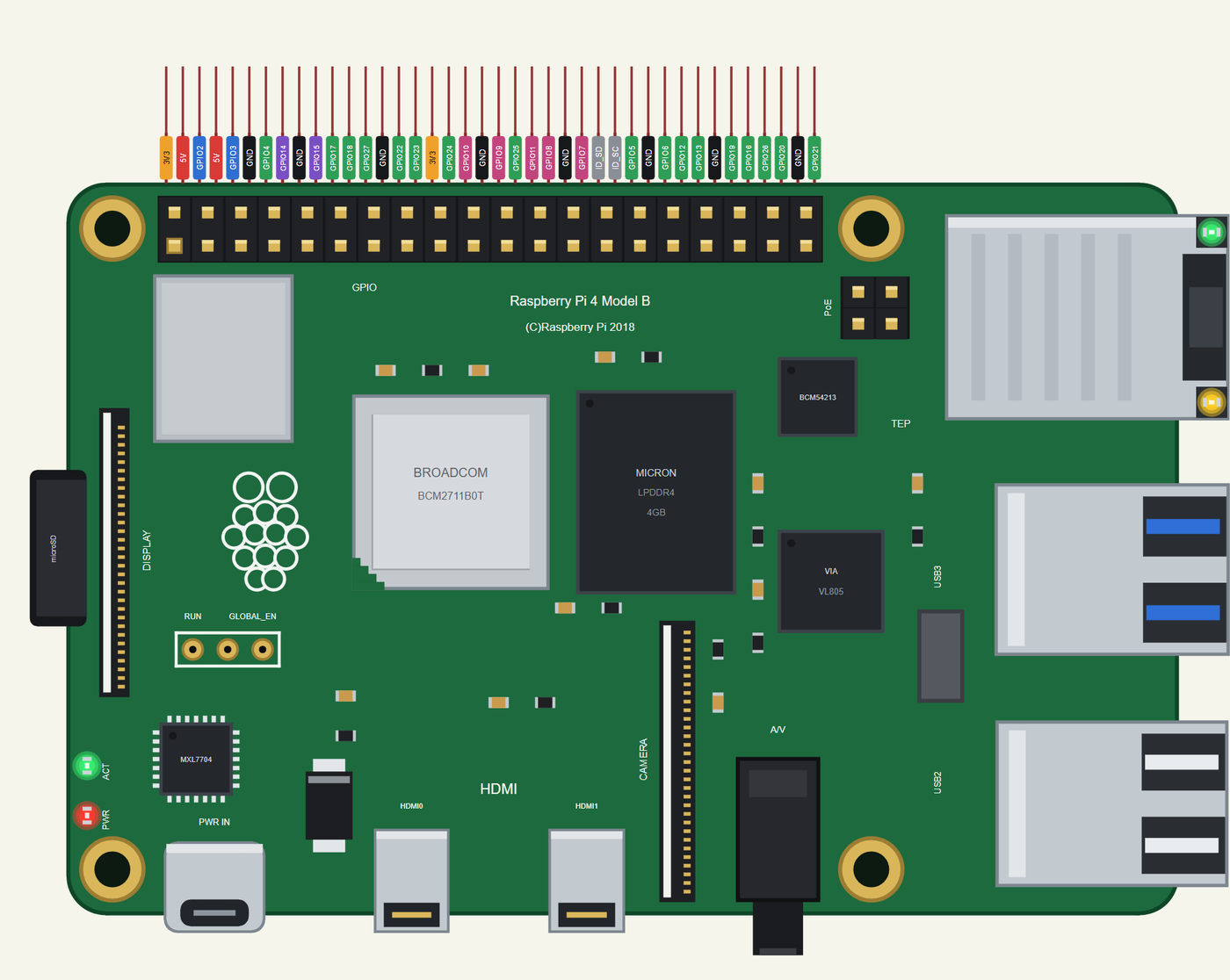
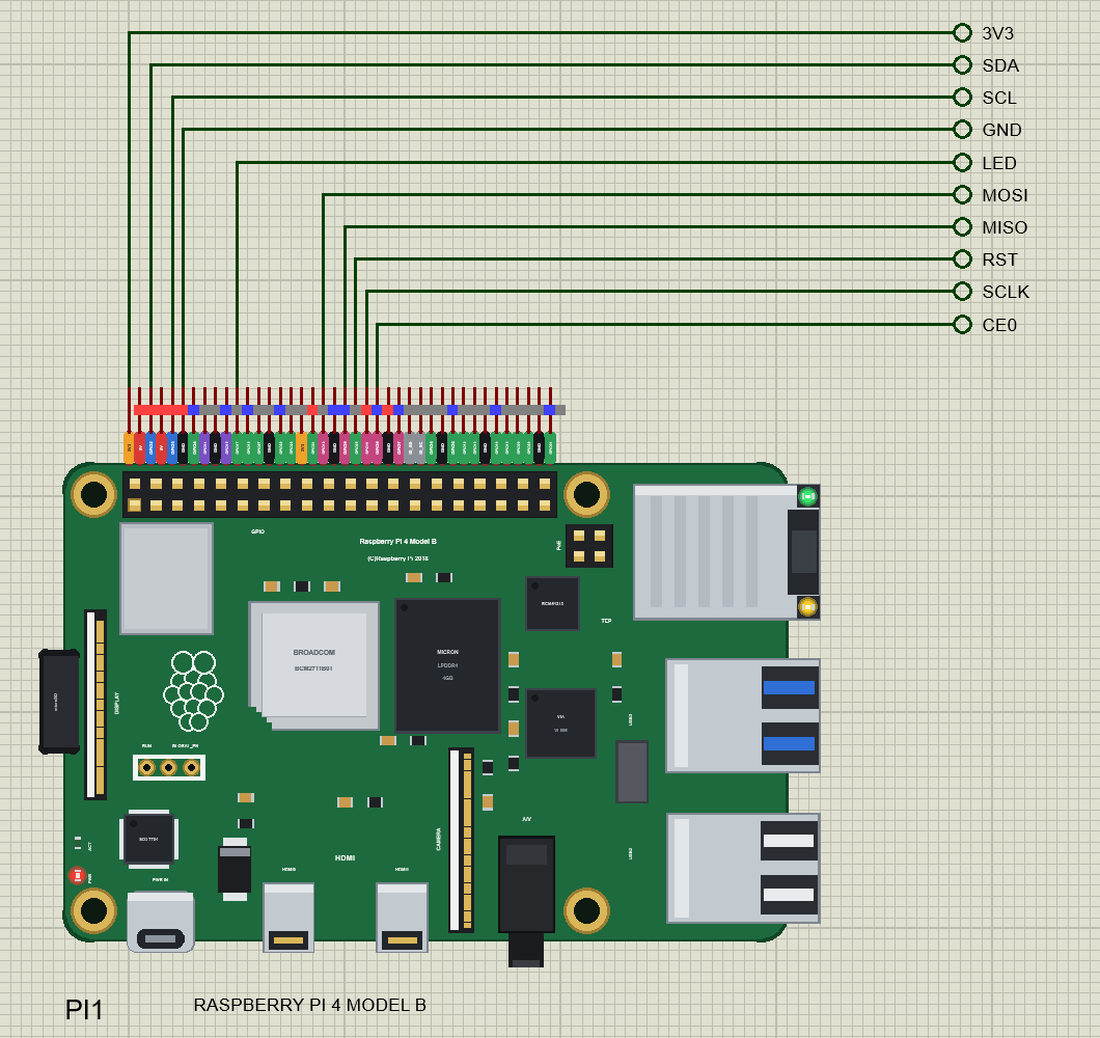
Search RASPBERRY in Pick Devices; the device RASPBERRY PI 4 MODEL B is in TEPRPI4B.LIB (Microprocessor ICs, Raspberry Pi), with the prefix PI. The 40 pins leave the top edge as one comb, each pin above its column of the header, with a tag in the colour of its kind: 5V red, 3V3 orange, GND black, GPIO green, I2C blue, SPI pink, UART purple and the ID pins grey. Click a micro-HDMI socket or the processor to open the Pi Terminal, and the RJ45 to plug or unplug the Ethernet cable.
Ethernet and Wi-Fi
The ETHERNET property says whether the cable is in at Run - IN by default. At Run the board boots for half a second and eth0 comes up on our router at 192.168.1.51, with the name raspberrypi.local; the RJ45's LNK and 100 LEDs light. With the cable out, wlan0 joins the network named in WIFISSID with the password in WIFIPASS - by default our router TEP-WiFi with 12345678 - 2.3 to 3.5 s after Run. Either way the Pi is on the same network as our ESP32 boards, our other network parts and the Laptop WiFi Monitor and the Mobile WiFi Monitor, so a wired Pi and a phone on Wi-Fi talk to each other through the router, as at home.
The 40-Pin Header
| Pins | Name | Pins | Name |
|---|---|---|---|
| 1 | 3V3 | 2 | 5V |
| 3 | GPIO2 (SDA) | 4 | 5V |
| 5 | GPIO3 (SCL) | 6 | GND |
| 7 | GPIO4 | 8 | GPIO14 (TXD) |
| 9 | GND | 10 | GPIO15 (RXD) |
| 11 | GPIO17 | 12 | GPIO18 |
| 13 | GPIO27 | 14 | GND |
| 15 | GPIO22 | 16 | GPIO23 |
| 17 | 3V3 | 18 | GPIO24 |
| 19 | GPIO10 (MOSI) | 20 | GND |
| 21 | GPIO9 (MISO) | 22 | GPIO25 |
| 23 | GPIO11 (SCLK) | 24 | GPIO8 (CE0) |
| 25 | GND | 26 | GPIO7 (CE1) |
| 27 | ID_SD | 28 | ID_SC |
| 29 | GPIO5 | 30 | GND |
| 31 | GPIO6 | 32 | GPIO12 |
| 33 | GPIO13 | 34 | GND |
| 35 | GPIO19 | 36 | GPIO16 |
| 37 | GPIO26 | 38 | GPIO20 |
| 39 | GND | 40 | GPIO21 |
The GPIOs work at 3.3 V; GPIO2 and GPIO3 have the Pi's 1.8 k pull-ups. The 5V and 3V3 pins power the modules wired to them. ID_SD and ID_SC are kept for a HAT's ID EEPROM, so leave them free, as on a real Pi. The PoE header and the RUN and GLOBAL_EN pads are drawn, not pins of the part.
Download Raspberry Pi 4 Model B Library for Proteus
Click the button below to download Raspberry-Pi-4-Model-B-Library-for-Proteus-v1.0.zip (about 13.5 MB with Python included, without the source code of the models):
Raspberry Pi 4 Model B Library for Proteus V1.0- README.txt: the device, the network, installation, the demo, the header, the properties, troubleshooting and the limits.
- Proteus Library Files:
TEPRPI4B.LIB(the Raspberry Pi 4 Model B) and the demo's parts:TEPMFRC522.LIB(the RC522 reader),TEPDS3231.LIB(the DS3231 clock),TEPLAPTOP.LIBandTEPMOBILE.LIB. - Proteus Model Files:
TEPNET.DLL(the Pi, the laptop, the phone and the network), the parts'TEPMFRC522.DLLandTEPDS3231.DLL, and the TEPPi folder - Python 3.11 and the TEP Pi runtime. - Python Code:
blink.pyandattendance.py. - Proteus Simulation: the demo project, its program and copies of the DLLs.
No Proteus yet? Read How to Download and Install Proteus 7 and 8. New to libraries? Follow How to Install a New Library in Proteus.
How to Install Raspberry Pi 4 Model B Library for Proteus
- Close Proteus and extract the whole zip file, for example to your Desktop.
- Copy the files from Proteus Library Files into the LIBRARY folder of Proteus (usually
C:\Program Files (x86)\Labcenter Electronics\Proteus 8 Professional\LIBRARY). - Copy everything from Proteus Model Files - the DLLs and the TEPPi folder - into the MODELS folder, replacing an older TEPNET.DLL and TEPPi folder (these are the newest; they also run our Model B, Model B+, Pi 2, Pi 3, Pi 3 B+ and Pi 3 A+).
- Delete
TEPRPI4B.IDXfrom the LIBRARY folder if it is there. - Start Proteus, press P and search for RASPBERRY.
There is nothing else to install: Python comes in the TEPPi folder, so you need no Python on your PC.
Demo: an RFID Attendance Station with a Web Page
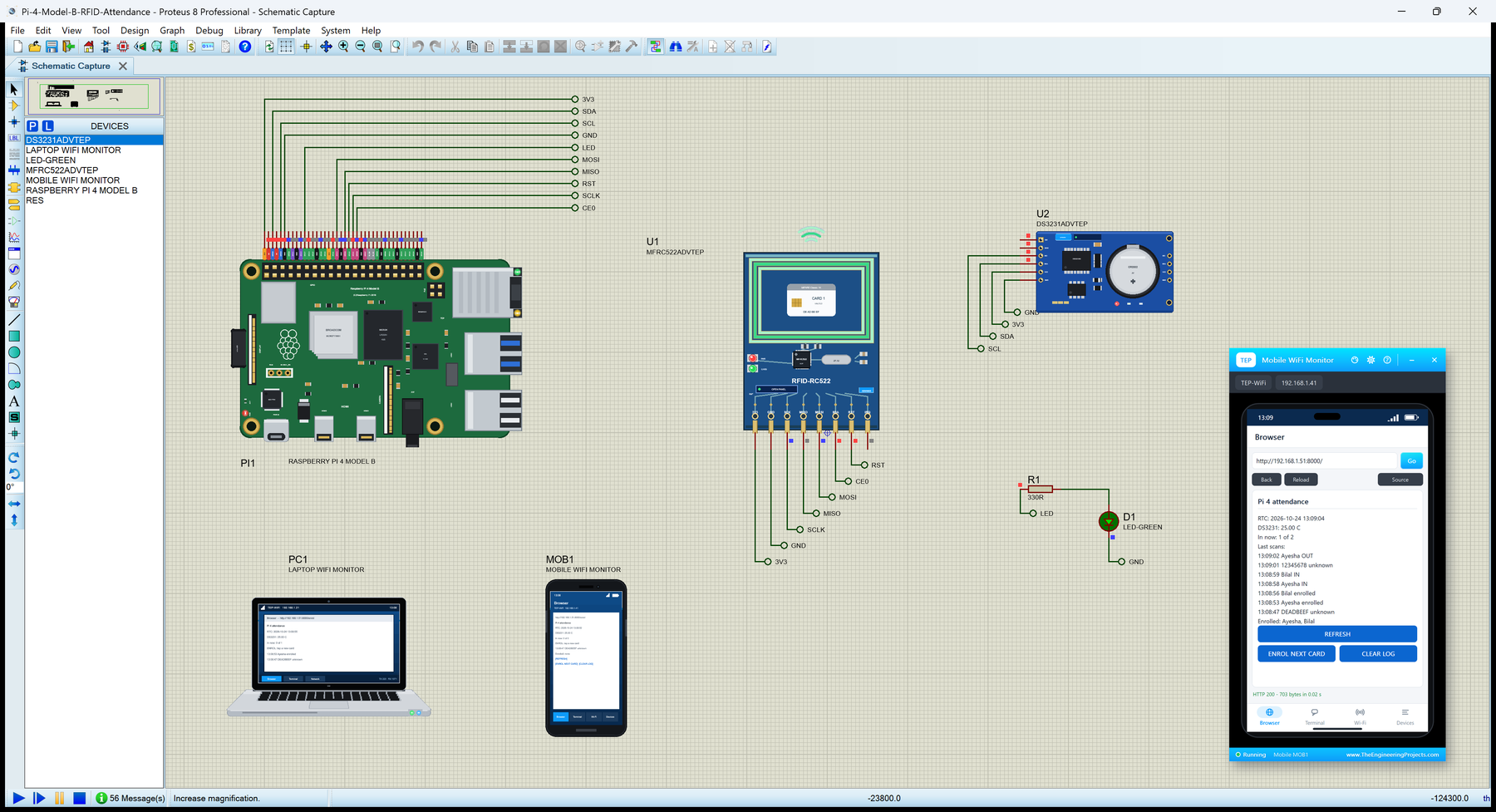
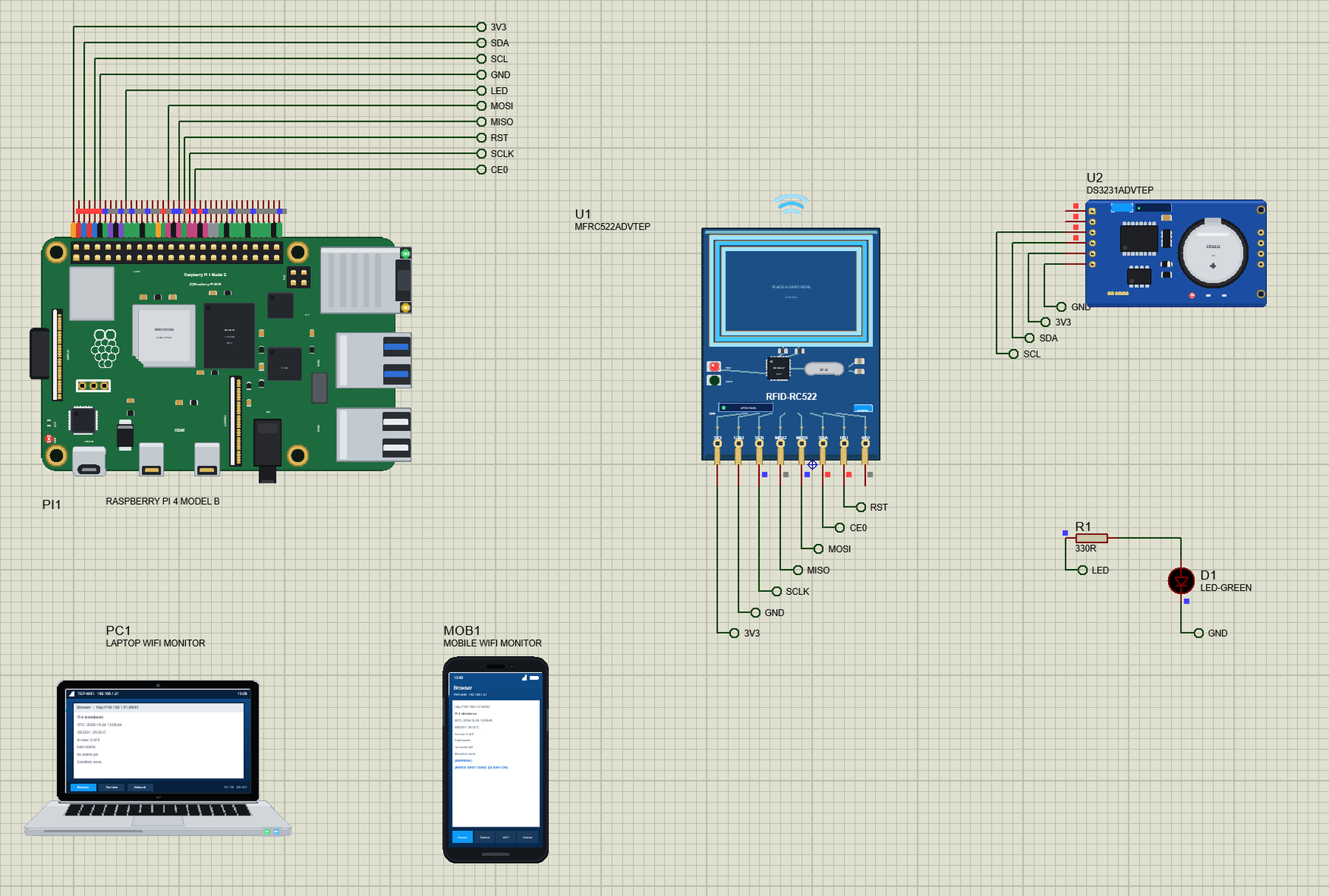
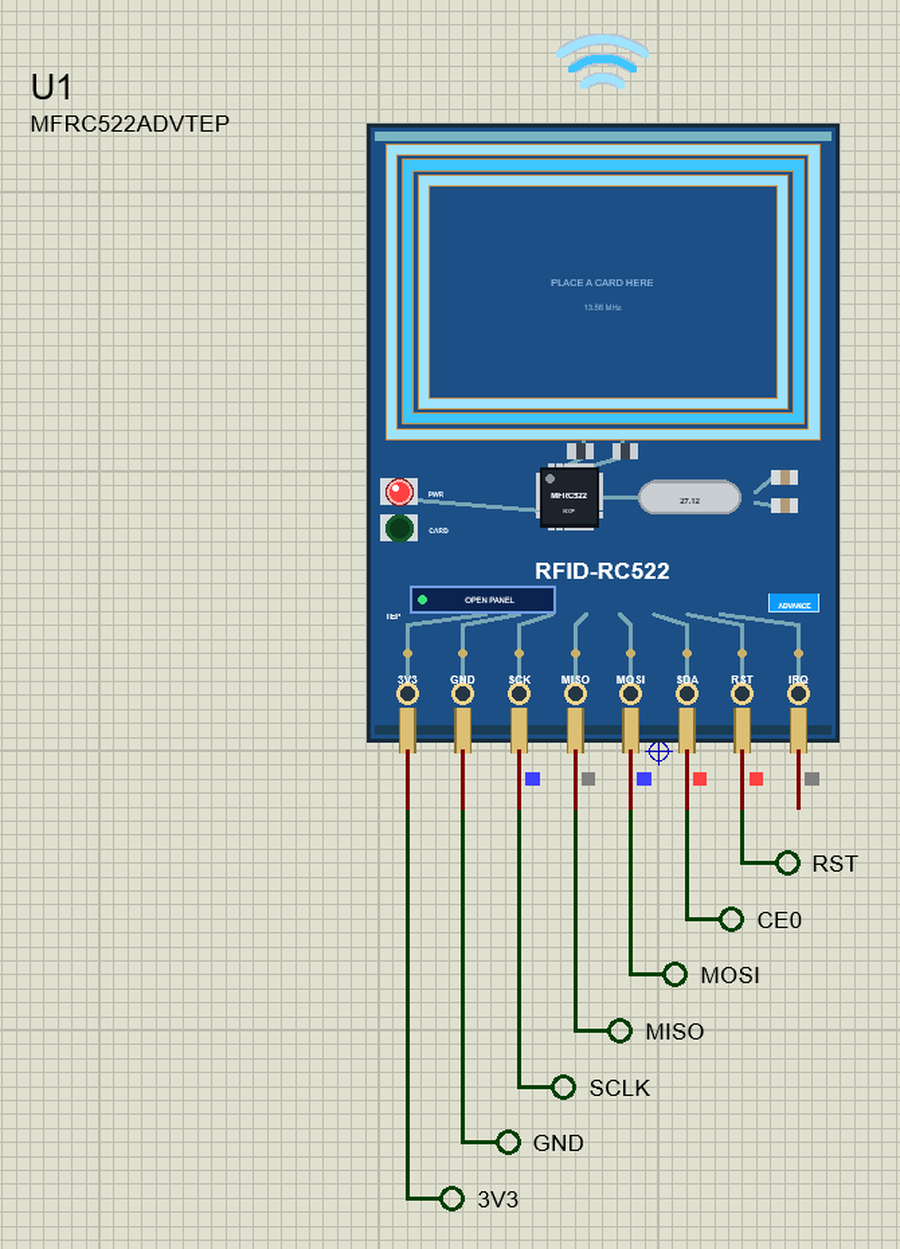
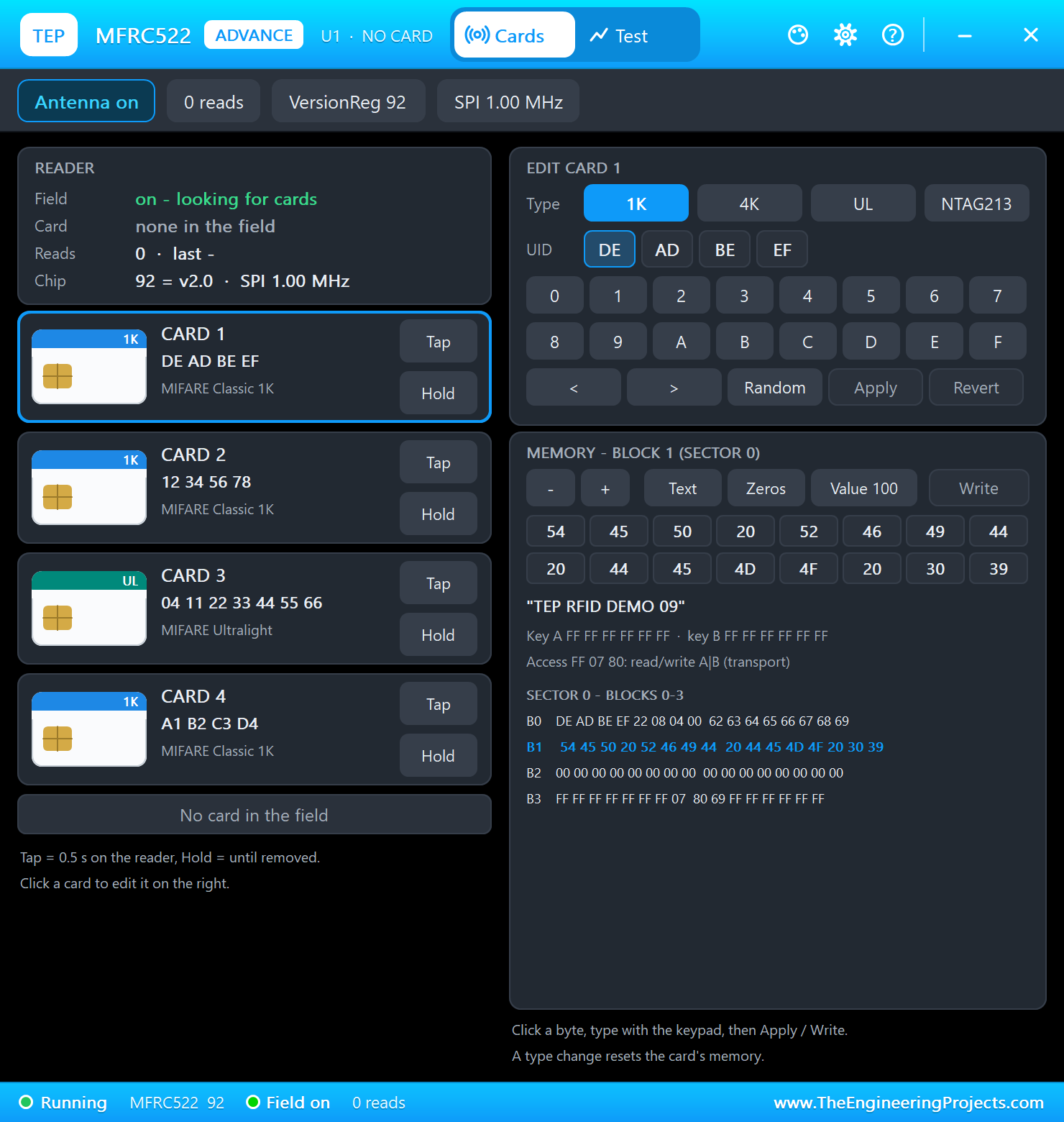
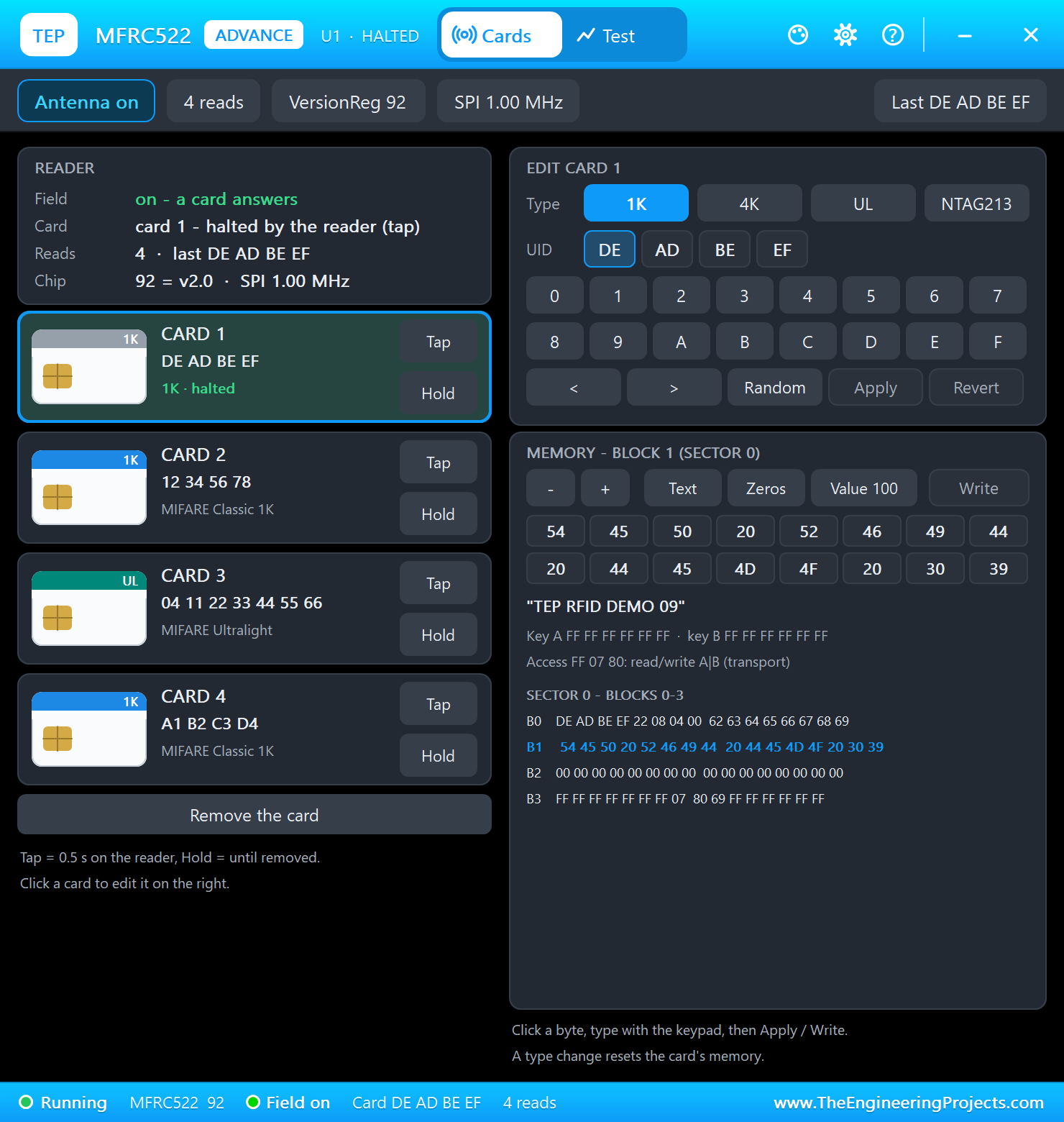
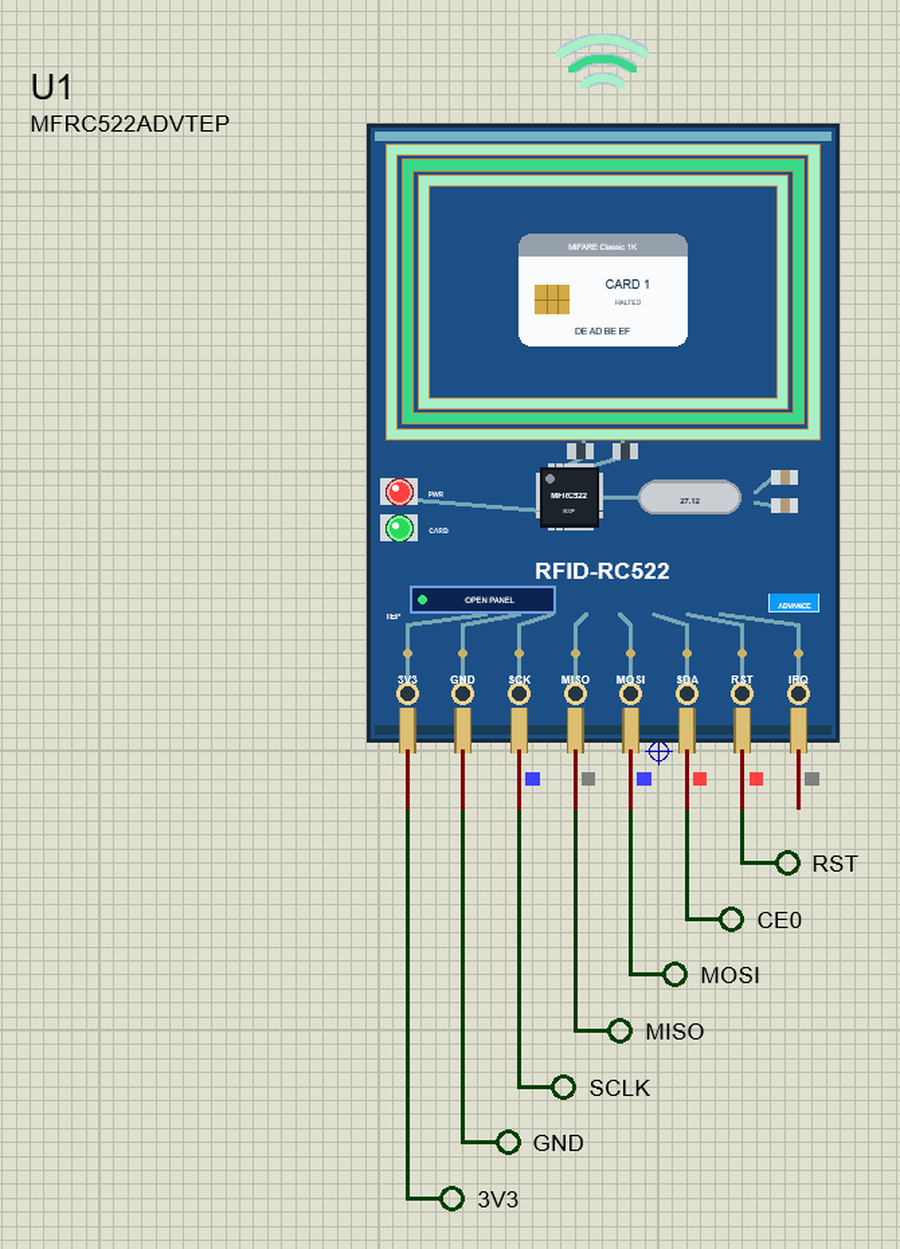
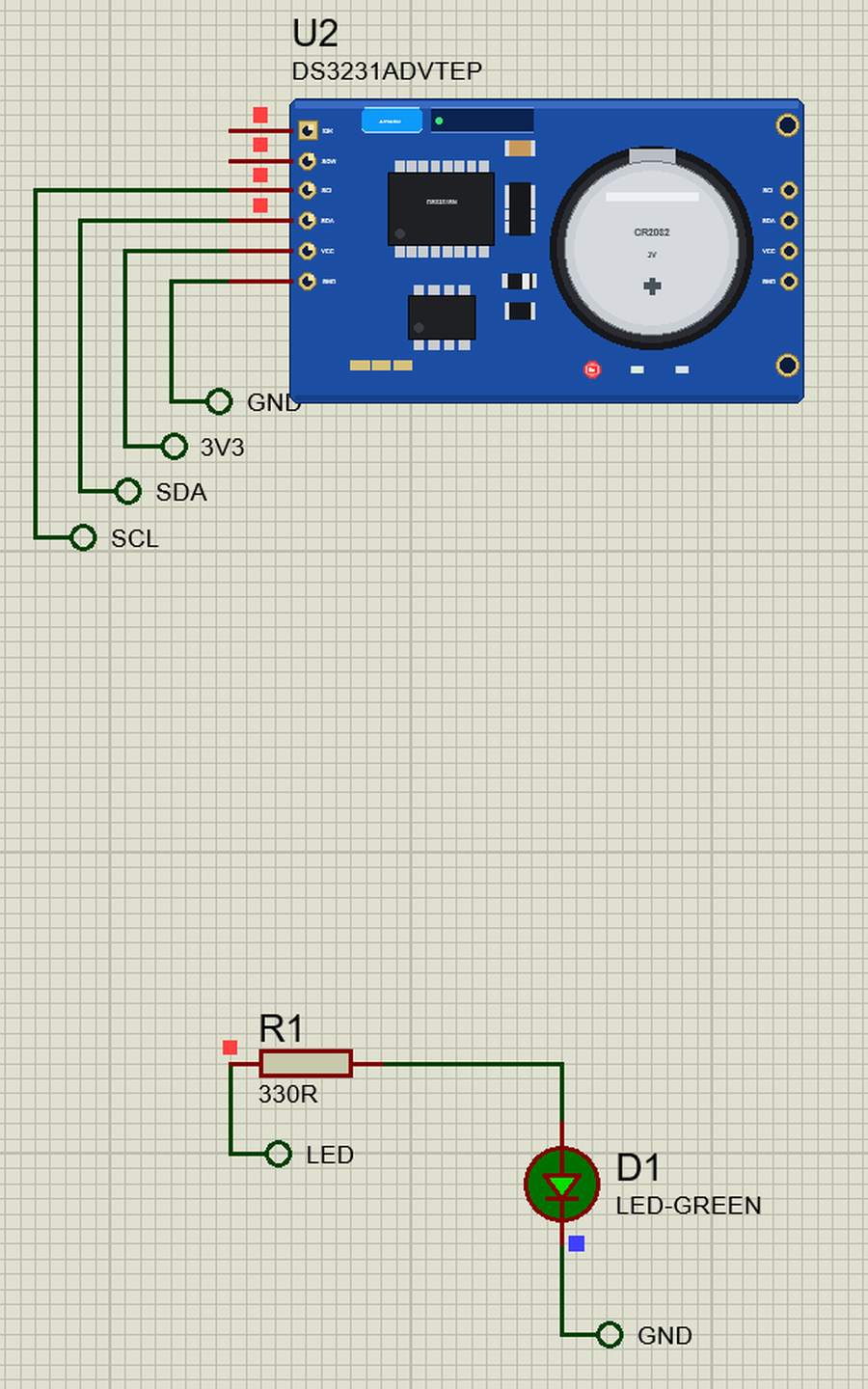
Open Pi-4-Model-B-RFID-Attendance.pdsprj. PI1 runs attendance.py on Ethernet. The parts come from our own libraries, each with its article: U1 from the MFRC522 RFID Library for Proteus and U2 from the DS3231 RTC Module Library for Proteus. Both are the Advance versions: each opens a pop-up window at Run that shows what the Pi does with it. D1 is a green LED on GPIO17 through R1, 330 ohm. PC1 is the Laptop WiFi Monitor and MOB1 the Mobile WiFi Monitor, both on the router the Pi is wired to.
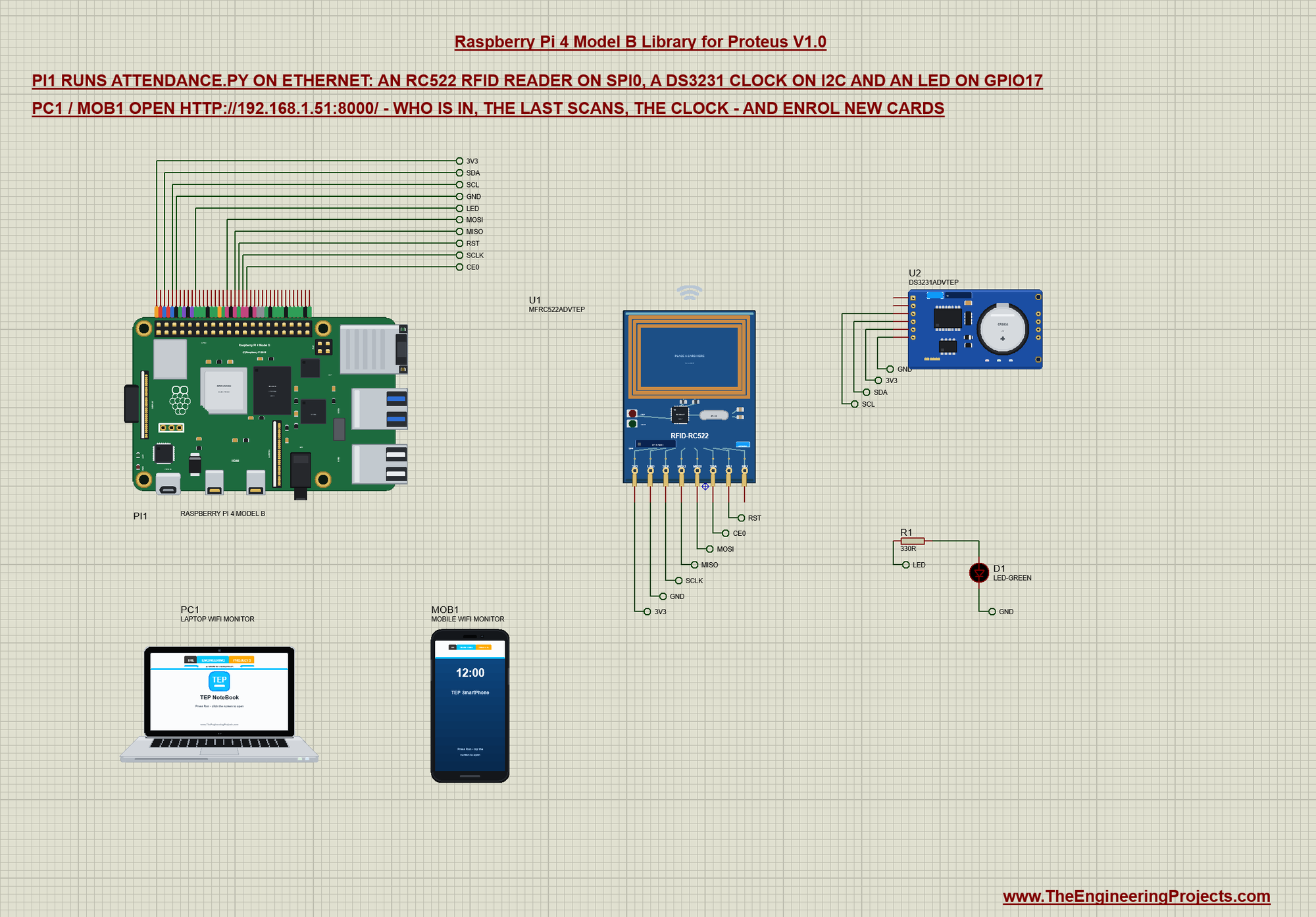
The RC522 is the blue 13.56 MHz reader board around NXP's MFRC522 chip: it reads MIFARE cards and key fobs within a few centimetres. The Pi talks to the chip's registers over SPI; the chip sends and receives the radio frames. The DS3231 is a real-time clock with its own temperature-compensated crystal and a coin cell, so it keeps the time while the Pi is off - a Pi has no clock of its own without the network. It is an I2C device at 0x68 and reports its own temperature too. Net labels connect everything:
| Part pin | Net label | Pi pin | What it does |
|---|---|---|---|
| RC522 3.3V, GND | 3V3, GND | 1, 6 | the reader's supply - 3.3 V only |
| RC522 SDA | CE0 | 24 (GPIO8) | the chip select (the board calls it SDA) |
| RC522 SCK | SCLK | 23 (GPIO11) | the SPI clock, 1 MHz |
| RC522 MOSI, MISO | MOSI, MISO | 19, 21 (GPIO10, GPIO9) | the data to and from the chip |
| RC522 RST | RST | 22 (GPIO25) | HIGH = running, LOW = power-down |
| DS3231 VCC, GND | 3V3, GND | 1, 6 | the clock's supply |
| DS3231 SDA, SCL | SDA, SCL | 3, 5 (GPIO2, GPIO3) | I2C bus 1, the address 0x68 |
| R1 and D1 | LED | 11 (GPIO17) | the LED through 330 ohm |
The RC522 on SPI
The program has its own small driver for the MFRC522 - about 70 lines of Python, no extra package. It holds RST HIGH, opens SPI0 with CE0 at 1 MHz in mode 0, resets the chip, sets its timer to give up after 25 ms without an answer, asks for 100 % ASK modulation and switches the antenna on:
        self.spi = spidev.SpiDev()
        self.spi.open(0, 0)                                     # SPI0, CE0
        self.spi.max_speed_hz = 1000000
        self.spi.mode = 0
        self.write(self.COMMAND, 0x0F)                          # SoftReset
        time.sleep(0.05)
        for reg, val in ((0x2A, 0x80), (0x2B, 0xA9), (0x2C, 0x03), (0x2D, 0xE8),   # timer: 25 ms without an answer
                         (0x15, 0x40), (0x11, 0x3D)):           # 100 % ASK, CRC preset 6363
            self.write(reg, val)
        self.write(0x14, self.read(0x14) | 0x03)                # the antenna on (TX1, TX2)
A register address goes out shifted left by one, with bit 7 set for a read. A write can carry several bytes - that is how a frame goes into the chip's 64-byte FIFO:
    def write(self, reg, *values):
        self.spi.xfer2([(reg << 1) & 0x7E] + list(values))

    def read(self, reg):
        return self.spi.xfer2([((reg << 1) & 0x7E) | 0x80, 0])[1]
Every exchange with a card is one Transceive command: stop whatever the chip does, clear its interrupt bits, empty the FIFO, write the frame, start the command and the sending. Then the program polls the interrupt register: an answer (RxIRq or IdleIRq) or the timer (no card). An error bit means a broken frame; otherwise the FIFO holds the card's answer, read in one SPI transfer:
    def transceive(self, data, last_bits=0):
        """Sends a frame, returns the card's answer (a list of bytes) or None: no card, a timeout or an error."""
        self.write(self.COMMAND, 0x00)                          # Idle
        self.write(self.COM_IRQ, 0x7F)                          # clear the interrupt bits
        self.write(self.FIFO_LEVEL, 0x80)                       # flush the FIFO
        self.write(self.FIFO, *data)
        self.write(self.COMMAND, 0x0C)                          # Transceive
        self.write(self.BIT_FRAMING, 0x80 | last_bits)          # StartSend
        for _ in range(40):
            irq = self.read(self.COM_IRQ)
            if irq & 0x30:                                      # RxIRq / IdleIRq: an answer came
                break
            if irq & 0x01:                                      # TimerIRq: none did
                return None
            time.sleep(0.001)
        else:
            return None
        self.write(self.BIT_FRAMING, 0)
        if self.read(self.ERROR) & 0x13:                        # buffer overflow, parity or protocol error
            return None
        n = self.read(self.FIFO_LEVEL)
        return self.spi.xfer2([((self.FIFO << 1) & 0x7E) | 0x80] * n + [0])[1:] if n else []
Some frames end with a 2-byte CRC_A. The chip has a CRC unit, but the CRC is quick to make in Python, which saves a few register round trips:
def crc_a(data):
    """ISO 14443-3 CRC_A (the frames' 2-byte check), low byte first."""
    crc = 0x6363
    for b in data:
        b ^= crc & 0xFF
        b = (b ^ (b << 4)) & 0xFF
        crc = ((crc >> 8) ^ (b << 8) ^ (b << 3) ^ (b >> 4)) & 0xFFFF
    return [crc & 0xFF, crc >> 8]
Reading a card's UID is the start of ISO 14443-3A: REQA (a short 7-bit frame) wakes a card in the field; anticollision returns four UID bytes and their XOR check byte; SELECT picks that card, which answers with its SAK. A first byte of 0x88 is the cascade tag of a 7-byte UID - then three bytes come from this level and four from the next one. At the end HLTA puts the card to sleep: it stays quiet until it leaves the field, so a card held on the reader is read once, not five times a second:
    def read_uid(self):
        """REQA, anticollision and SELECT at cascade level 1 (and 2 for a 7-byte UID), then HLTA: the card stays quiet until it
        leaves the field, so a card held on the reader is read once."""
        if not self.transceive([0x26], 7):                      # REQA, 7 bits
            return None
        uid = []
        for cl in (0x93, 0x95):
            r = self.transceive([cl, 0x20])                     # anticollision: 4 bytes + BCC
            if not r or len(r) != 5 or r[0] ^ r[1] ^ r[2] ^ r[3] != r[4]:
                return None
            frame = [cl, 0x70] + r
            if not self.transceive(frame + crc_a(frame)):       # SELECT: the card answers with its SAK
                return None
            if r[0] == 0x88:                                    # the cascade tag: 3 bytes here, the rest at the next level
                uid += r[1:4]
            else:
                uid += r[0:4]
                break
        self.transceive([0x50, 0x00] + crc_a([0x50, 0x00]))     # HLTA (no answer)
        return ''.join('%02X' % b for b in uid)
The DS3231 on I2C
The DS3231 keeps the time in seven BCD registers from 00: seconds, minutes, hours, the day of the week, the date, the month and the year. Bit 6 of the hours is the 12-hour mode and bit 7 of the month the century, so the program masks them. The temperature is in 11 and 12, a signed byte and quarter degrees:
    def now(self):
        s, m, h, _, d, mo, y = self.bus.read_i2c_block_data(RTC_ADDR, 0x00, 7)
        return '20%02d-%02d-%02d %02d:%02d:%02d' % (self.bcd(y), self.bcd(mo & 0x1F), self.bcd(d), self.bcd(h & 0x3F),
                                                    self.bcd(m), self.bcd(s & 0x7F))

    def temperature(self):
        msb, lsb = self.bus.read_i2c_block_data(RTC_ADDR, 0x11, 2)
        return (msb - 256 if msb > 127 else msb) + (lsb >> 6) * 0.25
Bit 7 of the status register 0F is the oscillator-stop flag, OSF: it is set when the clock lost its time - a new module, or a flat coin cell. Then the program writes the Pi's own time into the DS3231 and clears the flag, as a Pi with the network sets its RTC:
    def check(self):
        """A DS3231 that lost its time (OSF set) gets the Pi's clock, as a Pi with the network sets its RTC."""
        status = self.bus.read_byte_data(RTC_ADDR, 0x0F)
        if not status & 0x80:
            return False
        t = time.localtime()
        self.bus.write_i2c_block_data(RTC_ADDR, 0x00, [self.to_bcd(t.tm_sec), self.to_bcd(t.tm_min), self.to_bcd(t.tm_hour),
                                                       t.tm_wday + 1, self.to_bcd(t.tm_mday), self.to_bcd(t.tm_mon),
                                                       self.to_bcd(t.tm_year % 100)])
        self.bus.write_byte_data(RTC_ADDR, 0x0F, status & 0x7F)
        return True
The Attendance Logic
A thread polls the reader five times a second. A known card toggles its owner between IN and OUT; in enrol mode a new card gets the next name from the list; any other card is unknown. Every scan goes into the log with the DS3231's time - the last 8 are kept - and the LED answers: on for a second for a known card, three quick blinks for an unknown one:
def reader():
    """Polls the reader five times a second; each card read is logged with the DS3231's time."""
    while True:
        uid = rfid.read_uid()
        if uid:
            stamp = rtc.now()
            with lock:
                if uid in cards:
                    name = cards[uid]
                    if name in present:
                        present.discard(name); what = 'OUT'
                    else:
                        present.add(name); what = 'IN'
                elif state['enrol']:
                    name = NAMES[len(cards) % len(NAMES)]
                    cards[uid] = name
                    state['enrol'] = False
                    what = 'enrolled'
                else:
                    name, what = uid, 'unknown'
                log.insert(0, (stamp[11:], name, what))
                del log[8:]
            if what == 'unknown':
                print('%s  card %s - unknown (ENROL NEXT CARD on the page adds it)' % (stamp[11:], uid))
            else:
                print('%s  card %s - %s %s' % (stamp[11:], uid, name, what))
            if what == 'unknown':
                led.blink(0.1, 0.1, 3)
            else:
                led.blink(1, 0, 1)
        time.sleep(0.2)
The Web Page
The page shows the clock and its temperature, who is in, the mode, the last scans and the enrolled names, with three links. A browser on a real network reloads it every 5 s; our monitors keep a page until you click, so it has a REFRESH link:
PAGE = """<html><head><title>Pi 4 attendance</title>
<meta http-equiv="refresh" content="5; url=/"></head><body>
<p>RTC: <b>{now}</b></p>
<p>DS3231: {temp:.2f} C</p>
<p>In now: {inside} of {count}</p>
<p>{mode}</p>
{rows}
<p>Enrolled: {names}</p>
<p><a href="/">REFRESH</a></p>
<p><a href="/enrol">ENROL NEXT CARD</a> <a href="/clear">CLEAR LOG</a></p>
</body></html>"""
Python's http.server calls do_GET for every request: /enrol switches on the enrol mode for the next card, /clear empties the log, and every path gets the page back with the state, read under the same lock the reader thread uses:
    def do_GET(self):
        with lock:
            if self.path == '/enrol':
                state['enrol'] = True
            elif self.path == '/clear':
                log.clear()
            rows = ''.join('<p>%s %s %s</p>\n' % entry for entry in log) or '<p>no scans yet</p>\n'
            mode = 'ENROL: tap a new card' if state['enrol'] else 'Last scans:'
            names = ', '.join(sorted(cards.values())) or 'none'
            inside, count = len(present), len(cards)
At the start the program checks both modules and prints what it found, waits for the network, starts the reader thread and serves on port 8000 (a program without root rights cannot use port 80 on a Pi):
GPIO.setmode(GPIO.BCM)
led = LED(17)
rfid = MFRC522()
rtc = DS3231(SMBus(1))
print('attendance.py - RFID attendance station on the Raspberry Pi 4 Model B')
print('MFRC522 version 0x%02X on SPI0 (CE0), RST on GPIO25' % rfid.read(MFRC522.VERSION))
if rtc.check():
    print('the DS3231 had lost its time - set from the Pi\'s clock')
print('DS3231 at 0x68: %s, %.2f C' % (rtc.now(), rtc.temperature()))
print('waiting for the network ...')
while my_ip() == '0.0.0.0':
    time.sleep(0.5)
threading.Thread(target=reader, daemon=True).start()
print('serving on http://%s:%d/' % (my_ip(), PORT))
HTTPServer(('', PORT), Handler).serve_forever()
Run the Demo
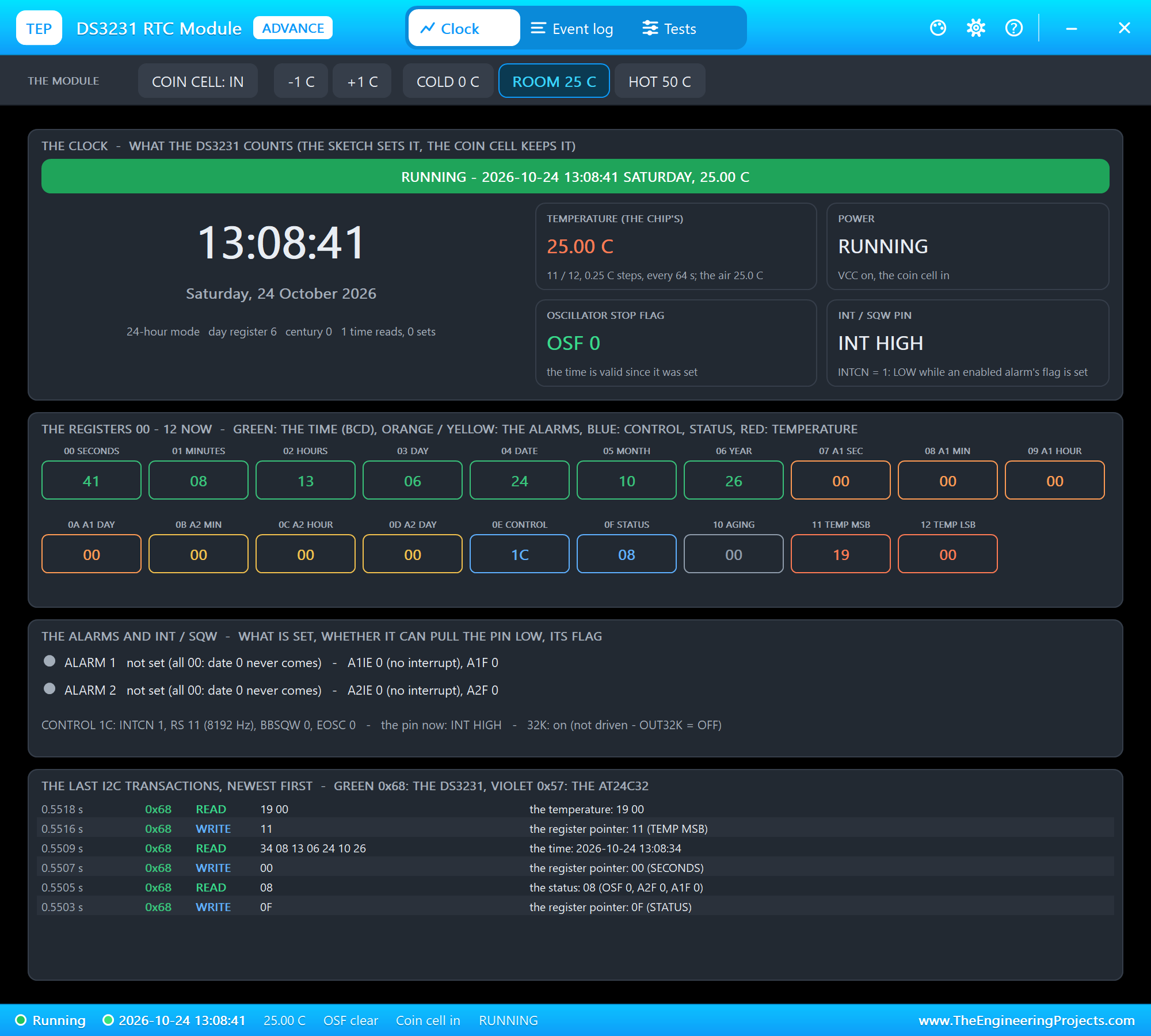
Press Run. The board boots, eth0 is up 1.6 s after Run, and the program reports the reader - version 0x92, an MFRC522 v2.0 - and the DS3231's time and temperature, then serves its page at 192.168.1.51:
pi@raspberrypi:~ $ python3 attendance.py
attendance.py - RFID attendance station on the Raspberry Pi 4 Model B
MFRC522 version 0x92 on SPI0 (CE0), RST on GPIO25
DS3231 at 0x68: 2026-10-24 13:08:34, 25.00 C
waiting for the network ...
serving on http://192.168.1.51:8000/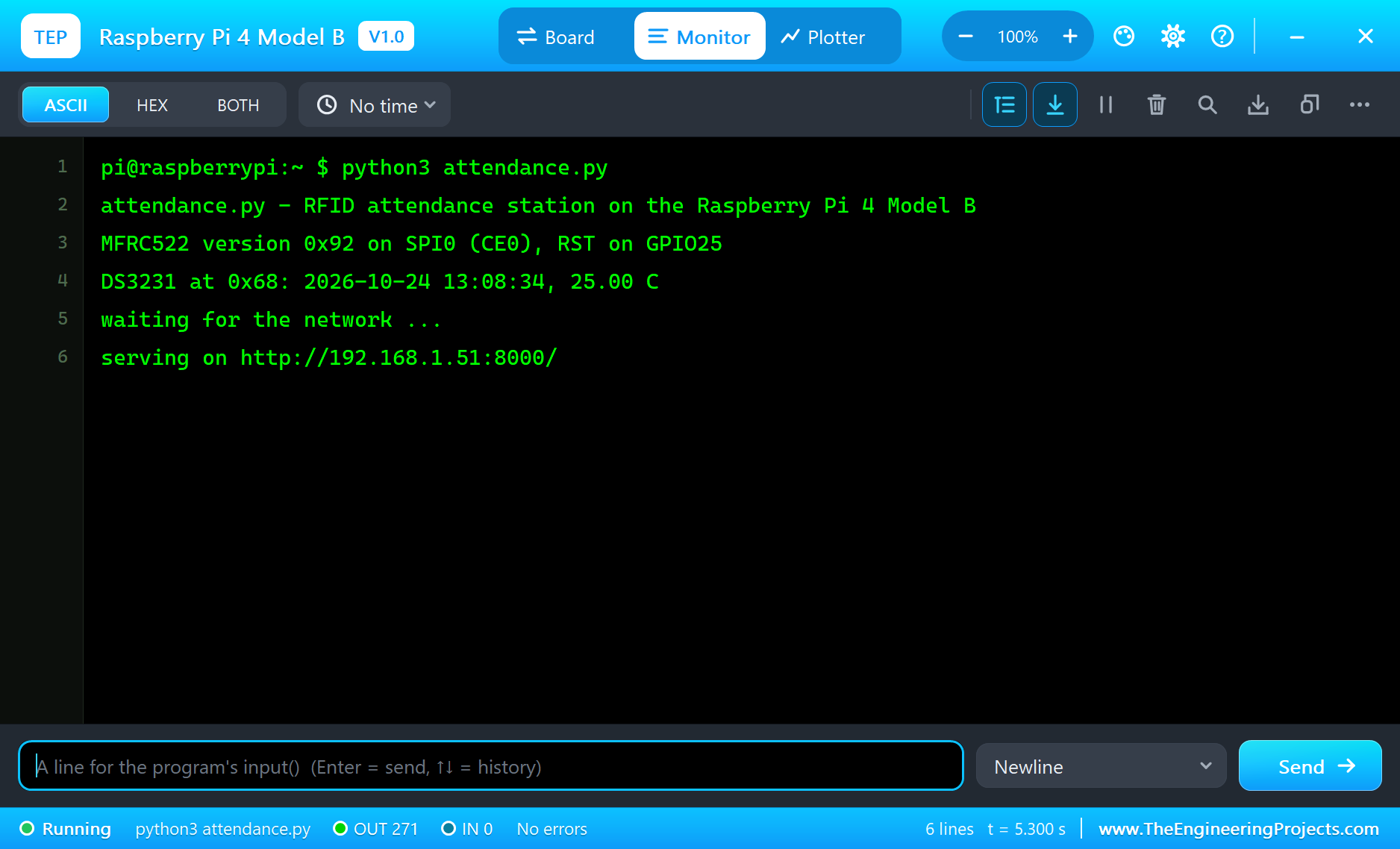
Open the Page
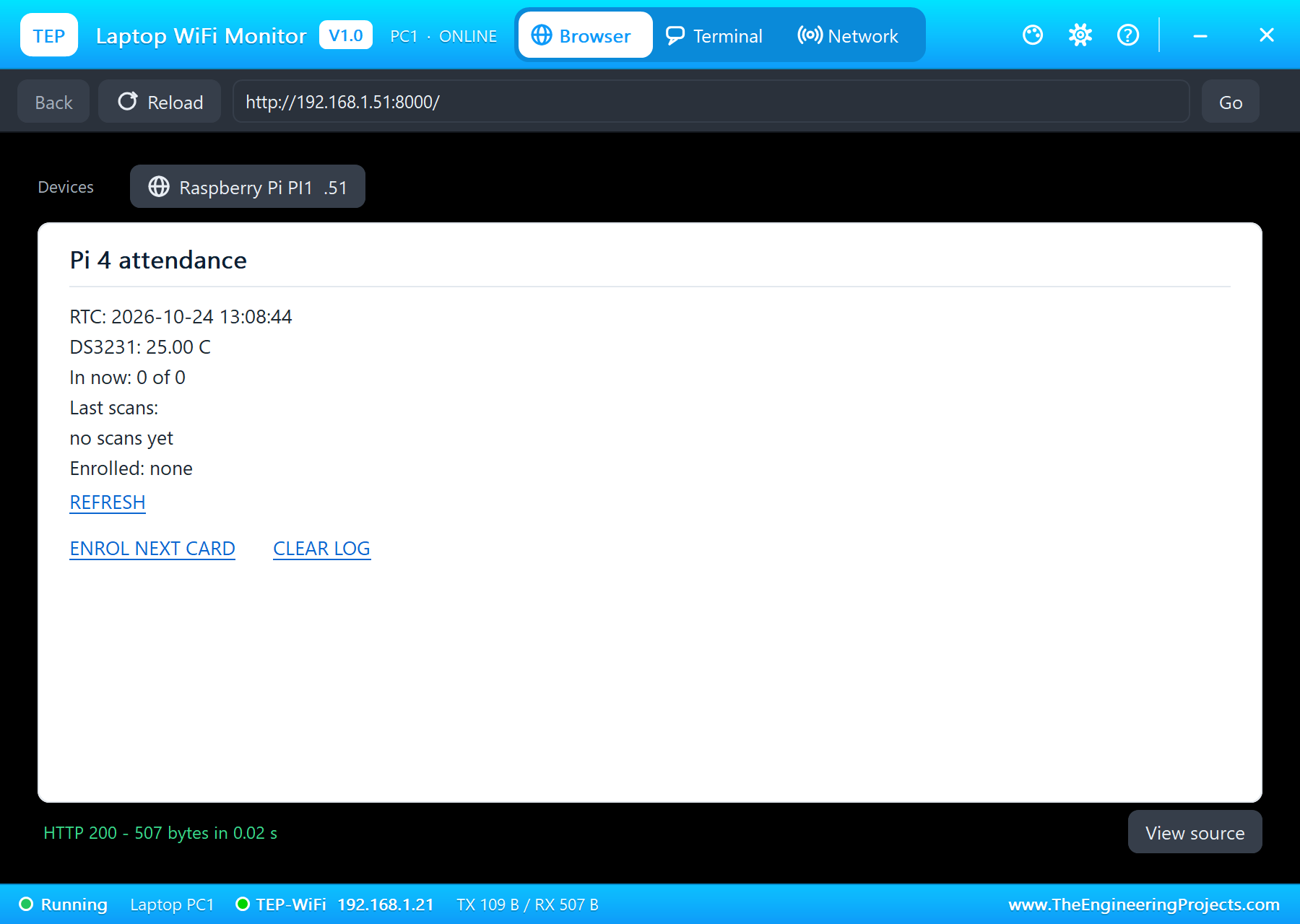
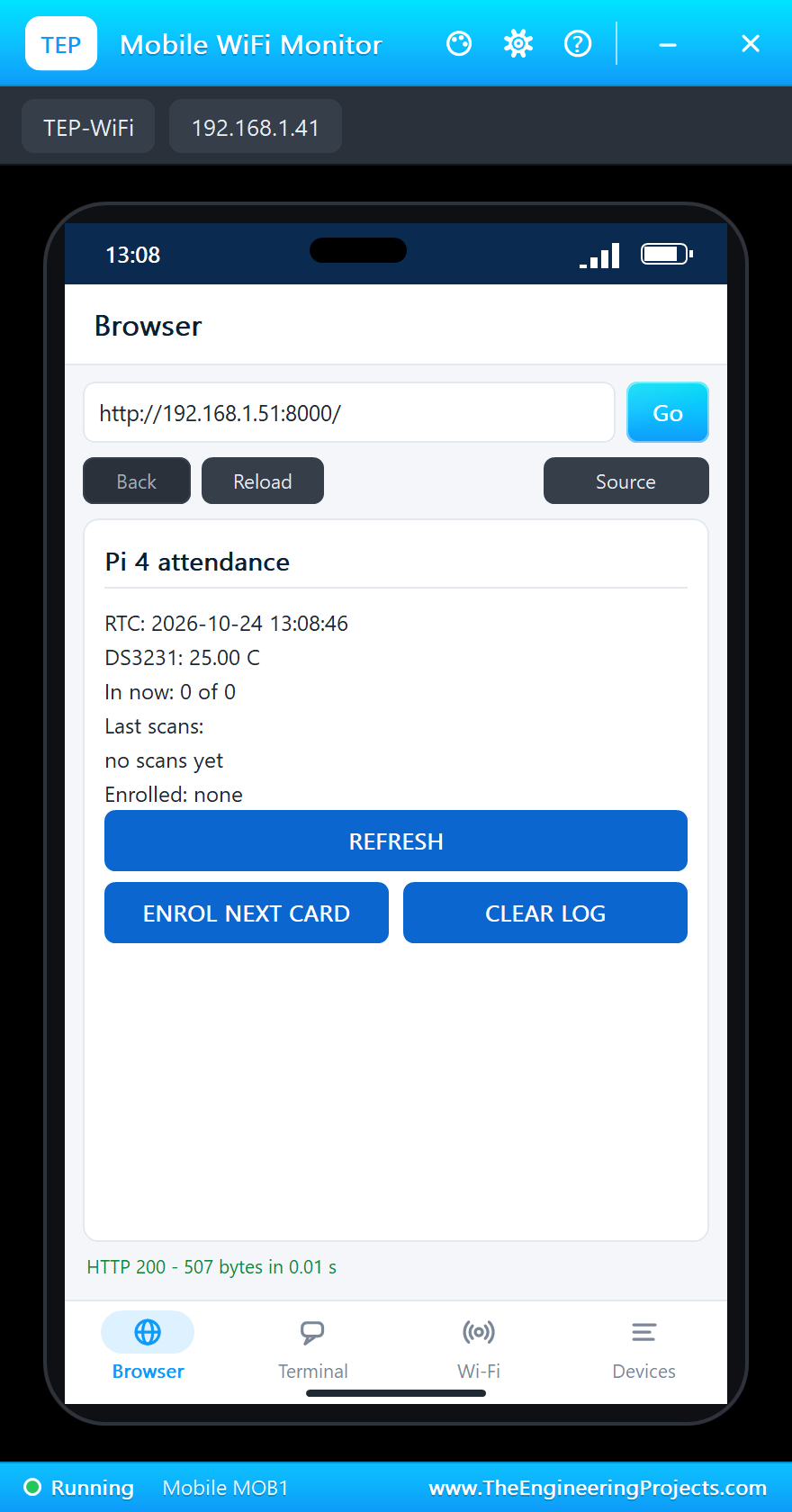
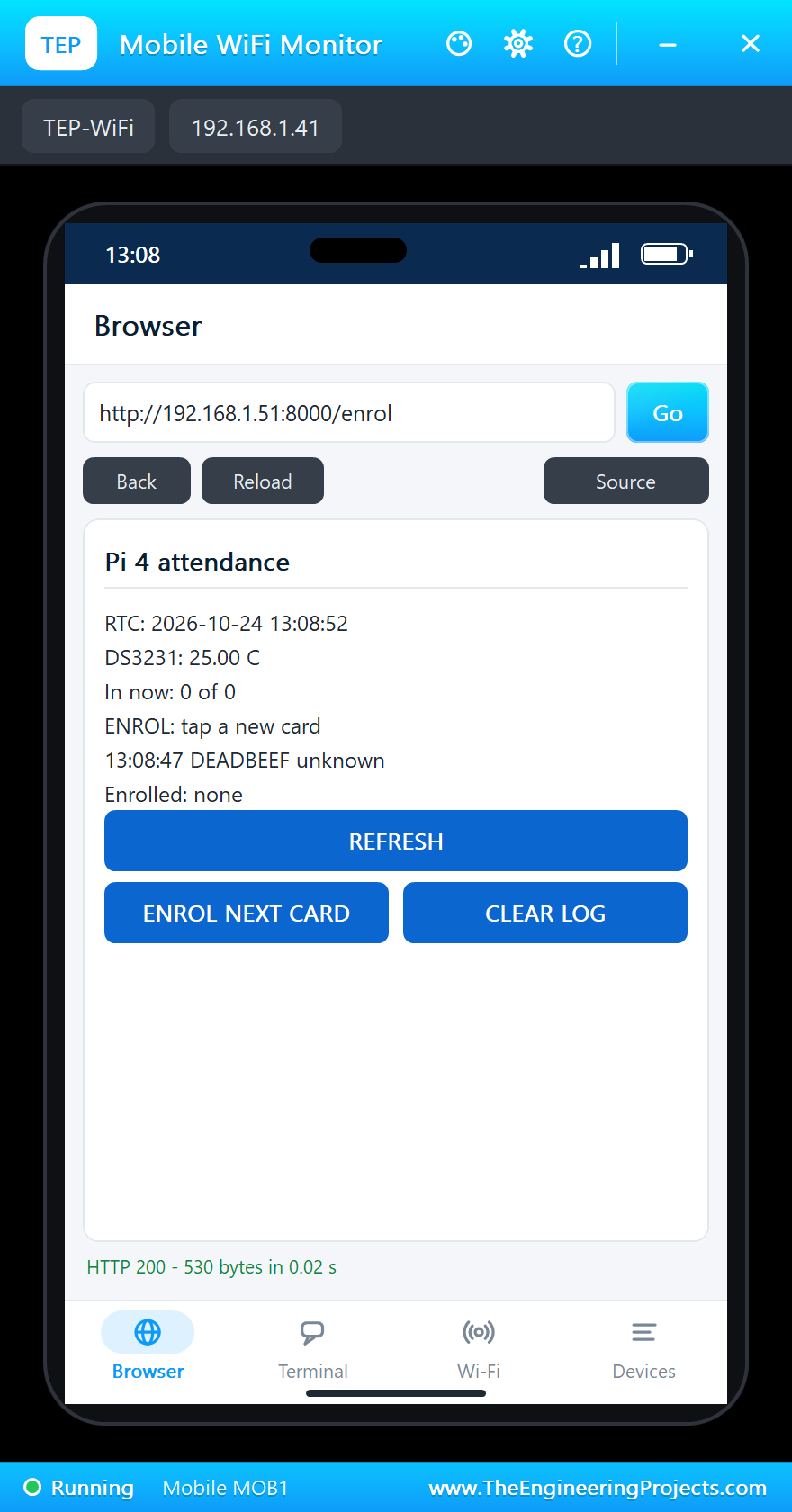
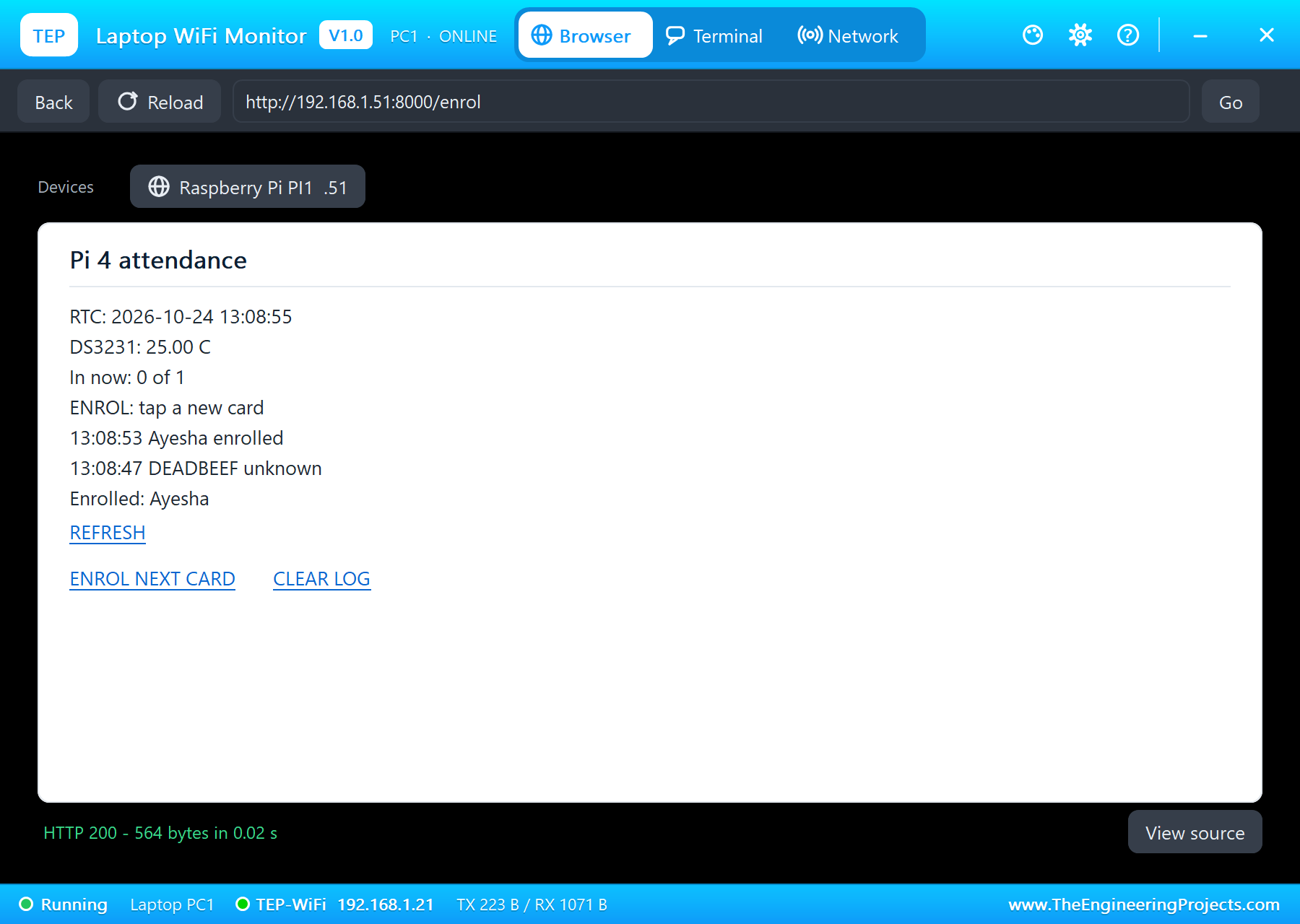
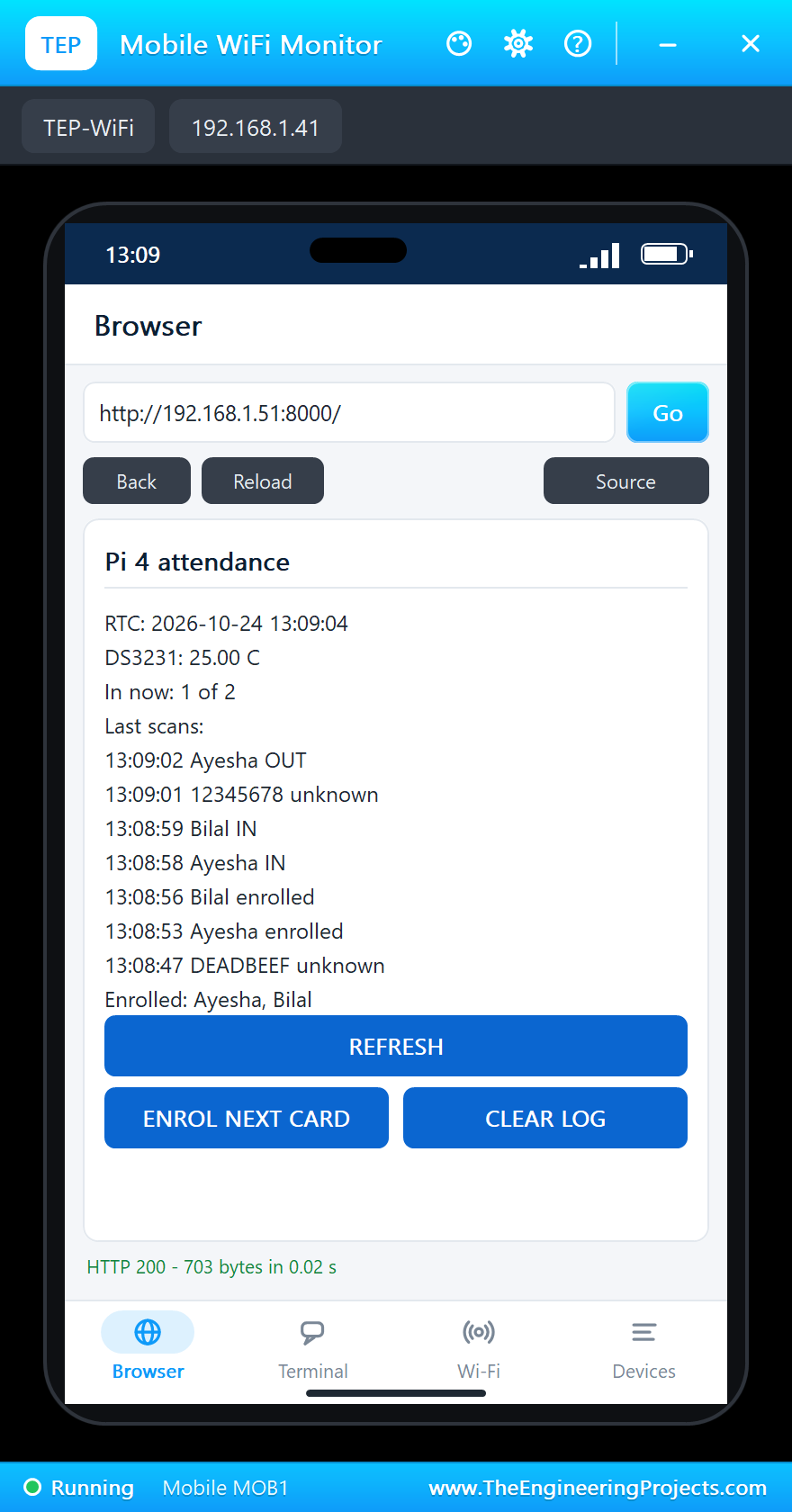
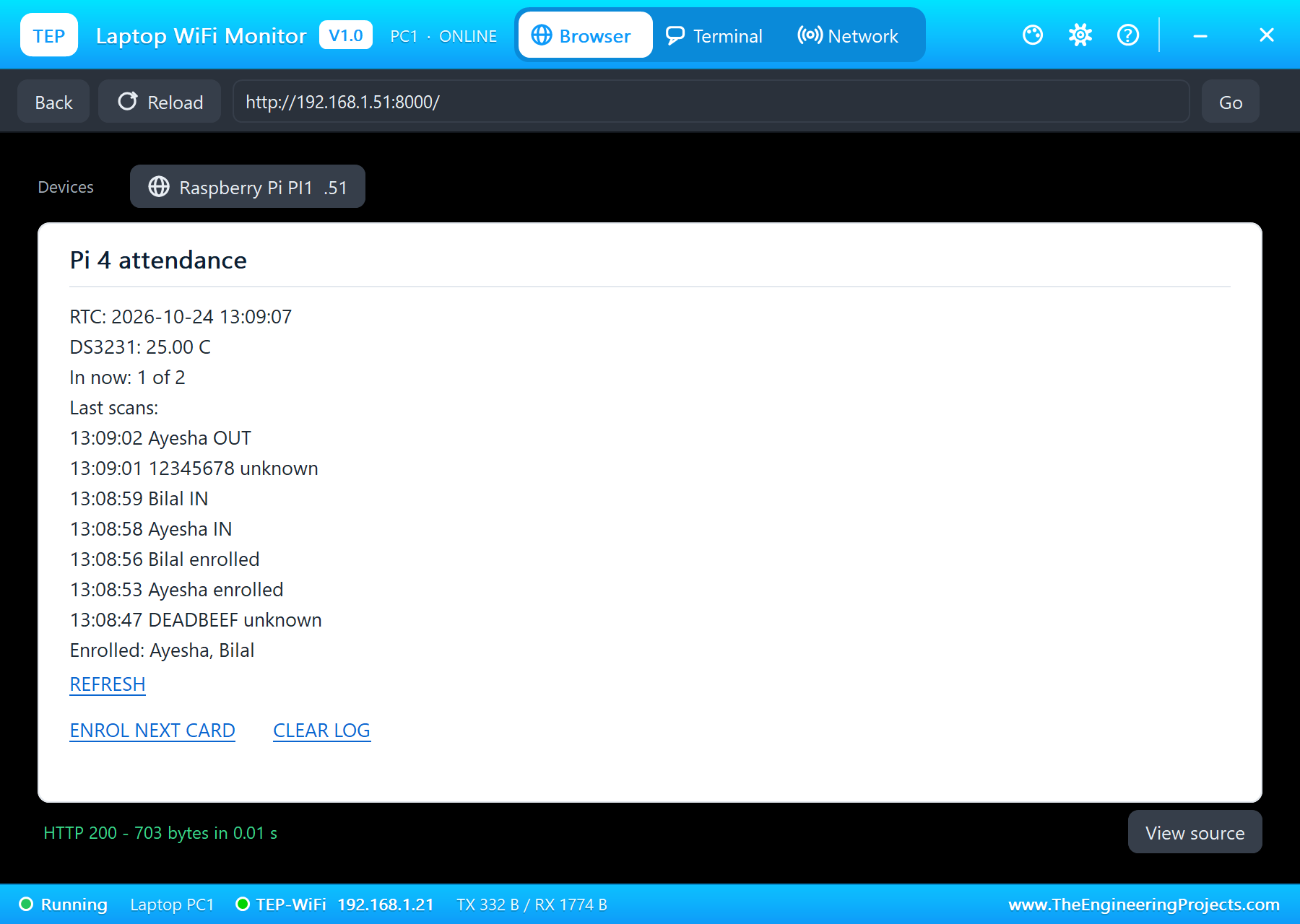
On the laptop click Browser, check the address http://192.168.1.51:8000/ and click Go; on the phone the same. The laptop shows the links as text, the phone turns them into buttons:
An Unknown Card
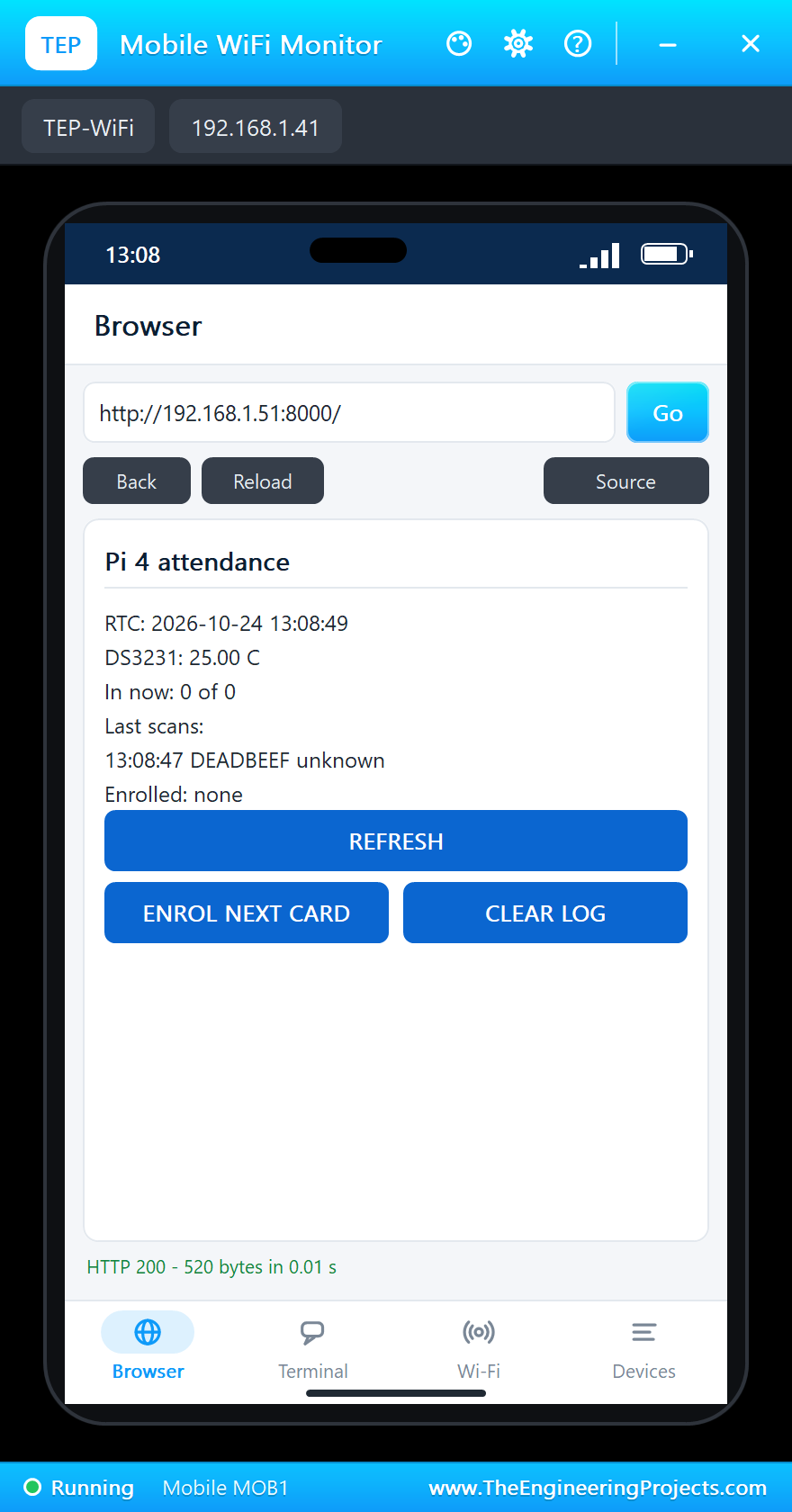
In the reader's pop-up, press Tap on CARD 1: the card sits on the reader for half a second. Nobody is enrolled yet, so the program logs DEADBEEF as unknown and blinks the LED three times; REFRESH on the phone shows the scan:
Enrol Two Cards
Tap ENROL NEXT CARD on the phone. The page says "ENROL: tap a new card"; tap CARD 1 again and it becomes Ayesha's. Then click ENROL NEXT CARD on the laptop and tap CARD 4: that one is Bilal's. Both monitors use the same server, so it does not matter where you click:
Who Is In
Now tap the enrolled cards: CARD 1 and CARD 4 check Ayesha and Bilal in, and the LED lights for a second each time. CARD 2 is unknown. CARD 1 once more checks Ayesha out. REFRESH on both monitors shows the result - one of two people in and the seven scans, newest first, each with the DS3231's time:
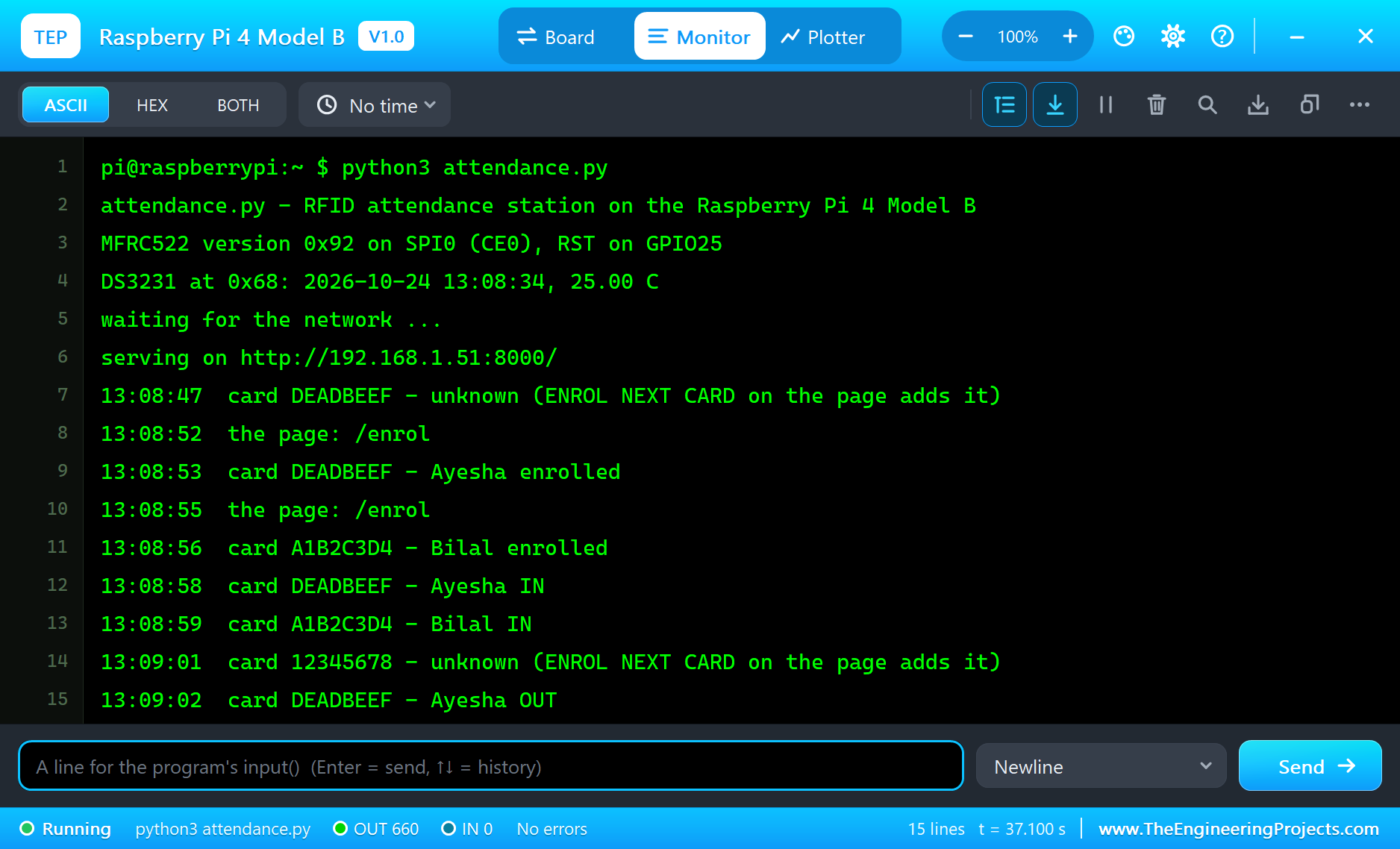
The Pi Terminal logs every card and every action from the page:
13:08:47  card DEADBEEF - unknown (ENROL NEXT CARD on the page adds it)
13:08:52  the page: /enrol
13:08:53  card DEADBEEF - Ayesha enrolled
13:08:55  the page: /enrol
13:08:56  card A1B2C3D4 - Bilal enrolled
13:08:58  card DEADBEEF - Ayesha IN
13:08:59  card A1B2C3D4 - Bilal IN
13:09:01  card 12345678 - unknown (ENROL NEXT CARD on the page adds it)
13:09:02  card DEADBEEF - Ayesha OUT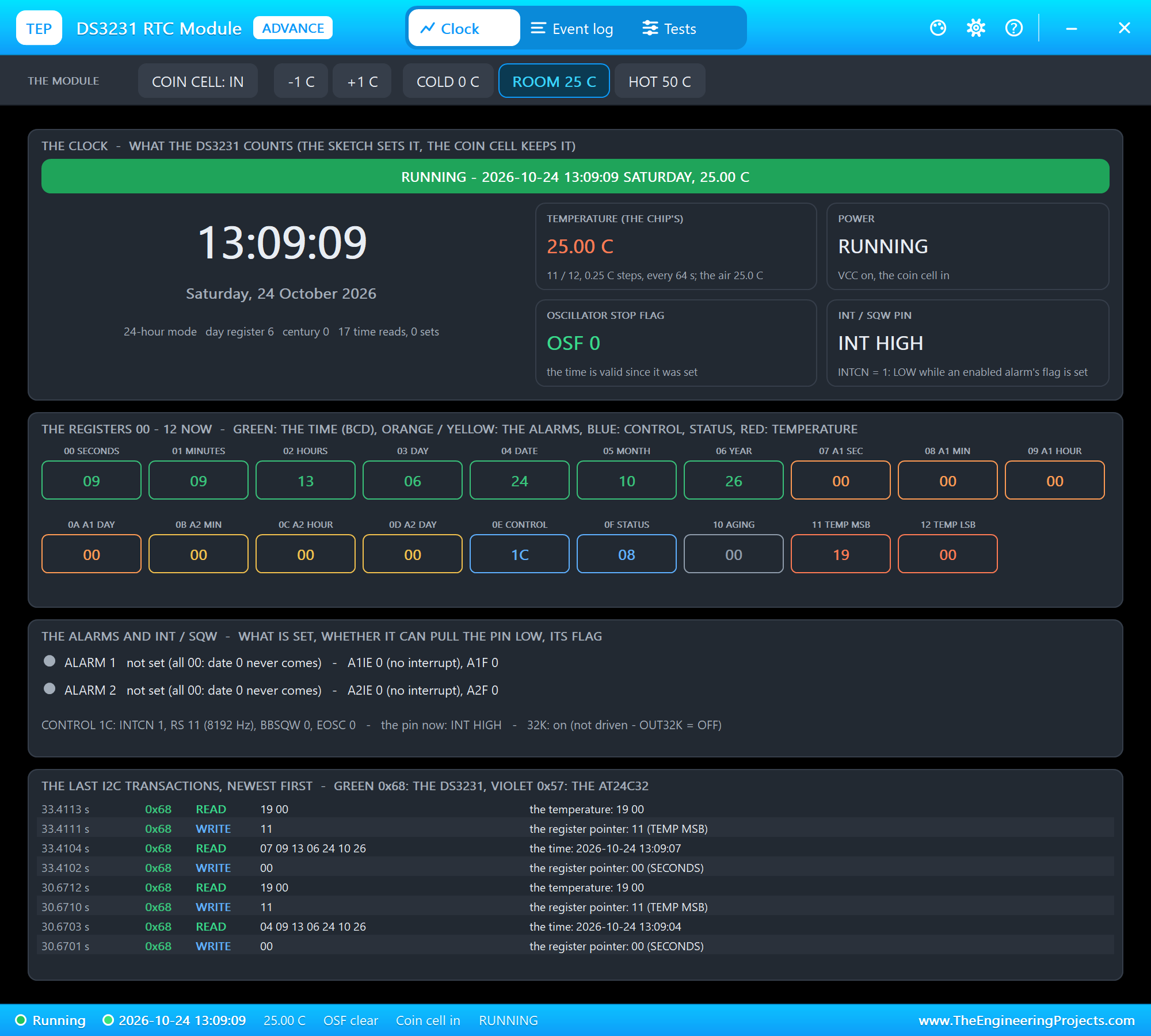
The Pi Terminal
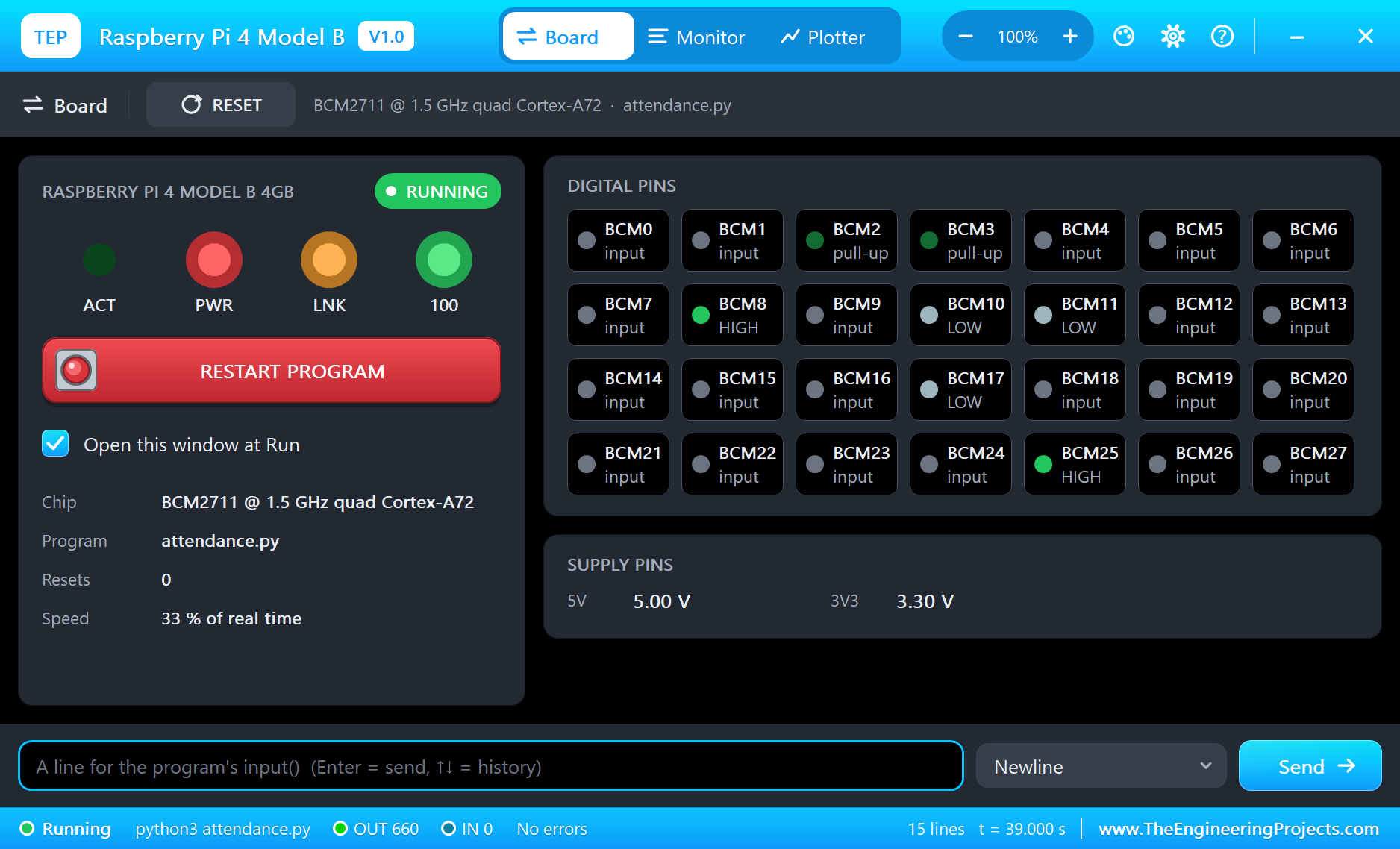
The Pi Terminal opens at Run, in the look of our TEP Serial Monitor Advance for Proteus - our own TEP header, no Windows title bar. Its Monitor tab shows the program's output (OUT), errors (ERR) and the lines you type for input() (IN). The Board tab shows the board live - GPIO2 and GPIO3 pulled up, CE0 and RST HIGH, the SPI lines and the LED LOW at rest - the LEDs and the supply pins, and RESTART PROGRAM starts the program again:
Properties of the Raspberry Pi 4 Model B
| Property | What it does |
|---|---|
| PROGRAM | the Python program (default blink.py; a name next to the project or a full path) |
| AUTOOPEN | the Pi Terminal at Run: YES (default) or NO |
| ETHERNET | the cable to the router at Run: IN (default, eth0) or OUT (the network on wlan0) |
| WIFISSID, WIFIPASS | the network wlan0 joins and its password (default TEP-WiFi, 12345678) |
| PYTHON, RUNTIME | a python.exe and a runtime folder of your own (empty: the TEPPi folder) |
Your own programs go next to your project; set PROGRAM to the file's name. The default blink.py blinks an LED on GPIO17:
from time import sleep
from gpiozero import LED

led = LED(17)
while True:
    led.on()
    print('LED on')
    sleep(0.5)
    led.off()
    print('LED off')
    sleep(0.5)
Troubleshooting
- The reader's version reads 0x00 or 0xFF: check the SPI wires - SDA on CE0, MOSI to MOSI, MISO to MISO, SCK on SCLK - the 3.3 V supply and RST HIGH.
- A card on the reader is read only once: that is HLTA at work, as on a real reader. Tap it again, or take it off and put it back.
- OSError: [Errno 121] Remote I/O error: the DS3231 does not answer at 0x68 - check its VCC, GND, SDA and SCL.
- The clock shows 2000-01-01: the DS3231's TIME property is LOST, a new module; the program sees OSF and sets the clock from the Pi's time.
- The page does not open: the address is http://192.168.1.51:8000/ and the program must have printed "serving on". A monitor sometimes needs Go a second time. Use the page's REFRESH link for new scans - the monitors' Reload repeats the last link, ENROL NEXT CARD for example.
- The TEPPi folder was not found: copy it from Proteus Model Files into MODELS, or next to your project.
Things to Know Before Using a Real Raspberry Pi
- SPI and I2C: turn both on with
sudo raspi-config(Interface Options); then /dev/spidev0.0 and /dev/i2c-1 appear and the program opens them as here. - The RC522 at 3.3 V: the board is a 3.3 V part - never power it from 5V. Its pins match the Pi's 3.3 V logic, so no level shifter is needed.
- The DS3231 as the system clock: with
dtoverlay=i2c-rtc,ds3231in config.txt the kernel owns the chip and keeps the Pi's time with it; i2cdetect then shows UU at 0x68 and a program can no longer read it over smbus2. This demo reads it itself, without the overlay. On the common ZS-042 module, the charging resistor is meant for a rechargeable cell - with a CR2032, many people remove it. - Power: the Pi 4 wants a 5 V 3 A USB-C supply, and under a long load it likes a heatsink or a fan.
- The web page: on a real Pi the same program works as it is; Flask is a common choice for bigger pages.
Limitations of the Simulation
- The board does not run Raspberry Pi OS: there is no desktop, no shell commands and no apt. It runs one Python program; its threads take turns, so the four cores are not modelled.
- Bluetooth, the 5 GHz band, the Gigabit speed, PoE and the Pi 4's extra UART, I2C and SPI buses are not modelled; the network is the same TEP network, on eth0 or wlan0, one at a time.
- The micro-HDMI sockets, the A/V jack, the camera and display connectors, USB, the microSD card's files and a HAT's ID EEPROM are drawn but not simulated; GPIO18 makes software PWM, not hardware PWM.
- C programs and Python packages with C code do not run. Pure Python code takes no simulation time; only the pin, bus, sleep and network calls move the clock.
- The router, the board's address, the boot time and the Pi Terminal are TEP additions.
- Raspberry Pi is a trademark of Raspberry Pi Ltd; this library is not made or endorsed by Raspberry Pi Ltd or Labcenter.
- Tested in Proteus 8.5 in October 2026 (the demo as shipped, about 24 to 33 % of real time on our PC with the two pop-ups, the two monitors and the Pi Terminal open). Proteus 7 is not supported.
So, that was all about the Raspberry Pi 4 Model B Library for Proteus. I hope it helps you try a networked project on the Pi 4 before you touch the hardware - an RFID reader on SPI, a real-time clock on I2C and a web page that a laptop and a phone use to see who is in and to enrol new cards. The next boards of our Raspberry Pi series bring other modules and more web pages. If you use the library in a project, please share it in the comments or in our forum, and if you have any questions, ask in the comments and I will help you out. Till the next tutorial, take care and have fun!