Hello friends, I hope you all are doing great. Today, I am going to share the Raspberry Pi 400 Library for Proteus. The Raspberry Pi 400 is a whole computer inside a keyboard: a Raspberry Pi 4 at 1.8 GHz with 4 GB of RAM, Gigabit Ethernet, Wi-Fi, two micro-HDMI outputs and the usual 40-pin GPIO header at the back. With this library the keyboard runs your Python program against the circuit in Proteus 8.5, on our virtual network.
Raspberry Pi 400 Library for Proteus
Latest version: V1.0 (October 2026, this tutorial)
Other Raspberry Pi boards: Pico · Pico W · Pico 2 W · Pi Model B · Pi 1 B+ · Pi 2 Model B · Pi 3 Model B · Pi 3 Model B+ · Pi 3 Model A+ · Pi 4 Model B · Pi 5 · Pi Zero W · Pi Zero 2 W · Pi 2 · Pi 3 · Pi 4 · Zero W
Gas and fire sensors: Gas MQ-2 · MQ-3 / MQ-7 / MQ-135 · MH-Z19B CO2 · PMS5003 · CCS811 · Flame Sensor
LED displays: MAX7219 Matrix · MAX7219 7-Segment · TM1637 · TM1638 · WS2812B NeoPixel
Helping Tools
- Laptop WiFi Monitor: a laptop on the Wi-Fi of your design: a browser, a TCP / UDP terminal and ping
- Mobile WiFi Monitor: a smartphone that opens the pages of your board and sends it commands
- LCD Library for Proteus V3.0: 16x2, 20x4 and I2C LCDs to show your readings
This is the eleventh library of our Raspberry Pi series, and every library of the series connects the Pi to a different module and serves a web page. This time the Pi 400 is a room CO2 monitor: an MH-Z19B infrared CO2 sensor talks to the Pi over the UART, a TM1638 LED&KEY board shows the CO2 on eight digits with eight LEDs as a bar graph and eight buttons, and a page on a laptop and a phone shows the reading, sets the alarm and calibrates the sensor.
NOTICE: this library does not run Raspberry Pi OS. It runs your Python program, with the same Python libraries a Pi uses for its pins, its buses and its network, in step with the simulation. Your feedback is the fuel that keeps us going, so please tell us what you think in the comments below or in the Raspberry Pi 400 board of our forum. And if our free libraries help you, you can buy us a coffee. So, let's get started with the Raspberry Pi 400 Library for Proteus:
What is the Raspberry Pi 400?
In November 2020 Raspberry Pi put a Raspberry Pi 4 inside a compact keyboard and sold it for 70 dollars - plug in a mouse, a screen and power, and it is a desktop computer. The board inside is a Pi 4 laid out again so that every socket faces the back, and a large metal plate under the keys spreads the heat, so the BCM2711 runs at 1.8 GHz instead of the Pi 4's 1.5 GHz.
For electronics the important part is at the back: next to the network jack, the USB sockets and the micro-HDMI outputs sits the 40-pin GPIO header, the same pins with the same numbers as on every Pi since the B+. A HAT plugs in pointing backwards, and a ribbon cable brings the pins to a breadboard on the desk.
| Raspberry Pi 4 Model B (2019) | Raspberry Pi 400 (2020) | |
|---|---|---|
| Processor | BCM2711, four Cortex-A72 cores at 1.5 GHz | BCM2711, four Cortex-A72 cores at 1.8 GHz |
| RAM | 1, 2, 4 or 8 GB | 4 GB |
| Network | Gigabit Ethernet, dual-band Wi-Fi, Bluetooth 5.0 | the same |
| USB | two USB 3.0, two USB 2.0 | two USB 3.0, one USB 2.0 |
| Video | two micro-HDMI | the same |
| GPIO | 40-pin header on the board's edge | 40-pin header at the back of the keyboard |
| Not on the 400 | - | the camera and display connectors, the A/V jack, the PoE header |
| Size | 85 x 56 mm board | a 286 x 122 mm keyboard |
In Proteus, our Raspberry Pi Model B Library for Proteus covers how the board runs a Python program: the program and Proteus work in lockstep, every sleep, pin wait and bus transfer moves the simulation clock, and the Python libraries for the pins answer as on a Pi. Then came the Raspberry Pi 1 Model B+ Library for Proteus, the Raspberry Pi 2 Model B Library for Proteus, the Raspberry Pi 3 Model B Library for Proteus, the Raspberry Pi 3 Model B+ Library for Proteus, the Raspberry Pi 3 Model A+ Library for Proteus, the Raspberry Pi 4 Model B Library for Proteus, the Raspberry Pi 5 Library for Proteus, the Raspberry Pi Zero W Library for Proteus and the Raspberry Pi Zero 2 W Library for Proteus, each with its own modules. The Pi 400 brings a sensor on the UART and a display board with buttons on three GPIOs.
Features of the Raspberry Pi 400 Library for Proteus
- The keyboard as it looks: the Pi 400 from above with its keys, the raspberry key, the power LED, and the back with the Ethernet jack, the USB sockets, the USB-C, the two micro-HDMI, the microSD slot, the 40-pin header and the Kensington slot.
- Ethernet and Wi-Fi: eth0 with the cable in (the default), wlan0 on our router TEP-WiFi with the cable out - one at a time, 192.168.1.51 either way; sockets and http.server work on both.
- Your Python program: any .py file in the PROGRAM property; Python 3.11 and its standard library are included.
- RPi.GPIO and gpiozero: outputs, inputs, pull-ups and pull-downs, edges with callbacks, software PWM, and gpiozero's devices - with the timing of the Pi 400, about 1.25 us a GPIO call.
- The UART and bit-banged buses: pyserial on /dev/serial0 for the sensor, RPi.GPIO for the TM1638's 3-wire bus - plus smbus2, spidev, 1-Wire and the DHT sensors, as on the earlier boards.
- Threads: a web server, a sensor loop and a display loop run side by side, every wait in simulation time.
- The Pi Terminal: the output, the errors, a line for input(), and a Board tab with the GPIOs, the LED and the supply pins - with our TEP header, no Windows title bar.
- A complete package: about 13.4 MB with the board, Python, the runtime, the MH-Z19B, TM1638 and monitor libraries and the demo, without the source code of the models.
The Raspberry Pi 400 in Proteus
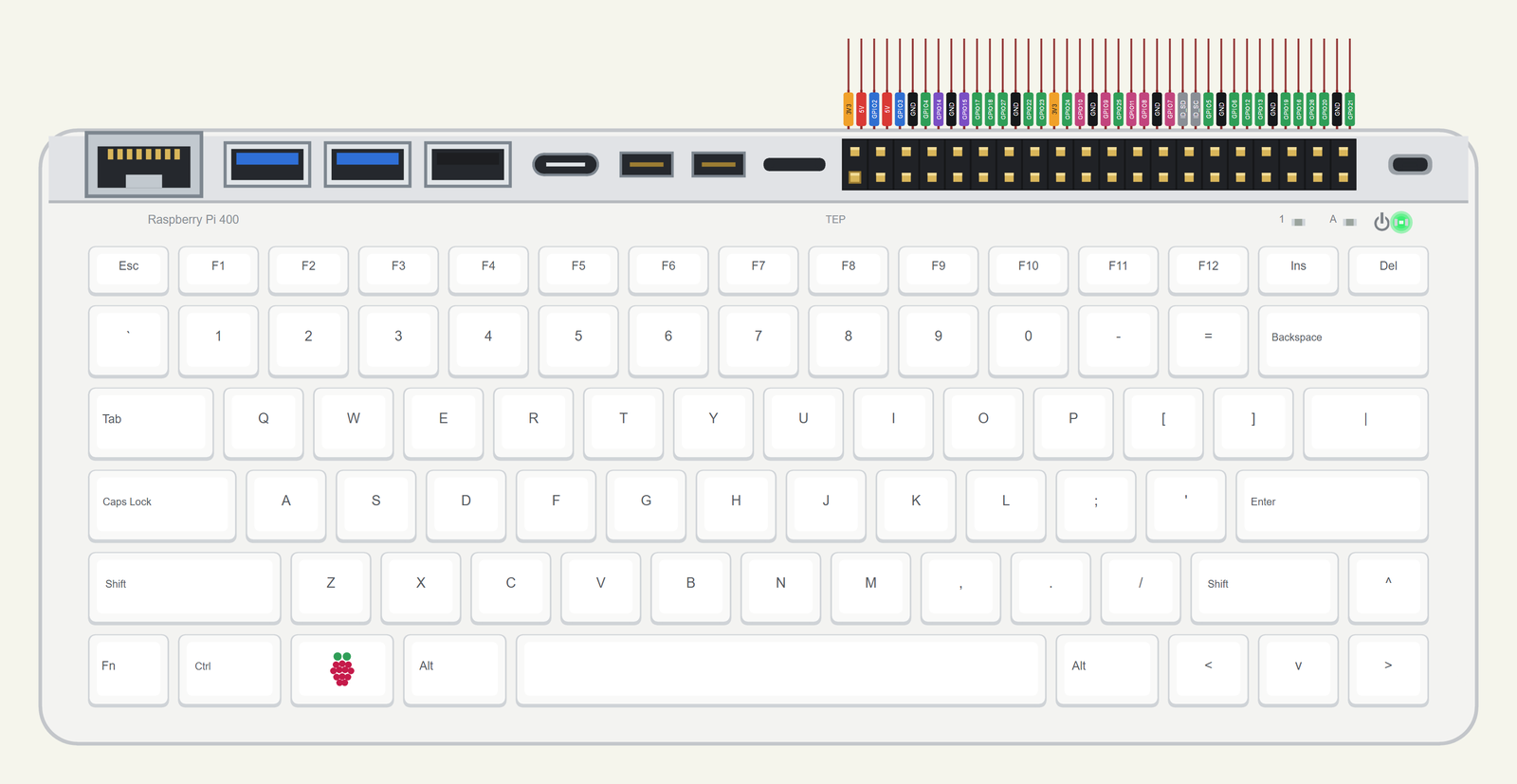
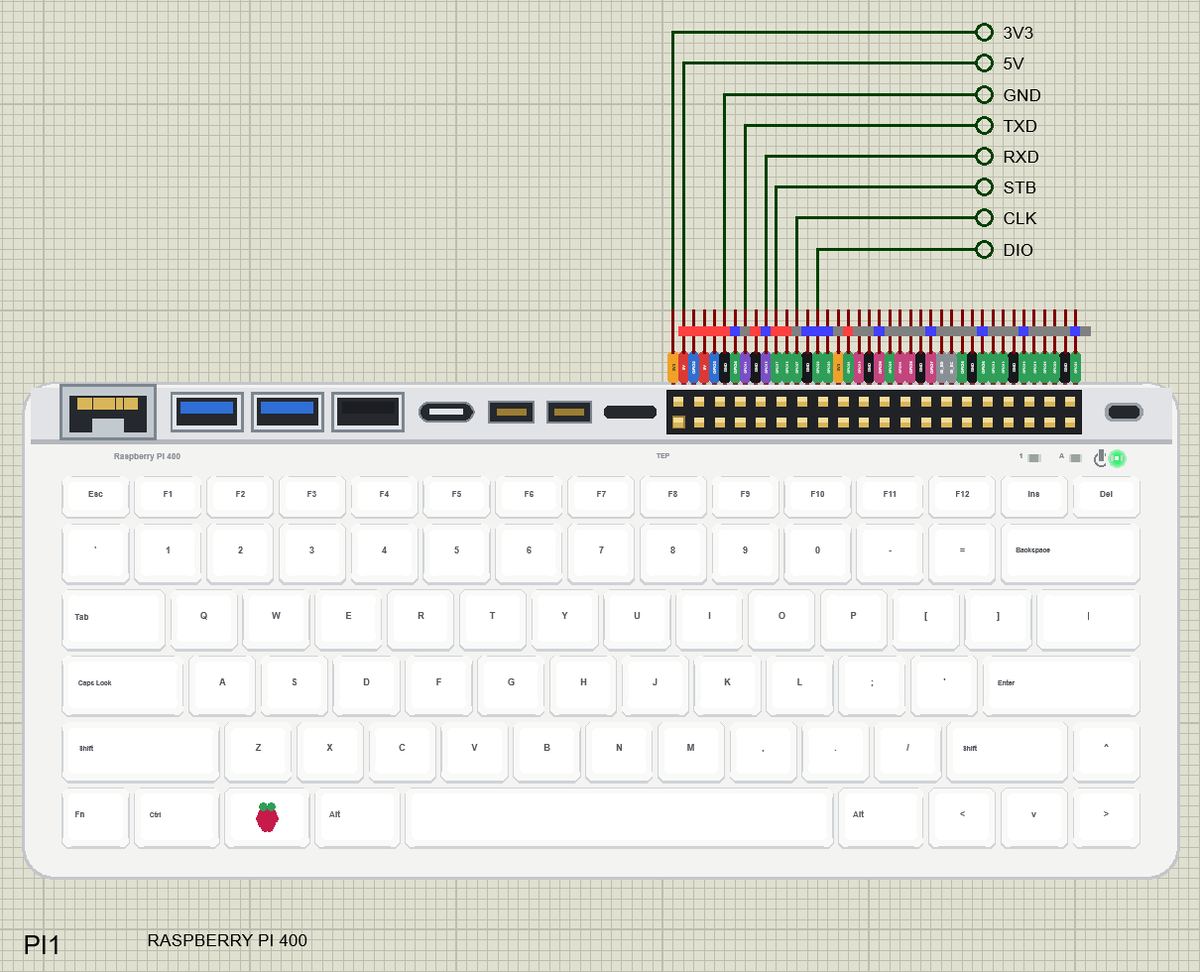
Search RASPBERRY in Pick Devices; the device RASPBERRY PI 400 is in TEPRPI400.LIB (Microprocessor ICs, Raspberry Pi), with the prefix PI. The keyboard is drawn at half its real size - a 286 mm keyboard would fill the sheet - but the header keeps the real 0.1 in pitch, so its 40 pins leave the top edge as one comb, as on every Pi of the series, each with a tag in the colour of its kind: 5V red, 3V3 orange, GND black, GPIO green, I2C blue, SPI pink, UART purple and the ID pins grey. Click a micro-HDMI socket or the raspberry key to open the Pi Terminal, and the Ethernet jack to plug or unplug the cable.
Ethernet and Wi-Fi
The ETHERNET property says whether the cable is in at Run: IN (the default) brings up eth0, OUT leaves the network to wlan0, which joins the network named in WIFISSID with the password in WIFIPASS - by default our router TEP-WiFi with 12345678, the network of our other Wi-Fi parts and of the Laptop WiFi Monitor and the Mobile WiFi Monitor. Either way the Pi is 192.168.1.51, and the wired Pi and the Wi-Fi monitors meet on the same router. A click on the jack while the simulation runs pulls the cable or plugs it back.
The 40-Pin Header
| Pins | Name | Pins | Name |
|---|---|---|---|
| 1 | 3V3 | 2 | 5V |
| 3 | GPIO2 (SDA) | 4 | 5V |
| 5 | GPIO3 (SCL) | 6 | GND |
| 7 | GPIO4 | 8 | GPIO14 (TXD) |
| 9 | GND | 10 | GPIO15 (RXD) |
| 11 | GPIO17 | 12 | GPIO18 |
| 13 | GPIO27 | 14 | GND |
| 15 | GPIO22 | 16 | GPIO23 |
| 17 | 3V3 | 18 | GPIO24 |
| 19 | GPIO10 (MOSI) | 20 | GND |
| 21 | GPIO9 (MISO) | 22 | GPIO25 |
| 23 | GPIO11 (SCLK) | 24 | GPIO8 (CE0) |
| 25 | GND | 26 | GPIO7 (CE1) |
| 27 | ID_SD | 28 | ID_SC |
| 29 | GPIO5 | 30 | GND |
| 31 | GPIO6 | 32 | GPIO12 |
| 33 | GPIO13 | 34 | GND |
| 35 | GPIO19 | 36 | GPIO16 |
| 37 | GPIO26 | 38 | GPIO20 |
| 39 | GND | 40 | GPIO21 |
The GPIOs work at 3.3 V; GPIO2 and GPIO3 have the Pi's 1.8 k pull-ups. The 5V and 3V3 pins power the modules wired to them. ID_SD and ID_SC are kept for a HAT's ID EEPROM, so leave them free, as on a real Pi.
Download Raspberry Pi 400 Library for Proteus
Click the button below to download Raspberry-Pi-400-Library-for-Proteus-v1.0.zip (about 13.4 MB with Python included, without the source code of the models):
Raspberry Pi 400 Library for Proteus V1.0- README.txt: the device, the network, installation, the demo, the header, the properties, troubleshooting and the limits.
- Proteus Library Files:
TEPRPI400.LIB(the Raspberry Pi 400) and the demo's parts:TEPMHZ19B.LIB(the CO2 sensor),TEPTM1638.LIB(the LED&KEY board),TEPLAPTOP.LIBandTEPMOBILE.LIB. - Proteus Model Files:
TEPNET.DLL(the Pi, the laptop, the phone and the network), the parts'TEPMHZ19B.DLLandTEPTM1638.DLL, and the TEPPi folder - Python 3.11 and the TEP Pi runtime. - Python Code:
blink.pyandco2_monitor.py. - Proteus Simulation: the demo project, its program and copies of the DLLs.
No Proteus yet? Read How to Download and Install Proteus 7 and 8. New to libraries? Follow How to Install a New Library in Proteus.
How to Install Raspberry Pi 400 Library for Proteus
- Close Proteus and extract the whole zip file, for example to your Desktop.
- Copy the files from Proteus Library Files into the LIBRARY folder of Proteus (usually
C:\Program Files (x86)\Labcenter Electronics\Proteus 8 Professional\LIBRARY). - Copy everything from Proteus Model Files - the DLLs and the TEPPi folder - into the MODELS folder, replacing an older TEPNET.DLL and TEPPi folder (these are the newest; they also run our Model B, Model B+, Pi 2, Pi 3, Pi 3 B+, Pi 3 A+, Pi 4, Pi 5, Zero W and Zero 2 W).
- Delete
TEPRPI400.IDXfrom the LIBRARY folder if it is there. - Start Proteus, press P and search for RASPBERRY.
There is nothing else to install: Python comes in the TEPPi folder, so you need no Python on your PC.
Demo: a Room CO2 Monitor
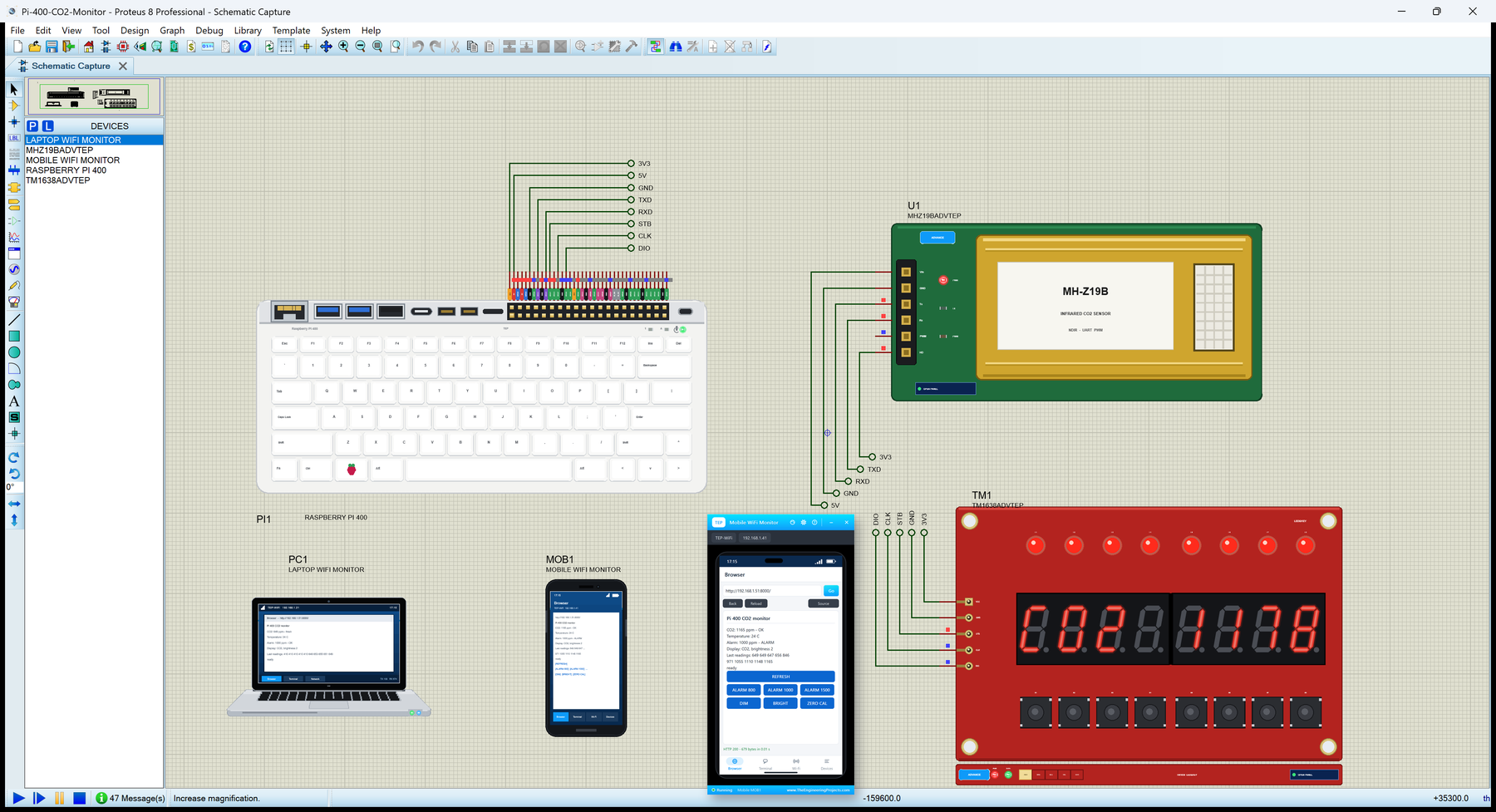
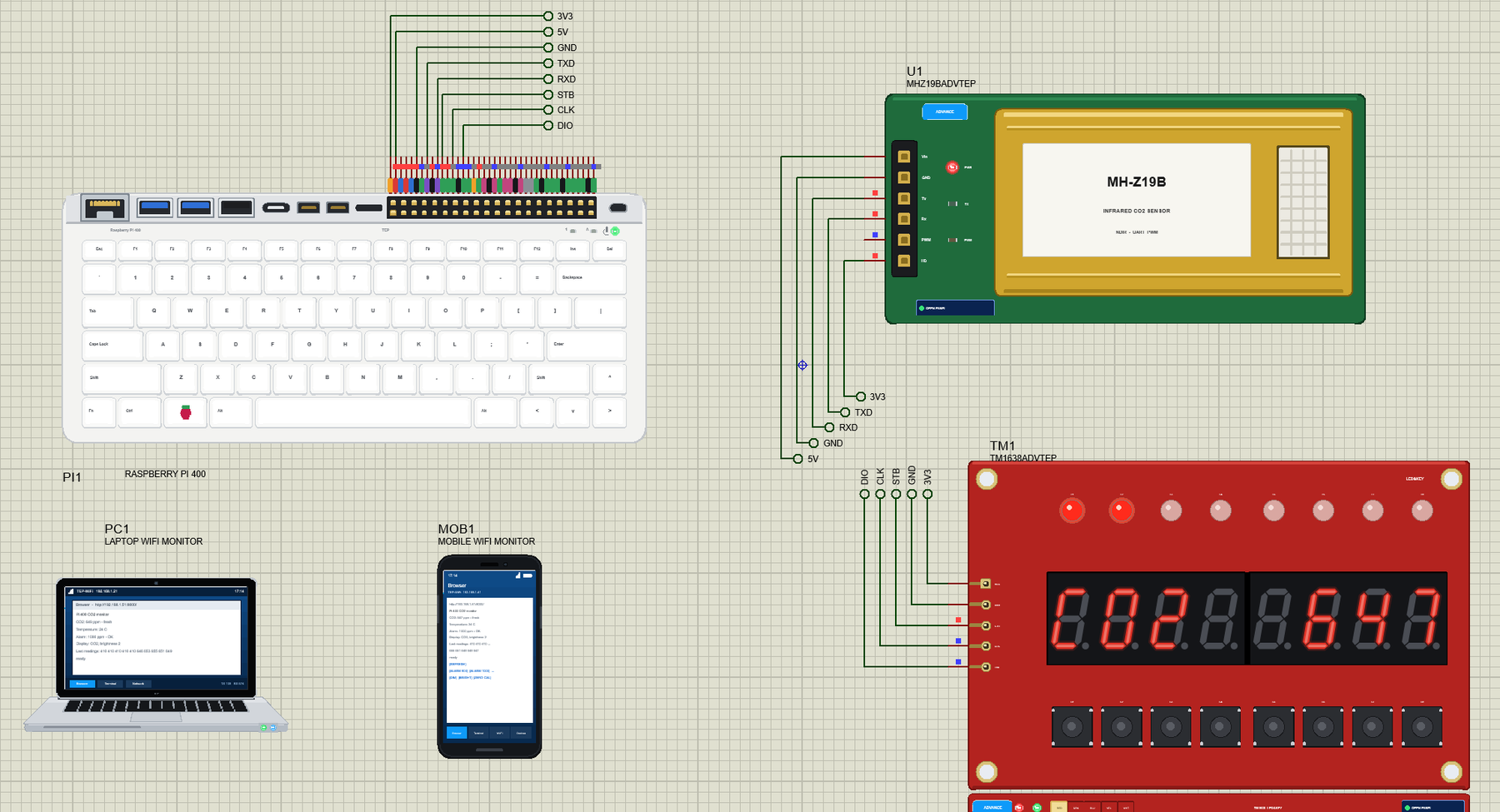
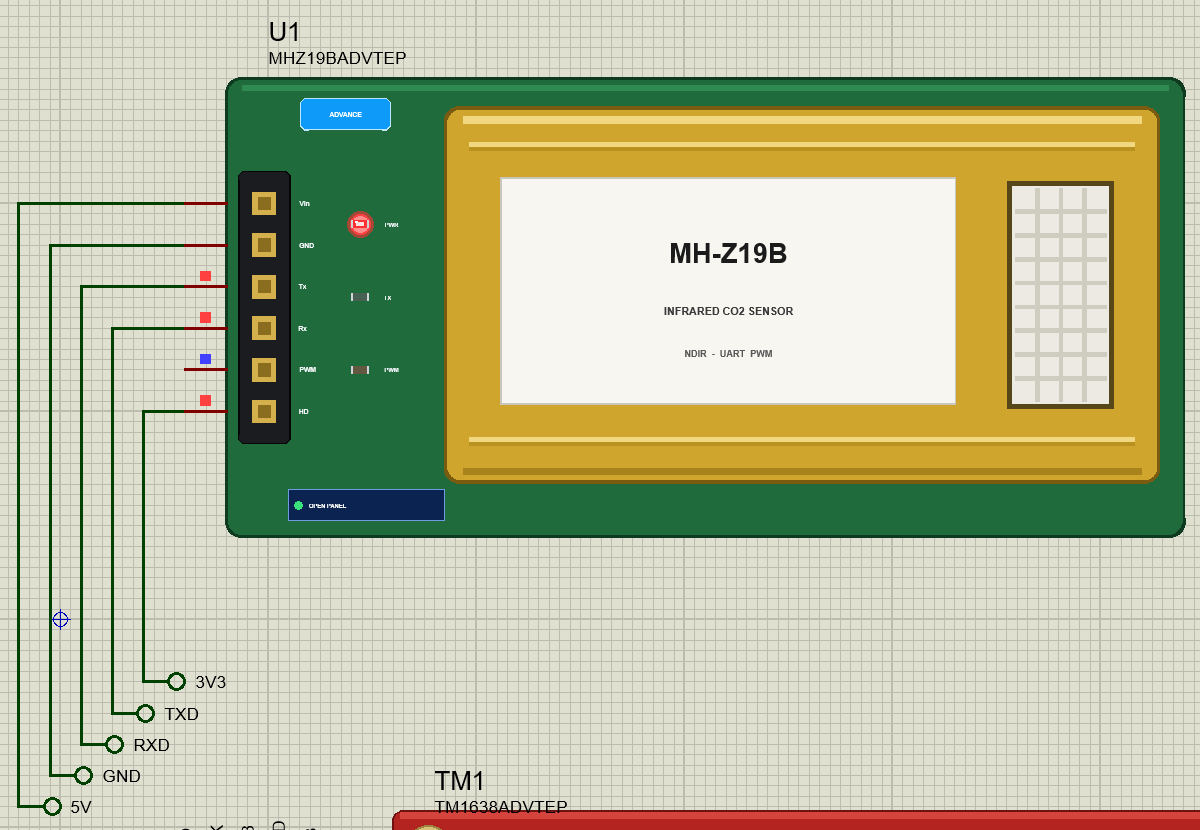
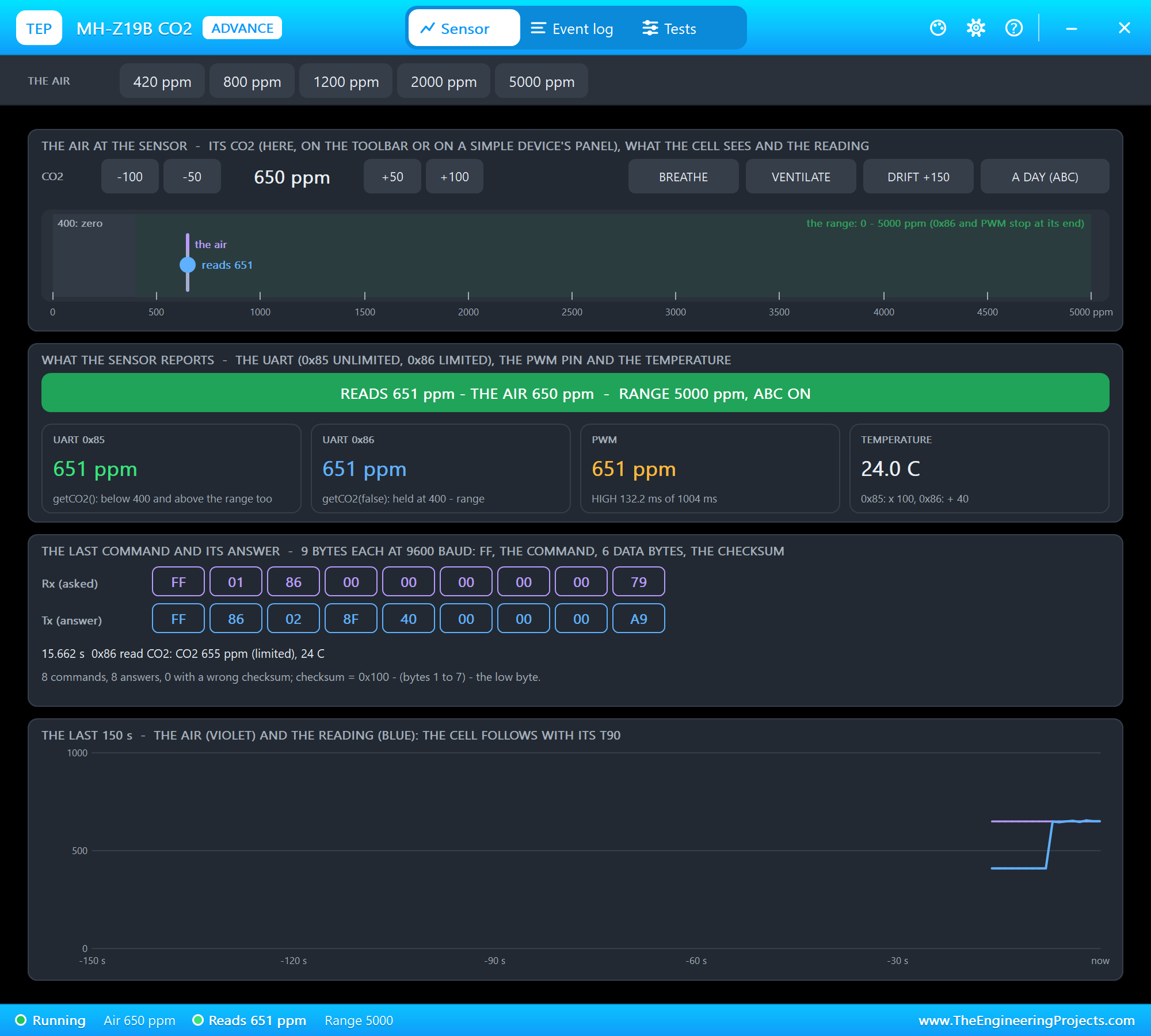
Open Pi-400-CO2-Monitor.pdsprj. PI1 runs co2_monitor.py on Ethernet. The parts come from our own libraries, each with its article: the CO2 sensor U1 from the MH-Z19B CO2 Sensor Library for Proteus, the display board TM1 from the TM1638 LED&KEY Library for Proteus. Both are the Advance versions: each opens a pop-up window at Run that shows what the Pi does with it. PC1 is the Laptop WiFi Monitor and MOB1 the Mobile WiFi Monitor, both on the router the Pi's cable goes to.
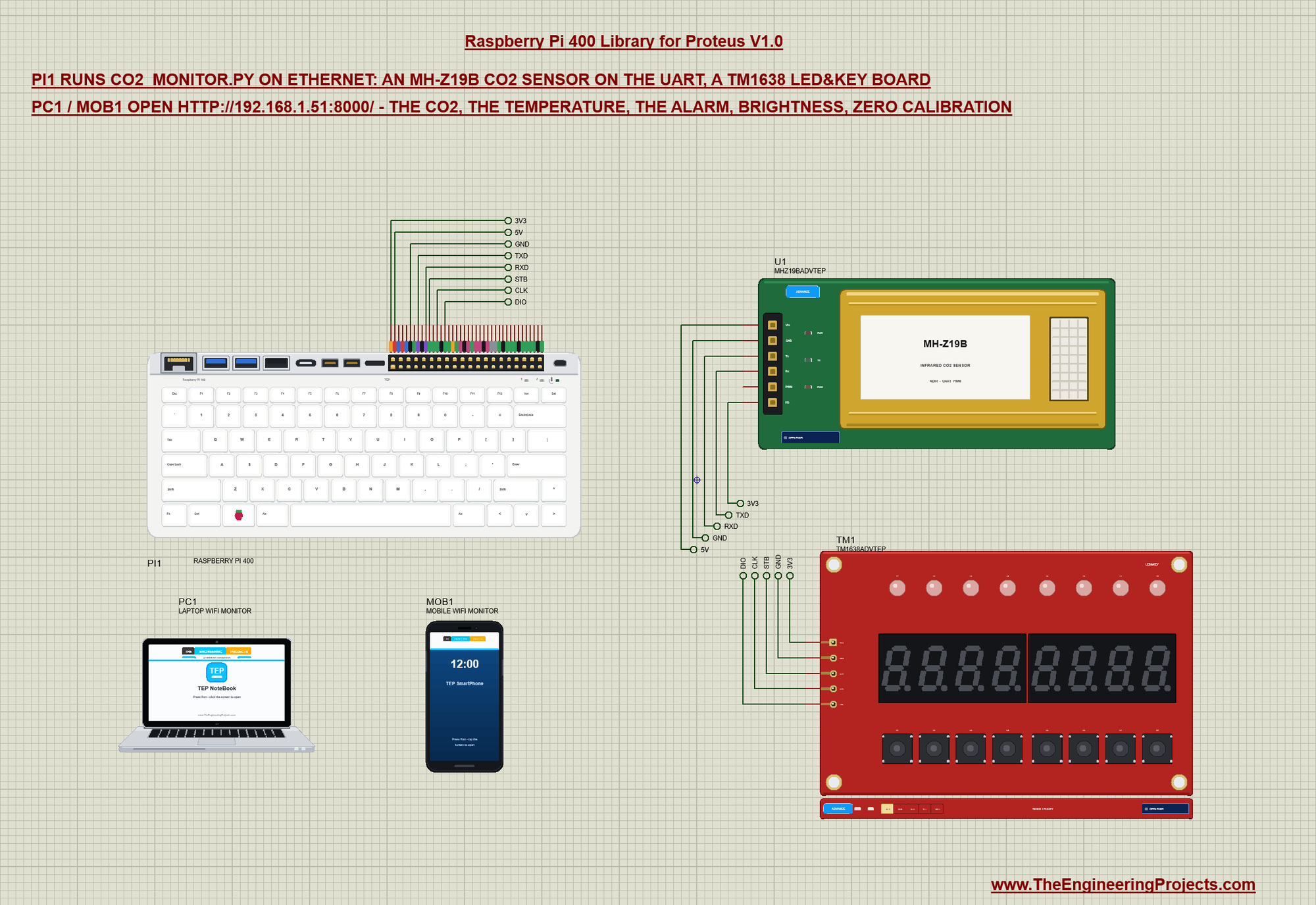
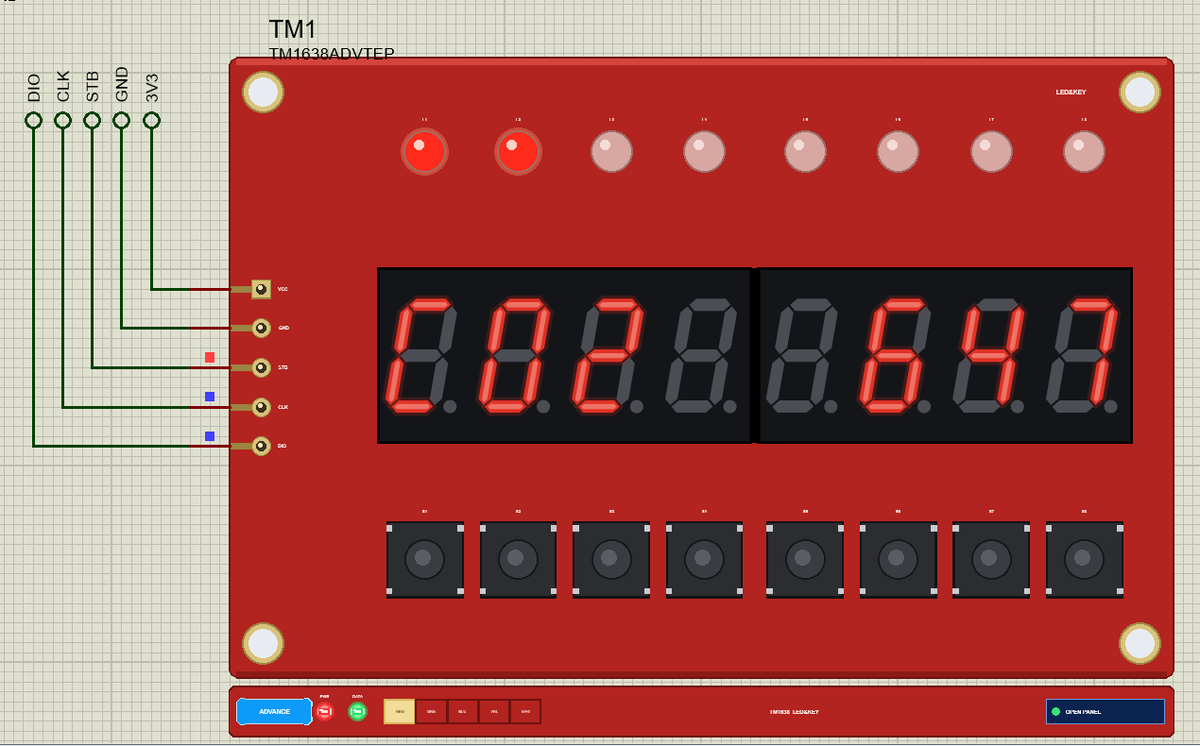
The MH-Z19B is an NDIR sensor: a small lamp shines through a gold-plated chamber, the CO2 in the air absorbs part of the infrared light, and the sensor turns what is left into ppm. It talks over a UART at 9600 baud with 9-byte frames. The TM1638 LED&KEY board carries eight 7-segment digits, eight LEDs and eight buttons, all driven by one TM1638 chip over three wires: STB, CLK and DIO. Net labels connect everything:
| Part pin | Net label | Pi pin | What it does |
|---|---|---|---|
| MH-Z19B Vin, GND | 5V, GND | 2, 6 | the sensor's supply (its lamp needs 5 V) |
| MH-Z19B Tx | RXD | 10 (GPIO15) | the sensor's answers into the Pi's UART |
| MH-Z19B Rx | TXD | 8 (GPIO14) | the Pi's commands into the sensor |
| MH-Z19B HD | 3V3 | 1 | held HIGH: no calibration by the pin |
| TM1638 VCC, GND | 3V3, GND | 1, 6 | the board's supply |
| TM1638 STB | STB | 11 (GPIO17) | LOW for every transfer |
| TM1638 CLK | CLK | 13 (GPIO27) | the clock the Pi sends |
| TM1638 DIO | DIO | 15 (GPIO22) | the data, both ways |
The MH-Z19B on the UART
Every command is nine bytes: FF, 01, the command and five zeros, then a checksum - 0x100 minus the sum of bytes 1 to 7. The program empties the receive buffer before each command, so an old byte never mixes into the answer:
    def command(self, cmd):
        frame = [0xFF, 0x01, cmd, 0, 0, 0, 0, 0]
        frame.append((0x100 - sum(frame[1:])) & 0xFF)
        self.uart.reset_input_buffer()
        self.uart.write(bytes(frame))
Command 0x86 reads the CO2. The answer starts with FF 86, carries the CO2 in bytes 2 and 3 and the temperature plus 40 in byte 4, and ends with its own checksum, which the program checks before it trusts the numbers:
    def read(self):
        """(ppm, degrees C), or None when the answer is missing or broken."""
        self.command(0x86)
        r = self.uart.read(9)
        if len(r) != 9 or r[0] != 0xFF or r[1] != 0x86 or (0x100 - sum(r[1:8])) & 0xFF != r[8]:
            return None
        return r[2] * 256 + r[3], r[4] - 40
The TM1638's Three Wires
The TM1638 is not SPI, although it looks like it: the bytes go out least significant bit first, and DIO is used in both directions. The program drives the three lines with RPi.GPIO - a bit on DIO, then a pulse on CLK:
    def byte(self, b):
        for k in range(8):
            GPIO.output(DIO, b >> k & 1)
            GPIO.output(CLK, 1)
            GPIO.output(CLK, 0)
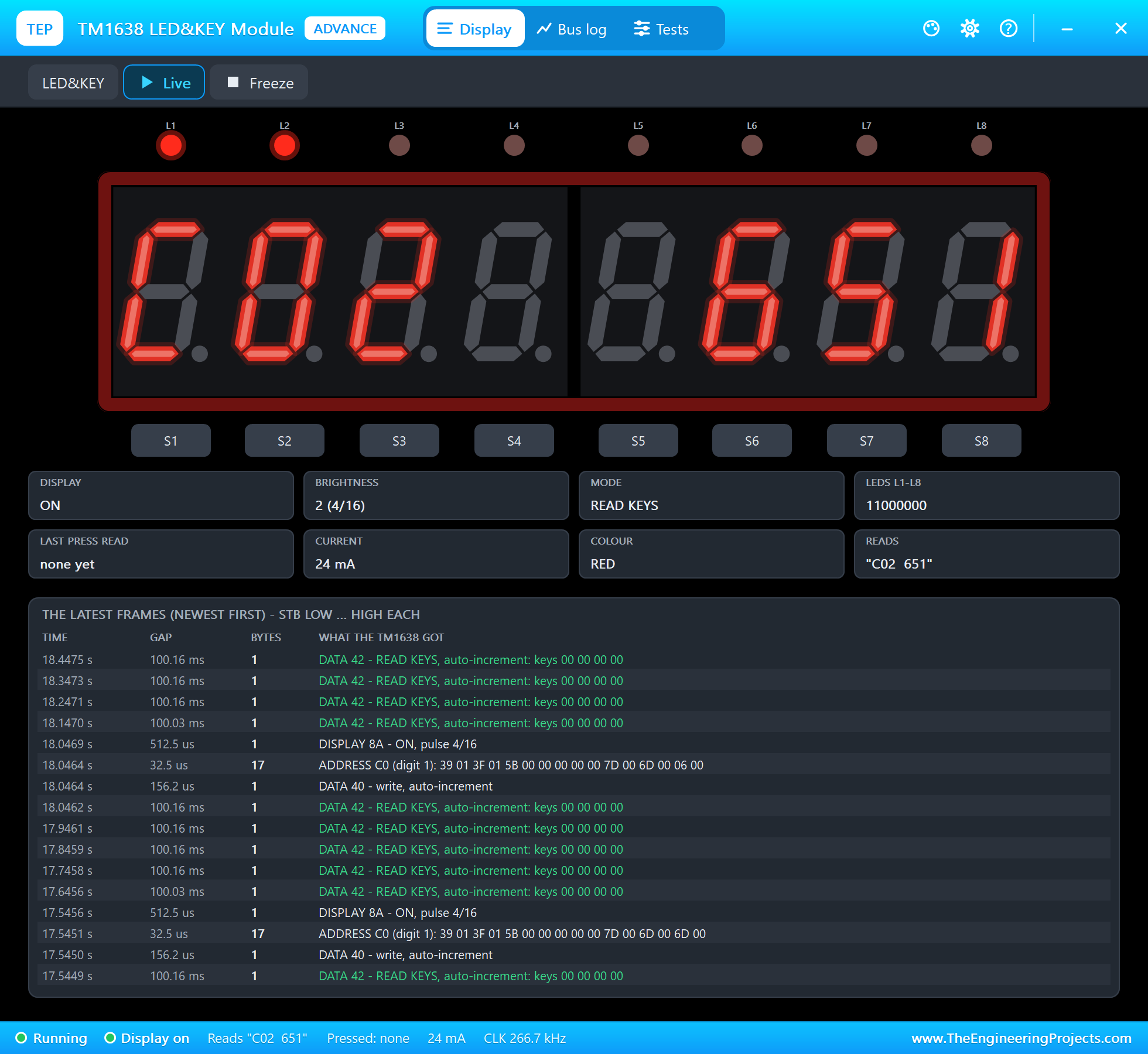
The display RAM holds 16 bytes that alternate: the even addresses are the eight digits from the left, the odd ones the eight LEDs. So one frame - command 0x40 for writing with the address counting up, then 0xC0 and 16 bytes - sets everything, and 0x88 plus the brightness switches the display on:
    def show(self, text, leds):
        """text: up to 8 characters (a '.' lights the point of the digit before it); leds: bit 0 = L1 ... bit 7 = L8."""
        segs = []
        for ch in text:
            if ch == '.' and segs:
                segs[-1] |= 0x80
            else:
                segs.append(self.SEGMENTS[ch])
        segs = (segs + [0] * 8)[:8]
        self.command(0x40)                                      # write the RAM, the address counting up
        GPIO.output(STB, 0)
        self.byte(0xC0)
        for k in range(8):
            self.byte(segs[k])
            self.byte(leds >> k & 1)
        GPIO.output(STB, 1)
        self.command(0x88 | self.brightness)                    # display on
The buttons come back the other way. After command 42 the program switches DIO to an input and clocks in four bytes; the board wires S1 to S4 to bit 0 of those bytes and S5 to S8 to bit 4, so shifting each byte by its index gives one byte with S1 in bit 0:
    def buttons(self):
        """The pressed buttons: bit 0 = S1 ... bit 7 = S8."""
        GPIO.output(STB, 0)
        self.byte(0x42)
        GPIO.setup(DIO, GPIO.IN)                                # the TM1638 sends now; the board's pull-up holds DIO
        keys = 0
        for i in range(4):
            v = 0
            for k in range(8):
                GPIO.output(CLK, 1)
                v |= GPIO.input(DIO) << k
                GPIO.output(CLK, 0)
            keys |= v << i
        GPIO.setup(DIO, GPIO.OUT, initial=GPIO.LOW)
        GPIO.output(STB, 1)
        return keys
Measuring and the Display
A thread reads the sensor every 2 s and prints a line when the CO2 changes by 20 ppm or more:
def measure():
    """Every 2 s: the CO2 and the temperature; a line when the CO2 changes by 20 ppm or more."""
    last = None
    while True:
        r = sensor.read()
        with lock:
            if r:
                state['co2'], state['temp'] = r
                state['history'] = (state['history'] + [r[0]])[-10:]
            else:
                state['note'] = 'no answer from the MH-Z19B'
            co2, alarm = state['co2'], state['alarm']
        if r and (last is None or abs(co2 - last) >= 20):
            print('%s  CO2 %d ppm  %d C  %s%s' % (time.strftime('%H:%M:%S'), co2, r[1], level(co2), '  ALARM' if co2 >= alarm else ''))
            last = co2
        time.sleep(2)
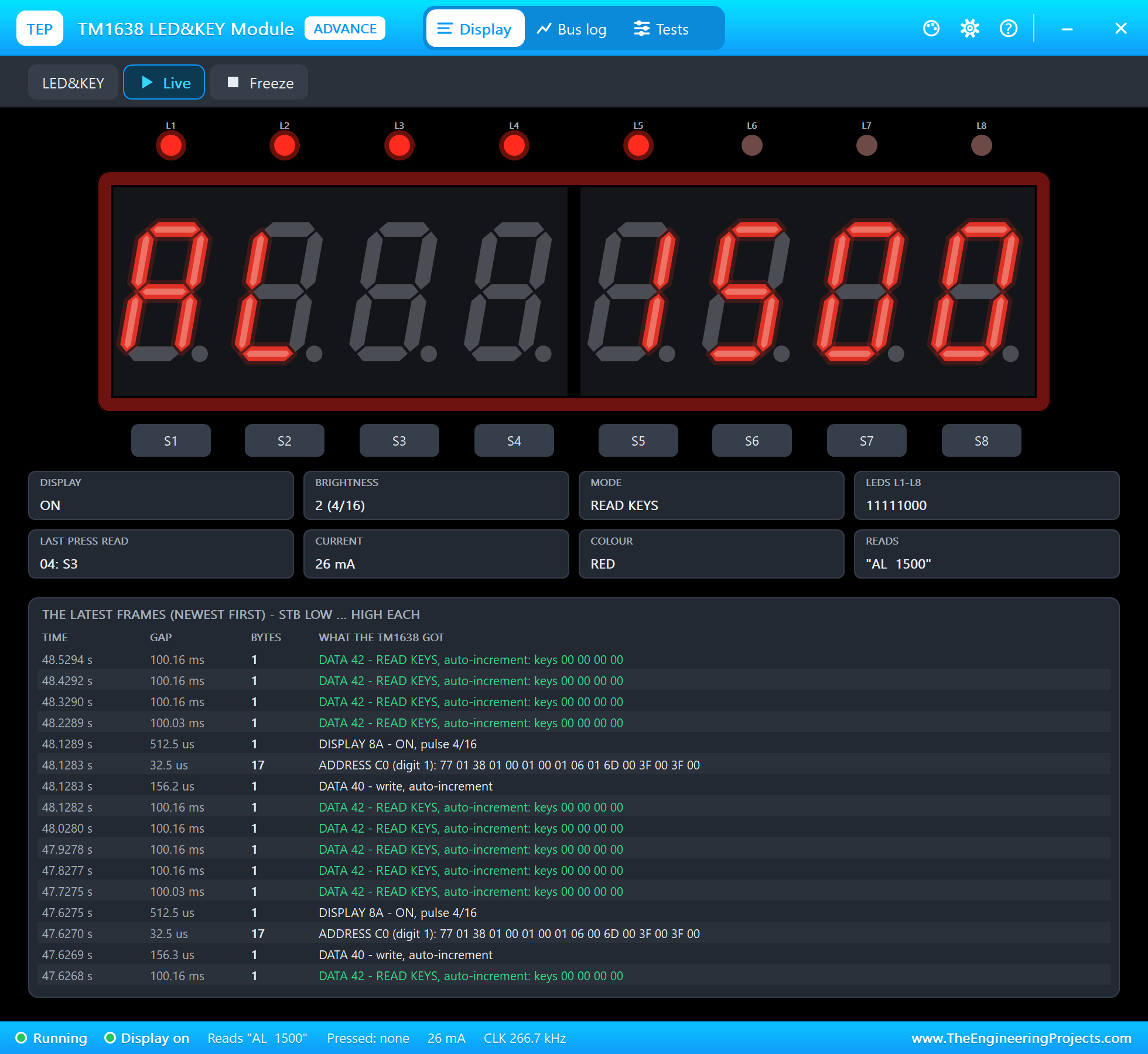
A second thread reads the buttons ten times a second - S1 the CO2, S2 the temperature, S3 the alarm level, S4 the brightness, S5 and S6 the alarm 100 ppm down and up - and redraws the board twice a second. The LEDs make a bar, one LED for every 200 ppm above 400; at the alarm level all eight blink:
        if tick % 5 == 0:
            bar = (1 << max(0, min(8, (co2 - 400) // 200 + 1))) - 1 if co2 else 0
            if co2 >= alarm and tick % 10 == 0:
                bar = 0xFF
            elif co2 >= alarm:
                bar = 0
            value = co2 if view == 'CO2' else temp if view == 'dEG' else alarm
            board.show(view.ljust(4) + ('%4d' % value)[-4:], bar)
The Web Page
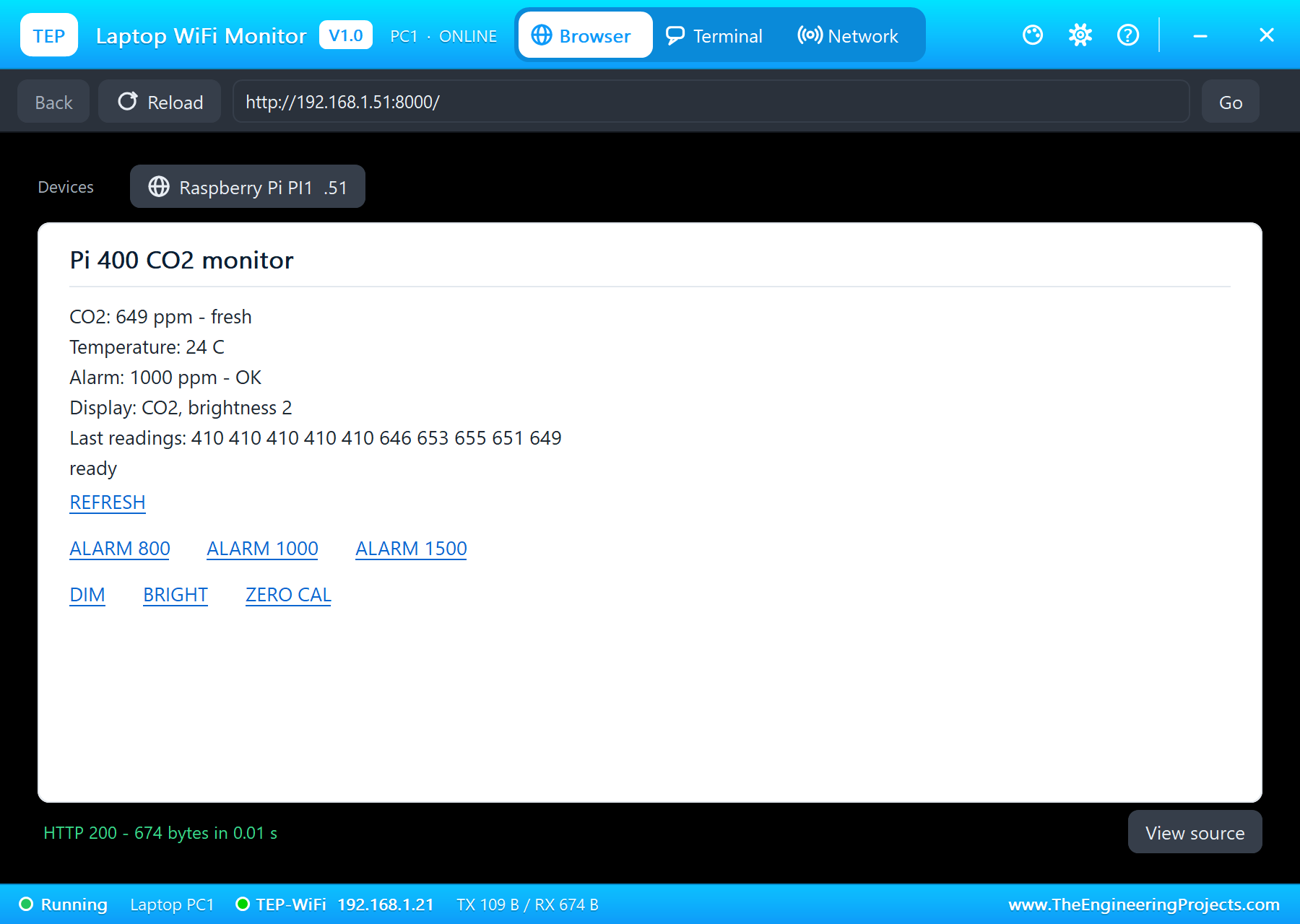
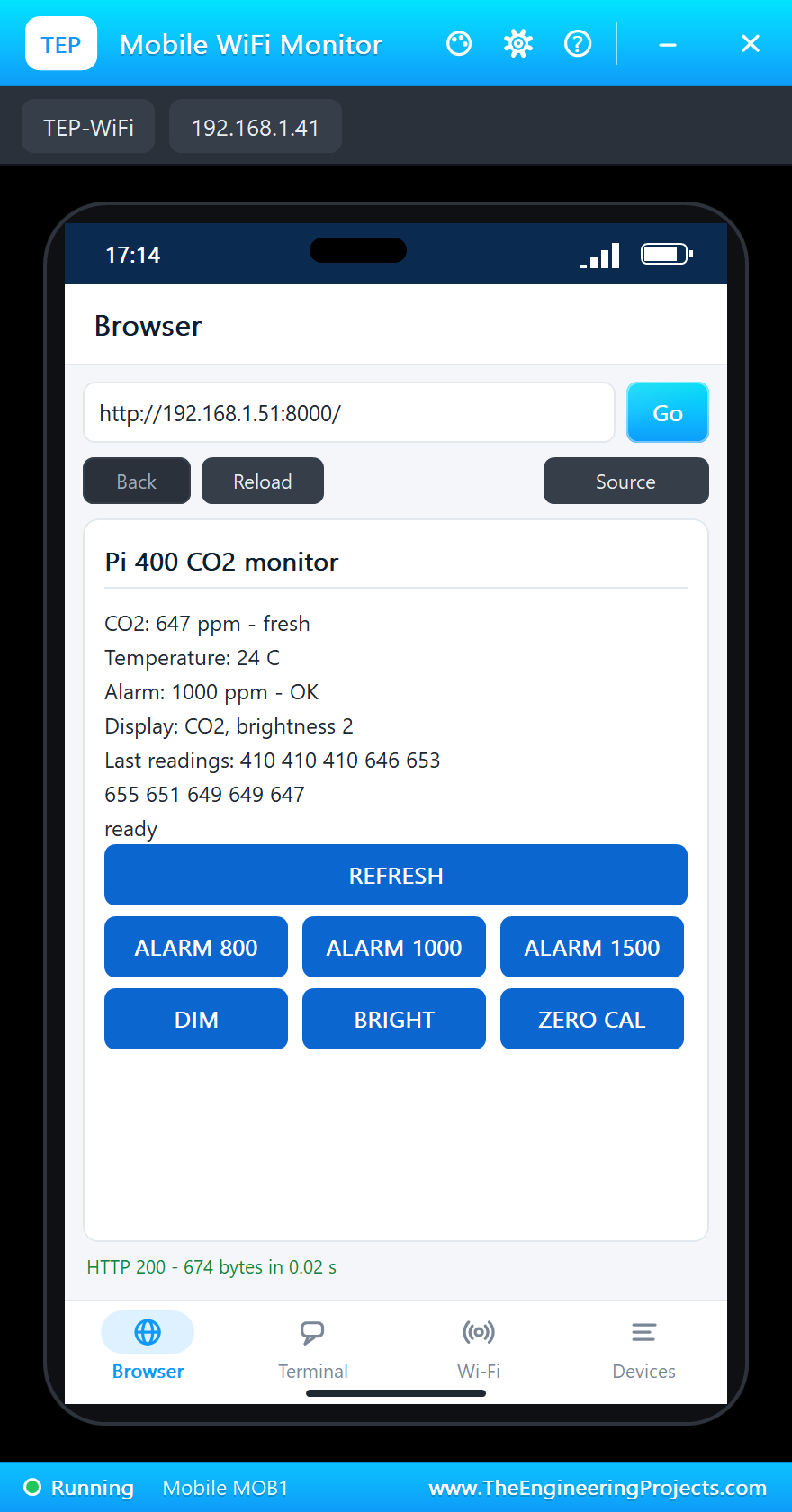
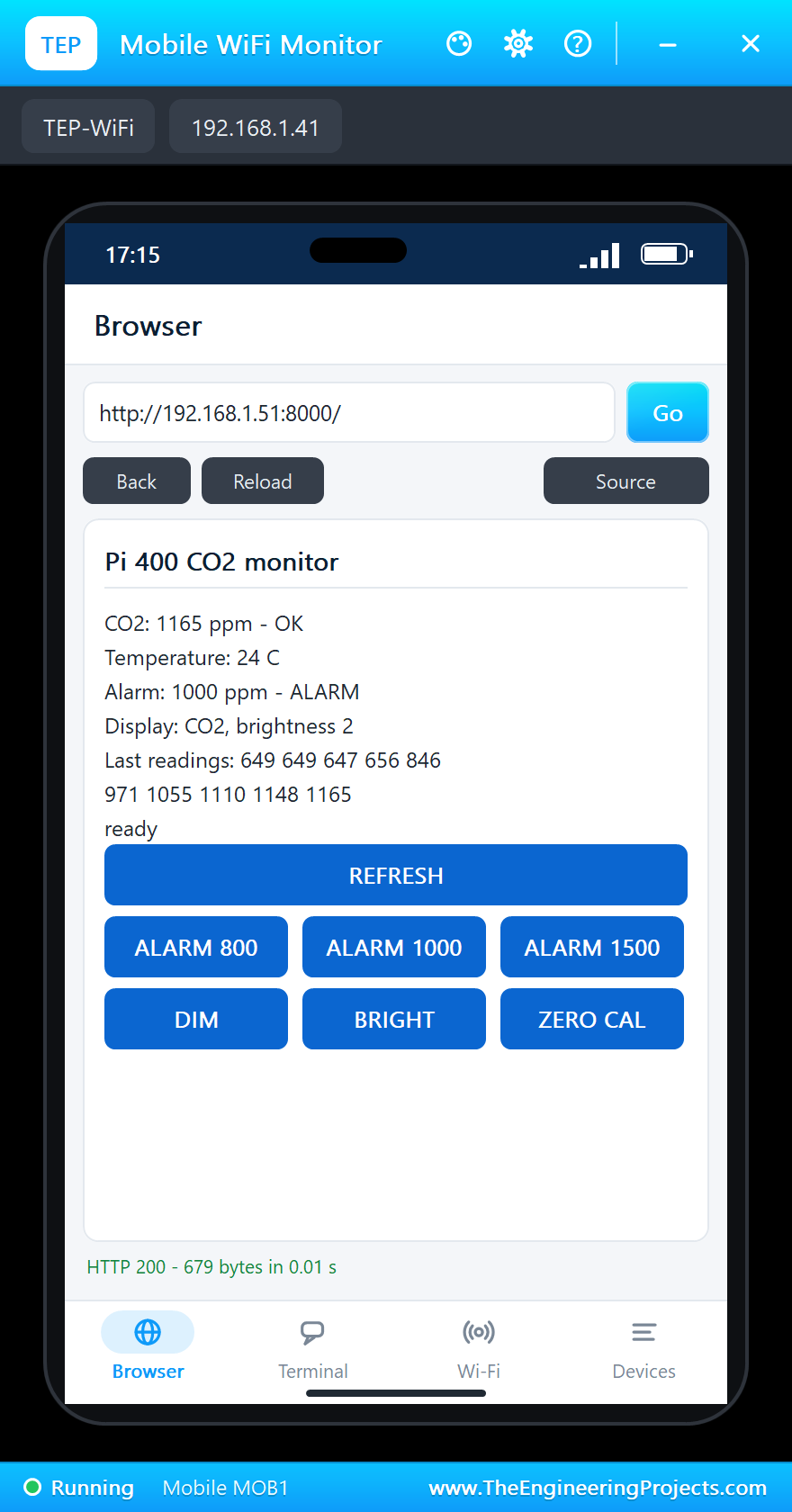
The page shows the CO2 with its level - fresh, OK or stuffy - the temperature, the alarm, the display and the last 10 readings, with REFRESH and two rows of three links:
PAGE = """<html><head><title>Pi 400 CO2 monitor</title></head><body>
<p>CO2: <b>{co2} ppm</b> - {level}</p>
<p>Temperature: {temp} C</p>
<p>Alarm: {alarm} ppm - {verdict}</p>
<p>Display: {view}, brightness {bright}</p>
<p>Last readings: {history}</p>
<p>{note}</p>
<p><a href="/">REFRESH</a></p>
<p><a href="/alarm?ppm=800">ALARM 800</a> <a href="/alarm?ppm=1000">ALARM 1000</a> <a href="/alarm?ppm=1500">ALARM 1500</a></p>
<p><a href="/bright?level=1">DIM</a> <a href="/bright?level=7">BRIGHT</a> <a href="/zero">ZERO CAL</a></p>
</body></html>"""
/alarm sets the alarm level, /bright the display's brightness, and /zero sends command 0x87, which makes the air of that moment read 400 ppm:
    def do_GET(self):
        url = urlparse(self.path)
        q = parse_qs(url.query)
        with lock:
            if url.path == '/alarm' and q.get('ppm', [''])[0].isdigit():
                state['alarm'] = int(q['ppm'][0])
                state['note'] = 'alarm at %d ppm' % state['alarm']
            elif url.path == '/bright' and q.get('level', [''])[0].isdigit():
                board.brightness = min(7, int(q['level'][0]))
                state['note'] = 'brightness %d' % board.brightness
            elif url.path == '/zero':
                sensor.zero()
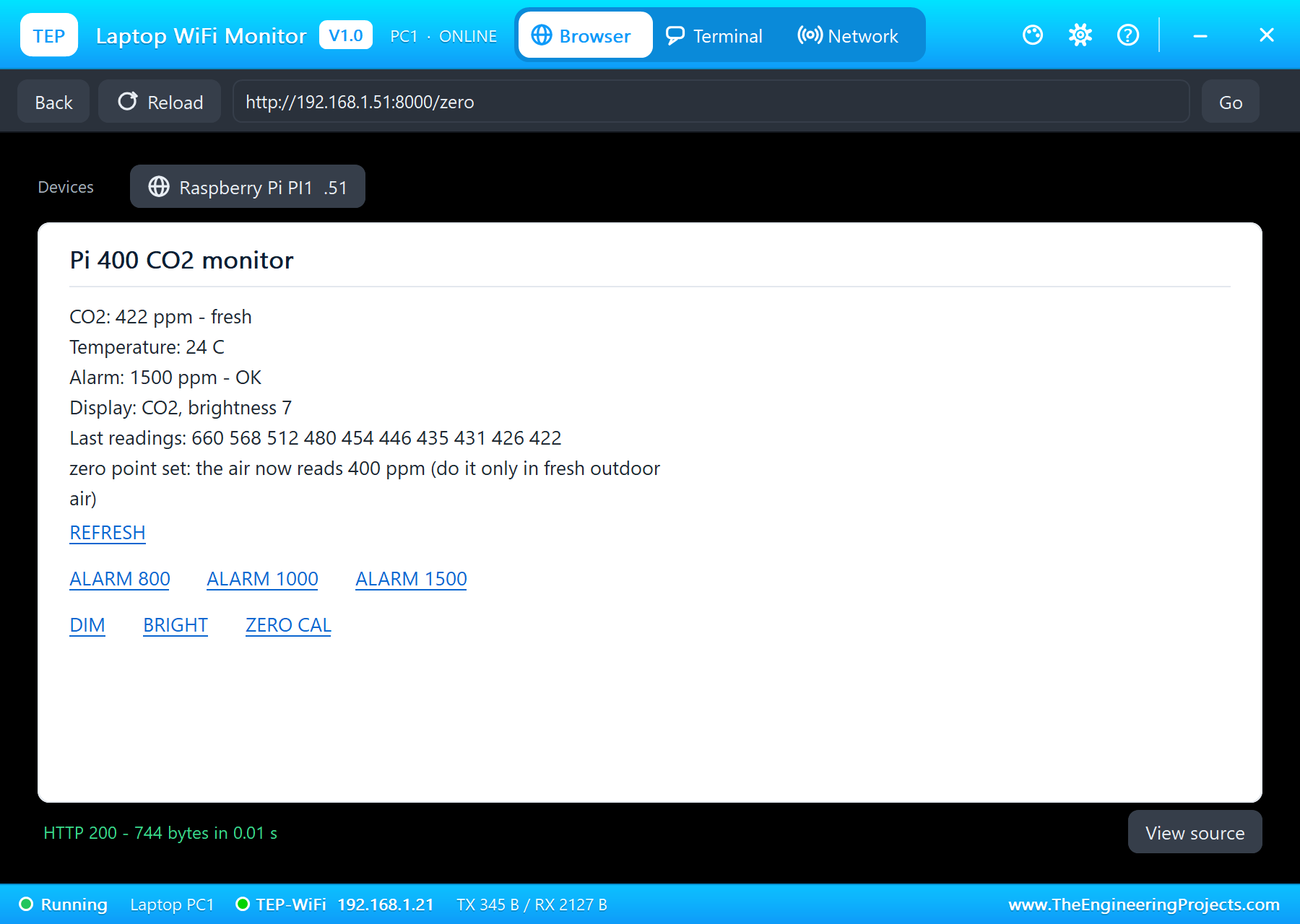
                state['note'] = 'zero point set: the air now reads 400 ppm (do it only in fresh outdoor air)'
            s = dict(state)
        verdict = 'ALARM' if s['co2'] >= s['alarm'] else 'OK'
At the start the program greets with "Pi 400" on the board, opens the UART, waits for the network, starts both threads and serves on port 8000:
GPIO.setmode(GPIO.BCM)
GPIO.setwarnings(False)                                         # (DIO changes between output and input)
board = TM1638()
board.show('Pi 400  ', 0)
sensor = MHZ19B()
print('co2_monitor.py - room CO2 monitor on the Raspberry Pi 400')
print('MH-Z19B on /dev/serial0 (9600 baud); TM1638 on GPIO17 / GPIO27 / GPIO22')
print('waiting for the network ...')
while my_ip() == '0.0.0.0':
    time.sleep(0.5)
state['note'] = 'ready'
threading.Thread(target=measure, daemon=True).start()
threading.Thread(target=panel, daemon=True).start()
print('serving on http://%s:%d/' % (my_ip(), PORT))
HTTPServer(('', PORT), Handler).serve_forever()
Run the Demo
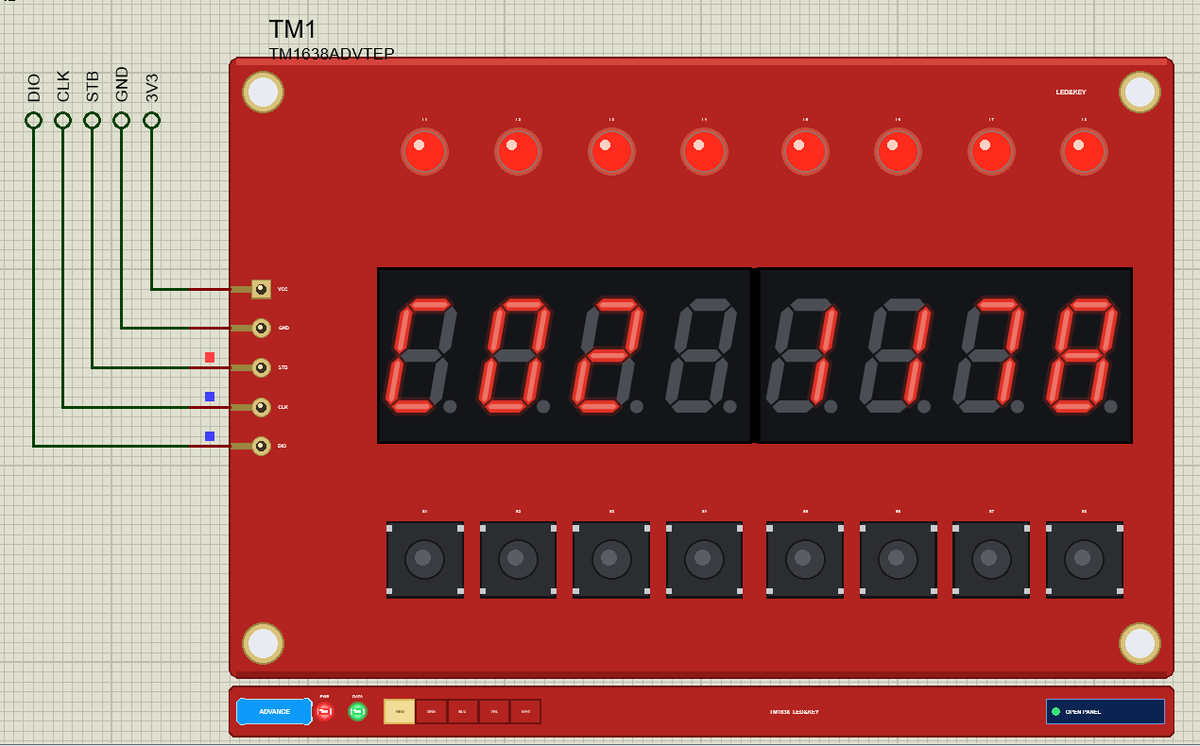
Press Run. eth0 is up and the page is served 1.5 s after Run. In the demo the sensor's preheat is 10 s (a real one takes 3 minutes), and until it is over command 0x86 answers 410 ppm; then the reading follows the air at 650 ppm, and the board shows "C02" with two LEDs lit:
pi@raspberrypi:~ $ python3 co2_monitor.py
co2_monitor.py - room CO2 monitor on the Raspberry Pi 400
MH-Z19B on /dev/serial0 (9600 baud); TM1638 on GPIO17 / GPIO27 / GPIO22
waiting for the network ...
serving on http://192.168.1.51:8000/
17:14:22  CO2 410 ppm  24 C  fresh
17:14:32  CO2 646 ppm  24 C  fresh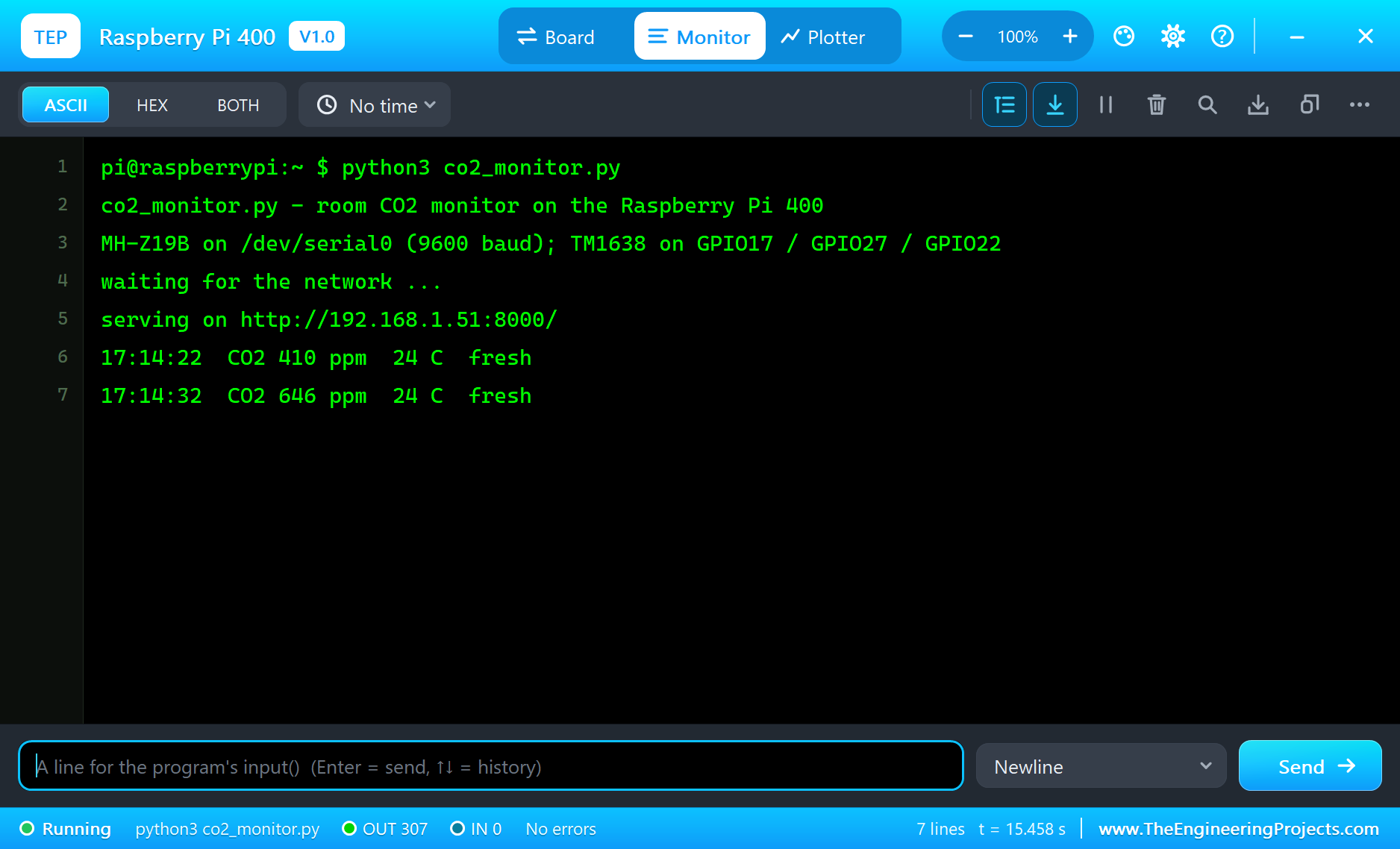
Open the Page
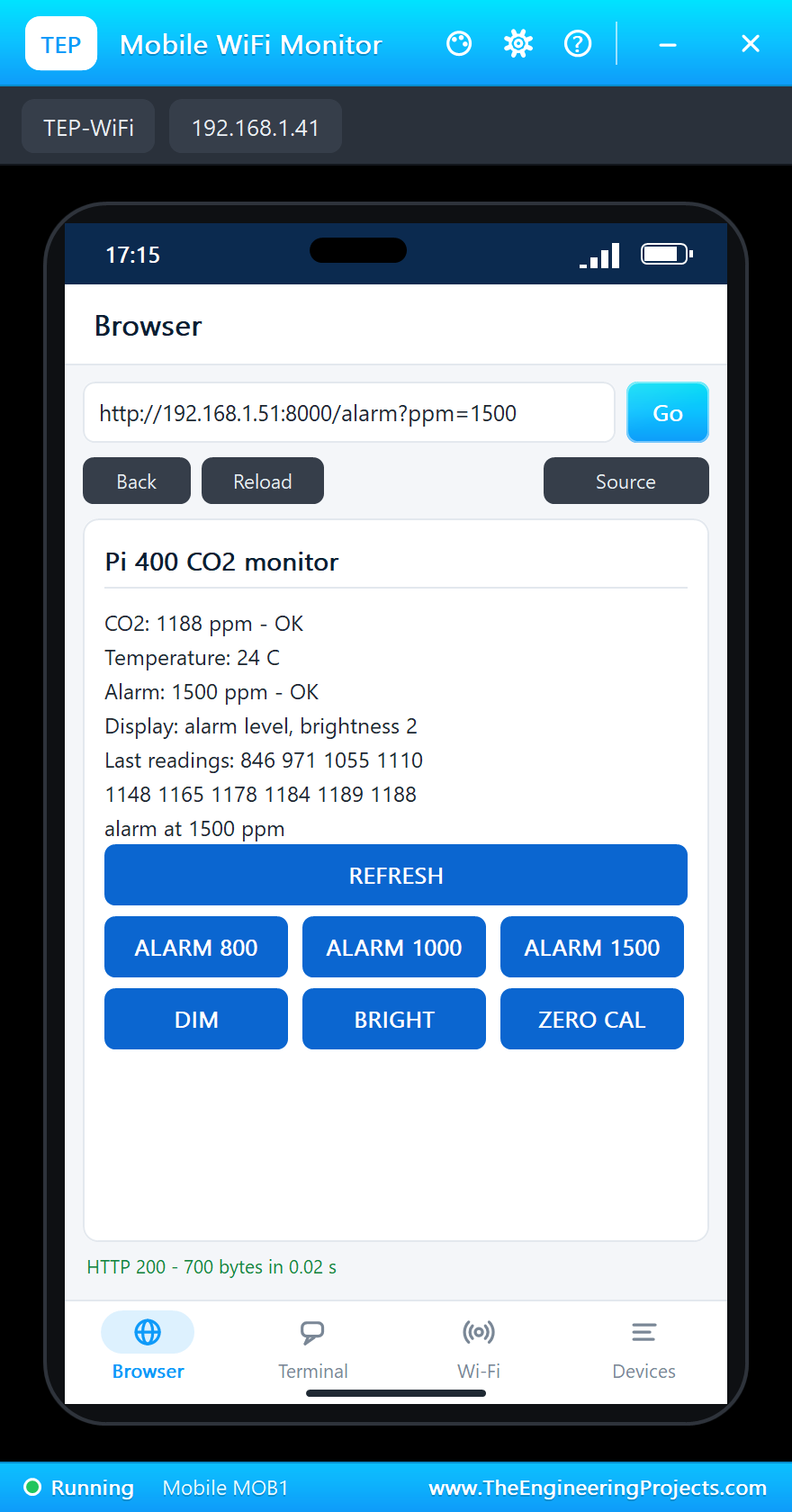
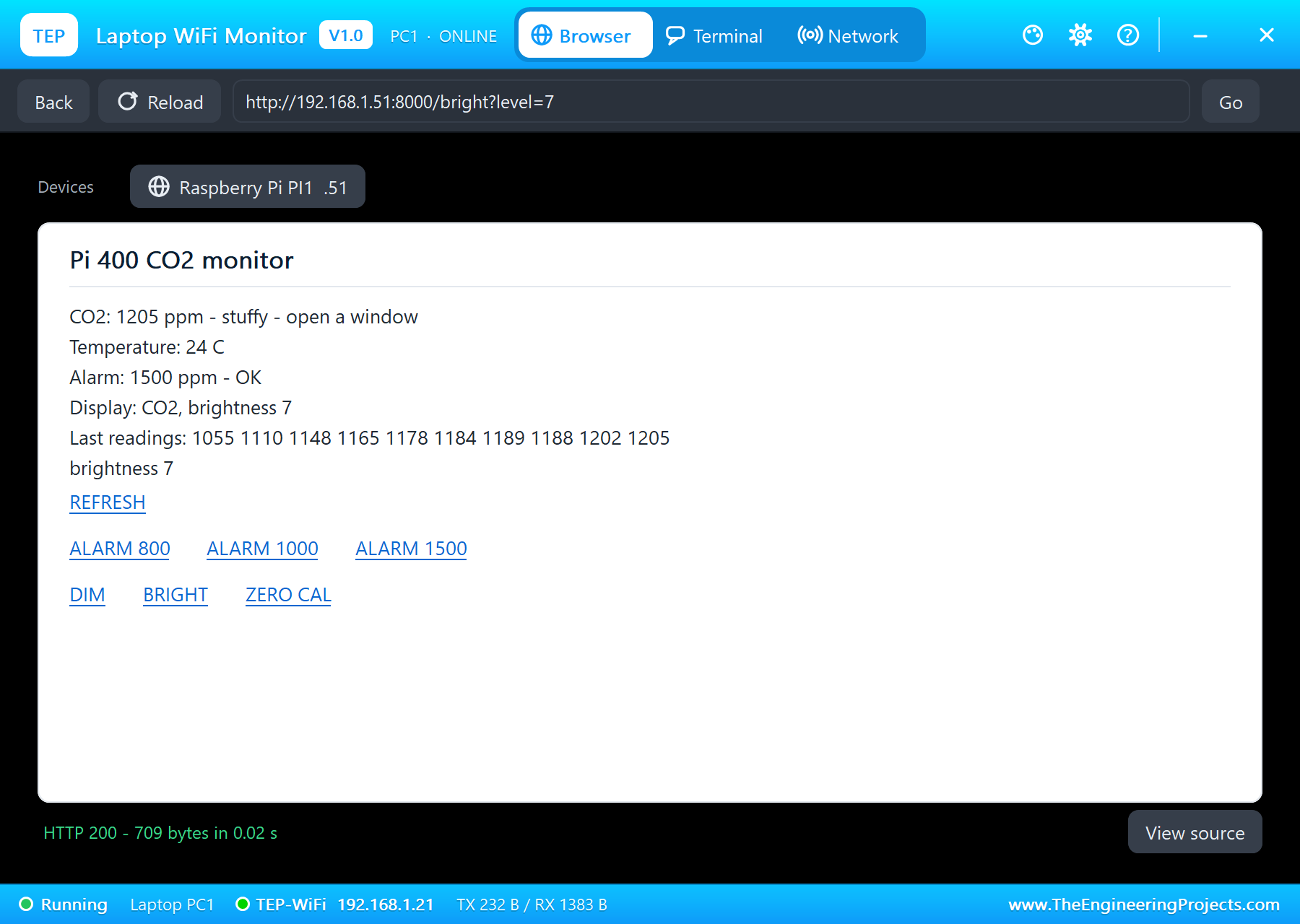
On the laptop click Browser, check the address http://192.168.1.51:8000/ and click Go; on the phone the same. The laptop shows the links as text, the phone as buttons:
A Stuffy Room
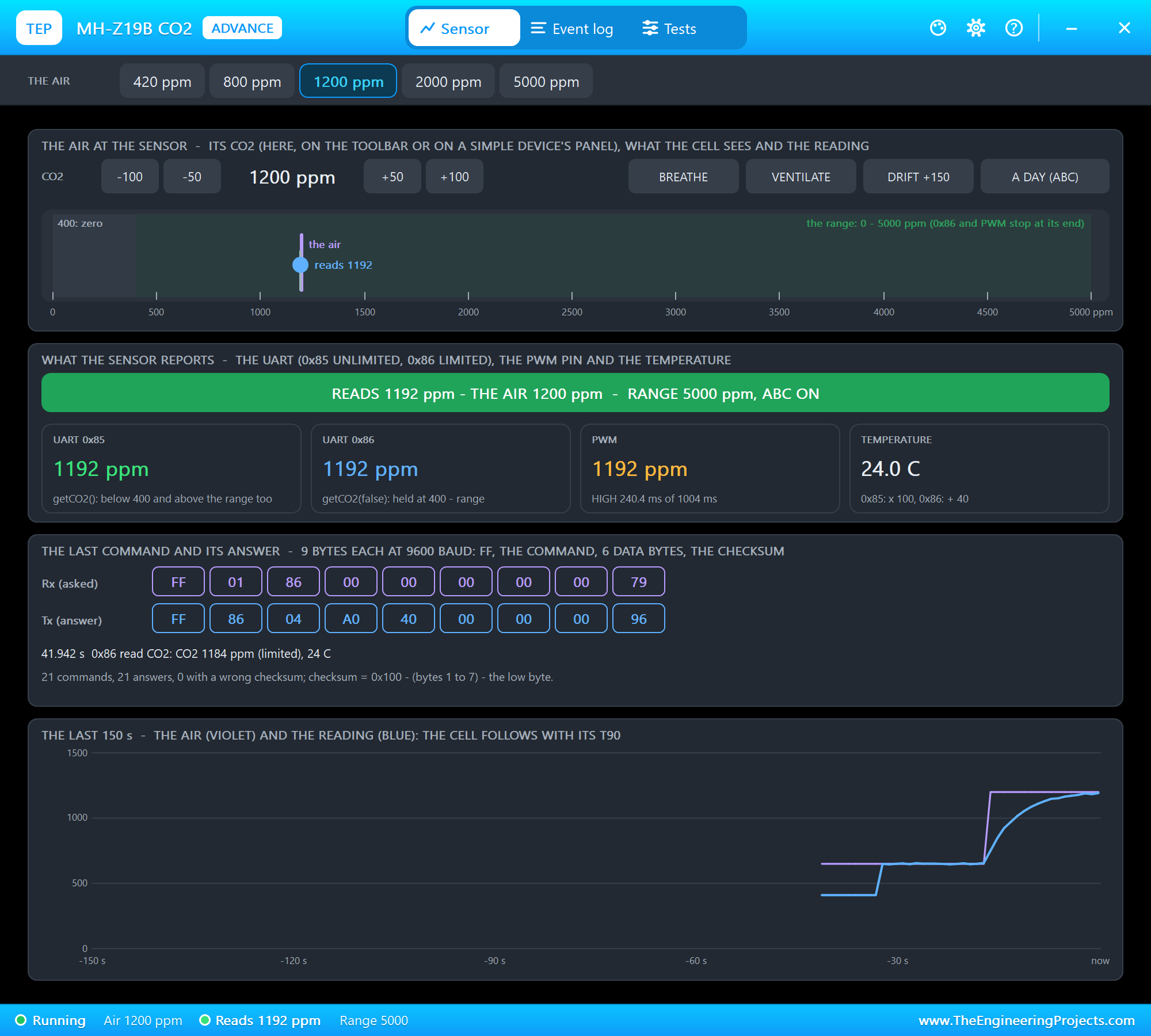
In the sensor's pop-up click the 1200 ppm preset. The reading climbs - the sensor needs its response time - and from 1055 ppm it is over the 1000 ppm alarm: the eight LEDs blink and REFRESH on the phone says ALARM:
The Buttons and the Alarm Level
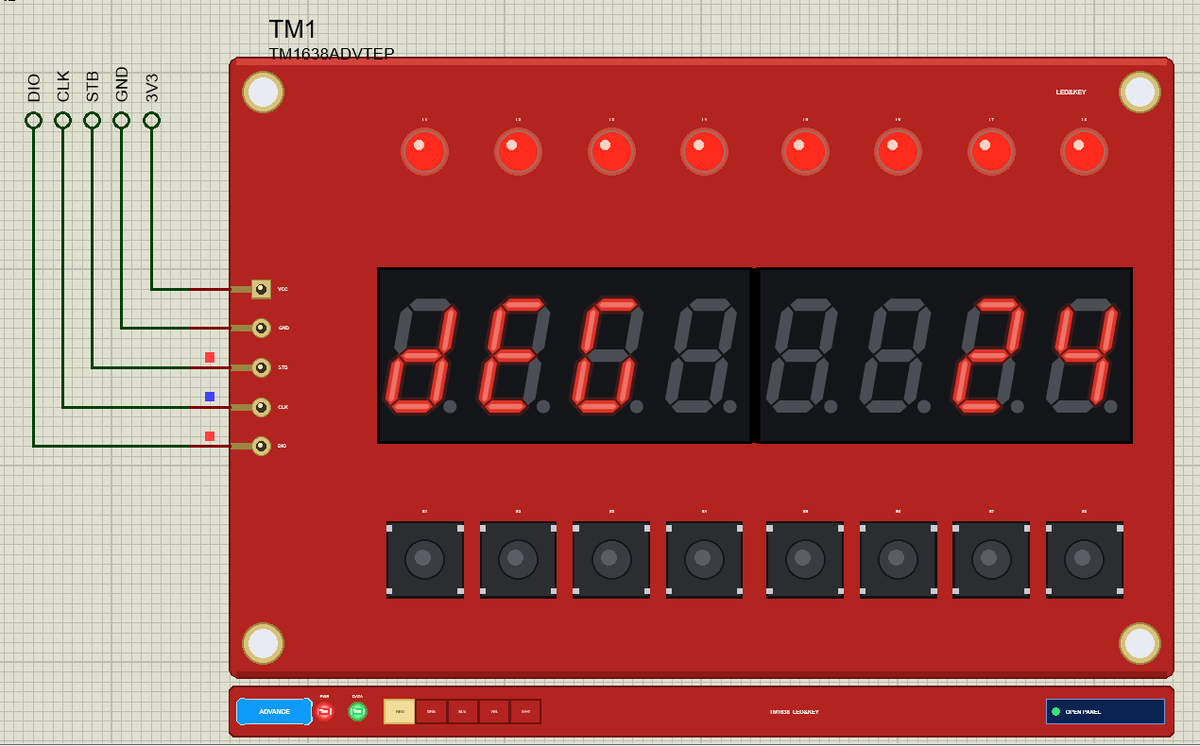
Click S2 in the board's pop-up: the display shows the temperature, "dEG" and 24. S3 shows the alarm level, "AL" and 1000. Then tap ALARM 1500 on the phone - the alarm is over - and click S1 for the CO2 again:
Fresh Air and the Zero Point
Click the 420 ppm preset - outdoor air. The reading falls back towards 420. The MH-Z19B's zero point is 400 ppm, the CO2 of fresh air, so in fresh air ZERO CAL on the laptop makes the reading of that moment 400 ppm. Done in a stuffy room, the same command would make every later reading too low:
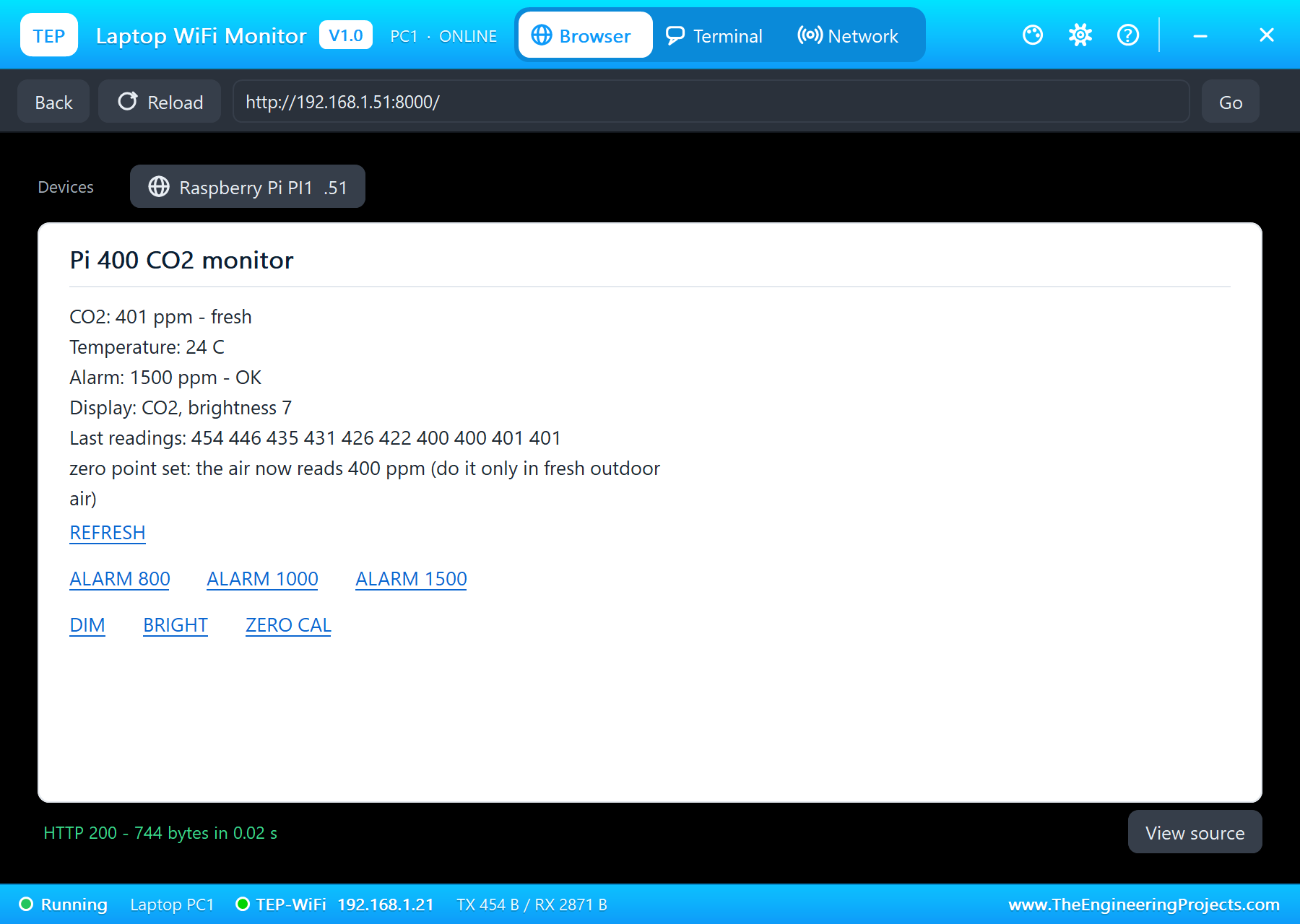
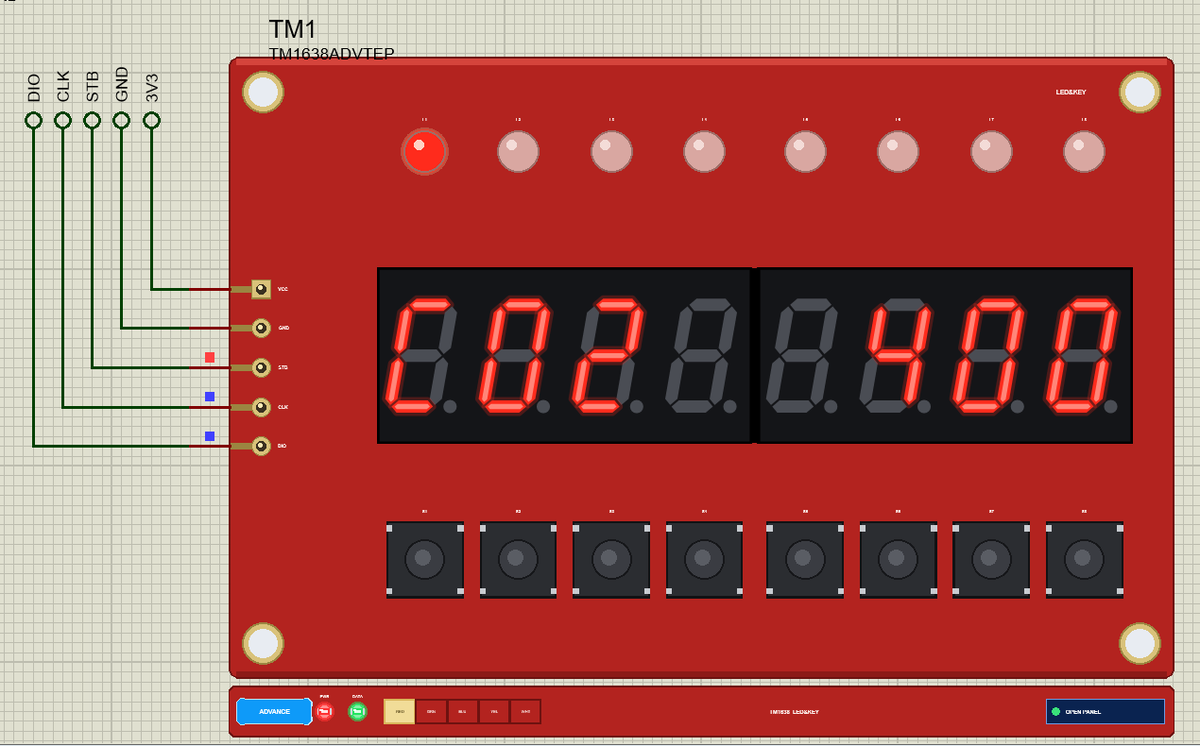
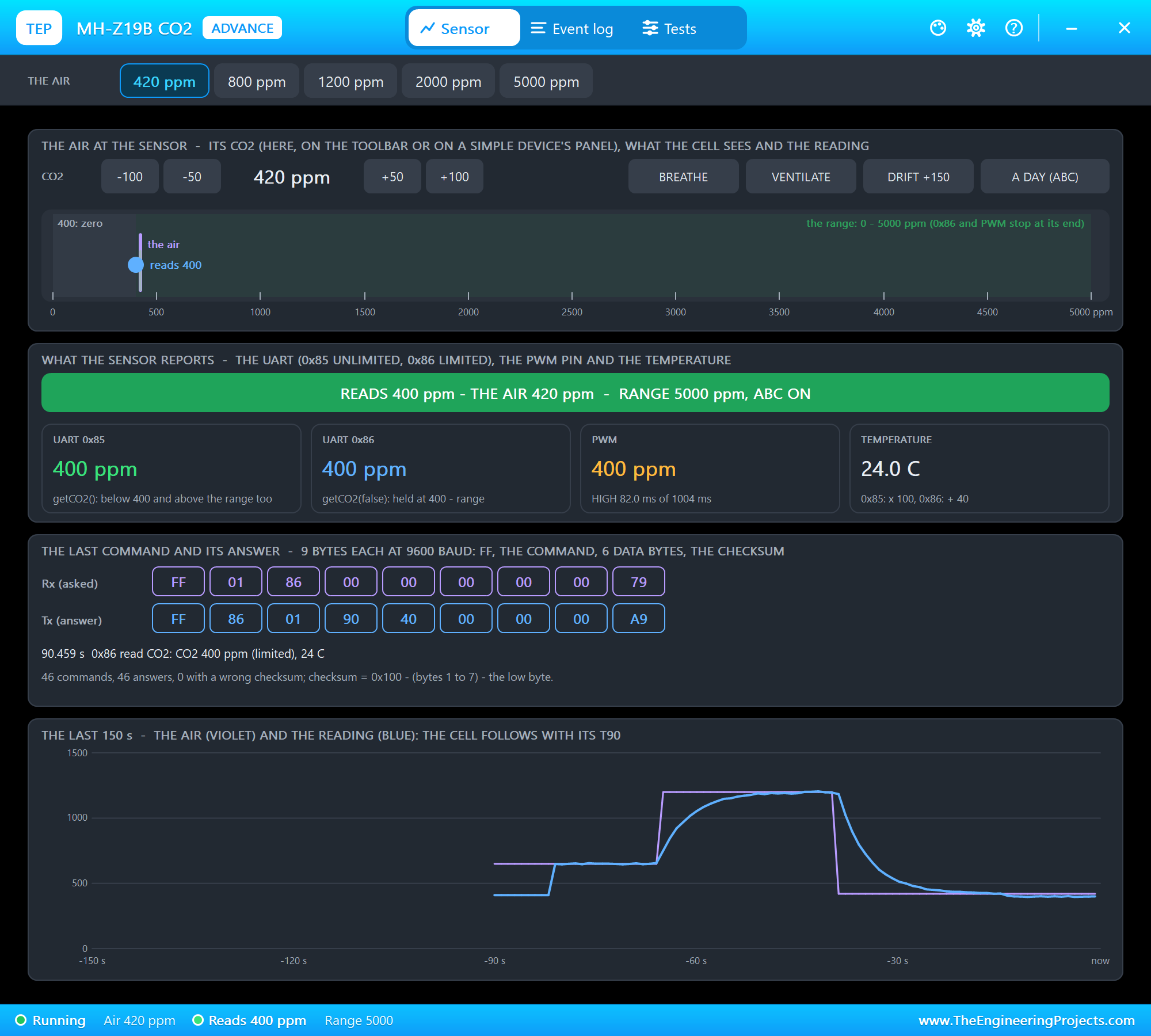
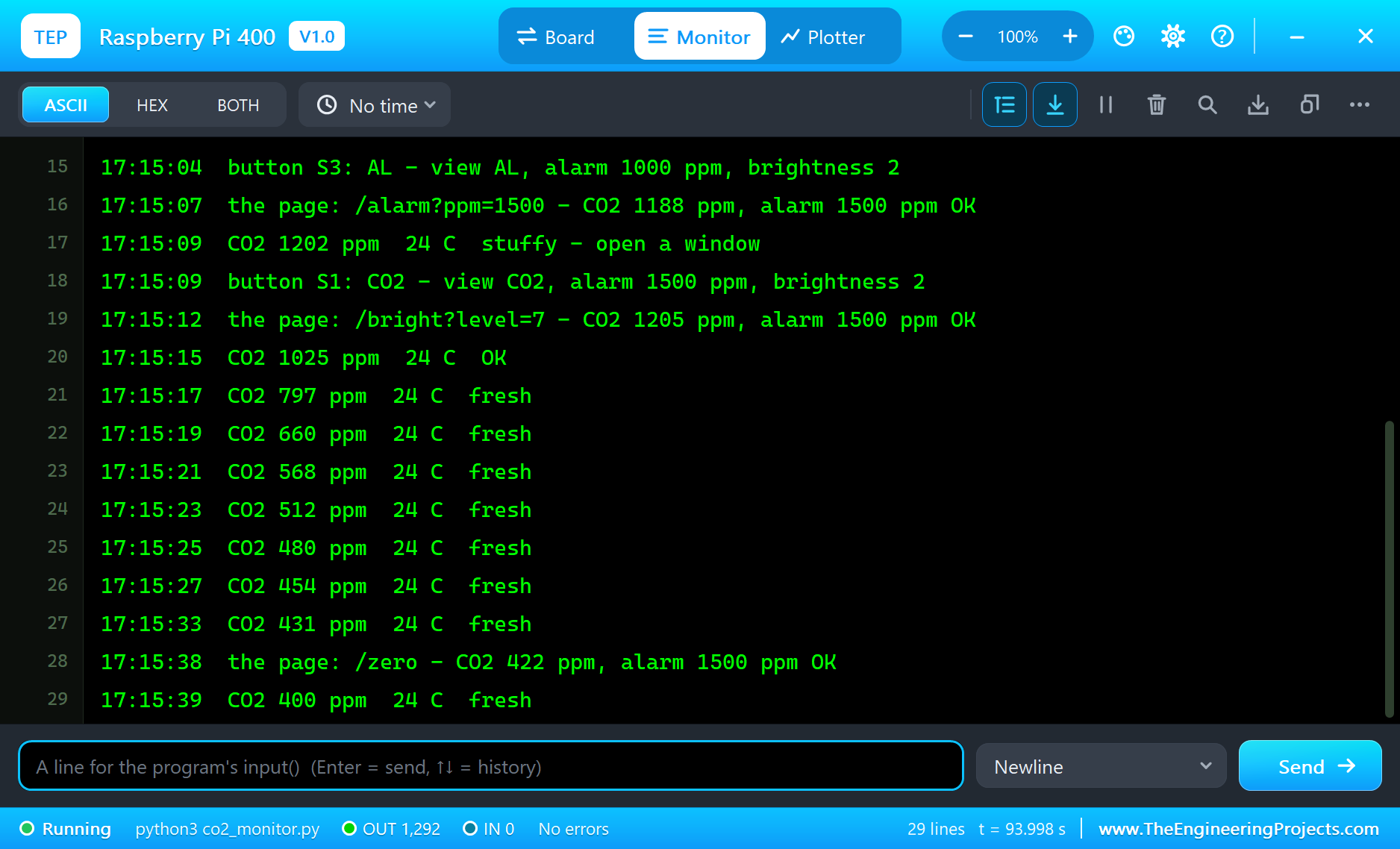
The Pi Terminal logs every change, every button and every click on the page:
17:14:48  CO2 846 ppm  24 C  OK
17:14:50  CO2 971 ppm  24 C  OK
17:14:52  CO2 1055 ppm  24 C  OK  ALARM
17:14:54  CO2 1110 ppm  24 C  OK  ALARM
17:14:56  CO2 1148 ppm  24 C  OK  ALARM
17:15:00  CO2 1178 ppm  24 C  OK  ALARM
17:15:03  button S2: dEG - view dEG, alarm 1000 ppm, brightness 2
17:15:04  button S3: AL - view AL, alarm 1000 ppm, brightness 2
17:15:07  the page: /alarm?ppm=1500 - CO2 1188 ppm, alarm 1500 ppm OK
17:15:09  CO2 1202 ppm  24 C  stuffy - open a window
17:15:09  button S1: CO2 - view CO2, alarm 1500 ppm, brightness 2
17:15:12  the page: /bright?level=7 - CO2 1205 ppm, alarm 1500 ppm OK
17:15:15  CO2 1025 ppm  24 C  OK
17:15:17  CO2 797 ppm  24 C  fresh
17:15:19  CO2 660 ppm  24 C  fresh
17:15:21  CO2 568 ppm  24 C  fresh
17:15:23  CO2 512 ppm  24 C  fresh
17:15:25  CO2 480 ppm  24 C  fresh
17:15:27  CO2 454 ppm  24 C  fresh
17:15:33  CO2 431 ppm  24 C  fresh
17:15:38  the page: /zero - CO2 422 ppm, alarm 1500 ppm OK
17:15:39  CO2 400 ppm  24 C  fresh
The Pi Terminal
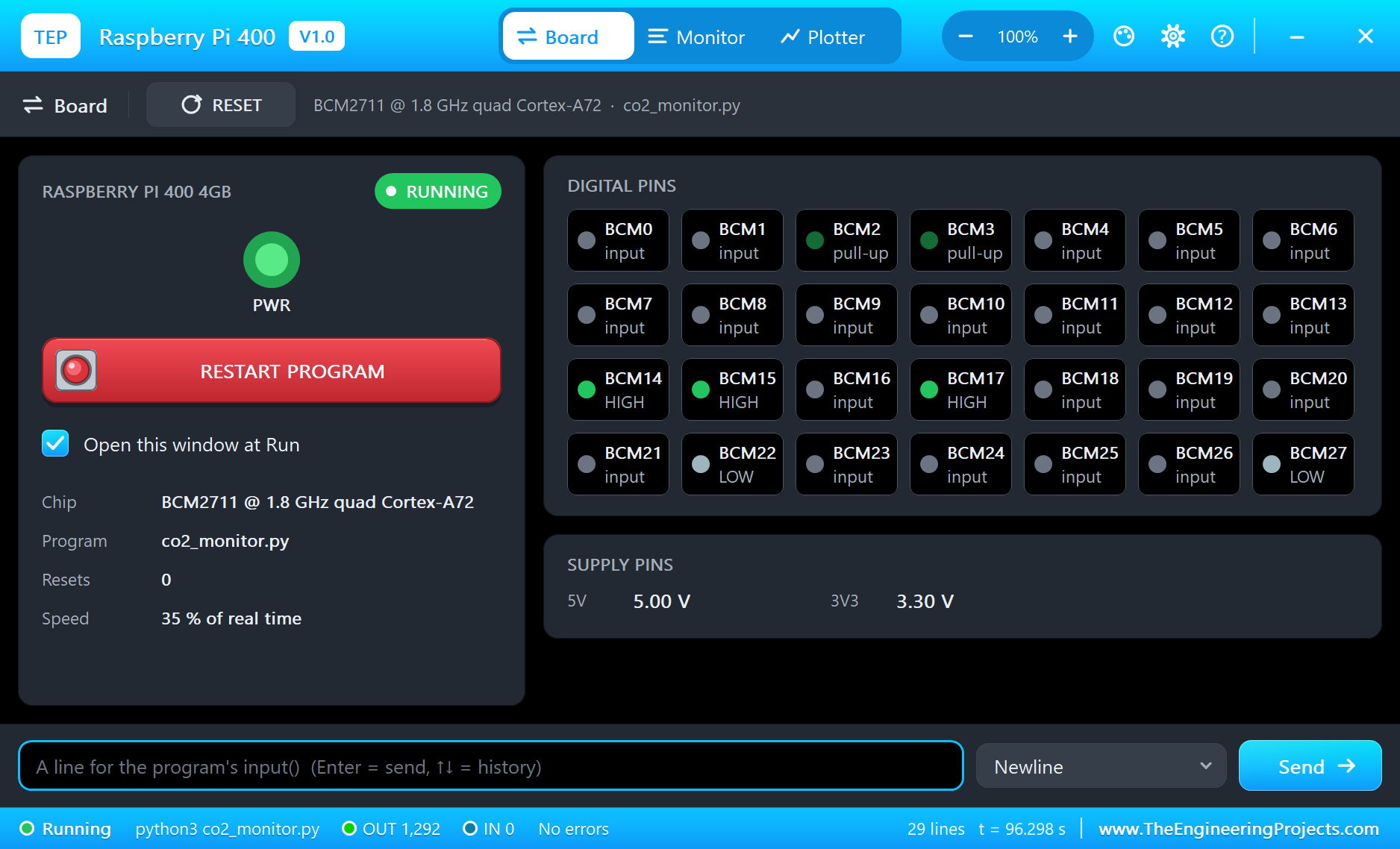
The Pi Terminal opens at Run, in the look of our TEP Serial Monitor Advance for Proteus - our own TEP header, no Windows title bar. Its Monitor tab shows the program's output (OUT), errors (ERR) and the lines you type for input() (IN). The Board tab shows the board live - TXD and RXD HIGH between bytes, STB HIGH between frames, CLK and DIO LOW - the power LED and the supply pins, and RESTART PROGRAM starts the program again:
Properties of the Raspberry Pi 400
| Property | What it does |
|---|---|
| PROGRAM | the Python program (default blink.py; a name next to the project or a full path) |
| AUTOOPEN | the Pi Terminal at Run: YES (default) or NO |
| ETHERNET | the cable at Run: IN (default, eth0) or OUT (the network on wlan0) |
| WIFISSID, WIFIPASS | the network wlan0 joins and its password (default TEP-WiFi, 12345678) |
| PYTHON, RUNTIME | a python.exe and a runtime folder of your own (empty: the TEPPi folder) |
Your own programs go next to your project; set PROGRAM to the file's name. The default blink.py blinks an LED on GPIO17:
from time import sleep
from gpiozero import LED

led = LED(17)
while True:
    led.on()
    print('LED on')
    sleep(0.5)
    led.off()
    print('LED off')
    sleep(0.5)
Troubleshooting
- No answer from the MH-Z19B: Tx and Rx crossed (the sensor's Tx to the Pi's RXD), 9600 baud, the checksum right, Vin on 5V.
- The CO2 stays at 410 ppm: the sensor is still preheating - 3 minutes on a real one, PREHEAT in Proteus.
- The TM1638 stays dark: send the display-on command (0x88 plus the brightness) after the digits, and check STB, CLK and DIO.
- The buttons never answer: DIO must be an input while the four key bytes come back after command 42.
- Every reading is too low after ZERO CAL: the zero point was set in air above 400 ppm - set it again in fresh outdoor air.
- The page does not open: the address is http://192.168.1.51:8000/ and the program must have printed "serving on". A monitor sometimes needs Go a second time. Use the page's REFRESH link - the monitors' Reload repeats the last link.
- The TEPPi folder was not found: copy it from Proteus Model Files into MODELS, or next to your project.
Things to Know Before Using a Real Raspberry Pi 400
- The header: it points backwards out of the case; a HAT hangs down behind the keyboard, so a 40-way ribbon cable to a breadboard is the comfortable way.
- The UART: on a Pi 400 /dev/serial0 is the mini UART on GPIO14 and GPIO15; enable the serial port and switch off the serial console in raspi-config, or the sensor's bytes meet a login prompt.
- The MH-Z19B: it needs 5 V and short peaks of current for its lamp, but its signals are 3.3 V, so they suit the Pi directly. Give it 3 minutes to warm up, and calibrate the zero point only after 20 minutes in fresh outdoor air.
- The TM1638 board: power it from 3V3 so that its pull-up on DIO stays at 3.3 V for the Pi's input.
- The network: the Pi 400 has true Gigabit Ethernet and dual-band Wi-Fi; a phone on the same router opens the page as here.
Limitations of the Simulation
- The board does not run Raspberry Pi OS: there is no desktop, no shell commands and no apt. It runs one Python program; its threads take turns, so the four cores are not modelled.
- The keys are drawn, not pressed - no key reaches the program - and the Num Lock and Caps Lock LEDs stay off.
- Bluetooth, the 5 GHz band, the Gigabit speed and Wi-Fi scanning are not modelled; the network is the same TEP network.
- The micro-HDMI outputs, USB and the microSD card's files are drawn but not simulated; GPIO18 makes software PWM, not hardware PWM.
- The 5V and 3V3 pins are logic levels: a module that reads its own supply sees 5 V on either.
- C programs and Python packages with C code do not run. Pure Python code takes no simulation time; only the pin, bus, sleep and network calls move the clock.
- The router, the board's address, the boot time and the Pi Terminal are TEP additions.
- Raspberry Pi is a trademark of Raspberry Pi Ltd; this library is not made or endorsed by Raspberry Pi Ltd or Labcenter.
- Tested in Proteus 8.5 in October 2026 (the demo as shipped, about 35 % of real time on our PC with the two pop-ups, the two monitors and the Pi Terminal open). Proteus 7 is not supported.
So, that was all about the Raspberry Pi 400 Library for Proteus. I hope it helps you try the keyboard computer with real modules before you touch the hardware - an MH-Z19B read over the UART, a TM1638 board driven over three wires with its buttons read back, and a web page that watches the air, sets the alarm and calibrates the sensor from a laptop or a phone. The next boards of our Raspberry Pi series bring other modules and more web pages. If you use the library in a project, please share it in the comments or in our forum, and if you have any questions, ask in the comments and I will help you out. Till the next tutorial, take care and have fun!