


Project Files of Raspberry Pi 400 Library for Proteus: MH-Z19B CO2, TM1638
 Libraries
 Code
Code Projects
 Simulation
raspberry-pi-400-tep-v1-0-272920a24f2b4225b050944aa1a8a88e.zip

Raspberry Pi 400 Library for Proteus V1.0
Raspberry Pi 400 Library for Proteus V1.0 comes as a ZIP archive of 111 files (12.8 MB, 24.8 MB unpacked) holding Proteus library files, simulation model DLLs, a Proteus simulation, source code and a nested archive.
- LIBProteus library
- DLLProteus model
- DSNProteus simulation
- SRCSource code
- ZIPNested archive
Description
Raspberry-Pi-400-Library-for-Proteus-v1.0.zip with the Raspberry Pi 400 in Proteus (a Pi 4 in a keyboard: BCM2711 at 1.8 GHz, 4 GB, Gigabit Ethernet, dual-band Wi-Fi, the 40-pin GPIO header at the back; it runs your Python program with RPi.GPIO, gpiozero, smbus2, spidev, pyserial and sockets on eth0 or wlan0, with the Pi Terminal; TEPRPI400.LIB, TEPNET.DLL and the TEPPi folder with Python 3.11), the MH-Z19B and TM1638 libraries, the Laptop / Mobile WiFi Monitor symbols, the CO2 monitor demo project with its program, blink.py and a README.

File Structure
 File Structure
39.5 KB58.1 KB13.1 KB132.6 KB147 KB3.3 MB34.3 KB620.8 KB36 KB169.8 KB628.1 KB99.3 KB65.3 KB4.8 MB4.1 MB80 B97.8 KB26.8 KB1.2 MB1.1 MB88.9 KB27.3 KB55.8 KB79.8 KB105.8 KB193.8 KB113.8 KB48.8 KB145.8 KB36.8 KB29.3 KB42.3 KB28.8 KB67.3 KB89.3 KB153.8 KB22.8 KB38.8 KB2.5 KB6.5 KB37.9 KB11.1 KB5.5 KB885 B13.6 KB9 KB878 B1.5 KB4 KB1004 B10 B110 B2.6 KB1.1 KB8.9 KB58.5 KB12.4 KB6.6 KB18.5 KB20.7 KB27.8 KB21.1 KB7.1 KB7.7 KB2.7 KB51.2 KB100.9 KB1.2 KB24.3 KB7.4 KB53.6 KB26.1 KB20.5 KB60.5 KB19.6 KB1.6 KB8.4 KB20.9 KB2.6 KB539 B1.4 KB9.7 KB2.8 KB21 B92 B17.4 KB257 B691 B14.1 KB12.7 KB3.6 KB1.7 KB37 KB418 B5.9 KB36.4 KB8.6 KB14 KB28.5 KB8.8 KB305 KB2.4 MB289 KB9.8 KB38.3 KB305 KB2.4 MB289 KB291 B9.8 KB21.3 KBGallery12 images from the tutorialOpen the tutorial
 Gallery12 images from the tutorial
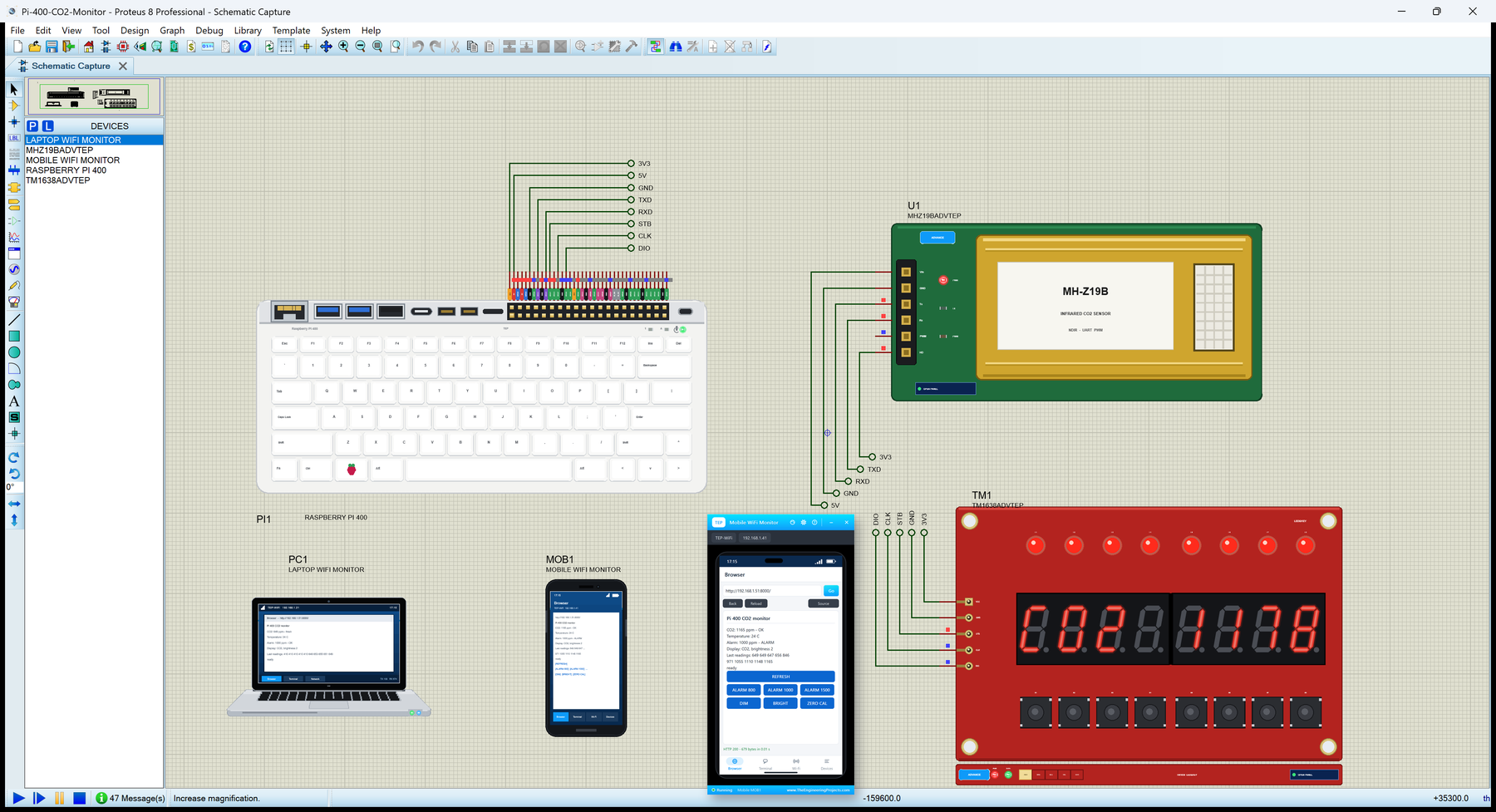
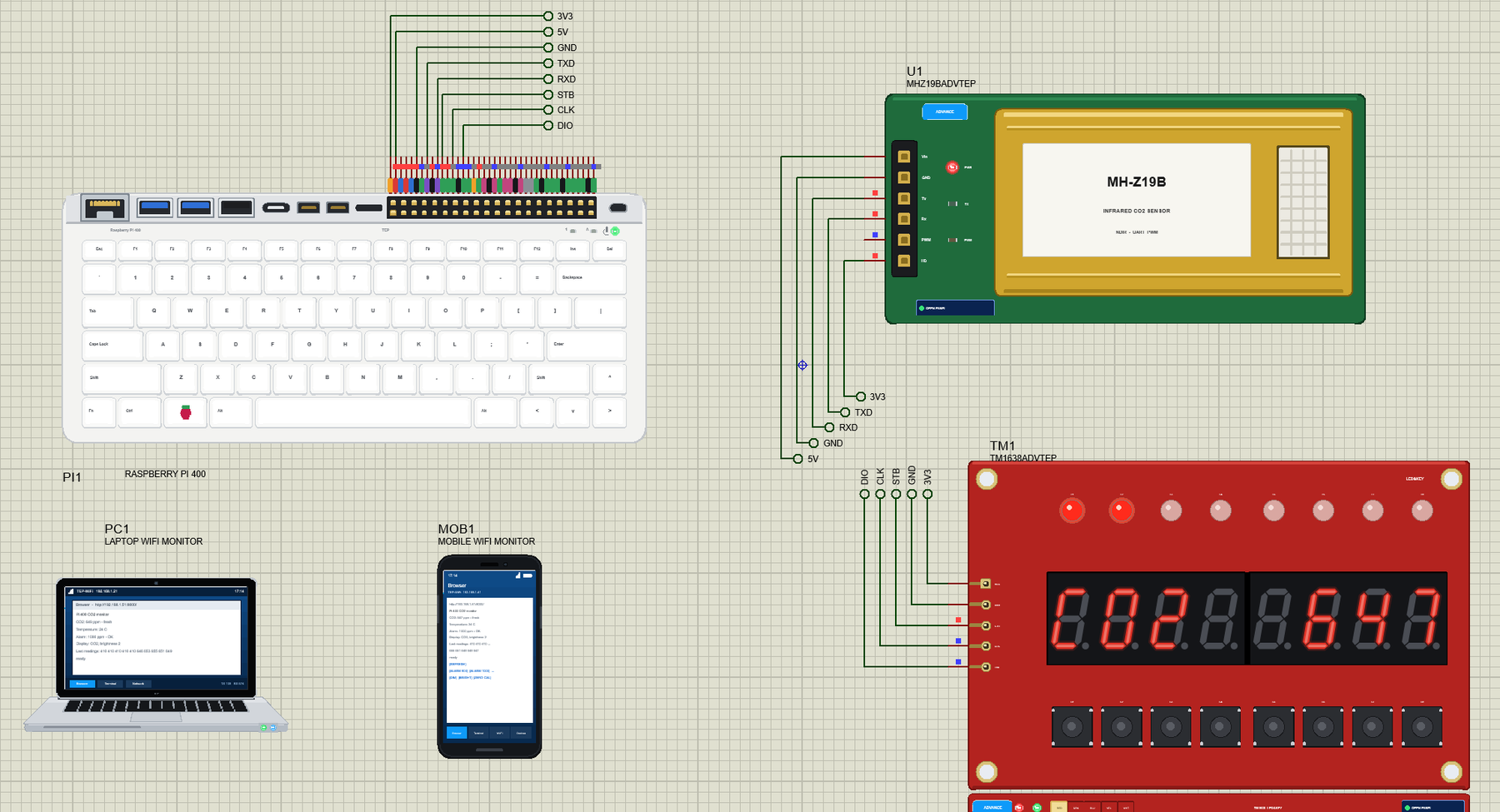
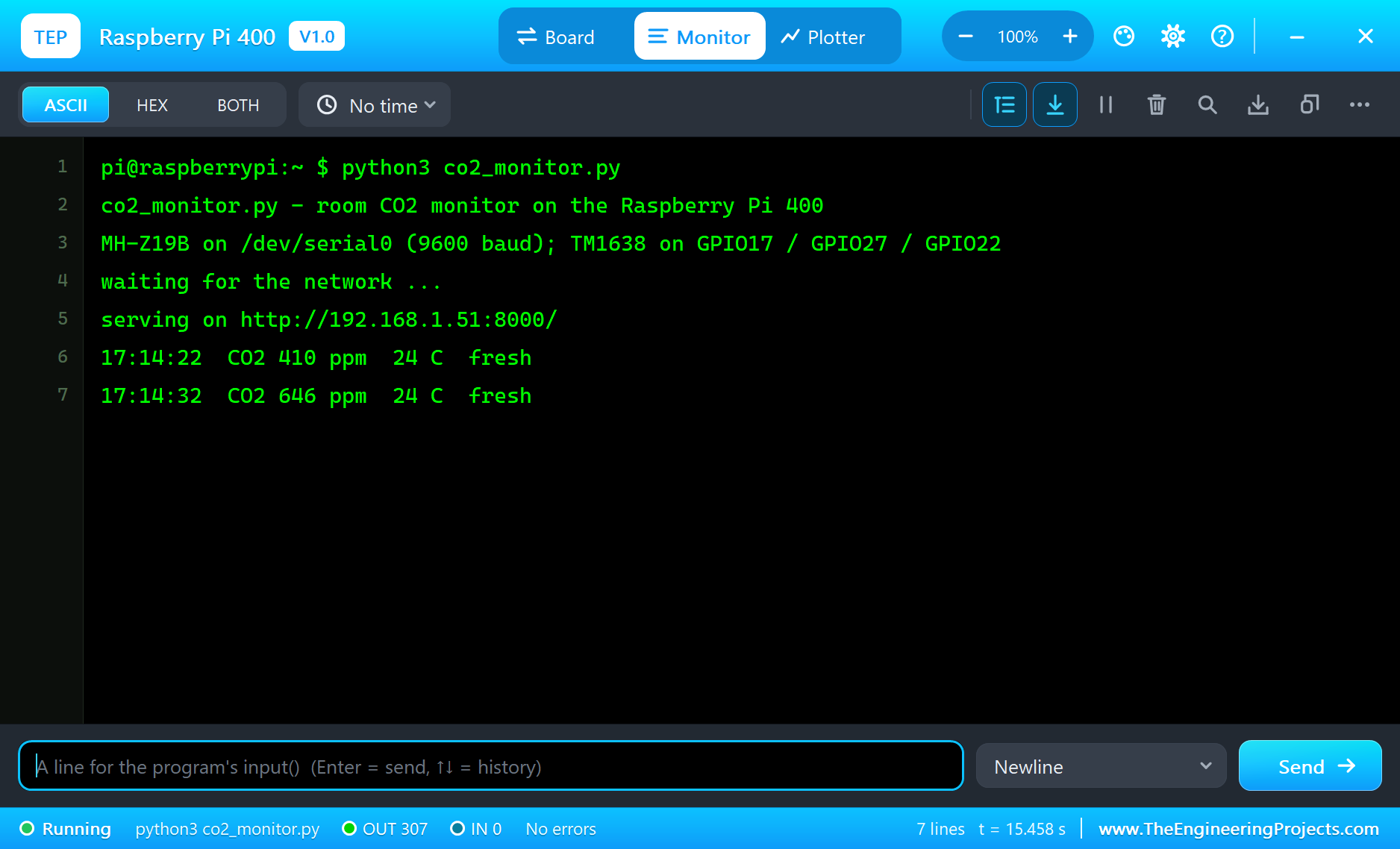
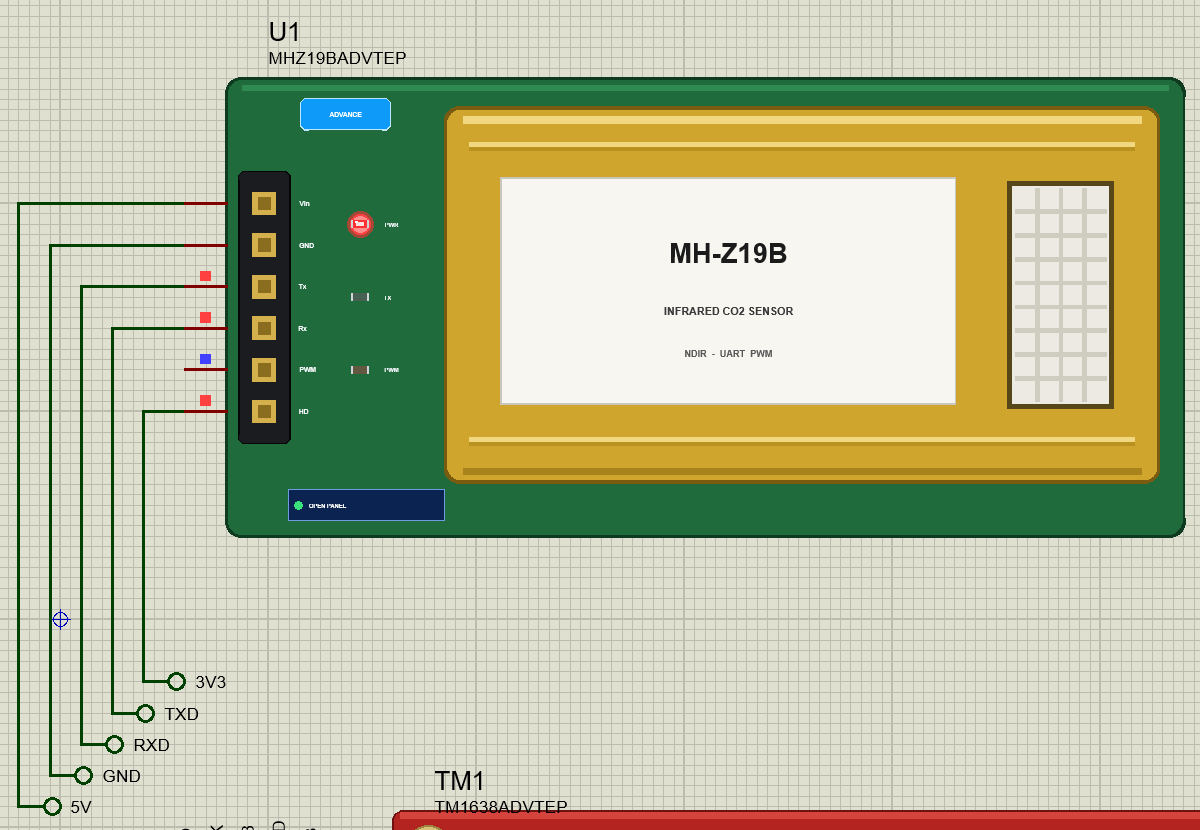
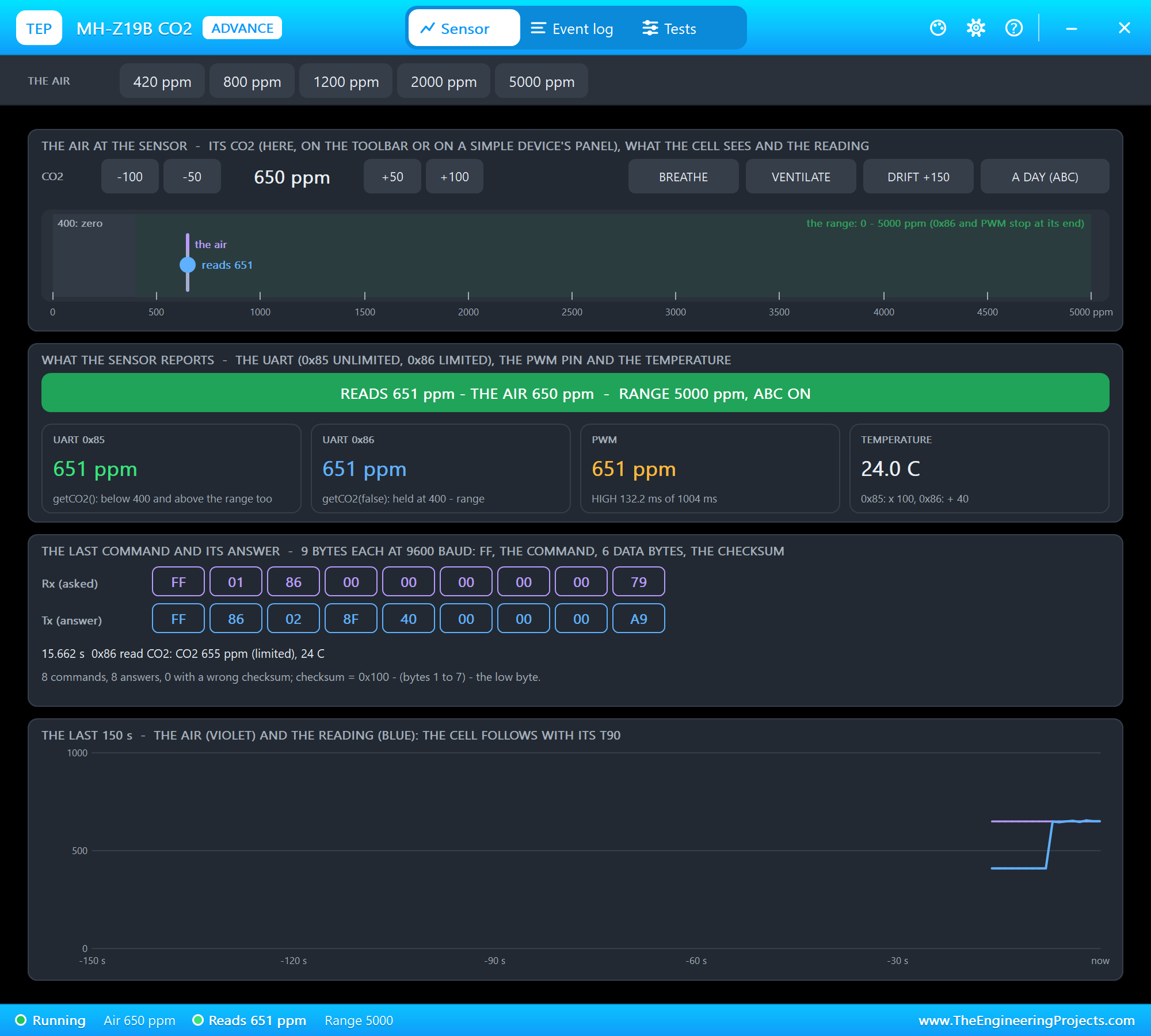
The circuit, the board and the results as they appear in Raspberry Pi 400 Library for Proteus: MH-Z19B CO2, TM1638. Open an image for its full size.
README
 README
RASPBERRY PI 400 LIBRARY FOR PROTEUS - V1.0 (A PI 4 IN A KEYBOARD: BCM2711 1.8 GHZ, 4 GB, GIGABIT ETHERNET, WI-FI)
YOUR PYTHON PROGRAM RUNS ON THE BOARD - DEMO: A ROOM CO2 MONITOR (MH-Z19B ON THE UART, TM1638 LED&KEY, A WEB PAGE)
Designed by The Engineering Projects www.TheEngineeringProjects.com
IMPORTANT LINKS
Article (read it first - pictures, step by step, every feature explained):
https://www.theengineeringprojects.com/2026/10/raspberry-pi-400-library-for-proteus.html
Report a bug or suggest a feature (our forum):
https://www.theengineeringprojects.com/forum/category/raspberry-pi-400-proteus-library
The demo's parts are our libraries (included) - their articles:
MH-Z19B: https://www.theengineeringprojects.com/2026/10/mh-z19b-co2-sensor-library-for-proteus-v1-0.html
TM1638: https://www.theengineeringprojects.com/2026/10/tm1638-led-key-library-for-proteus-v1-0.html
Laptop: https://www.theengineeringprojects.com/2026/10/laptop-wifi-monitor-library-for-proteus.html
Phone: https://www.theengineeringprojects.com/2026/10/mobile-wifi-monitor-library-for-proteus.html
The earlier boards of this series:
https://www.theengineeringprojects.com/2026/10/raspberry-pi-model-b-library-for-proteus.html
https://www.theengineeringprojects.com/2026/10/raspberry-pi-1-model-b-plus-library-for-proteus.html
https://www.theengineeringprojects.com/2026/10/raspberry-pi-2-model-b-library-for-proteus.html
https://www.theengineeringprojects.com/2026/10/raspberry-pi-3-model-b-library-for-proteus.html
https://www.theengineeringprojects.com/2026/10/raspberry-pi-3-model-b-plus-library-for-proteus.html
https://www.theengineeringprojects.com/2026/10/raspberry-pi-3-model-a-plus-library-for-proteus.html
https://www.theengineeringprojects.com/2026/10/raspberry-pi-4-model-b-library-for-proteus.html
https://www.theengineeringprojects.com/2026/10/raspberry-pi-5-library-for-proteus.html
https://www.theengineeringprojects.com/2026/10/raspberry-pi-zero-w-library-for-proteus-v1-0.html
https://www.theengineeringprojects.com/2026/10/raspberry-pi-zero-2-w-library-for-proteus.html
Support us (the libraries are free):
https://www.theengineeringprojects.com/donate
FILE STRUCTURE
Raspberry-Pi-400-TEP-v1.0/
|-- Proteus Library Files/
| |-- TEPLAPTOP.LIB 39.5 KB the laptop (demo), to LIBRARY
| |-- TEPMHZ19B.LIB 58.1 KB the MH-Z19B CO2 sensor (demo), to LIBRARY
| |-- TEPMOBILE.LIB 13.1 KB the phone (demo), to LIBRARY
| |-- TEPRPI400.LIB 132.6 KB the Raspberry Pi 400, to LIBRARY
| |-- TEPTM1638.LIB 147.0 KB the TM1638 LED&KEY board (demo), to LIBRARY
|-- Proteus Model Files/
| |-- TEPMHZ19B.DLL 305.0 KB the MH-Z19B CO2 sensor, to MODELS
| |-- TEPNET.DLL 2.38 MB the Pi + monitors + network, to MODELS
| |-- TEPTM1638.DLL 289.0 KB the TM1638 LED&KEY board, to MODELS
| |-- TEPPi/python/ 17.54 MB Python 3.11.9 embeddable (33 files)
| |-- TEPPi/runtime/ 893.7 KB TEP Pi runtime, gpiozero (62 files)
|-- Python Code/
| |-- blink.py 0.3 KB an LED on GPIO17 (the default)
| |-- co2_monitor.py 9.8 KB the demo
|-- Proteus Simulation/
| |-- co2_monitor.py 9.8 KB the program of the demo
| |-- Pi-400-CO2-Monitor.pdsprj 38.3 KB the demo: room CO2 monitor
| |-- TEPMHZ19B.DLL 305.0 KB copy of the model
| |-- TEPNET.DLL 2.38 MB copy of the model
| |-- TEPTM1638.DLL 289.0 KB copy of the model
|-- README.txt ~19.9 KB this file
Total: 24.79 MB (unzipped). The source code of the models and of the TEP Pi runtime is not included.
WHAT IS IT?
The Raspberry Pi 400 (2020) as one Proteus part - and a way to run Raspberry Pi programs in Proteus 8.5.
Proteus cannot run Raspberry Pi OS, so this library does not emulate Linux. It does what matters for electronics: the
board runs YOUR PYTHON PROGRAM (a .py file, the PROGRAM property) against the circuit on the sheet, with the Python
libraries a Pi uses for its pins, its I2C / SPI / UART buses and its network.
* At Run the board starts Python 3.11 (included: the TEPPi folder) with our TEP Pi runtime, then your program.
The program and Proteus work in lockstep: while the program runs, Proteus waits; while the program sleeps, waits
for a pin, a bus or the network, Proteus runs. So time.sleep(0.5) is 0.5 s of simulation, a busy loop still moves
the clock (about 1.25 us per GPIO call, as Python on the Pi 400's 1.8 GHz Cortex-A72), and every edge is on time.
time.time(), time.monotonic(), time.strftime() and datetime.now() follow the simulation's clock too.
* The network: eth0 when the Ethernet cable is in at Run (ETHERNET IN, the default; a click on the Ethernet jack
plugs or unplugs it), wlan0 when it is out - wlan0 then joins the network in the WIFISSID / WIFIPASS properties
(default: our router "TEP-WiFi", password 12345678 - the network of our ESP32 / Arduino Wi-Fi parts and the Laptop
/ Mobile WiFi Monitors) 2.3 to 3.5 s after Run. One network interface at a time; the Pi is 192.168.1.51
(192.168.1.(50 + the part's number)), the name raspberrypi.local. The wired Pi and the Wi-Fi monitors meet on the
same router.
* Threads work (gpiozero's threads, your own threading.Thread, Timer, Queue, Lock): every wait is in simulation time;
an error in a thread is printed as Python prints it ("Exception in thread ...").
* The Python libraries for the pins (the same names, numbers and messages as on a Pi):
RPi.GPIO setmode, setup and output with one pin or a list (and a list of values), input, cleanup,
add_event_detect / event_detected / wait_for_edge with callbacks and bouncetime, PWM (software PWM
made by the board, steady while the program sleeps)
gpiozero LED, PWMLED, Button, OutputDevice, Buzzer, Servo, AngularServo, MotionSensor, DistanceSensor,
CPUTemperature and the rest (gpiozero 2.0.1, unchanged, on RPi.GPIO)
spidev SPI0 on GPIO11 (SCLK), GPIO10 (MOSI), GPIO9 (MISO), CE0 = GPIO8, CE1 = GPIO7, modes 0 to 3, up to
8 MHz; xfer / xfer2 take up to 4096 bytes (spidev's bufsiz), writebytes2 any length
smbus2 / smbus I2C bus 1 on GPIO2 (SDA) / GPIO3 (SCL) at 100 kHz, the Pi's 1.8 k pull-ups: read_byte,
write_byte, the byte / block reads and writes, write_quick, i2c_rdwr with i2c_msg; a device that
does not answer gives OSError [Errno 121] Remote I/O error
serial pyserial on /dev/serial0 (on a Pi 400 = /dev/ttyS0, the mini UART; /dev/ttyAMA0 is accepted too):
TXD GPIO14, RXD GPIO15, any baud rate, timeouts, reset_input_buffer, back-to-back bytes
1-Wire the DS18B20's files under /sys/bus/w1/devices (w1-gpio on GPIO4), as the kernel makes them
Adafruit_DHT, adafruit_dht + board DHT11 / DHT22 on any GPIO
socket TCP and UDP on eth0 or wlan0, http.server / socketserver, urllib.request, select
* The Pi's own files: /proc/cpuinfo (Revision c03130, four ARMv8 processors), /proc/device-tree/model ("Raspberry Pi
400 Rev 1.0"), the CPU temperature in /sys/class/thermal (gpiozero's CPUTemperature), /proc/loadavg,
/proc/meminfo (4 GB).
* The Pi Terminal (our TEP window, no Windows title bar): the shell prompt (pi@raspberrypi:~ $ python3 ...), the
program's output (OUT) and errors (ERR, as Python prints them on a Pi), a line for input() (IN); its Board tab
shows the GPIOs (BCM numbers), the LED, the supply pins and RESTART PROGRAM. Click a micro-HDMI socket or the
raspberry key to open it.
* The LEDs: the green power LED at the top right of the keyboard, lit while the board runs; the Num Lock ("1") and
Caps Lock ("A") LEDs beside it are drawn, not driven.
* The header's supply pins power the modules wired to them, as on the bench: 5V, 3V3 and GND as logic levels (an
analog VCC reading sees 5 V on either rail).
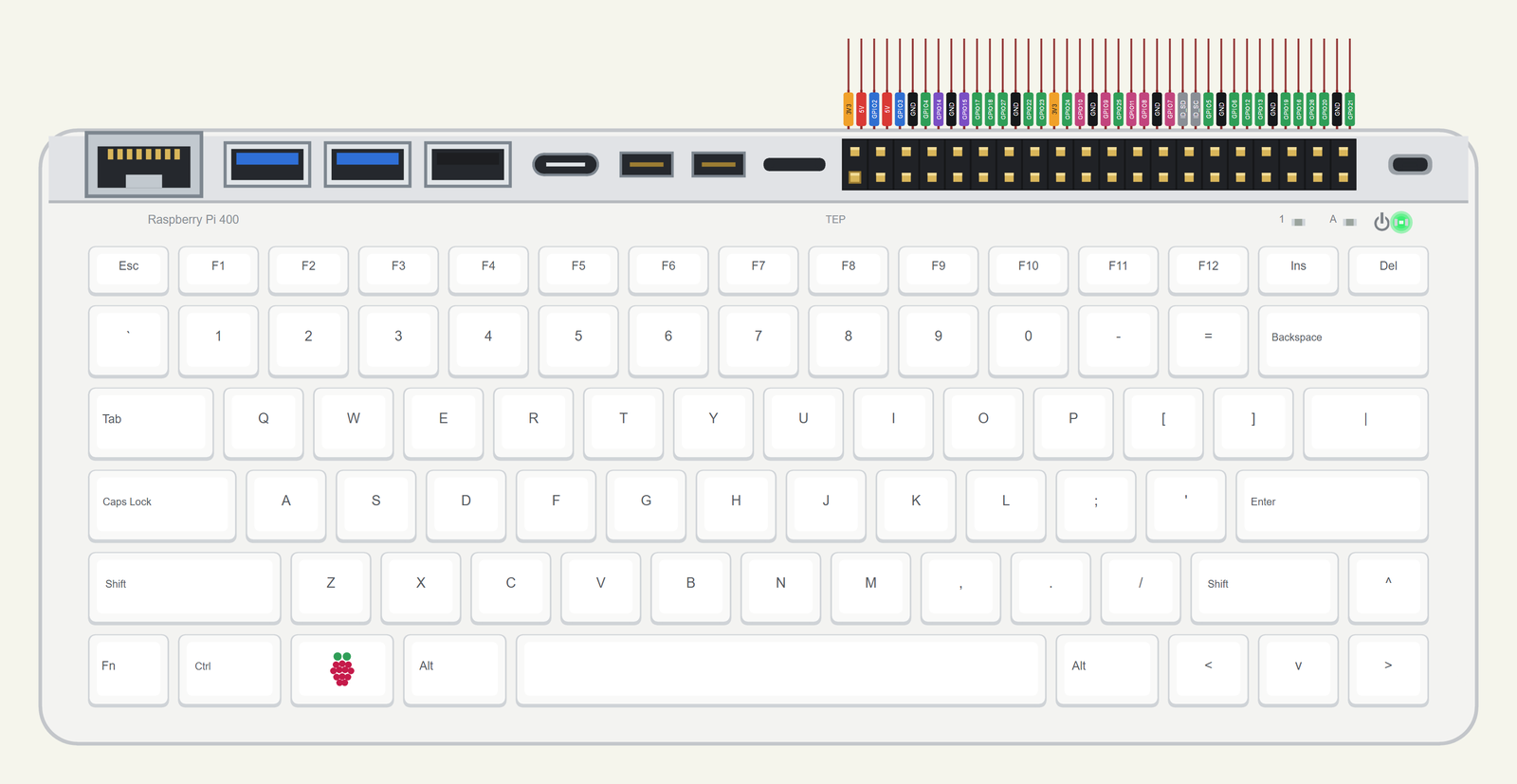
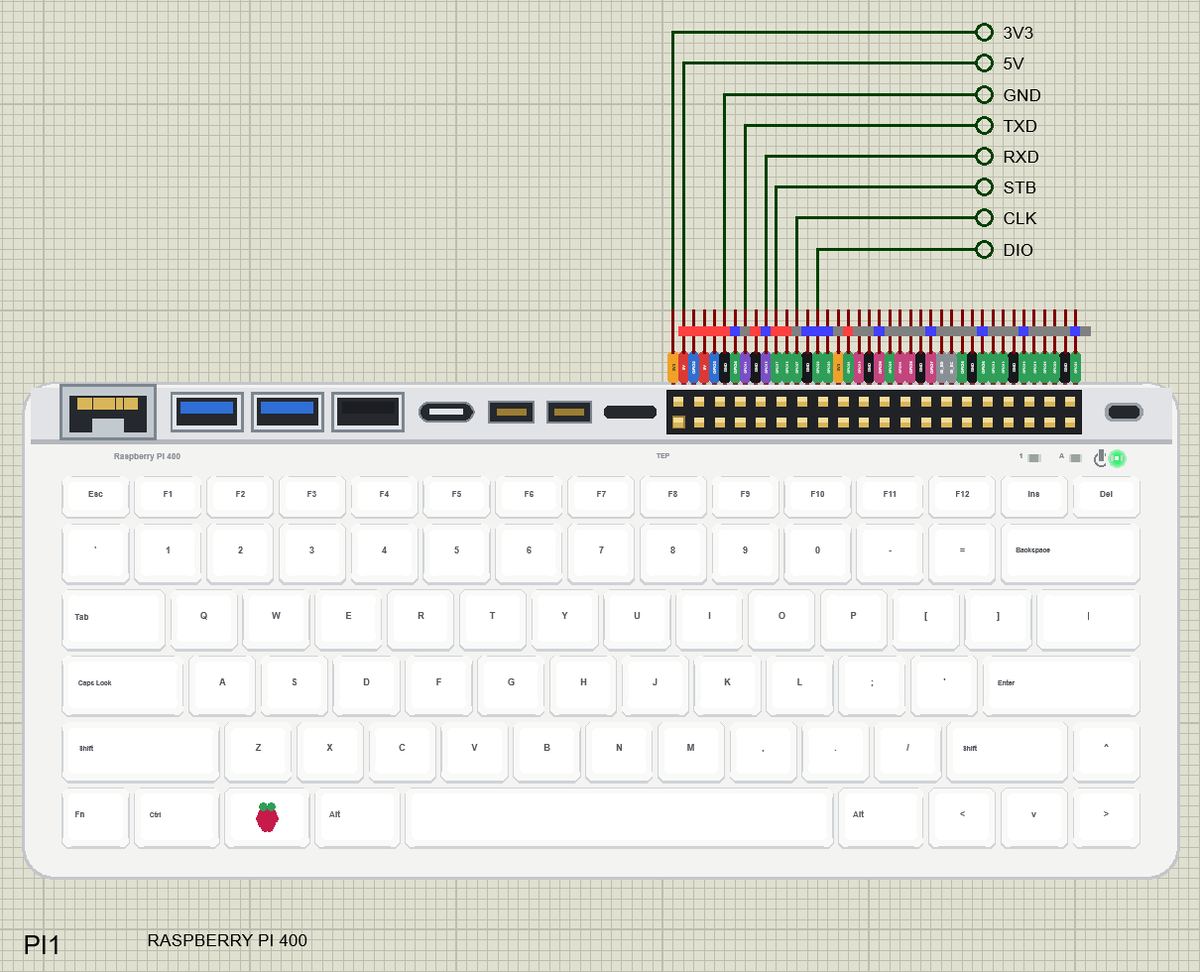
The Pi 400 is drawn our way from above at HALF its real size (286 x 122 mm drawn as 143 x 61 mm) - only the 40-pin
header keeps the real 0.1 in pitch, so its comb matches every other Pi of the series: the white case with its 78 keys
in the US layout (the function row, the number row, QWERTY, the raspberry key by Ctrl, the arrow keys at the bottom
right), the three
LEDs at the top right, and along the back - drawn as a strip, as seen from behind - from the left the Gigabit Ethernet
jack, the two blue USB 3.0 sockets and the black USB 2.0, the USB-C power socket, the two micro-HDMI sockets, the
microSD slot, the 40-pin header and the Kensington slot. The 40 pins leave the top edge as one comb 50 thou apart, each
with a colour-coded tag: 5V red, 3V3 orange, GND black, GPIO green, I2C blue, SPI pink, UART purple, ID_SD / ID_SC grey.
ONE DEVICE (search "RASPBERRY" in Pick Devices):
RASPBERRY PI 400 "Raspberry Pi 400" V1.0 (category Microprocessor ICs > Raspberry Pi), prefix PI, model TEPNET.DLL
(with the TEPPi folder)
The same TEPNET.DLL also runs our Raspberry Pi Model B, 1 Model B+, 2 Model B, 3 Model B, 3 Model B+, 3 Model A+,
4 Model B, 5, Zero W and Zero 2 W, our Ethernet and Wi-Fi shields, modules and boards and the Laptop / Mobile WiFi
Monitors; it replaces any older TEPNET.DLL (keep only this newest one in MODELS).
TEST STATUS
V1.0: verified in Proteus 8.5 on 24 Oct 2026 with the demo project as shipped. What the Proteus runs showed:
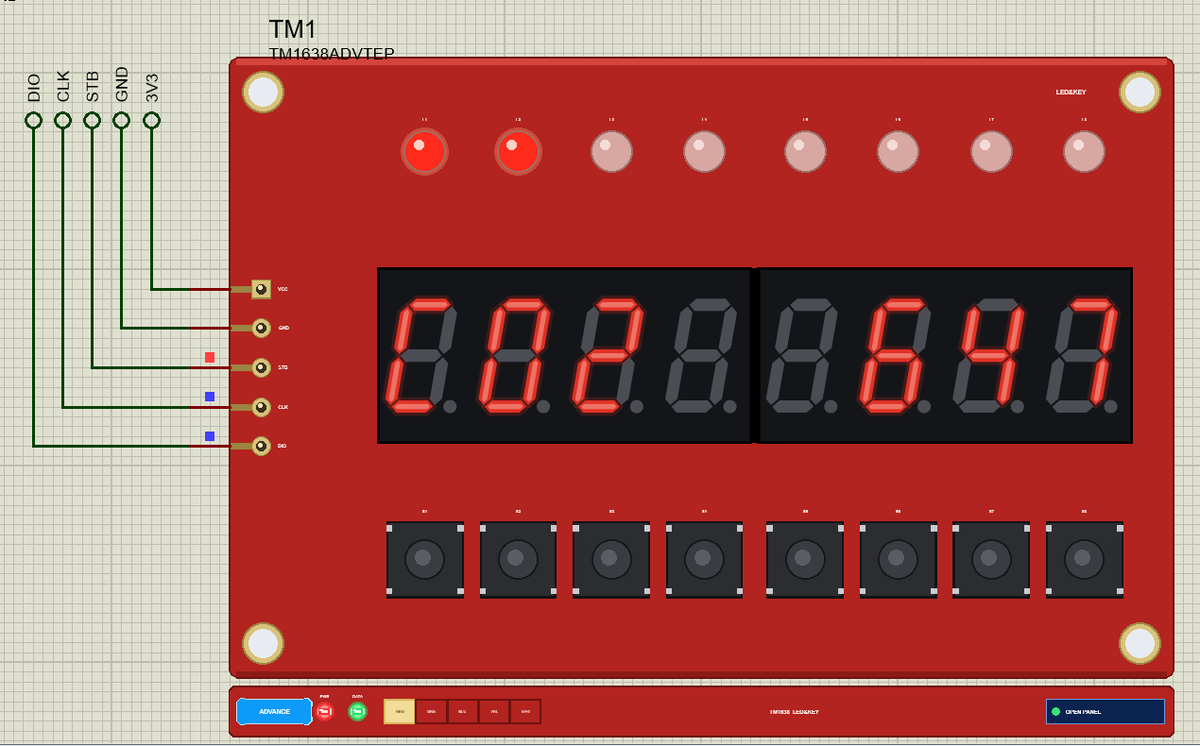
* Pi-400-CO2-Monitor: the TM1638 shows "Pi 400", eth0 is up (the cable in) and 1.5 s after Run the program prints
"serving on http://192.168.1.51:8000/"; during the MH-Z19B's preheat (PREHEAT 10 s in the demo) command 0x86 reads
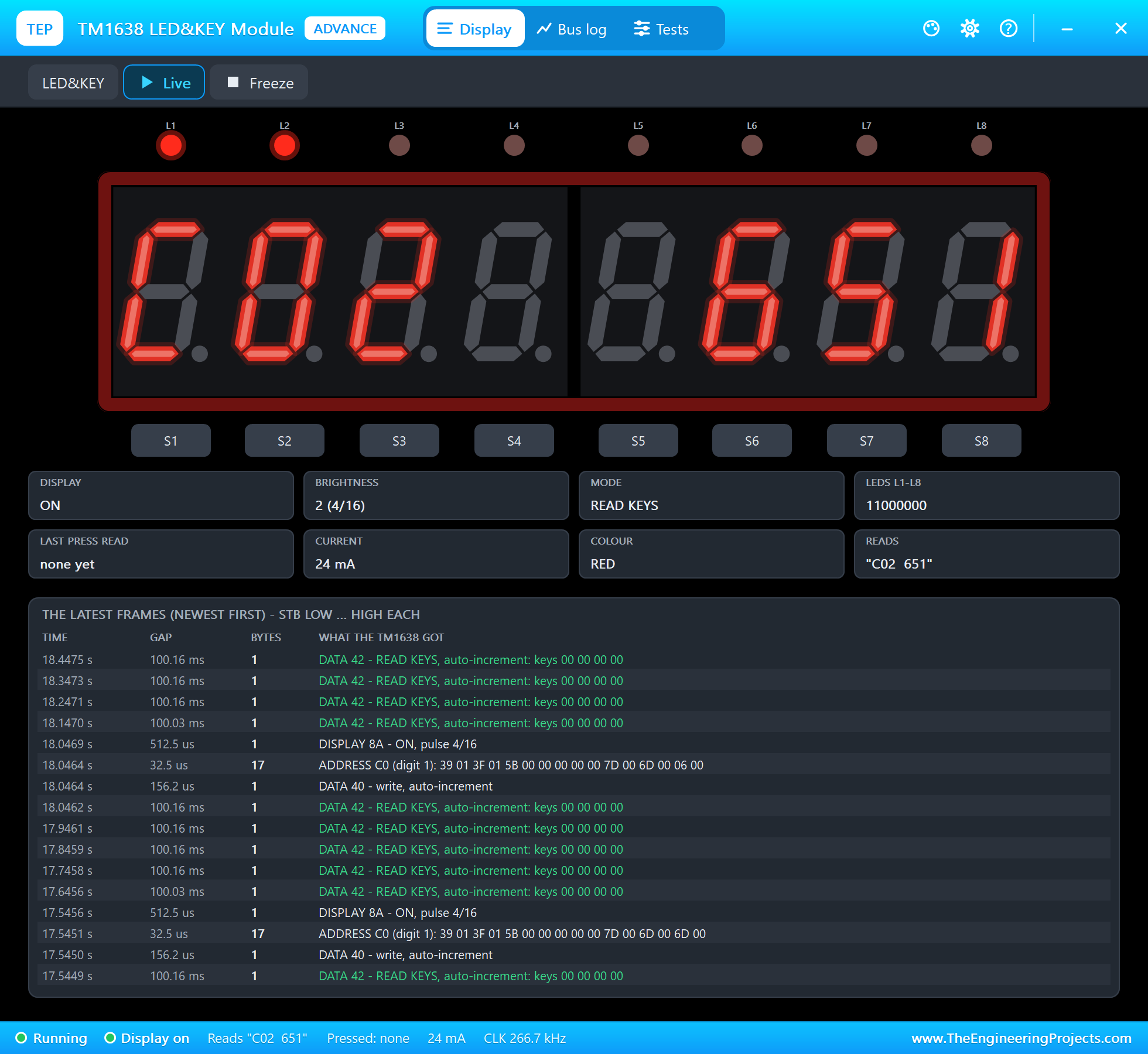
410 ppm, then "CO2 646 ppm 24 C fresh" (the air at 650 ppm, T90 10 s). The TM1638 reads "C02 651" with two LEDs
lit; its pop-up shows the frames (DATA 40, ADDRESS C0 with 16 bytes, DISPLAY 8A) and a key read every 100 ms.
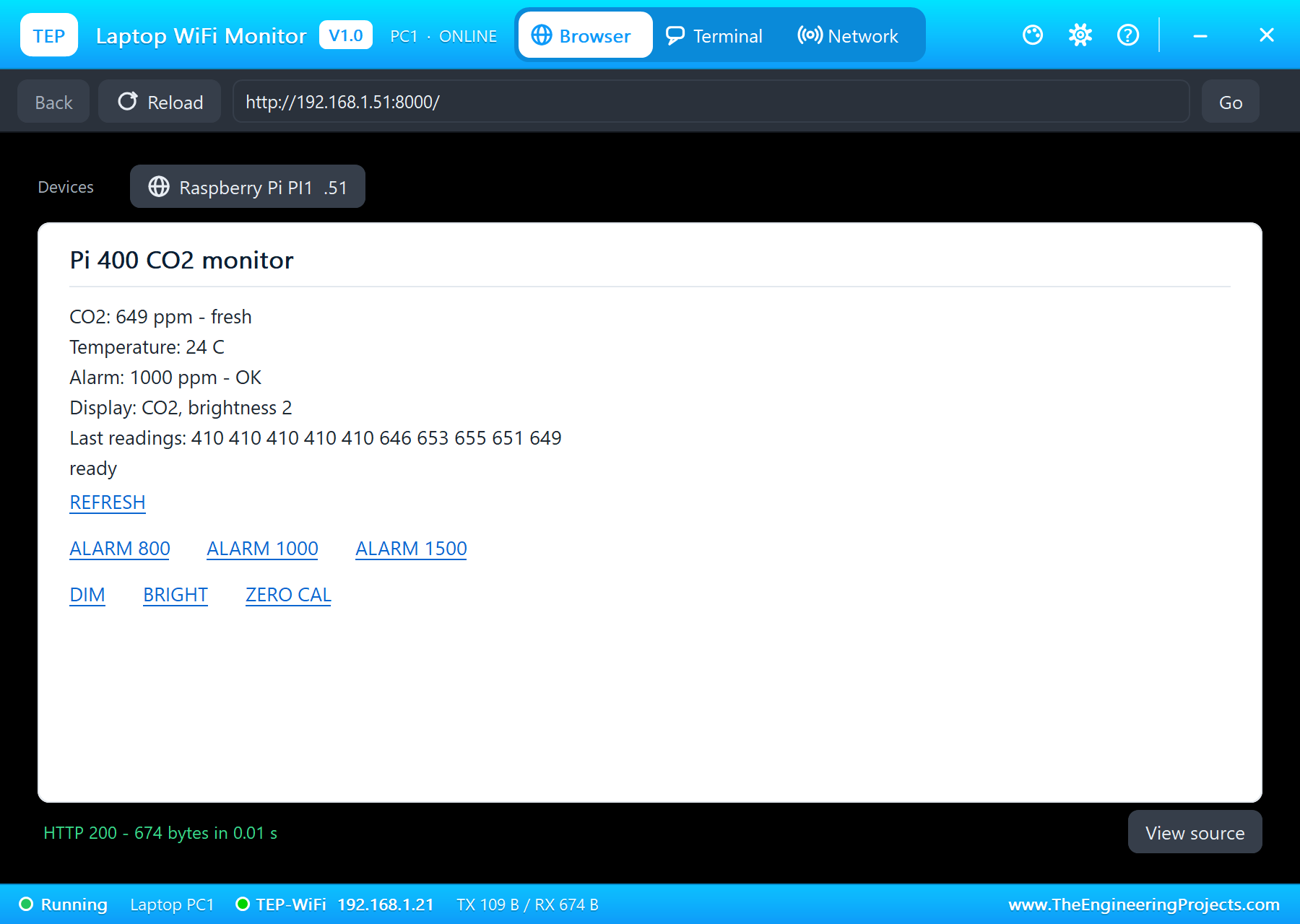
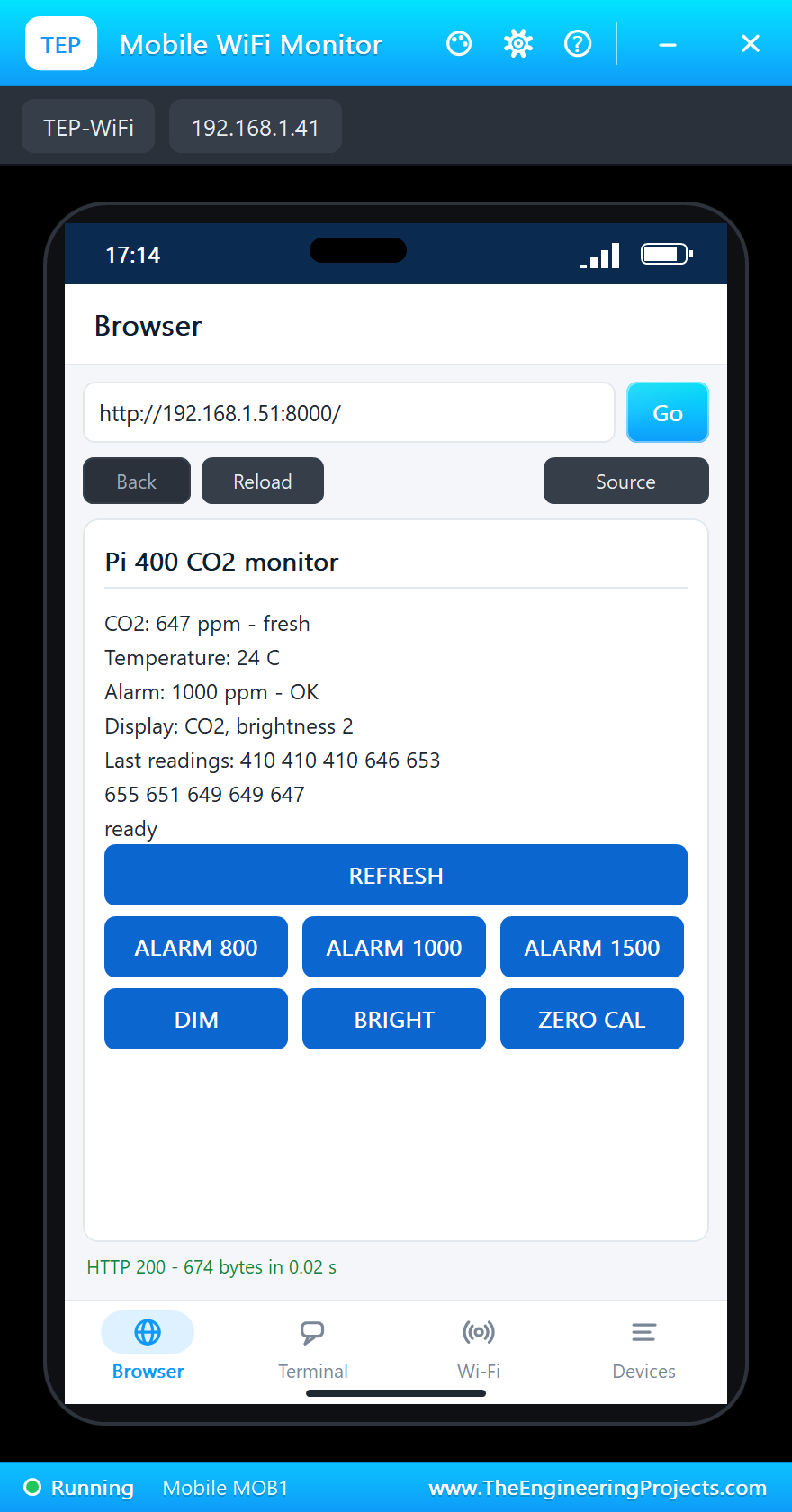
* The laptop and the phone open the page: the CO2 and its level, the temperature, the alarm (1000 ppm - OK), the
display, the last readings - text links on the laptop, buttons on the phone.
* The MH-Z19B pop-up's 1200 ppm preset: the reading climbs (846, 971, 1055 ppm - "ALARM" from 1055 ppm), the eight
LEDs blink, the phone's page says "1000 ppm - ALARM".
* S2 and S3 on the TM1638's pop-up: the temperature view ("dEG 24") and the alarm view ("AL 1000"); ALARM 1500 on
the phone ends the alarm; S1 back to the CO2; BRIGHT on the laptop: brightness 7.
* The 420 ppm preset (outdoor air): 1025, 797, 660 ... 431 ppm; ZERO CAL on the laptop (command 0x87) at 422 ppm:
the next reading is 400 ppm.
* The Board tab: the BCM2711 at 1.8 GHz, the PWR LED, GPIO2 / GPIO3 pulled up, GPIO14 (TXD) and GPIO15 (RXD) HIGH
between bytes, GPIO17 (STB) HIGH, GPIO22 (DIO) and GPIO27 (CLK) LOW, 5V 5.00 V, 3V3 3.30 V, "No errors".
* Speed on our test PC: about 35 % of real time with the two pop-ups, the two monitors and the Pi Terminal open.
INSTALLATION (about 3 minutes)
1. Close Proteus. Extract the WHOLE ZIP to a normal folder (e.g. Desktop).
2. Copy everything in "Proteus Library Files" to the LIBRARY folder of Proteus, for example:
C:\Program Files (x86)\Labcenter Electronics\Proteus 8 Professional\LIBRARY
(on some PCs: C:\ProgramData\Labcenter Electronics\Proteus 8 Professional\LIBRARY - use the folder that already holds
Proteus's own .LIB files). TEPRPI400.LIB is the Pi; TEPMHZ19B.LIB (the CO2 sensor), TEPTM1638.LIB (the LED&KEY
board), TEPLAPTOP.LIB and TEPMOBILE.LIB are the demo's parts.
3. Copy everything in "Proteus Model Files" - the DLLs AND the TEPPi folder - to the MODELS folder:
C:\Program Files (x86)\Labcenter Electronics\Proteus 8 Professional\MODELS
TEPPi holds Python 3.11 and the TEP Pi runtime; the Pi finds it next to TEPNET.DLL, in MODELS or next to your
project. Replace an older TEPNET.DLL and TEPPi folder (these are the newest).
4. Delete TEPRPI400.IDX (and the .IDX of a part library you replaced) from the LIBRARY folder if it is there.
5. Start Proteus. In Pick Devices (P) search "RASPBERRY".
Nothing else to install: Python is in TEPPi (no Python on the PC needed, none is changed).
RUN THE DEMO
Keep the .py file and the DLLs beside the project in "Proteus Simulation" (the TEPPi folder in MODELS).
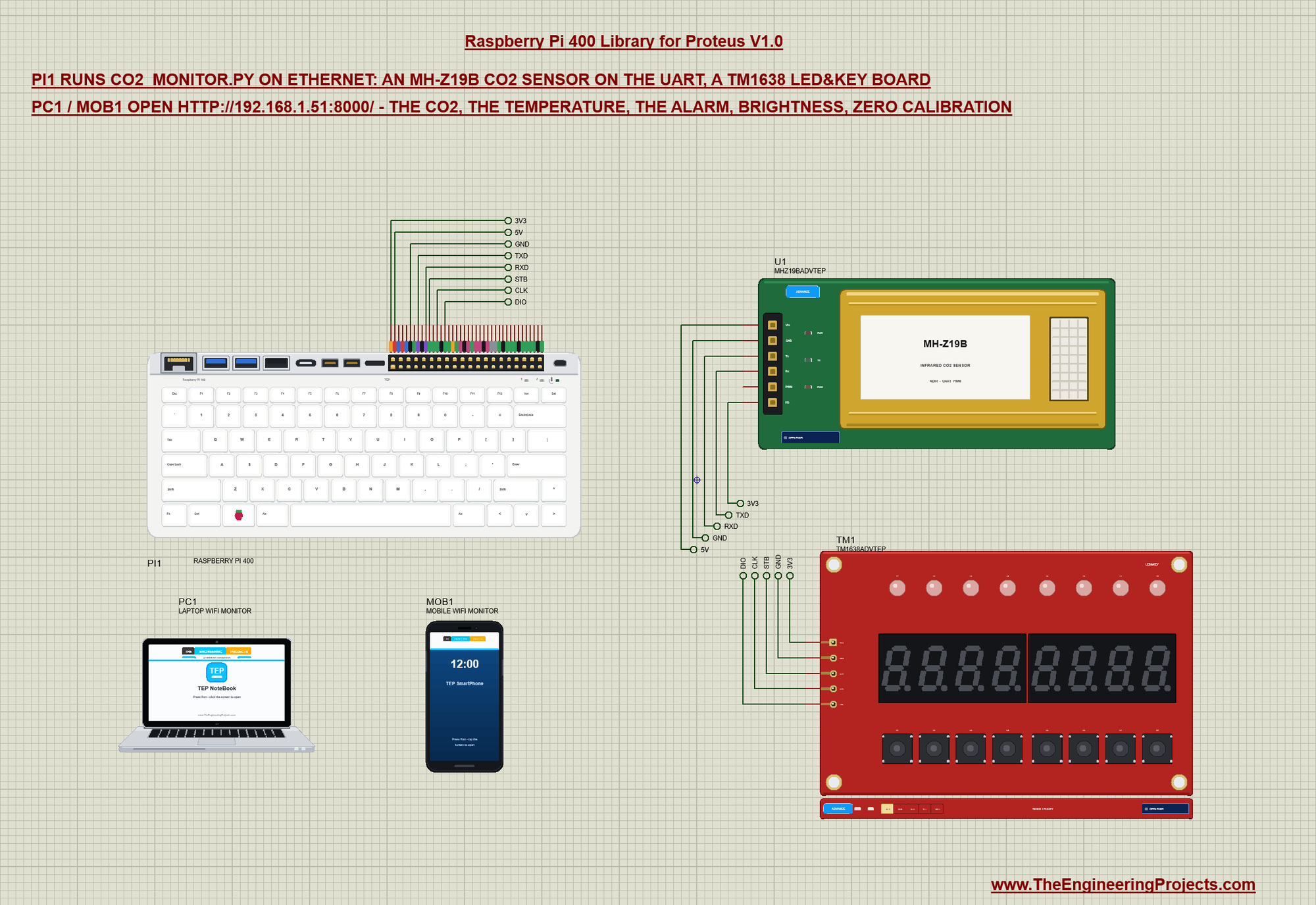
Pi-400-CO2-Monitor.pdsprj - PI1 runs co2_monitor.py on Ethernet (the cable in): U1 = an MH-Z19B infrared (NDIR) CO2
sensor on the UART (Vin on 5V, Tx on GPIO15 = RXD, Rx on GPIO14 = TXD, HD on 3V3; the demo's sensor: CO2 650 ppm,
PREHEAT 10 s, T90 10 s, TEMP 24), TM1 = a TM1638 LED&KEY board (VCC on 3V3, STB on GPIO17, CLK on GPIO27, DIO on
GPIO22); PC1 = the Laptop WiFi Monitor and MOB1 = the Mobile WiFi Monitor on the same network. The sensor and the
board are the Advance parts: their pop-up windows open at Run.
Press Run: the TM1638 shows "Pi 400", eth0 is up and the program serves its page. Every 2 s it sends the sensor the
9-byte command FF 01 86 ... 79 and reads the 9-byte answer (the CO2 and the temperature, with its checksum); during
the preheat the sensor answers 410 ppm. The TM1638 shows "C02" and the ppm, its eight LEDs a bar (one LED for every
200 ppm above 400); at the alarm level all eight blink. Its buttons: S1 the CO2, S2 the temperature ("dEG"), S3 the
alarm level ("AL"), S4 the brightness, S5 / S6 the alarm 100 ppm down / up. On the laptop or the phone open
http://192.168.1.51:8000/ (Browser, the address, Go): the page shows the CO2 with its level (fresh, OK, stuffy -
open a window), the temperature, the alarm, the display and the last 10 readings, with REFRESH, ALARM 800 / 1000 /
1500, DIM, BRIGHT and ZERO CAL (command 0x87: the air at that moment becomes 400 ppm - only in fresh outdoor air).
Change the air in the MH-Z19B's pop-up: the presets 420, 800, 1200, 2000 and 5000 ppm, BREATHE, VENTILATE.
The program is pure Python: pyserial for the sensor, the TM1638's 3-wire bus with RPi.GPIO (STB frames each transfer,
bytes LSB first, DIO switched to an input to read the 4 key bytes after command 42), two threads (the sensor every 2
s, the board ten times a second) and http.server.
YOUR OWN PROGRAMS
Write the program with any editor, put the .py next to your project and set the Pi's PROGRAM property to its name (or
a full path). Start from Python Code\blink.py (an LED on GPIO17). Python's standard library is there; other
pure-Python packages work when you copy them next to your program. Use BCM numbers (GPIO.setmode(GPIO.BCM),
gpiozero's LED(17)) or GPIO.setmode(GPIO.BOARD) with the header's pin numbers.
A program that never sleeps and never touches a pin for 3 real seconds is left running on its own (the simulation
goes on); input() waits for a line typed in the Pi Terminal.
THE 40-PIN HEADER (BCM numbers - the tags on the board)
1 3V3 2 5V 3 GPIO2 SDA 4 5V 5 GPIO3 SCL 6 GND 7 GPIO4 (1-Wire)
8 GPIO14 TXD 9 GND 10 GPIO15 RXD 11 GPIO17 12 GPIO18 13 GPIO27 14 GND
15 GPIO22 16 GPIO23 17 3V3 18 GPIO24 19 GPIO10 MOSI 20 GND 21 GPIO9 MISO
22 GPIO25 23 GPIO11 SCLK 24 GPIO8 CE0 25 GND 26 GPIO7 CE1 27 ID_SD 28 ID_SC
29 GPIO5 30 GND 31 GPIO6 32 GPIO12 33 GPIO13 34 GND 35 GPIO19
36 GPIO16 37 GPIO26 38 GPIO20 39 GND 40 GPIO21
3.3 V logic: GPIO2 / GPIO3 have the Pi's 1.8 k pull-ups to 3.3 V; RPi.GPIO's pull-ups / pull-downs are weak drives.
ID_SD / ID_SC (27, 28, GPIO0 / GPIO1) are kept for a HAT's ID EEPROM; leave them free, as on a real Pi.
PROPERTIES (double-click the Pi > Edit Properties)
PROGRAM the Python program (default blink.py; a name next to the project or a full path)
AUTOOPEN the Pi Terminal at Run: YES (default) or NO
ETHERNET the cable to the router at Run: IN (default: eth0) or OUT (the network on wlan0)
WIFISSID the Wi-Fi network wlan0 joins (default TEP-WiFi)
WIFIPASS its password (default 12345678)
PYTHON a python.exe of your own (empty: TEPPi's)
RUNTIME the TEP Pi runtime folder (empty: TEPPi's)
TROUBLESHOOTING
* "TEP Pi: the TEPPi folder ... was not found": copy the TEPPi folder from "Proteus Model Files" into MODELS (or next
to the project).
* "python3: can't open file": the PROGRAM file is not next to the project - put it there or give a full path.
* ModuleNotFoundError for a package: only the libraries above are built in; copy a pure-Python package's folder next to
your program.
* "no answer from the MH-Z19B": Tx and Rx crossed (the sensor's Tx to the Pi's RXD, its Rx to the Pi's TXD), 9600 baud,
the checksum right (0x100 minus the sum of bytes 1 to 7), Vin on 5V.
* The CO2 stays at 410 ppm: the sensor is still preheating (PREHEAT; 3 minutes on a real one).
* The TM1638 stays dark: the program must send DISPLAY ON (0x88 plus the brightness) after the digits; STB, CLK and DIO
as wired above. The buttons never answer: DIO must be an input while the 4 key bytes come back after command 42.
* Every reading is too low after ZERO CAL: the zero point was set in air above 400 ppm - set it again in fresh outdoor
air (VENTILATE or the 420 ppm preset in the demo).
* The page does not open: the address is http://192.168.1.51:8000/ (the port the program serves), and the program must
have printed "serving on". A monitor sometimes needs Go a second time. Use the page's REFRESH link to see new
values (the monitors' Reload repeats the last link, e.g. ZERO CAL).
* A paused simulation shows the SIMULATION LOG: click the Schematic Capture tab.
BUG REPORTS AND FEATURE REQUESTS
Please post them in our forum with a screenshot, the program, the Pi Terminal's text and the simulation log:
https://www.theengineeringprojects.com/forum/category/raspberry-pi-400-proteus-library
SUPPORT US
This library is free. If it saves you time, please support our work:
https://www.theengineeringprojects.com/donate
WEBSITE
https://www.theengineeringprojects.com/
LICENCES AND THIRD-PARTY NOTES
* The Raspberry Pi board model, the TEP Pi runtime, the Pi Terminal and the network (TEPNET.DLL, the compiled .pyc files
in TEPPi\runtime with the stand-ins lgpio, RPi, smbus2, smbus, spidev, serial, Adafruit_DHT, adafruit_dht, board), the
symbols and artwork (TEPRPI400.LIB), the part models (TEPMHZ19B and TEPTM1638 .DLL / .LIB, the Laptop and Mobile WiFi
Monitors' TEPLAPTOP.LIB / TEPMOBILE.LIB in TEPNET.DLL) and the demo program are made by The Engineering Projects.
Our stand-ins follow the APIs of RPi.GPIO, lgpio, smbus2, py-spidev, pyserial, Adafruit_DHT and
adafruit-circuitpython-dht; none of their code is copied. The source code of the models is not included (nor the
runtime's: it ships compiled for the included Python 3.11).
* TEPPi\python is the official embeddable Python 3.11.9 for Windows (32-bit) from python.org, unchanged, under the
Python Software Foundation License (TEPPi\python\LICENSE.txt).
* TEPPi\runtime\gpiozero is gpiozero 2.0.1.post3 and TEPPi\runtime\colorzero is colorzero 2.0, unchanged, under the BSD
3-Clause licence (their LICENSE files in the dist-info folders).
* Proteus is a product of Labcenter Electronics and is not included. Raspberry Pi is a trademark of Raspberry Pi Ltd.
MH-Z19B is a product of Zhengzhou Winsen; TM1638 is a Titan Micro part. This library is not made or endorsed by
Raspberry Pi Ltd, Winsen, Titan Micro or Labcenter.
MODEL SCOPE AND LIMITS
Modelled: the 26 GPIOs of the 40-pin header (inputs, outputs, RPi.GPIO's pull-ups / pull-downs, edges, software PWM),
the I2C, SPI, UART, 1-Wire and DHT buses as the Pi's drivers drive them, the supply pins, Ethernet (eth0, the cable)
and Wi-Fi (wlan0: the join, DHCP, TCP and UDP to every TEP network part), one interface at a time, the power LED, a
0.5 s boot before the program starts, the Pi's /proc and /sys files above, the Pi Terminal. Not modelled: Raspberry Pi
OS (no desktop, no shell commands, no apt, no os.system), the keyboard's keys (drawn, not pressed: no key reaches the
program), the Num Lock / Caps Lock LEDs, Bluetooth, the 5 GHz band and the Gigabit speed (the network is the same TEP
network at any band), wlan0 and eth0 at the same time, Wi-Fi scanning from the program, the four cores (one program,
its threads take turns), the extra UART, I2C and SPI buses (device-tree overlays), the micro-HDMI outputs, USB 2.0 /
3.0, the microSD card's files, hardware PWM (GPIO18 is software PWM here), a HAT's ID EEPROM, C programs and C
extensions, the real CPU's speed (each GPIO call takes about 1.25 us; pure Python code takes no simulation time),
real-time jitter. The model's own choices: the board's IP address (192.168.1.51 for PI1), the boot time, the router;
the simulation runs below real time.
VERSION
TEP Raspberry Pi 400 library V1.0 (Oct 2026). Device RASPBERRY PI 400 (TEPRPI400.LIB / TEPNET.DLL with TEPPi: Python
3.11.9 and the TEP Pi runtime 0.2). Demo program co2_monitor.py V1.0, blink.py.Development1 release
 Development1 release
-
V1.0Raspberry Pi 400 Library for Proteus V1.0this page
V1.0 is the only release in the Download Center so far. When a newer version is published, it appears above with its own download page.
Installation7 steps
 Installation7 steps
From the download to a working project, in order. The steps follow what the package contains.
You will need
- Proteus Design SuiteProteus 8 or newer (Labcenter), on Windows
- Pythonto build the source files into firmware
- Any archive toolWindows, macOS and Linux extract ZIP files on their own

Steps
- 1
Extract the archive
Right-click raspberry-pi-400-tep-v1-0-272920a24f2b4225b050944aa1a8a88e.zip and choose Extract All (or open it with 7-Zip or WinRAR) into a folder you can find again. Keep its folder structure (Raspberry-Pi-400-TEP-v1.0) as it is.
- 2
Copy the library files into Proteus
Move TEPLAPTOP.LIB, TEPMHZ19B.LIB and TEPMOBILE.LIB and 2 more and the files into the LIBRARY folder of your Proteus installation: C:\Program Files (x86)\Labcenter Electronics\Proteus 8 Professional\LIBRARY for Proteus 8, or the matching Proteus 7 folder. Older versions keep it under ProgramData\Labcenter Electronics. If Proteus is open, close it first.
- 3
Add the simulation model
Copy TEPMHZ19B.DLL, TEPNET.DLL and TEPTM1638.DLL and 7 more into the MODELS folder next to LIBRARY, so the component can run, not only be drawn.
- 4
Restart Proteus and place the component
Start Proteus, open a schematic, press P (Pick Devices) and search for the component by the name used in the tutorial. It appears with its pins ready to wire.
- 5
Build the source code
Open co2_monitor.py, blink.py and attr.py and 29 more in the compiler named in the tutorial (MikroC, Keil, MPLAB, Code Composer or the Arduino IDE) and build it to get the firmware.
- 6
Open the example simulation
Open Pi-400-CO2-Monitor.pdsprj in Proteus to see the wiring exactly as in the tutorial. Check the controller's Program File path, then press Play.
- 7
Follow the tutorial
Raspberry Pi 400 Library for Proteus: MH-Z19B CO2, TM1638 explains every connection and setting in order; keep it open beside the files while you build.
FAQs8 questionsContact TEP
 FAQs8 questions
How do I download Raspberry Pi 400 Library for Proteus V1.0?
Wait for the 30-second guest countdown on this page, then press the download button; the file comes straight from our storage. Members who are logged in skip the wait. If the browser opens the file instead of saving it, use its Save as option.
What is inside the archive?
Raspberry Pi 400 Library for Proteus V1.0 comes as a ZIP archive of 111 files (12.8 MB, 24.8 MB unpacked) holding Proteus library files, simulation model DLLs, a Proteus simulation, source code and a nested archive. Open the File Structure tab for the full list of 111 files.
What should I do if the download does not start?
Check the browser's download list first; an ad blocker or a company firewall can also hold it back, so try another browser or network. If the file arrives incomplete, download it again. For an installation problem, read the Install tab or tell us in the comments with your software version and the exact error message.
Is this file free?
Yes. Every file in the TEP Download Center is free for learning, personal and student projects. If you share it, link back to this page or the tutorial so others find the latest version.
How do I check that the file arrived complete?
Compare its SHA-256 with the one on this page, 5c82a30c0db0bdf17279b2af5bc8aa1c5462132096137cec719ed4161c23a7a9. In PowerShell run Get-FileHash "raspberry-pi-400-tep-v1-0-272920a24f2b4225b050944aa1a8a88e.zip"; on macOS or Linux run shasum -a 256 "raspberry-pi-400-tep-v1-0-272920a24f2b4225b050944aa1a8a88e.zip". The same value means the file is exactly the one in our storage; a different one means the download broke off, so download it again.
Do I need WinRAR to open the ZIP file?
No. Windows, macOS and Linux open ZIP archives on their own (Extract All, or double-click). WinRAR and 7-Zip work too. Extract the whole archive before using the files.
Where do I put the LIB and IDX files?
Both files go into the LIBRARY folder of your Proteus installation (Proteus 8: C:\Program Files (x86)\Labcenter Electronics\Proteus 8 Professional\LIBRARY; Proteus 7 has the same folder under its own name). Restart Proteus afterwards and search for the component with P.
Which Proteus version does the library need?
The tutorial names the Proteus version the library was made and tested with. Most TEP libraries work in Proteus 7 and Proteus 8; if the component does not appear after a restart, check that both the LIB and the IDX file were copied and that Proteus was fully closed while copying.
Members skip the wait. Log in or join TEP.

- 0Total downloads
- 4%Popularity
- ProteusCategory
- 0Comments
- ssyedzainnasirUploaded by
- 25 Oct 2026Uploaded at


 SHA-256
5c82a30c0db0bdf17279b2af5bc8aa1c5462132096137cec719ed4161c23a7a9


 Need help with this file?
 Tags
TagsRelated Proteus
All Proteus tutorials




More Raspberry Pi project files
All Raspberry Pi tutorials



Comments
0