Hello friends, I hope you all are doing great. Today, I am going to share the Raspberry Pi 2 Model B Library for Proteus. The Raspberry Pi 2 kept the shape and the 40-pin GPIO header of the Model B+ and put a quad-core 900 MHz BCM2836 with 1 GB of RAM on it - the board that turned the Pi from a slow single-core computer into a useful one. With this library the board runs your Python program against the circuit in Proteus 8.5.
Raspberry Pi 2 Model B Library for Proteus
Latest version: V1.0 (October 2026, this tutorial)
Other Raspberry Pi boards: Pico · Pico W · Pico 2 W · Pi Model B · Pi 1 B+ · Pi 3 Model B · Pi 3 Model B+ · Pi 3 Model A+ · Pi 4 Model B · Pi 5 · Pi Zero W · Pi Zero 2 W · Pi 400 · Pi 2 · Pi 3 · Pi 4 · Zero W
Temperature and weather sensors: DHT11 / DHT22 · DS18B20 · BME280 · BMP280 · SHT31 · AHT20 · BME680 · MLX90614 · MAX6675
Light sensors: LDR · BH1750 · TCS34725
IMU sensors: MPU6050 · MPU9250 · ADXL345 · GY-271 Compass
Helping Tools
- Laptop WiFi Monitor: a laptop on the Wi-Fi of your design: a browser, a TCP / UDP terminal and ping
- Mobile WiFi Monitor: a smartphone that opens the pages of your board and sends it commands
- LCD Library for Proteus V3.0: 16x2, 20x4 and I2C LCDs to show your readings
This is the third library of our Raspberry Pi series, and every library of the series connects the Pi to a different module. This time it is the I2C bus with four parts on it: a BME280 for temperature, humidity and pressure, a BH1750 light sensor, an MPU6050 accelerometer and a 0.96" SSD1306 OLED that shows the readings - all read and drawn by one Python program with smbus2, without any sensor library.
NOTICE: this library does not run Raspberry Pi OS. It runs your Python program, with the same Python libraries a Pi uses for its pins, in step with the simulation. Your feedback is the fuel that keeps us going, so please tell us what you think in the comments below or in the Raspberry Pi 2 Model B board of our forum. And if our free libraries help you, you can buy us a coffee. So, let's get started with the Raspberry Pi 2 Model B Library for Proteus:
What is the Raspberry Pi 2 Model B?
The Raspberry Pi 2 Model B came out in February 2015 at the same 35 dollars as the boards before it. On the outside it is a Model B+: 85 x 56 mm, rounded corners, four mounting holes, the 40-pin header, four USB ports, 10/100 Ethernet through the SMSC LAN9514, HDMI, a microSD slot and the 4-pole A/V jack. Inside, the single 700 MHz ARM11 of the BCM2835 gave way to the Broadcom BCM2836 with four Cortex-A7 cores at 900 MHz, and the RAM doubled to 1 GB, moved to the underside of the board.
The new processor is an ARMv7 chip, so the Pi 2 could run the ordinary ARM builds of Linux distributions as well as Raspberry Pi OS, and a desktop that had felt slow on the first boards became usable. A later revision of the board, V1.2, swapped the BCM2836 for the BCM2837 of the Pi 3 running at the same 900 MHz; our part is the V1.1 with the BCM2836. Since the header did not change, every add-on and every wiring diagram for the B+ fits the Pi 2 as it is.
| Raspberry Pi 1 Model B+ (2014) | Raspberry Pi 2 Model B (2015) | |
|---|---|---|
| Processor | BCM2835, one ARM11 core at 700 MHz | BCM2836, four Cortex-A7 cores at 900 MHz |
| RAM | 512 MB, on top of the processor | 1 GB, on the underside of the board |
| GPIO header | 40 pins, 26 GPIOs | the same |
| USB, network | 4 USB ports, 10/100 Ethernet (LAN9514) | the same |
| Storage, video | microSD, HDMI, 4-pole A/V jack | the same |
| Board | 85 x 56 mm, four mounting holes | the same |
In Proteus, our Raspberry Pi Model B Library for Proteus covers how the board runs a Python program: the program and Proteus work in lockstep, every sleep, pin wait and bus transfer moves the simulation clock, and the Python libraries for the pins answer as on a Pi. Our Raspberry Pi 1 Model B+ Library for Proteus added the 40-pin header and drove a touch TFT on SPI. The Pi 2 works the same way; a GPIO call costs about 4 us of simulation time here, less than on the older boards, as Python is faster on the Cortex-A7.
Features of the Raspberry Pi 2 Model B Library for Proteus
- The board as it looks: the green Pi 2 at its real size with the 40-pin header, the four mounting holes, PWR and ACT under pin 1, the BCM2836 and the LAN9514, the two USB pairs and the RJ45 with its own LEDs, micro-USB, HDMI, the camera and display connectors, the A/V jack and the microSD card.
- Your Python program: any .py file in the PROGRAM property; Python 3.11 and its standard library are included.
- I2C with smbus2: bus 1 on GPIO2 / GPIO3 at 100 kHz with the Pi's pull-ups - byte and block reads and writes, write_quick for a bus scan, i2c_rdwr for plain reads, and OSError 121 when nobody answers, as on a Pi.
- RPi.GPIO and gpiozero: outputs, inputs, pull-ups and pull-downs, edges with callbacks, software PWM, and gpiozero's LED, Button, CPUTemperature and the rest.
- The other buses: SPI0 with spidev, the UART with pyserial, 1-Wire and the DHT sensors.
- Ethernet: sockets and http.server on eth0, the cable clickable on the RJ45 jack.
- The Pi Terminal: the output, the errors, a line for input(), and a Board tab with the GPIOs, the LEDs and the supply pins - with our TEP header, no Windows title bar.
- A complete package: about 14.5 MB with the board, Python, the runtime, the four part libraries and the demo, without the source code of the models.
The Raspberry Pi 2 Model B in Proteus
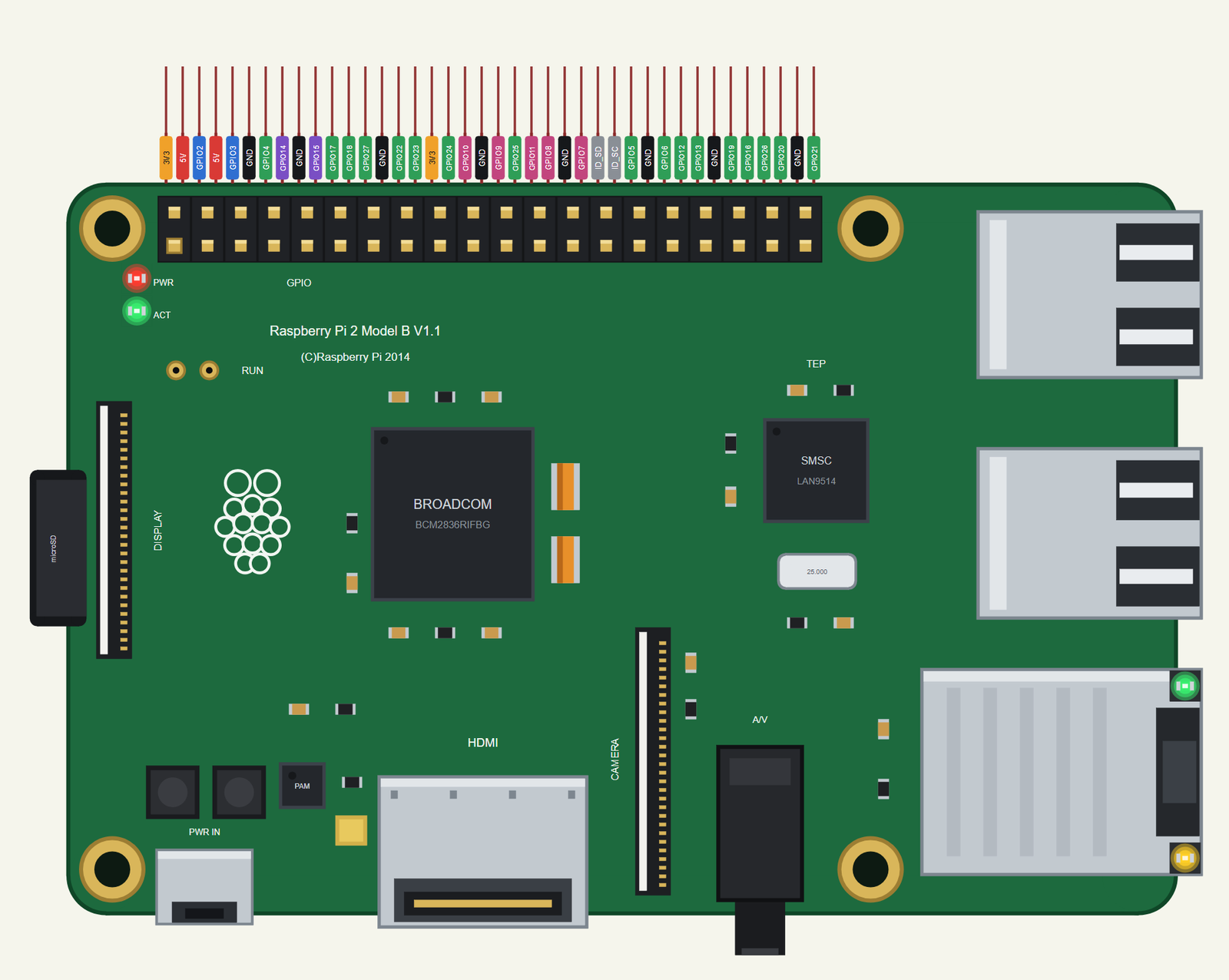
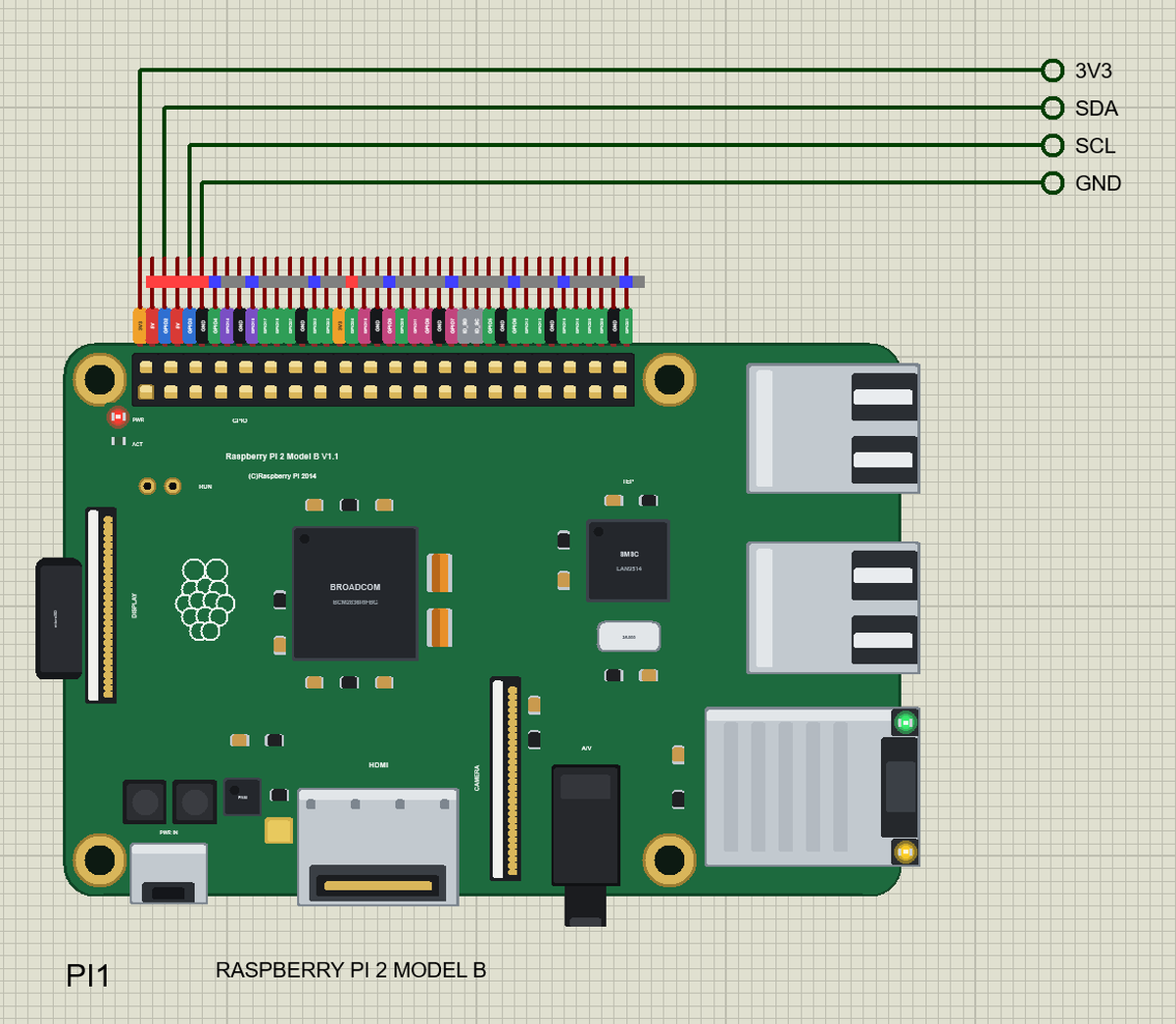
Search RASPBERRY in Pick Devices; the device RASPBERRY PI 2 MODEL B is in TEPRPI2B.LIB (Microprocessor ICs, Raspberry Pi), with the prefix PI. The 40 pins leave the top edge as one comb, each pin above its column of the header, with a tag in the colour of its kind: 5V red, 3V3 orange, GND black, GPIO green, I2C blue, SPI pink, UART purple and the ID pins grey. Click the HDMI socket or the processor to open the Pi Terminal, and the RJ45 jack to pull the Ethernet cable out or plug it back in.
The 40-Pin Header
| Pins | Name | Pins | Name |
|---|---|---|---|
| 1 | 3V3 | 2 | 5V |
| 3 | GPIO2 (SDA) | 4 | 5V |
| 5 | GPIO3 (SCL) | 6 | GND |
| 7 | GPIO4 | 8 | GPIO14 (TXD) |
| 9 | GND | 10 | GPIO15 (RXD) |
| 11 | GPIO17 | 12 | GPIO18 |
| 13 | GPIO27 | 14 | GND |
| 15 | GPIO22 | 16 | GPIO23 |
| 17 | 3V3 | 18 | GPIO24 |
| 19 | GPIO10 (MOSI) | 20 | GND |
| 21 | GPIO9 (MISO) | 22 | GPIO25 |
| 23 | GPIO11 (SCLK) | 24 | GPIO8 (CE0) |
| 25 | GND | 26 | GPIO7 (CE1) |
| 27 | ID_SD | 28 | ID_SC |
| 29 | GPIO5 | 30 | GND |
| 31 | GPIO6 | 32 | GPIO12 |
| 33 | GPIO13 | 34 | GND |
| 35 | GPIO19 | 36 | GPIO16 |
| 37 | GPIO26 | 38 | GPIO20 |
| 39 | GND | 40 | GPIO21 |
The GPIOs work at 3.3 V; GPIO2 and GPIO3 have the Pi's 1.8 k pull-ups to 3.3 V, so an I2C module needs nothing more than its four wires. The 5V and 3V3 pins power the modules wired to them. ID_SD and ID_SC are kept for a HAT's ID EEPROM, so leave them free, as on a real Pi.
Download Raspberry Pi 2 Model B Library for Proteus
Click the button below to download Raspberry-Pi-2-Model-B-Library-for-Proteus-v1.0.zip (about 14.5 MB with Python included, without the source code of the models):
Raspberry Pi 2 Model B Library for Proteus V1.0- README.txt: the device, installation, the demo, the header, the properties, troubleshooting and the limits.
- Proteus Library Files:
TEPRPI2B.LIB(the Raspberry Pi 2 Model B) and the demo's parts:TEPBME280.LIB,TEPBH1750.LIB,TEPMPU6050.LIBandTEPOLED12864.LIB. - Proteus Model Files:
TEPNET.DLL(the Pi and the network), the parts'TEPBME280.DLL,TEPBH1750.DLL,TEPMPU6050.DLLandTEPOLED.DLL, and the TEPPi folder - Python 3.11 and the TEP Pi runtime. - Python Code:
blink.pyandi2c_station.py. - Proteus Simulation: the demo project, its program and copies of the DLLs.
No Proteus yet? Read How to Download and Install Proteus 7 and 8. New to libraries? Follow How to Install a New Library in Proteus.
How to Install Raspberry Pi 2 Model B Library for Proteus
- Close Proteus and extract the whole zip file, for example to your Desktop.
- Copy the files from Proteus Library Files into the LIBRARY folder of Proteus (usually
C:\Program Files (x86)\Labcenter Electronics\Proteus 8 Professional\LIBRARY). - Copy everything from Proteus Model Files - the DLLs and the TEPPi folder - into the MODELS folder, replacing an older TEPNET.DLL and TEPPi folder (these are the newest; they also run our Model B and Model B+).
- Delete
TEPRPI2B.IDXfrom the LIBRARY folder if it is there. - Start Proteus, press P and search for RASPBERRY.
There is nothing else to install: Python comes in the TEPPi folder, so you need no Python on your PC.
Demo: Four I2C Parts on One Bus
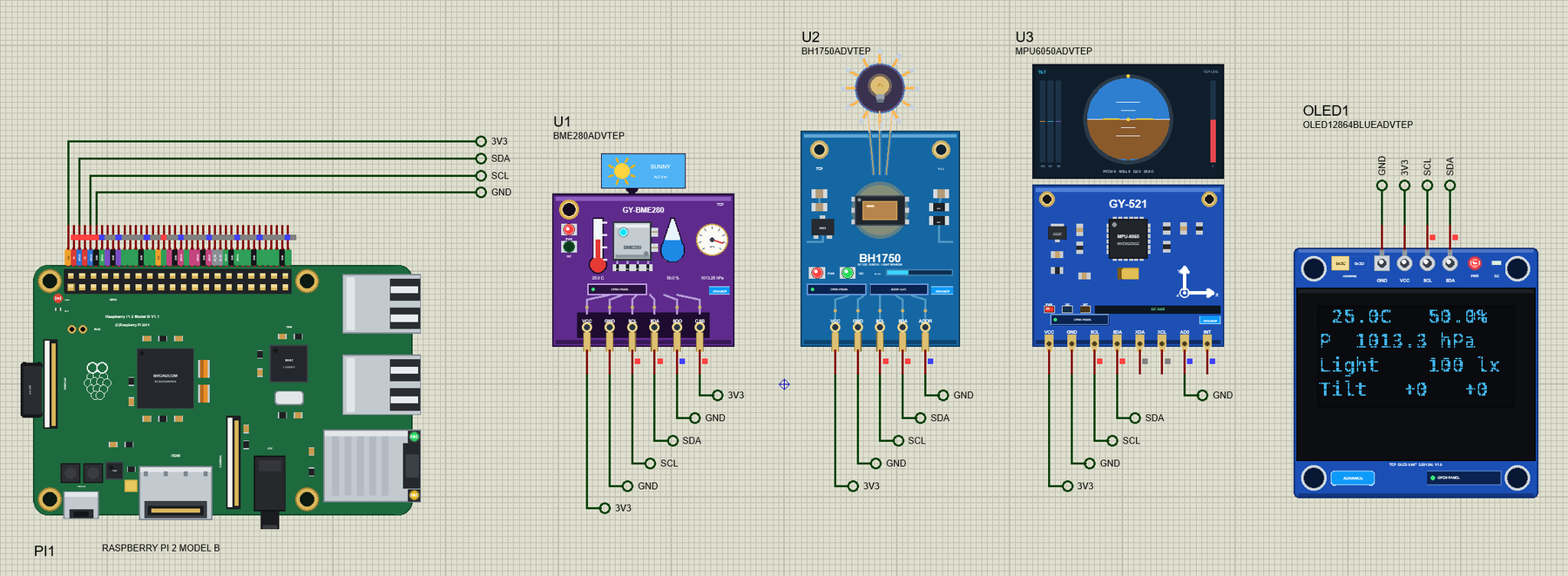
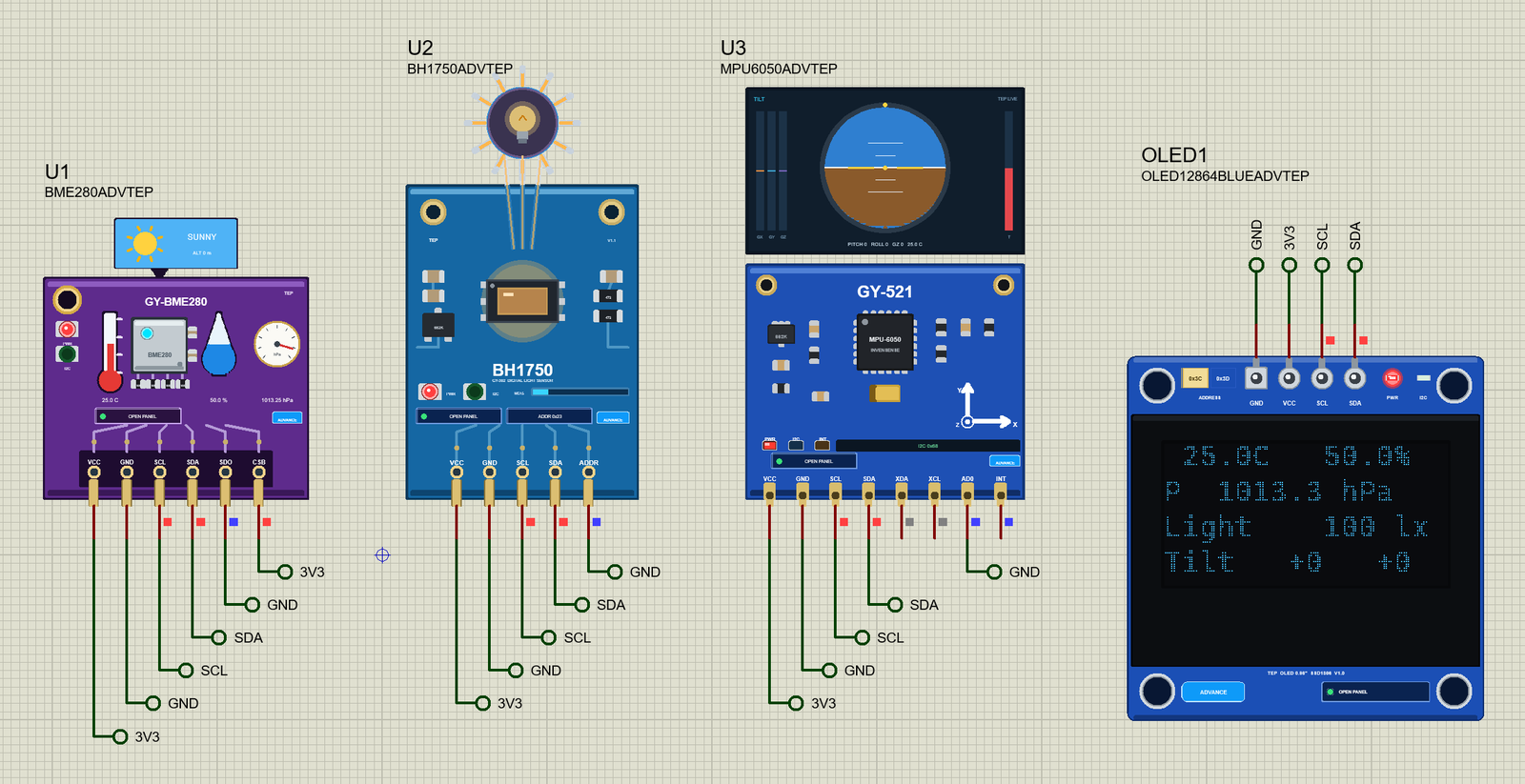
Open Pi-2-Model-B-I2C-Sensors.pdsprj. PI1 runs i2c_station.py. The four parts come from our own libraries, each with its article: U1 from the BME280 Sensor Library for Proteus, U2 from the BH1750 Light Sensor Library for Proteus, U3 from the MPU6050 Library for Proteus and OLED1 from the OLED SSD1306 Library for Proteus. All four are the Advance versions: each opens a pop-up window at Run with its live values and the controls to change them.
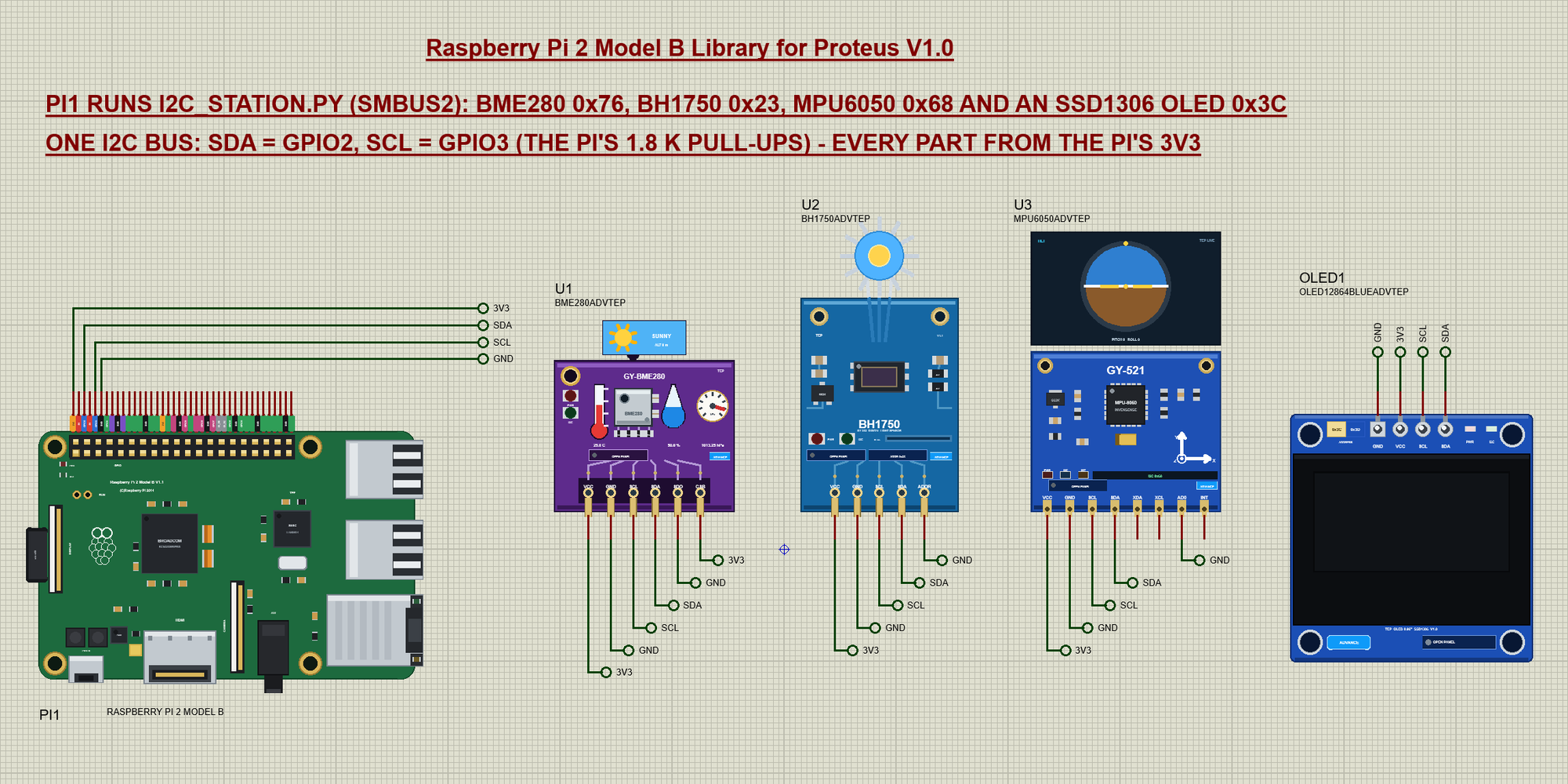
I2C is a bus: every part is wired to the same two lines, SDA and SCL, and the Pi talks to one part at a time by its 7-bit address. Three of the parts have an address pin, so the wiring decides their address. Net labels connect everything, and every part takes its power from the Pi's 3V3 and GND:
| Part | What it measures | Address | Address pins |
|---|---|---|---|
| U1 BME280 | temperature, humidity, pressure | 0x76 | SDO to GND (0x77 with SDO high); CSB to 3V3 selects I2C |
| U2 BH1750 | light in lux | 0x23 | ADDR to GND (0x5C with ADDR high) |
| U3 MPU6050 | acceleration and rotation | 0x68 | AD0 to GND (0x69 with AD0 high) |
| OLED1 SSD1306 | a 128 x 64 screen | 0x3C | fixed on this module |
The I2C Bus from Python
The program needs only smbus2, the Python library most Pi projects use for I2C. Bus 1 is the bus on GPIO2 and GPIO3:
from smbus2 import SMBus, i2c_msg

bus = SMBus(1)
First it looks at who is on the bus, the way the i2cdetect -y 1 command does on a real Pi. For every address it sends just the address byte (write_quick); a part that recognises its address pulls SDA low (ACK), and an address with nobody behind it gives OSError 121, Remote I/O error:
def scan():
    """The addresses that answer, printed as i2cdetect -y 1 prints them."""
    found = []
    print('   ' + ''.join('%3x' % c for c in range(16)))
    for row in range(0, 128, 16):
        line = '%02x:' % row
        for a in range(row, row + 16):
            if a < 0x03 or a > 0x77:
                line += '   '
                continue
            try:
                bus.write_quick(a)
                found.append(a)
                line += ' %02x' % a
            except OSError:
                line += ' --'
        print(line)
    return found
The BME280: Temperature, Humidity and Pressure
A BME280 does not send finished values. It measures raw numbers and keeps a table of calibration values made at the factory, and the program turns the raw numbers into degrees, percent and hPa with the formulas of Bosch's datasheet. So the class first reads the calibration - 26 bytes from 0x88 and 7 from 0xE1 - and then starts the measurements: one sample of each, in normal mode, repeated every second:
class BME280:
    """Temperature, humidity and pressure with the datasheet's compensation formulas (Bosch BME280 datasheet, 4.2.3 and 8.1)."""

    def __init__(self, addr=0x76):
        self.a = addr
        c = bus.read_i2c_block_data(addr, 0x88, 26)     # dig_T1 .. dig_P9, then dig_H1 at 0xA1
        h = bus.read_i2c_block_data(addr, 0xE1, 7)      # dig_H2 .. dig_H6
        self.t = [c[1] << 8 | c[0], s16(c[2], c[3]), s16(c[4], c[5])]
        self.p = [c[7] << 8 | c[6]] + [s16(c[k], c[k + 1]) for k in range(8, 24, 2)]
        e4 = h[3] - 256 if h[3] > 127 else h[3]
        e6 = h[5] - 256 if h[5] > 127 else h[5]
        self.h = [c[25], s16(h[0], h[1]), h[2], e4 * 16 | (h[4] & 0x0F), e6 * 16 | (h[4] >> 4), h[6] - 256 if h[6] > 127 else h[6]]
        bus.write_byte_data(addr, 0xF2, 0x01)           # humidity x1 (before ctrl_meas)
        bus.write_byte_data(addr, 0xF4, 0x27)           # temperature x1, pressure x1, normal mode
        bus.write_byte_data(addr, 0xF5, 0xA0)           # 1000 ms standby
A reading is one burst of eight bytes from 0xF7 - pressure, temperature and humidity - so all three belong to the same moment:
        d = bus.read_i2c_block_data(self.a, 0xF7, 8)
        adc_p, adc_t, adc_h = d[0] << 12 | d[1] << 4 | d[2] >> 4, d[3] << 12 | d[4] << 4 | d[5] >> 4, d[6] << 8 | d[7]
The rest of read() is the datasheet's compensation in floating point; it ends with the three values:
return t_fine / 5120.0, min(100.0, max(0.0, x)), pressure / 100.0The BH1750: Light
The BH1750 has no registers at all. A one-byte command powers it up, a second starts the continuous high-resolution mode, and from then on every plain two-byte read returns the latest count; one count is 1 / 1.2 lux. smbus2's i2c_msg makes such a read without a register byte:
class BH1750:
    """Light in lux: continuous high-resolution mode, 1 lx a count / 1.2."""

    def __init__(self, addr=0x23):
        self.a = addr
        bus.write_byte(addr, 0x01)                      # power on
        bus.write_byte(addr, 0x10)                      # continuous H-resolution mode (a reading every 120 ms)

    def read(self):
        msg = i2c_msg.read(self.a, 2)                   # (the BH1750 has no registers: a plain 2-byte read)
        bus.i2c_rdwr(msg)
        hi, lo = list(msg)
        return (hi << 8 | lo) / 1.2
The MPU6050: Tilt from the Accelerometer
The MPU6050 starts asleep; writing 0 to PWR_MGMT_1 (0x6B) wakes it. Then 14 bytes from 0x3B hold the acceleration, the temperature and the rotation, two bytes each, high byte first. At the default range of 2 g, 16384 counts are 1 g. When the board lies still, gravity is the only acceleration, so its direction gives the tilt - roll and pitch:
class MPU6050:
    """Acceleration (+-2 g) and the board's tilt from it."""

    def __init__(self, addr=0x68):
        self.a = addr
        bus.write_byte_data(addr, 0x6B, 0x00)           # PWR_MGMT_1: wake up

    def read(self):
        d = bus.read_i2c_block_data(self.a, 0x3B, 14)   # ACCEL_X .. GYRO_Z, big-endian
        ax, ay, az = (s16(d[k + 1], d[k]) / 16384.0 for k in (0, 2, 4))
        roll = math.degrees(math.atan2(ay, az))
        pitch = math.degrees(math.atan2(-ax, math.sqrt(ay * ay + az * az)))
        return ax, ay, az, roll, pitch
The SSD1306 OLED
The OLED is a 128 x 64 screen with its own memory: eight pages, each a row of 128 bytes, each byte eight pixels high. Over I2C, a control byte says what follows - 0x00 for commands, 0x40 for pixels. The class sends the usual set-up (the multiplex for 64 rows, the charge pump with 8D 14, the contrast, display on with AF) and keeps a frame buffer of 1024 bytes in Python:
class OLED:
    """The SSD1306 128 x 64 over I2C: a frame buffer in RAM, sent page by page."""
    INIT = [0xAE, 0xD5, 0x80, 0xA8, 0x3F, 0xD3, 0x00, 0x40, 0x8D, 0x14, 0x20, 0x00, 0xA1, 0xC8, 0xDA, 0x12, 0x81, 0xCF, 0xD9, 0xF1,
            0xDB, 0x40, 0xA4, 0xA6, 0xAF]

    def __init__(self, addr=0x3C):
        self.a, self.buf = addr, bytearray(1024)
        for k in range(0, len(self.INIT), 16):
            bus.write_i2c_block_data(addr, 0x00, self.INIT[k:k + 16])   # 0x00: commands follow
Text goes into the buffer pixel by pixel from an 8 x 14 font stored in the program (rasterised from Cascadia Mono):
    def text(self, x, y, s):
        for ch in s:
            g = FONT[(ord(ch) - 32) * 14:(ord(ch) - 31) * 14] if ' ' <= ch <= '~' else bytes(14)
            for r in range(14):
                for k in range(8):
                    if g[r] & (0x80 >> k) and x + k < 128 and y + r < 64:
                        self.buf[(y + r) // 8 * 128 + x + k] |= 1 << ((y + r) % 8)
            x += 8
show() sets the window to the whole screen and sends the buffer in 32-byte blocks - an SMBus block write carries at most 32 bytes:
    def show(self):
        bus.write_i2c_block_data(self.a, 0x00, [0x21, 0, 127, 0x22, 0, 7])   # the whole screen, column 0, page 0
        for k in range(0, 1024, 32):
            bus.write_i2c_block_data(self.a, 0x40, list(self.buf[k:k + 32]))   # 0x40: display data follows
The Main Loop
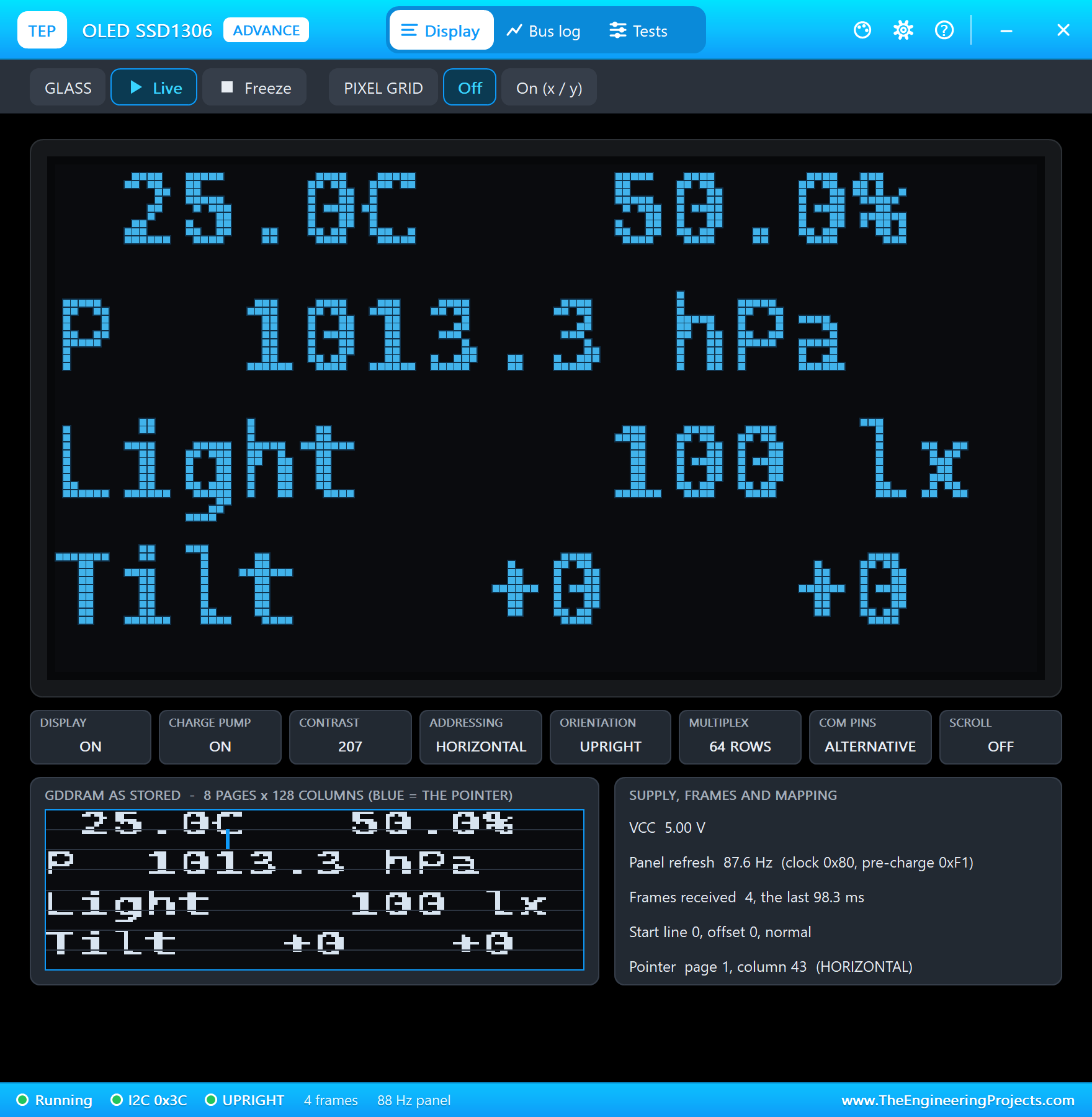
The program scans the bus, creates the four parts and then, once a second, reads every sensor, writes four lines on the OLED and prints one line in the terminal. The angles are rounded to whole degrees:
print('i2cdetect -y 1')
found = scan()
print('found:', ' '.join('0x%02x' % a for a in found))
bme, light, imu, oled = BME280(), BH1750(), MPU6050(), OLED()
time.sleep(0.2)                                         # (the first BH1750 reading takes 120 ms)
while True:
    t, h, p = bme.read()
    lux = light.read()
    ax, ay, az, roll, pitch = imu.read()
    roll, pitch = round(roll), round(pitch)             # whole degrees (and no "-0")
    oled.buf[:] = bytes(1024)
    oled.text(0, 0, '%5.1fC  %5.1f%%' % (t, h))
    oled.text(0, 16, 'P %7.1f hPa' % p)
    oled.text(0, 32, 'Light %6.0f lx' % lux)
    oled.text(0, 48, 'Tilt %+4.0f %+4.0f' % (roll, pitch))
    oled.show()
    print('%s  %.1f C  %.1f %%  %.1f hPa  %.0f lx  roll %+.0f  pitch %+.0f' % (time.strftime('%H:%M:%S'), t, h, p, lux, roll, pitch))
    time.sleep(1)
Run the Demo
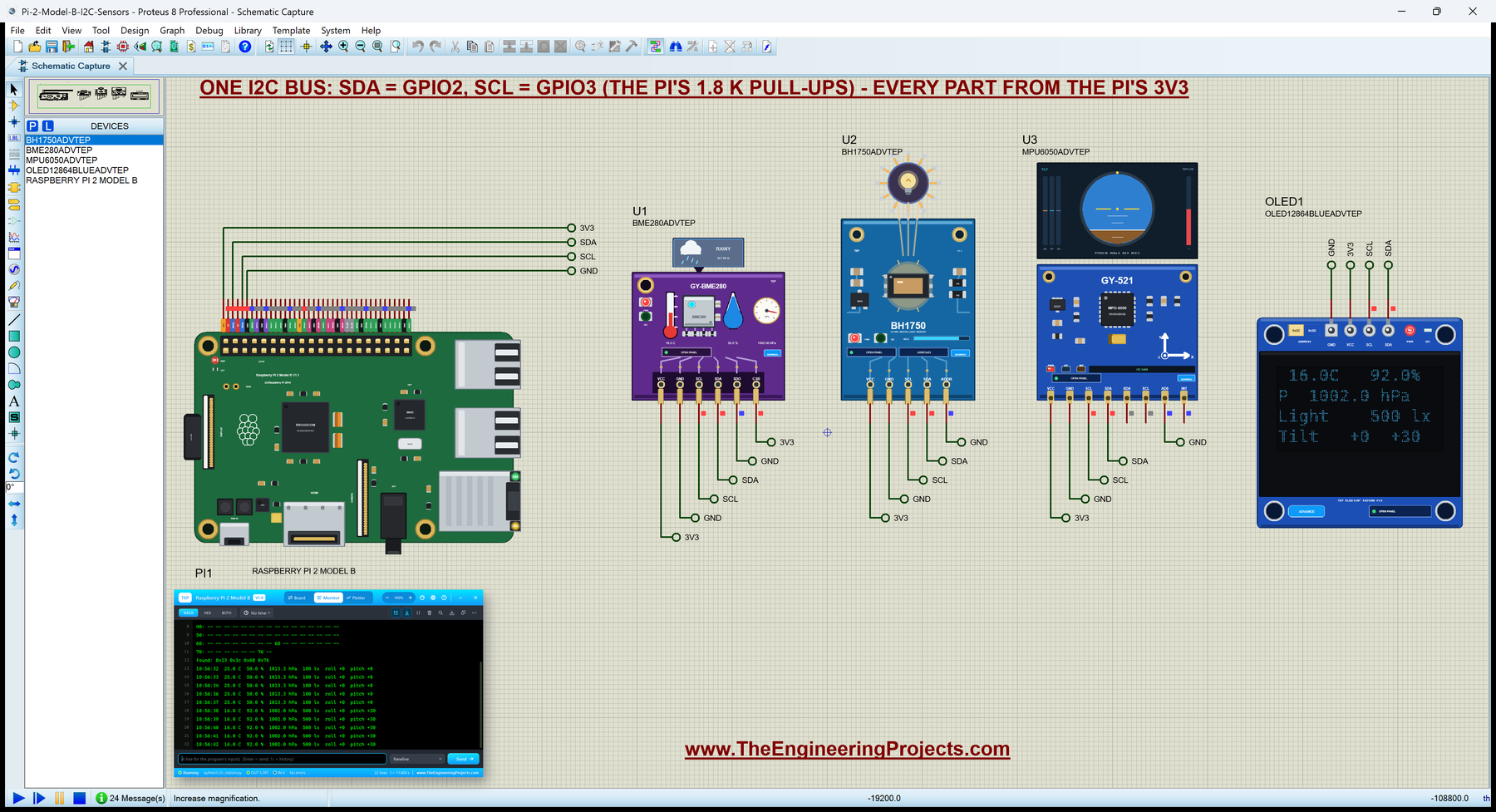
Press Run. The board boots for half a second, the program scans the bus and sets the parts up, and the four pop-up windows open with the parts' default values. Here is the running circuit with the pop-ups moved away:
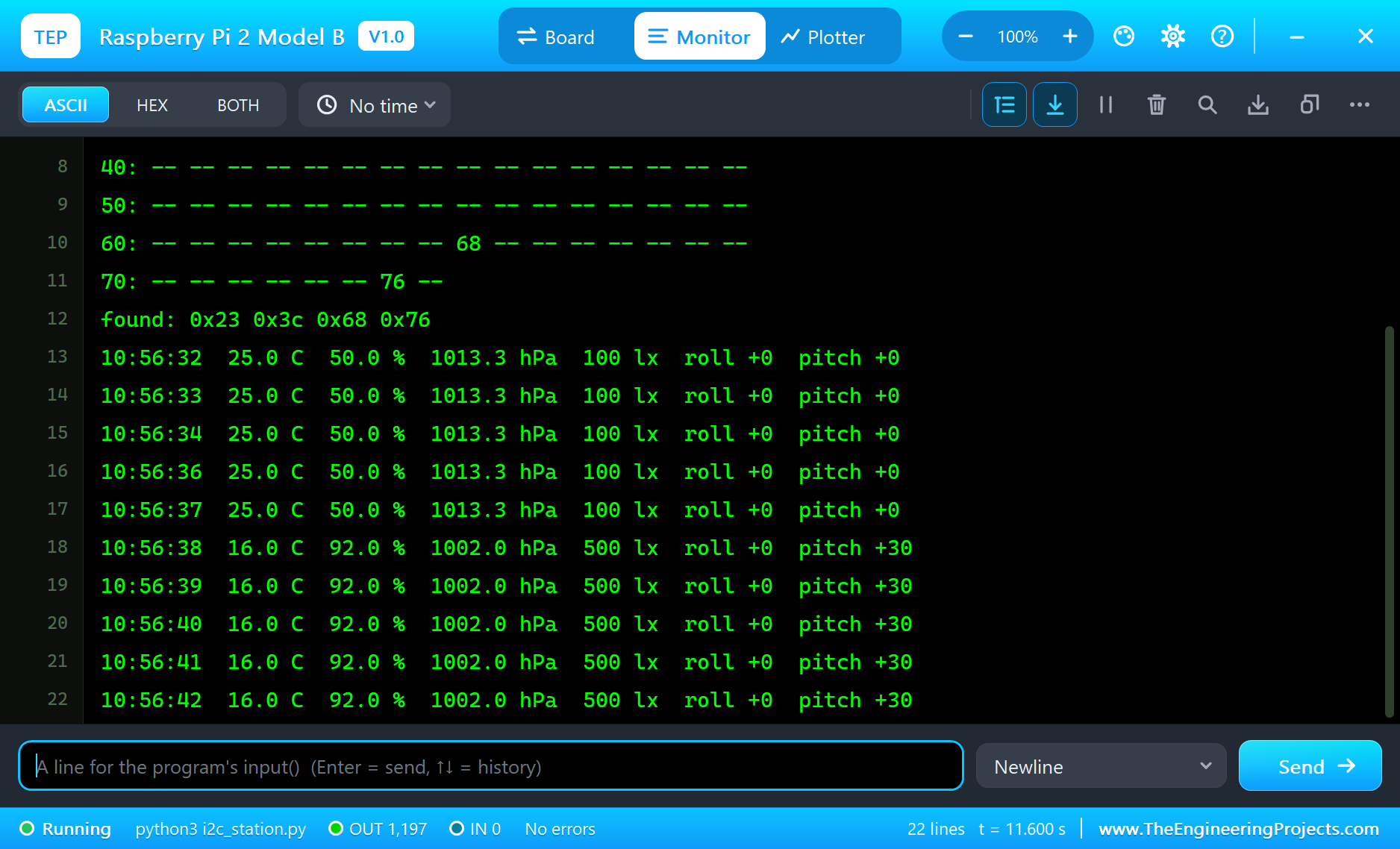
The Pi Terminal shows the scan - four addresses answer, 0x23, 0x3c, 0x68 and 0x76 - and then a line every second:
pi@raspberrypi:~ $ python3 i2c_station.py
i2cdetect -y 1
     0  1  2  3  4  5  6  7  8  9  a  b  c  d  e  f
00:          -- -- -- -- -- -- -- -- -- -- -- -- --
10: -- -- -- -- -- -- -- -- -- -- -- -- -- -- -- --
20: -- -- -- 23 -- -- -- -- -- -- -- -- -- -- -- --
30: -- -- -- -- -- -- -- -- -- -- -- -- 3c -- -- --
40: -- -- -- -- -- -- -- -- -- -- -- -- -- -- -- --
50: -- -- -- -- -- -- -- -- -- -- -- -- -- -- -- --
60: -- -- -- -- -- -- -- -- 68 -- -- -- -- -- -- --
70: -- -- -- -- -- -- 76 --
found: 0x23 0x3c 0x68 0x76
10:56:32  25.0 C  50.0 %  1013.3 hPa  100 lx  roll +0  pitch +0
10:56:33  25.0 C  50.0 %  1013.3 hPa  100 lx  roll +0  pitch +0
10:56:34  25.0 C  50.0 %  1013.3 hPa  100 lx  roll +0  pitch +0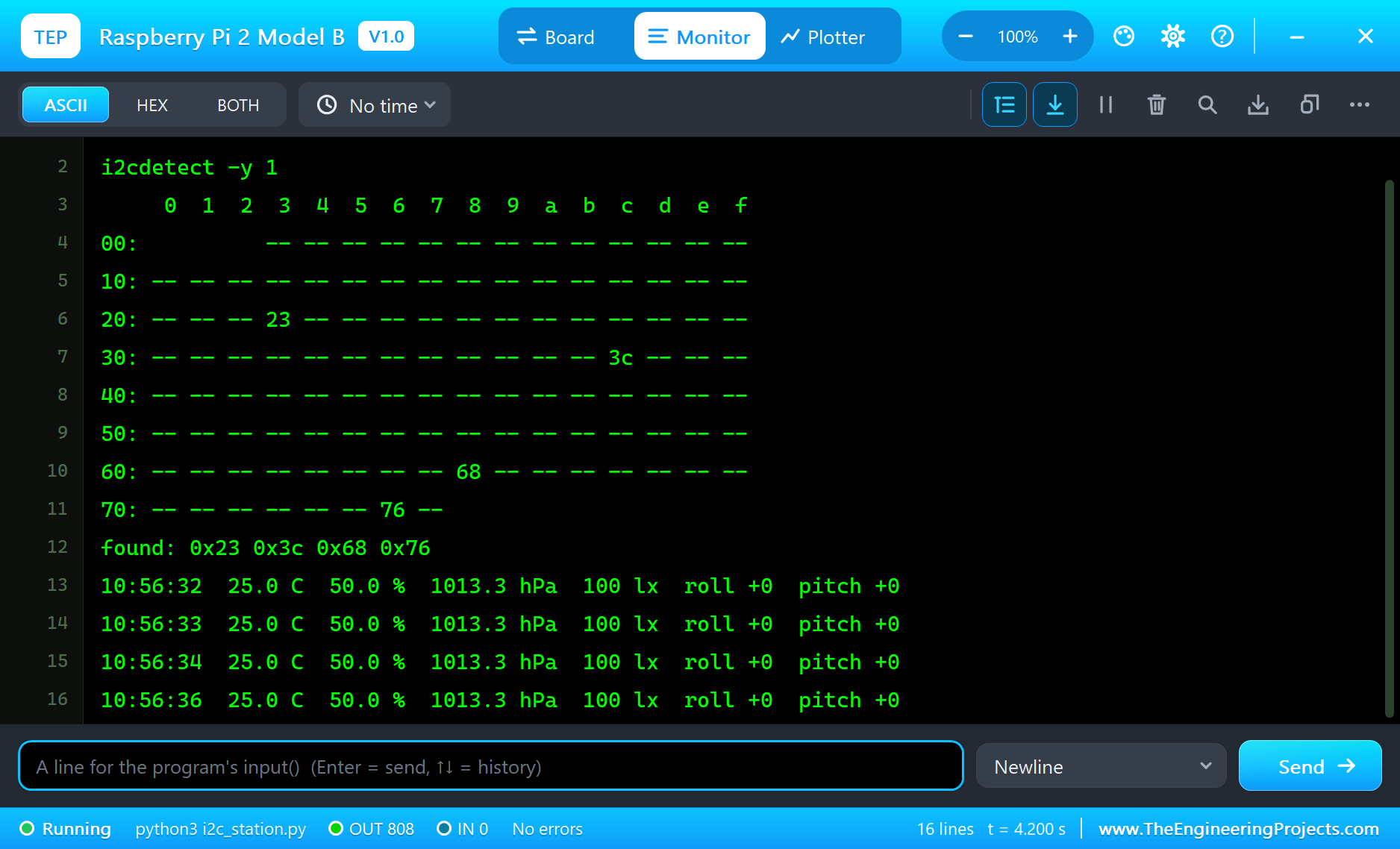
Change the Readings in the Pop-Ups
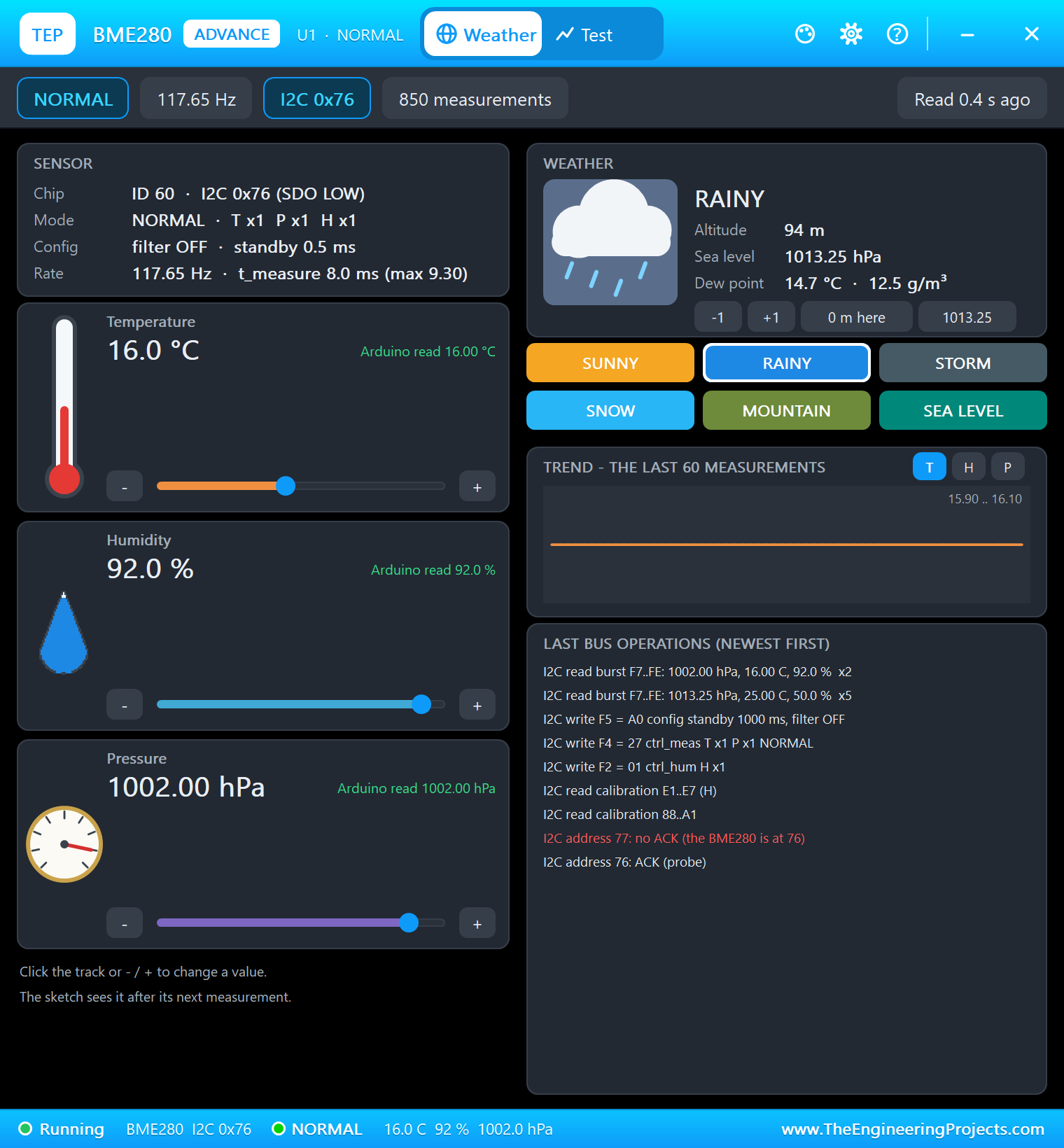
Each Advance part has its own window. Change a value there - with a slider or a preset - and the program sees it at its next reading. In the BME280's pop-up, the RAINY preset sets 16 C, 92 % and 1002 hPa; the pop-up also lists the last bus operations, including the program's burst reads and the probe at 0x77 from the scan, where no BME280 answers:
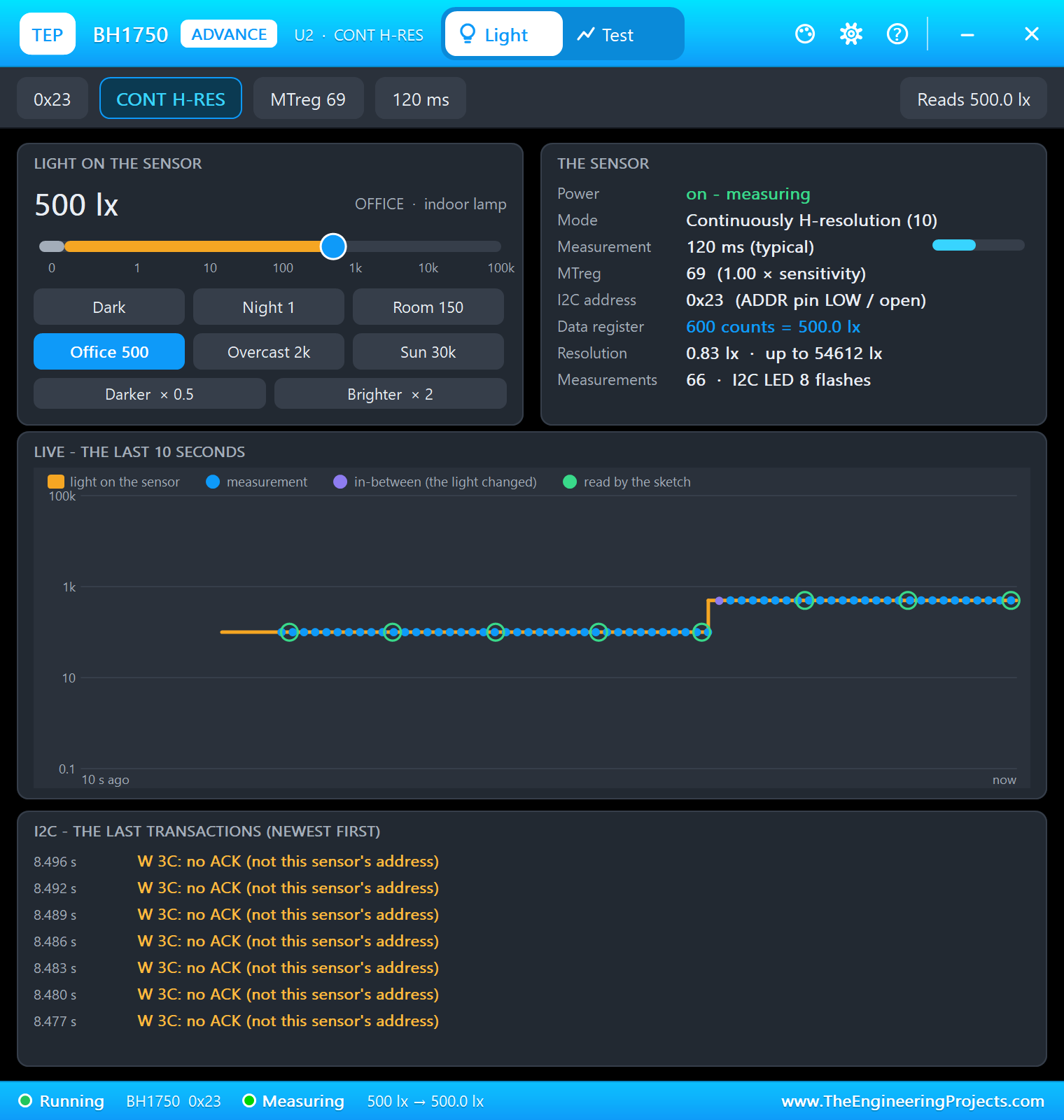
In the BH1750's pop-up, Office 500 sets 500 lx. Its log shows every frame on the bus, so the OLED's writes to 0x3C appear there as frames for another address:
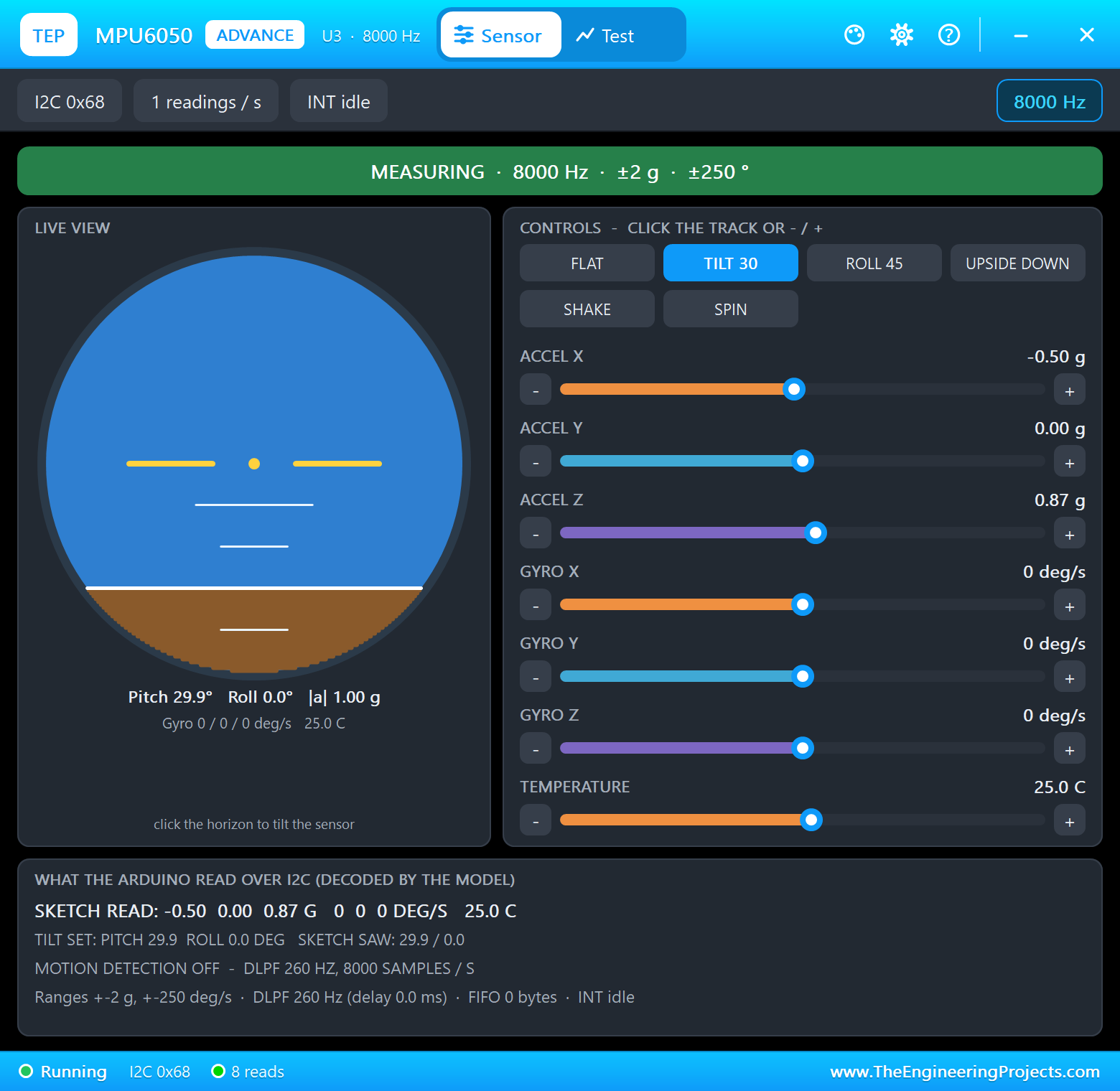
In the MPU6050's pop-up, TILT 30 tips the board forward by 30 degrees; the horizon moves, and the pop-up shows what the program read:
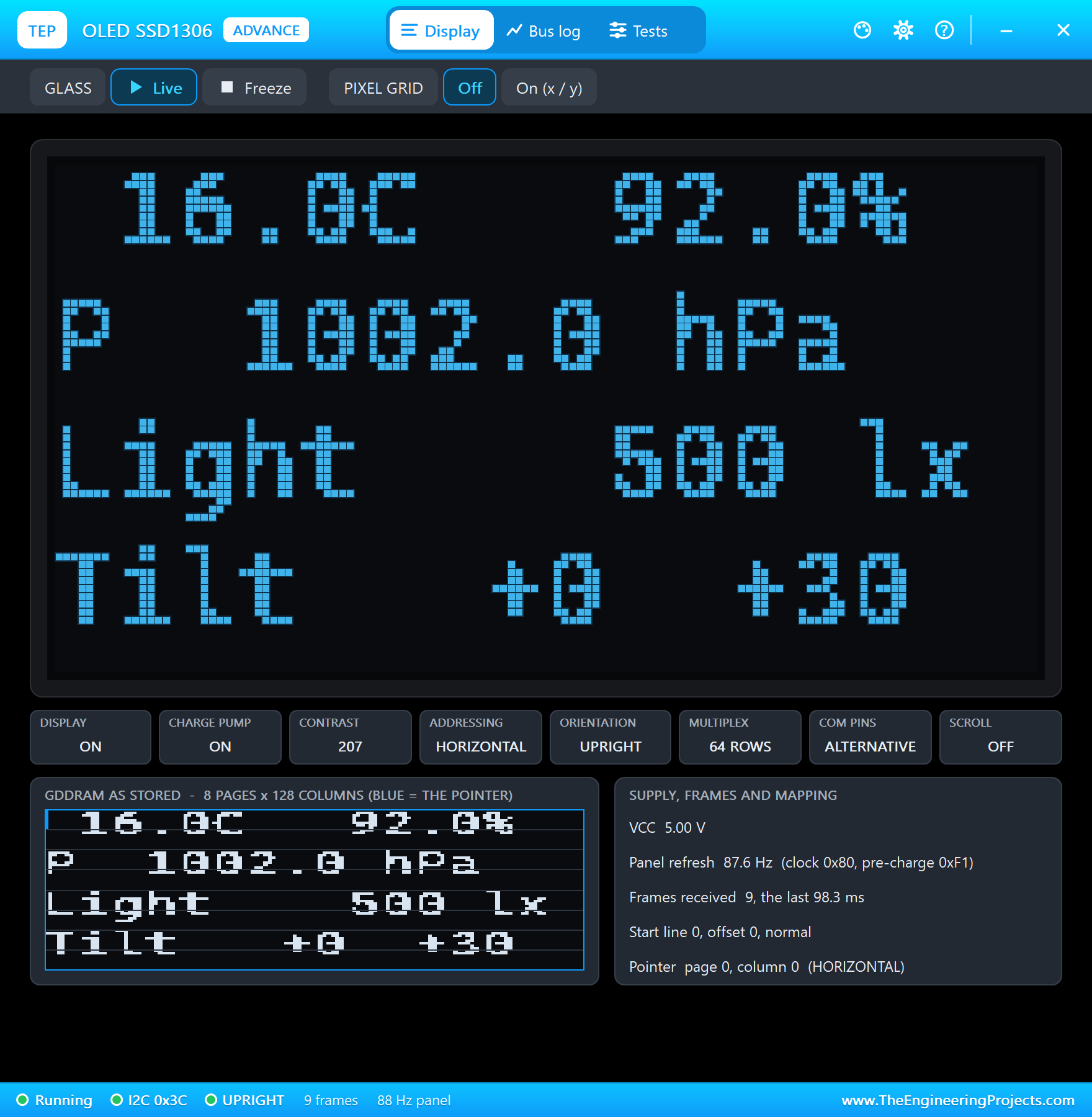
The next line in the terminal has all three changes, and the OLED shows them too:
10:56:37  25.0 C  50.0 %  1013.3 hPa  100 lx  roll +0  pitch +0
10:56:38  16.0 C  92.0 %  1002.0 hPa  500 lx  roll +0  pitch +30
10:56:39  16.0 C  92.0 %  1002.0 hPa  500 lx  roll +0  pitch +30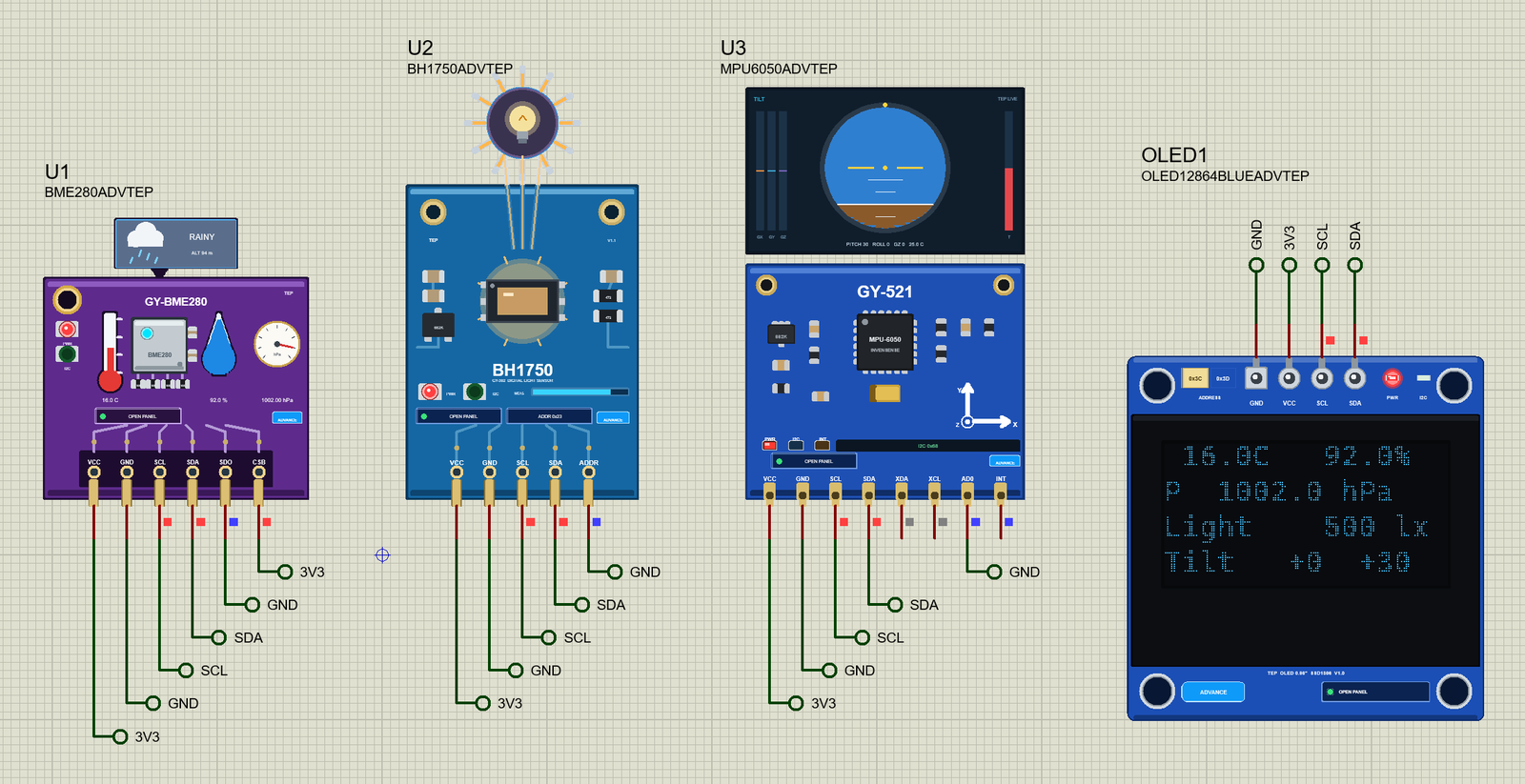
The Pi Terminal
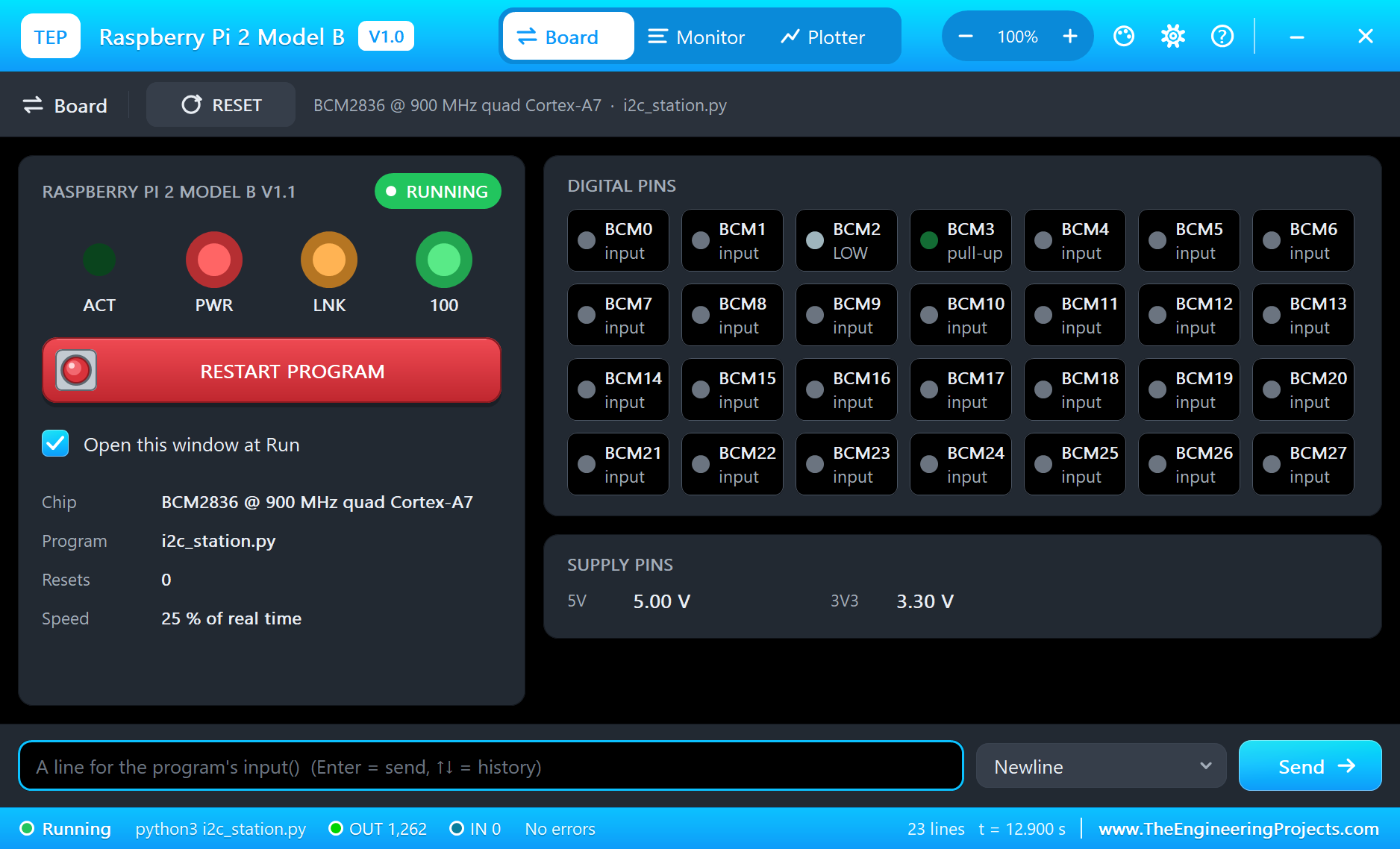
The Pi Terminal opens at Run, in the look of our TEP Serial Monitor Advance for Proteus - our own TEP header, no Windows title bar. Its Monitor tab shows the program's output (OUT), errors (ERR) and the lines you type for input() (IN). The Board tab shows the board live - the GPIOs (GPIO2 and GPIO3 with their pull-ups here), the PWR, ACT, LNK and 100 LEDs and the supply pins, 5.00 V and 3.30 V - and RESTART PROGRAM starts the program again:
Properties of the Raspberry Pi 2 Model B
| Property | What it does |
|---|---|
| PROGRAM | the Python program (default blink.py; a name next to the project or a full path) |
| AUTOOPEN | the Pi Terminal at Run: YES (default) or NO |
| ETHERNET | the cable to the router at Run: IN (default) or OUT |
| PYTHON, RUNTIME | a python.exe and a runtime folder of your own (empty: the TEPPi folder) |
Your own programs go next to your project; set PROGRAM to the file's name. The default blink.py blinks an LED on GPIO17:
from time import sleep
from gpiozero import LED

led = LED(17)
while True:
    led.on()
    print('LED on')
    sleep(0.5)
    led.off()
    print('LED off')
    sleep(0.5)
Troubleshooting
- OSError: [Errno 121] Remote I/O error: no part answers at that address - check the address pins (SDO, ADDR, AD0), the part's VCC and GND, and that SDA and SCL go to GPIO2 and GPIO3. The scan at the start shows who answers.
- A part's pop-up says NO POWER: its VCC is not on the Pi's 3V3 (or 5V) net, or its GND not on GND.
- The OLED stays dark: it needs its set-up first - the charge pump (8D 14) and display on (AF). The Tests tab of the OLED's pop-up names what is missing.
- A reading does not change after a click in a pop-up: the program reads once a second; wait for the next line.
- The BME280 shows nonsense: read the calibration once at the start and use it for every reading.
- The TEPPi folder was not found: copy it from Proteus Model Files into MODELS, or next to your project.
Things to Know Before Using a Real Raspberry Pi
- Turn I2C on: I2C is off in a fresh Raspberry Pi OS - enable it with
sudo raspi-config, theni2cdetect -y 1(from the i2c-tools package) shows the same table as our scan. - 3.3 V only: the Pi's pins are not 5 V tolerant. Most of these modules have their own regulators and pull-ups; power them from 3V3, and the bus stays at 3.3 V.
- Pull-ups add up: each module brings its own pull-up resistors, in parallel with the Pi's 1.8 k. With many modules the bus gets stiff - remove a few pull-ups if the signals look wrong.
- Two parts, one address: two identical sensors need different address pins; a third needs an I2C multiplexer.
- Libraries: on a real Pi you can also use Adafruit's CircuitPython drivers or luma.oled for the screen; this program shows what those libraries do underneath, register by register.
Limitations of the Simulation
- The board does not run Raspberry Pi OS: there is no desktop, no shell commands such as i2cdetect, and no apt. It runs one Python program; its threads take turns, so the four cores are not modelled.
- I2C runs at 100 kHz; other bus speeds and clock stretching are not modelled.
- HDMI, the A/V jack, the camera and display connectors, USB, the microSD card's files and a HAT's ID EEPROM are drawn but not simulated.
- C programs and Python packages with C code do not run. Pure Python code takes no simulation time; only the pin, bus, sleep and network calls move the clock.
- The router, the board's address, the boot time and the Pi Terminal are TEP additions.
- Raspberry Pi is a trademark of Raspberry Pi Ltd; this library is not made or endorsed by Raspberry Pi Ltd or Labcenter.
- Tested in Proteus 8.5 in October 2026 (the demo as shipped, about 25 % of real time on our PC with the four pop-ups and the Pi Terminal open). Proteus 7 is not supported.
So, that was all about the Raspberry Pi 2 Model B Library for Proteus. I hope it helps you try an I2C project on the Pi before you touch the hardware - four parts on one bus, the scan, the BME280's calibration, the BH1750's plain reads, the tilt from the MPU6050 and an OLED drawn from pure Python. The next boards of our Raspberry Pi series bring other modules. If you use the library in a project, please share it in the comments or in our forum, and if you have any questions, ask in the comments and I will help you out. Till the next tutorial, take care and have fun!