


Installation of MPLAB C Compiler


Hello friends! Today, we will install a C compiler for MPLAB and make sure that a PIC project actually uses it. In the previous lesson, we covered installing the MPLAB development environment. The next step is to connect that environment to the language tools that translate our C source.
The original article used MPLAB C18 and shows its historical Windows installer. Those screenshots remain useful for maintaining an older PIC18 project. For a new compatible 8-bit PIC project, MPLAB XC8 is the relevant Microchip compiler family to investigate. We will keep the two workflows distinct.
By the end, you should know which compiler your project requires, how to install and select it, and how to separate an installation problem from a source-code or linker problem. We will use PIC18F452 as the example target from this tutorial series.
What Does the C Compiler Do?
The compiler translates C source into code for the selected processor. The complete toolchain also handles preprocessing, assembly where required, and linking. Its output can include a program image for programming the device and debugging information for the development tools.
MPLAB IDE or MPLAB X IDE organizes those operations. Installing the IDE does not mean that every compiler needed by every supported processor is installed. Conversely, a compiler can exist on the computer while a particular project is still configured to use another version.
| Item | Role in a C project |
|---|---|
| Source file | Contains the C statements and application logic |
| Header file | Provides declarations, definitions and device interfaces |
| Compiler | Translates the source for the target architecture |
| Library | Provides reusable implementations |
| Linker | Combines program pieces and resolves their placement and references |
| IDE project | Records the target, files, options and selected tools |
C18 and XC8 Are Different Toolchains
Microchip describes MPLAB C18 as its C compiler for PIC18 devices. It belongs to the historical workflow shown in this article. MPLAB XC8 supports 8-bit PIC and AVR development through its documented device support.
For a new PIC18F452 project, select a compatible XC8 release and device-support combination. For an existing project, first identify what produced its working firmware. A source tree containing C18-specific pragmas or library calls may require changes before it builds correctly with XC8.
The original article also suggested that other compilers could not access individual register bits. That is not a sound comparison. Register access, available libraries, generated code and language extensions depend on the actual toolchain. Choose tools from project requirements and verified support rather than assuming one compiler uniquely permits hardware control.
Before Installing
- Identify the exact target, such as PIC18F452.
- Identify whether the source is intended for C18, XC8 or another compiler.
- Check compatibility with the installed IDE and Windows version.
- Obtain the installer from Microchip's official compiler page or archive.
- Save existing projects and record the versions already in use.
- Choose a separate installation directory for a different compiler version.
Read the license information supplied with the selected release. Do not rely on an old screenshot's evaluation period or optimization description as a statement about a current package. Licensing and optimization modes should be recorded when they affect the build you intend to reproduce.
You do not need to subscribe to a mailing list to obtain the official compiler. Use the manufacturer's download and archive resources. The original promise to email an installer is no longer part of the installation workflow described here.
Install XC8 for a New Compatible Project
Download the Windows package for the selected XC8 release, run its installer and review the license and component information. Retain the default versioned location unless there is a specific reason to use another directory. Record the final path so you can identify the installation later.
Microchip's compiler installation lesson explains that XC compilers are installed separately from MPLAB X IDE. After installation, restart the IDE if required for discovery, then inspect the available build tools.
- Complete the compiler installation without merging it into another version's folder.
- Open MPLAB X IDE and inspect the build-tool configuration.
- Confirm that the intended XC8 version is detected.
- Create or open the PIC18F452 project.
- Select the intended compiler in that project's properties.
- Build a minimal source file and inspect the output.
If the compiler is installed in a custom location and is not detected automatically, add its actual toolchain path through the IDE settings. Do not solve the problem by copying individual executables into arbitrary folders; the compiler also relies on its supporting files.
Follow the Historical C18 Installer
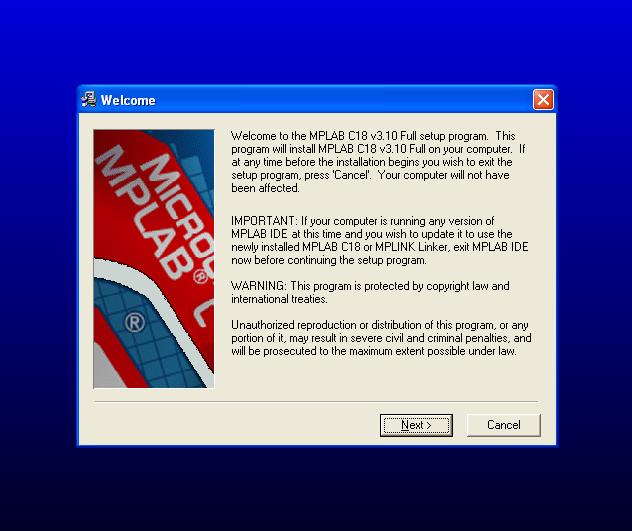
The following images document the original C18 installation. Use them when reproducing a compatible legacy setup, not as screenshots of XC8. Installer details can vary between C18 releases.
Start the Installer and Review the License
Launch the official C18 installer appropriate to the project. Confirm that the product and version match your intention before continuing through the welcome page.
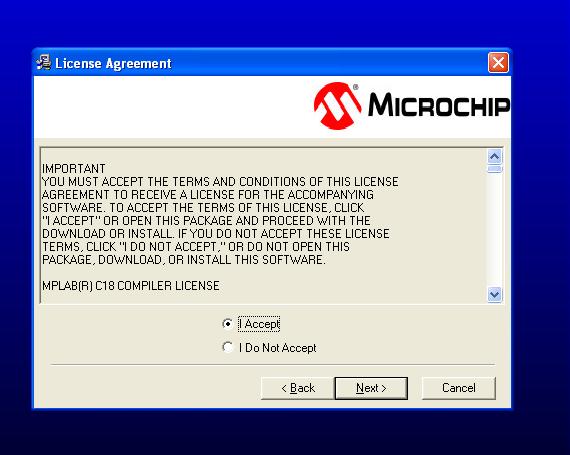
Read the license page and continue only under terms appropriate to your use. The screenshot preserves the historical dialog rather than defining the terms of every compiler release.
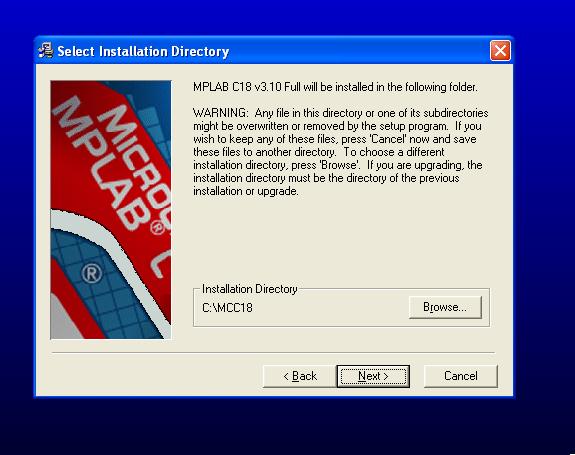
Choose the Installation Folder
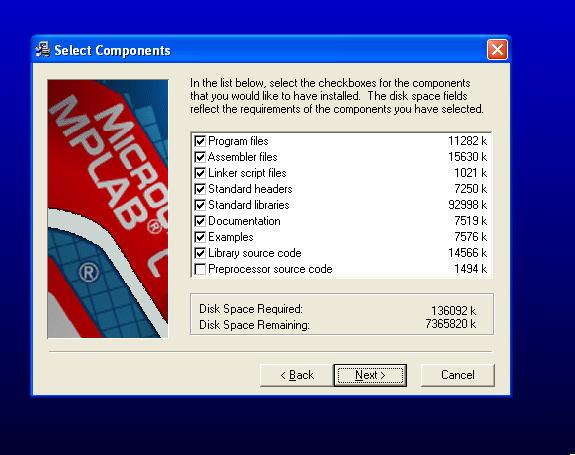
Select the destination directory and keep a record of it. Older projects often refer to an MCC18 installation path, but that name is not a universal requirement for every compiler. A project must point to the location actually used on your machine.
The next historical page presents additional installation choices. Read the options rather than assuming that all checkboxes should always have the same state as the original computer.
Review Integration and Environment Options
The original instructions recommended selecting every option on the following pages. A better approach is to enable the integration and path settings required by your intended workflow, understanding what they change.
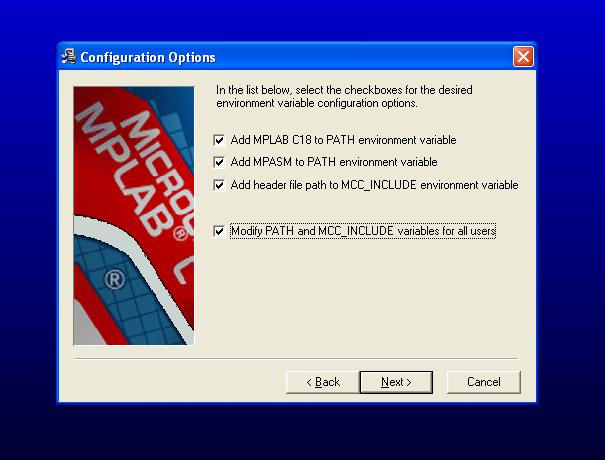
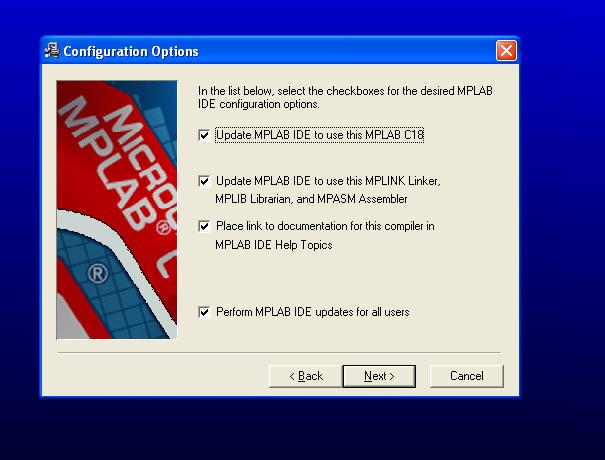
Adding a compiler directory to PATH can affect which executable runs from a command prompt. It does not necessarily change the compiler explicitly selected inside an IDE project. With several versions installed, always check the actual build command and version rather than inferring them from PATH alone.
Complete Installation
Review the final selection, start the installation and allow it to finish. Keep any error message if a component fails instead of continuing as though the complete toolchain is available.
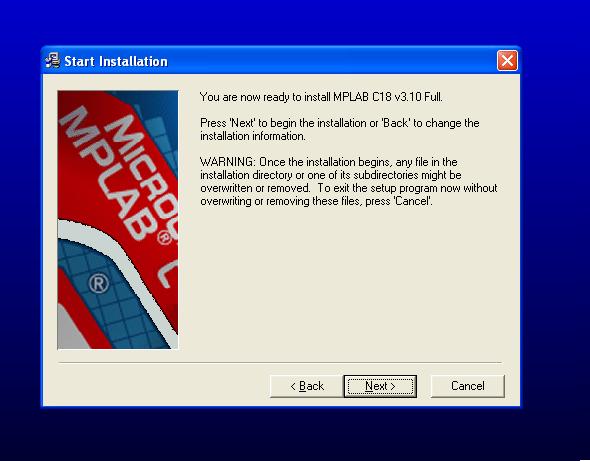
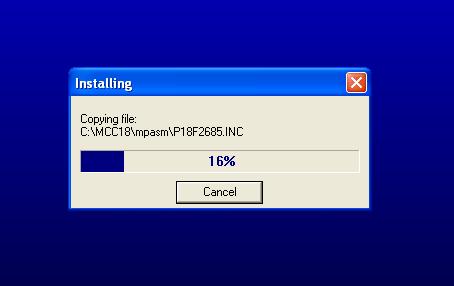
After completion, read the available release notes and close the installer. The optional actions on the final page are separate from the compiler's basic installation.
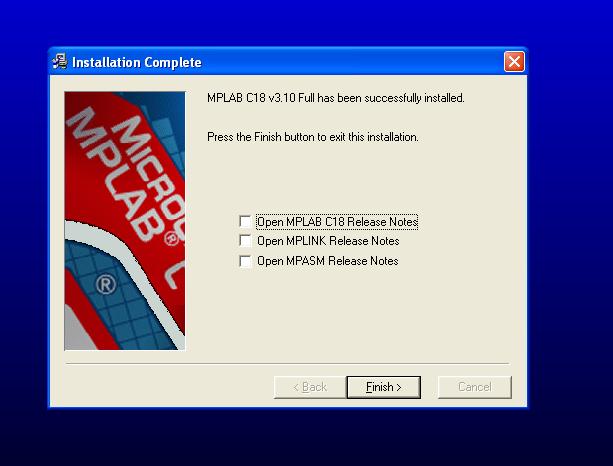
Open the matching MPLAB environment and select the C18 tools for the legacy project. Installing C18 first or second is less important than confirming that the intended IDE can locate and invoke it correctly. Installing the IDE first is a convenient sequence for a clean setup, but discovery can still need attention afterward.
Select the Compiler in the Project
Compiler selection is a project setting. In MPLAB X, inspect the project's selected language tool and version; in legacy MPLAB, inspect the language-tool suite and its executable locations. The menu labels differ, but the question is the same: which tools will this project invoke?
Microchip's project settings documentation explains the toolchain role in MPLAB X. Select the exact PIC device as well. A working compiler installation does not compensate for a project configured for another processor.
Check the build output for the executable path and reported version. This provides concrete evidence of which installation was used. A desktop shortcut named XC8 or a folder visible in File Explorer does not establish what an existing project actually selected.
Use a Minimal Compile Check
Create a small C source file, add it to a project for the intended device and build it. A simple empty loop is sufficient to test the basic source-to-image path. It is not a complete hardware application and does not configure the oscillator or pins.
void main(void) {
    while (1) {
        // Minimal toolchain check.
    }
}
If this builds, the compiler can process a simple translation unit and the linker can produce an image under the current project configuration. You can then add the correct device header and a small register-access statement to check the device definitions.
For XC8, device-specific register definitions are commonly exposed through <xc.h>, with the selected target determining the device. Historical C18 projects often use a device-specific header such as <p18f452.h>. Do not mix include files from unrelated compiler installations to suppress a missing-header message.
Read the First Useful Diagnostic
A failed build can contain many lines, but the first meaningful error often explains the rest. If the compiler cannot find a header, later unknown-register messages may simply follow from the missing definitions. Fix the root cause and rebuild before chasing every downstream message individually.
| Message or symptom | Likely stage | What to inspect |
|---|---|---|
| Compiler executable not found | Tool invocation | Installation path and project tool selection |
| Header file not found | Preprocessing | Include path, toolchain and source compatibility |
| Unknown register or configuration name | Compilation | Selected device and device definitions |
| Undefined function reference | Linking | Missing implementation or library |
| Multiple definitions | Linking | Duplicate source or object inclusion |
| Program does not fit | Memory allocation | Actual code and data usage |
Do not treat every error as a reason to reinstall the compiler. An undefined application function is usually a project or source issue, while a missing executable is an installation or path issue. Their fixes are different.
Keep Headers, Libraries and Linker Settings Consistent
A header declares an interface; it does not necessarily contain the implementation of a function. If the application includes a function declaration but the corresponding source or library is absent, compilation may succeed and linking may fail.
Similarly, adding a header to the IDE's visible project tree is not identical to configuring an include search path. The compiler must be able to find the file when it processes the include statement. Keep project-local headers with the source and compiler-provided headers with the matching toolchain.
Legacy C18 projects may use explicit device linker scripts and libraries. Do not carry those files into a native XC8 project merely because the older tutorial added them manually. Use the selected toolchain's project model and device support.
Migrating a C18 Project to XC8
Microchip's C18-to-XC8 migration overview identifies the main areas requiring review. It is a historical document, so pair it with the manuals for the specific XC8 release you intend to use rather than assuming every older compatibility feature remains available.
Work on a copy of the original project. Add its source to a correctly configured target project, then review compiler-specific syntax, interrupt handling, memory qualifiers, library dependencies and configuration bits. Keep the original build available for comparison.
A successful compile is not the end of migration. Compare memory use and test the application's externally visible behavior. Code that assumes a particular integer size, pointer representation or ordering of operations can compile while behaving differently under another implementation.
For example, verify how a calculation handles intermediate values. If a multiplication exceeds the selected integer type before division reduces it, the final mathematical result may fit while the C expression has already overflowed. Choose explicit types and operation order based on the required numeric range.
Review Memory and Optimization Results
Inspect program-memory and RAM reports after a build. Source line count is not a useful estimate of firmware size. A short call to formatted printing or floating-point arithmetic can pull in more support code than a longer sequence of simple register operations.
As a basic RAM calculation, a 128-byte receive buffer and a 128-byte transmit buffer consume 256 bytes before other variables and stack use. If a project has limited RAM, adding several large diagnostic arrays can create a problem even when program Flash remains mostly unused.
Optimization choices can change code size and timing. Record them with the compiler version when maintaining a working build. Do not use an uncalibrated software delay loop as a timing reference and then assume that a compiler upgrade cannot affect it.
Check a Numeric Assumption During Migration
Consider a calculation that doubles a value of 50,000 before dividing by ten. Mathematically, the result is 10,000. If the intermediate multiplication is performed in a 16-bit unsigned type, 100,000 exceeds its range and wraps before the division occurs. The fact that 10,000 fits in the final variable does not rescue the earlier intermediate result.
Use a sufficiently wide type before the multiplication, and check the compiler's integer and promotion rules. When a project moves between toolchains, inspect calculations involving counters, ADC scaling and time conversions, especially where the source assumes that an ordinary integer has a particular width.
This example also shows why testing only whether a migrated project builds is insufficient. Compiler installation can be correct while the program contains a numeric defect. Keep installation checks small, then use application-specific test values at the boundaries of the intended range when reviewing the migrated firmware.
Organize a Reproducible Toolchain
Keep a short project record containing the target, IDE version, compiler version, device-support version and relevant build options. Save source and configuration under version control or another reliable backup arrangement. Retain the installation information needed to reproduce a released image.
Use separate output directories or clearly labelled release artifacts when comparing builds. A successful new build is not useful if the programmer later loads an old HEX file from another folder. Check the actual artifact path before programming.
If an installation must be repaired, preserve projects separately. Replacing compiler files should not require deleting application source or erasing target hardware. Narrow the repair to the component that failed.
Review and Next Step
We have separated installation, discovery and project selection. The compiler must exist on the computer, the IDE must locate it, and the project must select the intended version for the correct device. A small build then checks the basic path before a larger application adds more variables.
Continue with the MPLAB project introduction. That lesson explains how source files, headers and build configuration fit together before we return to a physical PIC experiment.
Frequently Asked Questions
Can I use C18 instructions with XC8?
Some general C concepts transfer, but compiler extensions and project settings need review. Identify which toolchain the tutorial targets and use the appropriate migration guidance for any change.
Must the compiler be installed directly on drive C?
No universal rule requires that. Use a location supported by the installer and ensure that the IDE points to it. A default path is convenient, while a custom path needs deliberate discovery and project configuration.
Why does the IDE still use an older compiler?
The project may explicitly select it. Inspect project properties and build output rather than assuming that installing a newer version changes every existing project automatically.
Does a library eliminate the need to understand registers?
It can simplify a peripheral interface, but its assumptions still matter. Check the device, clock, pin mapping and error behavior that the library expects.
Should I check every installer option?
Select options according to their documented purpose and your workflow. Path changes, integration features and optional components are separate decisions; copying checkbox states from another machine is not a compatibility check.
Can I verify compiler installation without a PIC attached?
Yes. A compile-and-link check does not require target hardware. Programming and execution checks are later stages requiring the supported tool and a correctly connected circuit.

Tags


Please would you send me the setup for MPLAB C 18 ver 3.1,i have already subscribed in your YouTube account but unfortunately didn't get the link for the setup,,,thanks for your service it means a lot..
please, can you send to me the setup of mplab compiler c18.
SALUT ET MERCI POUR TOUS !!! J'AIMERAI AVOIR LA CONFIGURATION DU COMPILATEUR MPLAB C 18
Hi,
same plea here. Please, would You send me the PIC C18 compiler to my mail? I´ve already made subscribe.
Thank You.
Svobi
Comments
5