


Project Files of How to Increase EF Core Performance for Saving Multiple Entities?
 Libraries
 Code
 Projects
 Simulation
BulkSaveChangesTEP.zip

Download Asp.Net Core Project
Download Asp.Net Core Project comes as a ZIP archive of 164 files (7.3 MB, 24.0 MB unpacked) holding simulation model DLLs, source code and data files.
- DLLProteus model
- SRCSource code
- CSVData file
Description
Looking for the files of How to Increase EF Core Performance for Saving Multiple Entities?? Asp.Net Core Project is the ZIP package (7.3 MB) you need. It holds the simulation model (DLL), the source code and data files. Below are the file structure, the README and the installation steps, so you can go from download to a working Proteus simulation in a few minutes.
What this package is
Asp.Net Core Project is the firmware package of How to Increase EF Core Performance for Saving Multiple Entities?: the source files (Program.cs, Startup.cs and HomeController.cs and 32 more). Build the source with the compiler the tutorial names, or load the HEX straight away to see the project work.
What is inside the ZIP file
- BulkSaveChangesTEP.dll – Simulation model, 50.5 KB
- BulkSaveChangesTEP.Views.dll – Simulation model, 43.5 KB
- Humanizer.dll – Simulation model, 250.9 KB
- Microsoft.Data.SqlClient.dll – Simulation model, 343.5 KB
- Microsoft.EntityFrameworkCore.Abstractions.dll – Simulation model, 27.9 KB
- Microsoft.EntityFrameworkCore.Design.dll – Simulation model, 294.9 KB
- and 158 more, all listed in the File Structure tab
The archive unpacks to 24.0 MB; there is no README inside, so the steps below stand in for it.
How to download
Use the download panel at the top of this page: after the counter (30 seconds for guests, 10 for members) the black button unlocks and BulkSaveChangesTEP.zip comes straight from our content network. If the browser opens it instead of saving, use Save as; extract the whole archive before using anything inside it.
How to install
- Step 1: Extract BulkSaveChangesTEP.zip with Windows (Extract All), 7-Zip or WinRAR, keeping its folders.
- Step 2: Copy BulkSaveChangesTEP.dll, BulkSaveChangesTEP.Views.dll and Humanizer.dll and 37 more into the MODELS folder next to it, so the part simulates.
- Step 3: Start Proteus, press P and search for Asp.Net Core Project; place and wire it as in the tutorial.
- Step 4: Build Program.cs, Startup.cs and HomeController.cs and 32 more with the compiler the tutorial names.
Simulation and results
To see Asp.Net Core Project working, build the tutorial's schematic in Proteus, load the HEX into the controller and press Play; compare with the tutorial's screenshots. If nothing runs, make sure every library file was copied before Proteus started and that Program File points at the HEX on your disk; the FAQs tab covers the usual causes.
Read the detailed guide
This page is for the files. The full tutorial, How to Increase EF Core Performance for Saving Multiple Entities?, explains the circuit and the code step by step and shows the working results; read it before you build. Questions about the download or the installation go in the comments below; more ASP.NET Core downloads are listed further down this page.
The package is free for personal, educational and research projects; credit The Engineering Projects and link to this page when you share it rather than re-uploading the file.

File Structure
 File Structure
76.8 KB124.6 KB44.5 KB36.9 KB409.4 KB1.3 MB99.9 KB79.9 KB50.9 KB426.9 KB41.4 KB1.4 MB84.1 KB32.4 KB547.4 KB635 KB646.9 KB651 KB536.4 KB579 KB485.4 KB675 KB162 B403 B200.7 KB50.5 KB170.5 KB25.9 KB214 B311 B43.5 KB23 KB250.9 KB343.5 KB27.9 KB294.9 KB1.7 MB1.2 MB344.4 KB25.9 KB31.9 KB19.9 KB43.4 KB73.9 KB51.4 KB41.4 KB53.9 KB38.4 KB1.2 MB63.4 KB25.1 KB30.1 KB100.1 KB156.6 KB26.9 KB621.5 KB184.9 KB87.9 KB372.9 KB81.4 KB169.4 KB80.9 KB81.6 KB54.4 KB20.9 KB94.9 KB36.9 KB24.9 KB1.2 MB4.1 KB5.4 KB6.9 KB6.8 KB418 B228 B284 B2.5 KB1 KB10.3 KB3.2 KB4.3 KB25.7 KB6.9 KB2.5 KB2.8 KB0 B36 B190 B170.5 KB1 KB42 B62.5 KB0 B42 B12.2 KB212.5 KB50.5 KB42 B0 B25.9 KB42 B616 B42 B42 B1.2 KB0 B336 KB43.5 KB23 KB3.1 KB2.1 KB294 B319 KB17.7 KB685 B593 B144 B884 B2.2 KB176 B118 B35 B1.4 KB230 B66.7 KB148.2 KB47.4 KB106 KB5.1 KB74.7 KB3.9 KB31.7 KB197.6 KB480.5 KB152.1 KB611.3 KB224.5 KB392.8 KB76.8 KB304.6 KB132.9 KB244.7 KB56.7 KB185.8 KB1.1 KB291.5 KB87.4 KB134.7 KB1.6 KB42.2 KB18 KB49.1 KB22.7 KB1.1 KB19.3 KB5.7 KB587 B31.3 KB162 B403 B700 B726 B2.1 KB1.1 KBGallery7 images from the tutorialOpen the tutorial
 Gallery7 images from the tutorial
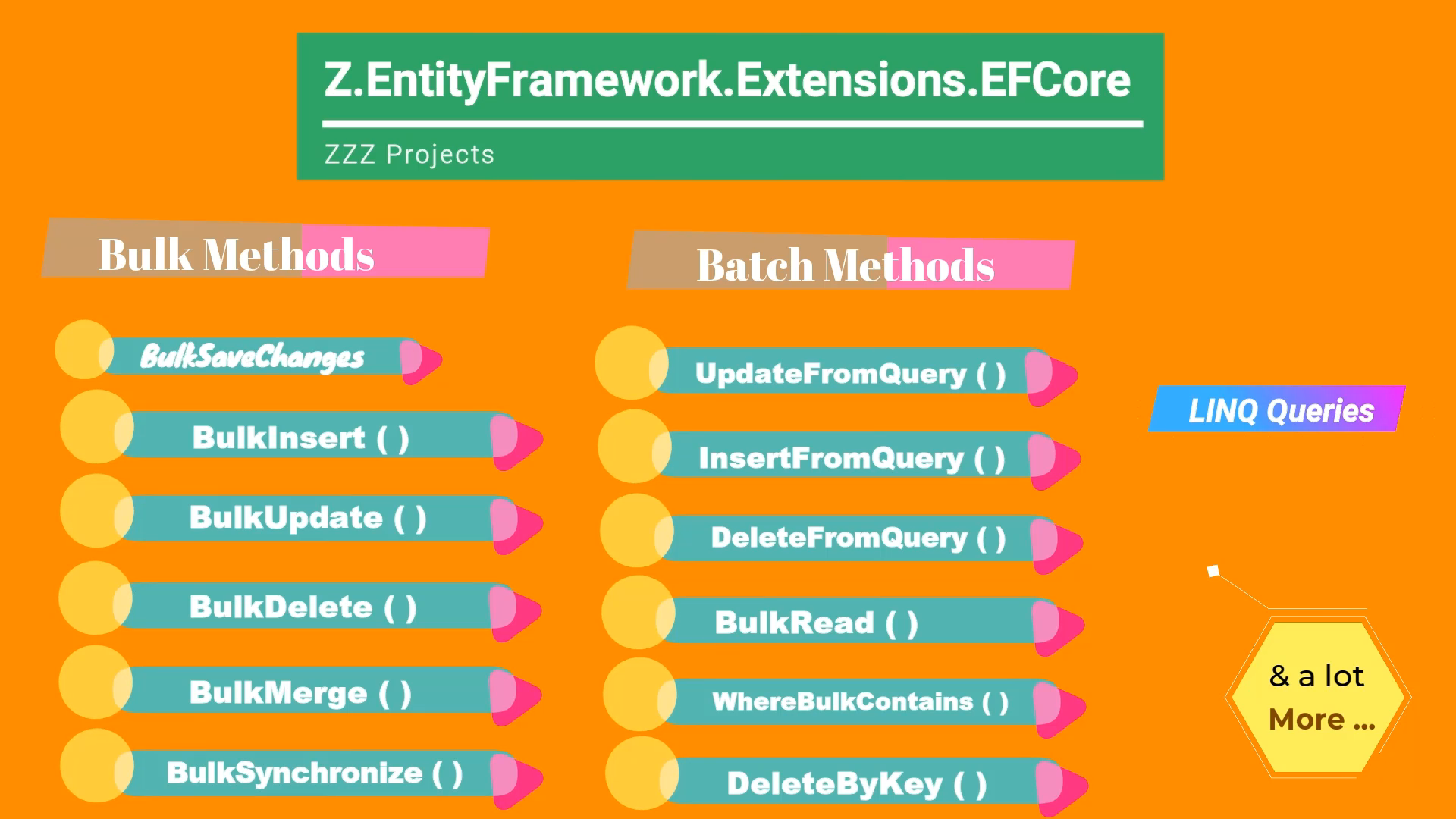
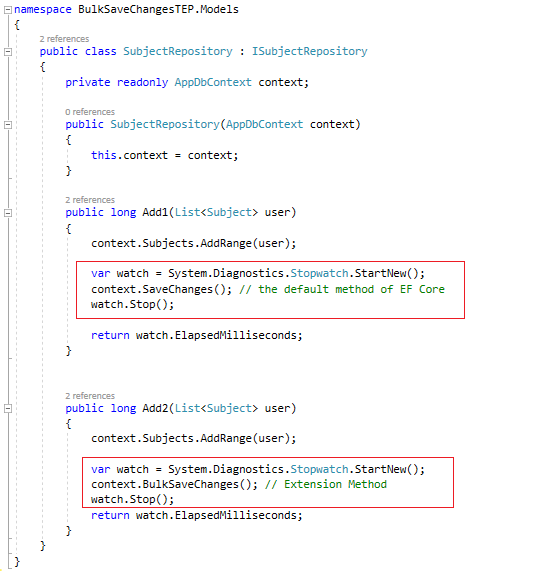
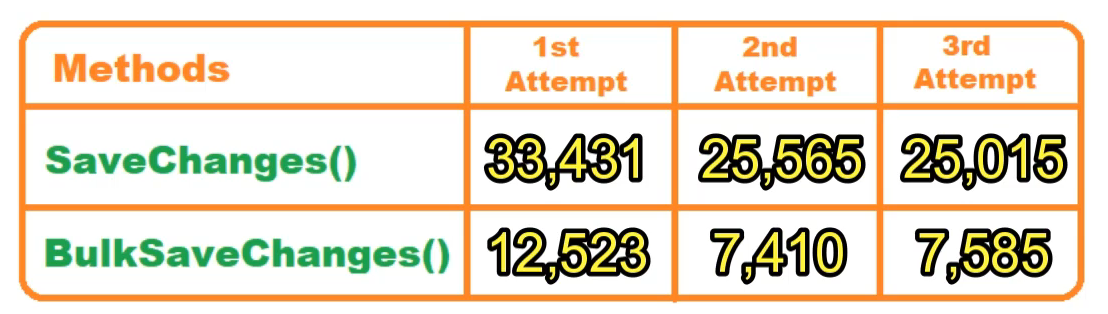
The circuit, the board and the results as they appear in How to Increase EF Core Performance for Saving Multiple Entities?. Open an image for its full size.
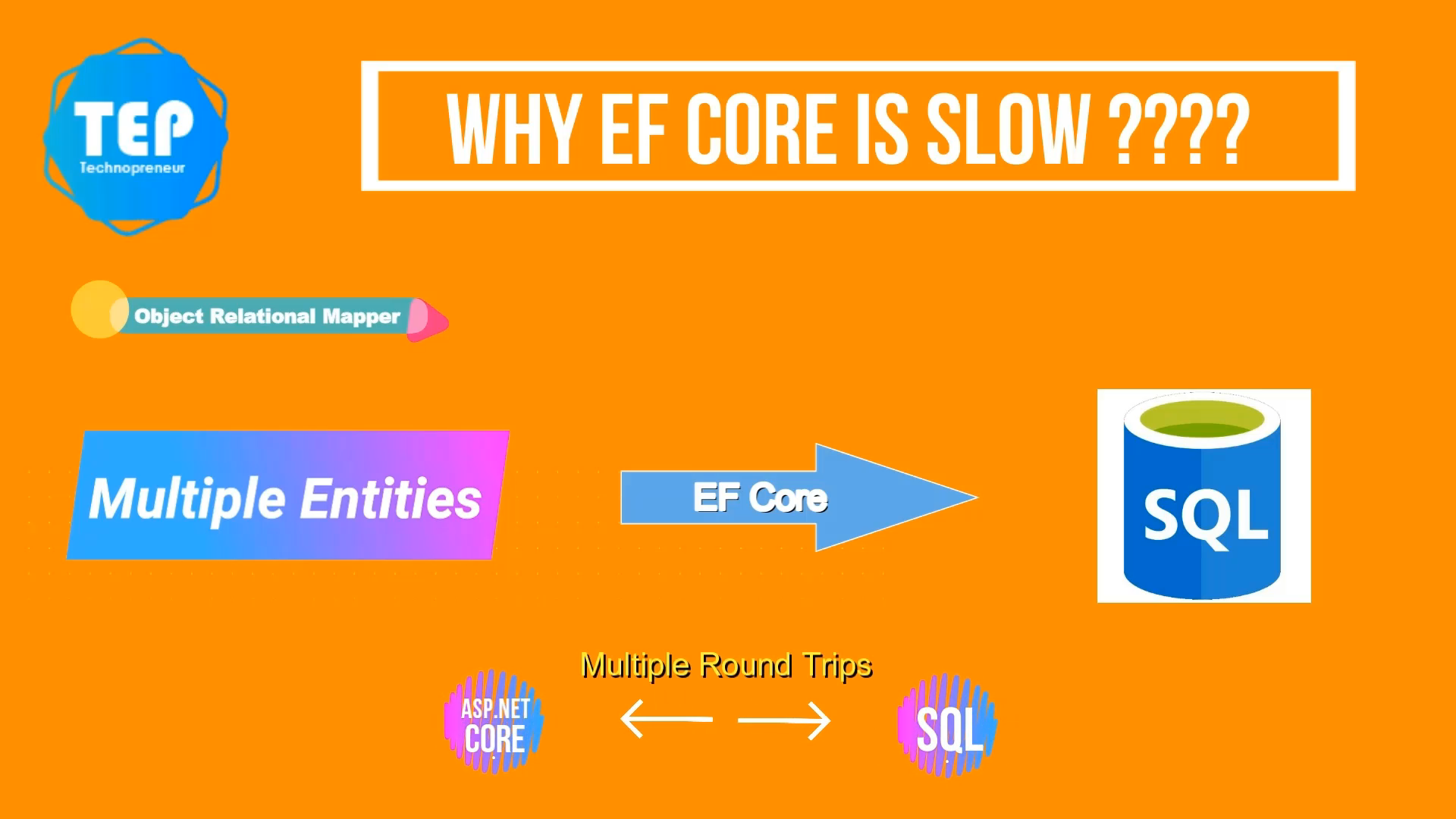
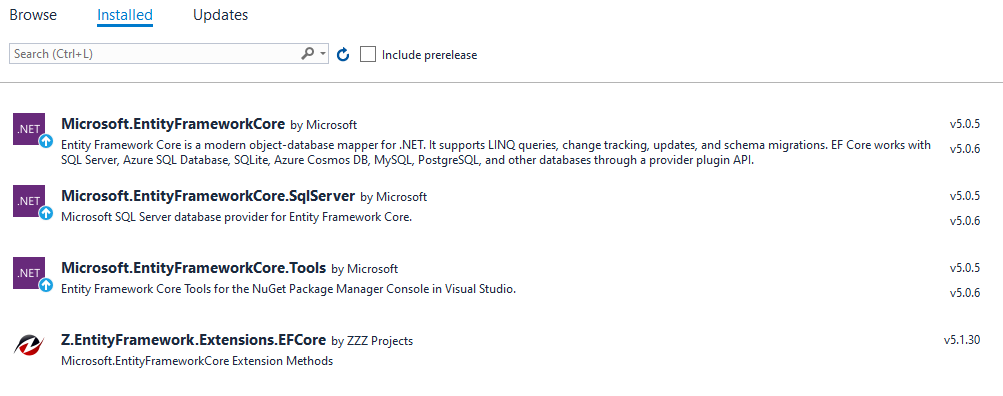
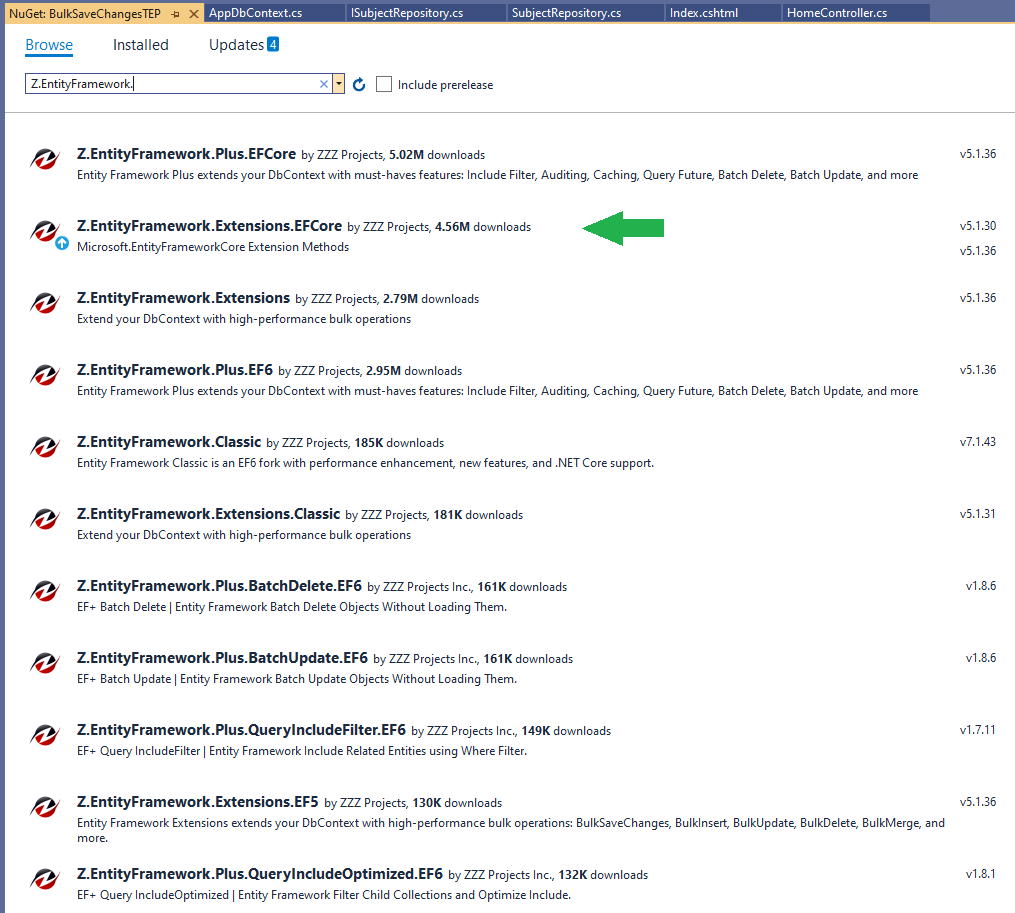
Videofrom the tutorial
Watch the project run before you download. The player loads only when you press play.
How to Increase EF Core Performance for Saving Multiple Entities?Watch on YouTube
README
 README
Development1 release
 Development1 release
-
Download Asp.Net Core Projectthis page
The only release of this package so far. When a newer version is published, it appears above with its own download page.
Installation6 steps
 Installation6 steps
From the download to a working project, in order. The steps follow what the package contains.
You will need
- Proteus Design SuiteProteus 7 or 8 (Labcenter), on Windows
- The compiler named in the tutorialto build the source files into firmware
- Any archive toolWindows, macOS and Linux extract ZIP files on their own

Steps
- 1
Extract the archive
Right-click BulkSaveChangesTEP.zip and choose Extract All (or open it with 7-Zip or WinRAR) into a folder you can find again. Keep its folder structure (BulkSaveChangesTEP) as it is.
- 2
Add the simulation model
Copy BulkSaveChangesTEP.dll, BulkSaveChangesTEP.Views.dll and Humanizer.dll and 37 more into the MODELS folder next to LIBRARY, so the component can run, not only be drawn.
- 3
Restart Proteus and place the component
Start Proteus, open a schematic, press P (Pick Devices) and search for the component by the name used in the tutorial. It appears with its pins ready to wire.
- 4
Build the source code
Open Program.cs, Startup.cs and HomeController.cs and 32 more in the compiler named in the tutorial (MikroC, Keil, MPLAB, Code Composer or the Arduino IDE) and build it to get the firmware.
- 5
Use the data files
appsettings.Development.json, appsettings.json and BulkSaveChangesTEP.csproj.nuget.dgspec.json and 6 more hold the readings or settings the project uses; open them with Excel, a text editor or the script of the tutorial.
- 6
Follow the tutorial
How to Increase EF Core Performance for Saving Multiple Entities? explains every connection and setting in order; keep it open beside the files while you build.
FAQs6 questionsContact TEP
 FAQs6 questions
How do I download Download Asp.Net Core Project?
Wait for the 30-second guest countdown on this page, then press the download button; the file comes straight from our storage. Members who are logged in skip the wait. If the browser opens the file instead of saving it, use its Save as option. The download link is made for you when the countdown ends and works for 15 minutes; a saved or shared link stops working, so share this page instead.
What is inside the archive?
Download Asp.Net Core Project comes as a ZIP archive of 164 files (7.3 MB, 24.0 MB unpacked) holding simulation model DLLs, source code and data files. Open the File Structure tab for the full list of 164 files.
What should I do if the download does not start?
Check the browser's download list first; an ad blocker or a company firewall can also hold it back, so try another browser or network. If the file arrives incomplete, download it again. For an installation problem, read the Install tab or tell us in the comments with your software version and the exact error message.
Is this file free?
Yes. Every file in the TEP Download Center is free for learning, personal and student projects. If you share it, link back to this page or the tutorial so others find the latest version.
How do I check that the file arrived complete?
Compare its SHA-256 with the one on this page, df8e13977c952ae54f926711ad68384a0ad6a070ef0cc562367cd94f0e88a716. In PowerShell run Get-FileHash "BulkSaveChangesTEP.zip"; on macOS or Linux run shasum -a 256 "BulkSaveChangesTEP.zip". The same value means the file is exactly the one in our storage; a different one means the download broke off, so download it again.
Do I need WinRAR to open the ZIP file?
No. Windows, macOS and Linux open ZIP archives on their own (Extract All, or double-click). WinRAR and 7-Zip work too. Extract the whole archive before using the files.
Members skip the wait. Log in or join TEP.

- 10,273Total downloads
- 100%Popularity
- ASP.NET CoreCategory
- 0Comments
- ssyedzainnasirUploaded by
- 16 May 2021Uploaded at


 SHA-256
df8e13977c952ae54f926711ad68384a0ad6a070ef0cc562367cd94f0e88a716


 Need help with this file?
 Tags

Comments
0