


Detect Circles in Images Using MATLAB


Hello friends! Today we will detect circular features in a still image using MATLAB. We will use the bicycle photograph from the original tutorial, locate candidate wheel boundaries and display the estimated centres and radii over the image.
The aim is to understand the complete process rather than copy one sensitivity value and expect it to work everywhere. Image size, contrast, the expected radius and the chosen preprocessing all affect the result. We will make those choices explicit and explain how to change them.
This is a circle-detection tutorial, not a wheel-recognition system. A circular sign or another rounded object can produce a valid detection too. Once the basic detector works, additional information about position, size or colour can help decide which circles belong to the objects we want.
What Does Circle Detection Return?
A circle can be described by its centre coordinates and radius. In image coordinates, its ideal boundary satisfies (x - xc)2 + (y - yc)2 = r2. MATLAB estimates these parameters from image evidence rather than requiring us to mark every boundary pixel.
The imfindcircles function uses a circular Hough-transform approach. Edge information contributes evidence for possible circle centres and radii, and the detector selects sufficiently strong candidates. Texture, occlusion and noncircular edges can all influence that evidence.
Read the imfindcircles reference for the supported inputs and parameters. The function can return centre coordinates, radii and a detection metric. The metric ranks supporting evidence; it should not be presented as a calibrated probability that an object is a bicycle wheel.
| Output | Meaning | Units |
|---|---|---|
| centers | One x,y pair for each detected circle | Image pixels |
| radii | Estimated radius of each circle | Pixels |
| metric | Relative strength of the circle evidence | Detector metric |
Prepare MATLAB and the Input Image
You need MATLAB with Image Processing Toolbox for the functions used here. Save the photograph in a known folder and use its actual filename. The example uses TEP.jpg, matching the original tutorial's naming.
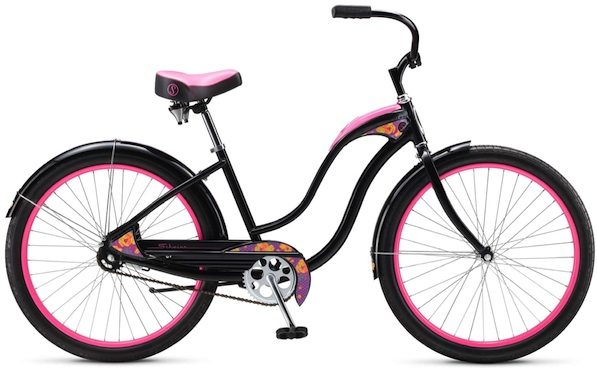
Do not assume the displayed webpage copy has the same dimensions as the original source. A browser thumbnail, a downloaded preview and a full-resolution image can have different wheel radii in pixels even though they show the same scene.
Check the file path and dimensions before adjusting detector settings. If imread cannot locate the file, fix that first. If you are new to scripts, our MATLAB m-file tutorial explains how to create and save one.
A colour image normally contains three channels, but image files can also contain grayscale data or an indexed palette. The updated script handles these common cases before converting the working image to grayscale. MathWorks documents the returned image and palette in the imread reference.
Choose a Radius Range Before Running the Detector
The original example searched for radii between 70 and 100 pixels. Keep that range only when it matches the size of the wheels in your input. It is a starting assumption for that photograph, not a general bicycle-wheel specification.
Estimate the diameter visually with image coordinates or a measurement tool, then divide by two. If a wheel spans approximately 170 pixels across, its radius is near 85 pixels, so a range such as 70 to 100 pixels is a sensible initial search.
A narrow plausible range helps reject unrelated features and reduces the work required. A range spanning nearly every size in the image makes the detector solve a much less constrained problem and can create many irrelevant candidates.
Allow enough margin for uncertain boundaries. A tyre has an outer edge, an inner edge and often a rim, so several concentric circular features may be present. Decide whether the desired measurement refers to the tyre, the rim or another boundary.
Complete MATLAB Circle-Detection Script
The script below reads the image, prepares a grayscale working copy, finds dark circles in the selected radius range and overlays the results on the original display image. Change objectPolarity to bright if the intended circular feature is brighter than its surrounding background.
imagePath = 'TEP.jpg';
radiusRange = [70 100];
objectPolarity = 'dark';
sensitivity = 0.90;

[A, map] = imread(imagePath);
if ~isempty(map)
    displayImage = ind2rgb(A, map);
elseif ismatrix(A) || size(A, 3) == 3
    displayImage = A;
else
    error('Use a grayscale, RGB or indexed image.');
end

if ismatrix(displayImage)
    grayImage = displayImage;
else
    grayImage = rgb2gray(displayImage);
end
grayImage = im2single(grayImage);

if radiusRange(1) < 1 || radiusRange(2) <= radiusRange(1)
    error('Choose a positive increasing radius range.');
end

[centers, radii, metric] = imfindcircles(grayImage, radiusRange, ...
    'ObjectPolarity', objectPolarity, 'Sensitivity', sensitivity);

figure;
imshow(displayImage);
hold on;
if ~isempty(radii)
    viscircles(centers, radii, 'Color', 'r', 'LineWidth', 1);
    plot(centers(:,1), centers(:,2), 'y+');
    for k = 1:numel(radii)
        text(centers(k,1), centers(k,2), sprintf('  %d', k), ...
            'Color', 'yellow', 'FontWeight', 'bold');
    end
end
hold off;
title(sprintf('%d circle candidates', numel(radii)));

results = table(centers(:,1), centers(:,2), radii, metric, ...
    'VariableNames', {'CenterX_px','CenterY_px','Radius_px','Metric'});
disp(results);
if isempty(radii)
    disp('No circles found: inspect scale, polarity and image contrast.');
end
The script does not guarantee two detections for every copy of the bicycle image. It reports what the selected input and settings produce. If no candidates are found, the empty result is handled explicitly instead of indexing a nonexistent first circle.
The original code converted only the blue channel to a binary image and used variable names suggesting dark objects while requesting bright ones. The revised variables state the actual polarity and preserve grayscale information for the detector.
Understand Object Polarity
Object polarity describes whether the circular object is brighter or darker than its local surroundings. It does not describe the colour of the overlay drawn on the screen. A red outline in the result is simply an annotation.
A dark tyre against a light background can be a useful dark-object example. A bright circular label on a dark surface may need bright polarity. Strong internal rings and mixed backgrounds can make either choice less obvious.
Inspect the grayscale image itself when deciding. A feature that looks visually distinctive in colour may have little grayscale contrast. Conversely, a colour channel can sometimes isolate a useful edge, but select it for a demonstrated reason rather than always using channel three.
MathWorks' circular-object detection example demonstrates adjusting parameters after inspecting the image. Treat its numerical choices as examples for its input, not settings to transfer blindly to another photograph.
Sensitivity and Edge Threshold Have Different Roles
Increasing sensitivity allows weaker circle candidates to survive detection. This can recover a partially obscured wheel, but it can also accept false circles formed by unrelated edges. A larger sensitivity setting is not automatically a better result.
EdgeThreshold affects which image gradients contribute as edges. Lowering it can include weaker boundaries along with more noise. It is a different decision from accepting a weak circle after evidence has been accumulated.
Start with a realistic radius range and polarity. Then change sensitivity in small steps while inspecting the overlay. Adjust the edge threshold only when you have reason to believe the relevant boundary is being missed.
Change one setting at a time and keep a short record of the outcome. For example, note whether a change recovered the rear wheel, introduced an extra rim circle or detected a background feature. This is more useful than reporting only the number of circles.
Display Results Without Distorting the Geometry
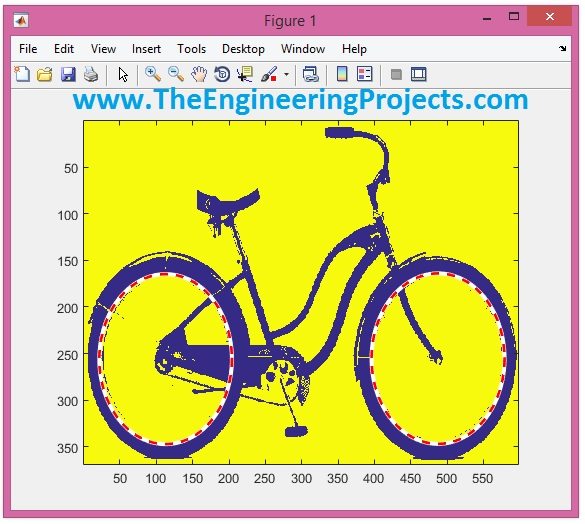
The retained result illustrates the intended overlay: circle boundaries drawn over the detected wheel regions. It is the historical output from the original workflow, not a fresh execution of the revised script.
The viscircles function displays the estimated geometry. It does not perform detection itself. If an outline is misplaced, inspect the supplied centres, radii and image-coordinate relationship.
Keep the image aspect ratio intact. Stretching one display axis makes a correct circle appear elliptical. If you use plotting functions other than imshow, configure the axes so equal pixel distances are displayed equally.
A very thick annotation can conceal a small boundary error. Use a thin line for inspection, zoom into the edge and compare the inferred centre with the object. Display quality should help evaluate the detector rather than make every candidate look convincing.
Interpret Centre Coordinates Correctly
MATLAB image arrays are indexed by row and column, while circle centres are returned as x and y. The x coordinate corresponds to the horizontal column direction, and y corresponds to the vertical row direction.
The first pixel centre is conventionally at x = 1, y = 1 in intrinsic image coordinates. In the usual image display, x increases to the right and y increases downward. This differs from a Cartesian plot in which positive y normally points upward.
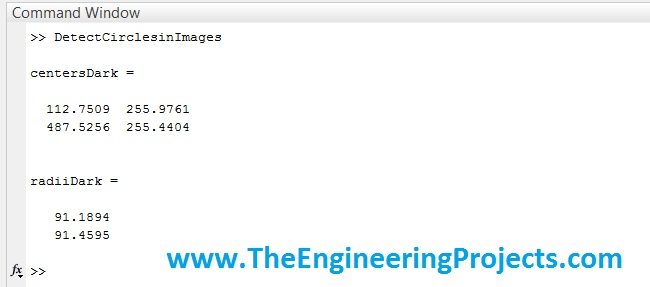
MathWorks describes these conventions in its image-coordinate documentation. Keep coordinate conventions explicit when sending the result to a robot, another program or a saved measurement table.
For example, a detected centre at x = 320.4 and y = 185.7 is not an array index that can be used directly without a sampling decision. Round only when you need a nearest-pixel lookup; retain the floating-point estimate in measurement records.
Handle Cropping and Resizing Carefully
A region of interest can exclude irrelevant background and speed up processing. If you crop by direct indexing, such as rows y0 through y1 and columns x0 through x1, convert detected centres back with xOriginal = xCrop + x0 - 1 and yOriginal = yCrop + y0 - 1.
The minus one appears because both coordinate systems start at the centre of their first pixel. Forgetting the crop offset can produce a correct detection that is drawn in the wrong part of the full image.
Uniform resizing also changes the radius. At half the original scale, a radius of 85 original pixels becomes about 42.5 working pixels. Update the search range accordingly instead of searching for the original radius in the smaller image.
For measurements, preserve the exact resize and coordinate transformation used, including pixel-centre conventions. Avoid mixing centres measured in the resized image with radii from the original image. Nonuniform resizing changes circles into ellipses and should be avoided for this detector.
Convert Pixel Measurements into Physical Dimensions
A radius in pixels is not automatically a radius in millimetres. Physical measurement requires a scale or camera calibration appropriate to the object's plane and perspective.
Suppose a reference length of 100 mm spans 250 pixels in the same plane. The local scale is 100 / 250 = 0.4 mm per pixel. An 85-pixel radius would then correspond to approximately 34 mm, under that scale assumption.
If the image-radius estimate is uncertain by two pixels, that contribution alone is about 0.8 mm at this scale. Reference measurement error, perspective and lens distortion add further uncertainty.
A bicycle photograph taken at an angle does not generally provide one uniform physical scale for every object. A circular wheel can also project as an ellipse. Correct the geometry or use an appropriate ellipse and camera model before making dimensional claims.
Reject False and Duplicate Detections
Several concentric boundaries can produce more than one circle for a wheel. Do not remove them solely because you expected two wheels; first decide which physical edge the application is supposed to measure.
A useful rejection rule can combine a plausible centre region, radius range and evidence near the estimated circumference. For a known two-wheel arrangement, relative position and size can provide additional checks, but document the assumptions behind them.
Detection order can change when the image or parameters change. Do not permanently call the first result “front wheel.” Sort or associate candidates using a defined geometric rule if those labels matter.
For combined colour and geometry filtering, see our MATLAB colour-detection tutorial. Colour can narrow the candidate region, but it does not eliminate the need to evaluate circular geometry.
Evaluate the Detector on More Than One Image
Start with a controlled synthetic example
Before investigating a difficult photograph, make a simple test image whose geometry you know. Create a square image with a uniform background and a single filled disk at a chosen centre. Use the same circle equation to decide which pixels belong to the disk, then give the detector a radius range around the known value.
This isolates several common mistakes. If the result is shifted vertically and horizontally, inspect coordinate order. If nothing is found, check polarity and radius settings. If the displayed circle appears stretched, inspect the axes rather than changing the detector.
Next add one complication at a time: mild noise, lower contrast, an obscuring rectangle or a second disk. Compare the estimated centre and radius with the known input. Synthetic examples cannot represent every camera effect, but they make it easier to distinguish a coding mistake from a genuinely difficult scene.
Inspect image quality before increasing sensitivity
Motion blur spreads an edge over several pixels, and severe compression can create small blocks or ringing around boundaries. Enlarging a low-resolution thumbnail does not recover the original detail. Whenever possible, obtain the full source image and avoid repeatedly saving it through a lossy format.
Strong sharpening can introduce a second apparent boundary beside the original one. Smoothing can suppress noise but also merge nearby edges. Compare the working image before and after each operation so preprocessing remains a deliberate choice.
Keep an unmodified display copy while experimenting with the detector input. This lets you judge whether the final geometry corresponds to the original object, not merely to an artefact introduced by filtering. Record preprocessing parameters alongside radius range and sensitivity when saving the result.
Prepare examples with clear wheels, partial occlusion, different image sizes and backgrounds containing other rounded shapes. Mark the expected objects independently, then compare detections against those annotations.
Define a match using both centre distance and radius difference. For example, a centre within five pixels is not a correct measurement if the detected radius belongs to the hub rather than the tyre. Scale the allowed tolerances to the task and image resolution.
Precision is the fraction of detections that are correct, while recall is the fraction of expected objects that were detected. If eight of ten reported candidates are valid and there are twelve expected objects, precision is 8/10 = 0.80 and recall is 8/12, approximately 0.67.
Keep tuning images separate from a final evaluation set. A parameter combination that perfectly fits one bicycle photograph may perform poorly elsewhere. Record missed detections as well as attractive successful overlays.
Troubleshooting and Review
| Symptom | Likely issue | Useful check |
|---|---|---|
| No circles found | Wrong scale, polarity or weak boundaries | Inspect grayscale image and expected radius |
| Too many circles | Broad radius range or excessive sensitivity | Constrain the task before lowering thresholds further |
| Correct detections appear displaced | Crop offset or coordinate mismatch | Transform centres into the displayed image frame |
| Wheel looks elliptical | Perspective or nonuniform scaling | Check image geometry and display aspect ratio |
| Several circles surround one wheel | Tyre and rim edges are both detected | Define the intended boundary before filtering |
The complete workflow is to understand the input, estimate a plausible radius range, select suitable contrast polarity and inspect the resulting geometry. Keep the original image and parameter record together so another reader can reproduce the same processing choices.
Frequently Asked Questions
Must I convert the image to black and white first?
No. The grayscale workflow retains useful contrast information. Binarization is optional and can remove useful edges if its threshold is poorly chosen.
Does sensitivity 0.90 mean 90 percent accuracy?
No. It is a detector setting, not a measured success rate or probability.
Can this detect circles partly hidden by another object?
Sometimes, if enough consistent boundary evidence remains. There is no guarantee for arbitrary occlusion.
Can I obtain the real wheel diameter directly?
The detector returns pixel geometry. Convert it using a justified scale or calibration and account for perspective.
Why does changing image resolution change the result?
The radius range is specified in pixels, and resizing also changes edge detail. Adjust the scale assumptions and compare the transformed geometry.

Tags


code is not working :/
1 reply
It's working perfectly. I have checked it.
2 replies
Its showing error on line4
can you tell me on which version of matlab it will work??
I want to detect very small particles from sand images then which algorithm should i try?
1 reply
Please add me on Skype and we will discuss it out.
hi thanks for this sait
i want detect count of car in image to matlab can u help
and how we can make device simulat to protuse like this
my email hamedmosavi125@gmail.com
tele tergram 98-9169304458
very thanks
1 reply
Add me on Skype and we will discuss it in detail. My skype id is theenggprojects.
hello sir,
I have an image of rbc cell.i have apply 2d fft on image to get average frequency in between and side lobs.i want to extract one of those lobs using hough transform plz help me .I don't about radius of that cell.
1 reply
Please share your image then I can suggest you something.
Hello,
I want to detect circles of trucks and draw a line in parral to the center of circles. I really do not have a clue to how to do that. I have read about Hough and I want to use it to get the circles and lines. Is there anyone can help guide me on this problem?
1 reply
Please use the Questions Forum and you will get the detailed help.
thanks
Thanks bro
Comments
15