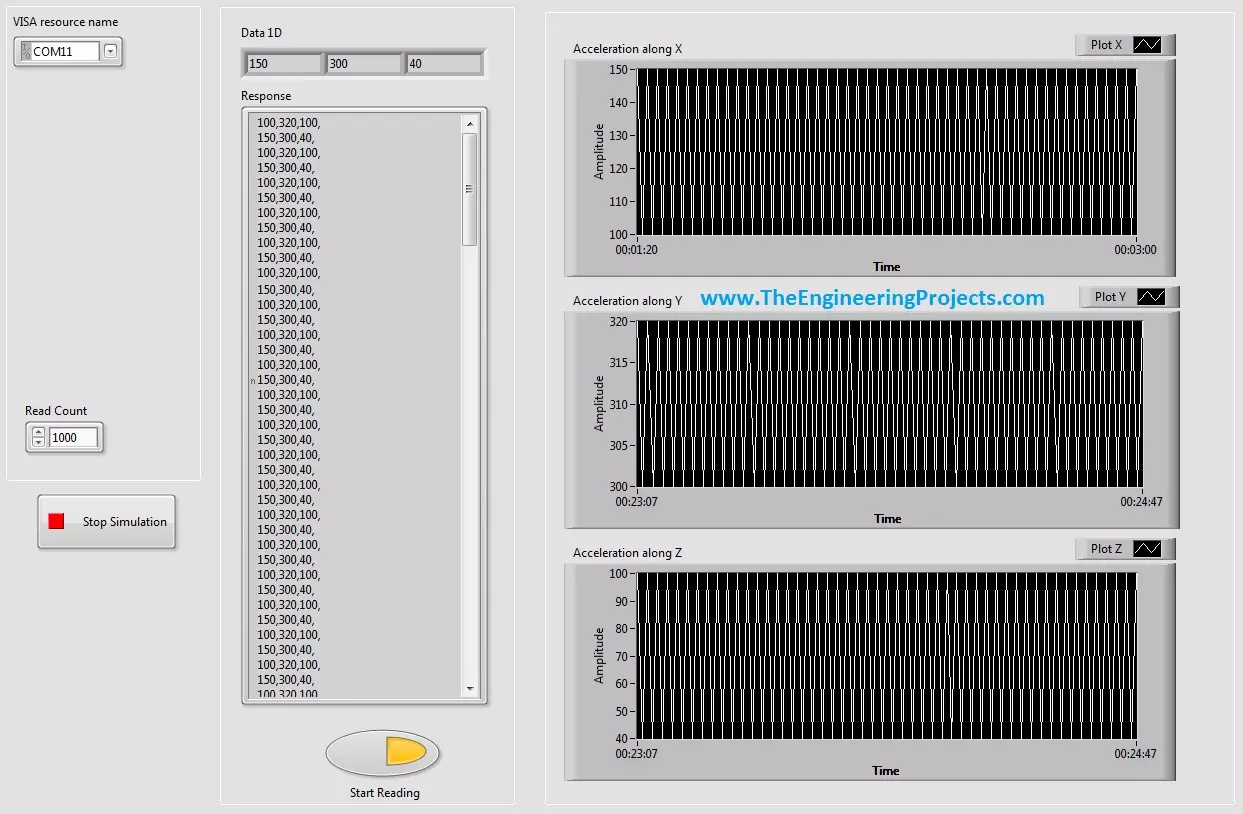
Hello friends! In this tutorial, we will display serial data on live plots in LabVIEW. In the previous lesson, we received comma-separated records from a COM port and converted them into a numeric array. We will now take the three values in that array and display each channel as a changing trace. If you have not built the serial reader yet, start with getting continuous data from a COM port in LabVIEW . The plotting stage assumes that a complete record has been received and validated. A graph cannot correct an incomplete message or determine which sensor a badly parsed number belongs to. We will preserve the original three-channel example and screenshots, then explain the differences between charts and graphs, how to label the time axis honestly, and how to keep the display responsive. Her ...
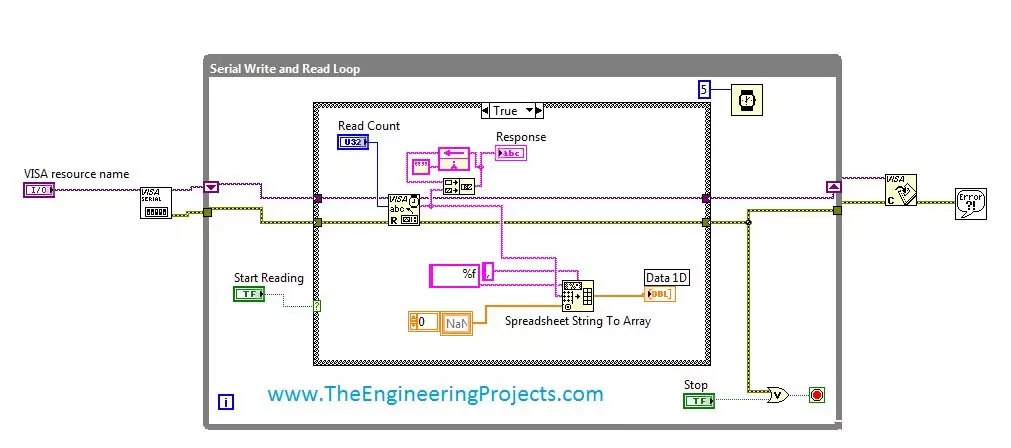
Hello friends! Today, we will receive continuous data from a COM port in LabVIEW and display both the incoming text and its individual values. This is a useful first step when connecting a microcontroller, measurement instrument or serial sensor to a computer. Our original example receives comma-separated values and places them in a one-dimensional array. We will keep that flow, but also explain how the program knows where one complete record ends. Without that step, a serial reader can appear to work during a short demonstration and then occasionally display incomplete or mixed measurements. We will start with the software and serial settings, build the front panel and block diagram, then discuss parsing, timeouts and stopping the reader cleanly. The original VI remains available near the ...