


Project Files of Arduino Library for Seven Segment Display
 Libraries
 Code
Code Projects
 Simulation
SevenSegment.rar
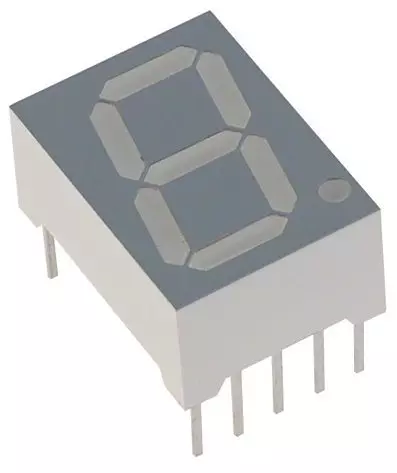
Download Arduino Library for Seven Segment Display
Download Arduino Library for Seven Segment Display comes as a RAR archive of 3 files (2 KB, 4.5 KB unpacked) holding an Arduino sketch and source code.
- INOArduino sketch
- SRCSource code
Description
This is the download page of Arduino Library for Seven Segment Display, the file package of the tutorial Arduino Library for Seven Segment Display, published on The Engineering Projects in March 2015. Here you get the RAR file (2 KB) with an Arduino sketch and the source code, the list of files it contains, the README when there is one, and the installation steps in order.
What this package is
Arduino Library for Seven Segment Display contains the Arduino code of Arduino Library for Seven Segment Display: Counting.ino. Open it in the Arduino IDE, choose your board and port, and upload; the tutorial walks through every line, so you know what to change for your own wiring.
The tutorial opens with: “Hello friends! Today I am sharing our Arduino library for a single seven-segment display.” That article is the detailed guide; the sections below cover the files.
What is inside the RAR file
- Counting.ino – Arduino sketch, 634 B
- SevenSegment.cpp – Source file, 3.2 KB
- SevenSegment.h – Source file, 698 B
The archive unpacks to 4.5 KB; there is no README inside, so the steps below stand in for it.
How to download
Use the download panel at the top of this page: after the counter (30 seconds for guests, 10 for members) the black button unlocks and SevenSegment.rar comes straight from our content network. If the browser opens it instead of saving, use Save as; extract the whole archive before using anything inside it.
How to install
- Step 1: Extract SevenSegment.rar with Windows (Extract All), 7-Zip or WinRAR, keeping its folders.
- Step 2: Open Counting.ino in the Arduino IDE, pick board and port and Verify (Export Compiled Binary gives the HEX).
- Step 3: Build SevenSegment.cpp and SevenSegment.h with the compiler the tutorial names.
Read the detailed guide
This page is for the files. The tutorial above explains the circuit and the code step by step and shows the working results; read it before you build. Questions about the download or the installation go in the comments below; more Arduino downloads are listed further down this page.
The package is free for personal, educational and research projects; credit The Engineering Projects and link to this page when you share it rather than re-uploading the file.

File Structure
 File Structure
634 B3.2 KB698 BGallery1 image from the tutorialOpen the tutorial
 Gallery1 image from the tutorial
The circuit, the board and the results as they appear in Arduino Library for Seven Segment Display. Open an image for its full size.
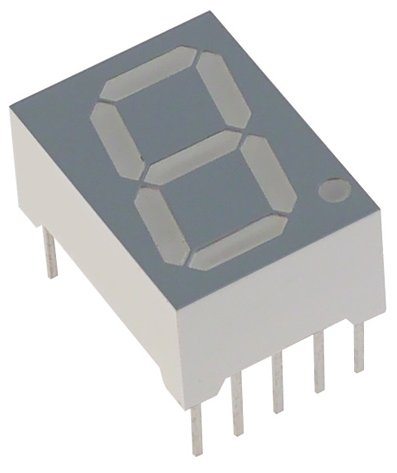
README
 README
Development1 release
 Development1 release
-
Download Arduino Library for Seven Segment Displaythis page
The only release of this package so far. When a newer version is published, it appears above with its own download page.
Installation4 steps
 Installation4 steps
From the download to a working project, in order. The steps follow what the package contains.
You will need
- Arduino IDE1.8 or 2.x, with the board of the tutorial chosen under Tools → Board
- The compiler named in the tutorialto build the source files into firmware
- WinRAR or 7-ZipWindows cannot open RAR archives on its own

Steps
- 1
Extract the archive
Right-click SevenSegment.rar and choose Extract All (or open it with 7-Zip or WinRAR) into a folder you can find again. Keep its folder structure (SevenSegment) as it is.
- 2
Open the sketch in the Arduino IDE
Open Counting.ino, select your board and port under Tools, then Verify. Sketch → Export Compiled Binary writes the HEX file a simulation needs.
- 3
Build the source code
Open SevenSegment.cpp and SevenSegment.h in the compiler named in the tutorial (MikroC, Keil, MPLAB, Code Composer or the Arduino IDE) and build it to get the firmware.
- 4
Follow the tutorial
Arduino Library for Seven Segment Display explains every connection and setting in order; keep it open beside the files while you build.
FAQs7 questionsContact TEP
 FAQs7 questions
How do I download Download Arduino Library for Seven Segment Display?
Wait for the 30-second guest countdown on this page, then press the download button; the file comes straight from our storage. Members who are logged in skip the wait. If the browser opens the file instead of saving it, use its Save as option. The download link is made for you when the countdown ends and works for 15 minutes; a saved or shared link stops working, so share this page instead.
What is inside the archive?
Download Arduino Library for Seven Segment Display comes as a RAR archive of 3 files (2 KB, 4.5 KB unpacked) holding an Arduino sketch and source code. Open the File Structure tab for the full list of 3 files.
What should I do if the download does not start?
Check the browser's download list first; an ad blocker or a company firewall can also hold it back, so try another browser or network. If the file arrives incomplete, download it again. For an installation problem, read the Install tab or tell us in the comments with your software version and the exact error message.
Is this file free?
Yes. Every file in the TEP Download Center is free for learning, personal and student projects. If you share it, link back to this page or the tutorial so others find the latest version.
How do I check that the file arrived complete?
Compare its SHA-256 with the one on this page, 8aad67f13307b00140072e29565ac13f495797e9b3e416288534da9caaccd6f2. In PowerShell run Get-FileHash "SevenSegment.rar"; on macOS or Linux run shasum -a 256 "SevenSegment.rar". The same value means the file is exactly the one in our storage; a different one means the download broke off, so download it again.
Do I need WinRAR to open the RAR file?
RAR archives need WinRAR, 7-Zip or another RAR-capable tool; Windows cannot open them on its own. Extract the whole archive before using the files.
How do I get the HEX file into the simulation?
Compile the sketch in the Arduino IDE (Sketch → Export Compiled Binary gives you the HEX next to the sketch), then in Proteus double-click the board, set Program File to that HEX and run.
Members skip the wait. Log in or join TEP.

- 0Total downloads
- 4%Popularity
- ArduinoCategory
- 0Comments
- ssyedzainnasirUploaded by
- 14 Mar 2015Uploaded at


 SHA-256
8aad67f13307b00140072e29565ac13f495797e9b3e416288534da9caaccd6f2


 Need help with this file?
 Tags
TagsRelated Arduino
All Arduino tutorials






More Seven Segment project files
All Seven Segment tutorials


Comments
0