Hello friends, I hope you all are doing great. Today, I am going to share the Arduino Nano RP2040 Connect Library for Proteus. The Nano RP2040 Connect puts the Raspberry Pi RP2040 microcontroller and a u-blox NINA-W102 Wi-Fi module on Arduino's small Nano board, together with a motion sensor and a microphone. With this library it runs your Arduino sketch in Proteus 8.5 and joins our virtual Wi-Fi network with WiFiNINA, the same library you use on the real board.
Arduino Nano RP2040 Connect Library for Proteus
Latest version: V1.0 (October 2026, this tutorial)
Other new Arduino boards: UNO R4 WiFi · Nano ESP32 · UNO WiFi Rev2 · Nano 33 IoT · UNO Q · UNO R4 Minima · Nano Every · MKR WiFi 1010 · STM32 Black Pill · Nucleo-F401RE · STM32 Blue Pill · Teensy 4.1 · Arduino Due · Arduino Leonardo · Arduino Micro · BBC micro:bit V2 · GIGA R1 WiFi
Raspberry Pi boards: Pico · Pico W · Pico 2 W · Pico 2 · Pico W MicroPython · Pi Model B · Pi 1 B+ · Pi 2 Model B · Pi 3 Model B · Pi 3 Model B+ · Pi 3 Model A+ · Pi 4 Model B · Pi 5 · Pi Zero W · Pi Zero 2 W · Pi 400 · Pi 500 · Pi CM4 · Pi 2 · Pi 3 · Pi 4 · Zero W
Light sensors: LDR · BH1750 · TCS34725
Motor drivers: L298 · L9110S · TB6612FNG · BTS7960 · A4988 / DRV8825 · 28BYJ-48 + ULN2003 · PCA9685 Servo · Relay Module
Helping Tools
- Laptop WiFi Monitor: a laptop on the Wi-Fi of your design: a browser, a TCP / UDP terminal and ping
- Mobile WiFi Monitor: a smartphone that opens the pages of your board and sends it commands
- Serial Monitor Advance: a serial terminal window for the UART of your board
For the demo we built a small factory job: a colour sorter. A TCS34725 colour sensor looks at each item on the belt, the board names its colour, an SG90 servo turns the chute to the right bin, the L LED flashes for every item, and a phone and a laptop read the counts on the board's web page.
NOTICE: Proteus has no RP2040 or NINA-W102 model, so our team has put a lot of effort into building this board ourselves: the Nano's pins, Wi-Fi and LEDs are all our own model, and your sketch compiles with our free TEP Boards for Proteus add-on. Your feedback is the fuel that keeps us going, so please tell us what you think in the comments below or in the Arduino Nano RP2040 Connect board of our forum. And if our free libraries help you, you can buy us a coffee. So, let's get started with the Arduino Nano RP2040 Connect Library for Proteus:
What is the Arduino Nano RP2040 Connect?
The Arduino Nano RP2040 Connect came out in 2021 as the first Arduino board with Raspberry Pi's own chip. The RP2040 has two Arm Cortex-M0+ cores at 133 MHz and 264 KB of RAM; on this board it gets 16 MB of flash, and the NINA-W102 module (an ESP32 inside a shielded can) adds Wi-Fi and Bluetooth over SPI, with Arduino's WiFiNINA firmware. Around them sit an LSM6DSOX six-axis IMU, an MP34DT05 digital microphone, an ATECC608A crypto chip and an RGB LED - all on the 45 x 18 mm Nano footprint with 2 x 15 pins.
| Arduino Nano RP2040 Connect | Raspberry Pi Pico W | |
|---|---|---|
| Microcontroller | RP2040, two Cortex-M0+ at 133 MHz | RP2040, two Cortex-M0+ at 133 MHz |
| Flash | 16 MB | 2 MB |
| Radio | u-blox NINA-W102: Wi-Fi and Bluetooth | Infineon CYW43439: Wi-Fi and Bluetooth |
| Size, pins | 45 x 18 mm, 2 x 15 pins | 51 x 21 mm, 2 x 20 pins |
| Extras | LSM6DSOX IMU, microphone, crypto chip, RGB LED | - |
| Wi-Fi library | WiFiNINA | WiFi (the Pico core) |
Our Raspberry Pi Pico W Library for Proteus is the same chip on Raspberry Pi's own board. The NINA module and WiFiNINA are the same as on the Arduino Nano 33 IoT Library for Proteus and the Arduino MKR WiFi 1010 Library for Proteus, so their network code moves to this board unchanged.
Why the Nano RP2040 Connect?
Pick it when a small board has a lot to do: two fast cores, plenty of flash for web pages and data, Wi-Fi and Bluetooth, and sensors for motion and sound already on the board. It plugs into a breadboard or a Nano carrier, its pins are 3.3 V logic like most modern sensors, and it programs from the Arduino IDE (or in MicroPython). For a sorter, a gesture controller or a sound-triggered logger, the parts are mostly already there.
Features of the Arduino Nano RP2040 Connect Library for Proteus
- The board as it looks: the teal Nano RP2040 Connect with its castellated pins and labels, micro-USB, RESET, the RP2040, the flash, the IMU, the NINA-W102 with its antenna and the ON and L LEDs.
- Your sketch: a .hex for "Arduino Nano RP2040 Connect (TEP Proteus)" with the Nano's names - D0 to D13, A0 to A7, LED_BUILTIN on D13, Serial, Serial1 on D0 / D1, Wire on A4 / A5, SPI on D10 to D13, Servo, analogRead, analogWrite.
- Wi-Fi with WiFiNINA: WiFi.begin, WiFiServer, WiFiClient, WiFiUDP and WiFi.getTime on our virtual router TEP-WiFi; the board is 192.168.1.101 in the demo.
- The panel and the serial monitor: the board's panel (Wi-Fi, Pins, Test) and the built-in serial monitor with Monitor, Plotter and Board tabs - our TEP header, no Windows title bar.
- A complete package: about 3.7 MB with the board, the add-on, the TCS34725, servo and monitor libraries and the demo, without the source code of the models.
The Arduino Nano RP2040 Connect in Proteus
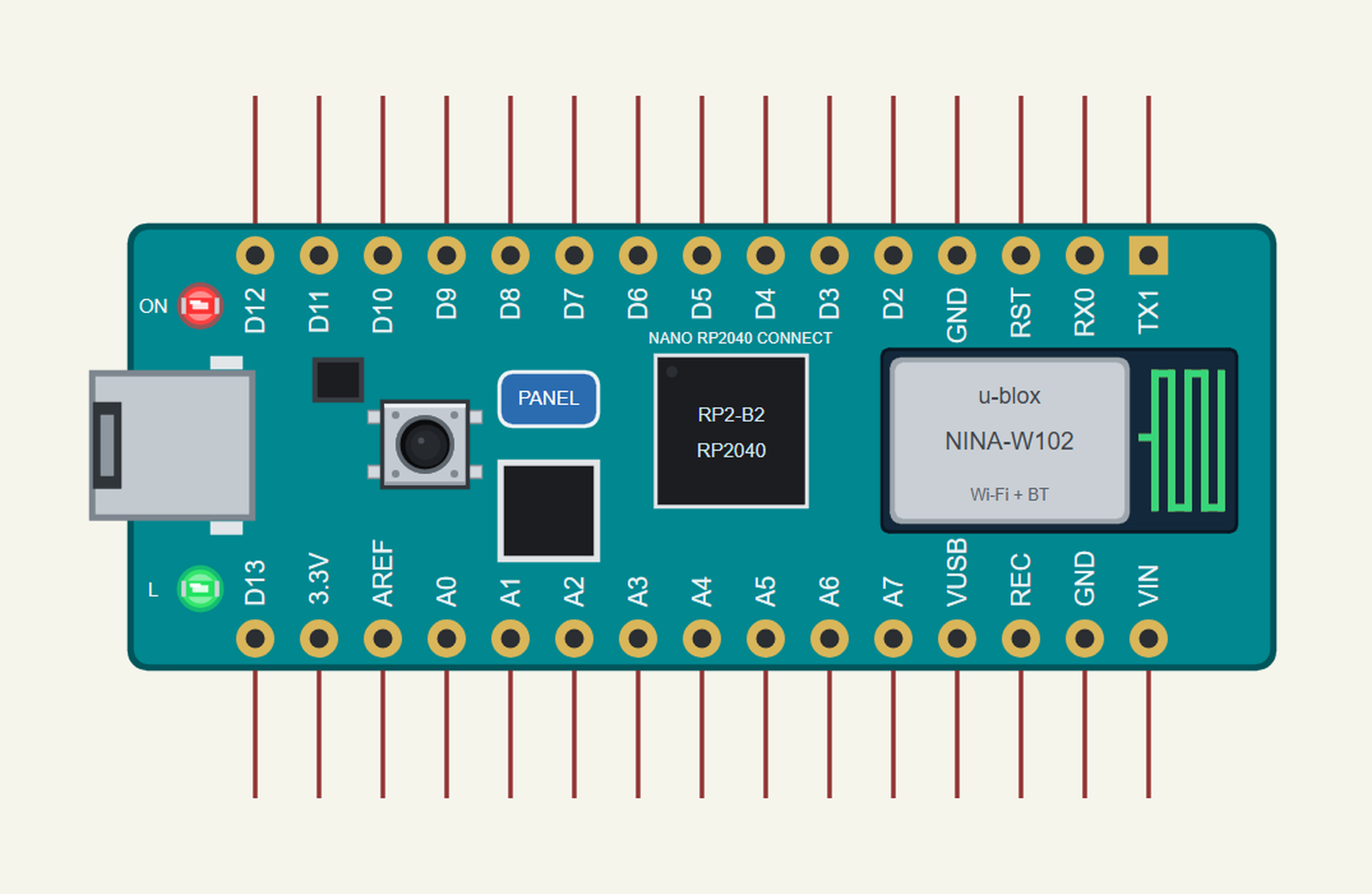
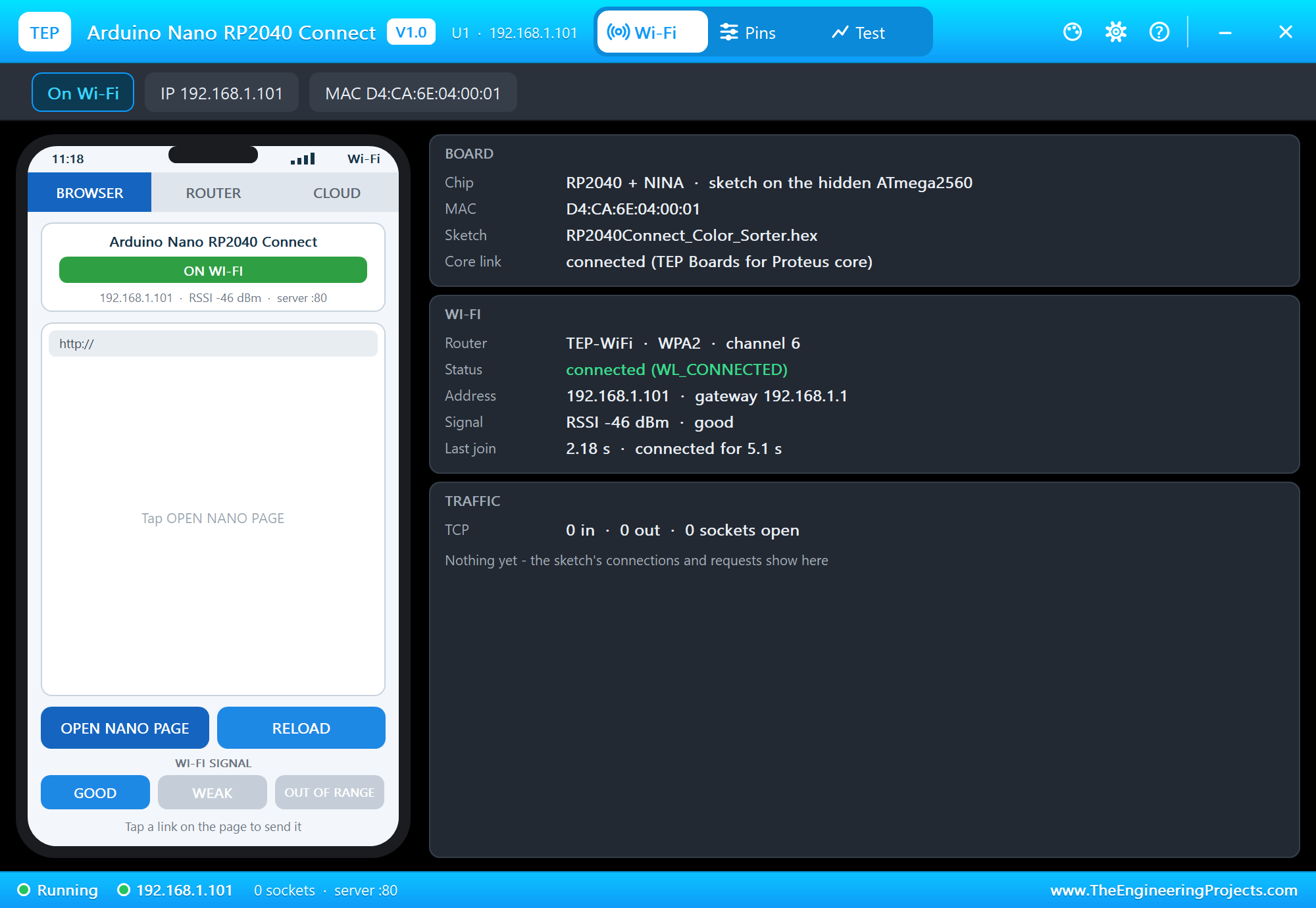
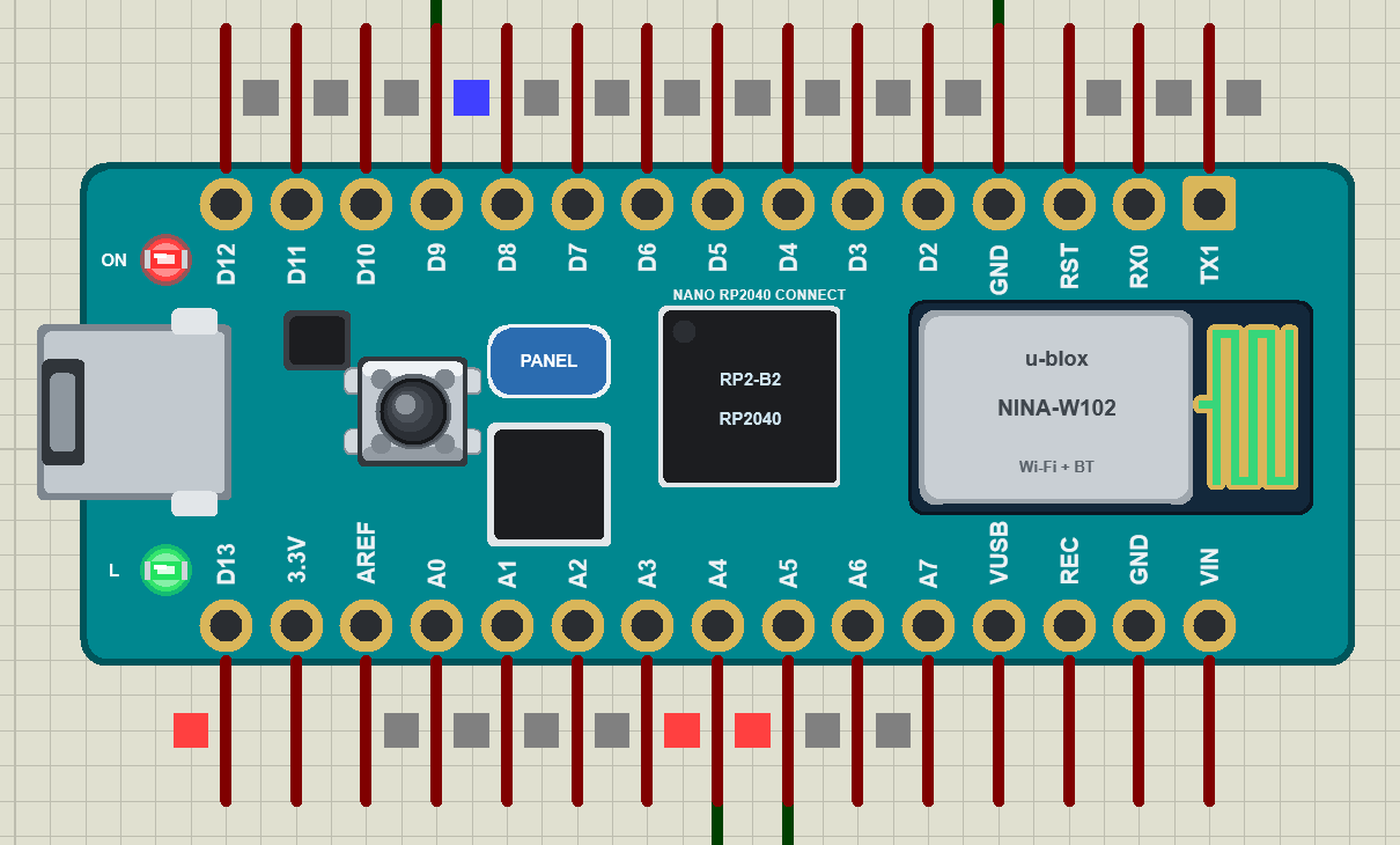
Search RP2040 CONNECT in Pick Devices; the device ARDUINO NANO RP2040 CONNECT is in TEPNANORP2040.LIB (Microprocessor ICs, Arduino Wi-Fi Boards), with the prefix U. The board lies with micro-USB on the left and the NINA module on the right. Click the micro-USB to open the serial monitor and the PANEL pad (or the NINA module) to open the board's panel.
The Pins
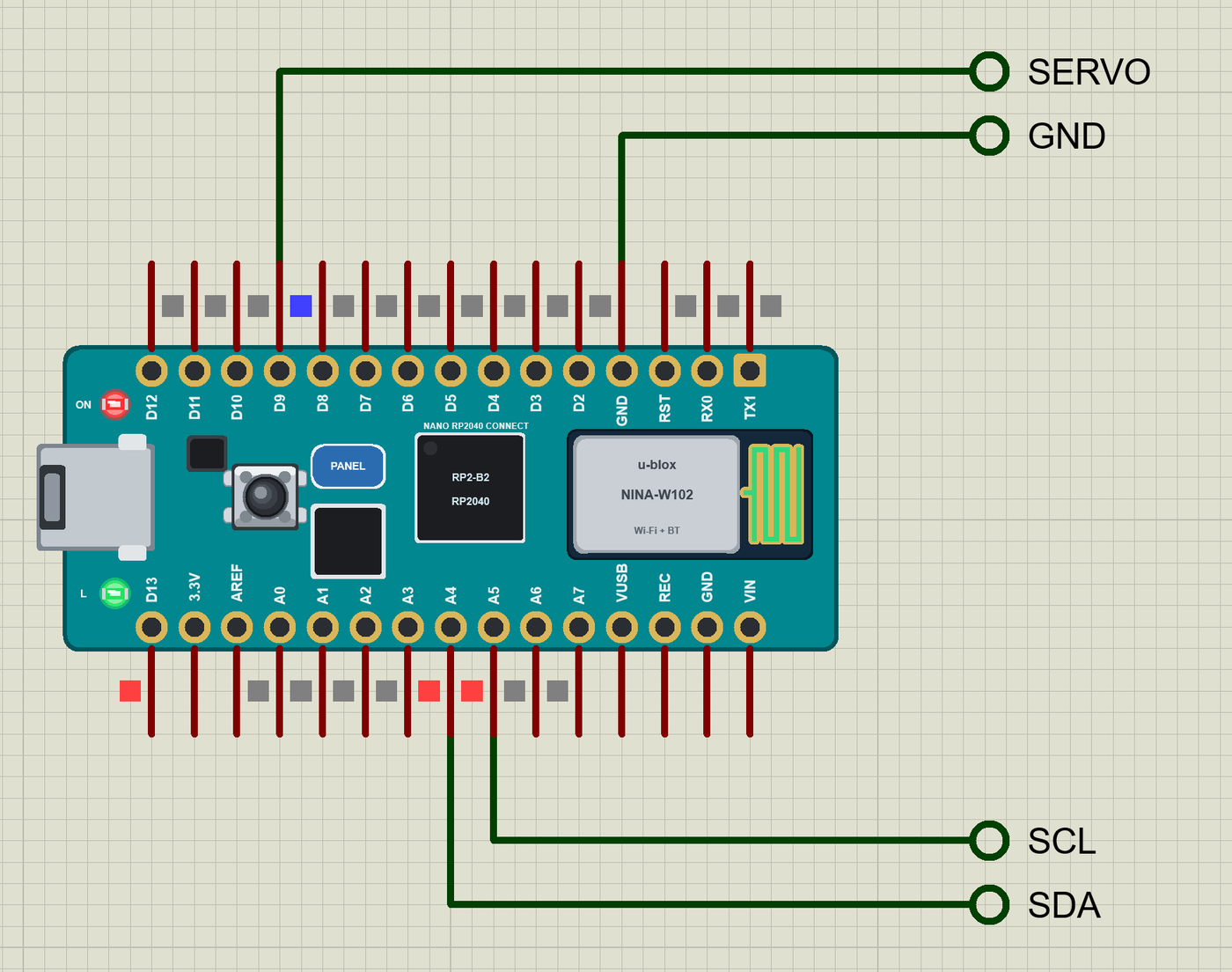
| Pins | What the library does with them |
|---|---|
| D2 to D13 | GPIO, interrupt, PWM on any pin, Servo |
| RX0, TX1 | D0 / D1: Serial1 (not the USB) |
| A4, A5 | Wire SDA / SCL (I2C) |
| D10 to D13 | SPI SS / MOSI / MISO / SCK; D13 is also the L LED |
| A0 to A7 | analogRead 0 to 1023 for 0 to 3.3 V |
| 3.3V, VUSB, GND, RST | 3.3 V, 5 V, ground, reset |
| AREF, REC, VIN | drawn, not modelled |
Download Arduino Nano RP2040 Connect Library for Proteus
Click the button below to download Arduino-Nano-RP2040-Connect-Library-for-Proteus-v1.0.zip (about 3.7 MB, without the source code of the models):
Arduino Nano RP2040 Connect Library for Proteus V1.0- README.txt: installation, the demo, the pins, the properties, troubleshooting and the limits.
- Proteus Library Files:
TEPNANORP2040.LIBand the demo's parts:TEPTCS34725.LIB,TEPPCA9685.LIB(the SG90 servo),TEPLAPTOP.LIBandTEPMOBILE.LIB. - Proteus Model Files:
TEPNET.DLL(the board, the laptop, the phone and the network) and the DLLs of the sensor and the servo. - Arduino Code: the demo sketch and the TEP Boards for Proteus add-on 1.21.0.
- Proteus Simulation: the demo project, its HEX file and copies of the DLLs.
No Proteus yet? Read How to Download and Install Proteus 7 and 8. New to libraries? Follow How to Install a New Library in Proteus.
How to Install Arduino Nano RP2040 Connect Library for Proteus
- Close Proteus and extract the whole zip file, for example to your Desktop.
- Copy the files from Proteus Library Files into the LIBRARY folder of Proteus.
- Copy the DLLs from Proteus Model Files into the MODELS folder, replacing an older TEPNET.DLL.
- Delete
TEPNANORP2040.IDXfrom the LIBRARY folder if it is there. - For your own sketches, copy Arduino Code\TEP Boards for Proteus\hardware into your Arduino sketchbook (Documents\Arduino) and restart the Arduino IDE; the board is Arduino Nano RP2040 Connect (TEP Proteus).
- Start Proteus, press P and search for RP2040 CONNECT.
Demo: a Colour Sorter
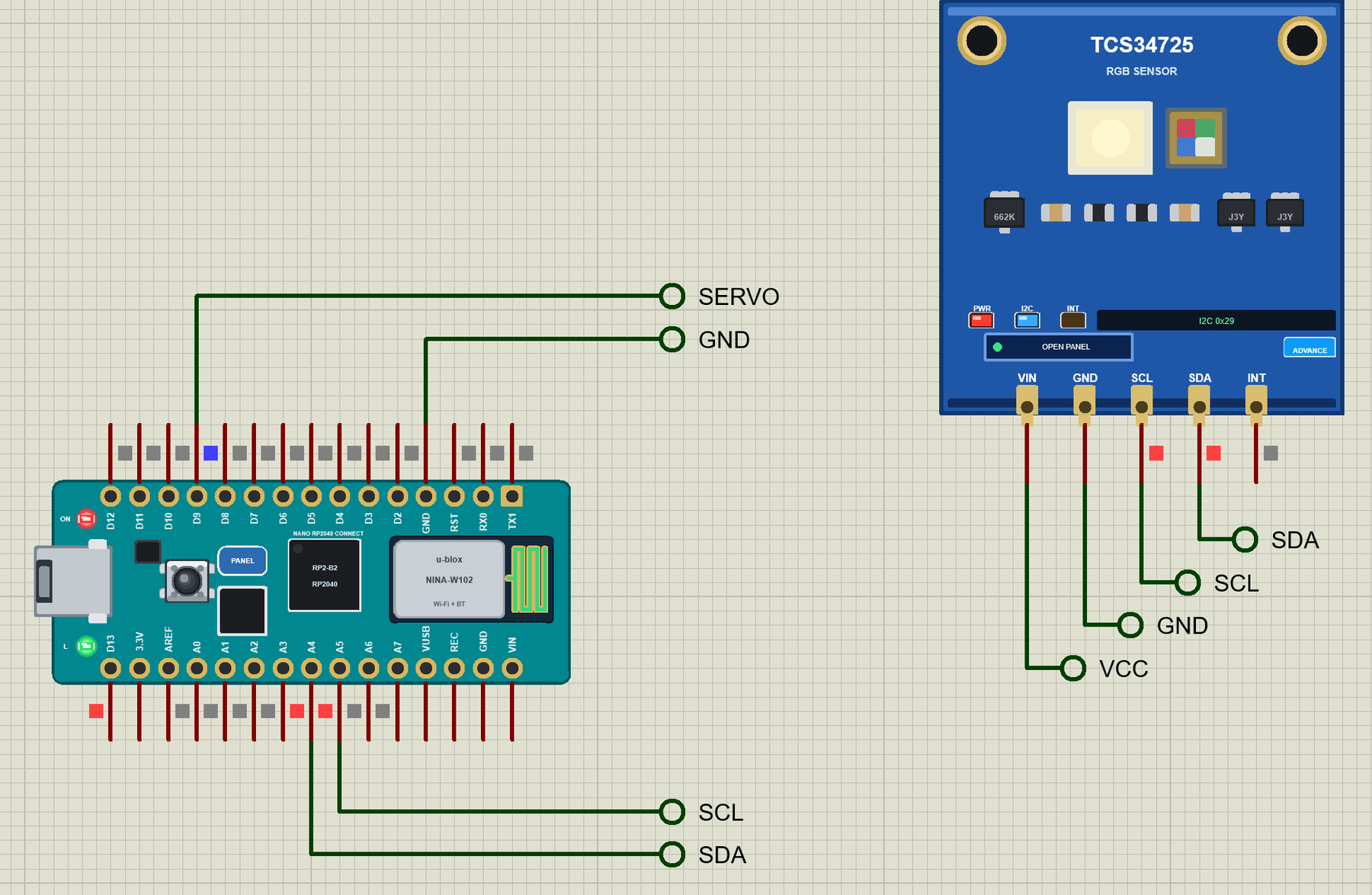
Sorting by colour is one of the oldest jobs in a factory: sweets, recycled glass, beads, ripe and unripe fruit. A sorter needs three things - an eye that sees the colour, a brain that decides, and a hand that moves the item. Our sorter uses a TCS34725 as the eye, the Nano RP2040 Connect as the brain and an SG90 servo as the hand: the servo turns a chute so each item slides into its own bin.
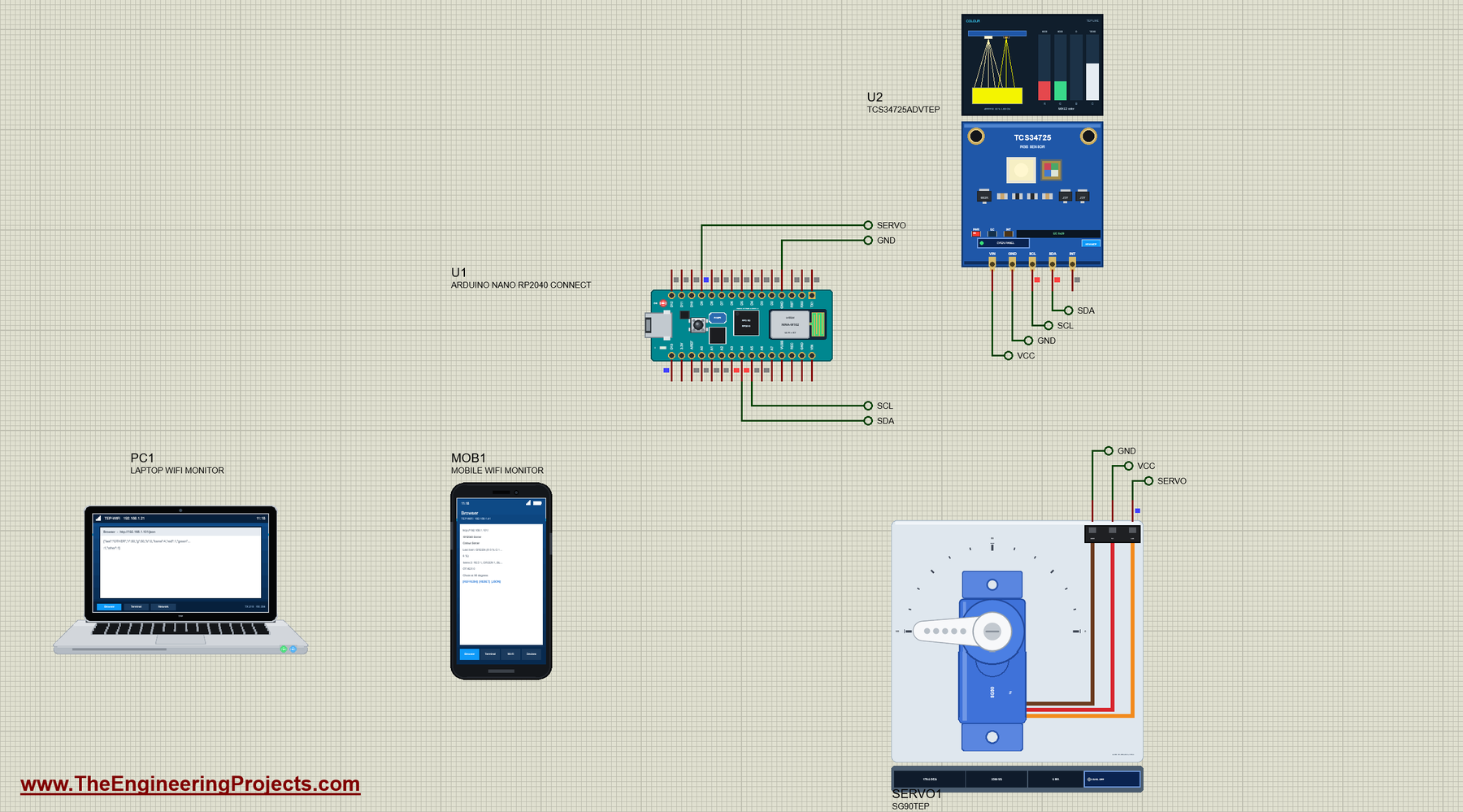
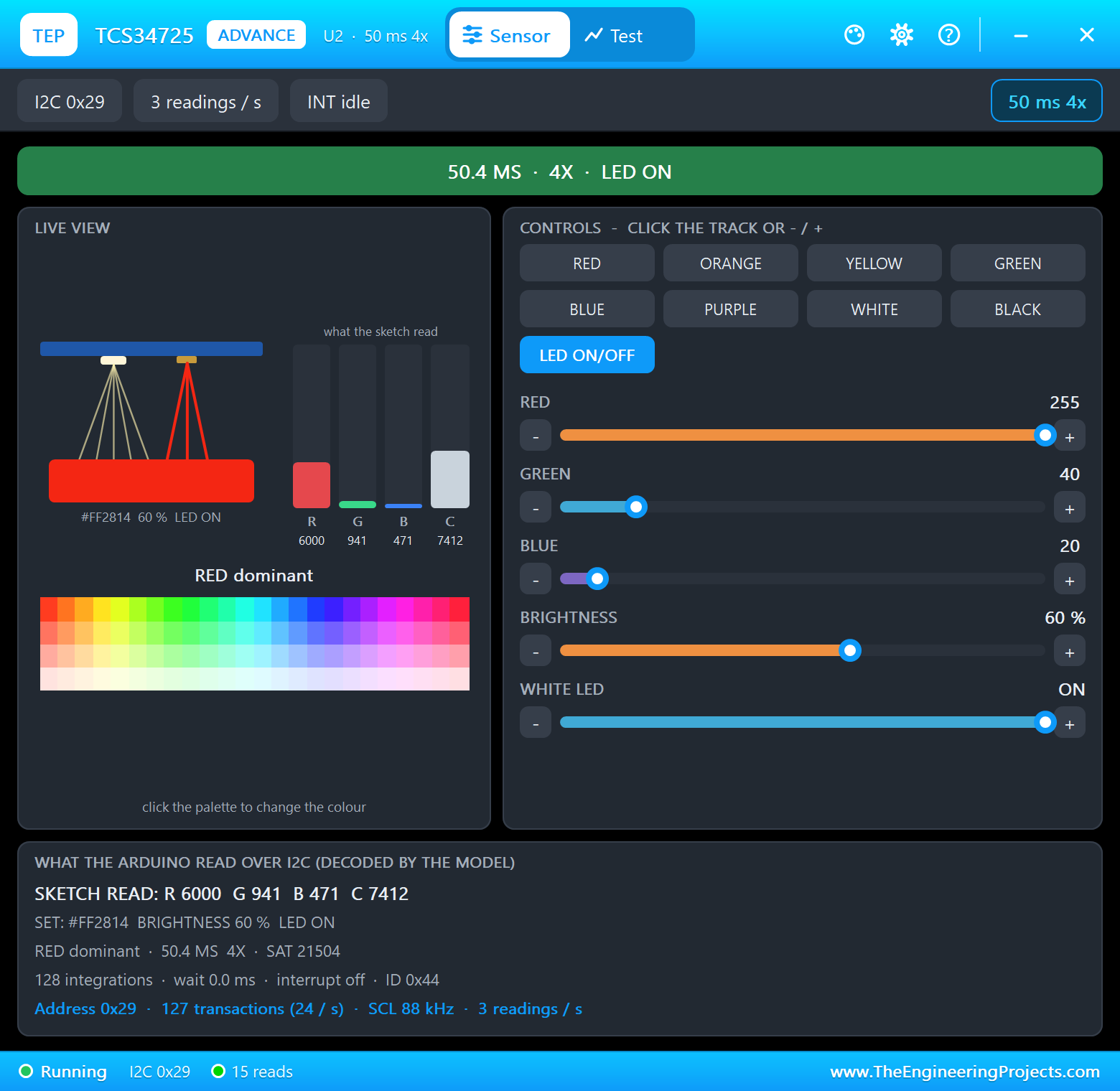
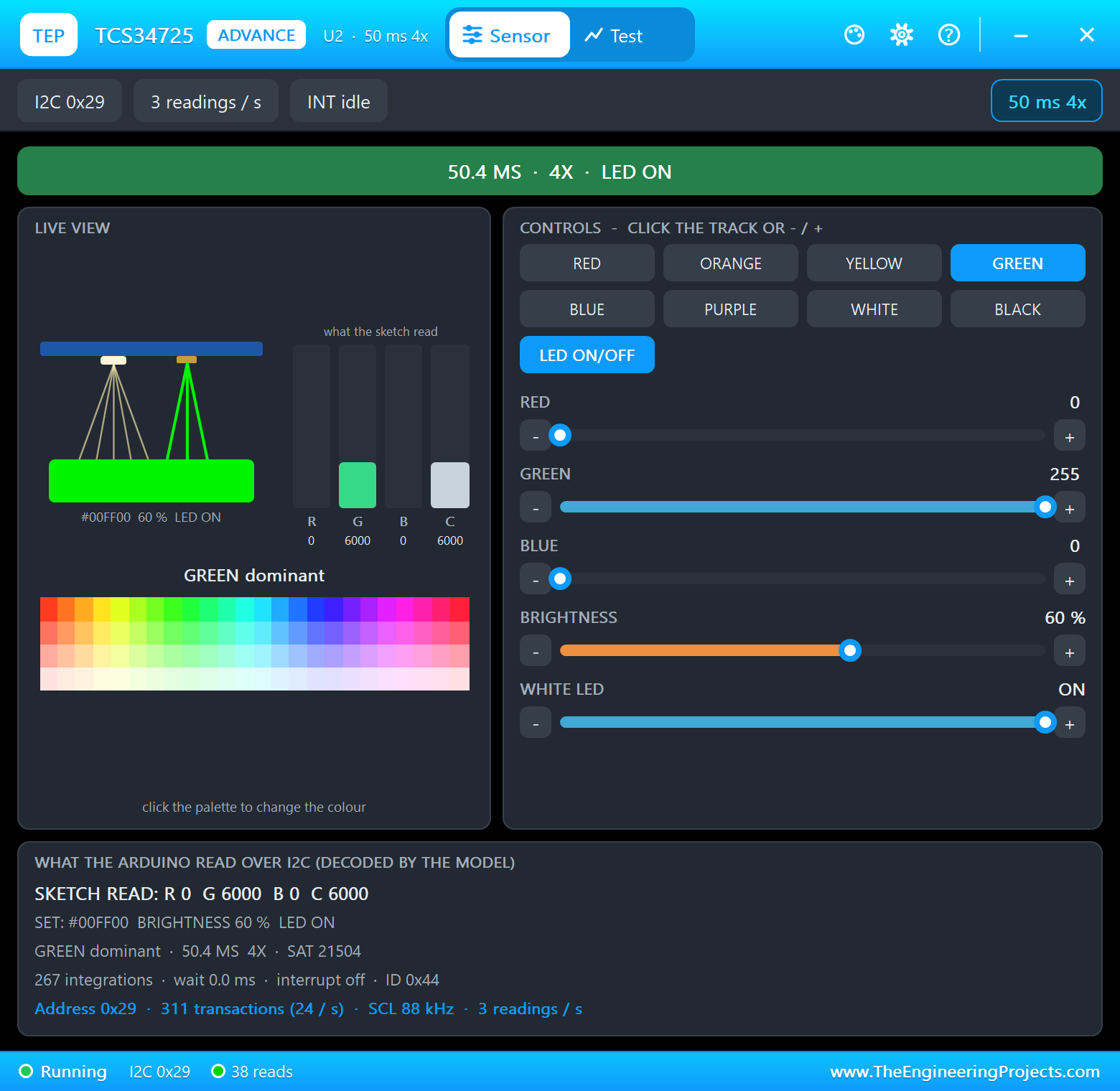
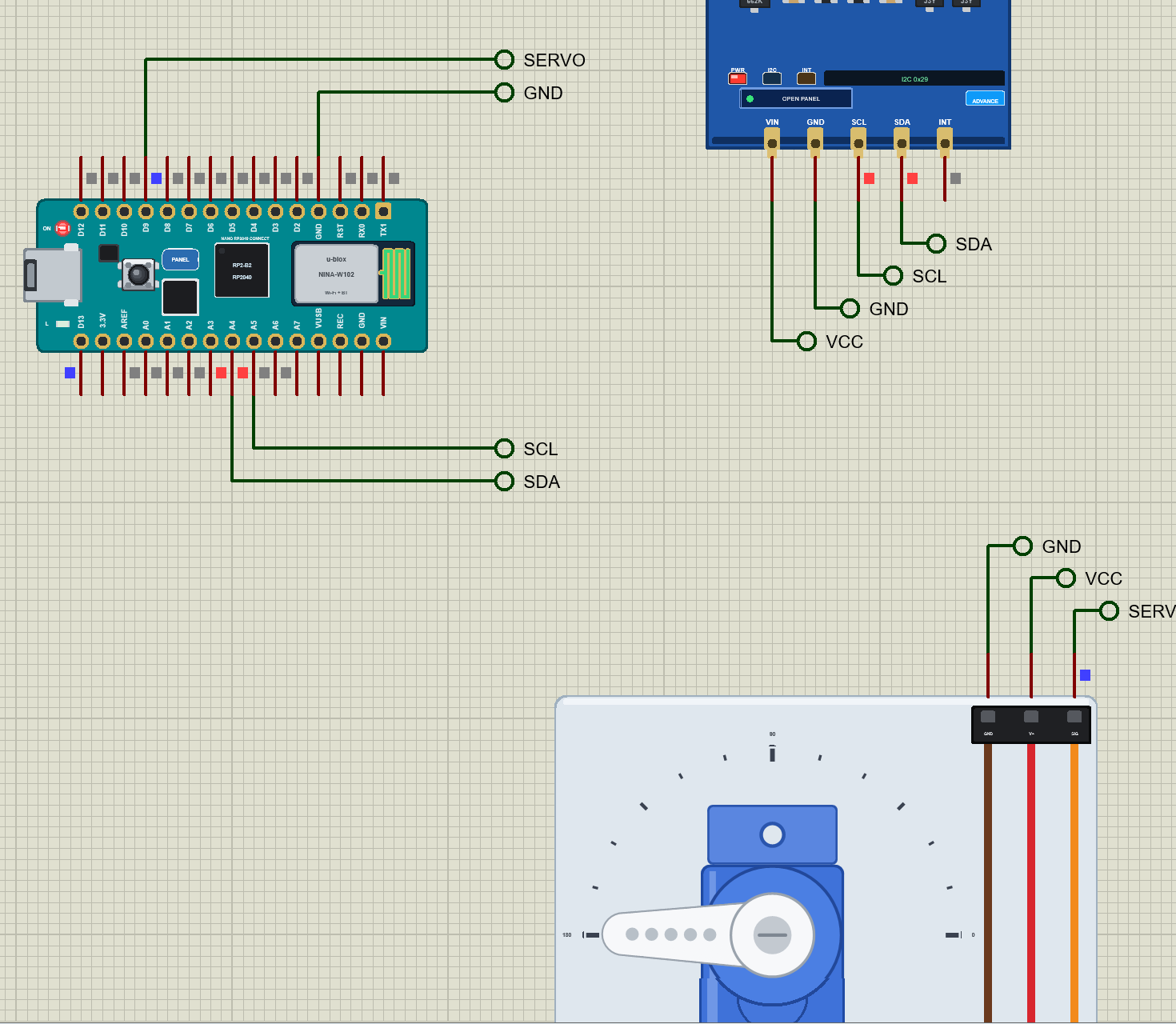
Open Nano-RP2040-Connect-Color-Sorter.pdsprj. U1 runs RP2040Connect_Color_Sorter.hex. The parts come from our own libraries, each with its article: U2 from the TCS34725 Library for Proteus and SERVO1 from the PCA9685 Servo Driver and SG90 Servo Motor Library for Proteus. The TCS34725 is the Advance version: it opens its pop-up window at Run, with the colour of the item and its counts. PC1 is the Laptop WiFi Monitor and MOB1 the Mobile WiFi Monitor.
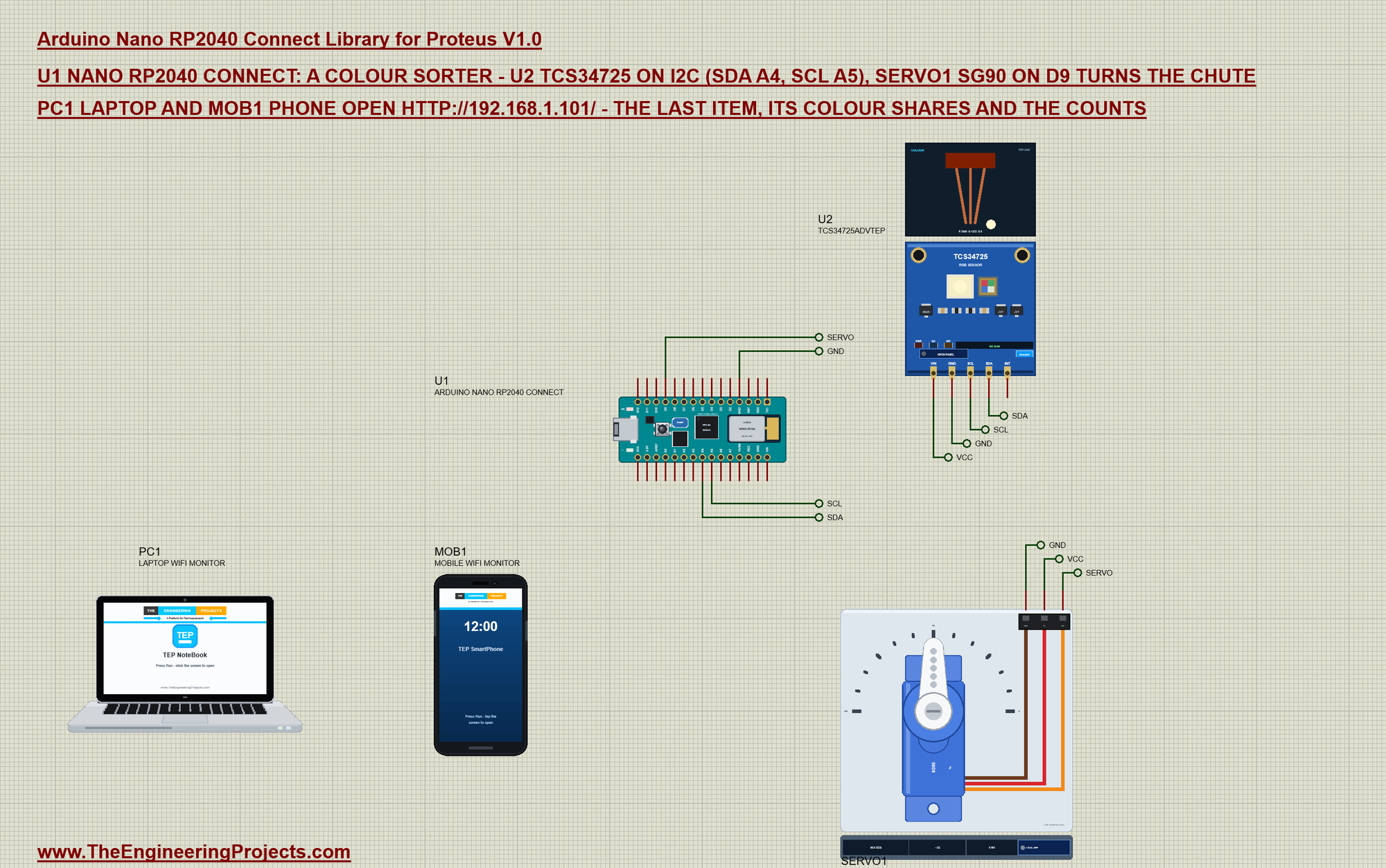
| Part pin | Net label | Nano RP2040 Connect pin | What it does |
|---|---|---|---|
| TCS34725 SDA, SCL | SDA, SCL | A4, A5 | I2C at 0x29 |
| TCS34725 VIN, GND | VCC, GND | 3.3V, GND | the sensor's supply |
| SG90 SIG | SERVO | D9 | the servo pulse, 500 to 2500 us |
| SG90 V+, GND | VCC, GND | VUSB, GND | the servo's supply |
In the demo the sensor's VIN and the servo's V+ are on labels named VCC - Proteus' power rail: the models read the supply as a digital level, and the board's 3.3V pin is an analog source in Proteus. On a real board the TCS34725 sits on 3.3V and the SG90 on 5 V from VUSB or, better, its own supply.
How the TCS34725 Sees Colour
The TCS34725 has a 3 x 4 grid of photodiodes: some under red filters, some under green, some under blue, and some with no filter at all (the clear channel). Each group feeds its own 16-bit converter, so one reading gives four numbers - red, green, blue and clear. An infrared filter on top keeps heat and sunlight out of the colours, and the white LED on the breakout lights the item evenly from close by. The gain (1x to 60x) and the integration time (2.4 ms to 614 ms) set how sensitive it is; the sketch uses 4x and 50 ms - fast enough for a belt.
Adafruit's library hides the registers: begin() checks the chip's ID and powers it up, and getRawData() returns the four counts:
Adafruit_TCS34725 tcs(TCS34725_INTEGRATIONTIME_50MS, TCS34725_GAIN_4X);From Counts to a Colour
Raw counts depend on the light: a red item under a bright lamp gives bigger numbers than the same item in the shade. So the sketch does not compare counts but shares - how much of the light is red, green and blue. A share over 55 % names the colour; anything more mixed is OTHER:
int classify(uint16_t r, uint16_t g, uint16_t b) {         // RED / GREEN / BLUE when one share is over 55 %
  unsigned long sum = (unsigned long)r + g + b;
  if (!sum) return 3;
  shareR = r * 100UL / sum; shareG = g * 100UL / sum; shareB = b * 100UL / sum;
  if (shareR > 55) return 0;
  if (shareG > 55) return 1;
  if (shareB > 55) return 2;
  return 3;
}
Yellow light is a good test: it is red and green in equal parts, so neither share passes 55 % and the item goes to the OTHER bin. The threshold is a single number to tune for real items - lower it for pale colours, raise it for strict sorting.
Turning the Chute
The SG90 turns to an angle given by the width of a pulse every 20 ms: about 0.5 ms for 0 degrees and 2.5 ms for 180. The Servo library makes the pulse; the sketch only says the angle. Each bin has its own angle:
const int ANGLES[] = {30, 90, 150, 180}; chute.attach(SERVO_PIN, 500, 2500);A new item is a change of colour: the sketch counts it, turns the chute and flashes the L LED for one second:
void sortItem(int colour) {
  current = colour;
  counts[colour]++; items++;
  chute.write(ANGLES[colour]);
  digitalWrite(LED_BUILTIN, HIGH);
  ledOff = millis() + 1000;
WiFiNINA and the Page
Joining the network is one line with WiFiNINA: WiFi.begin() blocks until the board has an address or gives up, so the sketch simply tries again:
while (WiFi.begin(ssid, pass) != WL_CONNECTED) { Serial.println("Not joined yet - trying again"); delay(2000); }The web server reads the request's first line and takes the path: / is the page for the phone, /json the values for a program and /reset clears the counts:
if (path == "/reset") resetCounts("the web page");The loop does four things in turn - the sensor, the LED, the web server and the monitor:
void loop() {
  readColour();
  if (ledOff && millis() >= ledOff) { ledOff = 0; digitalWrite(LED_BUILTIN, LOW); }
  serveClients();
  readMonitor();
}
Run the Demo
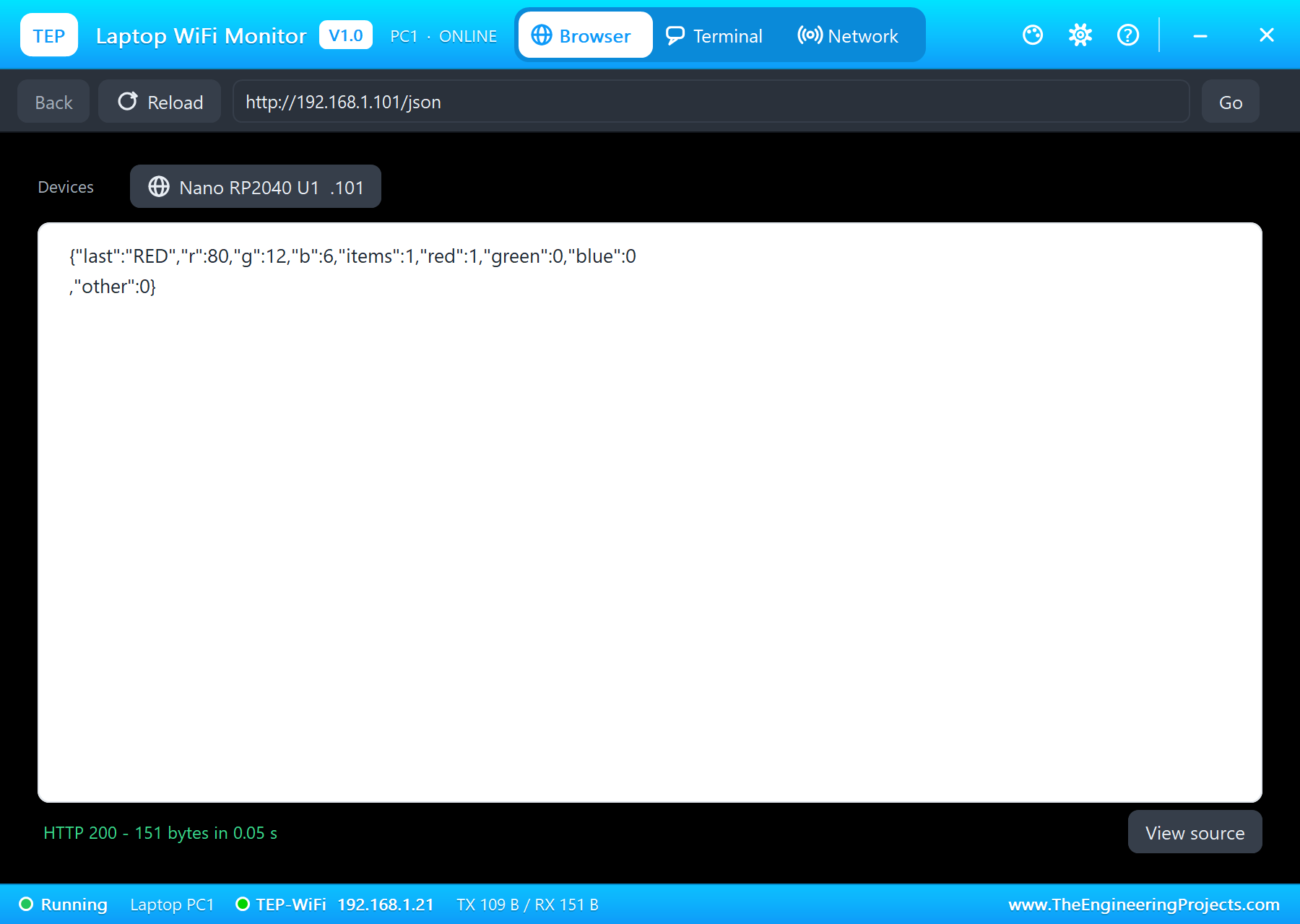
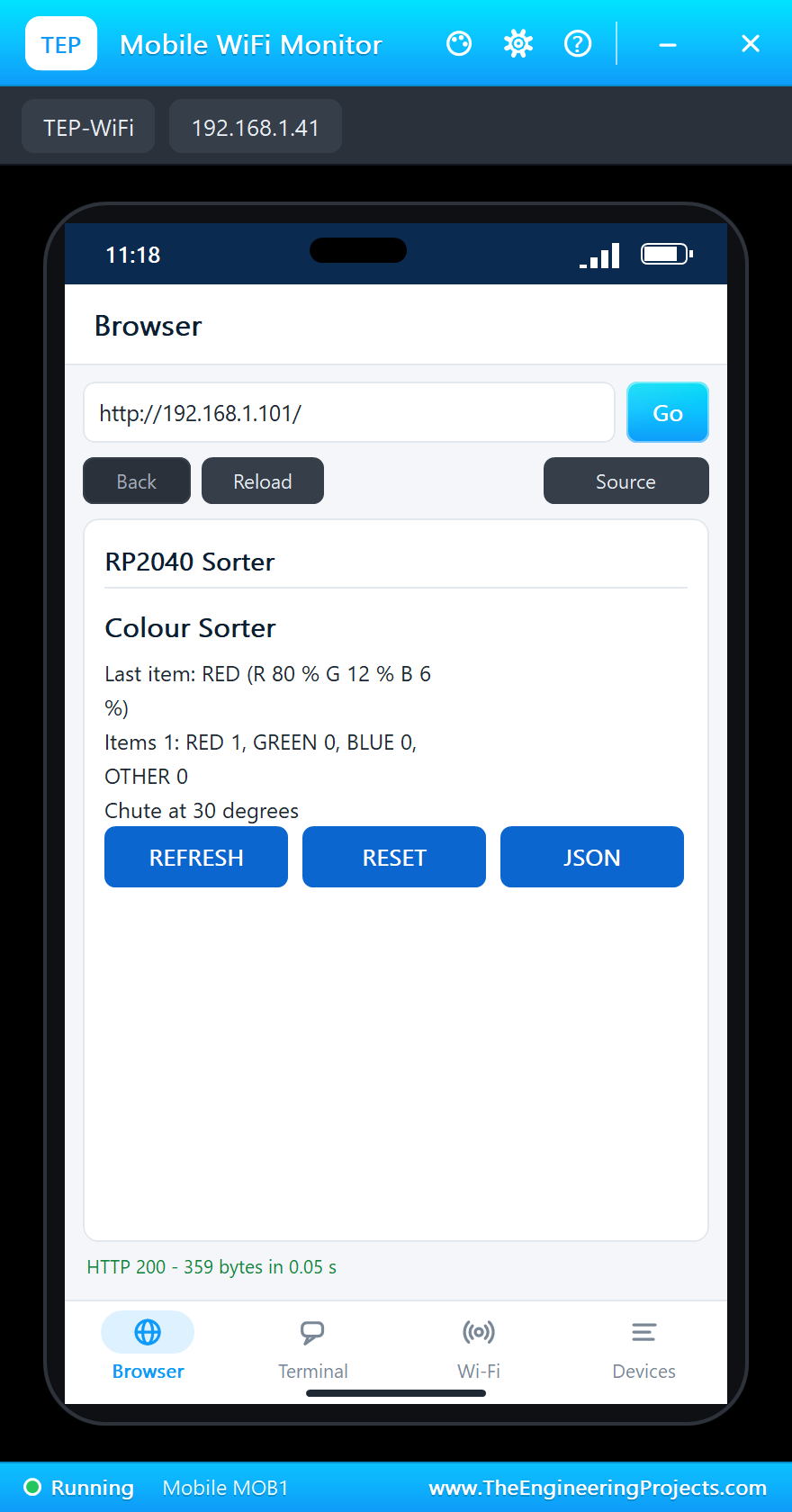
Press Run. The serial monitor opens; the sensor answers, the board joins TEP-WiFi and the first item - a red one - is already under the sensor:
Nano RP2040 Connect Colour Sorter - The Engineering Projects
TCS34725 ready
Connecting to TEP-WiFi
Sorter page: http://192.168.1.101/
Item #1: RED (R 80 % G 12 % B 6 %) - chute to 30 degrees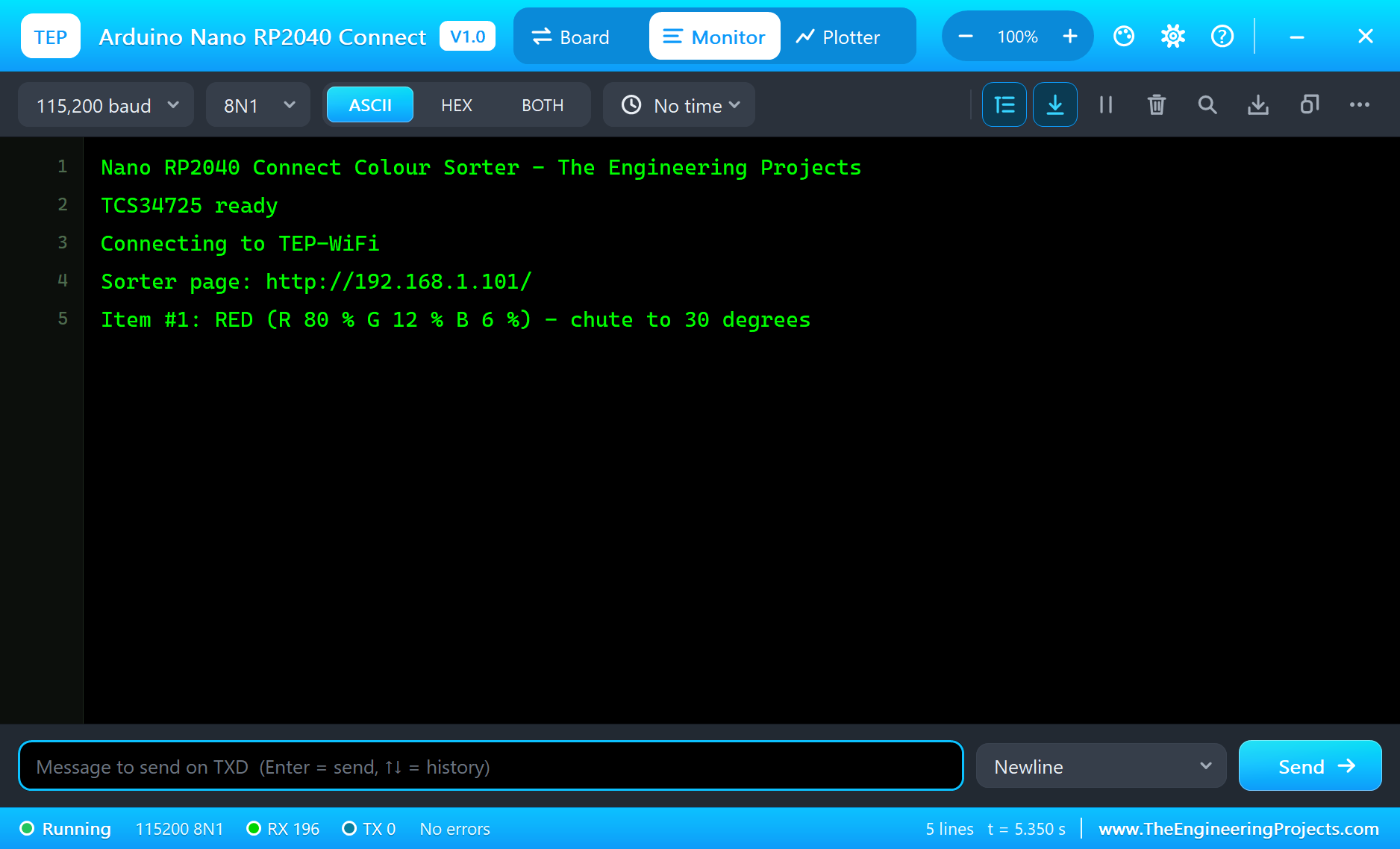
Open the Page
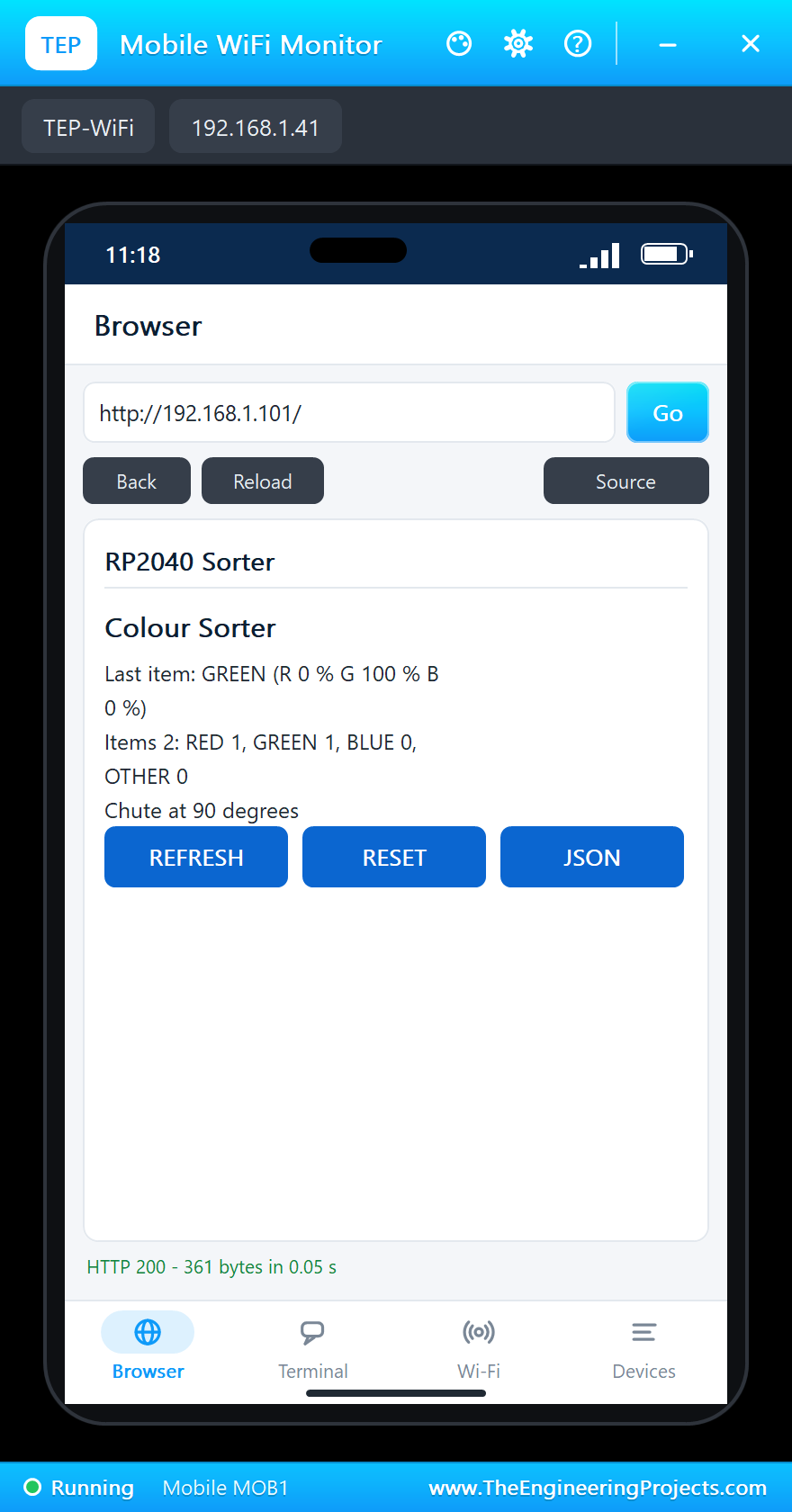
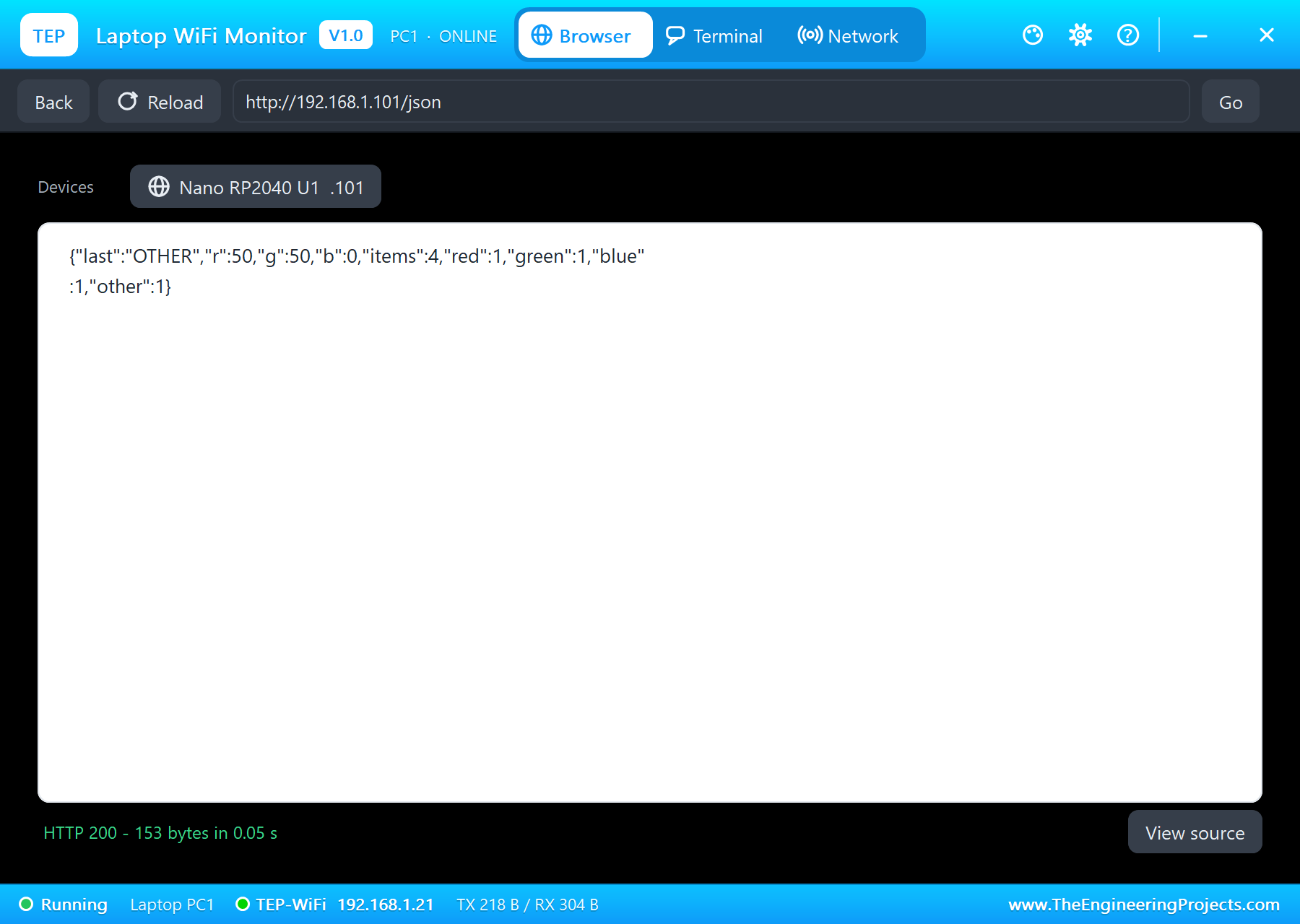
On the laptop click Browser and Go (the home page is http://192.168.1.101/json, the values for a program); on the phone the same with http://192.168.1.101/, the page with its links:
A Green Item: the L LED On
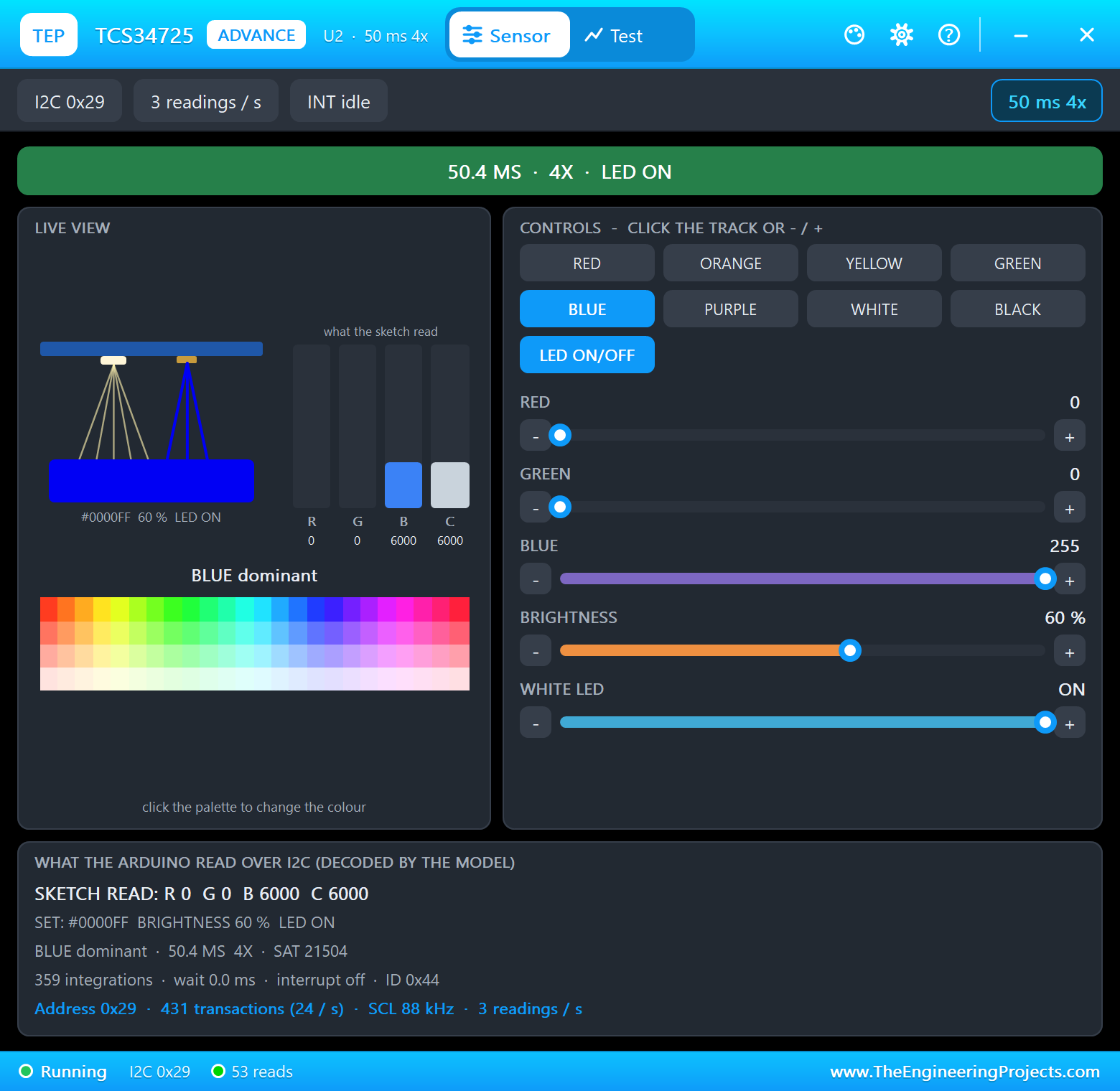
On the TCS34725's pop-up click GREEN: a green item is under the sensor. The sketch sees the change, counts item #2, turns the chute to 90 degrees and lights the L LED next to the ON LED for a second:
Blue and Yellow Items
Click BLUE: item #3, the chute to 150 degrees. Then YELLOW: half red and half green, no share over 55 % - item #4 goes to OTHER and the chute swings all the way to 180 degrees:
| Step | Colour shares (R / G / B) | Colour | The chute |
|---|---|---|---|
| Run | 80 / 12 / 6 % | RED | 30 degrees |
| GREEN on the pop-up | 0 / 100 / 0 % | GREEN | 90 degrees |
| BLUE on the pop-up | 0 / 0 / 100 % | BLUE | 150 degrees |
| YELLOW on the pop-up | 50 / 50 / 0 % | OTHER | 180 degrees |
Reset the Counts
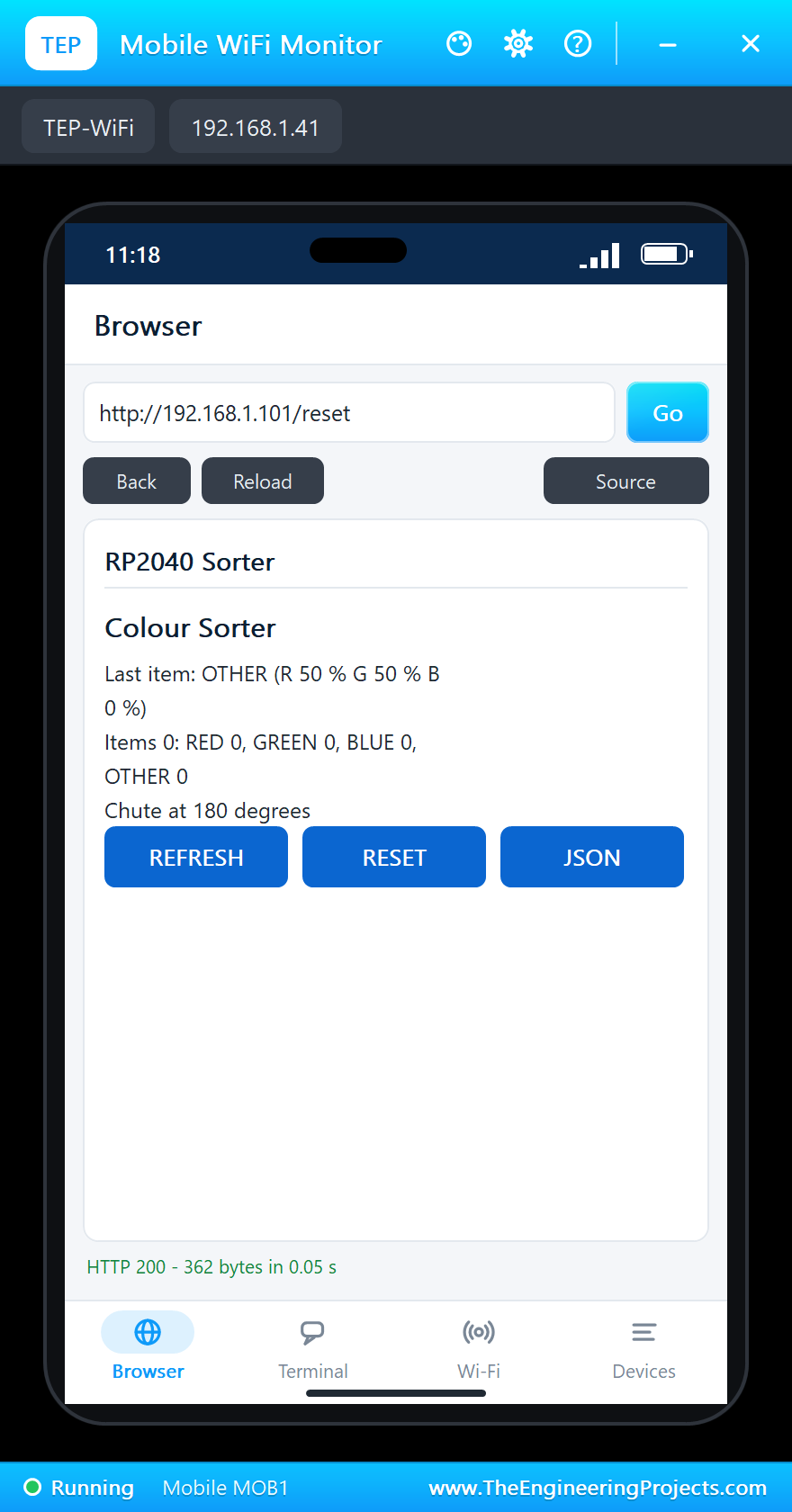
Tap RESET on the phone: the sketch clears the counts and logs who asked. The same works from the serial monitor with the RESET command.
The built-in serial monitor, in the look of our TEP Serial Monitor Advance for Proteus, logs every item and every page:
Page /json for 192.168.1.21
Page / for 192.168.1.41
Item #2: GREEN (R 0 % G 100 % B 0 %) - chute to 90 degrees
Page / for 192.168.1.41
Item #3: BLUE (R 0 % G 0 % B 100 %) - chute to 150 degrees
Item #4: OTHER (R 50 % G 50 % B 0 %) - chute to 180 degrees
Page /json for 192.168.1.21
Counts reset (the web page)
Page /reset for 192.168.1.41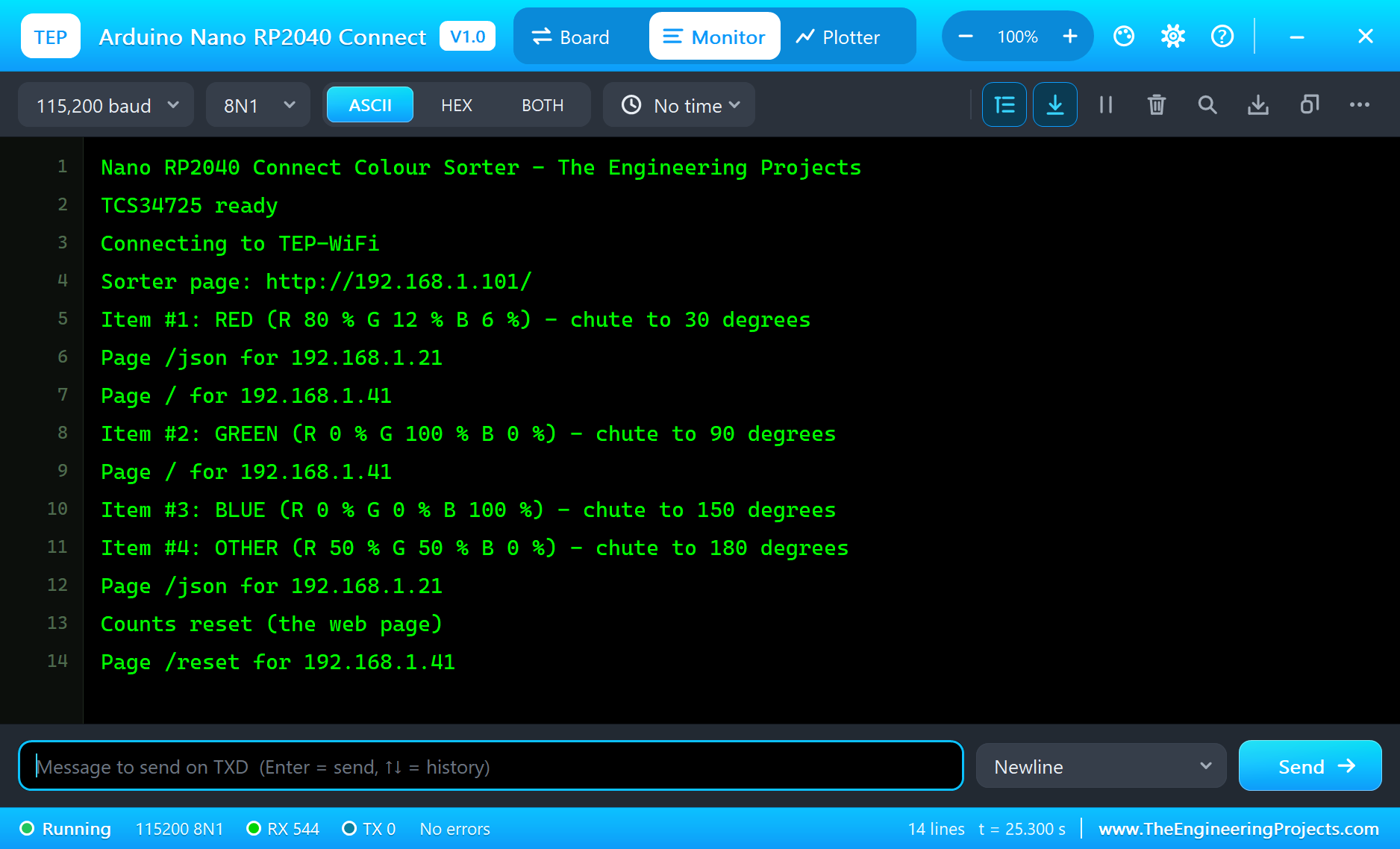
Try It Yourself
- Drag the pop-up's colour sliders slowly from red to green: watch where the item stops being RED and becomes OTHER.
- Lower the brightness on the pop-up: the counts drop, but the shares - and the colour - stay the same.
- Type
STATUSin the monitor for the counts and the address, orRESETto clear them. - Change the 55 in
classify()and rebuild: a lower threshold sorts paler items too.
Ideas to Extend the Colour Sorter
- Add a second servo as a gate, so one item at a time drops in front of the sensor.
- Teach the colours: store the shares of a sample item for each bin instead of fixed RED, GREEN and BLUE.
- Send each item to the laptop over WiFiUDP and draw a live chart.
- On a real board, use the LSM6DSOX to stop the belt when the machine is knocked.
Your Own Sketches
Write the sketch in the Arduino IDE with the board Arduino Nano RP2040 Connect (TEP Proteus), use Sketch > Export Compiled Binary and set the board's PROGRAM property to the .hex. The same sketch compiles for a real Nano RP2040 Connect with the "Arduino Mbed OS Nano Boards" package and the WiFiNINA library - select "Arduino Nano RP2040 Connect" there and upload. Adafruit's TCS34725 library comes from the Library Manager.
Things to Know Before Using a Real Nano RP2040 Connect
- 3.3 V logic: the pins are not 5 V tolerant; the TCS34725 breakout runs on 3.3 V.
- A6 and A7: on the real board they are read through the NINA module and are analog inputs only.
- The servo's supply: an SG90 can draw several hundred milliamps when it starts; give it its own 5 V supply with a common ground rather than the board's pins.
- The NINA firmware: update it with the IDE's firmware updater when WiFiNINA asks for a newer version.
- Serial1: Serial is the USB and Serial1 is on D0 and D1.
Properties of the Arduino Nano RP2040 Connect
| Property | What it does |
|---|---|
| PROGRAM | the sketch: a .hex from TEP Boards for Proteus (board "Arduino Nano RP2040 Connect") |
| WIFISSID, WIFIPASS | the router in range (TEP-WiFi, 12345678) |
| MONITOR, BAUD, AUTOOPEN | the built-in serial monitor: on, its baud rate (115200), open at Run |
| TIME | the clock WiFi.getTime() gives the sketch: PC or a fixed UTC time |
Troubleshooting
- "TCS34725 NOT FOUND": SDA on A4, SCL on A5; the sensor's VIN on the power rail.
- The servo does not move: its SIG on D9 and V+ on the power rail.
- The board stays on "Not joined yet": the sketch's SSID and password must match WIFISSID and WIFIPASS.
- A number goes wrong above 32767: int is 16 bits in the simulation - use long.
- The page shows old values: use REFRESH; the monitors do not reload by themselves.
Limitations of the Simulation
- Your sketch gets 8 KB of RAM in the simulation and runs slower than on the RP2040's two cores at 133 MHz with 264 KB; there is no second core and no PIO.
- The LSM6DSOX IMU, the MP34DT05 microphone, Bluetooth, the NINA's RGB LED and the crypto chip are drawn, not modelled.
- The router, the addresses and the windows are TEP additions.
- Arduino and Nano are trademarks of Arduino S.r.l., RP2040 a name of Raspberry Pi Ltd and NINA-W102 of u-blox; this library is not made or endorsed by them or by Labcenter.
- Tested in Proteus 8.5 in October 2026 (the demo as shipped, about 27 s of simulation). Proteus 7 is not supported.
So, that was all about the Arduino Nano RP2040 Connect Library for Proteus. I hope it helps you build and test your Nano projects before you touch the hardware - the sensor, the servo, the Wi-Fi and the web page in one simulation. If you have any questions, ask in the comments and I will help you out. Till the next tutorial, take care and have fun!