


Project Files of Circuit Playground Bluefruit Library for Proteus Simulation
 Libraries
 Code
 Projects
 Simulation
17888e001bb444a69bf0b030285b4794.zip

Circuit Playground Bluefruit Library for Proteus V1.0
Circuit Playground Bluefruit Library for Proteus V1.0 comes as a ZIP archive of 334 files (3.3 MB, 7.5 MB unpacked) holding Proteus library files, simulation model DLLs, a Proteus simulation, an Arduino sketch, an Arduino library, compiled HEX firmware and source code.
- LIBProteus library
- DLLProteus model
- DSNProteus simulation
- INOArduino sketch
- LIBArduino library
- HEXHEX firmware
- SRCSource code
Description
Circuit-Playground-Bluefruit-Library-for-Proteus-v1.0.zip with Adafruit's Circuit Playground Bluefruit in Proteus (your sketch with Adafruit_CircuitPlayground: the 10 NeoPixels, buttons A / B, the light sensor, the thermistor and the accelerometer, Bluetooth LE to a phone and a serial monitor; TEPCPB.LIB, TEPNET.DLL and the TEP Boards for Proteus add-on 1.98.0), the Bluetooth LE mood ring demo and a README.

File Structure
 File Structure
7.2 KB1.1 KB7.7 KB11 KB8.5 KB1.5 KB1.7 KB1.9 KB5.7 KB4.9 KB1.1 KB5.8 KB9.6 KB7.2 KB2.5 KB2.1 KB1.9 KB2.1 KB4.4 KB1.1 KB3 KB3 KB1.8 KB2.5 KB3.5 KB149 B2.7 KB2 KB6.4 KB3.2 KB1.3 KB963 B8.6 KB5.9 KB6 KB12.1 KB1.6 KB1.3 KB14.7 KB4.3 KB6.1 KB20.1 KB8.2 KB2 KB4.5 KB311 B12.8 KB8.2 KB6.1 KB2.2 KB3.4 KB5.9 KB1.5 KB1.6 KB16.6 KB9.7 KB268 B6.3 KB6 KB754 B6.9 KB2.1 KB533 B5.7 KB7.4 KB514 B1.7 KB896 B481 B1.4 KB1012 B482 B936 B559 B467 B3.6 KB3.8 KB504 B956 B575 B455 B8.3 KB10.9 KB522 B79 B5.5 KB3.1 KB79 B442 B918 B1.4 KB1.8 KB1 KB1.3 KB1.4 KB1.8 KB1.4 KB5.7 KB502 B463 B5 KB6.5 KB3.4 KB3.4 KB500 B1.6 KB368 B406 B466 B404 B444 B460 B477 B739 B448 B1.3 KB350 B5.7 KB4 KB562 B1.5 KB2 KB550 B7.2 KB4.1 KB371 B4.5 KB3.5 KB492 B390 B478 B6.6 KB2.4 KB479 B1.1 KB497 B5.1 KB1.9 KB1.3 KB1.3 KB750 B1.3 KB490 B2.2 KB1.9 KB498 B1.2 KB1.2 KB487 B5.1 KB4.6 KB371 B3.6 KB2.5 KB534 B1.5 KB1.2 KB478 B6.2 KB3 KB1.5 KB1.7 KB469 B1 KB1.7 KB433 B294 B358 B1.3 KB2.5 KB13.2 KB3.8 KB659 B510 B4.4 KB1.9 KB5.8 KB11 KB835 B518 B308 B1.3 KB3.3 KB568 B6.4 KB2.3 KB29 B436 B9.2 KB4.9 KB439 B4.2 KB1.5 KB9.3 KB7.1 KB4.7 KB2.4 KB388 B5.1 KB893 B667 B1.3 KB5.5 KB2.3 KB1.8 KB468 B882 B530 B791 B487 B894 B2 KB730 B646 B2.6 KB977 B702 B20.6 KB1.8 KB11.8 KB3.2 KB596 B406 B6.3 KB5.7 KB9.3 KB7.7 KB7.7 KB6.1 KB6.5 KB6 KB6.8 KB5.8 KB5.9 KB6.4 KB6.4 KB5.3 KB5.6 KB5.7 KB7.9 KB7.7 KB6.5 KB6.3 KB6.2 KB6.4 KB5.9 KB10.3 KB7 KB8.5 KB6.2 KB6.6 KB7.6 KB6.7 KB6.1 KB6.7 KB8.3 KB6.2 KB7.2 KB6.2 KB5.9 KB5.6 KB5.7 KB6.7 KB5.9 KB6.2 KB6 KB6 KB6.1 KB6.3 KB6 KB6.1 KB6.2 KB6 KB5.8 KB6.4 KB6.4 KB6.4 KB3.8 KB6.4 KB7.3 KB6.4 KB4 KB6.9 KB7.7 KB6 KB6.8 KB6.9 KB7 KB7 KB6.3 KB6.4 KB6.5 KB6.5 KB6.6 KB6.5 KB5.9 KB6.1 KB5.6 KB6.6 KB5.9 KB5.9 KB7.5 KB3.9 KB3.8 KB4.5 KB4.4 KB5.4 KB7.7 KB7.1 KB5.8 KB5.9 KB5.9 KB6.9 KB5.7 KB5.9 KB5.8 KB5.5 KB5.5 KB7.1 KB5.2 KB5.1 KB48.6 KB25.9 KB1.3 KB8.5 KB38.6 KB31.6 KB39.5 KB13.1 KB3.0 MB16.9 KB45.6 KB3.0 MB12.3 KBGallery12 images from the tutorialOpen the tutorial
 Gallery12 images from the tutorial
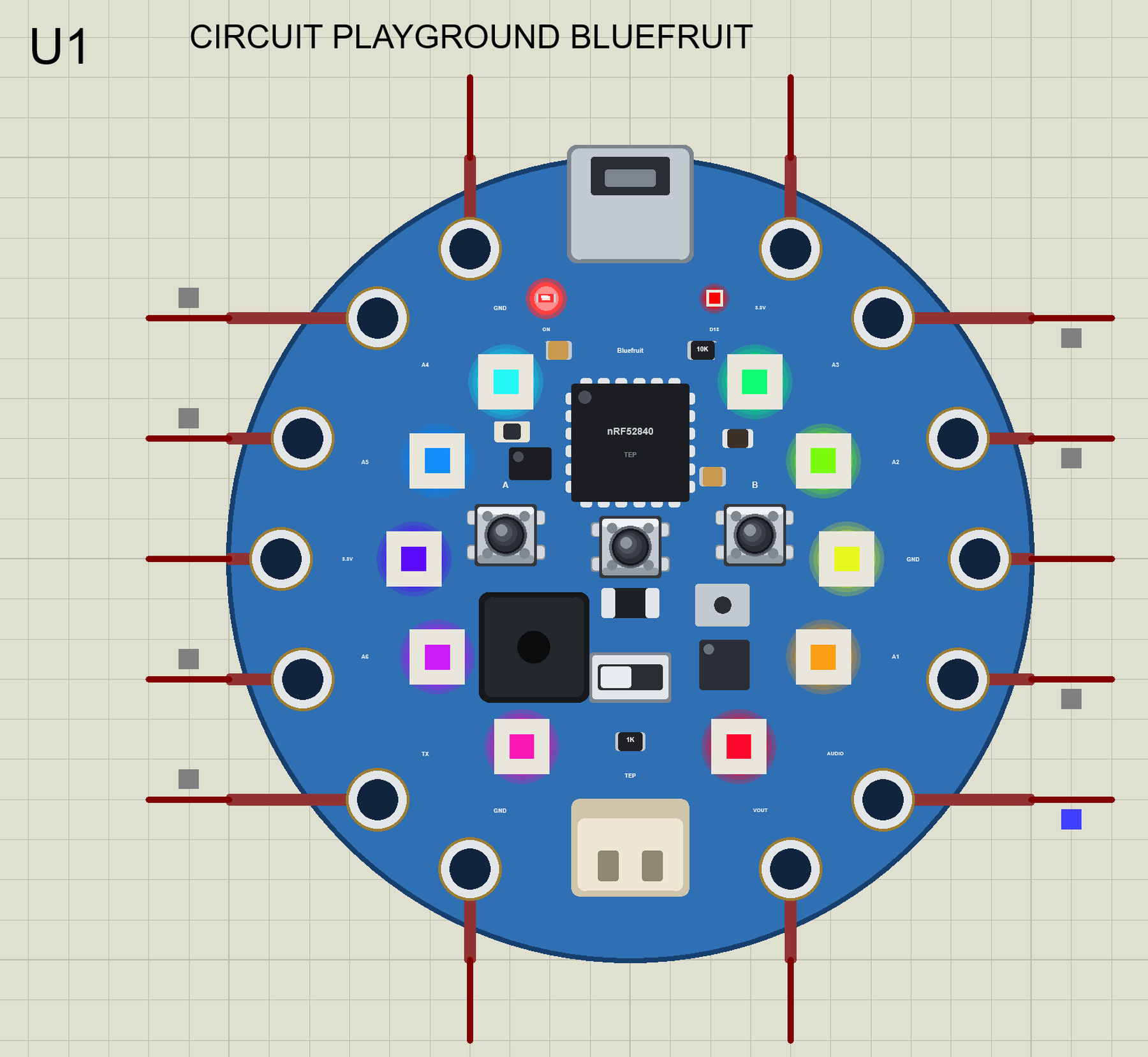
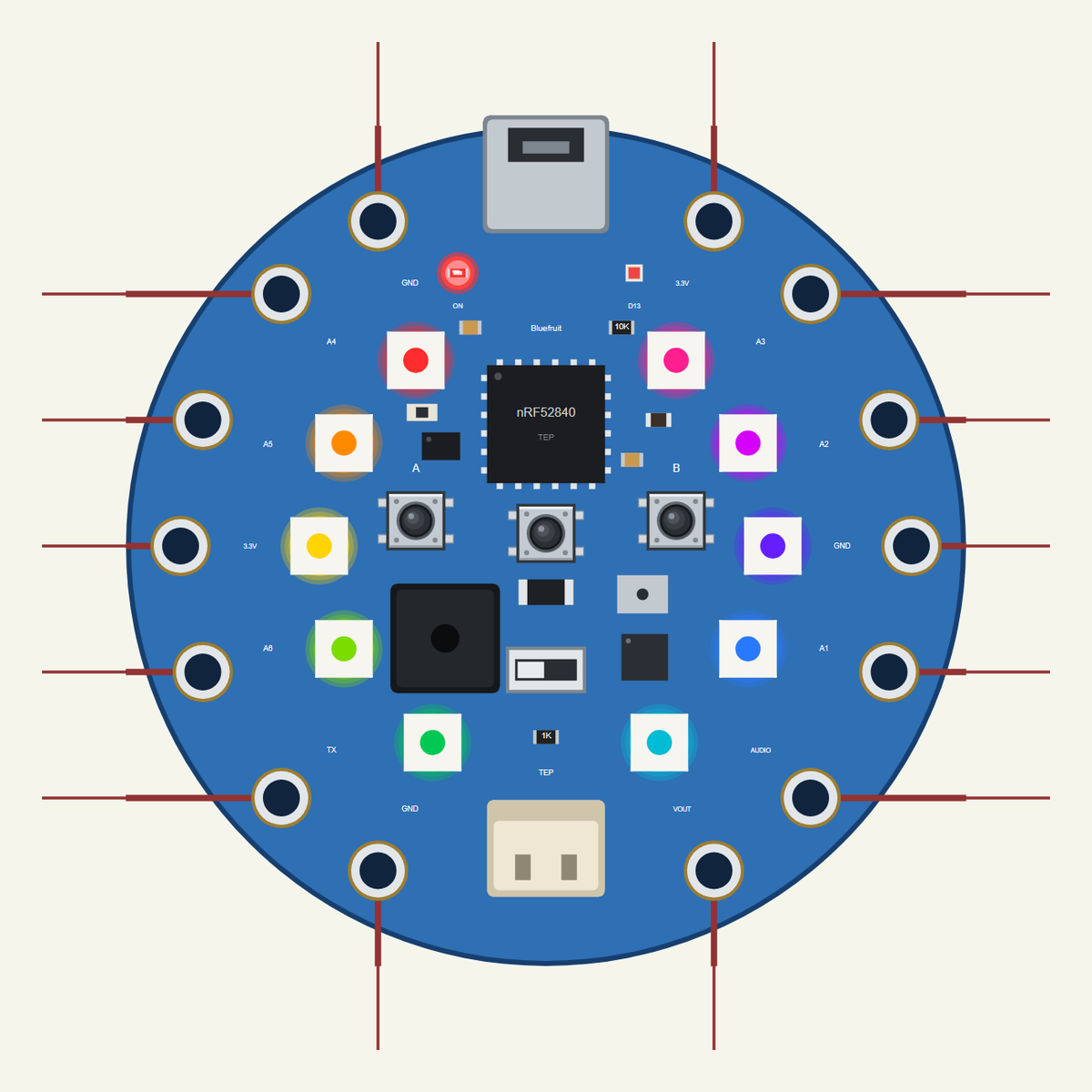
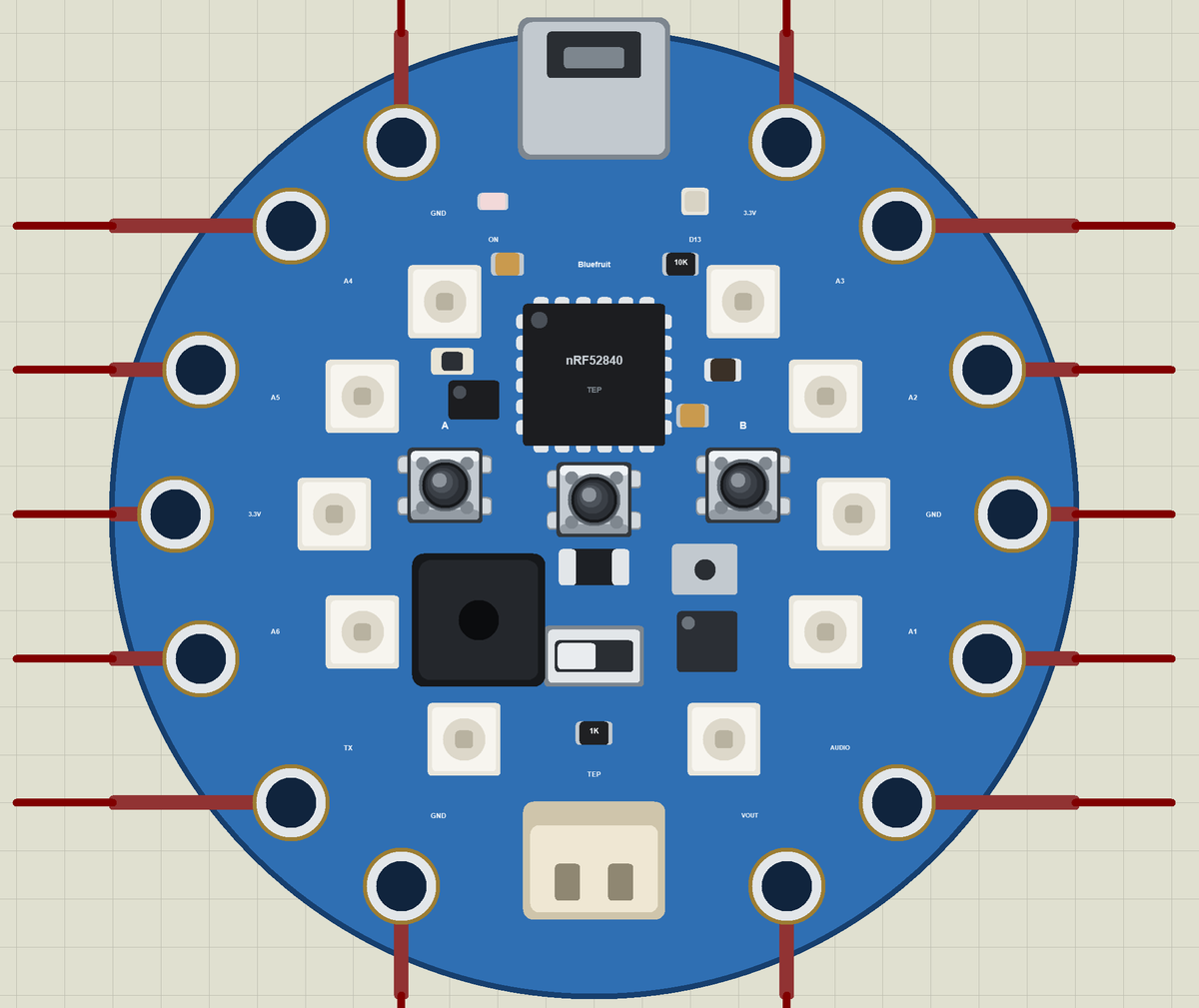
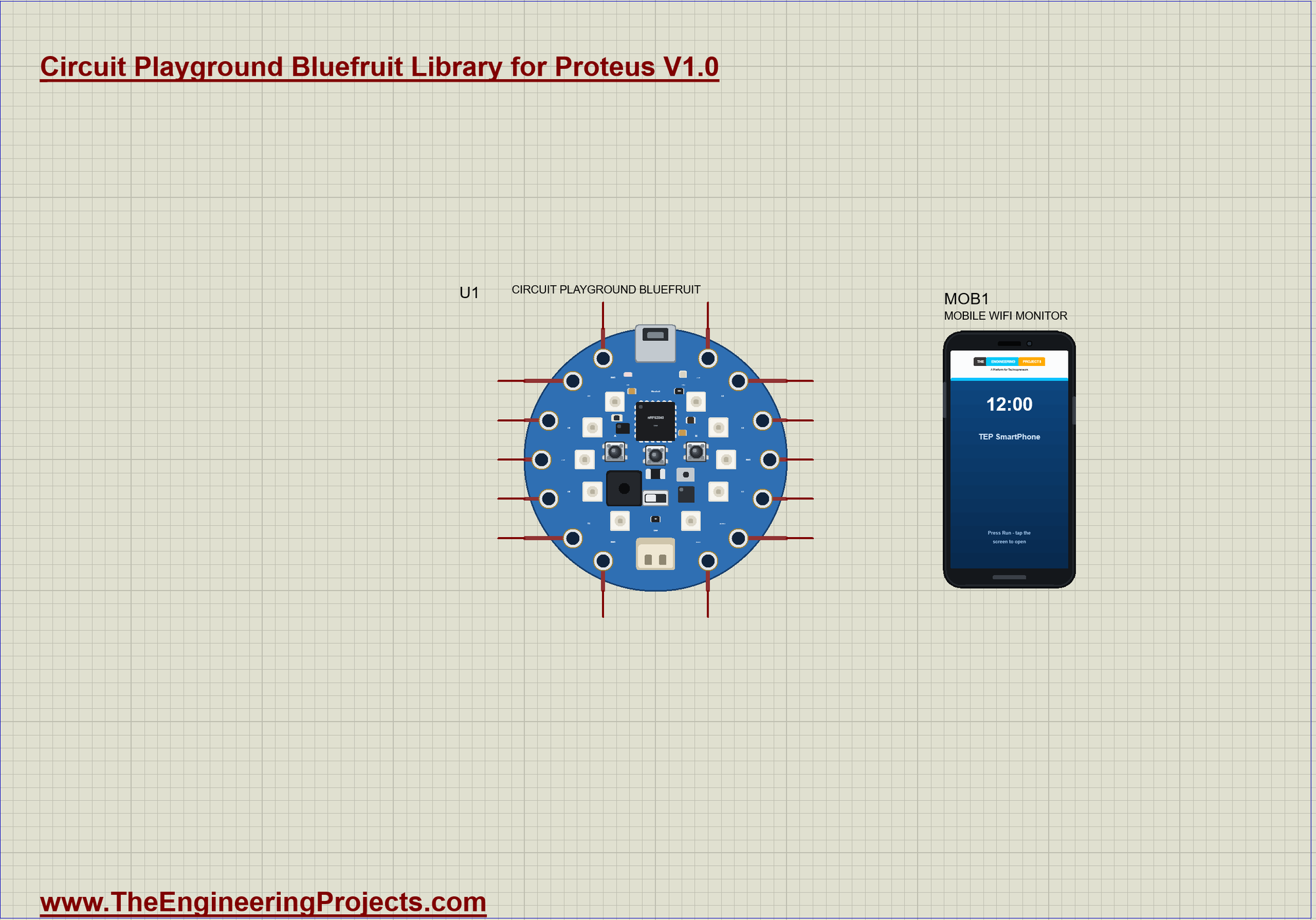
The circuit, the board and the results as they appear in Circuit Playground Bluefruit Library for Proteus Simulation. Open an image for its full size.
README
 README
CIRCUIT PLAYGROUND BLUEFRUIT LIBRARY FOR PROTEUS - V1.0 (YOUR ARDUINO SKETCH, 10 NEOPIXELS, SENSORS, BLUETOOTH LE)
Designed by The Engineering Projects
www.TheEngineeringProjects.com

IMPORTANT LINKS
Article (read it first - pictures, step by step, every feature explained):
  https://www.theengineeringprojects.com/2026/11/circuit-playground-bluefruit-library-for-proteus.html
Report a bug or suggest a feature (our forum):
  https://www.theengineeringprojects.com/forum
The phone in the demo is our Mobile WiFi Monitor (included) - its article:
  https://www.theengineeringprojects.com/2026/10/mobile-wifi-monitor-library-for-proteus.html
Support us (the libraries are free):
  https://www.theengineeringprojects.com/donate

FILE STRUCTURE
Circuit-Playground-Bluefruit-TEP-v1.0/
|-- Proteus Library Files/
|   |-- TEPCPB.LIB                                       31.6 KB   the Circuit Playground Bluefruit, to LIBRARY
|   |-- TEPLAPTOP.LIB                                    39.5 KB   the laptop (demo), to LIBRARY
|   |-- TEPMOBILE.LIB                                    13.1 KB   the phone (demo), to LIBRARY
|-- Proteus Model Files/
|   |-- TEPNET.DLL                                       2.99 MB   the board + monitors + network, to MODELS
|-- Arduino Code/
|   |-- CPB_BLE_Mood_Ring/CPB_BLE_Mood_Ring.ino           7.2 KB   the demo sketch
|   |-- TEP Boards for Proteus/hardware/                 1.39 MB   the Arduino IDE add-on 1.98.0 (325 files)
|-- Proteus Simulation/
|   |-- CPB_BLE_Mood_Ring.hex                            45.6 KB   the demo sketch (U1)
|   |-- CPB-BLE-Mood-Ring.pdsprj                         16.9 KB   the demo: a Bluetooth LE mood ring
|   |-- TEPNET.DLL                                       2.99 MB   copy of the model
|-- README.txt                                          ~12.5 KB   this file
Total: 7.53 MB (unzipped). The source code of the models is not included.

WHAT IS IT?
Proteus 8 has no nRF52840 processor model, so this is NOT a real nRF52840 chip. Our team has put a lot of effort into
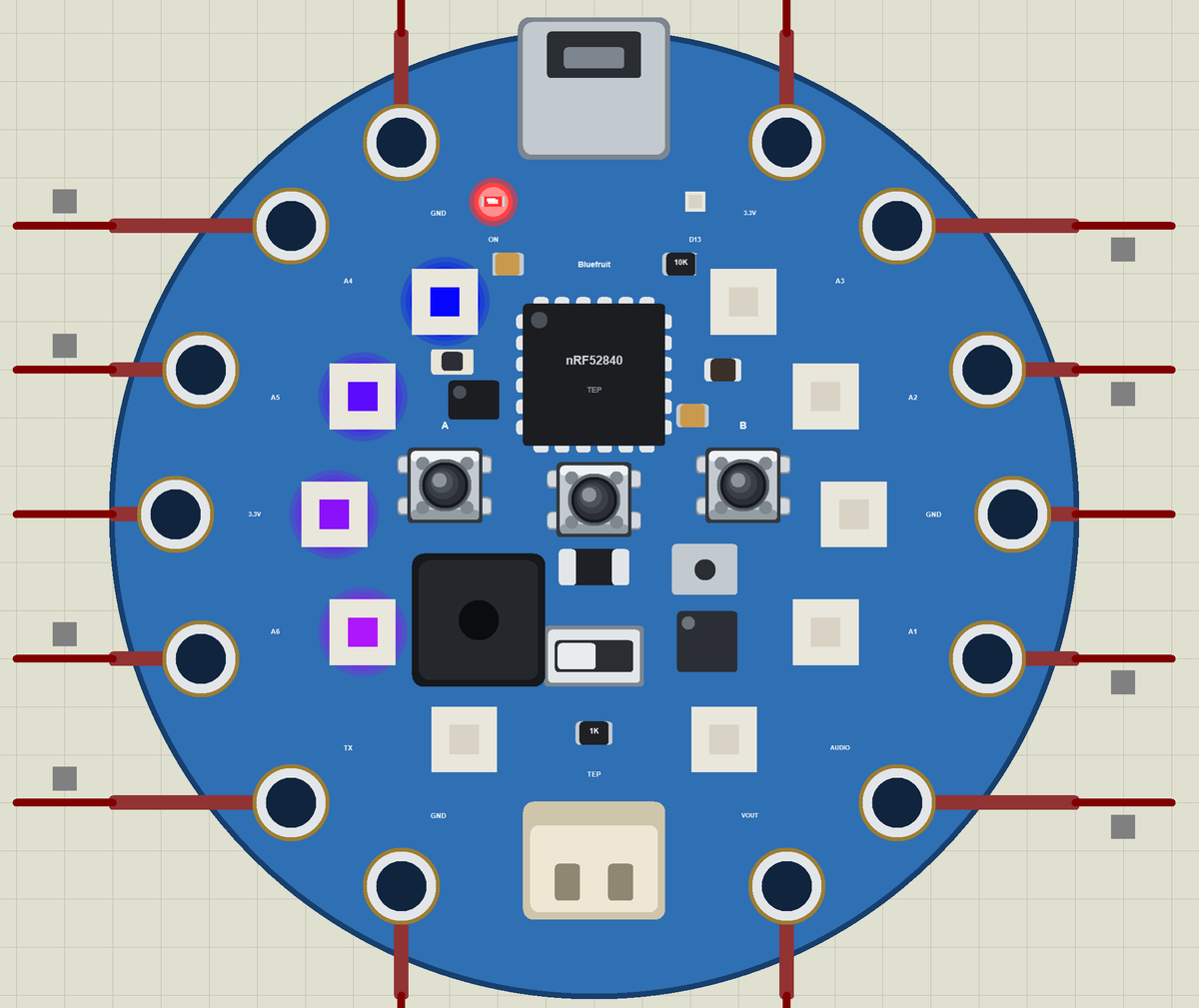
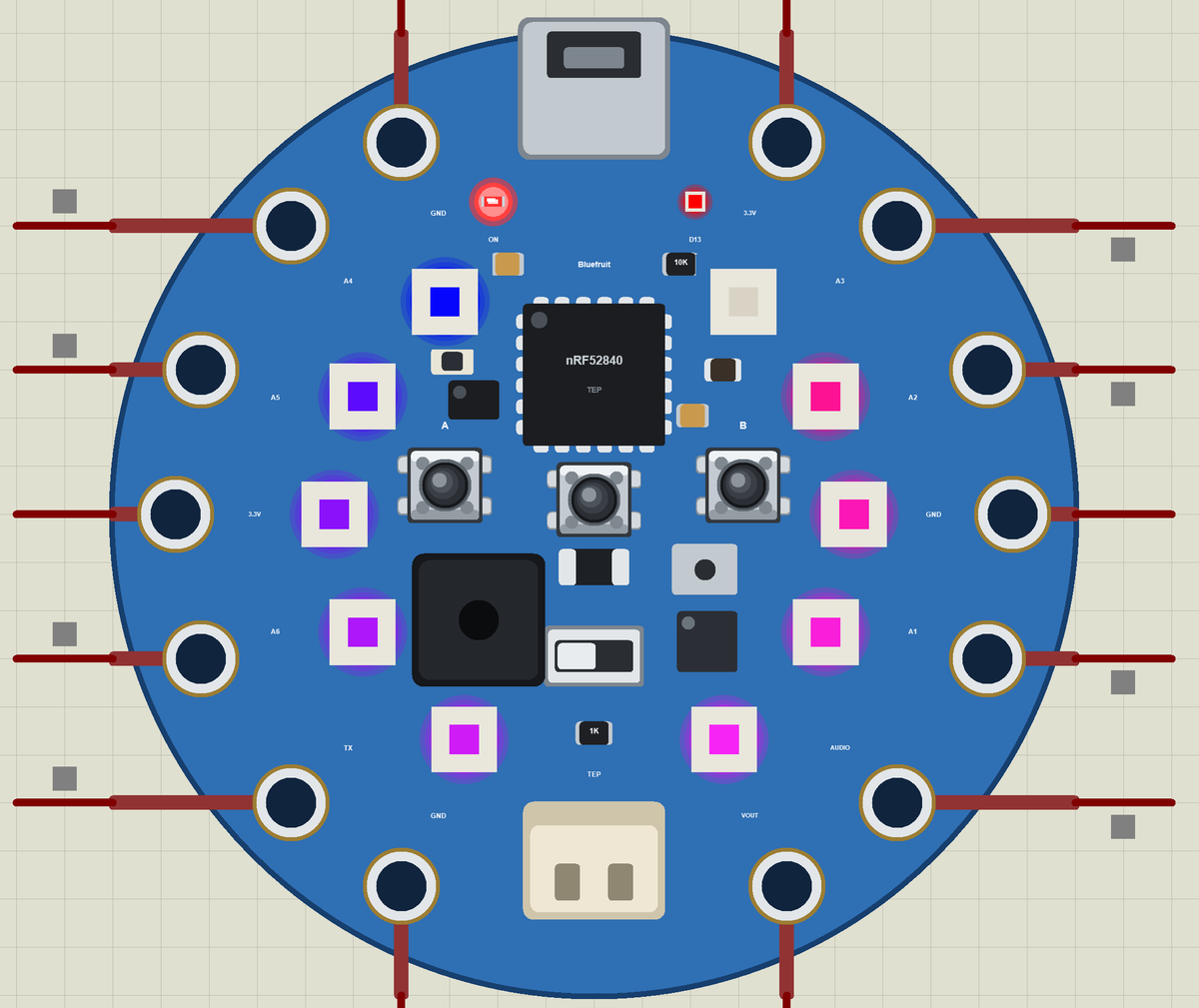
building this board ourselves: it is Adafruit's Circuit Playground Bluefruit - the round blue board (50.6 mm) with a
ring of 10 NeoPixels, buttons A and B, RESET, a slide switch, a light sensor, a thermistor, an accelerometer, a speaker,
a microphone, the micro-B USB, the JST battery socket and 14 alligator pads - drawn at its real size, and it runs YOUR
Arduino sketch in Proteus:
  * You write a normal sketch with Adafruit's CircuitPlayground names (CircuitPlayground.begin, setPixelColor,
    clearPixels, setBrightness, colorWheel, leftButton, rightButton, redLED, playTone, lightSensor, temperature,
    motionX / motionY / motionZ, CircuitPlayground.strip) and ArduinoBLE, and compile it in the Arduino IDE with our
    board package "TEP Boards for Proteus" 1.98.0 (in Arduino Code - see INSTALLATION). The pads work as GPIO,
    analogRead 0-1023, analogWrite, attachInterrupt, tone, Wire, SPI and Serial1.
  * The 10 NeoPixels light in the colours your sketch sends - each one, every show().
  * Buttons A and B read HIGH while you click them on the board, as on the real board; the red LED (D13)
    lights when HIGH.
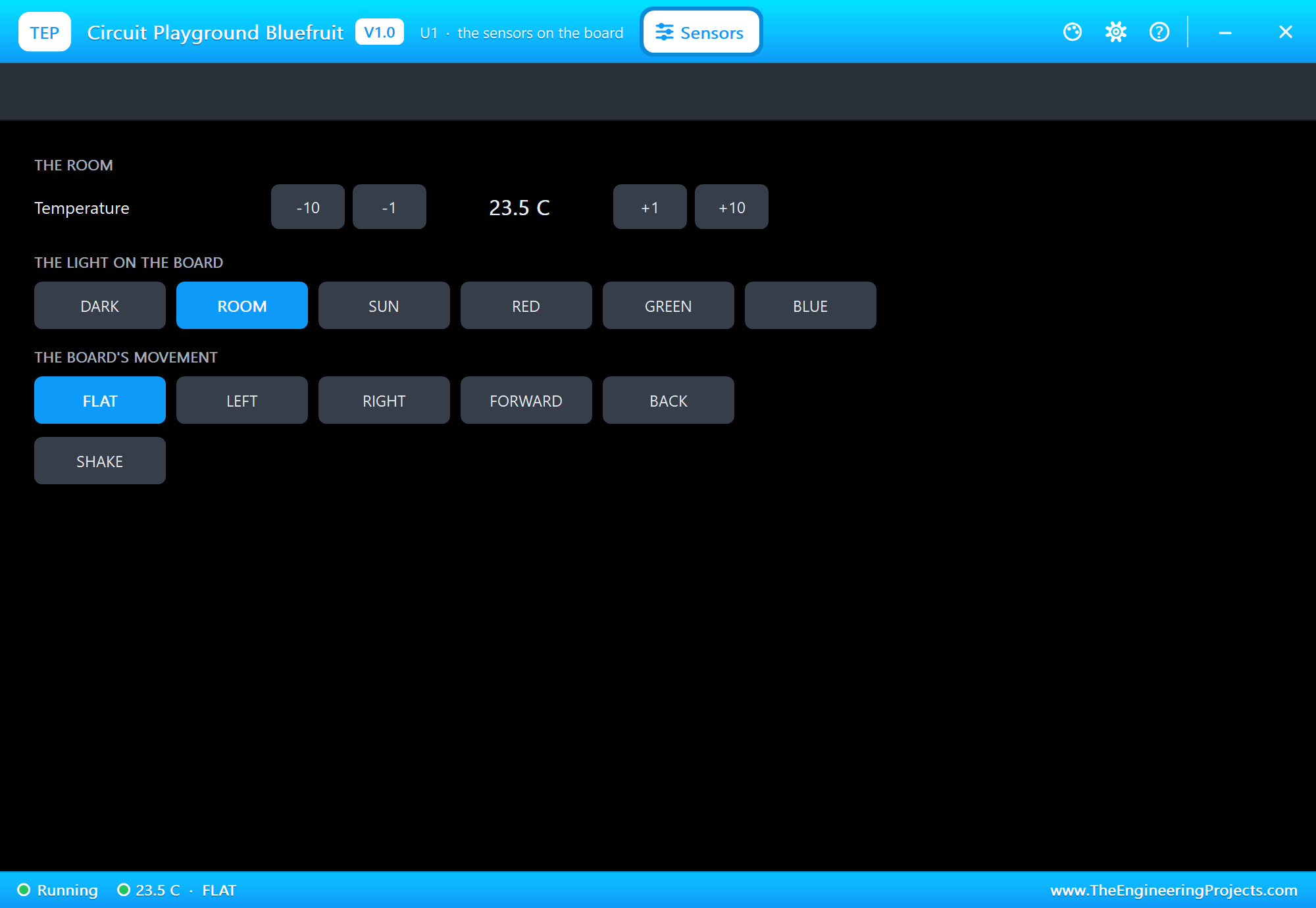
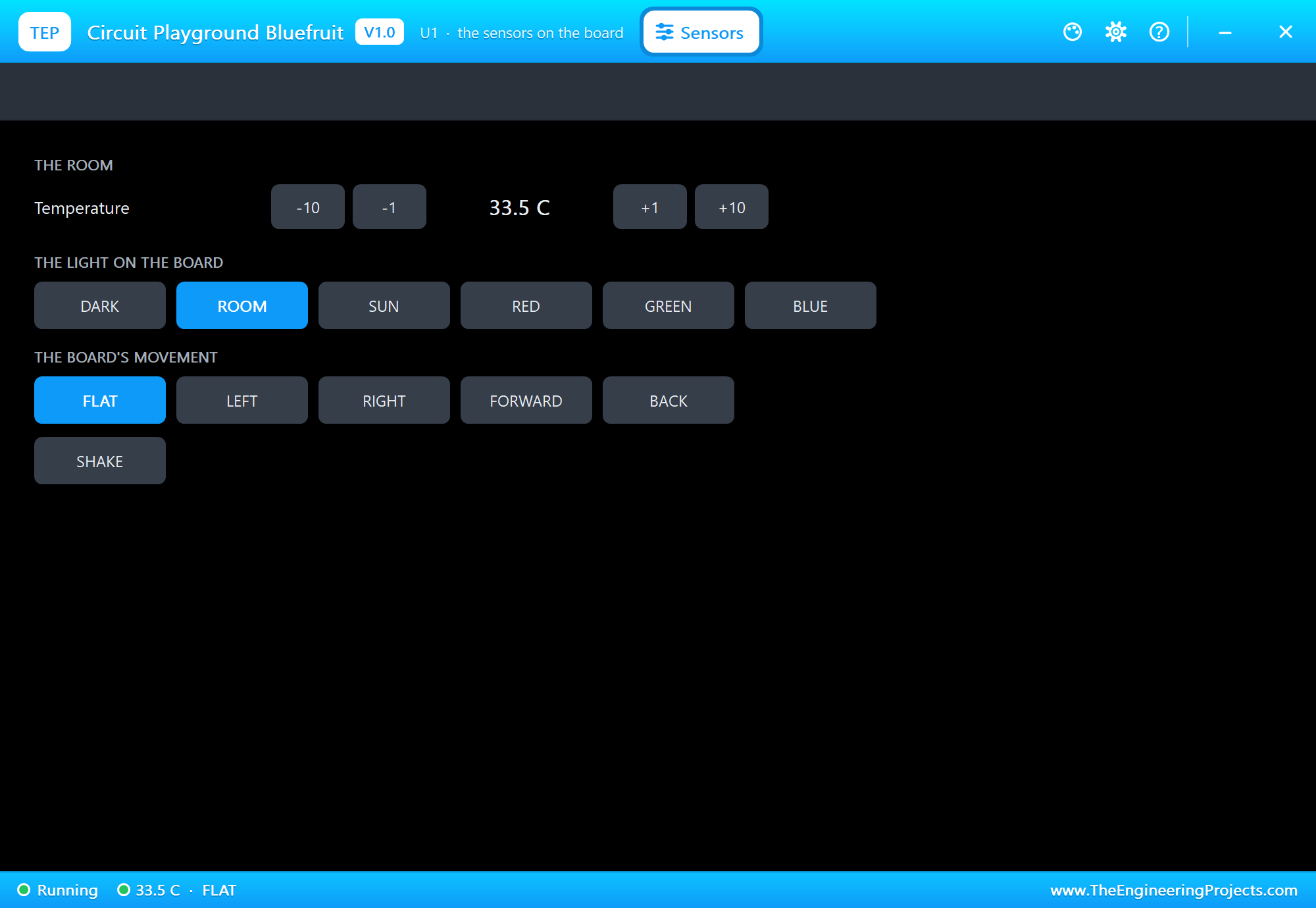
  * The board's Sensors window (a click on the nRF52840) sets the room: the temperature (the thermistor), the light
    (DARK, ROOM, SUN, RED, GREEN, BLUE: the light sensor) and the movement (FLAT, LEFT, RIGHT, FORWARD, BACK, SHAKE: the
    accelerometer). analogRead(A8) and analogRead(A9) answer as the real light sensor and thermistor divider do.
  * Bluetooth LE with ArduinoBLE: services, characteristics, descriptors and notifications - our phone is the central.
TEP additions: the USB port opens the serial monitor (the same window as our TEP Serial Monitor Advance); a click on the
nRF52840 opens the Sensors window. The NeoPixels are shown as the eye sees LEDs, so the library's low default brightness
(20 of 255) still glows on the screen.
Limits (say them before you start): the slide switch is drawn: slideSwitch() reads true (the left position). The
microphone, the touch pads and the speaker's sound are not modelled (soundSensor() and readCap() answer 0; playTone()
drives the AUDIO pad). Use CircuitPlayground.strip for the NeoPixels (Adafruit_NeoPixel on pin 8 is not supported). Your
sketch gets 8 KB of RAM in the simulation, about 256 KB of flash, and int is 16 bits in the simulation (use long for big
numbers). See MODEL SCOPE AND LIMITS.

ONE DEVICE (search "PLAYGROUND" in Pick Devices):
  CIRCUIT PLAYGROUND BLUEFRUIT  "Circuit Playground Bluefruit" V1.0 (Microprocessor ICs > Bluetooth Boards), prefix U,
  model TEPNET.DLL.
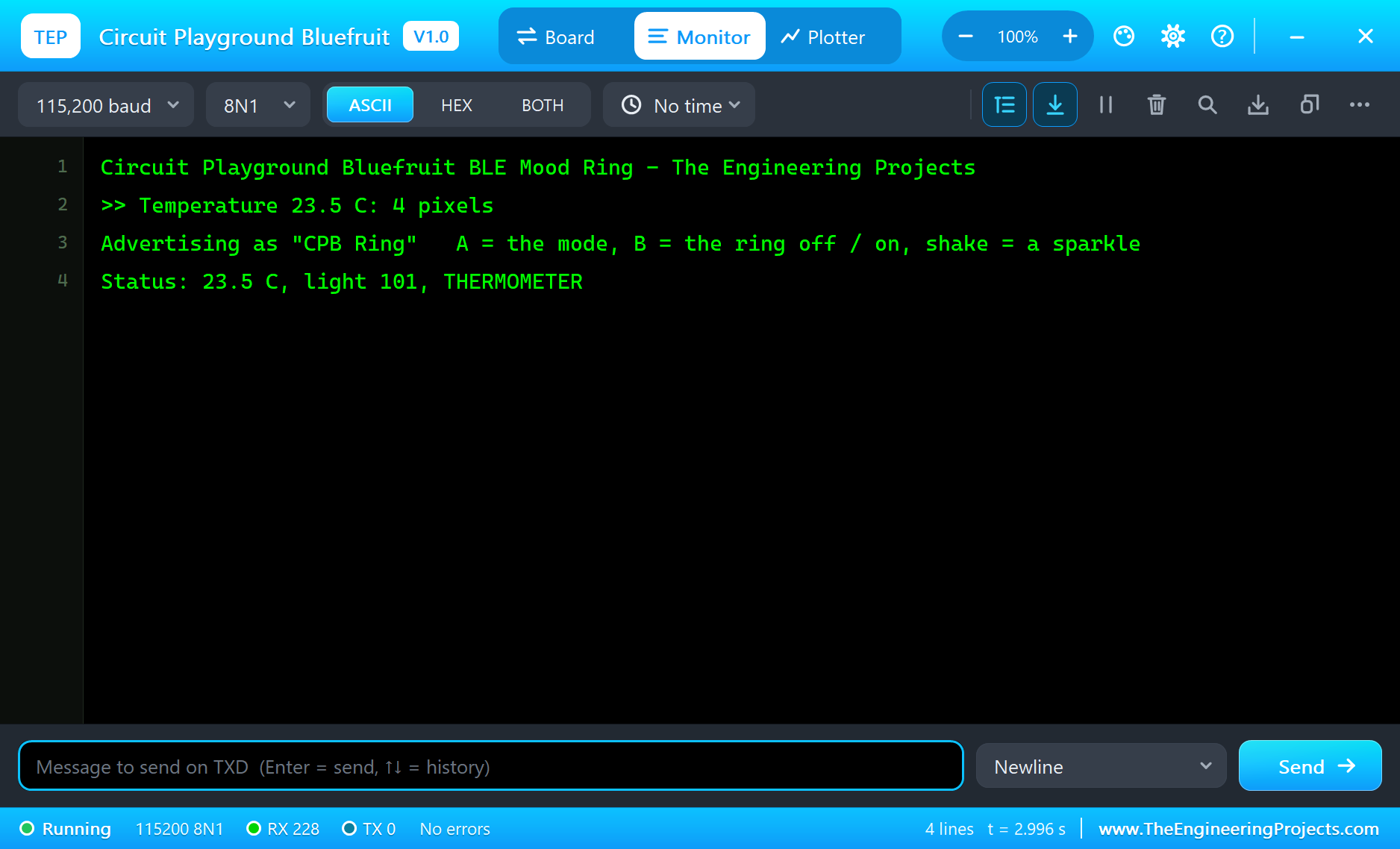
  Its TEP windows have no Windows title bar: the serial monitor (the USB port, 115200 baud: Monitor, Plotter and Board
  tabs) and the Sensors window (a click on the nRF52840).
The same TEPNET.DLL also runs our other sketch boards and the phone; it replaces any older TEPNET.DLL (keep only this
newest one in MODELS).

TEST STATUS
V1.0: verified in Proteus 8.5 on 19 Nov 2026 with the demo project as shipped. What the Proteus run showed:
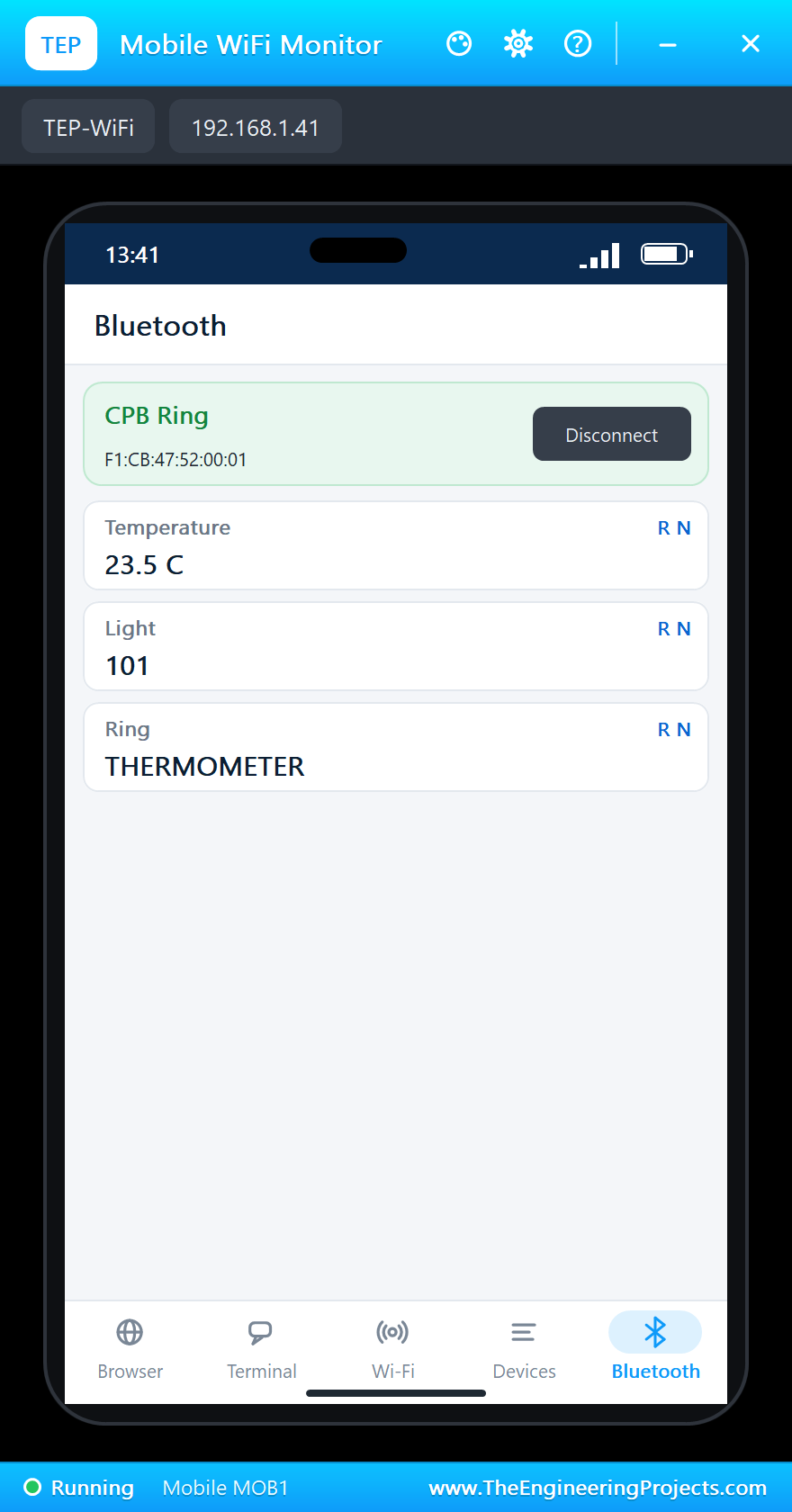
* CPB-BLE-Mood-Ring: ">> Temperature 23.5 C: 4 pixels" (the thermometer, blue), "Advertising as "CPB Ring"";
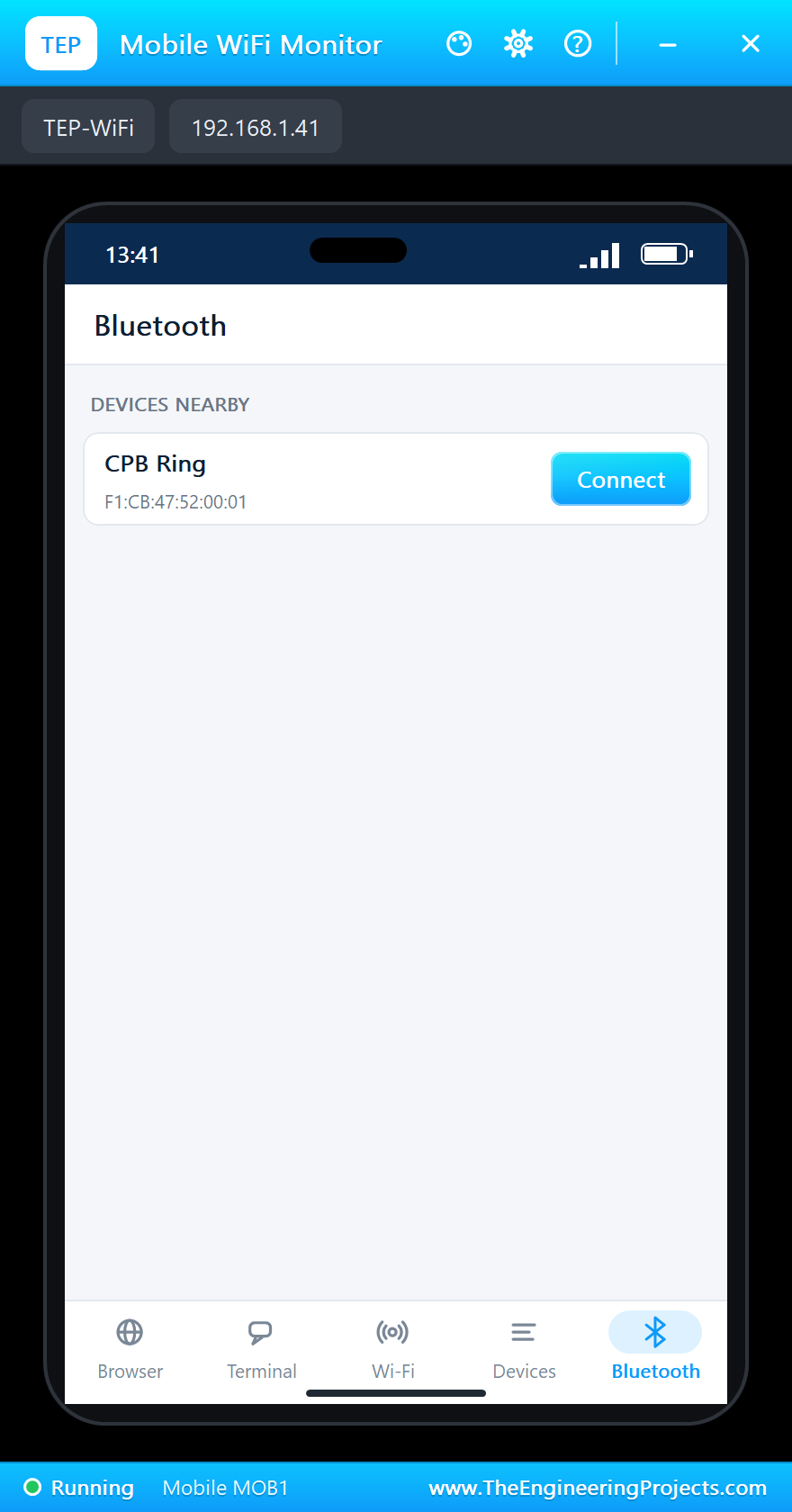
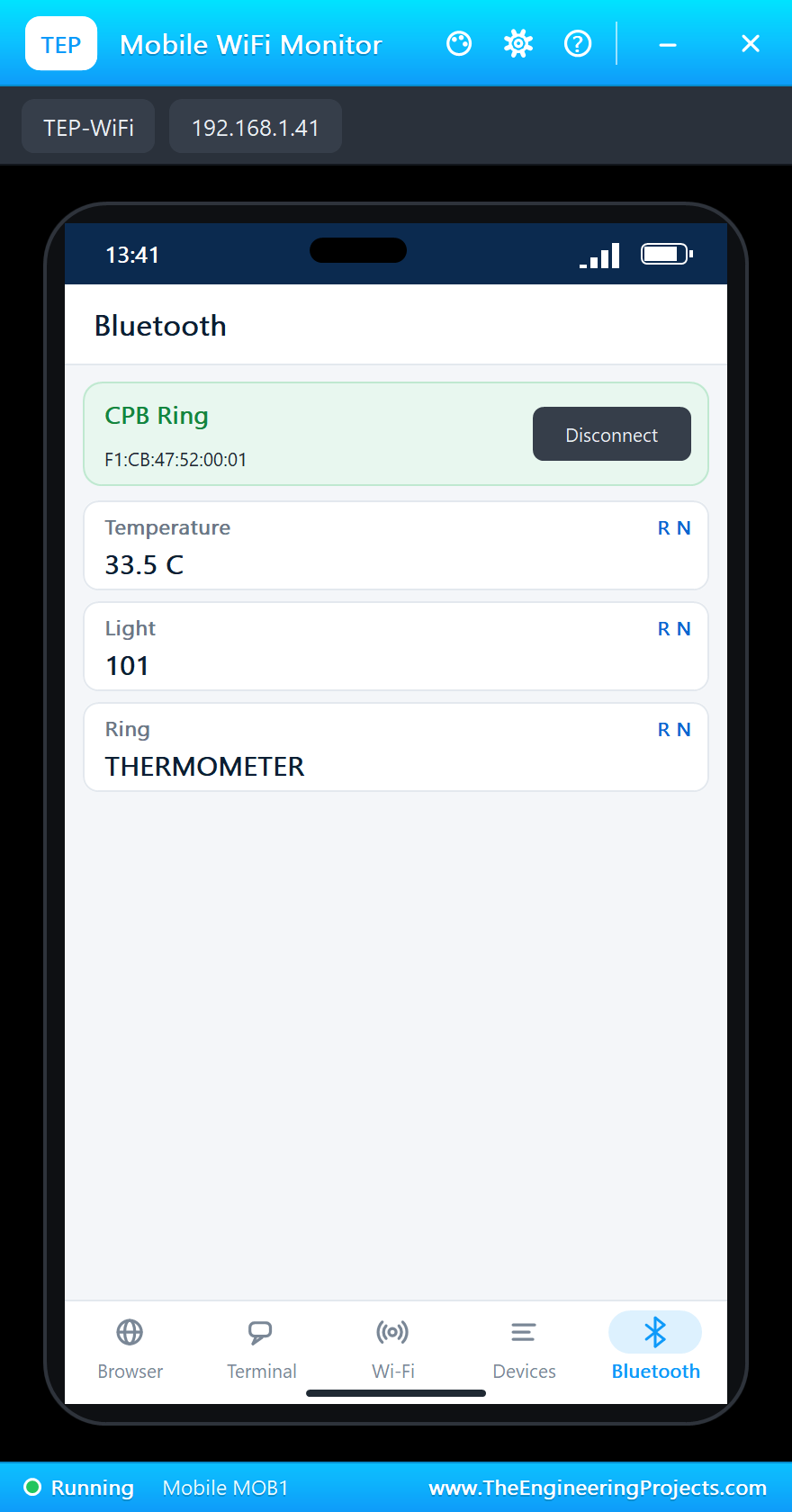
  the phone's Bluetooth app, SCAN, connect: "Phone connected", the red LED lit, the temperature, the light (101)
  and the ring's mode.
* The Sensors window: +10 C: ">> Temperature 33.5 C: 9 pixels" (blue to red); DARK: ">> DARK: the night light
  ON" (all 10 NeoPixels amber); ROOM: ">> Light again: the night light OFF".
* Button A on the board: ">> BUTTON A: RAINBOW" (turning round the ring); SHAKE: ">> SHAKE: a sparkle";
  button B: ">> BUTTON B: the ring OFF", then ON again.
* about 35 s of simulation, no errors, with the phone, the Sensors window and the monitor open.

INSTALLATION (about 3 minutes)
1. Close Proteus. Extract the WHOLE ZIP to a normal folder (e.g. Desktop).
2. Copy everything in "Proteus Library Files" to the LIBRARY folder of Proteus, for example:
     C:\Program Files (x86)\Labcenter Electronics\Proteus 8 Professional\LIBRARY
   (on some PCs: C:\ProgramData\Labcenter Electronics\Proteus 8 Professional\LIBRARY). TEPCPB.LIB is the board;
   TEPMOBILE.LIB is the phone (the demo) and TEPLAPTOP.LIB the laptop, for your own designs.
3. Copy TEPNET.DLL from "Proteus Model Files" to the MODELS folder (...\Proteus 8 Professional\MODELS) - replace an
   older TEPNET.DLL (this one is the first that knows this board).
4. Delete TEPCPB.IDX from the LIBRARY folder if it is there.
5. The Arduino IDE (only to compile your own sketches - the demo has its HEX file): copy the folder
   "Arduino Code\TEP Boards for Proteus\hardware" into your sketchbook folder (normally Documents\Arduino), so that
   Documents\Arduino\hardware\tep\avr\boards.txt exists (replace an older copy); restart the IDE. The Arduino AVR Boards
   platform must be installed (it comes with IDE 1.8.x; in IDE 2.x install "Arduino AVR Boards" from the Boards
   Manager once).
   Tools > Board > TEP Boards for Proteus > Adafruit Circuit Playground Bluefruit (TEP Proteus). The board package
   brings its own Adafruit_CircuitPlayground and ArduinoBLE: do not install Adafruit's Circuit Playground library for
   this board (if the IDE takes it, remove it from Documents\Arduino\libraries).
6. Start Proteus. In Pick Devices (P) search "PLAYGROUND".

RUN THE DEMO
Keep the .hex file and TEPNET.DLL beside the project in "Proteus Simulation".
CPB-BLE-Mood-Ring.pdsprj - U1 the Circuit Playground Bluefruit (CPB_BLE_Mood_Ring.hex) is a Bluetooth LE mood ring; MOB1
is the phone. Press Run. The ring is a thermometer: one pixel for every 2 C above 15 C, from blue to red (4 pixels at
the room's 23.5 C). On the phone open the Bluetooth app, SCAN and connect to "CPB Ring": the red LED lights and the
phone shows the temperature, the light and the ring's mode. In the Sensors window press +10 at Temperature (9 pixels),
then DARK (the whole ring turns into an amber night light) and ROOM again. Click button A on the board for the RAINBOW
(it turns round the ring), SHAKE in the Sensors window for a white sparkle, and button B to switch the ring off and on.
Closed a window? The USB port opens the monitor, the nRF52840 the Sensors window.

THE PINS (the label on the pad, what it can do in the simulation)
  A1, A2, A3      GPIO, PWM, interrupt, analogRead 0 .. 1023 (the core's numbers 6, 9, 10)
  A4 / SCL, A5 / SDA   GPIO, analogRead, Wire (SCL 3, SDA 2)
  A6 / RX, TX     GPIO, Serial1 (RX 0, TX 1); A6 also analogRead
  AUDIO           D12 / A0: the speaker's pad - PWM, tone()
  3.3V, VOUT, GND 3.3 V (the logic), VOUT (USB 5 V), ground
On the board (Adafruit's numbers): button A 4 and B 5 (HIGH when pressed, PIN_BUTTON1 / PIN_BUTTON2), the slide
switch 7, the NeoPixels 8 (PIN_NEOPIXEL, NEOPIXEL_NUM 10), the speaker amplifier 11, the red LED 13 (LED_BUILTIN,
lit when HIGH), the light sensor A8 (22) and the thermistor A9 (23). Serial is the USB: the board's built-in monitor.

PROPERTIES (double-click the part > Edit Properties)
  PROGRAM      the sketch's HEX (Arduino IDE: Sketch > Export Compiled Binary, board Adafruit Circuit Playground
               Bluefruit (TEP Proteus))
  MONITOR      YES = the built-in serial monitor on Serial;  BAUD  its speed (115200, or AUTO)
  AUTOOPEN     YES = the monitor window opens at Run (the demo: YES)
  TEMPERATURE  the room at Run (C) - the Sensors window starts there (the demo: 23.5)

TROUBLESHOOTING
* The NeoPixels stay dark: call CircuitPlayground.begin() first; setPixelColor on CircuitPlayground shows at once,
  on CircuitPlayground.strip call strip.show().
* A button never reads pressed: the buttons read HIGH when pressed (not LOW).
* The light never reads DARK: set DARK in the Sensors window (a click on the nRF52840 opens it).
* Two "Adafruit_CircuitPlayground" libraries: remove Adafruit's copy from Documents\Arduino\libraries for this board.
* An integer goes wrong above 32767: int is 16 bits in the simulation - use long.

BUG REPORTS AND FEATURE REQUESTS
Please post them in our forum with a screenshot and the Serial Monitor text:
  https://www.theengineeringprojects.com/forum

LICENCES AND THIRD-PARTY NOTES
* The board model (TEPNET.DLL), the symbols and artwork (TEPCPB.LIB) and the board package's Adafruit_CircuitPlayground
  (written by us with the names of Adafruit's library, MIT) are made by The Engineering Projects. The source code of the
  models is not included.
* TEP Boards for Proteus (Arduino Code): its core, the variants and the EEPROM, SPI and Wire libraries are modified
  copies of the Arduino AVR core 1.8.6 - GNU Lesser General Public License 2.1 (LGPL 2.1, the text:
  LICENSE-LGPL-2.1.txt); its WiFi, WebServer, ArduinoBLE, the sensor libraries and the others and our core files are
  MIT (LICENSE-MIT.txt).
* Proteus is a product of Labcenter Electronics and is not included. Circuit Playground, Bluefruit and NeoPixel are
  names
  of Adafruit Industries, nRF52840 of Nordic Semiconductor ASA, Arduino of Arduino. This library is not made or endorsed
  by them or by Labcenter.

REBUILDING THE FIRMWARE (OPTIONAL)
The HEX file is supplied. Install TEP Boards for Proteus (INSTALLATION step 5), open Arduino Code\CPB_BLE_Mood_Ring,
select Adafruit Circuit Playground Bluefruit (TEP Proteus) and use Sketch > Export Compiled Binary. For a real board use
Adafruit's nRF52 board package with Adafruit's Circuit Playground library (and Bluefruit or ArduinoBLE-compatible code
for Bluetooth); its pads work at 3.3 V.

MODEL SCOPE AND LIMITS
Modelled: the 14 pads; digital I/O, analogRead 0 .. 1023, PWM (analogWrite), tone and attachInterrupt through the board
model; Serial (the board's monitor), Serial1, Wire and SPI; the 10 NeoPixels, buttons A / B, the red LED and RESET; the
light sensor, the thermistor and the accelerometer through the Sensors window; Bluetooth LE with the phone as the
central.
Not modelled: the nRF52840 itself, the slide switch (reads the left position), the microphone, capacitive touch, the
speaker's sound, the QSPI flash, the battery and its charger. The simulation runs below real time.

VERSION
TEP Circuit Playground Bluefruit library V1.0 (Nov 2026). Device CIRCUIT PLAYGROUND BLUEFRUIT (TEPCPB.LIB / TEPNET.DLL),
TEP Boards for Proteus 1.98.0 (adds this board: the NeoPixel ring, Adafruit_CircuitPlayground, buttons A / B, the
Sensors window's light, temperature and movement).
Demo sketch CPB_BLE_Mood_Ring V1.0. Demo parts: the board and our phone (MOBILE WIFI MONITOR).Development1 release
 Development1 release
-
V1.0Circuit Playground Bluefruit Library for Proteus V1.0this page
V1.0 is the only release in the Download Center so far. When a newer version is published, it appears above with its own download page.
Installation10 steps
 Installation10 steps
From the download to a working project, in order. The steps follow what the package contains.
You will need
- Proteus Design SuiteProteus 8 or newer (Labcenter), on Windows
- Arduino IDE1.8 or 2.x, with the board of the tutorial chosen under Tools → Board
- The compiler named in the tutorialto build the source files into firmware
- Any archive toolWindows, macOS and Linux extract ZIP files on their own

Steps
- 1
Extract the archive
Right-click 17888e001bb444a69bf0b030285b4794.zip and choose Extract All (or open it with 7-Zip or WinRAR) into a folder you can find again. Keep its folder structure (Circuit-Playground-Bluefruit-TEP-v1.0) as it is.
- 2
Copy the library files into Proteus
Move TEPCPB.LIB, TEPLAPTOP.LIB and TEPMOBILE.LIB and the files into the LIBRARY folder of your Proteus installation: C:\Program Files (x86)\Labcenter Electronics\Proteus 8 Professional\LIBRARY for Proteus 8, or the matching Proteus 7 folder. Older versions keep it under ProgramData\Labcenter Electronics. If Proteus is open, close it first.
- 3
Add the simulation model
Copy TEPNET.DLL into the MODELS folder next to LIBRARY, so the component can run, not only be drawn.
- 4
Restart Proteus and place the component
Start Proteus, open a schematic, press P (Pick Devices) and search for the component by the name used in the tutorial. It appears with its pins ready to wire.
- 5
Install the Arduino library
In the Arduino IDE choose Sketch → Include Library → Add .ZIP Library and pick the library, or copy its folder into Documents\Arduino\libraries. Restart the IDE to see its examples.
- 6
Open the sketch in the Arduino IDE
Open CPB_BLE_Mood_Ring.ino, eeprom_clear.ino and eeprom_crc.ino and 17 more, select your board and port under Tools, then Verify. Sketch → Export Compiled Binary writes the HEX file a simulation needs.
- 7
Build the source code
Open abi.cpp, Arduino.h and binary.h and 52 more in the compiler named in the tutorial (MikroC, Keil, MPLAB, Code Composer or the Arduino IDE) and build it to get the firmware.
- 8
Load the HEX file
In Proteus double-click the microcontroller, set Program File to CPB_BLE_Mood_Ring.hex and run the simulation. For real hardware, flash the same file with your programmer.
- 9
Open the example simulation
Open CPB-BLE-Mood-Ring.pdsprj in Proteus to see the wiring exactly as in the tutorial. Check the controller's Program File path, then press Play.
- 10
Follow the tutorial
Circuit Playground Bluefruit Library for Proteus Simulation explains every connection and setting in order; keep it open beside the files while you build.
FAQs9 questionsContact TEP
 FAQs9 questions
How do I download Circuit Playground Bluefruit Library for Proteus V1.0?
Wait for the 30-second guest countdown on this page, then press the download button; the file comes straight from our storage. Members who are logged in skip the wait. If the browser opens the file instead of saving it, use its Save as option. The download link is made for you when the countdown ends and works for 15 minutes; a saved or shared link stops working, so share this page instead.
What is inside the archive?
Circuit Playground Bluefruit Library for Proteus V1.0 comes as a ZIP archive of 334 files (3.3 MB, 7.5 MB unpacked) holding Proteus library files, simulation model DLLs, a Proteus simulation, an Arduino sketch, an Arduino library, compiled HEX firmware and source code. Open the File Structure tab for the full list of 334 files.
What should I do if the download does not start?
Check the browser's download list first; an ad blocker or a company firewall can also hold it back, so try another browser or network. If the file arrives incomplete, download it again. For an installation problem, read the Install tab or tell us in the comments with your software version and the exact error message.
Is this file free?
Yes. Every file in the TEP Download Center is free for learning, personal and student projects. If you share it, link back to this page or the tutorial so others find the latest version.
How do I check that the file arrived complete?
Compare its SHA-256 with the one on this page, 9dd16b07087faa99a93fa8a8714f5af9d4e4270e2b05bfc9d624de1997d5a0c4. In PowerShell run Get-FileHash "17888e001bb444a69bf0b030285b4794.zip"; on macOS or Linux run shasum -a 256 "17888e001bb444a69bf0b030285b4794.zip". The same value means the file is exactly the one in our storage; a different one means the download broke off, so download it again.
Do I need WinRAR to open the ZIP file?
No. Windows, macOS and Linux open ZIP archives on their own (Extract All, or double-click). WinRAR and 7-Zip work too. Extract the whole archive before using the files.
Where do I put the LIB and IDX files?
Both files go into the LIBRARY folder of your Proteus installation (Proteus 8: C:\Program Files (x86)\Labcenter Electronics\Proteus 8 Professional\LIBRARY; Proteus 7 has the same folder under its own name). Restart Proteus afterwards and search for the component with P.
Which Proteus version does the library need?
The tutorial names the Proteus version the library was made and tested with. Most TEP libraries work in Proteus 7 and Proteus 8; if the component does not appear after a restart, check that both the LIB and the IDX file were copied and that Proteus was fully closed while copying.
How do I get the HEX file into the simulation?
Compile the sketch in the Arduino IDE (Sketch → Export Compiled Binary gives you the HEX next to the sketch), then in Proteus double-click the board, set Program File to that HEX and run.
Members skip the wait. Log in or join TEP.

- 0Total downloads
- 4%Popularity
- ProteusCategory
- 0Comments
- ssyedzainnasirUploaded by
- 24 Nov 2026Uploaded at


 SHA-256
9dd16b07087faa99a93fa8a8714f5af9d4e4270e2b05bfc9d624de1997d5a0c4


 Need help with this file?
 Tags
Related Proteus
All Proteus tutorials




Comments
0