


Project Files of IoT Smart Weighing Scale with ESP32 - Proteus Simulation
 Libraries
 Code
 Projects
 Simulation
esp32-smart-scale-tep-v1-0-21adce2329fe4c11beb92db3c36b8b15.zip

IoT Smart Weighing Scale with ESP32 - Proteus Simulation V1.0
IoT Smart Weighing Scale with ESP32 - Proteus Simulation V1.0 comes as a ZIP archive of 24 files (4.4 MB, 10.0 MB unpacked) holding Proteus library files, simulation model DLLs, a Proteus simulation, an Arduino sketch and compiled HEX firmware.
- LIBProteus library
- DLLProteus model
- DSNProteus simulation
- INOArduino sketch
- HEXHEX firmware
Description
IoT-Smart-Weighing-Scale-ESP32-Proteus-Simulation-v1.0.zip: the complete Proteus simulation project (ESP32 DevKit V1, HX711 and a 5 kg load cell, a 4x4 keypad, an I2C LCD 20x4, LEDs, the Laptop and Mobile WiFi Monitors), the ESP32 sketch and its HEX file, every LIB and DLL the simulation needs, and a README.

File Structure
 File Structure
12.6 KB36.6 KB90.7 KB205.4 KB162.5 KB39.5 KB21.8 KB13.1 KB306.9 KB313.5 KB300.5 KB409 KB289.5 KB2.9 MB311 KB38.5 KB83 KB313.5 KB300.5 KB409 KB289.5 KB2.9 MB311 KB10.5 KBGallery12 images from the tutorialOpen the tutorial
 Gallery12 images from the tutorial
The circuit, the board and the results as they appear in IoT Smart Weighing Scale with ESP32 - Proteus Simulation. Open an image for its full size.
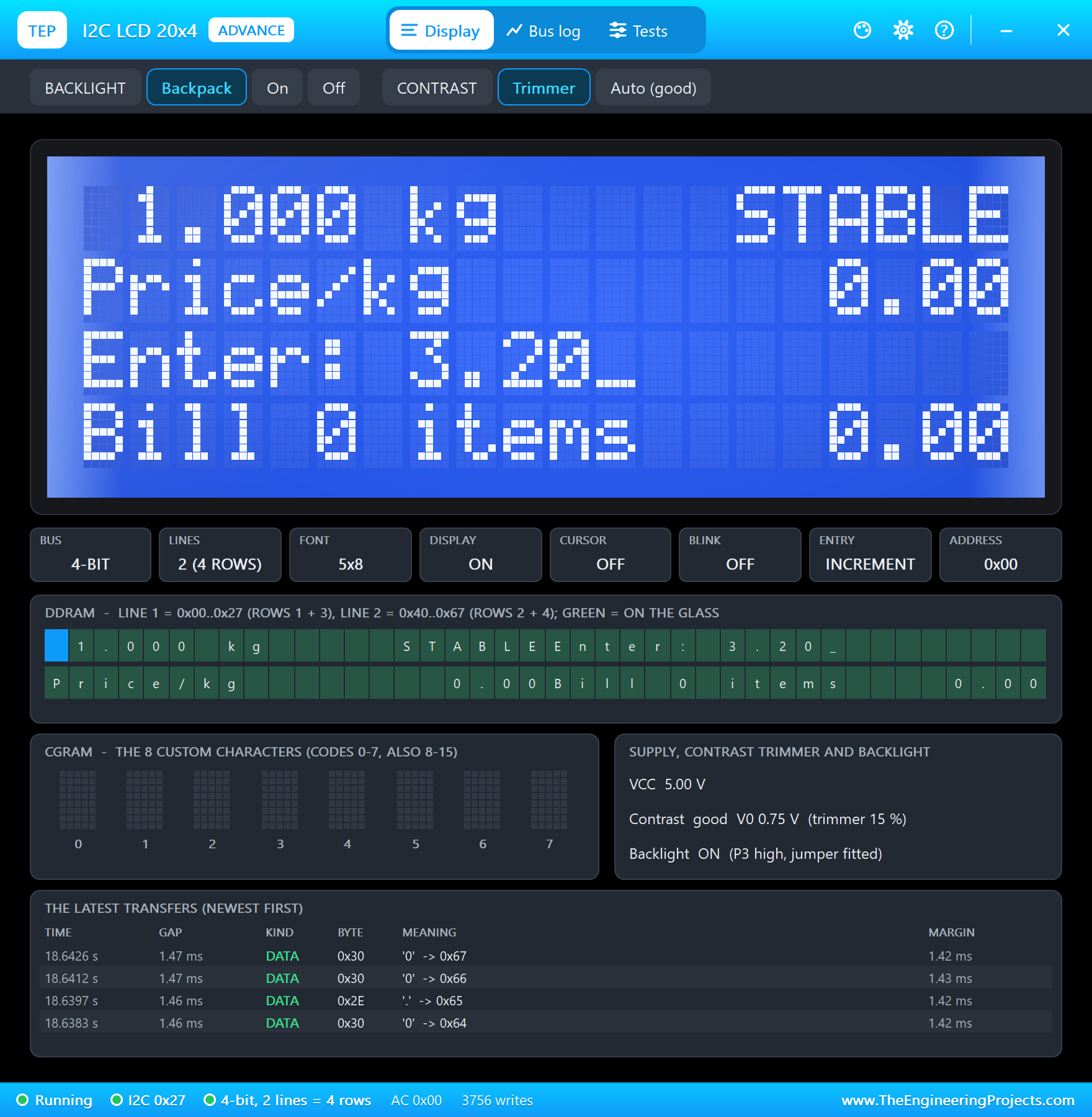
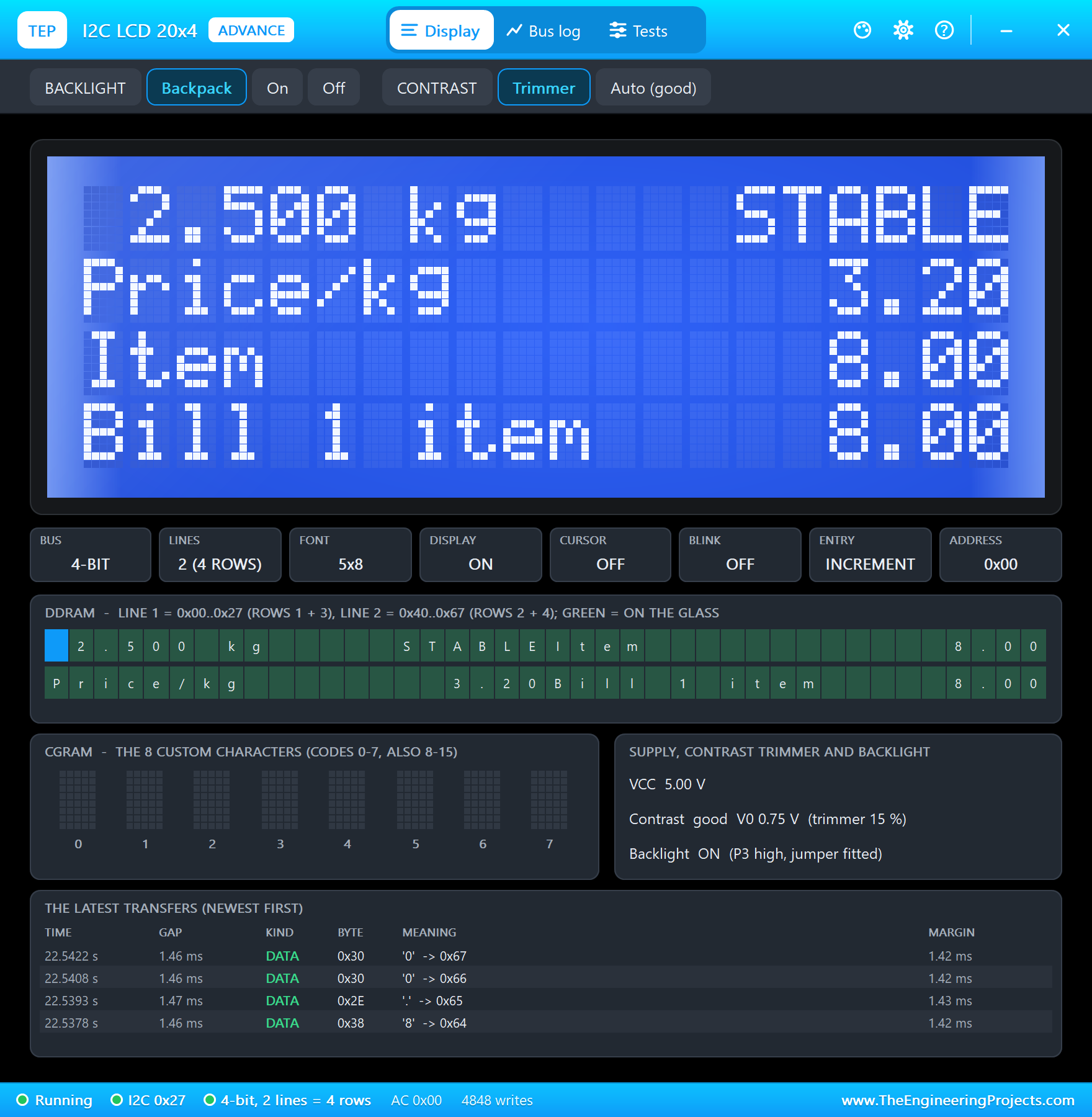
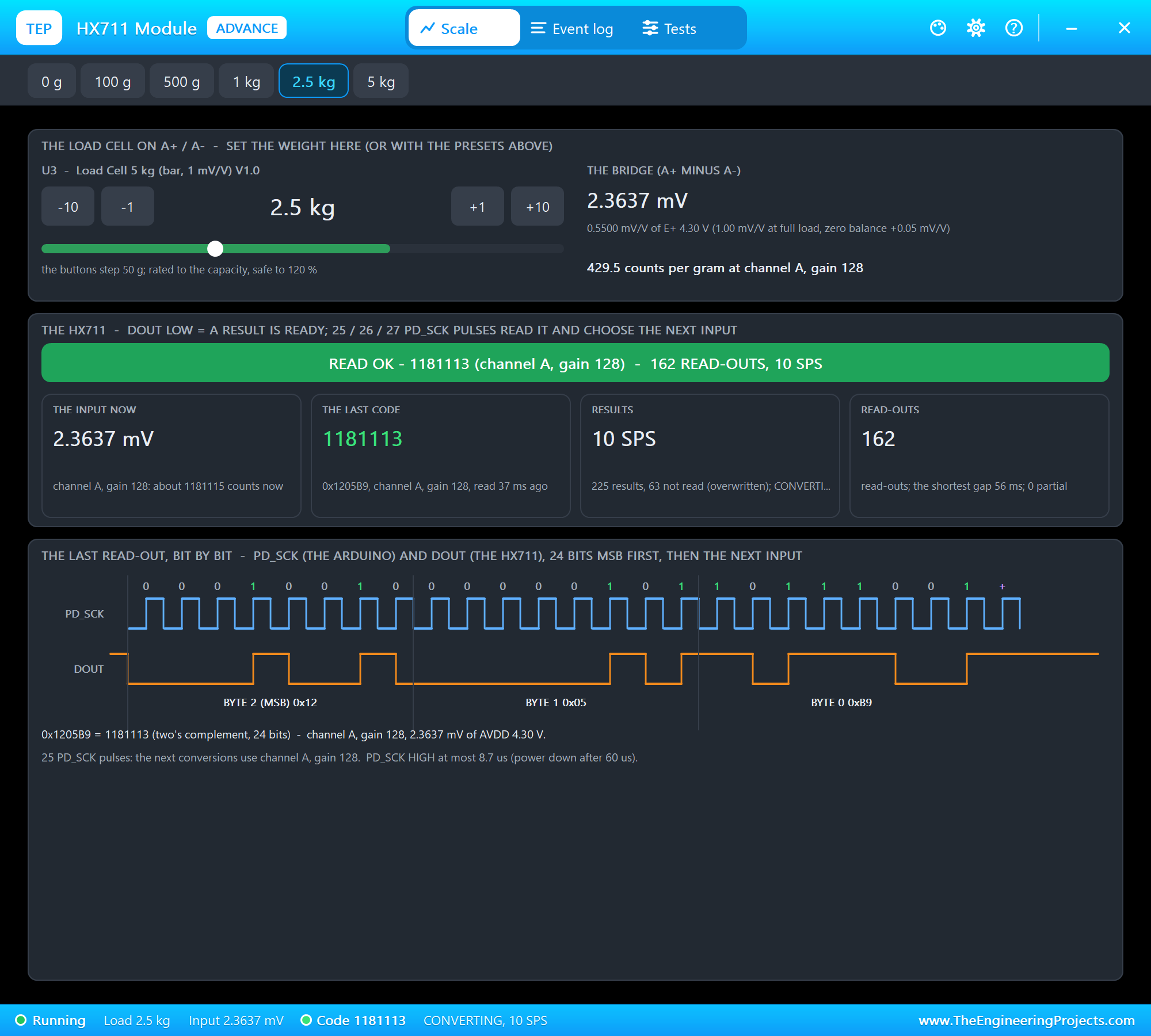
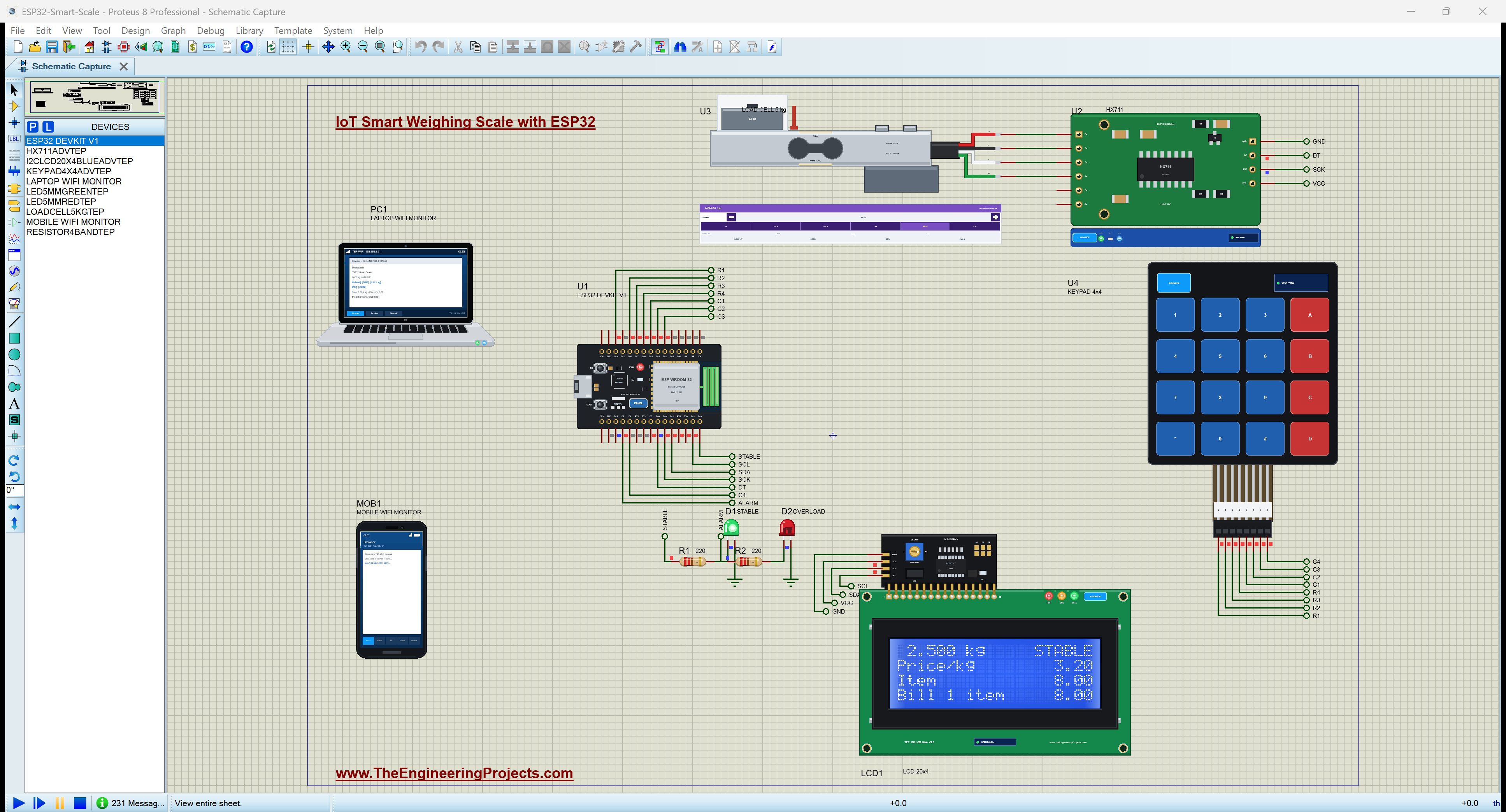
README
 README
===============================================================================================================
  IoT Smart Weighing Scale with ESP32 - Proteus Simulation Project V1.0
  The Engineering Projects - www.TheEngineeringProjects.com
===============================================================================================================

IMPORTANT LINKS
  The project tutorial (circuit, code, simulation results):
    https://www.theengineeringprojects.com/2026/11/iot-smart-weighing-scale-esp32-proteus-simulation.html
  The libraries this project is built from (each post has its own full download and tutorial):
    ESP32 DevKit V1 board:
      https://www.theengineeringprojects.com/2026/10/esp32-devkit-v1-library-for-proteus-v2-0.html
    HX711 module and load cells:
      https://www.theengineeringprojects.com/2026/10/hx711-load-cell-library-for-proteus-v1-0.html
    Membrane keypad 4x4:
      https://www.theengineeringprojects.com/2026/10/membrane-keypad-library-for-proteus-v1-0.html
    I2C LCD 20x4:
      https://www.theengineeringprojects.com/2026/10/i2c-lcd-20x4-library-for-proteus-v1-0.html
    5mm LED:
      https://www.theengineeringprojects.com/2026/11/5mm-led-library-for-proteus.html
    Resistor:
      https://www.theengineeringprojects.com/2026/11/resistor-library-for-proteus.html
    Laptop WiFi Monitor:
      https://www.theengineeringprojects.com/2026/10/laptop-wifi-monitor-library-for-proteus.html
    Mobile WiFi Monitor:
      https://www.theengineeringprojects.com/2026/10/mobile-wifi-monitor-library-for-proteus.html
  Support our free work: https://www.theengineeringprojects.com/donate

FILE STRUCTURE
ESP32-Smart-Scale-TEP-v1.0/
|-- Proteus Library Files/
|   |-- TEPESP32V1.LIB                                 36.6 KB   a part of the project -> LIBRARY folder
|   |-- TEPHX711.LIB                                   90.7 KB   a part of the project -> LIBRARY folder
|   |-- TEPI2CLCD20X4.LIB                             205.4 KB   a part of the project -> LIBRARY folder
|   |-- TEPKEYPAD.LIB                                 162.5 KB   a part of the project -> LIBRARY folder
|   |-- TEPLAPTOP.LIB                                  39.5 KB   a part of the project -> LIBRARY folder
|   |-- TEPLED5MM.LIB                                  21.8 KB   a part of the project -> LIBRARY folder
|   |-- TEPMOBILE.LIB                                  13.1 KB   a part of the project -> LIBRARY folder
|   |-- TEPRESISTOR.LIB                               306.9 KB   a part of the project -> LIBRARY folder
|-- Proteus Model Files/
|   |-- TEPHX711.DLL                                  313.5 KB   a model -> MODELS folder
|   |-- TEPKEYPAD.DLL                                 300.5 KB   a model -> MODELS folder
|   |-- TEPLCD.DLL                                    409.0 KB   a model -> MODELS folder
|   |-- TEPLED5MM.DLL                                 289.5 KB   a model -> MODELS folder
|   |-- TEPNET.DLL                                     2.89 MB   a model -> MODELS folder
|   |-- TEPRESISTOR.DLL                               311.0 KB   a model -> MODELS folder
|-- Proteus Simulation/
|   |-- ESP32_Smart_Scale.hex                          83.0 KB   the firmware
|   |-- ESP32-Smart-Scale.pdsprj                       38.5 KB   the project simulation
|   |-- TEPHX711.DLL                                  313.5 KB   copy of the model
|   |-- TEPKEYPAD.DLL                                 300.5 KB   copy of the model
|   |-- TEPLCD.DLL                                    409.0 KB   copy of the model
|   |-- TEPLED5MM.DLL                                 289.5 KB   copy of the model
|   |-- TEPNET.DLL                                     2.89 MB   copy of the model
|   |-- TEPRESISTOR.DLL                               311.0 KB   copy of the model
|-- Arduino Code/
|   |-- ESP32_Smart_Scale/ESP32_Smart_Scale.ino        12.6 KB   the sketch (source of the .hex)
|-- README.txt                                        ~10.5 KB   this file
Total: 9.95 MB (unzipped). The C++ source code of the models is not included.

WHAT IS IT?
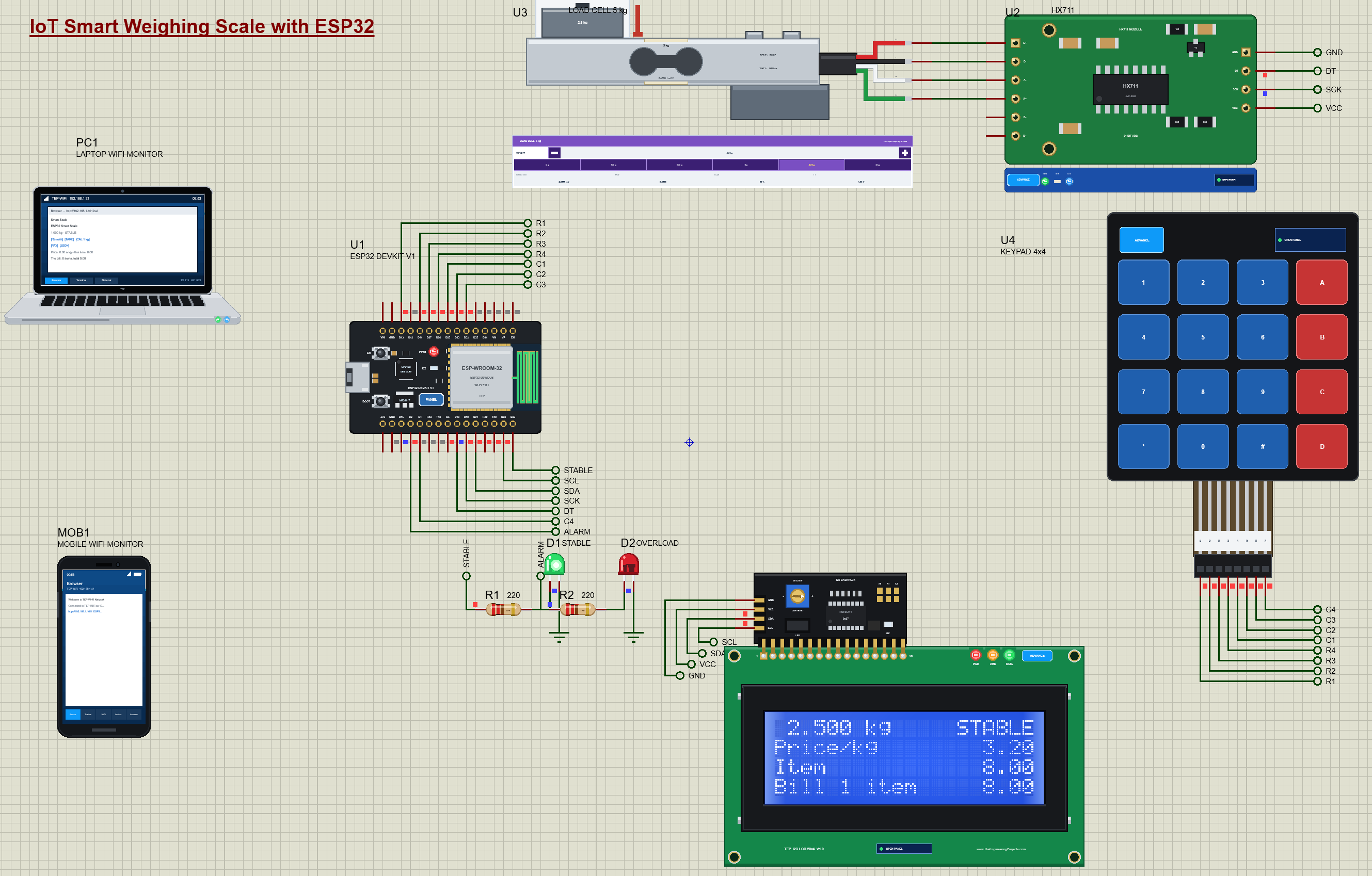
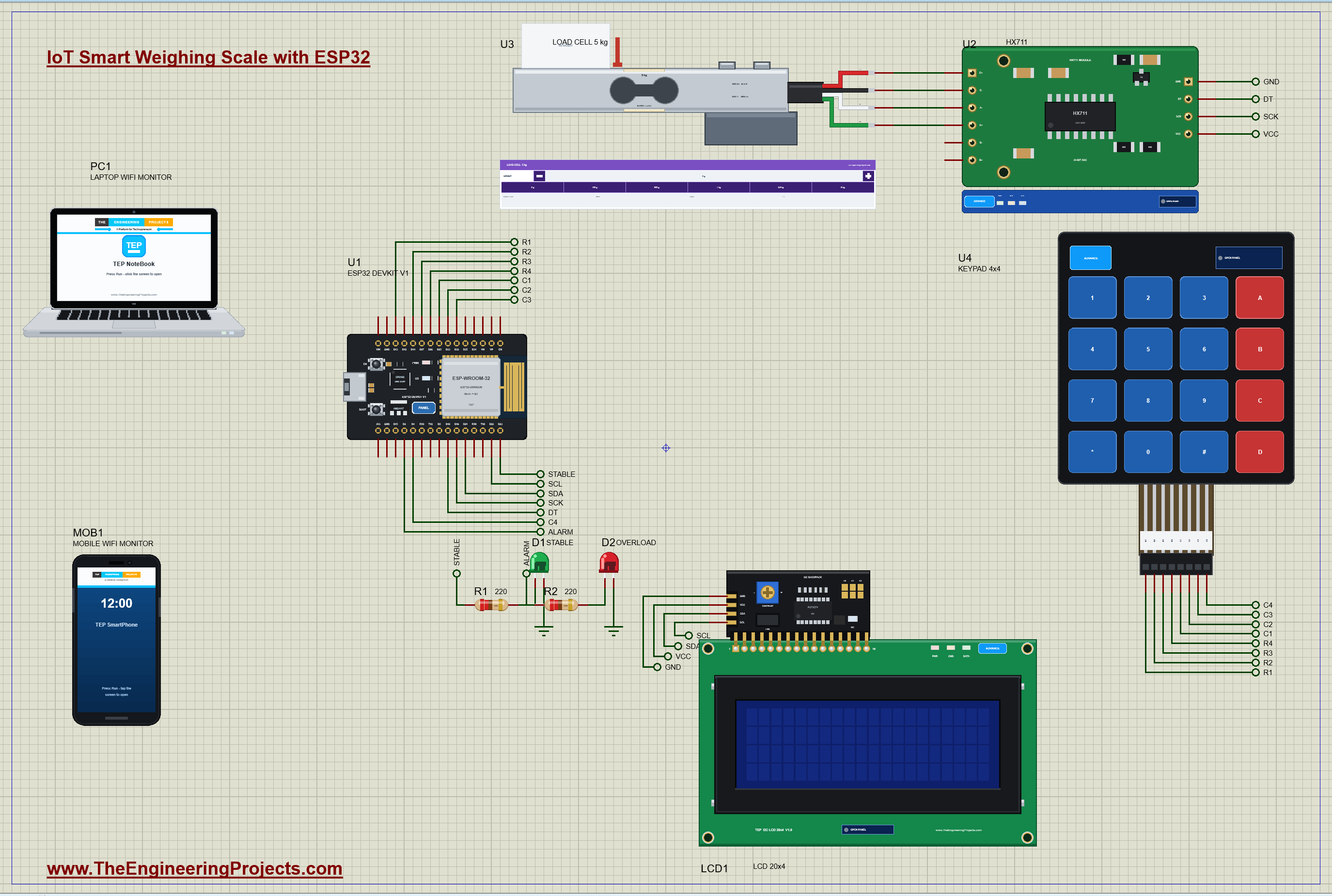
  A complete IoT price-computing scale you can run in Proteus: an ESP32 DevKit V1 weighs with a load cell, takes the
  price per kg from a keypad, works out each item's price, adds the items to a bill and shows it all on an LCD and on
  a web page for a laptop or a phone.
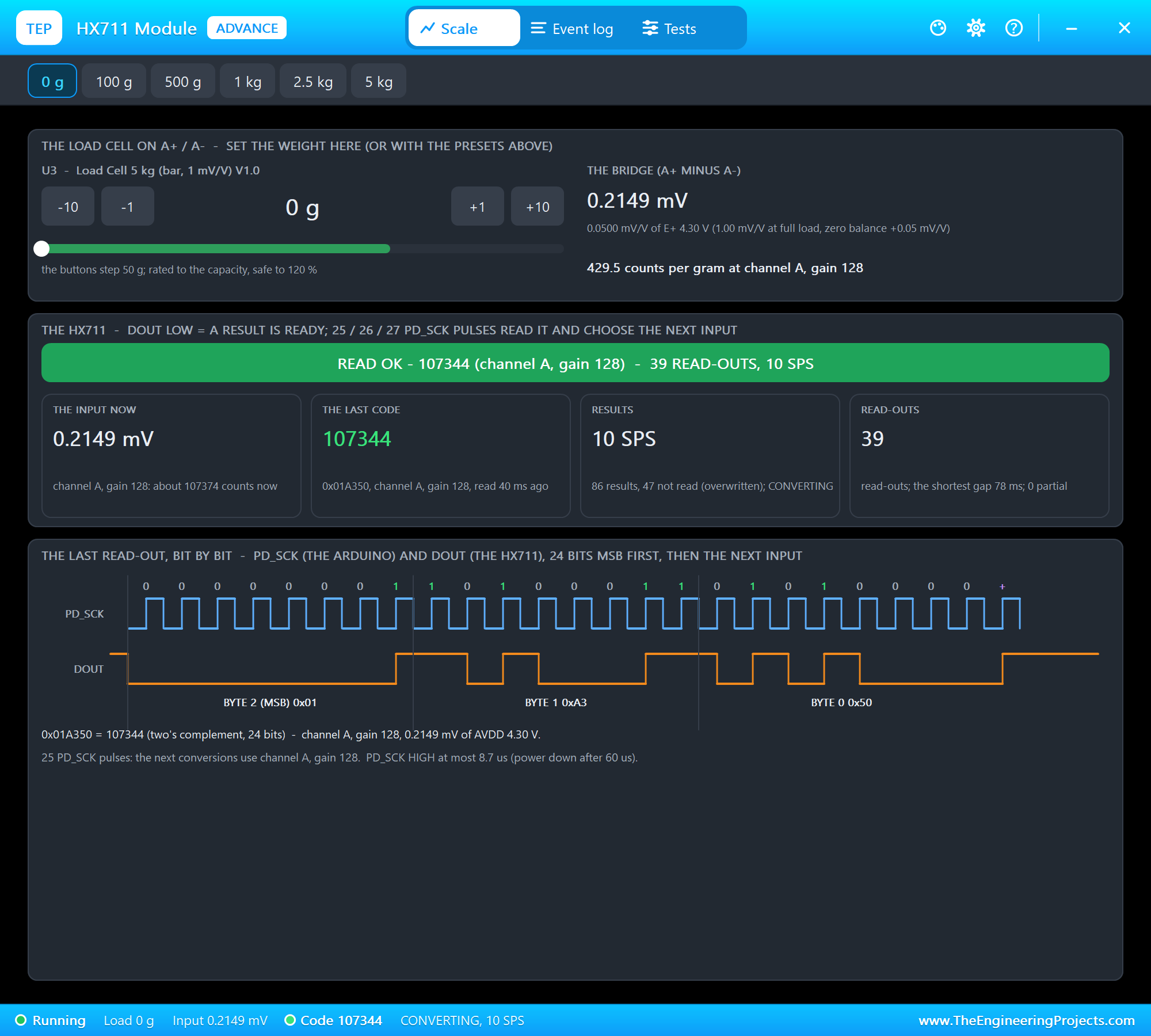
    * HX711 module (HX711ADVTEP, U2) on 5 V: DT on D18, SCK on D19, read with the sketch's own code (24 bits, then a
      25th pulse for channel A at gain 128). U3 = the 5 kg bar load cell (LOADCELL5KGTEP, 1 mV/V) on its E+ / E- /
      A- / A+ (red, black, white, green). 429.5 counts a gram in theory and as measured with CAL 1 kg.
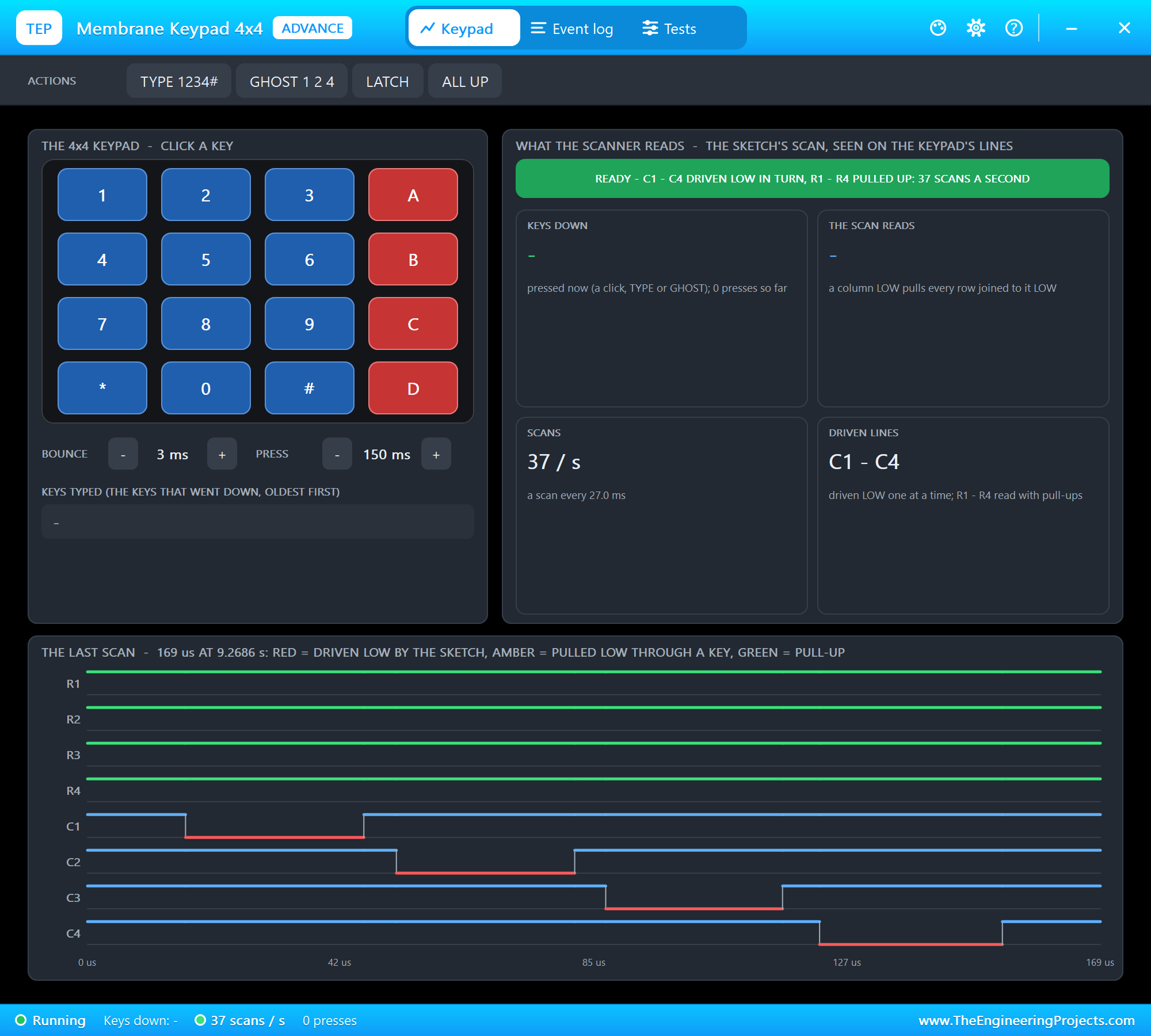
    * Membrane keypad 4x4 (KEYPAD4X4ADVTEP, U4): rows R1 - R4 on D13, D14, D27, D26 (inputs with pull-ups), columns
      C1 - C4 on D25, D33, D32, D4 (one at a time LOW), scanned 50 times a second.
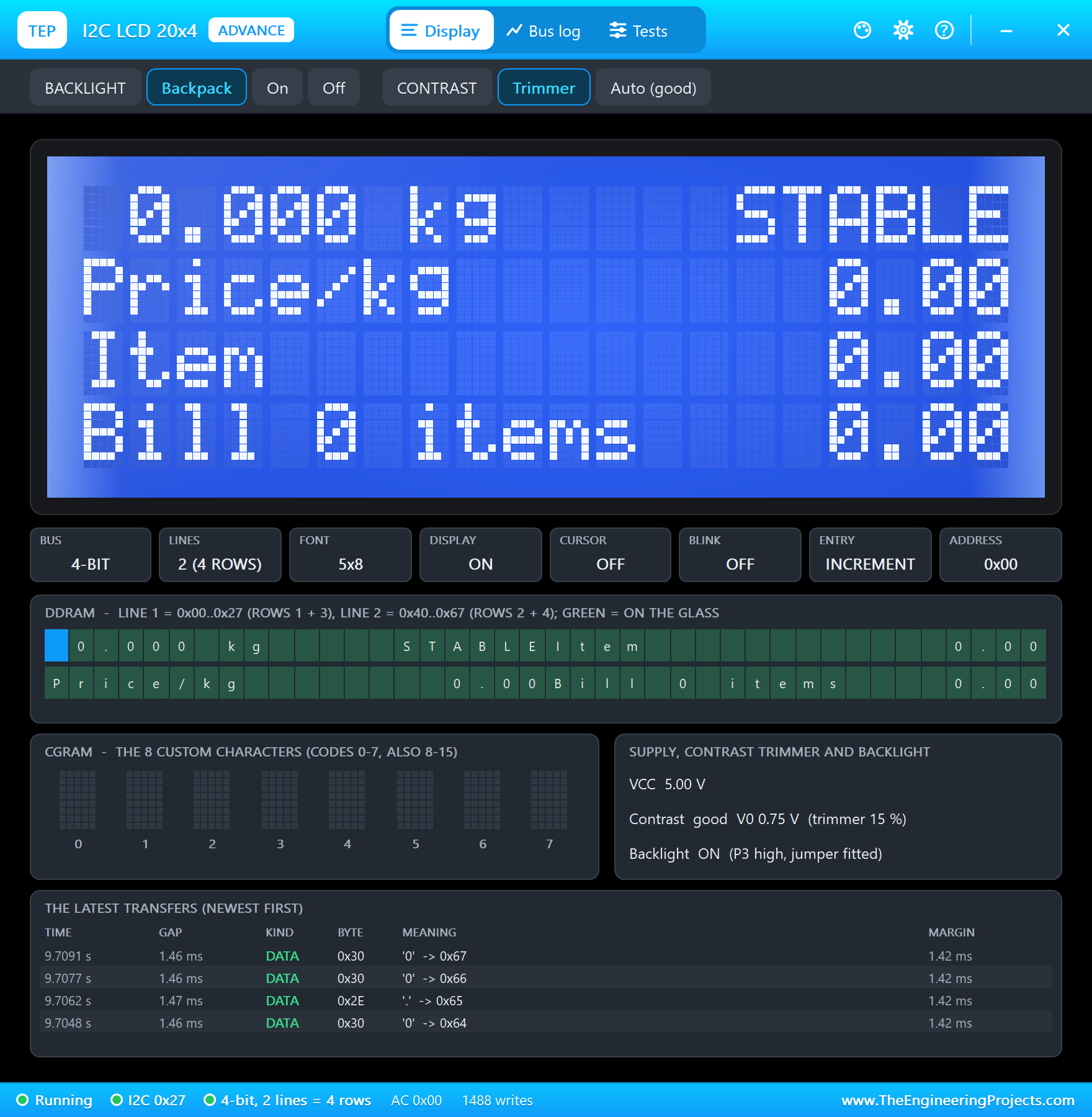
    * I2C LCD 20x4 (I2CLCD20X4BLUEADVTEP, LCD1) at 0x27 on 5 V: SDA D21, SCL D22.
    * Green LED on D23 (the weight is stable) and red LED on D2 (overload), each through 220 ohm.
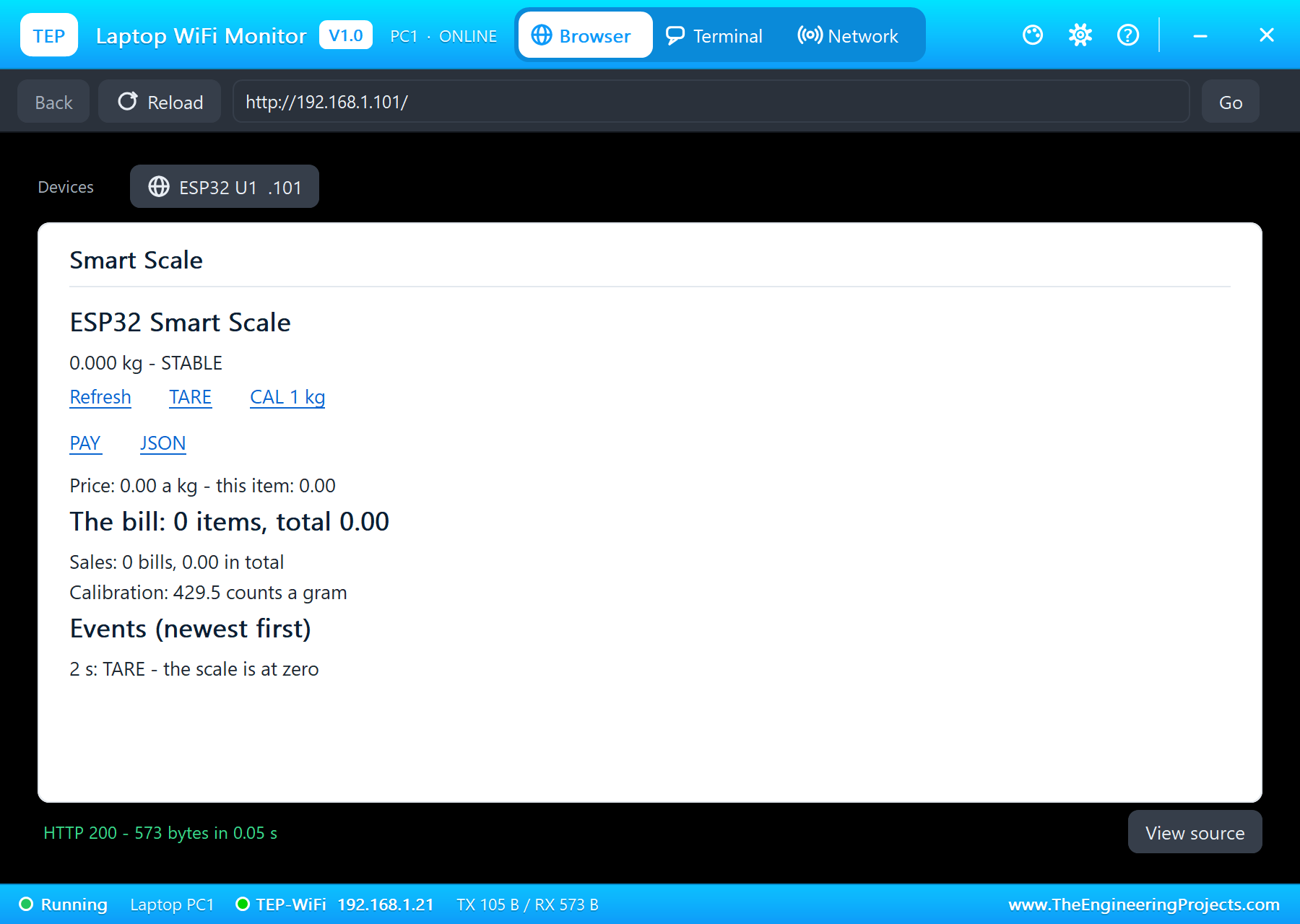
    * Laptop WiFi Monitor (PC1) and Mobile WiFi Monitor (MOB1) open the dashboard at http://192.168.1.101/.
  The keys: 0 - 9 and * (the decimal point) type a number; A = set the price per kg; B = tare; C = clear the number;
  D = add the item on the scale to the bill (only when stable); # = the bill is paid, start a new one.
  The weight is the average of the last 5 readings (half a second); STABLE when they lie within 4 g; OVERLOAD above
  5 kg (50 g of hysteresis either way). Its pages:
    /            the dashboard: the weight, the price, the bill with its items, the sales, the calibration, the events
    /tare        zero the scale (the same as B)
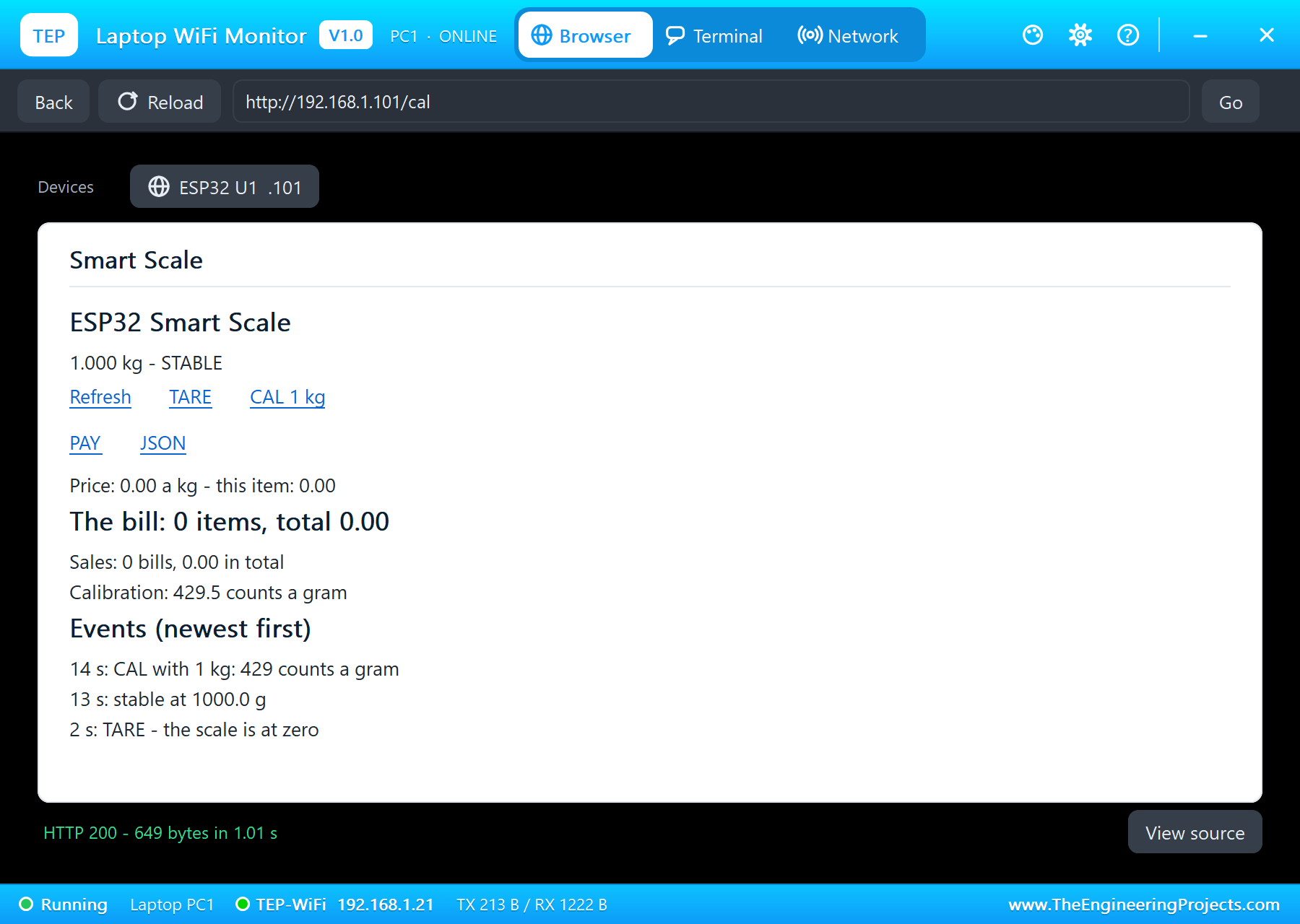
    /cal         calibrate with exactly 1 kg on the scale (after a tare with it empty)
    /pay         the bill is paid (the same as #)
    /data        everything as JSON

TEST STATUS
  Tested in Proteus 8 Professional on Windows 11, the run that made the tutorial's screenshots (simulation times):
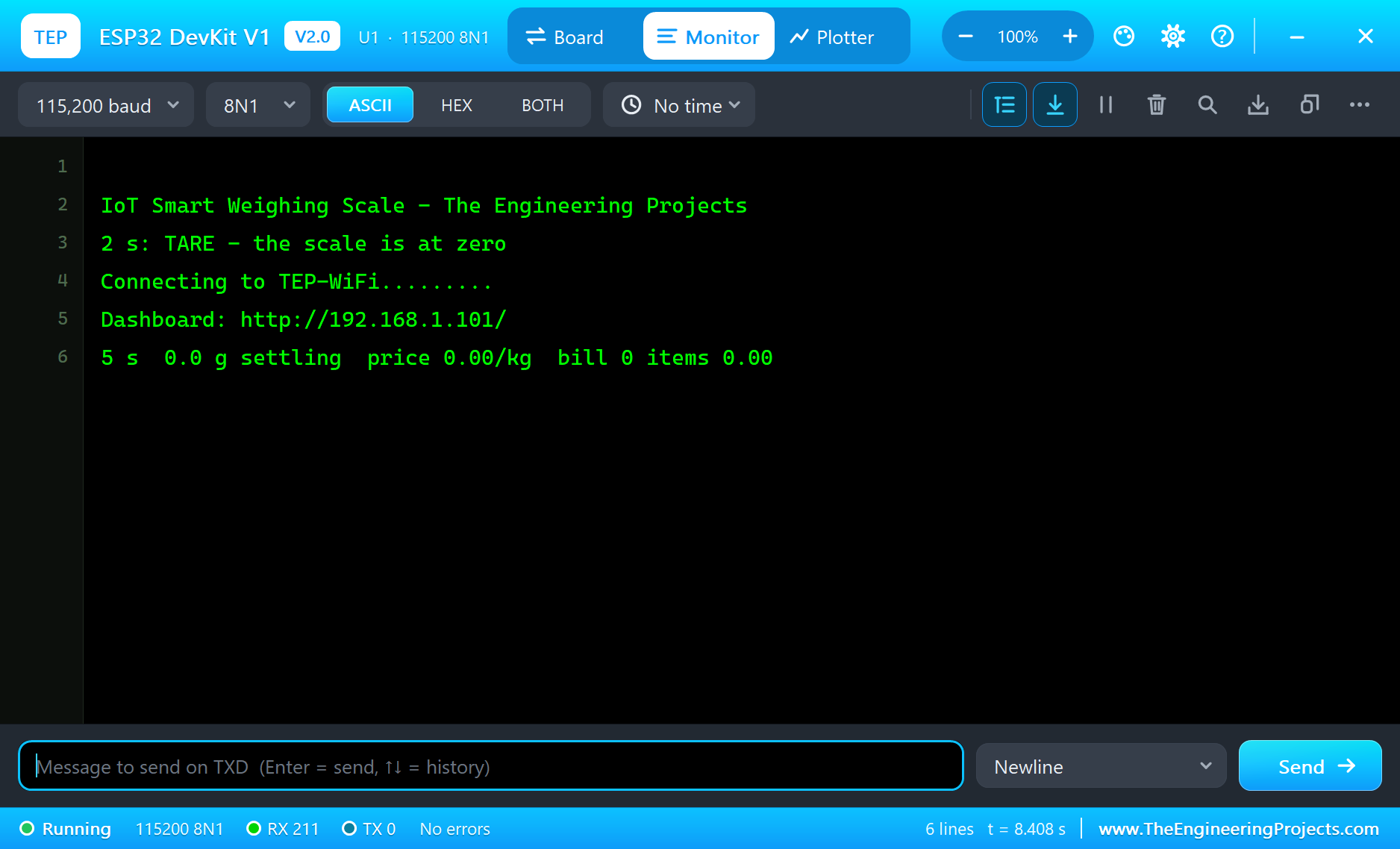
    * 2 s: TARE - the scale is at zero; TEP-WiFi joined, the dashboard at http://192.168.1.101/; 0.000 kg, STABLE.
    * 1 kg (the HX711 pop-up): stable at 1000.0 g; CAL 1 kg from the laptop: 429 counts a gram (429.5 on the page).
    * The keypad: 3 * 2 0 A - "price set to 3.20 a kg"; 2.5 kg: stable at 2500.1 g; D - "item 1: 2.500 kg x 3.20 =
      8.00". 1 * 8 A - 1.80 a kg; 500 g: stable at 500.1 g; D - "item 2: 0.500 kg x 1.80 = 0.90"; the bill 2 items,
      total 8.90 on the laptop and the phone; # - "bill 1 paid: 2 items, total 8.90".
    * 5 kg, then +500 g: "OVERLOAD - more than 5 kg on the scale", 5.500 kg, the red LED on; 0 g: the overload gone.
    * A 100 g bowl, B: TARE; 1 kg in the bowl: stable at 900.0 g net.
  49 s of simulation took about 11 minutes on our PC with all the captures.

INSTALLATION
  1. Close Proteus. Extract the WHOLE zip file, for example to your Desktop.
  2. Copy the files from "Proteus Library Files" into the LIBRARY folder of Proteus, for example
     C:\Program Files (x86)\Labcenter Electronics\Proteus 8 Professional\LIBRARY
  3. Copy the files from "Proteus Model Files" into the MODELS folder (next to LIBRARY).
  4. Start Proteus. Press P in the schematic and search for ESP32 DEVKIT V1, HX711ADVTEP or KEYPAD4X4ADVTEP to check
     that the parts are there.

RUN THE SIMULATION
  1. Open "Proteus Simulation\ESP32-Smart-Scale.pdsprj". Keep the .hex and .DLL files beside it.
  2. Press Play. The scale tares itself with nothing on it (keep the load cell at 0 g), joins TEP-WiFi and shows
     0.000 kg on the LCD.
  3. Open the Laptop WiFi Monitor (PC1) or the Mobile WiFi Monitor (MOB1) and press Go. Press Refresh to update it.
  4. In the keypad's pop-up (U4) type a price, for example 3 * 2 0, then A.
  5. In the HX711's pop-up (U2) put a weight on the load cell (0 g, 100 g, 500 g, 1 kg, 2.5 kg, 5 kg, or the
     - / + buttons, 50 g and 500 g steps). When the LCD says STABLE, press D; press # when the bill is paid.
  Your own sketch: the source is in "Arduino Code". Install the TEP Boards for Proteus add-on from the ESP32 DevKit V1
  post, and the LiquidCrystal I2C library from the Arduino Library Manager; choose Tools > Board > ESP32 DevKit V1
  (TEP Proteus), export the compiled binary and set the board's PROGRAM property to the new .hex file. The same
  sketch runs on a real ESP32 Dev Module (power the HX711 from 3.3 V there and level-shift the LCD's I2C lines).

PROPERTIES USED IN THIS PROJECT
  U1 ESP32 DEVKIT V1   PROGRAM=ESP32_Smart_Scale.hex
  U2 HX711ADVTEP       (no changes: 10 SPS, channel A, gain 128)
  U3 LOADCELL5KGTEP    WEIGHT=0 (the HX711 pop-up sets it)
  U4 KEYPAD4X4ADVTEP   (no changes: BOUNCE 3 ms, PRESS 150 ms)
  LCD1                 ADDRESS=0x27
  PC1, MOB1            HOMEPAGE=http://192.168.1.101/

TROUBLESHOOTING
  * The weight reads negative: A+ and A- are swapped, or something was on the scale at the start-up tare.
  * The weight never says STABLE: the readings move more than 4 g; check the load cell's wires.
  * No key works: the rows and the columns are swapped (rows on D13 D14 D27 D26), or the rows have no pull-ups.
  * The LCD stays blank: its address is not 0x27, or SDA / SCL are swapped.
  * "Connecting to TEP-WiFi......" never ends: the .hex file is missing beside the project, or TEPNET.DLL is not in
    MODELS. Copy the files again and restart Proteus.

LICENCES
  * The project, the sketch, the parts (LIB files) and the models (DLL files) are made by The Engineering Projects
    and are free for learning and for your own projects. The models use only standard Windows libraries.
    The C++ source code of the models is not included; the source code is not included for any model.
  * The .hex file is built from the sketch with TEP Boards for Proteus, the Arduino add-on in the ESP32 DevKit V1
    download (its licences are listed in that download), and contains the library below. The HX711 and the keypad
    are read with the sketch's own code, no library.
  * Proteus is a product of Labcenter Electronics and is not included. ESP32 (Espressif Systems) and HX711 (Avia
    Semiconductor) are names of their owners; this project is not made or endorsed by them.

THIRD-PARTY LICENCES (compiled into ESP32_Smart_Scale.hex; the library's source is not included)
  LiquidCrystal I2C 1.1.2 - by Frank de Brabander, maintained by Marco Schwartz
  (https://github.com/marcoschwartz/LiquidCrystal_I2C).

VERSION
  V1.0 - the first release of the project.
===============================================================================================================Development1 release
 Development1 release
-
V1.0IoT Smart Weighing Scale with ESP32 - Proteus Simulation V1.0this page
V1.0 is the only release in the Download Center so far. When a newer version is published, it appears above with its own download page.
Installation8 steps
 Installation8 steps
From the download to a working project, in order. The steps follow what the package contains.
You will need
- Proteus Design SuiteProteus 8 or newer (Labcenter), on Windows
- Arduino IDE1.8 or 2.x, with the board of the tutorial chosen under Tools → Board
- Any archive toolWindows, macOS and Linux extract ZIP files on their own
Steps
- 1
Extract the archive
Right-click esp32-smart-scale-tep-v1-0-21adce2329fe4c11beb92db3c36b8b15.zip and choose Extract All (or open it with 7-Zip or WinRAR) into a folder you can find again. Keep its folder structure (ESP32-Smart-Scale-TEP-v1.0) as it is.
- 2
Copy the library files into Proteus
Move TEPESP32V1.LIB, TEPHX711.LIB and TEPI2CLCD20X4.LIB and 5 more and the files into the LIBRARY folder of your Proteus installation: C:\Program Files (x86)\Labcenter Electronics\Proteus 8 Professional\LIBRARY for Proteus 8, or the matching Proteus 7 folder. Older versions keep it under ProgramData\Labcenter Electronics. If Proteus is open, close it first.
- 3
Add the simulation model
Copy TEPHX711.DLL, TEPKEYPAD.DLL and TEPLCD.DLL and 3 more into the MODELS folder next to LIBRARY, so the component can run, not only be drawn.
- 4
Restart Proteus and place the component
Start Proteus, open a schematic, press P (Pick Devices) and search for the component by the name used in the tutorial. It appears with its pins ready to wire.
- 5
Open the sketch in the Arduino IDE
Open ESP32_Smart_Scale.ino, select your board and port under Tools, then Verify. Sketch → Export Compiled Binary writes the HEX file a simulation needs.
- 6
Load the HEX file
In Proteus double-click the microcontroller, set Program File to ESP32_Smart_Scale.hex and run the simulation. For real hardware, flash the same file with your programmer.
- 7
Open the example simulation
Open ESP32-Smart-Scale.pdsprj in Proteus to see the wiring exactly as in the tutorial. Check the controller's Program File path, then press Play.
- 8
Follow the tutorial
IoT Smart Weighing Scale with ESP32 - Proteus Simulation explains every connection and setting in order; keep it open beside the files while you build.
FAQs9 questionsContact TEP
 FAQs9 questions
How do I download IoT Smart Weighing Scale with ESP32 - Proteus Simulation V1.0?
Wait for the 30-second guest countdown on this page, then press the download button; the file comes straight from our storage. Members who are logged in skip the wait. If the browser opens the file instead of saving it, use its Save as option. The download link is made for you when the countdown ends and works for 15 minutes; a saved or shared link stops working, so share this page instead.
What is inside the archive?
IoT Smart Weighing Scale with ESP32 - Proteus Simulation V1.0 comes as a ZIP archive of 24 files (4.4 MB, 10.0 MB unpacked) holding Proteus library files, simulation model DLLs, a Proteus simulation, an Arduino sketch and compiled HEX firmware. Open the File Structure tab for the full list of 24 files.
What should I do if the download does not start?
Check the browser's download list first; an ad blocker or a company firewall can also hold it back, so try another browser or network. If the file arrives incomplete, download it again. For an installation problem, read the Install tab or tell us in the comments with your software version and the exact error message.
Is this file free?
Yes. Every file in the TEP Download Center is free for learning, personal and student projects. If you share it, link back to this page or the tutorial so others find the latest version.
How do I check that the file arrived complete?
Compare its SHA-256 with the one on this page, 95c4539f405cebee5312d3a42984e3f27f8ee8846f719423e7416a5cbababeca. In PowerShell run Get-FileHash "esp32-smart-scale-tep-v1-0-21adce2329fe4c11beb92db3c36b8b15.zip"; on macOS or Linux run shasum -a 256 "esp32-smart-scale-tep-v1-0-21adce2329fe4c11beb92db3c36b8b15.zip". The same value means the file is exactly the one in our storage; a different one means the download broke off, so download it again.
Do I need WinRAR to open the ZIP file?
No. Windows, macOS and Linux open ZIP archives on their own (Extract All, or double-click). WinRAR and 7-Zip work too. Extract the whole archive before using the files.
Where do I put the LIB and IDX files?
Both files go into the LIBRARY folder of your Proteus installation (Proteus 8: C:\Program Files (x86)\Labcenter Electronics\Proteus 8 Professional\LIBRARY; Proteus 7 has the same folder under its own name). Restart Proteus afterwards and search for the component with P.
Which Proteus version does the library need?
The tutorial names the Proteus version the library was made and tested with. Most TEP libraries work in Proteus 7 and Proteus 8; if the component does not appear after a restart, check that both the LIB and the IDX file were copied and that Proteus was fully closed while copying.
How do I get the HEX file into the simulation?
Compile the sketch in the Arduino IDE (Sketch → Export Compiled Binary gives you the HEX next to the sketch), then in Proteus double-click the board, set Program File to that HEX and run.
Members skip the wait. Log in or join TEP.

- 0Total downloads
- 4%Popularity
- ProteusCategory
- 0Comments
- ssyedzainnasirUploaded by
- 12 Nov 2026Uploaded at


 SHA-256
95c4539f405cebee5312d3a42984e3f27f8ee8846f719423e7416a5cbababeca


 Need help with this file?
 Tags
Related Proteus
All Proteus tutorials



More ESP32 project files
All ESP32 tutorials


Comments
0