


Project Files of Soil Moisture Sensor Library For Proteus
 Libraries
 Code
 Projects
 Simulation
Soil Moisture Sensor Library for Proteus.zip

Download Proteus Library Files
Download Proteus Library Files comes as a ZIP archive of 10 files (82.6 KB, 421.2 KB unpacked) holding Proteus library files, a Proteus simulation, an Arduino sketch and compiled HEX firmware.
- LIBProteus library
- IDXProteus library index
- DSNProteus simulation
- INOArduino sketch
- HEXHEX firmware
Description
This is the download page of Proteus Library Files, the file package of the tutorial Soil Moisture Sensor Library For Proteus, published on The Engineering Projects in July 2020. Here you get the ZIP file (82.6 KB) with the Proteus library files (LIB and IDX), a ready Proteus simulation, an Arduino sketch and the compiled HEX firmware, the list of files it contains, the README when there is one, and the installation steps in order.
What this library is
Proteus Library Files adds Proteus Library to Proteus as a schematic component: once installed, the part appears in the Pick Devices list under its own name, with its real pin layout, and can be placed and wired like any built-in device. It is a symbol-and-footprint library: it draws and routes the part; to see it work in simulation, pair it with the HEX file or the controller model as the tutorial shows.
What is inside the ZIP file
- SoilMoistureSensorTEP.LIB – Proteus library, 18.3 KB
- SoilMoistureSensorTEP.IDX – Library index, 193 B
- IR Proximity Sensor with Arduino.DSN – Proteus simulation, 132.7 KB
- Simple Simulation.DSN – Proteus simulation, 114.6 KB
- Arduino_Code.ino – Arduino sketch, 912 B
- SoilMoistureSensorTEP.HEX – Compiled HEX file, 8.1 KB
- and 4 more, all listed in the File Structure tab
The archive unpacks to 421.2 KB; there is no README inside, so the steps below stand in for it.
How to download
Use the download panel at the top of this page: after the counter (30 seconds for guests, 10 for members) the black button unlocks and Soil Moisture Sensor Library for Proteus.zip comes straight from our content network. If the browser opens it instead of saving, use Save as; extract the whole archive before using anything inside it.
How to install
- Step 1: Extract Soil Moisture Sensor Library for Proteus.zip with Windows (Extract All), 7-Zip or WinRAR, keeping its folders.
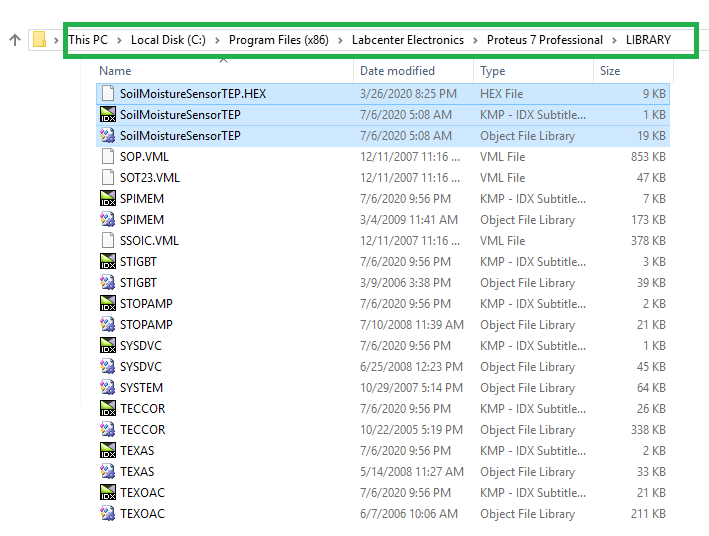
- Step 2: Close Proteus and copy SoilMoistureSensorTEP.LIB and SoilMoistureSensorTEP.IDX into its LIBRARY folder (Proteus 8: C:\Program Files (x86)\Labcenter Electronics\Proteus 8 Professional\LIBRARY).
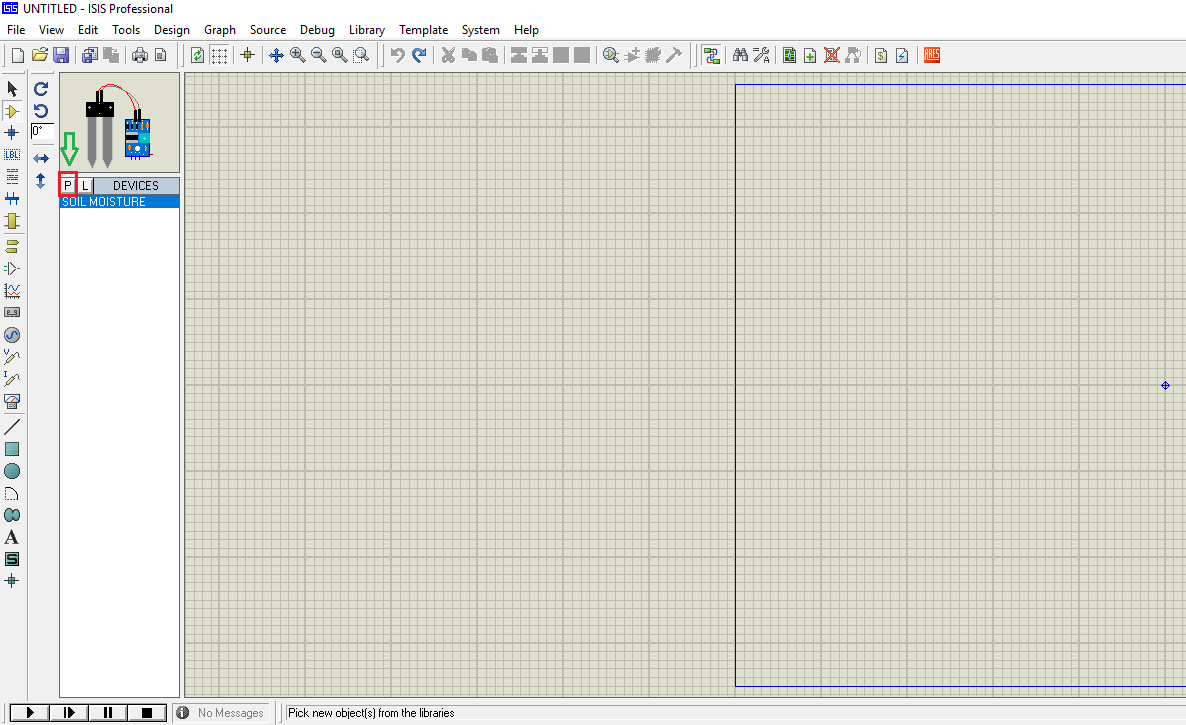
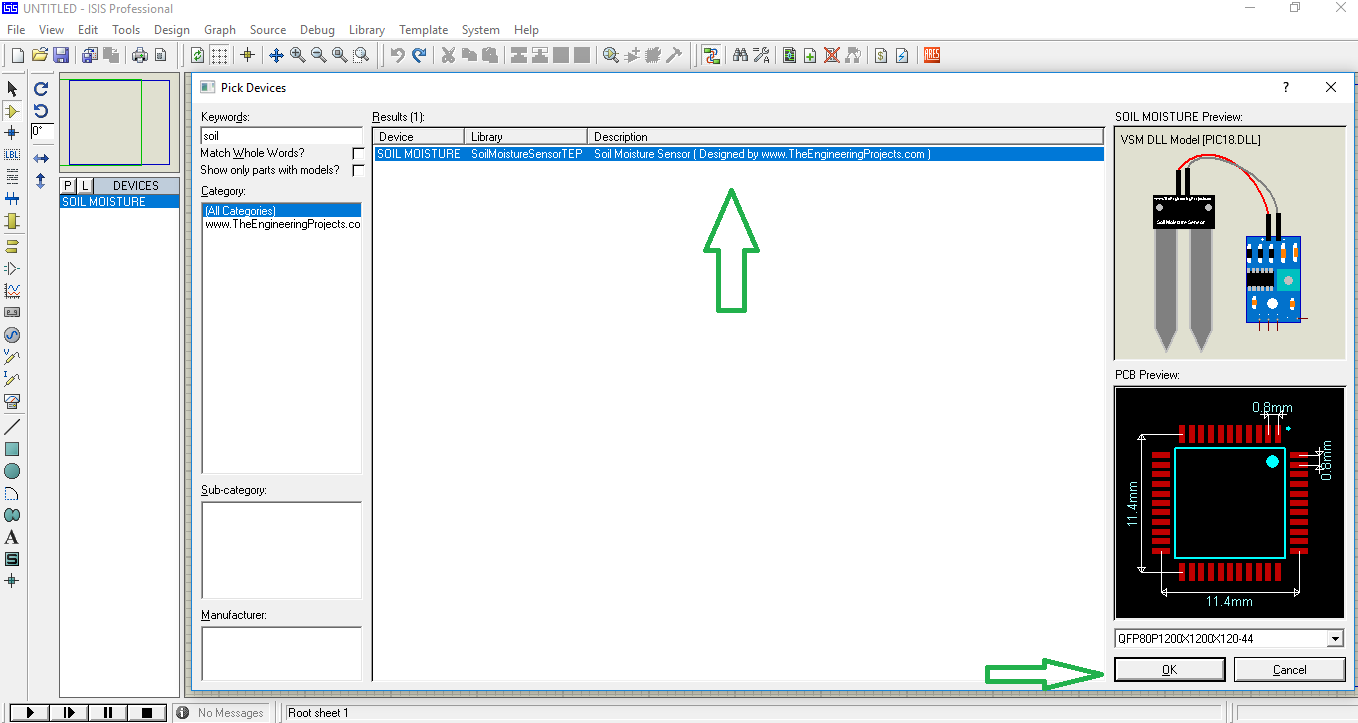
- Step 3: Start Proteus, press P and search for "SoilMoistureSensorTEP"; place and wire it as in the tutorial.
- Step 4: Open Arduino_Code.ino in the Arduino IDE, pick board and port and Verify (Export Compiled Binary gives the HEX).
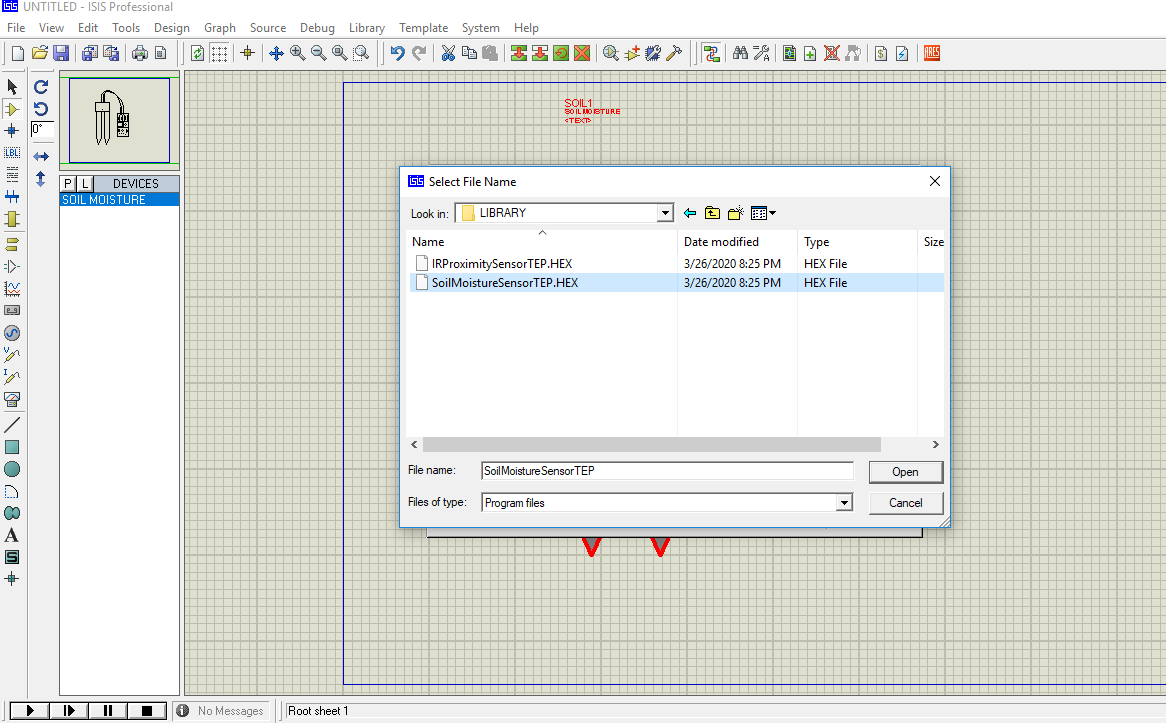
- Step 5: In Proteus set the controller's Program File to SoilMoistureSensorTEP.HEX and Arduino_Code.ino.hex; on hardware, flash the same file.
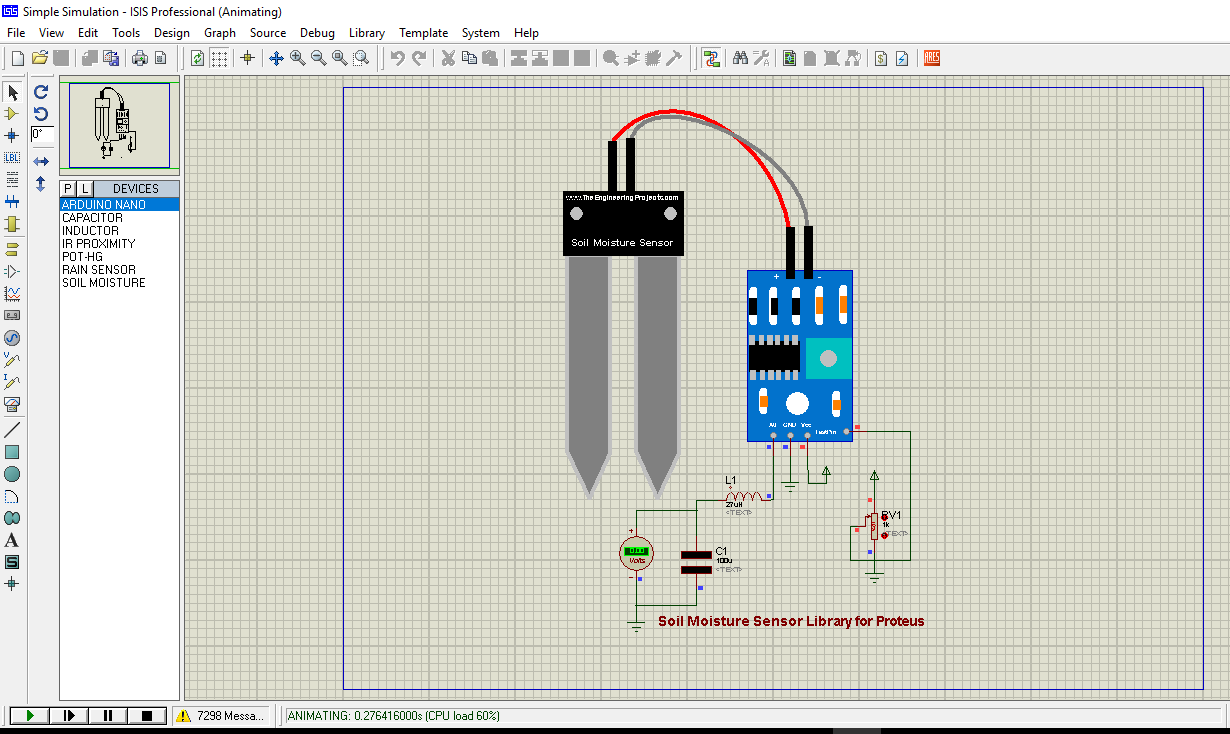
- Step 6: Open IR Proximity Sensor with Arduino.DSN and Simple Simulation.DSN in Proteus and press Play.
Read the detailed guide
This page is for the files. The full tutorial, Soil Moisture Sensor Library For Proteus, explains the circuit and the code step by step and shows the working results and the simulation; read it before you build. Questions about the download or the installation go in the comments below; more Proteus downloads are listed further down this page.

File Structure
 File Structure
8.1 KB193 B18.3 KB912 B9.8 KB132.7 KB2.3 KB132.8 KB114.6 KB1.4 KBGallery11 images from the tutorialOpen the tutorial
 Gallery11 images from the tutorial
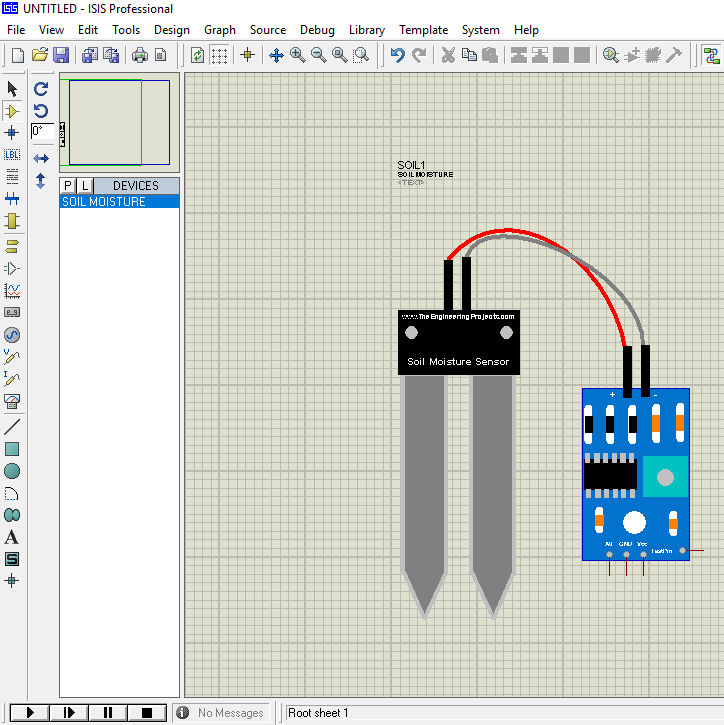
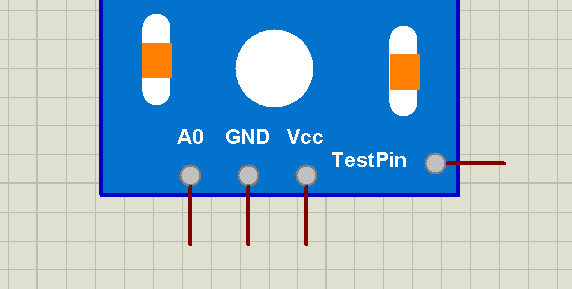
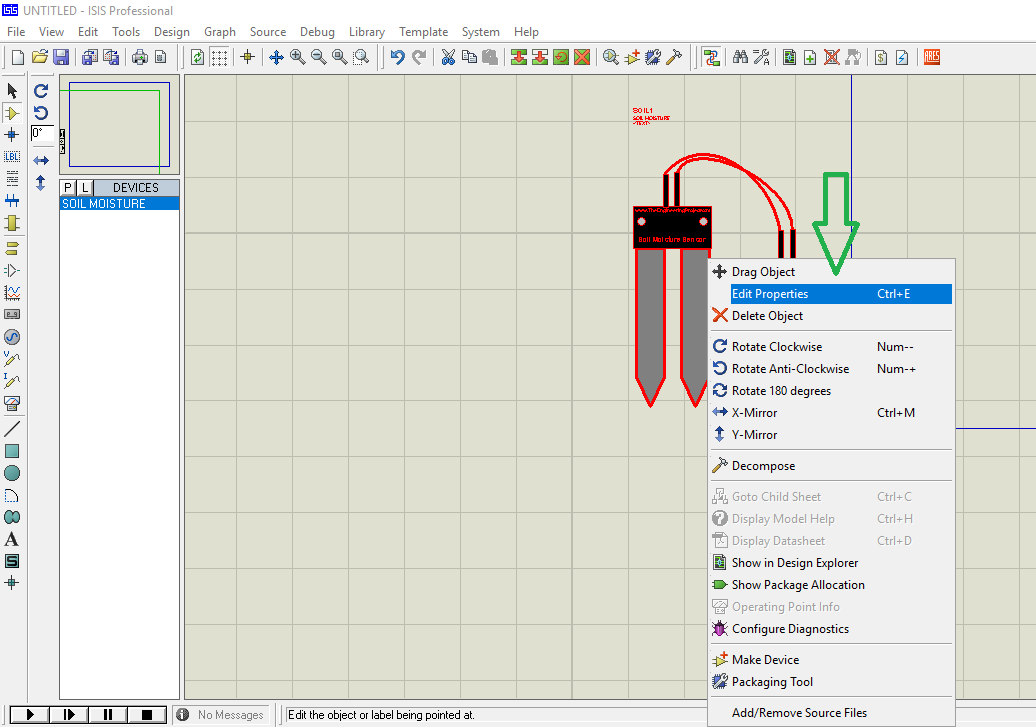
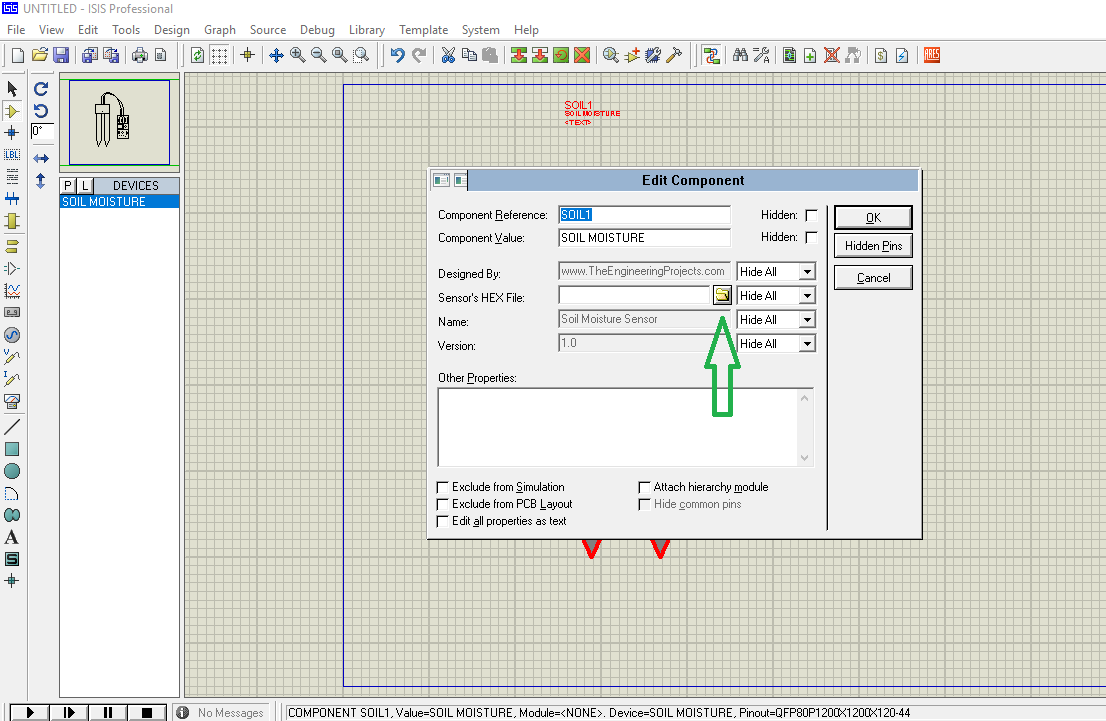
The circuit, the board and the results as they appear in Soil Moisture Sensor Library For Proteus. Open an image for its full size.
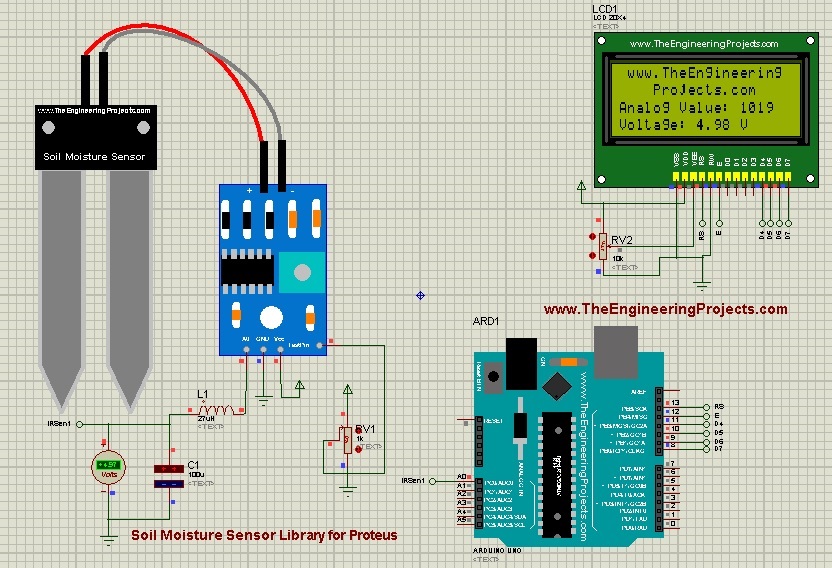
README
 README
Development2 releases, newest first
 Development2 releases, newest first
-
V2.0Soil Moisture Sensor Library for Proteus V2.0
ZIP archive · 44 KB · 6 files · 12,946 downloads
Since V1.0:+6 new−10 removedFile changes
- +Last Loaded Proteus Simulation.DBK
- +Proteus Library Files/SoilMoistureSensor2TEP.HEX
- +Proteus Library Files/SoilMoistureSensor2TEP.IDX
- +Proteus Library Files/SoilMoistureSensor2TEP.LIB
- +Proteus Simulation.DSN
- +Proteus Simulation.PWI
- −Proteus Library/SoilMoistureSensorTEP.HEX
- −Proteus Library/SoilMoistureSensorTEP.IDX
- −Proteus Library/SoilMoistureSensorTEP.LIB
- −Proteus Simulations/Arduino_Code.ino.hex
- −Proteus Simulations/Arduino_Code/Arduino_Code.ino
- −Proteus Simulations/IR Proximity Sensor with Arduino.DSN
- −Proteus Simulations/IR Proximity Sensor with Arduino.PWI
- −Proteus Simulations/Last Loaded IR Proximity Sensor with Arduino.DBK
- −Proteus Simulations/Simple Simulation.DSN
- −Proteus Simulations/Simple Simulation.PWI
-
V1.0Soil Moisture Sensor Library For Proteusthis page
ZIP archive · 82.6 KB · 10 files · 26,699 downloads
Installation7 steps
 Installation7 steps
From the download to a working project, in order. The steps follow what the package contains.
You will need
- Proteus Design SuiteProteus 8 or newer (Labcenter), on Windows
- Arduino IDE1.8 or 2.x, with the board of the tutorial chosen under Tools → Board
- Any archive toolWindows, macOS and Linux extract ZIP files on their own
Steps
- 1
Extract the archive
Right-click Soil Moisture Sensor Library for Proteus.zip and choose Extract All (or open it with 7-Zip or WinRAR) into a folder you can find again. Keep its folder structure (Soil Moisture Sensor Library for Proteus) as it is.
- 2
Copy the library files into Proteus
Move SoilMoistureSensorTEP.LIB and SoilMoistureSensorTEP.IDX into the LIBRARY folder of your Proteus installation: C:\Program Files (x86)\Labcenter Electronics\Proteus 8 Professional\LIBRARY for Proteus 8, or the matching Proteus 7 folder. Older versions keep it under ProgramData\Labcenter Electronics. If Proteus is open, close it first.
- 3
Restart Proteus and place the component
Start Proteus, open a schematic, press P (Pick Devices) and search for the component by the name used in the tutorial. It appears with its pins ready to wire.
- 4
Open the sketch in the Arduino IDE
Open Arduino_Code.ino, select your board and port under Tools, then Verify. Sketch → Export Compiled Binary writes the HEX file a simulation needs.
- 5
Load the HEX file
In Proteus double-click the microcontroller, set Program File to SoilMoistureSensorTEP.HEX and Arduino_Code.ino.hex and run the simulation. For real hardware, flash the same file with your programmer.
- 6
Open the example simulation
Open IR Proximity Sensor with Arduino.DSN and Simple Simulation.DSN in Proteus to see the wiring exactly as in the tutorial. Check the controller's Program File path, then press Play.
- 7
Follow the tutorial
Soil Moisture Sensor Library For Proteus explains every connection and setting in order; keep it open beside the files while you build.
FAQs11 questionsContact TEP
 FAQs11 questions
How do I download Download Proteus Library Files?
Wait for the 30-second guest countdown on this page, then press the download button; the file comes straight from our storage. Members who are logged in skip the wait. If the browser opens the file instead of saving it, use its Save as option. The download link is made for you when the countdown ends and works for 15 minutes; a saved or shared link stops working, so share this page instead.
What is inside the archive?
Download Proteus Library Files comes as a ZIP archive of 10 files (82.6 KB, 421.2 KB unpacked) holding Proteus library files, a Proteus simulation, an Arduino sketch and compiled HEX firmware. Open the File Structure tab for the full list of 10 files.
What should I do if the download does not start?
Check the browser's download list first; an ad blocker or a company firewall can also hold it back, so try another browser or network. If the file arrives incomplete, download it again. For an installation problem, read the Install tab or tell us in the comments with your software version and the exact error message.
Is this file free?
Yes. Every file in the TEP Download Center is free for learning, personal and student projects. If you share it, link back to this page or the tutorial so others find the latest version.
How do I check that the file arrived complete?
Compare its SHA-256 with the one on this page, 57751e8d3921f51d840bd1e6c695efff325a67c2030adb25a5811b5337dac7b4. In PowerShell run Get-FileHash "Soil Moisture Sensor Library for Proteus.zip"; on macOS or Linux run shasum -a 256 "Soil Moisture Sensor Library for Proteus.zip". The same value means the file is exactly the one in our storage; a different one means the download broke off, so download it again.
Do I need WinRAR to open the ZIP file?
No. Windows, macOS and Linux open ZIP archives on their own (Extract All, or double-click). WinRAR and 7-Zip work too. Extract the whole archive before using the files.
Where do I put the LIB and IDX files?
Both files go into the LIBRARY folder of your Proteus installation (Proteus 8: C:\Program Files (x86)\Labcenter Electronics\Proteus 8 Professional\LIBRARY; Proteus 7 has the same folder under its own name). Restart Proteus afterwards and search for the component with P.
Which Proteus version does the library need?
The tutorial names the Proteus version the library was made and tested with. Most TEP libraries work in Proteus 7 and Proteus 8; if the component does not appear after a restart, check that both the LIB and the IDX file were copied and that Proteus was fully closed while copying.
Why does the component show but not simulate?
A library without a model file (DLL) gives you the symbol and the pins for drawing and PCB design; the simulation needs the matching model or a HEX file on the controller, exactly as the tutorial describes.
How do I get the HEX file into the simulation?
Compile the sketch in the Arduino IDE (Sketch → Export Compiled Binary gives you the HEX next to the sketch), then in Proteus double-click the board, set Program File to that HEX and run.
Which version should I use?
The newest version in the Development tab is usually the one to take; it carries the fixes and the extra models, and the tab lists which files each release added or changed. Older versions stay available for projects built with them.
Members skip the wait. Log in or join TEP.

- 26,699Total downloads
- 21%Popularity
- ProteusCategory
- 0Comments
- jjameswilsonUploaded by
- 11 Jul 2020Uploaded at


 SHA-256
57751e8d3921f51d840bd1e6c695efff325a67c2030adb25a5811b5337dac7b4


 Need help with this file?
 Tags
Related Proteus
All Proteus tutorials


Comments
0