


How to Remove Unwanted People from Any Video: Best AI Tools for 2026


Do you often record videos to post on social media or for work? If yes, then you know the real struggle to remove object from video or to erase people from frames. Even if you record carefully, the unwanted people can show up in the background of a shot. This can obstruct your subject and can affect your views on YouTube, Instagram, Facebook, and other platforms.
For content creators, marketers, and businesses, an unprofessional video with anyone walking past can impact the overall quality and professionalism. In many instances, reshooting isn’t an option, and most editors need to use painstaking techniques such as frame-by-frame masking and rotoscoping, which is time-consuming and needs advanced video editing skills.
The good news is that now you can quickly remove person from video with the help of an AI video object remover. Whether you need to clean a background, maintain privacy, or enhance imagery, artificial intelligence video editor can help you with everything.
In this guide, we walk you through how to remove people from video.
Part 1: Top 5 AI Tools to Remove People from Video: Detailed Review
With so many AI video object removal tools available today, finding the right object remover from video can be confusing. To help you, we have listed the top five AI video object removers:
Wondershare Filmora (Editor’s Choice)
Platform: Windows, macOS
Price: Free version available. Basic plan with $8.99 /month. Advanced plan with $29.99 /year. Perpetual plan with $49.99
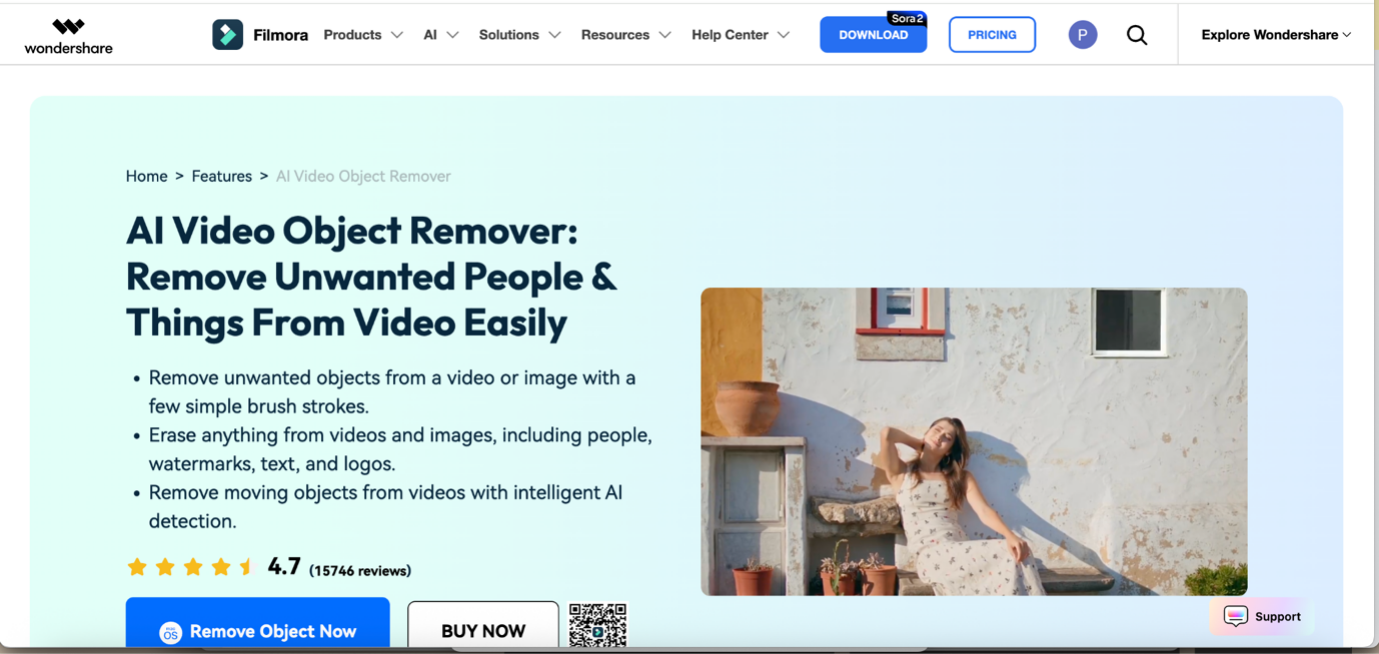
Filmora is a powerful AI video object remover that you can easily use to remove object from video, including people, watermarks, logos, texts, or any other object. Using it, you can remove multiple unwanted objects at the same time. Its powerful AI algorithm understands every motion, light, and scene depth that maintains consistency in the edited video. Plus, you don’t need any skills or knowledge to use it. Simply upload a video, choose the unwanted people to remove, and it's done.
Pros
- Easy-to-use interface for beginners and novices
- Doesn’t degrade the video quality and maintains high accuracy
- It works offline, so no internet is required
- Supports high-resolution exports (HD/4K)
- Simple drag-and-drop video editing
Cons
- A one-time installation is needed
Media.io (Online Eraser)
Platform: Web-based
Price: Free with watermarks. Monthly plan with $17.90/month. Custom plan as per minute usage
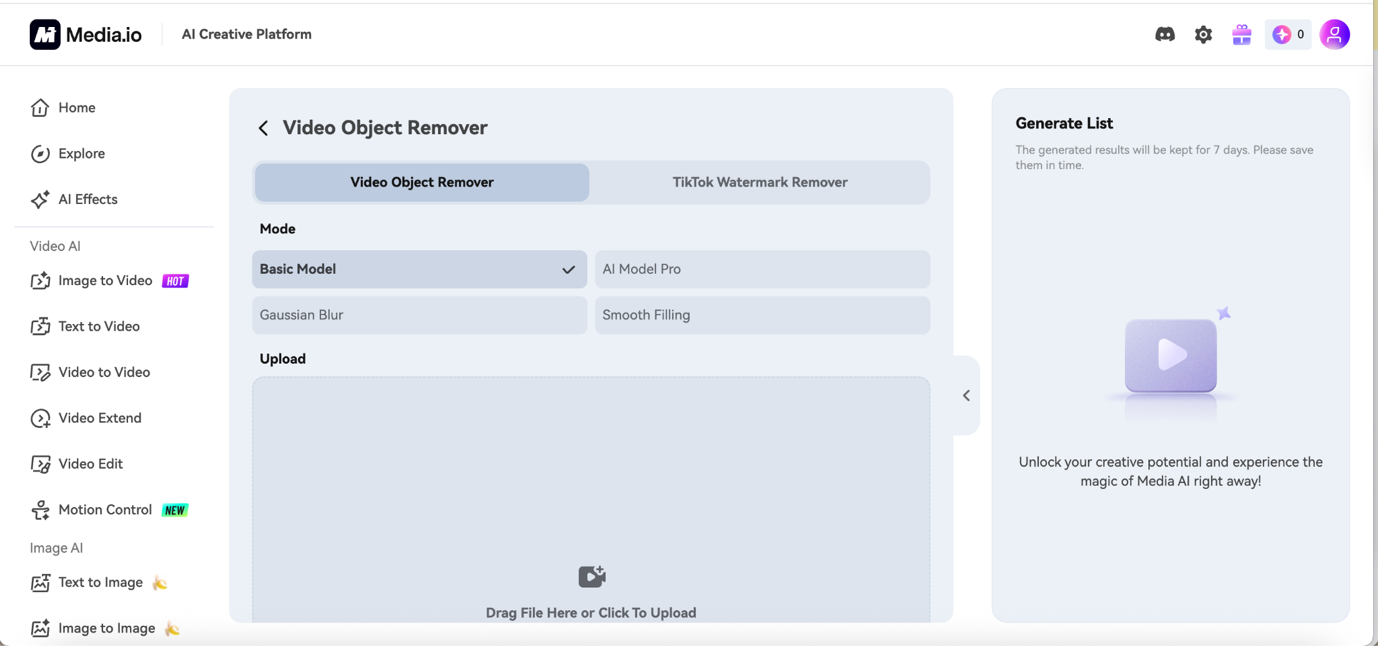
Media.io is a browser-based person remover from video. You can use it to erase objects from a video without installing anything. This AI-powered tool blurs objects naturally to blend with the video background and fill in areas for a clean finish. Also, it preserves the original resolution to make editing look more professional.
Pros
- No installation needed
- Easy-to-use interface
- The free version is best for short clips
- Supports MP4/MOV/AVI video formats
Cons
- The free version has a watermark
- Requires an internet connection
- Less accurate than desktop tools
Kapwing
Platform: Browser-based
Price: Free with watermark, limited file size. Pro plan with $16/month (annual) or $24/month (monthly). Business plan with ~$50/month

Kapwing is an online video editing platform that allows users to create and edit videos, GIFs, and images directly in the browser. It includes AI tools for subtitles, basic video object remover tasks, and collaborative editing, making it useful for quick remove object from video online free workflows and social media content creation.
Pros
- No download required
- Beginner-friendly interface
- Real-time collaboration for teams
- Supports subtitles, AI tools, and quick edits
- Works across devices (desktop, tablet, mobile)
Cons
- Free version includes a watermark
- Less accurate for complex videos
- Requires a stable internet connection
Runway ML
Platform: Browser-based
Price: Free plan with 125 one-time credits. Standard plan at $12/month. Pro plan at $28/month. Unlimited plan at $76/month.

Runway is a browser-based creative AI platform that you can use to remove object from video free. Simply, paint over the object you want to remove, and its AI will track it across frames and fills in the background. It creates highly realistic outputs while offering limitless creative freedom.
Pros
- No software installation needed
- Supports 4K export
- Detect moving objects and complex backgrounds
- Integrates with other Runway AI tools
Cons
- Limited credits in free and paid versions
- Requires an internet connection
- You need to buy credits every month
HitPaw Video Object Remover
Platform: Desktop (Windows, macOS)
Price: Free trial with watermark. Monthly plan from $39.99/month. Annual and lifetime license options available.
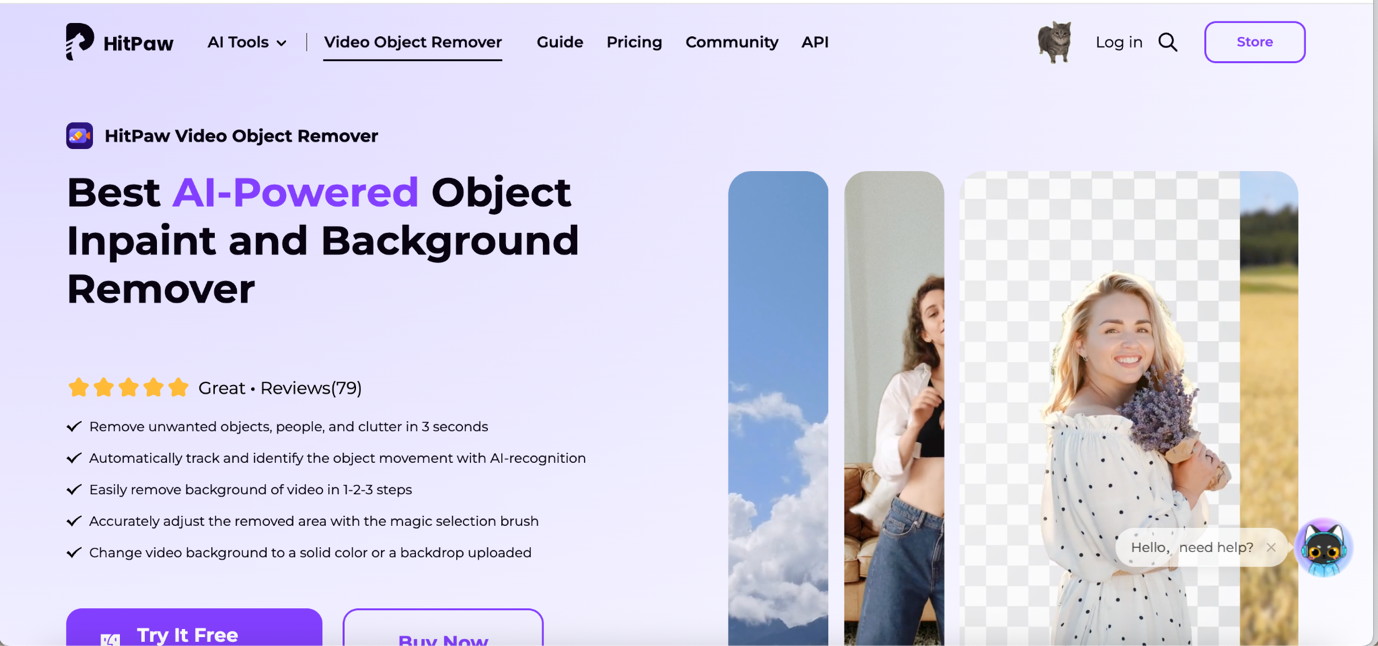
HitPaw Video Object Remover is a dedicated desktop app built specifically for removing objects from video. Select an area with the AI brush, and the tool tracks and removes it automatically. It’s simpler than After Effects or DaVinci Resolve, but also less precise.
Pros
- One-click detection and removal
- Works offline (no privacy concerns with cloud uploads)
- Supports 4K and batch processing available
- Easy to use for beginners
Cons
- Expensive monthly subscription
- Basic AI compared to Filmora
- Watermark on free trial
Part 2: Why Filmora is the Best Choice for AI Object Remover
Advanced AI Precision
Filmora uses advanced AI algorithms to accurately detect and remove unwanted objects from video. It maintains color accuracy, sharpness, and overall visual quality, so your final output looks clean and professionally edited. Using it, you can remove any kind of distractions without affecting the important video details.
Smart scene awareness
This tool doesn’t remove objects blindly, but it understands the scene. Filmora’s AI object removal video tool focuses on patterns like skin tones, sky, fabric, or pavement, and intelligently blends the background. This makes the edited area look natural and seamless, as if you have not removed anything from your clip.
Smooth Motion Tracking
Whether your subject is moving or the camera is in motion, Filmora adapts every movement in real time. Its AI ensures that object removal remains smooth and consistent across every frame.
No Skills Needed
With Filmora AI object remover, you don’t need to learn complex techniques like rotoscoping, keyframing, or advanced VFX. It simplifies the entire video editing process, allowing you to achieve high-quality results with zero skills.
All-in-One Editing Solution
Beyond being an AI video object remover, Filmora also offers a complete set of video editing tools, making it a one-stop solution for creating professional videos.
Part 3: How to Remove Unwanted People from Video with Filmora
With the three easy steps, you can remove unwanted people from video.
Step 1: Import video
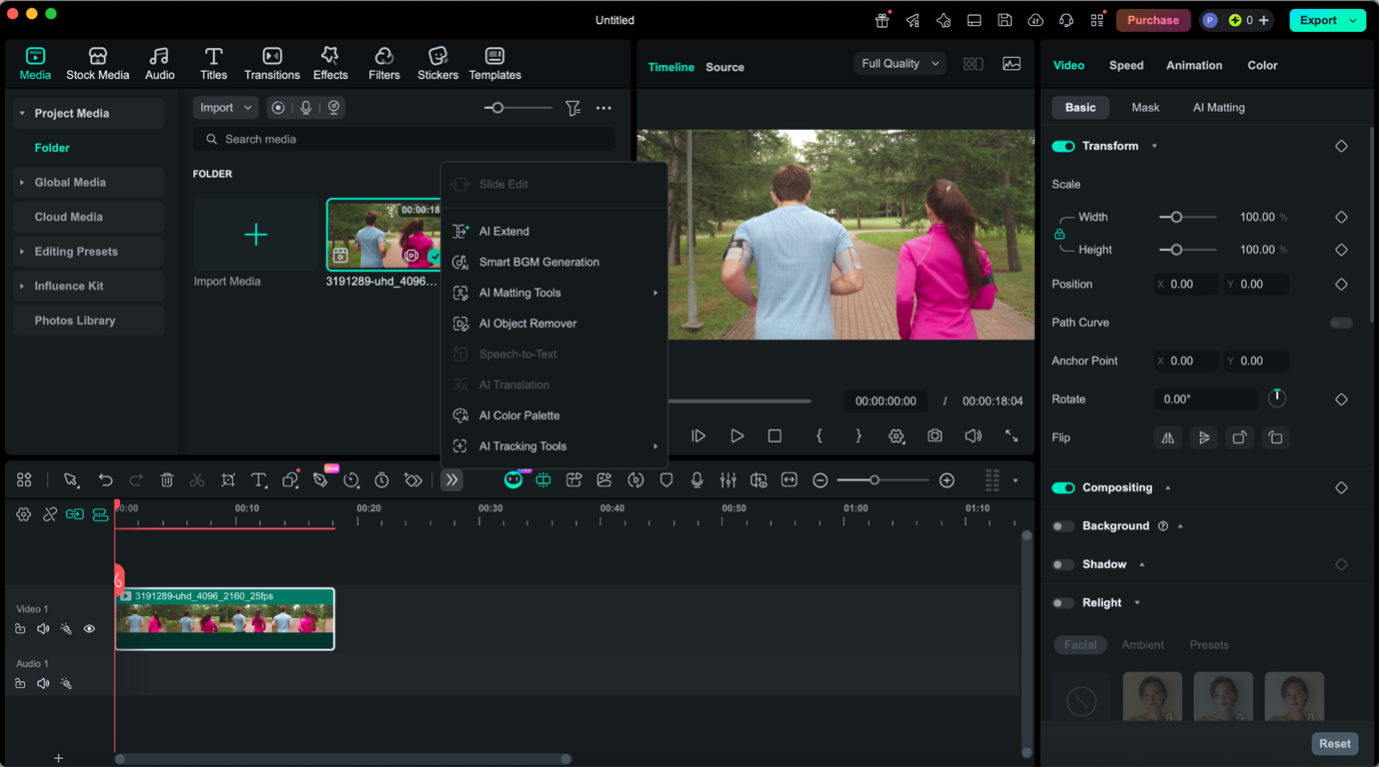
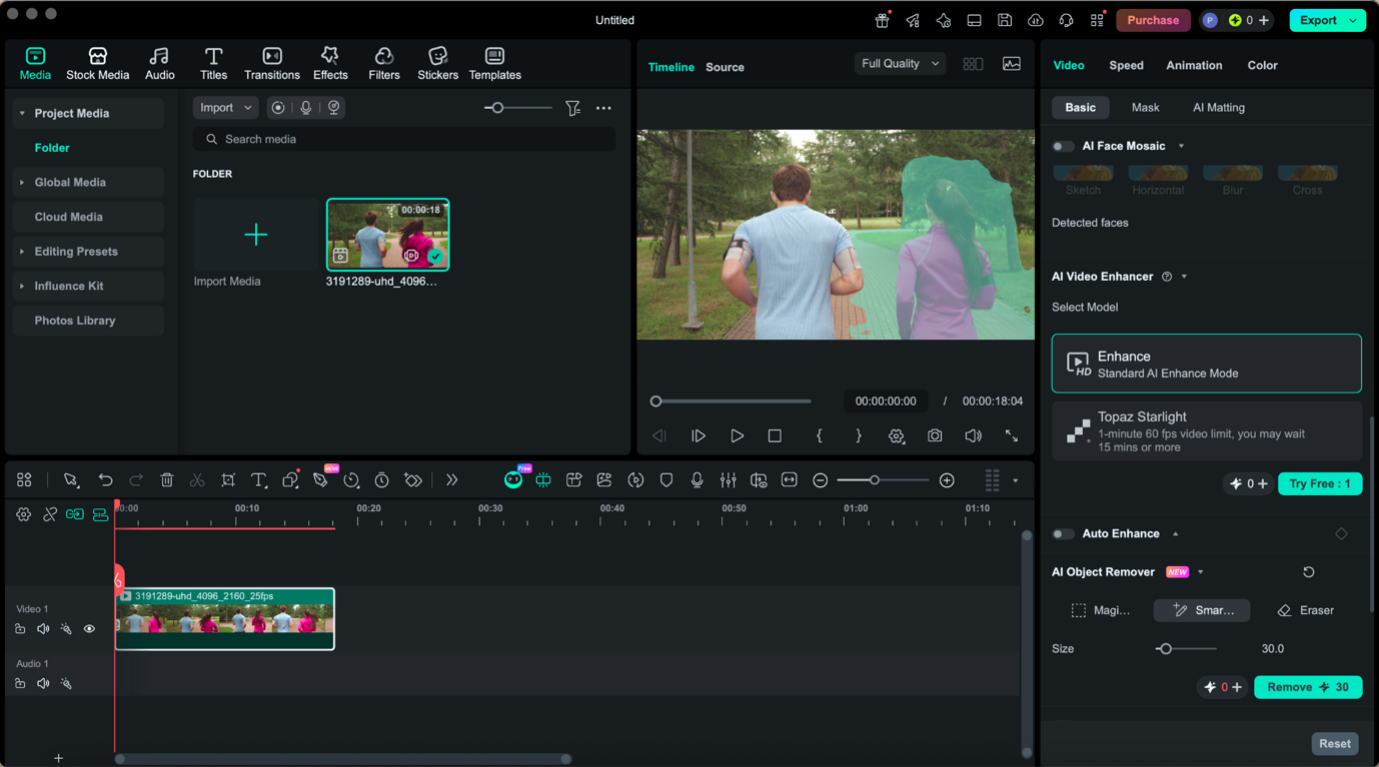
First, you need to install Filmora on your system, then open it. After this, import the video and drag it to the timeline. From the toolbar, select AI Object Remover.
Step 2: Choose People to remove
Now, you can select Magic Box or Smart Brush to choose the unwanted objects or people in the video and click Remove.
Step 3: Export final video
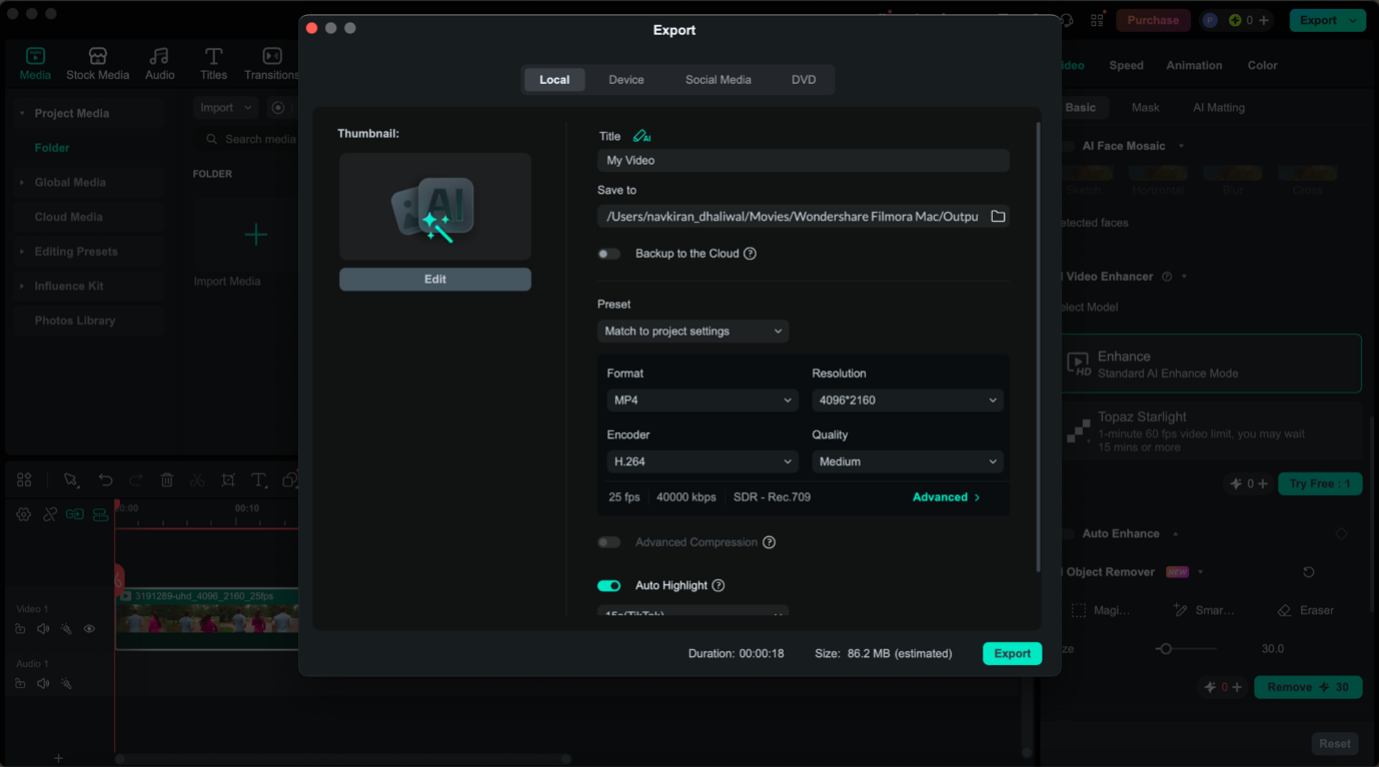
Finally, export the video and save it on your system.
Part 4: Do More Than Erase: Creative Editing Features You'll Love
AI tools are not limited to just helping you remove people from video. In fact, modern solutions like Wondershare Filmora open up a wide range of creative and professional editing possibilities.
Animation (Motion Presets & Keyframes)
You can easily apply smooth animations with built-in motion presets or custom movements utilizing keyframes. This helps bring animating static shots and gives your videos a professional feel.
Color Adjustment (Default & Custom)
Filmora lets you work on your visuals using preset colors and provides the option to manually adjust as well. You can adjust brightness, contrast, and tones for the mood or branding fit.
Filters
Use customized filters to give the video a dramatic new appearance instantly. These are great for quick styling and maintaining a consistent visual theme.
Effects
Use transitions, overlays, and other visual elements to add creativity to your content. Effects can take a nondescript clip and make it into an engaging, standout video.
Remove Logos, Watermarks, and Text
Need to reuse footage or improve branding? You can erase object from video, like logos, subtitles, or watermarks, and replace them with your own elements.
Fix Imperfect Shots
Sometimes, reshooting isn’t possible. With AI, you can easily erase something from a video that shouldn’t have been there in the first place — saving time and production cost.
Record Voiceover
The editor also allows you to record directly and insert voice-overs. Ideal for tutorials, lectures or just telling a story without external tools.
AI Matting
AI matting helps you automatically separate subjects from the background. This feature is useful for background replacement or advanced editing without green screens.
With these features, Filmora becomes more than just an AI video object remover—it’s a complete creative toolkit that helps you edit, enhance, and transform your videos with ease.
FAQs
1. Why does the removed area in video sometimes look blurry or unnatural?
When the video background is complex or constantly changing, you can face blur issues when remove object from video. But by using an AI object remover like Filmora, you won’t face such problems.
2. Can I remove moving people from a video?
Yes, with Wondershare Filmora, you can easily and quickly remove people from video, even without affecting the video quality.
3. How long does it take to remove an object?
With an AI-powered object remover from video, it will take a few seconds or just minutes to remove something from video.
4. Do I need editing experience to use Filmora?
Not at all. Filmora is beginner-friendly, so you don’t need to learn how to remove a person from a video when using this tool.
5. Can I remove multiple objects at once?
Yes, you can select and remove multiple unwanted elements in a single process, making it faster to clean up complex scenes.
Conclusion
AI has made it easier than ever to remove people from video and create clean, professional content for your business or social media. With the right tools and simple steps, anyone can achieve high-quality results. Whether you want to remove object from video for personal or professional use, AI video object remover saves time, improves visuals, and makes video editing accessible to everyone.
Comments
0