


How to Generate Subtitles Automatically with an AI Tool


Sound off, scroll on.
Yes, now, silence is the new norm for videos. You have seen many people watching reels in silent mode while traveling, in a meeting, or sitting in a crowded place. According to research, around 80% of social media users watch video content without sound.
This shift from full-sounding videos to silent clips redefined how videos perform online. So, now, subtitles or automatic captions are not optional, but they are essential to keep viewers engaged and improve SEO. This not only helps viewers understand your content but also keeps them watching longer. Higher watch time means better engagement and improved retention.
Are you looking for an easy-to-use auto captions generator that takes less time? If yes, then Wondershare’s Filmora can be your great option. This AI-powered auto caption generator can create subtitles in seconds for all kinds of video content, be it for YouTube, TikTok, Instagram, Facebook, or any other social media. Also, it can be your complete video editing software.
Let’s find out more about the auto cation generator!
Part 1: Set Videos for Accurate Auto Captions
Before you start Filmora to generate subtitles from a video, make sure you have checked your content for the following parameters:
High-quality, clear audio
The first thing that can affect the accuracy of captions is the voice quality of the video. If your audio is hard to hear or has background noise, the AI subtitle generator may make mistakes or miss important information. The chances of error in automatic captions will increase, and it will affect your viewers.
So, to get the best results from your auto subtitle generator, your audio should be clear, consistent, and free from any noise. Here are some tips to record video with high-quality audio:
- Choose a quiet place with zero interruptions
- Use high-quality microphones that have noise cancellation capabilities
- Record promotional videos in a small room to reduce echo
- Minimize distractions like shuffling papers or tapping on tables
- Speak clearly and at a steady pace
Pay attention to language selection
Choosing the correct language for the video is very important to create accurate captions. It is because Filmora’s AI Speech-to-Text relies heavily on language recognition to generate subtitles automatically.
So, always choose the right spoken language, it can be English, French, Spanish, Madarian, or any other supported language. It’s also best to avoid mixing multiple languages within a single clip, as this can confuse the auto caption generator and reduce caption accuracy.
Minimal overlapping speech
Speech recognition systems of auto subtitle generators often struggle with overlapping speech because most free auto caption generators are designed to process a single speech at a time.
So, when multiple people talk simultaneously in a video, the audio signals get mixed, and the automatic captions get complex to understand. To avoid this, ensure that speakers talk one at a time, maintain clear pauses between sentences, and avoid interruptions during recording.
Part 2: Easy Steps to Use Filmora’s AI Speech-to-Text Feature
Follow these easy steps to create auto captions using Filmora’s AI speech-to-text tool:
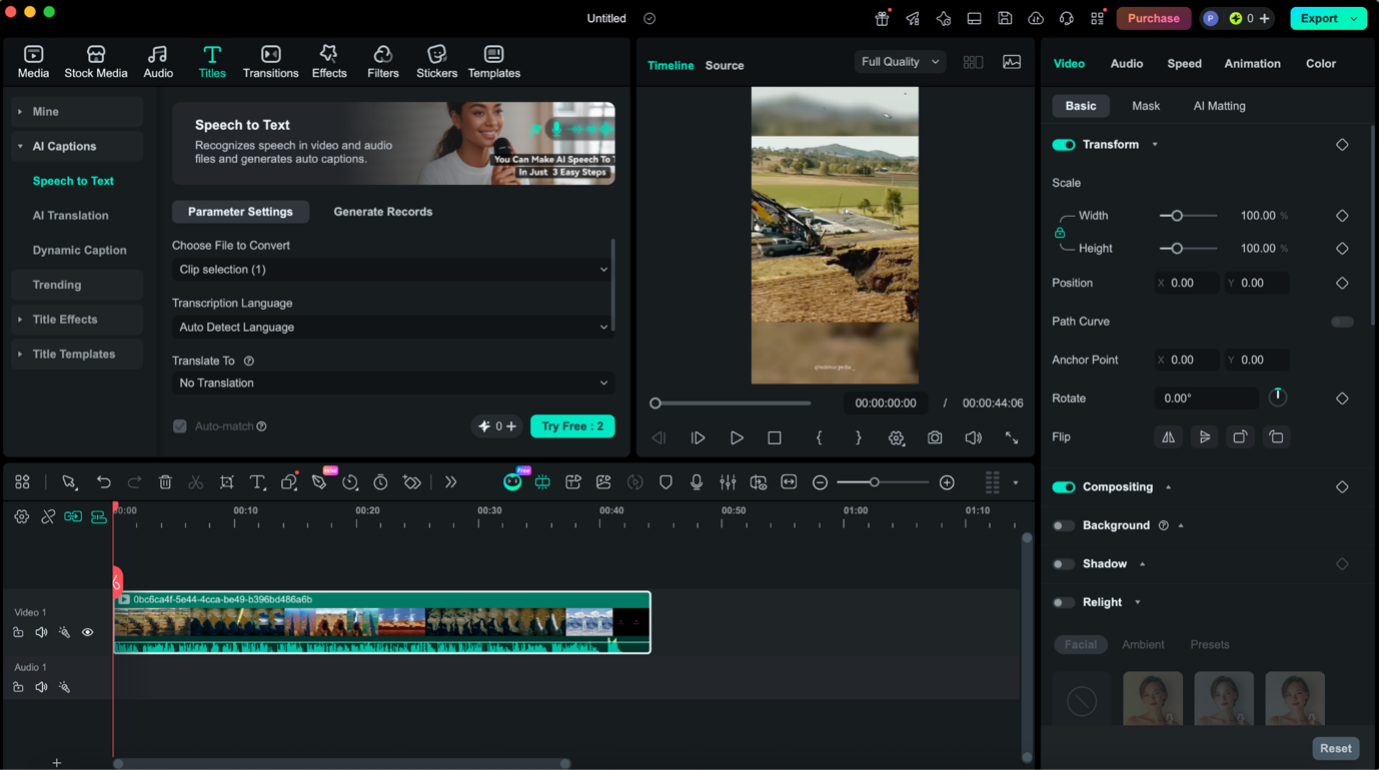
Step 1: Upload a video clip
First, install Wondershare Filmora in your system, and launch it. After that, select the Add Captions tool and under this, click on the Speech to Text option. Now, upload your video with a simple drag and drop option to generate auto captions.
Step 2: Generate transcript or captions
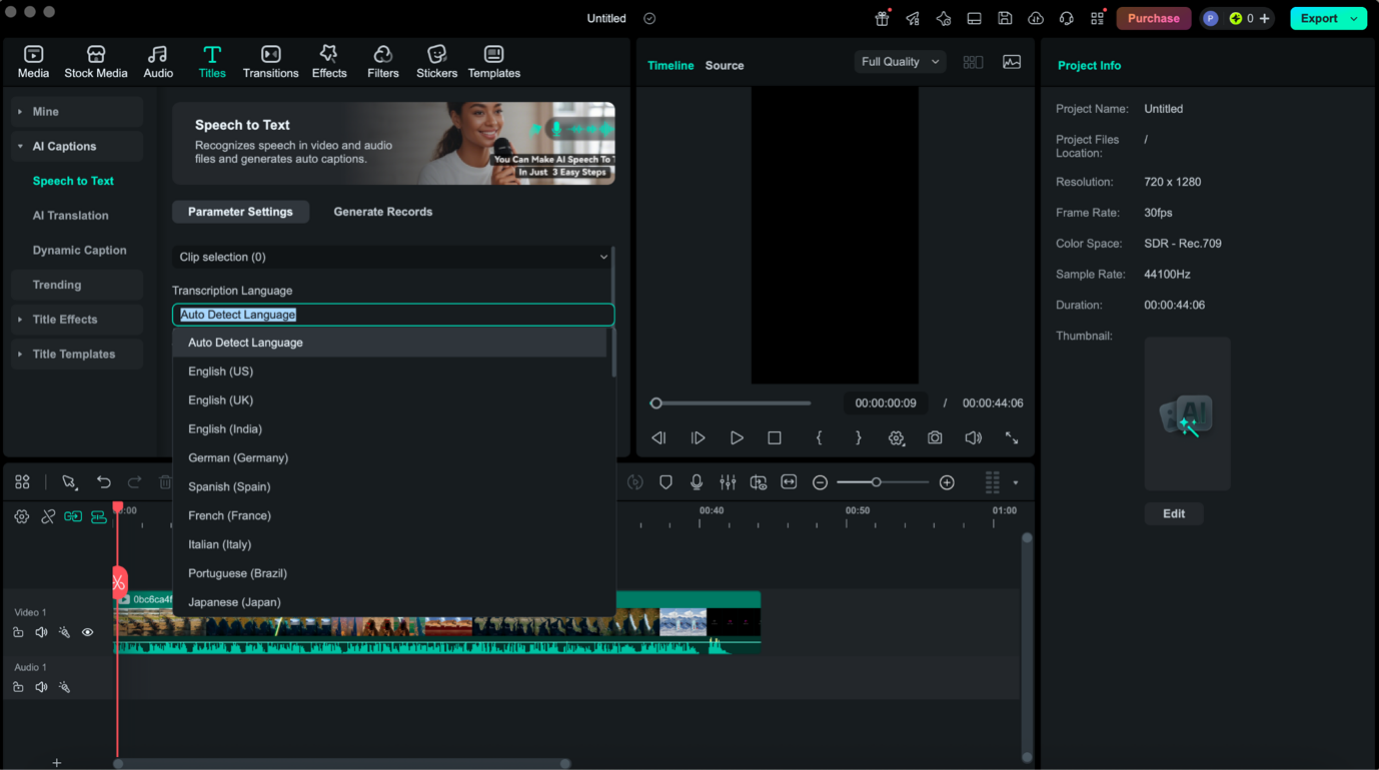
Now, choose the transcript language, file type, and edit the captions from other available options.
Step 3: Export output and save
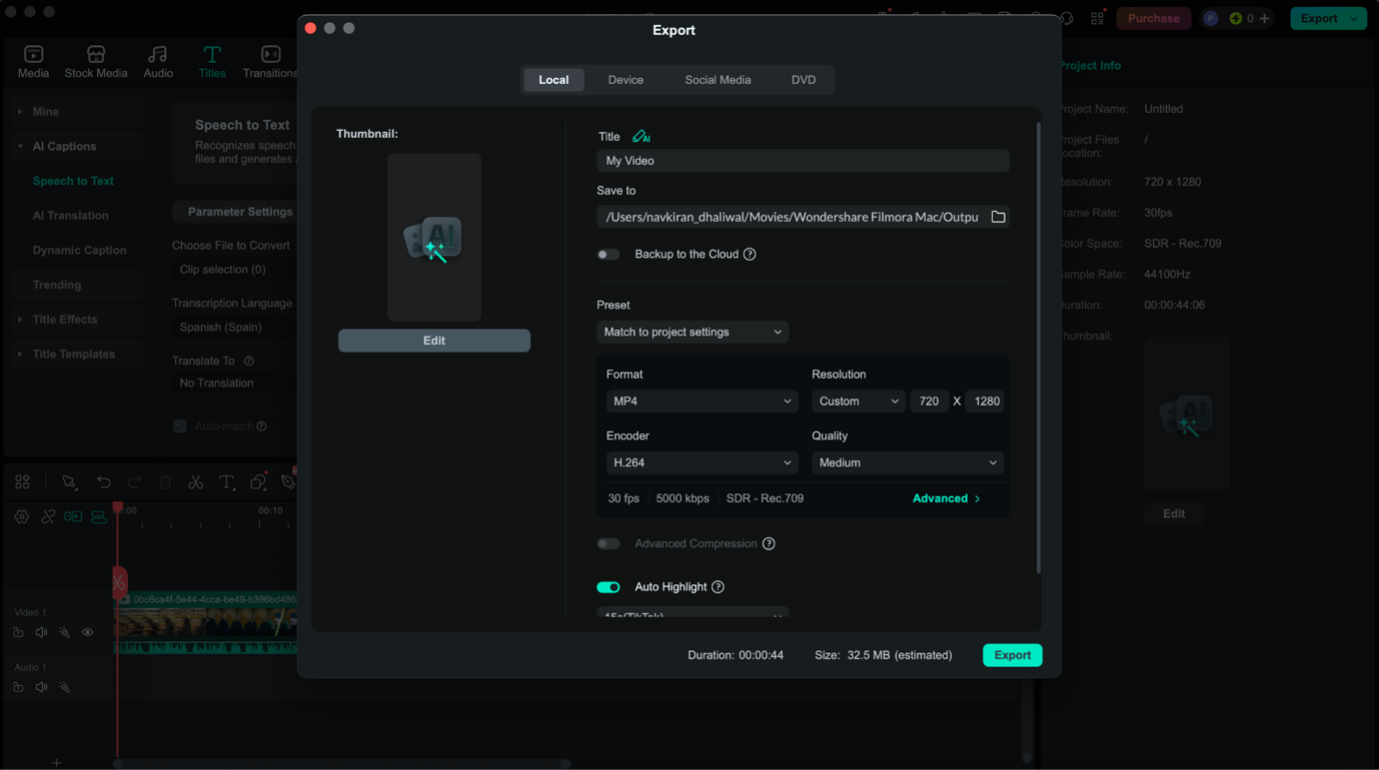
Now, when you are satisfied with captions and video editing, simply export it on your system. You can export the output in any format you desire.
Part 3: Tailor Captions to Match Your Style
After you created automatic captions with Filmora, it's time to customize them for more people, here. Here is how you customize the captions to match your brand, tone, and audience.
Caption style
Filmora has more than 68 animated caption styles and templates that you can choose for your video content. From minimal designs to bold, attention-grabbing animations, there are multiple choices to make subtitles stand out.
Whether your content is educational, cinematic, or social media-focused, you can find every style as per your needs. Simply preview different styles and apply the one that fits your video’s vibe.
Batch subtitle editing
Manually editing each subtitle can be time-consuming, especially for longer videos. This is why Filmora’s batch editing feature is best for you to update font, color, size, and style of all auto captions simultaneously.
Correct spellings and phrases
There is no doubt that the AI-generated captions are very accurate, but in rare cases, the subtitle auto generator causes errors in names, industry terms, or accents.
But with Filmora’s subtitle editor you can fine-tune each line with precision. Quickly correct the spellings, adjust timing, and refine phrases for better understanding to make auto captions 100% accurate. This is very important for technical content, branded terms, or multilingual videos.
Part 4: Reach a Global Audience with AI Auto Caption Generators
AI subtitling allows you to increase global reach and help you enter new markets that were previously inaccessible. Here is how AI auto caption generators help you reach people in different parts of the world:
Create captions in 23+ languages
Filmora allows you to automatically translate original captions to more than 23 languages. It means your single video can be understood by viewers across regions without any effort. Moreover, multilingual captions maintain the original meaning of the video, which connects more people with your content. This is very useful for promoters, educators, businessmen, healthcare professionals, and other content creators.
Bilingual subtitles improve engagement
Bilingual subtitles are becoming increasingly popular, especially on platforms like YouTube. With Filmora, you can display two languages simultaneously, including the original language and a translated language.
This not only helps non-native speakers understand your content but also improves watch time and retention.
Boost SEO across regions
Adding captions doesn’t just help viewers, but they also improve your video's visibility. Google Analytics understands words, not audio, so the AI caption generator creates captions that are SEO optimized and improve your ranking. This further increases the visibility of your content.
Support the hard-of-hearing community
Captions remain essential for millions of people who are deaf or hard of hearing. With AI captioning, accuracy and availability improve for such audiences.
Part 5: For SEO Export of SRT Files Directly
You need to understand that your subtitles are not only a communication tool, but they also work as a powerful SEO asset. And, exporting SRT files directly is a smart move for SEO. It allows your caption text to be recognized and indexed by platforms like YouTube.
Moreover, an SRT file contains all your spoken content in text form, which helps search engines understand what your video is about and match it with relevant user queries. This improves your chances of ranking for keywords, appearing in search results across different regions, and reaching a wider audience.
Additionally, SRT files make it easy to add multiple language subtitles, further boosting discoverability and accessibility without needing to re-edit your video.
Conclusion
Now, you can easily and quickly generate auto captions for any kind of video. Simply follow the above instructions to use the best AI caption generator for your social media clips, promotional content, or reels. Make sure you focus on audio quality to get the maximum accuracy for subtitles generated by an AI tool.
Comments
0