


Project Files of ESP32 Ball and Beam PID Balancer in Proteus Simulation
 Libraries
 Code
 Projects
 Simulation
8c99573f058f43d4ad1cfb2efa0f6896.zip

ESP32 Ball and Beam PID Balancer in Proteus Simulation V1.0
ESP32 Ball and Beam PID Balancer in Proteus Simulation V1.0 comes as a ZIP archive of 18 files (3.8 MB, 8.5 MB unpacked) holding Proteus library files, simulation model DLLs, a Proteus simulation, an Arduino sketch and compiled HEX firmware.
- LIBProteus library
- DLLProteus model
- DSNProteus simulation
- INOArduino sketch
- HEXHEX firmware
Description
ESP32-Ball-and-Beam-PID-Balancer-Proteus-Simulation-v1.0.zip: the complete Proteus simulation project (ESP32 DevKit V1, the ball and beam lab, a 10k potentiometer, a 128x32 OLED, the Laptop and Mobile WiFi Monitors), the Arduino sketch ESP32_Ball_Beam.ino with its .hex, every LIB and DLL and a README.

File Structure
 File Structure
16.4 KB21.7 KB36.6 KB39.5 KB13.1 KB78.1 KB208.6 KB326.5 KB3.0 MB342.5 KB310 KB31.9 KB124.8 KB326.5 KB3.0 MB342.5 KB310 KB8.9 KBGallery12 images from the tutorialOpen the tutorial
 Gallery12 images from the tutorial
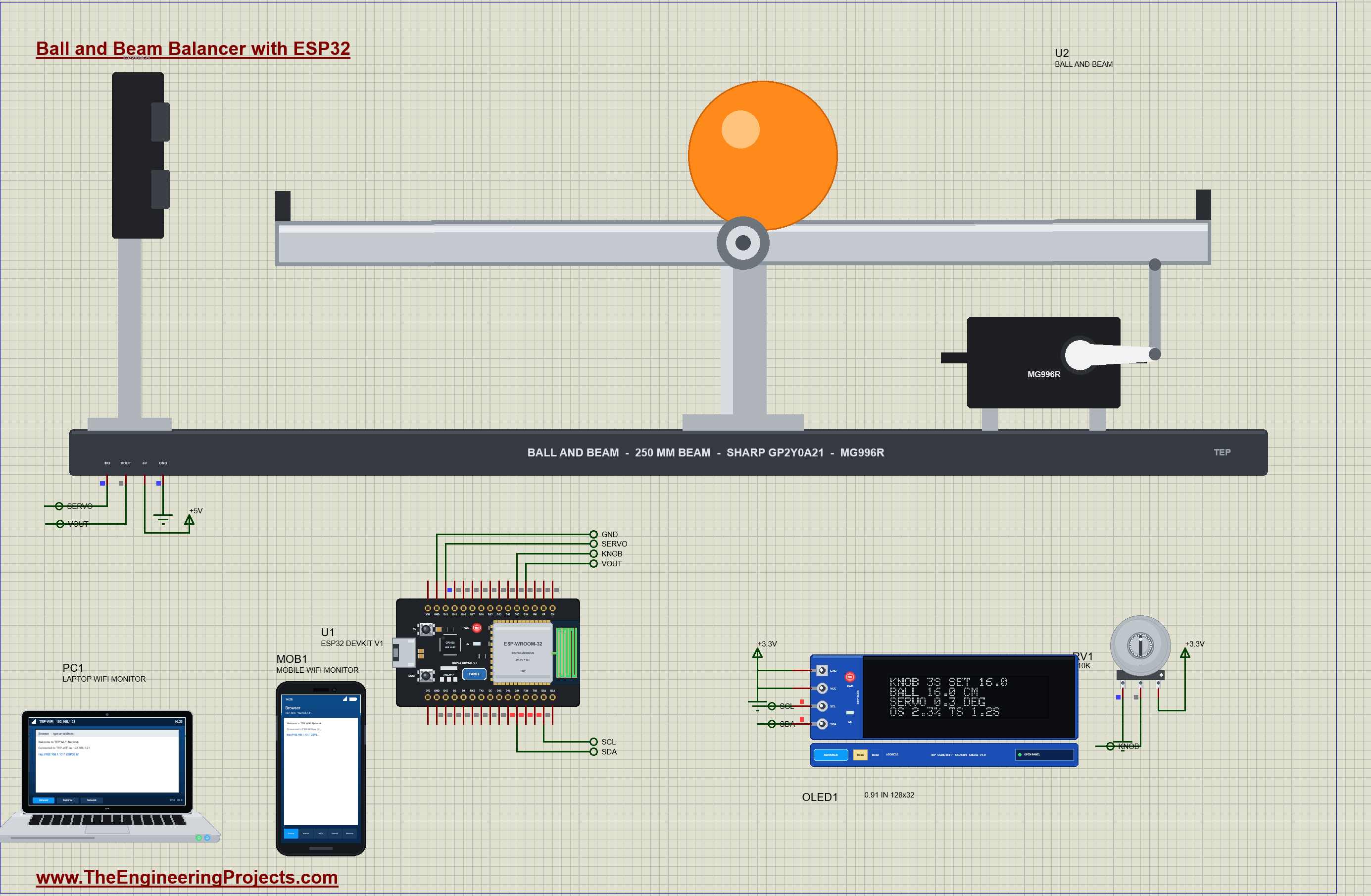
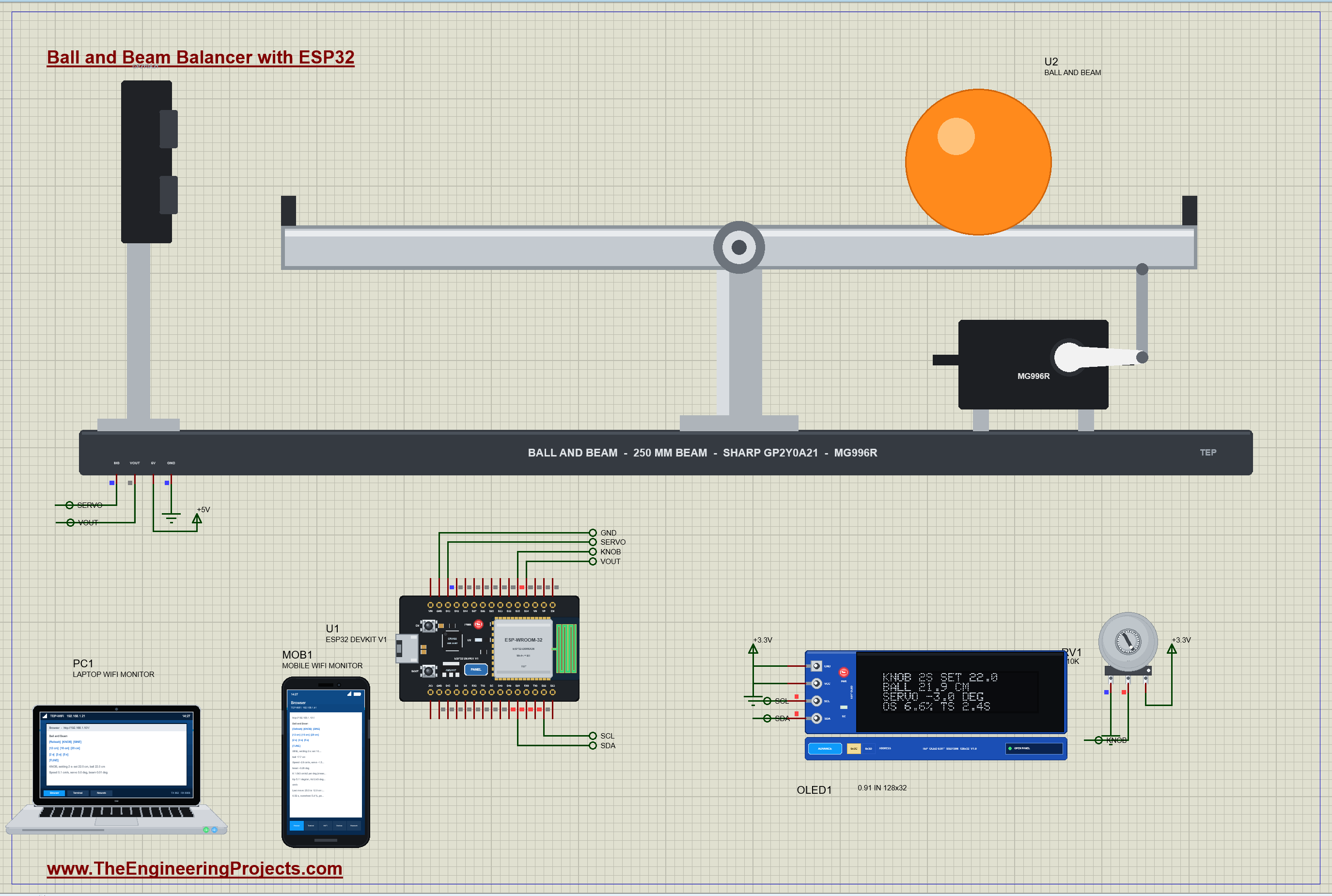
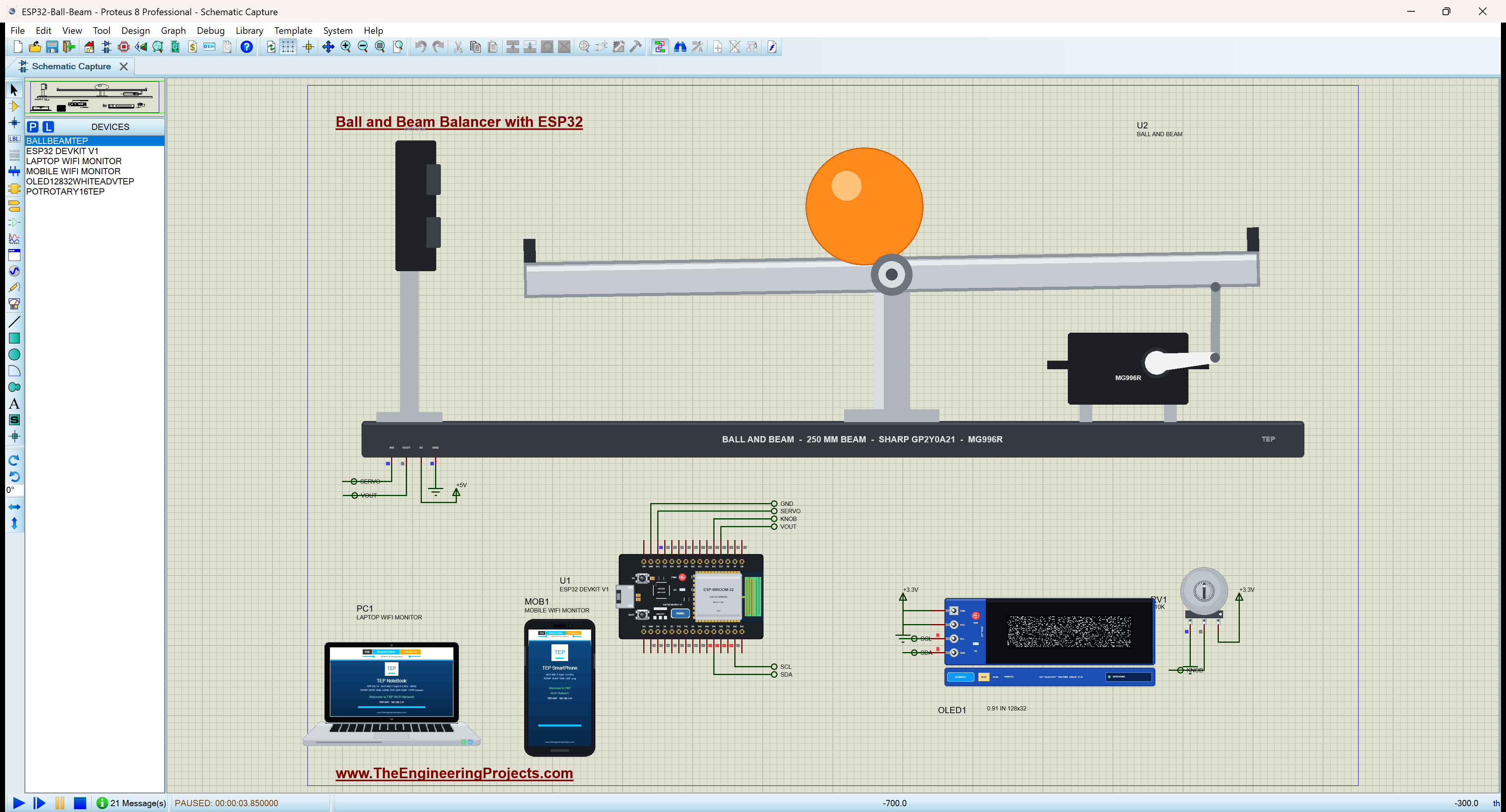
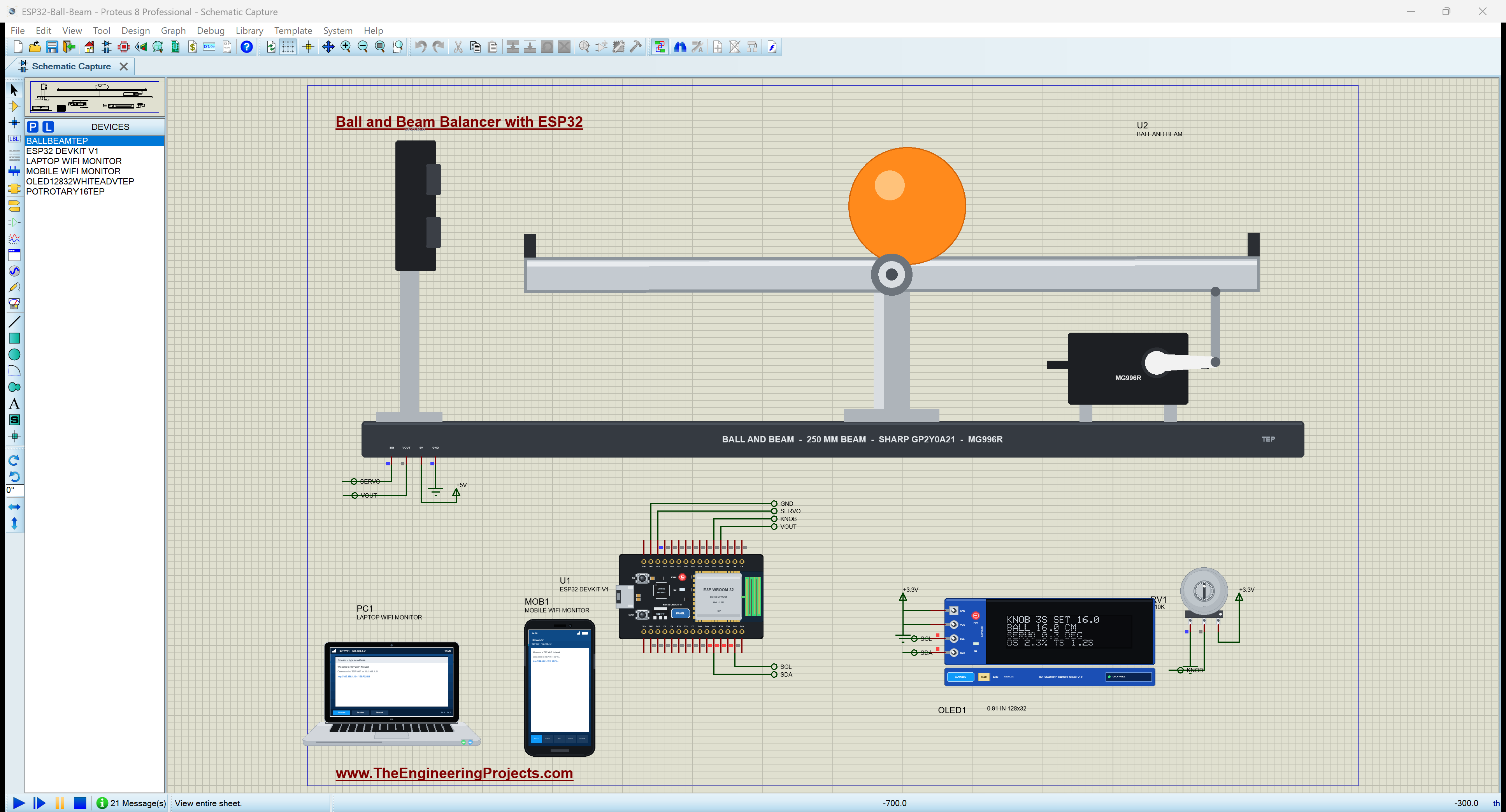
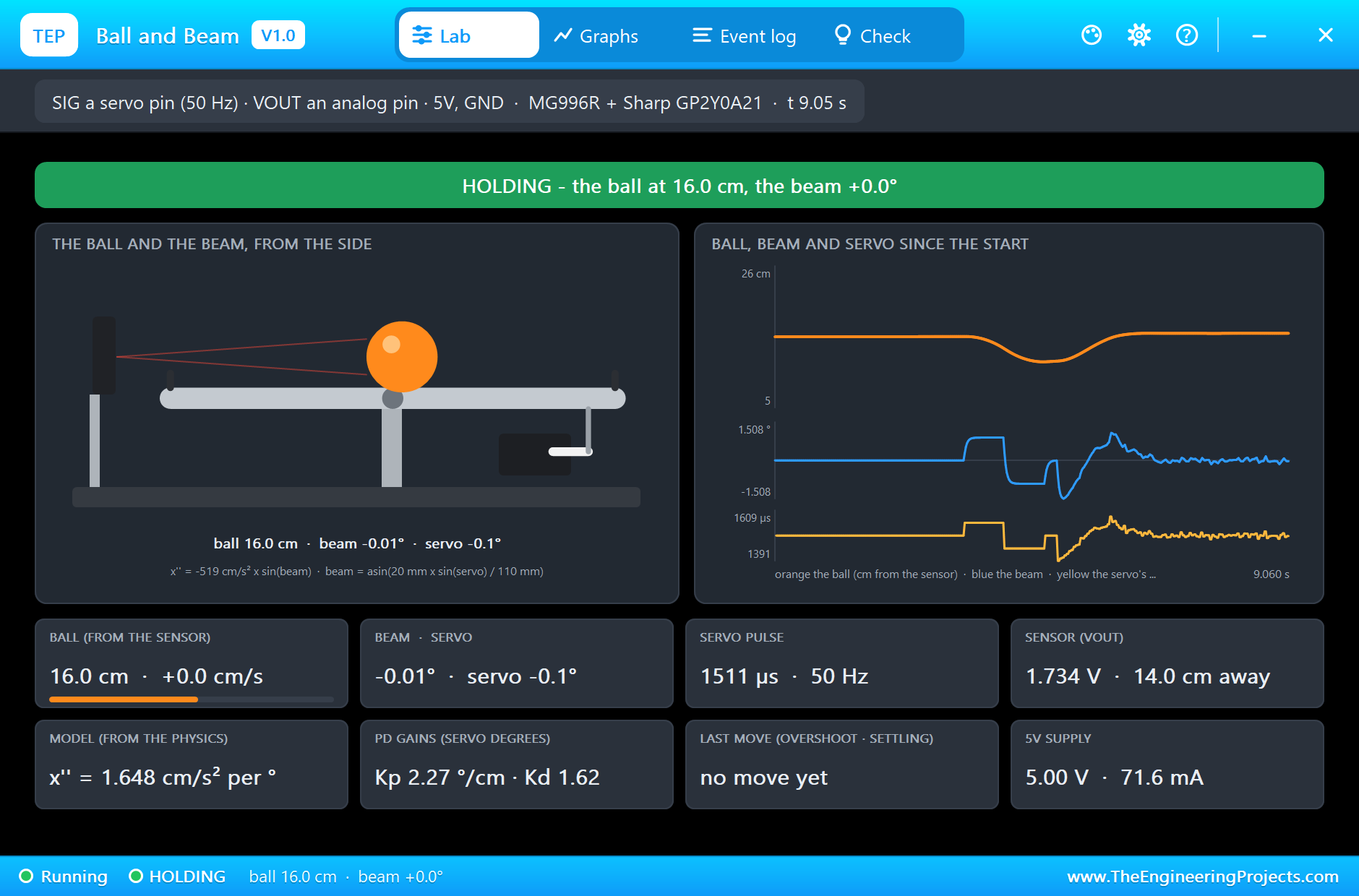
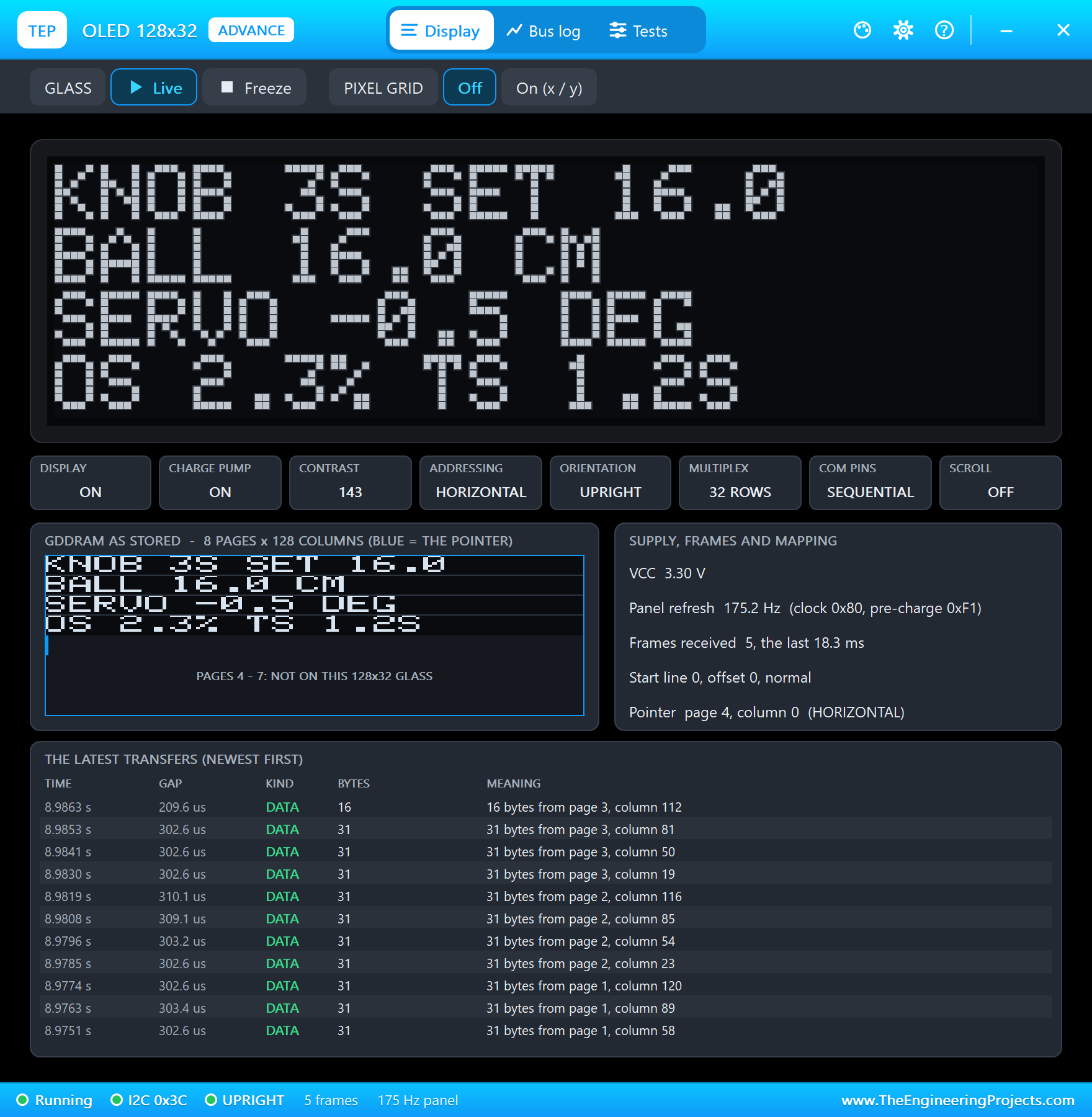
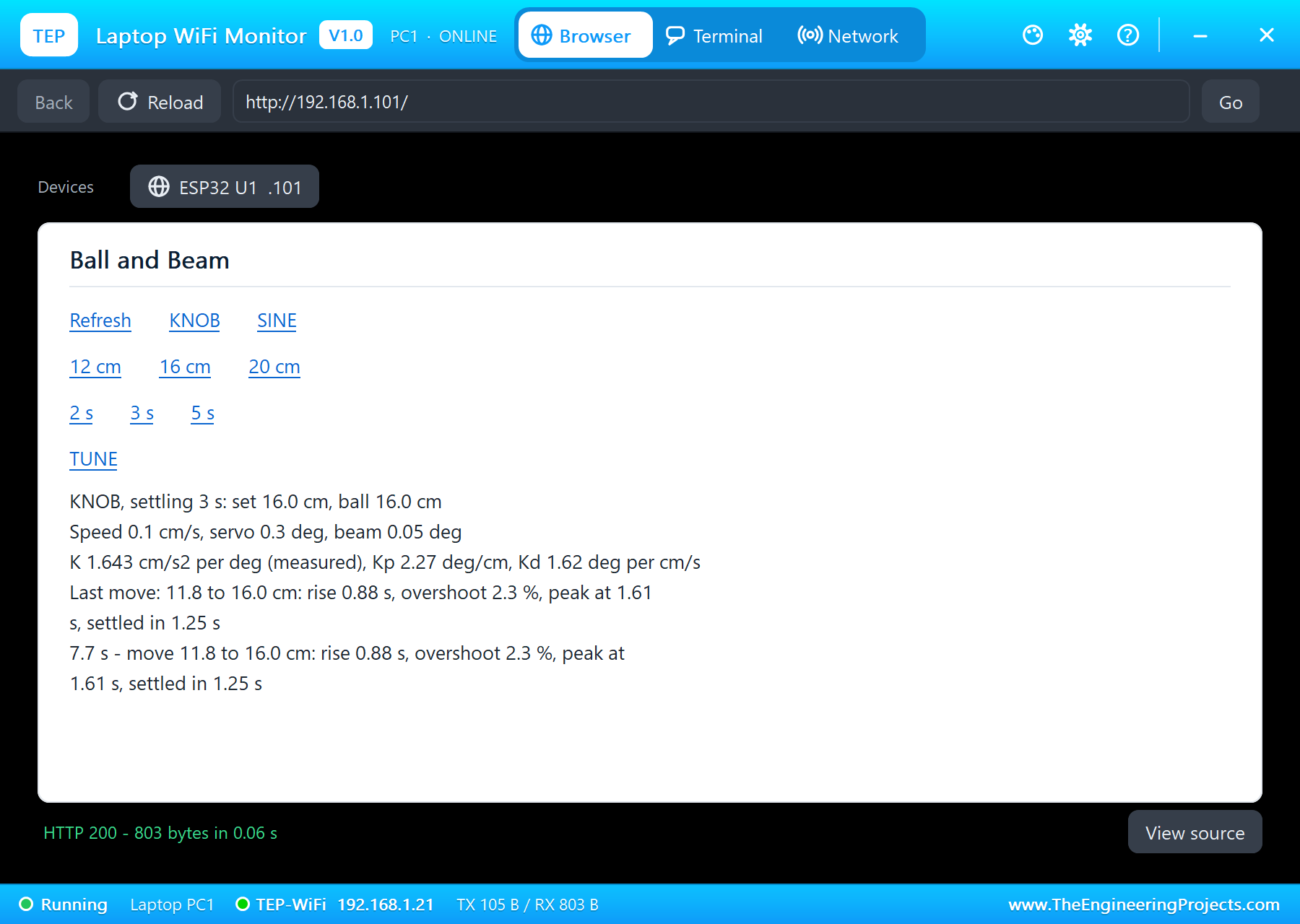
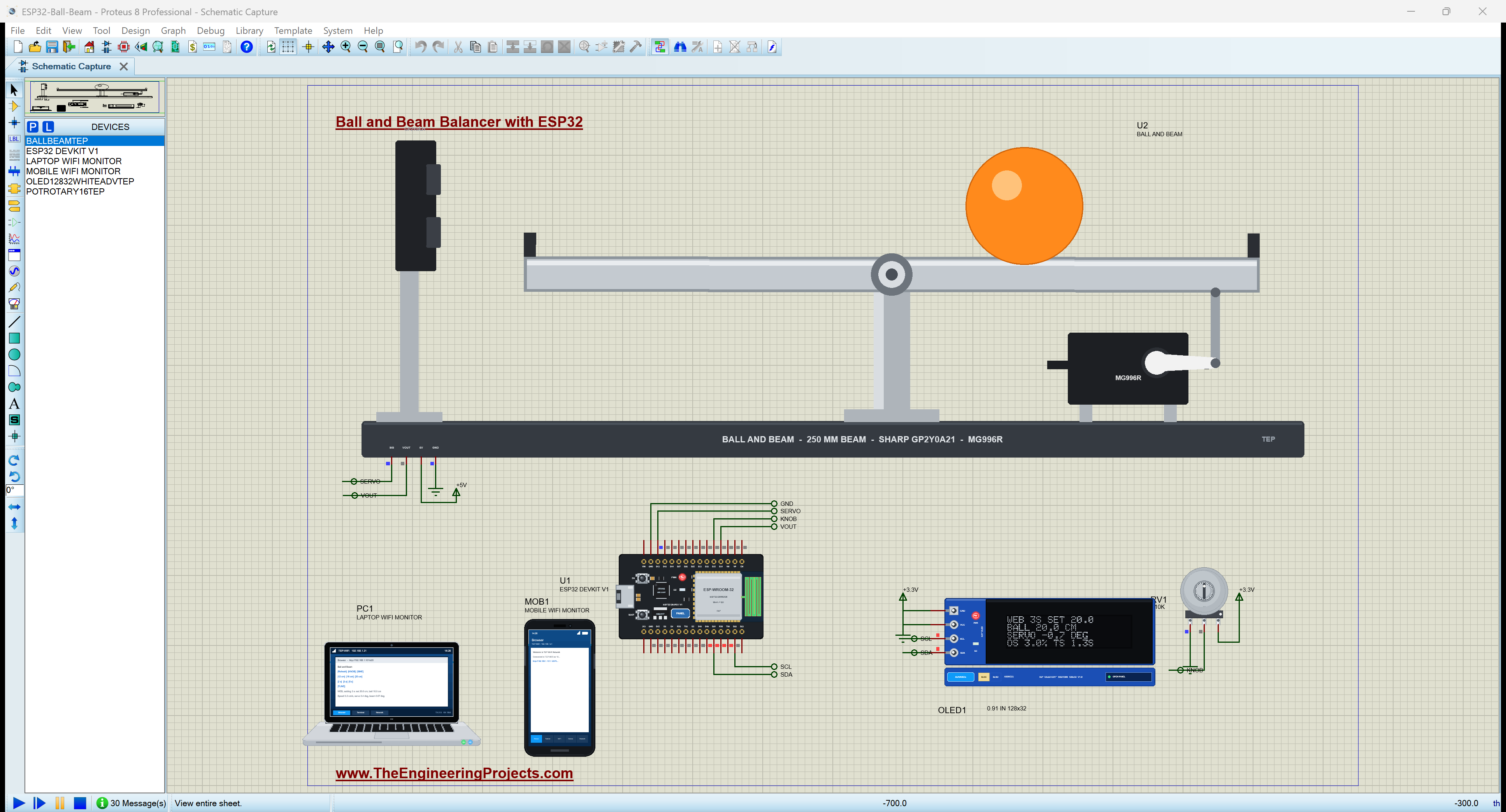
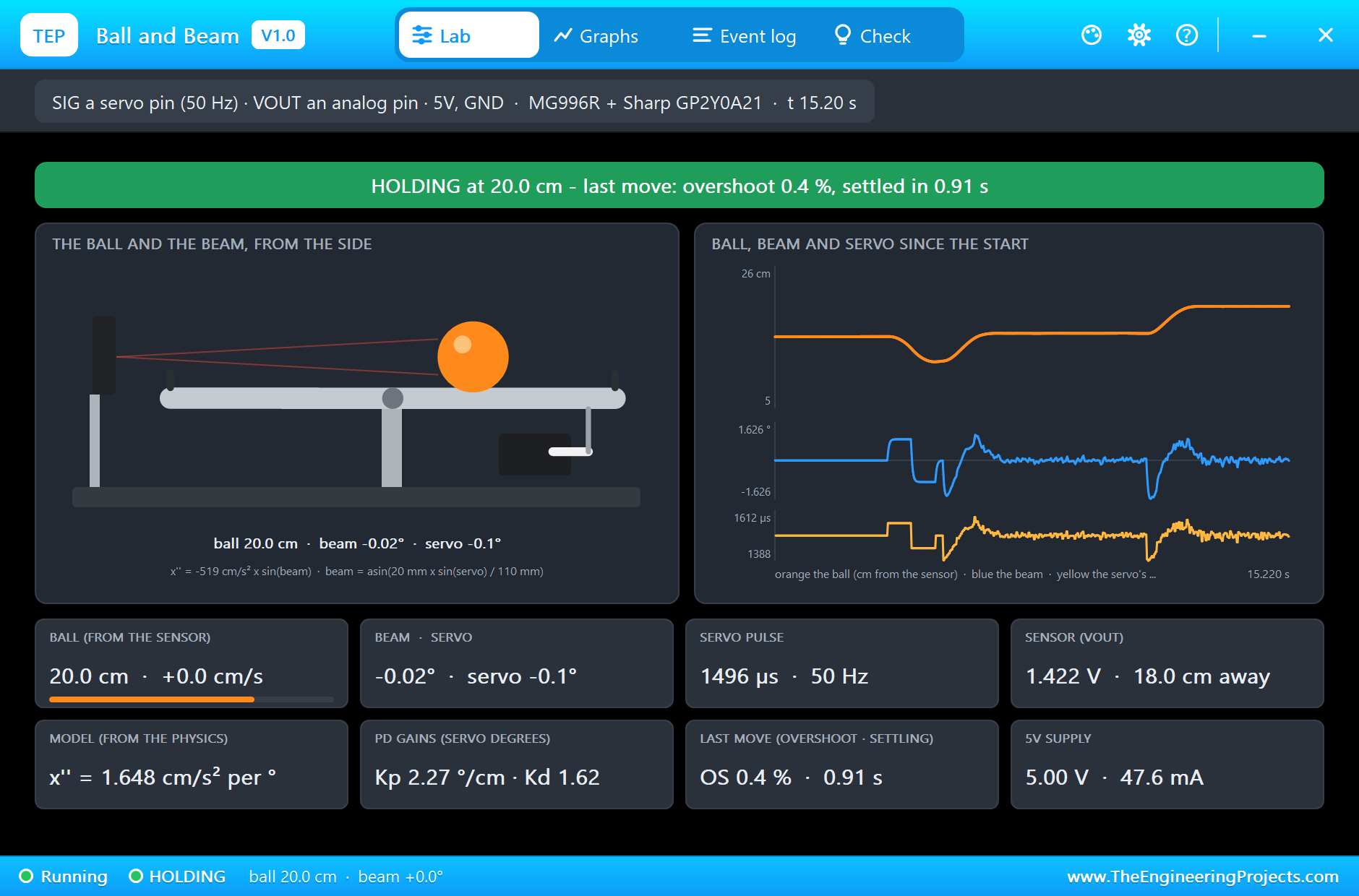
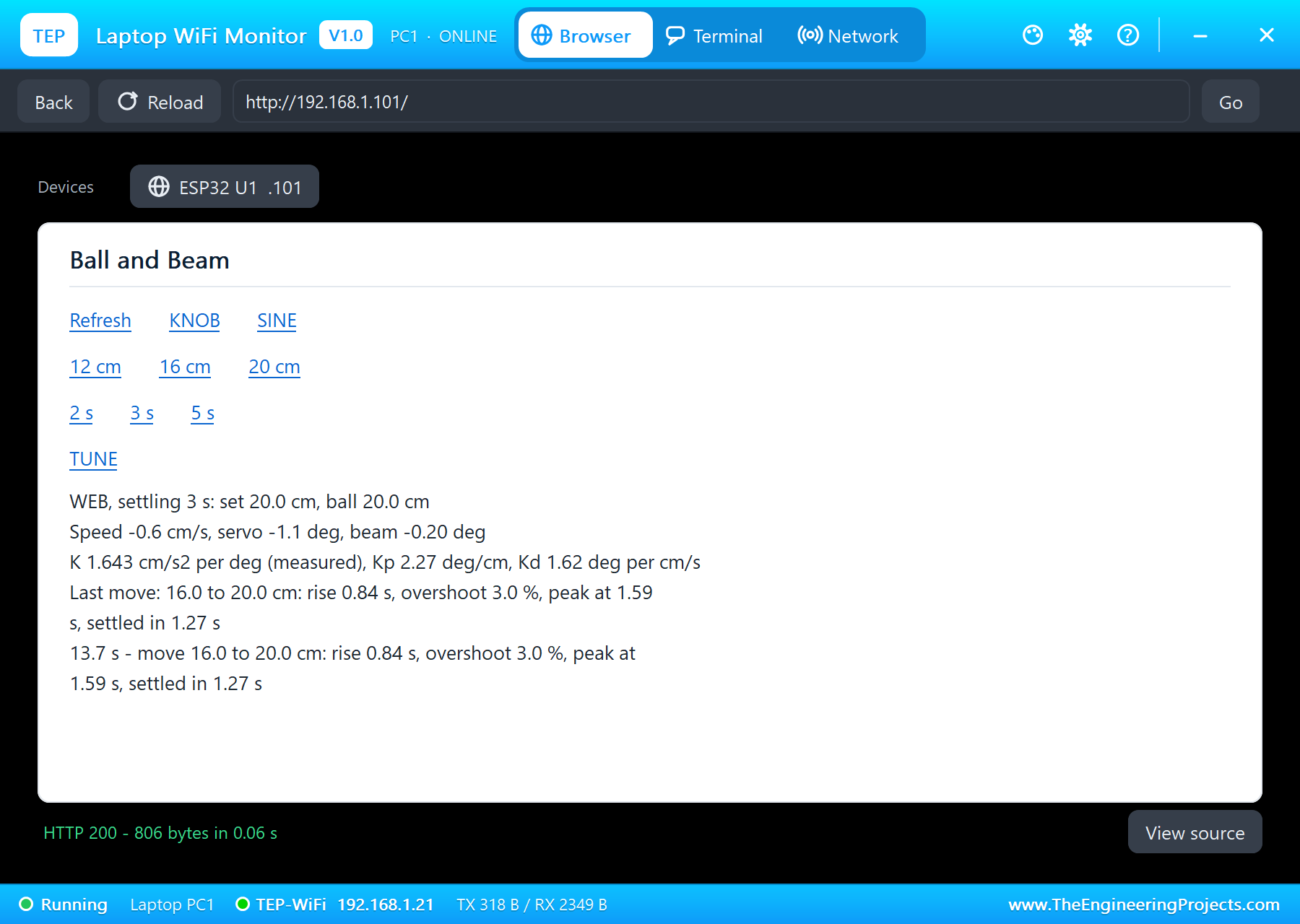
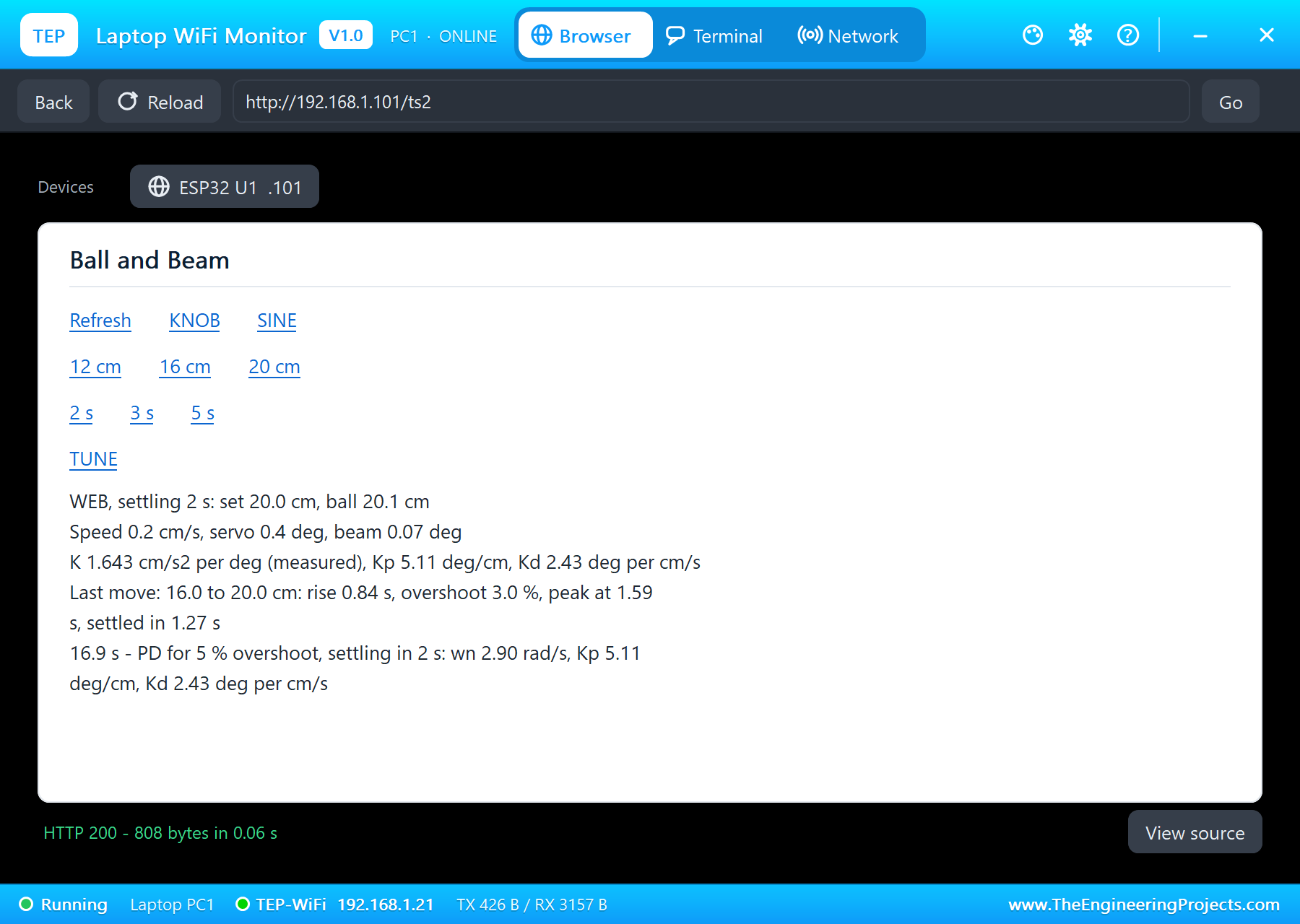
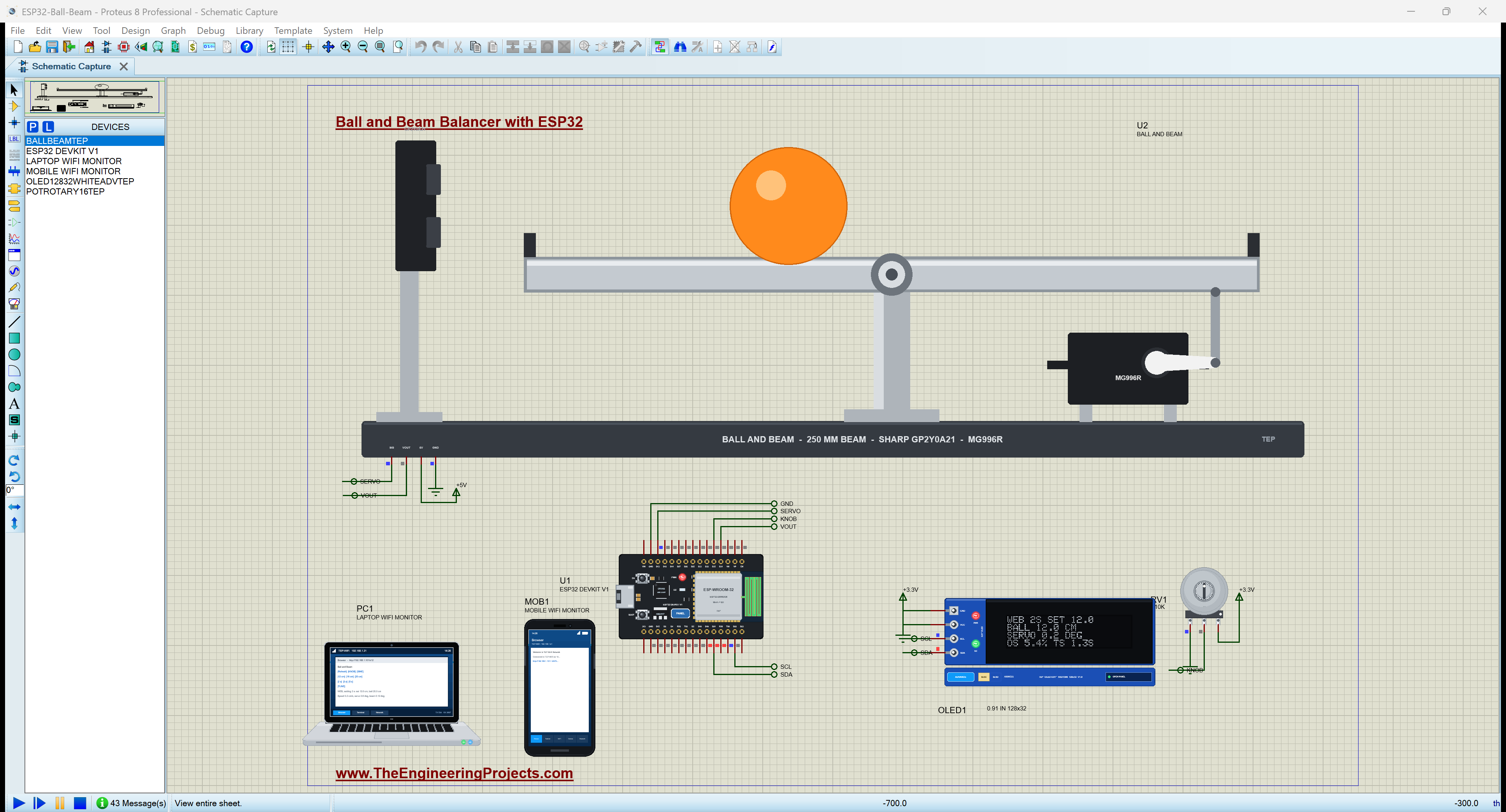
The circuit, the board and the results as they appear in ESP32 Ball and Beam PID Balancer in Proteus Simulation. Open an image for its full size.
README
 README
===============================================================================================================
  ESP32 Ball and Beam PID Balancer in Proteus Simulation - Project V1.0
  The Engineering Projects - www.TheEngineeringProjects.com
===============================================================================================================

IMPORTANT LINKS
  The project tutorial (circuit, code, simulation results):
  https://www.theengineeringprojects.com/2026/11/esp32-ball-and-beam-pid-balancer-proteus-simulation.html
  The libraries this project is built from (each post has its own full download and tutorial):
    ESP32 DevKit V1 board:
      https://www.theengineeringprojects.com/2026/10/esp32-devkit-v1-library-for-proteus-v2-0.html
    Ball and beam PID control lab:
      https://www.theengineeringprojects.com/2026/11/ball-and-beam-pid-control-lab-library-for-proteus.html
    Potentiometer:
      https://www.theengineeringprojects.com/2026/11/potentiometer-library-for-proteus.html
    OLED 128x32:
      https://www.theengineeringprojects.com/2026/10/oled-128x32-library-for-proteus-v1-0.html
    Laptop WiFi Monitor:
      https://www.theengineeringprojects.com/2026/10/laptop-wifi-monitor-library-for-proteus.html
    Mobile WiFi Monitor:
      https://www.theengineeringprojects.com/2026/10/mobile-wifi-monitor-library-for-proteus.html
  Support our free work: https://www.theengineeringprojects.com/donate

FILE STRUCTURE
ESP32-Ball-Beam-TEP-v1.0/
|-- Proteus Library Files/
|   |-- TEPBALLBEAM.LIB                                21.7 KB   a part of the project -> LIBRARY folder
|   |-- TEPESP32V1.LIB                                 36.6 KB   a part of the project -> LIBRARY folder
|   |-- TEPLAPTOP.LIB                                  39.5 KB   a part of the project -> LIBRARY folder
|   |-- TEPMOBILE.LIB                                  13.1 KB   a part of the project -> LIBRARY folder
|   |-- TEPOLED12832.LIB                               78.1 KB   a part of the project -> LIBRARY folder
|   |-- TEPPOT.LIB                                    208.6 KB   a part of the project -> LIBRARY folder
|-- Proteus Model Files/
|   |-- TEPBALLBEAM.DLL                               326.5 KB   a model -> MODELS folder
|   |-- TEPNET.DLL                                     3.01 MB   a model -> MODELS folder
|   |-- TEPOLED.DLL                                   342.5 KB   a model -> MODELS folder
|   |-- TEPPOT.DLL                                    310.0 KB   a model -> MODELS folder
|-- Proteus Simulation/
|   |-- ESP32_Ball_Beam.hex                           124.8 KB   the firmware
|   |-- ESP32-Ball-Beam.pdsprj                         31.9 KB   the project simulation
|   |-- TEPBALLBEAM.DLL                               326.5 KB   copy of the model
|   |-- TEPNET.DLL                                     3.01 MB   copy of the model
|   |-- TEPOLED.DLL                                   342.5 KB   copy of the model
|   |-- TEPPOT.DLL                                    310.0 KB   copy of the model
|-- Arduino Code/
|   |-- ESP32_Ball_Beam/ESP32_Ball_Beam.ino            16.4 KB   the sketch (source of the .hex)
|-- README.txt                                         ~9.4 KB   this file
Total: 8.50 MB (unzipped). The C++ source code of the models is not included.

WHAT IS IT?
  The classic control lab on an ESP32: a table-tennis ball rolls in a 250 mm beam, a servo tilts the beam, an IR
  sensor sees the ball, and the ESP32 holds the ball wherever you ask - after measuring the lab by itself.
    * U1 ESP32 DEVKIT V1 runs ESP32_Ball_Beam.hex on TEP-WiFi at 192.168.1.101 (port 80).
    * U2 the ball and beam lab (BALLBEAMTEP): its MG996R servo's SIG from D13 (1500 us = the beam level, 11.1 us a
      degree), the Sharp GP2Y0A21 sensor's VOUT to D34, 5V on +5V, GND.
    * RV1 the setpoint knob, a 16 mm 10k potentiometer (POTROTARY16TEP) across +3.3V, its wiper to D35: 10 - 22 cm.
    * OLED1 an SSD1306 0.91" 128x32 OLED (OLED12832WHITEADVTEP, 0x3C) on I2C D21 / D22, VCC +3.3V.
    * Laptop WiFi Monitor (PC1) and Mobile WiFi Monitor (MOB1) open http://192.168.1.101/.
  What the sketch does:
    TUNE      the ball still, the beam +5 deg for 0.7 s, then -5 deg: a point at every new sensor reading, and the
              fit d = a/2 (t - tau)^2 gives the ball's acceleration a, so the plant's gain K = -a / 5 (cm/s2 per
              servo degree)
    the PD    for 5 % overshoot (zeta 0.69) and the settling time Ts asked: wn = 4 / (zeta Ts), Kp = wn^2 / K,
              Kd = 2 zeta wn / K; servo = Kp (ball - set) + Kd x speed, limited to +-30 deg
    a move    every setpoint move is measured: rise 10 - 90 %, overshoot, peak time, settling (2 % or 0.15 cm)
    modes     KNOB (the knob), WEB (12 / 16 / 20 cm), SINE (16 cm +- 4 cm, a 10 s period: the RMS error)
  The pages:
    /          the dashboard: the mode, the ball, the servo and the beam, K and the gains, the last move
    /knob   /sine   /s12   /s16   /s20   the mode or a setpoint      /ts2   /ts3   /ts5   the settling time
    /tune      measure the lab again                                  /data   JSON
  Libraries: WiFi and WebServer (part of the ESP32 core), Wire, ESP32Servo, Adafruit SSD1306 and Adafruit GFX.

TEST STATUS
  Tested in Proteus 8 Professional on Windows 11, the run that made the tutorial's screenshots (the sketch's times):
  - 3.3 s the ball still at 15.5 cm; 4.9 s "TUNE: a -8.21 cm/s2 after a delay of 74 ms, from 19 readings - K 1.643"
    (the lab's model: 1.648); "PD for 5 % overshoot, settling in 3 s: wn 1.93 rad/s, Kp 2.27, Kd 1.62" (the pop-up's
    own gains: 2.27 / 1.62).
  - The knob's 16 cm: 7.7 s "move 11.8 to 16.0 cm: rise 0.88 s, overshoot 2.3 %, peak at 1.61 s, settled in 1.25 s".
  - 20 cm from the laptop: 13.7 s "16.0 to 20.0 cm: rise 0.84 s, overshoot 3.0 %, settled in 1.27 s" (the lab's
    pop-up, which sees the ball itself: 0.4 %, 0.91 s - the sensor's noise adds to the sketch's peak).
  - Settling 2 s: Kp 5.11, Kd 2.43; 12 cm: 21.5 s "20.0 to 12.0 cm: rise 0.52 s, overshoot 5.4 %, settled in 1.88 s"
    (the pop-up: 5.9 %, 1.60 s).
  - SINE (16 +- 4 cm, 10 s): RMS error 0.84 cm.
  - KNOB: the ball (moving from the sine) to 16 cm, 10.7 % overshoot; the knob at 100 %: 59.2 s "16.0 to 22.0 cm: rise
    0.44 s, overshoot 6.6 %, settled in 2.40 s" (the pop-up: 5.1 %, 1.48 s).
  - 63 s of simulation in 520 s.

INSTALLATION
  1. Close Proteus. Extract the WHOLE zip file, for example to your Desktop.
  2. Copy the files from "Proteus Library Files" into the LIBRARY folder of Proteus, for example
     C:\Program Files (x86)\Labcenter Electronics\Proteus 8 Professional\LIBRARY
  3. Copy the files from "Proteus Model Files" into the MODELS folder (next to LIBRARY).
  4. Start Proteus. Press P in the schematic and search for ESP32 DEVKIT V1, BALLBEAMTEP or POTROTARY16TEP to
     check that the parts are there.

RUN THE SIMULATION
  1. Open "Proteus Simulation\ESP32-Ball-Beam.pdsprj". Keep the HEX file and the DLL files beside it.
  2. Press Play. The ESP32 measures the lab (TUNE, about 2 s), designs the PD and moves the ball to the knob's 16 cm.
  3. Click the lab (U2) for its pop-up: the ball, the beam, the servo, its own model and gains, every move measured.
  4. Open the Laptop WiFi Monitor (PC1) or the Mobile WiFi Monitor (MOB1) and press Go: 12 / 16 / 20 cm, 2 / 3 / 5 s,
     SINE, KNOB, TUNE. On the knob's pop-up (RV1) press 100 % for 22 cm.
  Your own sketch: compile it, export the compiled binary and set U1's PROGRAM to the new file.

PROPERTIES USED IN THIS PROJECT
  U1 ESP32 DEVKIT V1           PROGRAM=ESP32_Ball_Beam.hex, AUTOOPEN=YES (TEP-WiFi, 192.168.1.101)
  U2 BALLBEAMTEP               BALLX=15.5 (the ball's start, cm), NOISE=3 (mV), TSET=3 (the pop-up's design)
  RV1 POTROTARY16TEP (B10K, the knob at 50 %);  OLED1 OLED12832WHITEADVTEP
  PC1, MOB1                    HOMEPAGE=http://192.168.1.101/

TROUBLESHOOTING
  * The ball reads wrong: VOUT on D34 (an ADC1 pin); under 6 cm from the sensor the GP2Y0A21's curve folds back.
  * The beam does not move: SIG on D13, 5V on a real 5 V supply (the servo draws from it).
  * The ball oscillates: run TUNE again (/tune) with the ball still, or choose a slower settling time (5 s).
  * The OLED stays blank: SDA / SCL on D21 / D22, address 0x3C, VCC 3.3 V.

LICENCES
  * The project, the sketch, the parts (LIB files) and the models (DLL files) are made by The Engineering
    Projects and are free for learning and for your own projects. The models use only standard Windows libraries.
    The C++ source code of the models is not included; the source code is not included for any model.
  * Proteus is a product of Labcenter Electronics and is not included. ESP32 is a product of Espressif Systems.
    This project is not made or endorsed by them.

VERSION
  V1.0 - the first release of the project.
===============================================================================================================Development1 release
 Development1 release
-
V1.0ESP32 Ball and Beam PID Balancer in Proteus Simulation V1.0this page
V1.0 is the only release in the Download Center so far. When a newer version is published, it appears above with its own download page.
Installation8 steps
 Installation8 steps
From the download to a working project, in order. The steps follow what the package contains.
You will need
- Proteus Design SuiteProteus 8 or newer (Labcenter), on Windows
- Arduino IDE1.8 or 2.x, with the board of the tutorial chosen under Tools → Board
- Any archive toolWindows, macOS and Linux extract ZIP files on their own
Steps
- 1
Extract the archive
Right-click 8c99573f058f43d4ad1cfb2efa0f6896.zip and choose Extract All (or open it with 7-Zip or WinRAR) into a folder you can find again. Keep its folder structure (ESP32-Ball-Beam-TEP-v1.0) as it is.
- 2
Copy the library files into Proteus
Move TEPBALLBEAM.LIB, TEPESP32V1.LIB and TEPLAPTOP.LIB and 3 more and the files into the LIBRARY folder of your Proteus installation: C:\Program Files (x86)\Labcenter Electronics\Proteus 8 Professional\LIBRARY for Proteus 8, or the matching Proteus 7 folder. Older versions keep it under ProgramData\Labcenter Electronics. If Proteus is open, close it first.
- 3
Add the simulation model
Copy TEPBALLBEAM.DLL, TEPNET.DLL and TEPOLED.DLL and 1 more into the MODELS folder next to LIBRARY, so the component can run, not only be drawn.
- 4
Restart Proteus and place the component
Start Proteus, open a schematic, press P (Pick Devices) and search for the component by the name used in the tutorial. It appears with its pins ready to wire.
- 5
Open the sketch in the Arduino IDE
Open ESP32_Ball_Beam.ino, select your board and port under Tools, then Verify. Sketch → Export Compiled Binary writes the HEX file a simulation needs.
- 6
Load the HEX file
In Proteus double-click the microcontroller, set Program File to ESP32_Ball_Beam.hex and run the simulation. For real hardware, flash the same file with your programmer.
- 7
Open the example simulation
Open ESP32-Ball-Beam.pdsprj in Proteus to see the wiring exactly as in the tutorial. Check the controller's Program File path, then press Play.
- 8
Follow the tutorial
ESP32 Ball and Beam PID Balancer in Proteus Simulation explains every connection and setting in order; keep it open beside the files while you build.
FAQs9 questionsContact TEP
 FAQs9 questions
How do I download ESP32 Ball and Beam PID Balancer in Proteus Simulation V1.0?
Wait for the 30-second guest countdown on this page, then press the download button; the file comes straight from our storage. Members who are logged in skip the wait. If the browser opens the file instead of saving it, use its Save as option. The download link is made for you when the countdown ends and works for 15 minutes; a saved or shared link stops working, so share this page instead.
What is inside the archive?
ESP32 Ball and Beam PID Balancer in Proteus Simulation V1.0 comes as a ZIP archive of 18 files (3.8 MB, 8.5 MB unpacked) holding Proteus library files, simulation model DLLs, a Proteus simulation, an Arduino sketch and compiled HEX firmware. Open the File Structure tab for the full list of 18 files.
What should I do if the download does not start?
Check the browser's download list first; an ad blocker or a company firewall can also hold it back, so try another browser or network. If the file arrives incomplete, download it again. For an installation problem, read the Install tab or tell us in the comments with your software version and the exact error message.
Is this file free?
Yes. Every file in the TEP Download Center is free for learning, personal and student projects. If you share it, link back to this page or the tutorial so others find the latest version.
How do I check that the file arrived complete?
Compare its SHA-256 with the one on this page, 5de72f191ad5fb33a0e9119b73457b70f6d2f5f324de85da07f1c05e273e9ff9. In PowerShell run Get-FileHash "8c99573f058f43d4ad1cfb2efa0f6896.zip"; on macOS or Linux run shasum -a 256 "8c99573f058f43d4ad1cfb2efa0f6896.zip". The same value means the file is exactly the one in our storage; a different one means the download broke off, so download it again.
Do I need WinRAR to open the ZIP file?
No. Windows, macOS and Linux open ZIP archives on their own (Extract All, or double-click). WinRAR and 7-Zip work too. Extract the whole archive before using the files.
Where do I put the LIB and IDX files?
Both files go into the LIBRARY folder of your Proteus installation (Proteus 8: C:\Program Files (x86)\Labcenter Electronics\Proteus 8 Professional\LIBRARY; Proteus 7 has the same folder under its own name). Restart Proteus afterwards and search for the component with P.
Which Proteus version does the library need?
The tutorial names the Proteus version the library was made and tested with. Most TEP libraries work in Proteus 7 and Proteus 8; if the component does not appear after a restart, check that both the LIB and the IDX file were copied and that Proteus was fully closed while copying.
How do I get the HEX file into the simulation?
Compile the sketch in the Arduino IDE (Sketch → Export Compiled Binary gives you the HEX next to the sketch), then in Proteus double-click the board, set Program File to that HEX and run.
Members skip the wait. Log in or join TEP.

- 0Total downloads
- 4%Popularity
- ESP32 ProjectsCategory
- 0Comments
- ssyedzainnasirUploaded by
- 24 Nov 2026Uploaded at


 SHA-256
5de72f191ad5fb33a0e9119b73457b70f6d2f5f324de85da07f1c05e273e9ff9


 Need help with this file?
 Tags
Related ESP32 Projects
All ESP32 Projects tutorials




More ESP32 project files
All ESP32 tutorials



Comments
0