


Project Files of Proteus Simulation of an ESP32 Ethernet Wind Monitor (WT32-ETH01)
 Libraries
 Code
 Projects
 Simulation
2c7579f4270e4b078ba350fdebec2652.zip
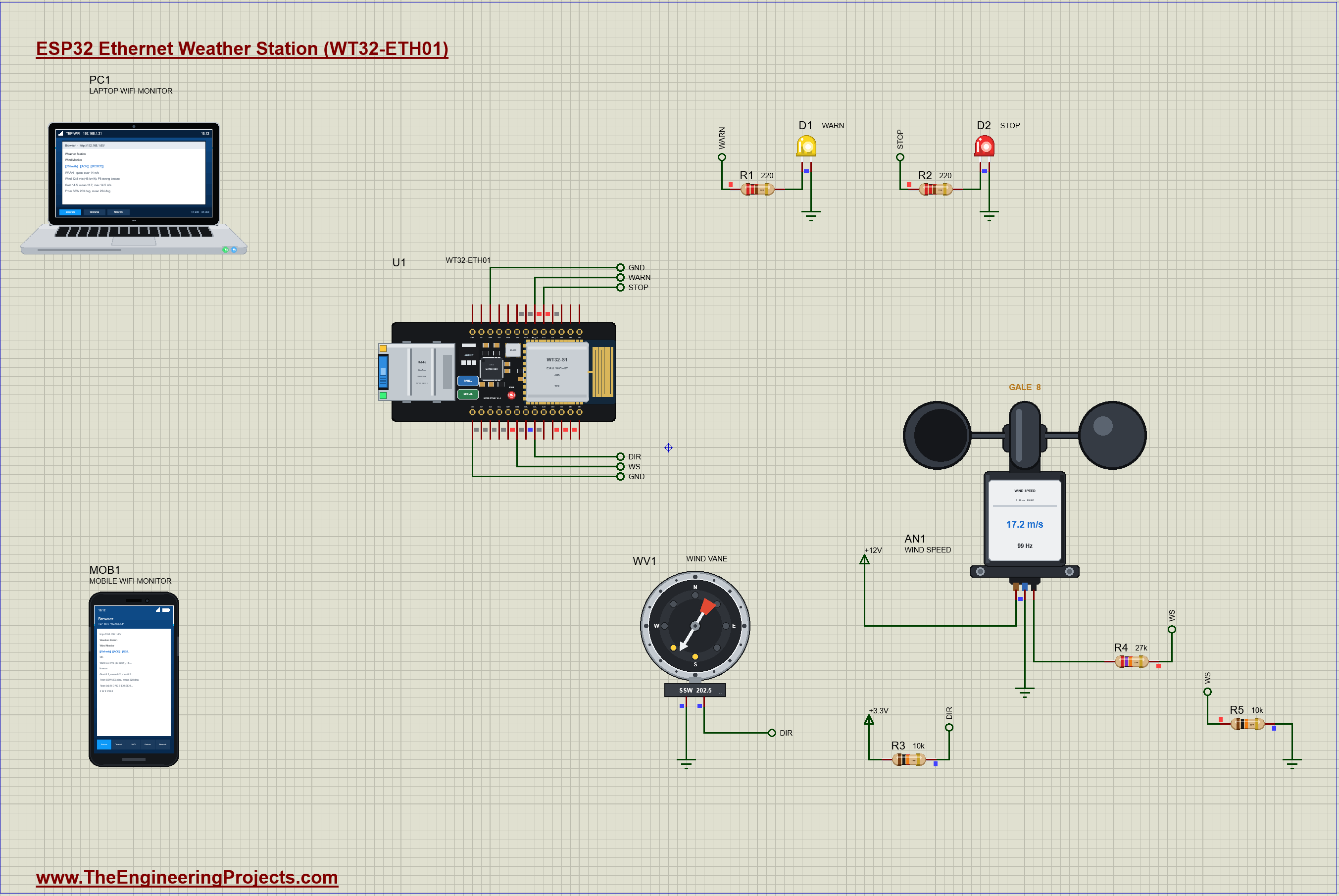
ESP32 Ethernet Wind Monitor (WT32-ETH01) in Proteus Simulation V1.0
ESP32 Ethernet Wind Monitor (WT32-ETH01) in Proteus Simulation V1.0 comes as a ZIP archive of 21 files (4.0 MB, 8.8 MB unpacked) holding Proteus library files, simulation model DLLs, a Proteus simulation, an Arduino sketch and compiled HEX firmware.
- LIBProteus library
- DLLProteus model
- DSNProteus simulation
- INOArduino sketch
- HEXHEX firmware
Description
ESP32-Ethernet-Wind-Monitor-WT32-ETH01-Proteus-Simulation-v1.0.zip: the complete Proteus simulation project (WT32-ETH01, the cup anemometer, the wind vane, two LEDs, resistors, the Laptop and Mobile WiFi Monitors), the Arduino sketch and its HEX file, every LIB and DLL the simulation needs and a README.

File Structure
 File Structure
9.4 KB15.8 KB39.5 KB21.8 KB13.1 KB306.9 KB20.7 KB35.5 KB312.5 KB289.5 KB2.9 MB311 KB313.5 KB31.8 KB84.4 KB312.5 KB289.5 KB2.9 MB311 KB313.5 KB9.7 KBGallery12 images from the tutorialOpen the tutorial
 Gallery12 images from the tutorial
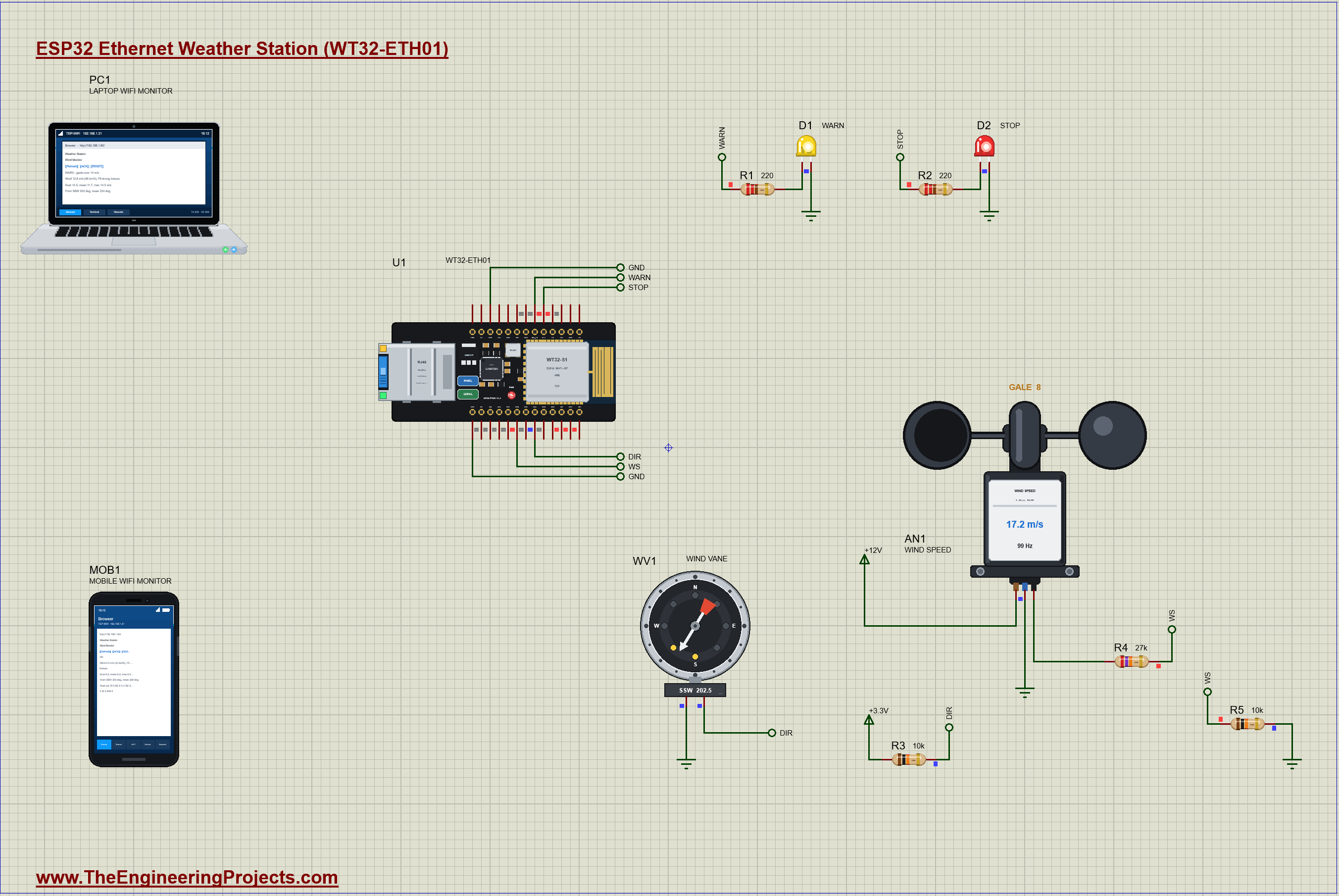
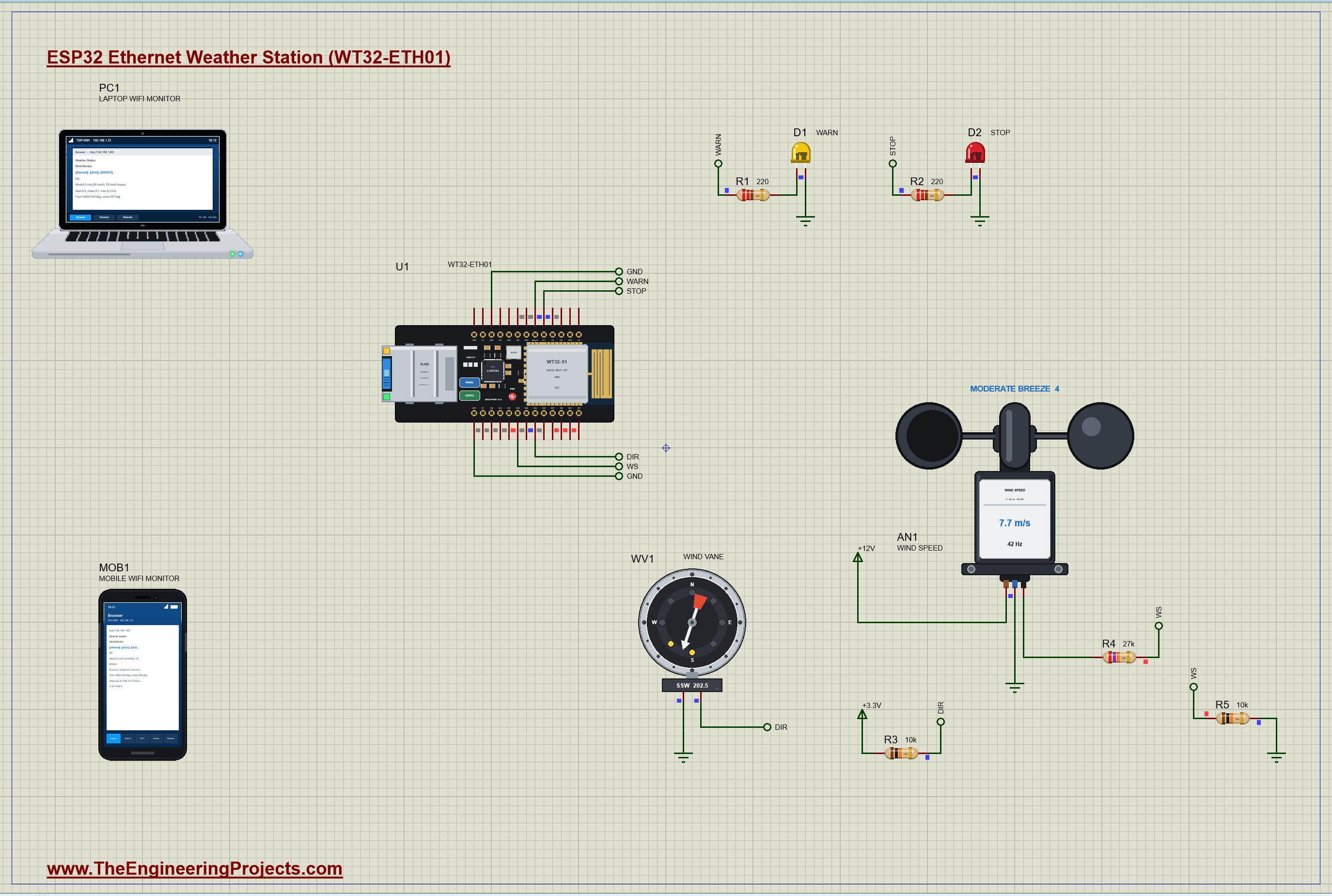
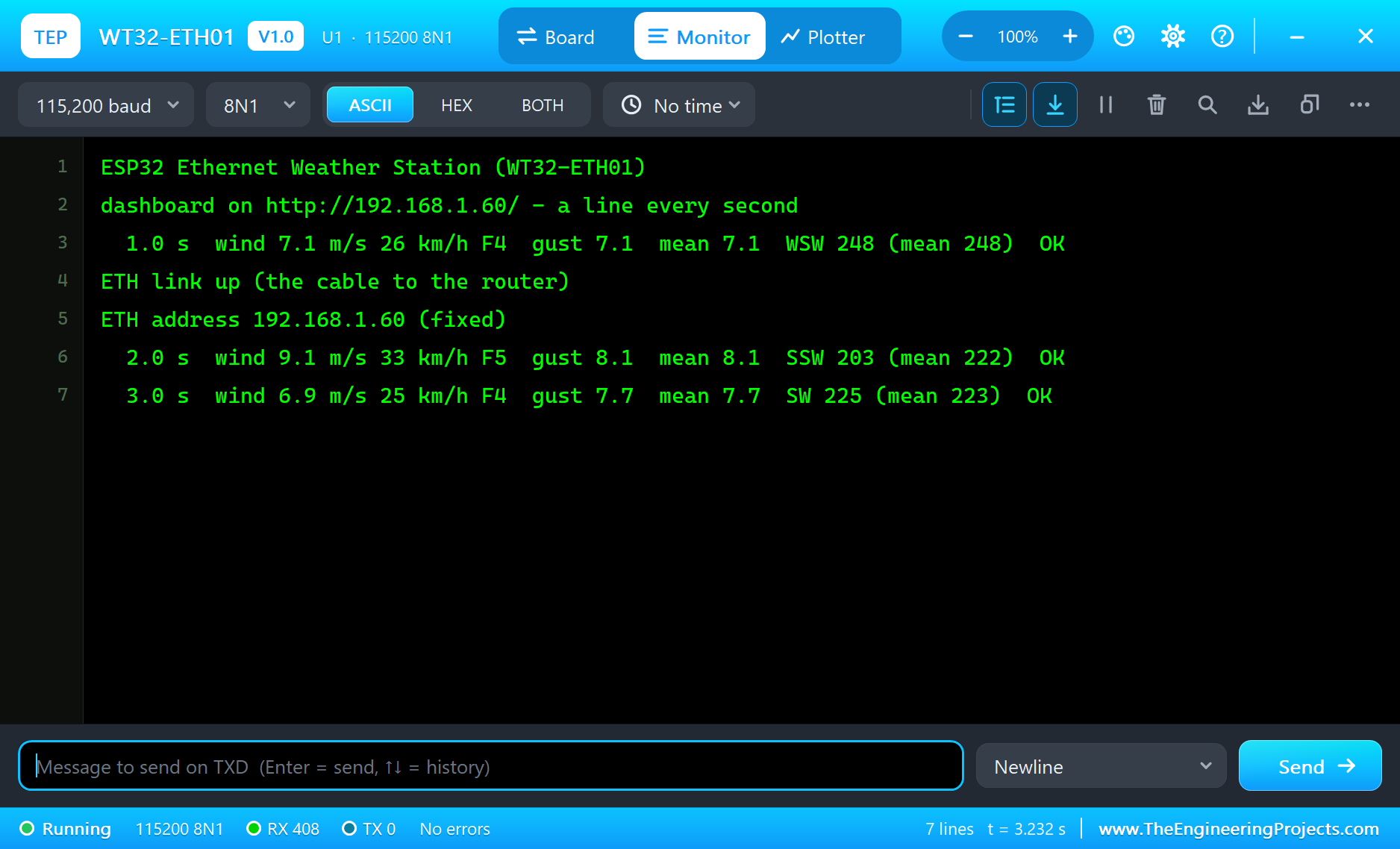
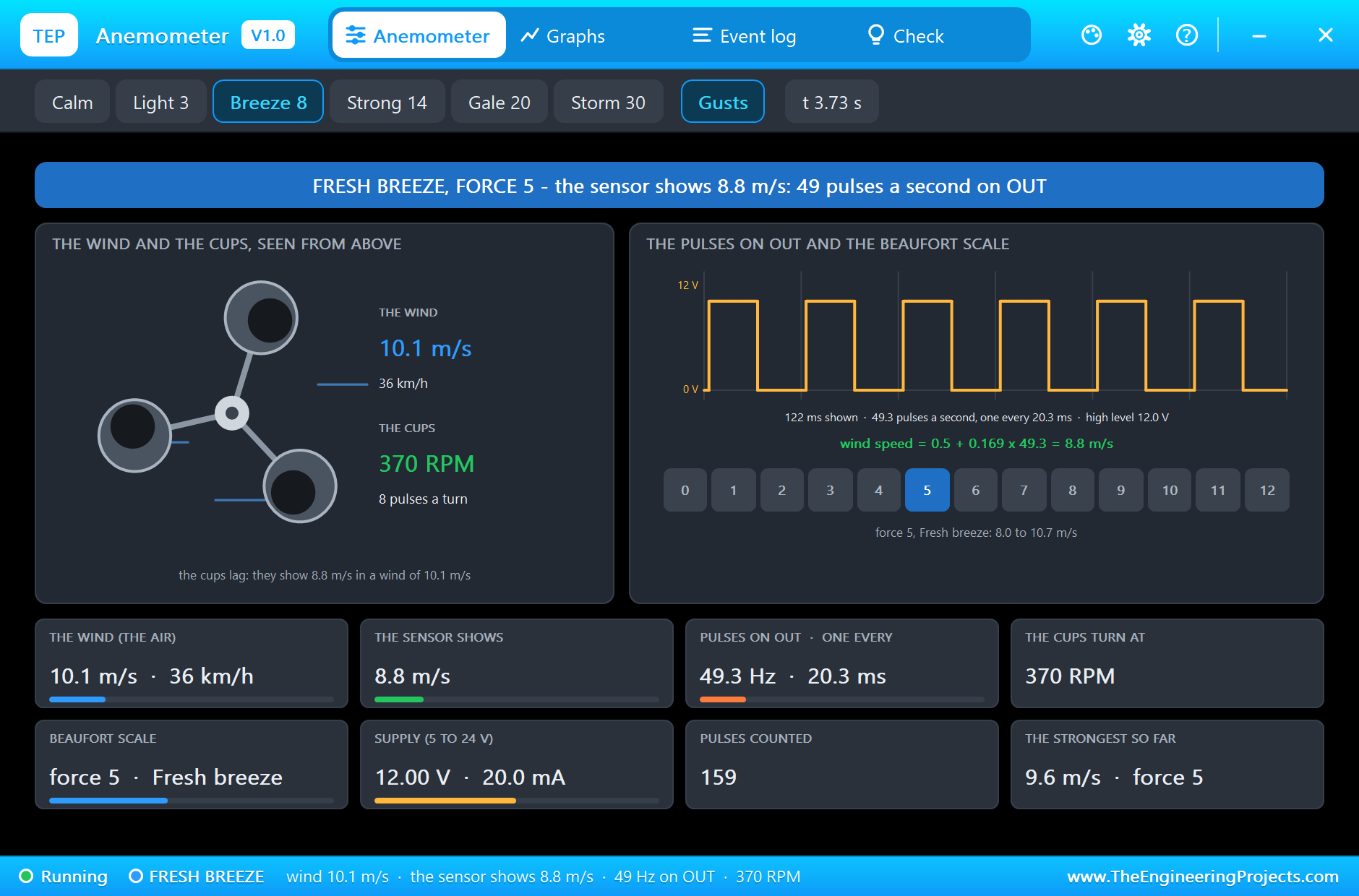
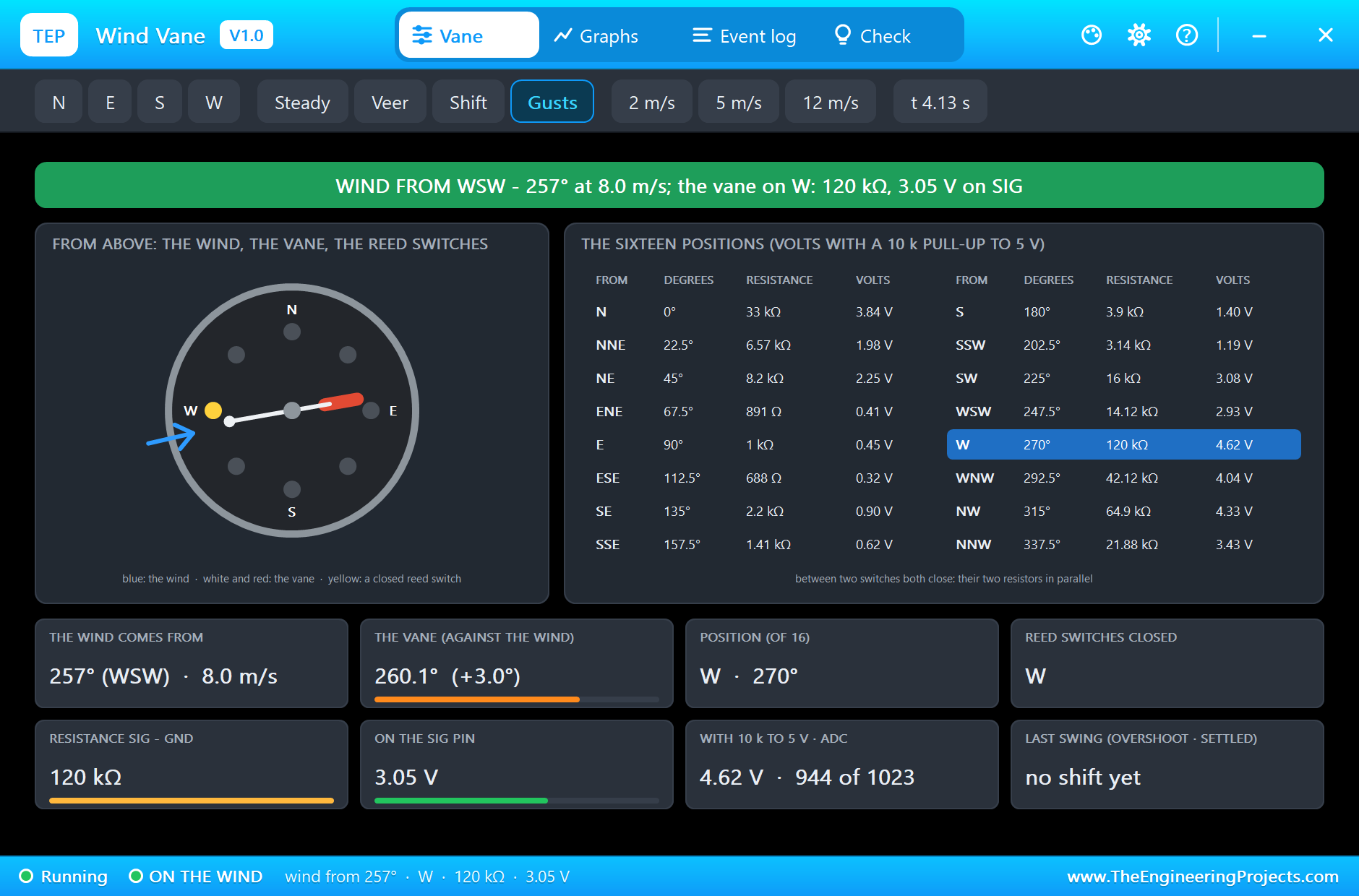
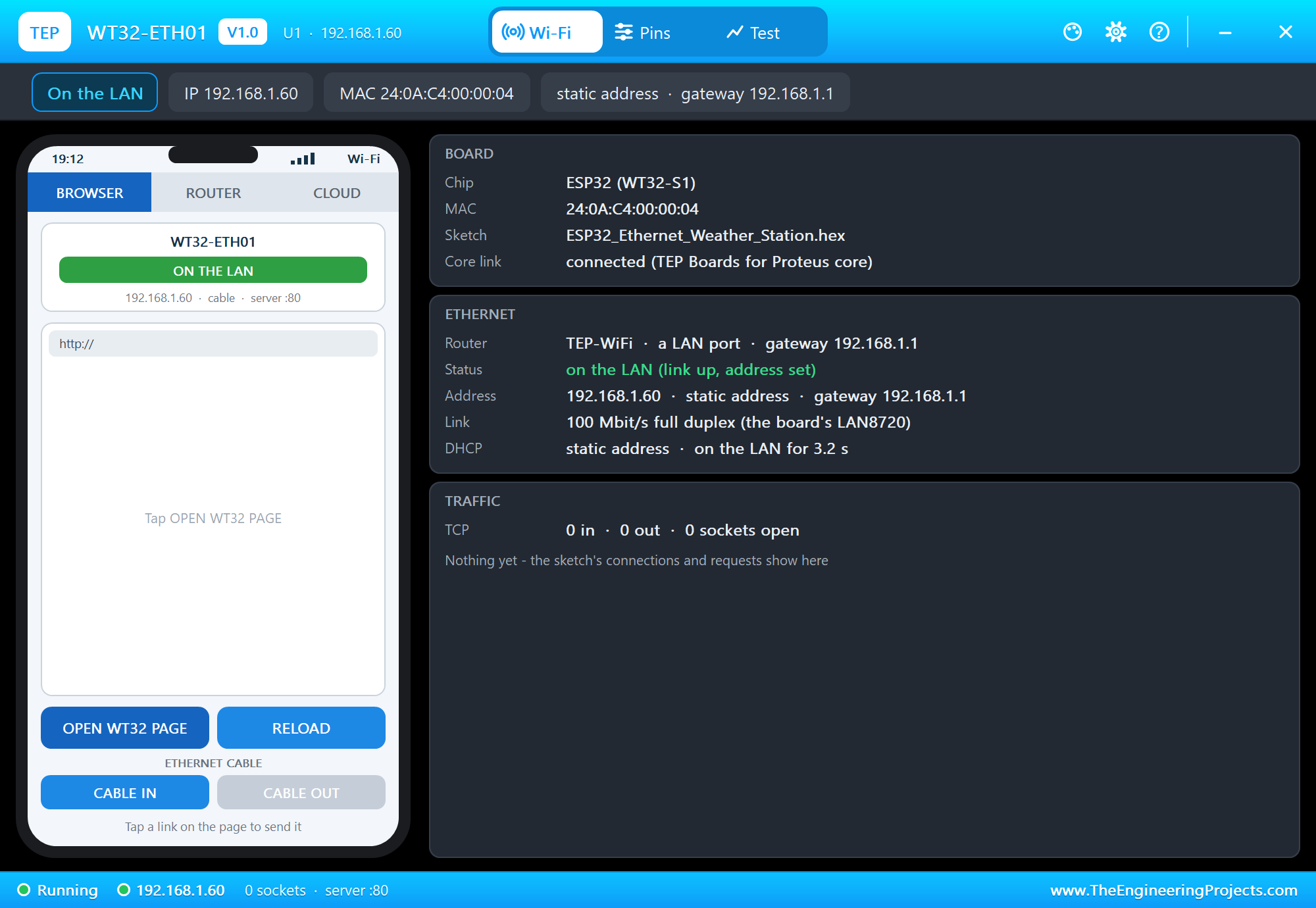
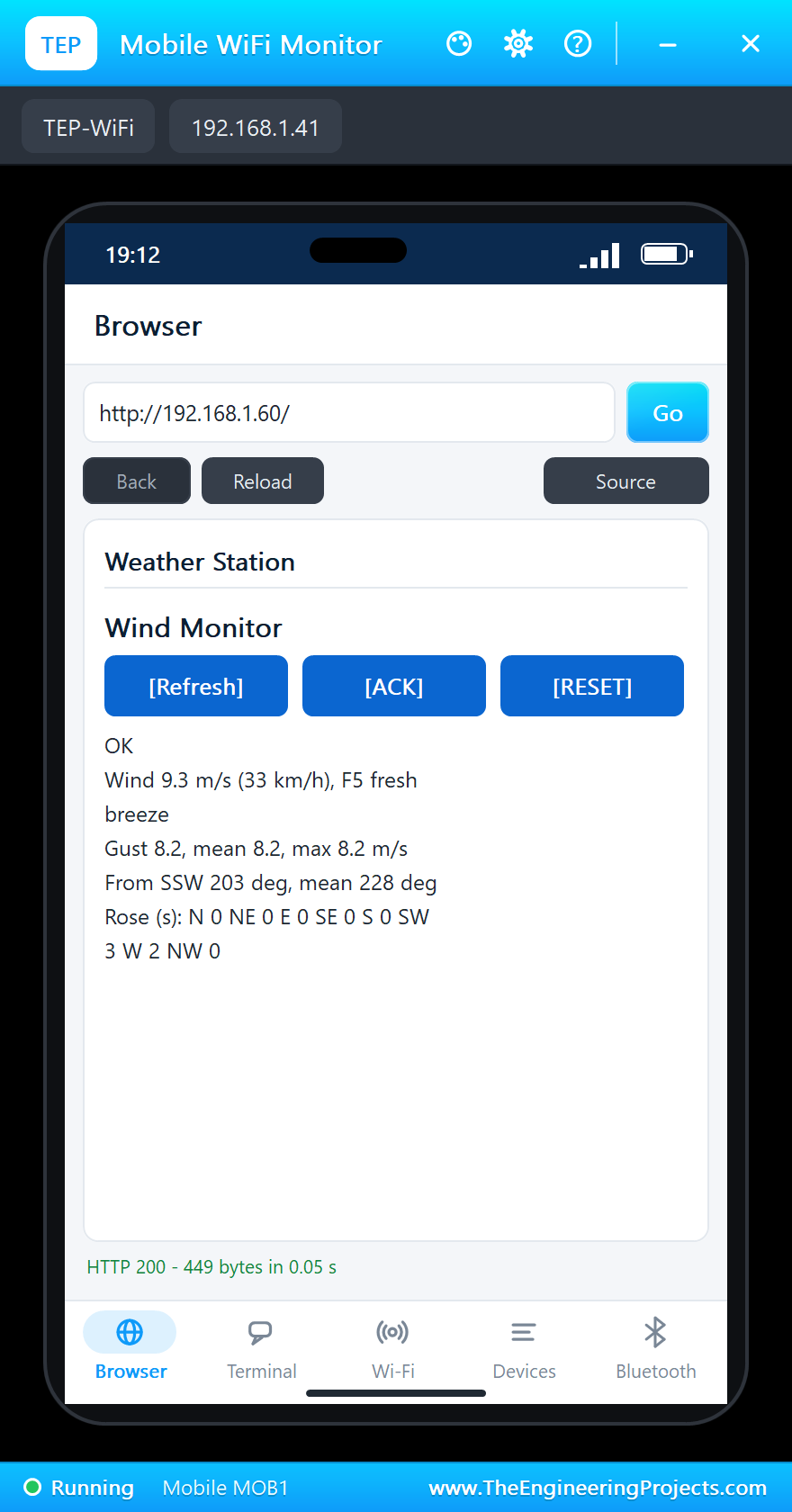
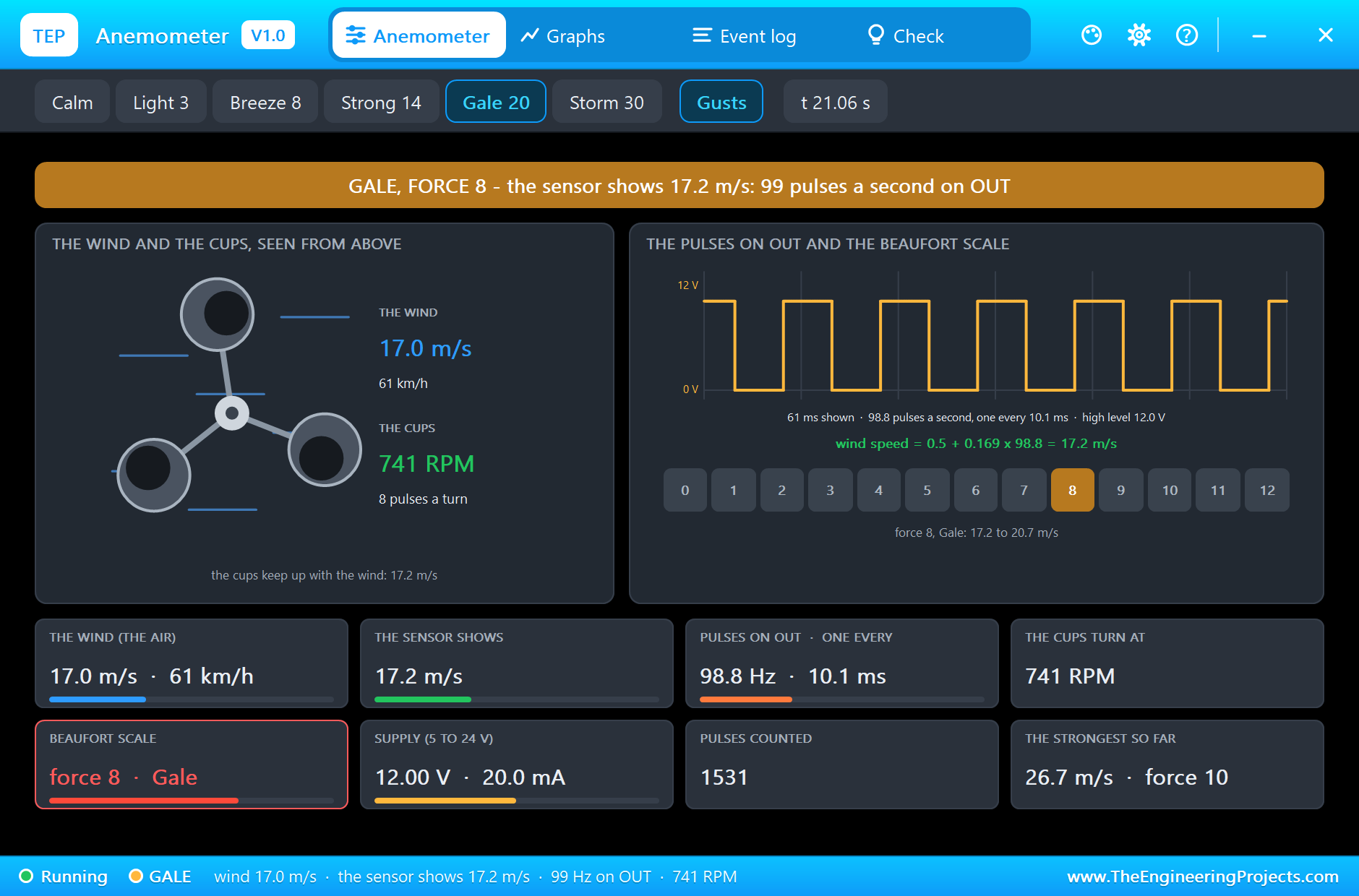
The circuit, the board and the results as they appear in Proteus Simulation of an ESP32 Ethernet Wind Monitor (WT32-ETH01). Open an image for its full size.
README
 README
===============================================================================================================
  Proteus Simulation of an ESP32 Ethernet Wind Monitor (WT32-ETH01) - Project V1.0
  The Engineering Projects - www.TheEngineeringProjects.com
===============================================================================================================

IMPORTANT LINKS
  The project tutorial (circuit, code, simulation results):
    https://www.theengineeringprojects.com/2026/11/esp32-ethernet-wind-monitor-wt32-eth01-proteus-simulation.html
  The libraries this project is built from (each post has its own full download and tutorial):
    WT32-ETH01 board (ESP32 + LAN8720 Ethernet):
      https://www.theengineeringprojects.com/2026/10/wt32-eth01-library-for-proteus.html
    Anemometer (wind speed sensor):
      https://www.theengineeringprojects.com/2026/11/anemometer-wind-speed-sensor-library-for-proteus.html
    Wind vane (wind direction sensor):
      https://www.theengineeringprojects.com/2026/11/wind-vane-direction-sensor-library-for-proteus.html
    5 mm LED:
      https://www.theengineeringprojects.com/2026/11/5mm-led-library-for-proteus.html
    Resistor:
      https://www.theengineeringprojects.com/2026/11/resistor-library-for-proteus.html
    Laptop WiFi Monitor:
      https://www.theengineeringprojects.com/2026/10/laptop-wifi-monitor-library-for-proteus.html
    Mobile WiFi Monitor:
      https://www.theengineeringprojects.com/2026/10/mobile-wifi-monitor-library-for-proteus.html
  Support our free work: https://www.theengineeringprojects.com/donate

FILE STRUCTURE
ESP32-Ethernet-Weather-Station-TEP-v1.0/
|-- Proteus Library Files/
|   |-- TEPANEMO.LIB                                   15.8 KB   a part of the project -> LIBRARY folder
|   |-- TEPLAPTOP.LIB                                  39.5 KB   a part of the project -> LIBRARY folder
|   |-- TEPLED5MM.LIB                                  21.8 KB   a part of the project -> LIBRARY folder
|   |-- TEPMOBILE.LIB                                  13.1 KB   a part of the project -> LIBRARY folder
|   |-- TEPRESISTOR.LIB                               306.9 KB   a part of the project -> LIBRARY folder
|   |-- TEPVANE.LIB                                    20.7 KB   a part of the project -> LIBRARY folder
|   |-- TEPWT32ETH01.LIB                               35.5 KB   a part of the project -> LIBRARY folder
|-- Proteus Model Files/
|   |-- TEPANEMO.DLL                                  312.5 KB   a model -> MODELS folder
|   |-- TEPLED5MM.DLL                                 289.5 KB   a model -> MODELS folder
|   |-- TEPNET.DLL                                     2.89 MB   a model -> MODELS folder
|   |-- TEPRESISTOR.DLL                               311.0 KB   a model -> MODELS folder
|   |-- TEPVANE.DLL                                   313.5 KB   a model -> MODELS folder
|-- Proteus Simulation/
|   |-- ESP32_Ethernet_Weather_Station.hex             84.4 KB   the firmware
|   |-- ESP32-Ethernet-Weather-Station.pdsprj          31.8 KB   the project simulation
|   |-- TEPANEMO.DLL                                  312.5 KB   copy of the model
|   |-- TEPLED5MM.DLL                                 289.5 KB   copy of the model
|   |-- TEPNET.DLL                                     2.89 MB   copy of the model
|   |-- TEPRESISTOR.DLL                               311.0 KB   copy of the model
|   |-- TEPVANE.DLL                                   313.5 KB   copy of the model
|-- Arduino Code/
|   |-- ESP32_Ethernet_Weather_Station/ESP32_Ethernet_Weather_Station.ino    9.4 KB   the sketch (source of the .hex)
|-- README.txt                                        ~10.0 KB   this file
Total: 8.76 MB (unzipped). The C++ source code of the models is not included.

WHAT IS IT?
  A wired weather station for a mast, a crane, a building site or an awning that you can run in Proteus: an ESP32 on
  the WT32-ETH01 board measures the wind speed and direction, works out the gusts and the mean the way weather services
  do, raises a WARN and a latched STOP alarm, and serves a dashboard over Ethernet - a cable, not WiFi.
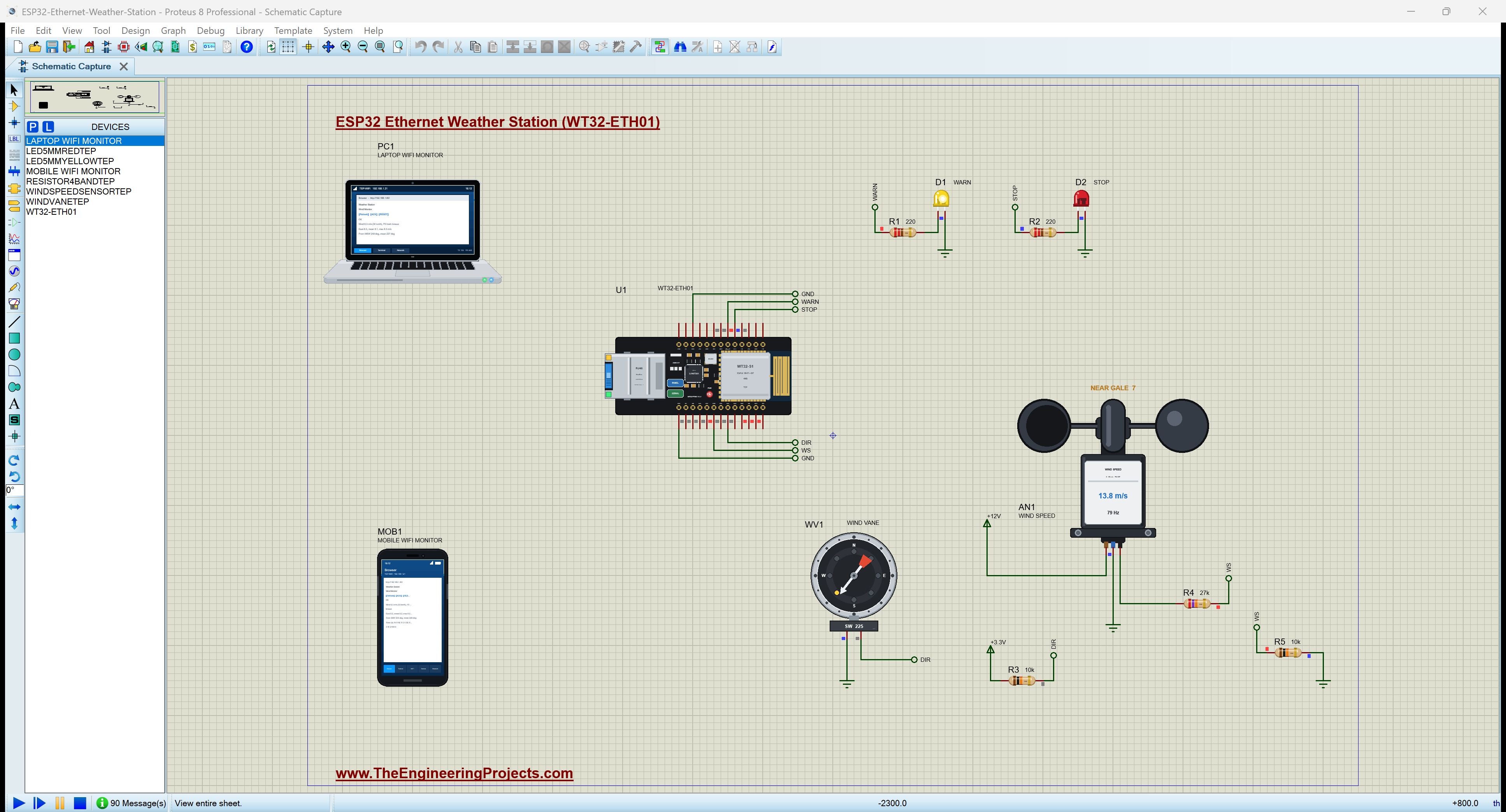
    * WT32-ETH01 (U1): an ESP32 with a LAN8720 Ethernet PHY and an RJ45 jack on the board; its cable goes to the
      router; a fixed address, 192.168.1.60 (port 80). ETH.begin() needs no arguments on this board.
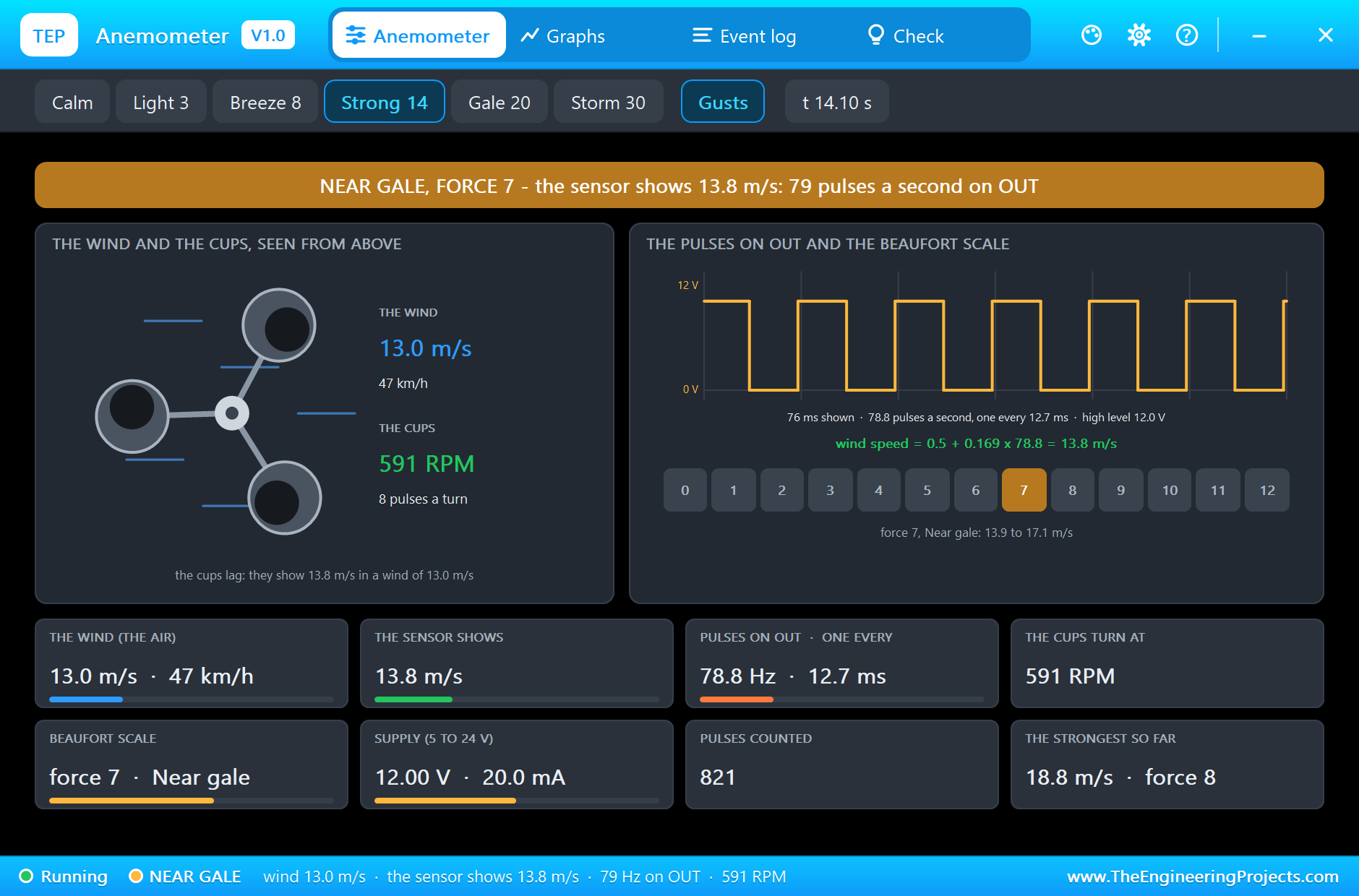
    * Anemometer (WINDSPEEDSENSORTEP, AN1): VCC on +12V, GND, OUT - R4 27 kohm - WS - R5 10 kohm - GND, so the 12 V
      pulses reach IO14 as 3.2 V; wind (m/s) = 0.5 + 0.169 x the pulses in a second (the maker's line).
    * Wind vane (WINDVANETEP, WV1): SIG to IO36 (the net DIR) with R3 10 kohm from +3.3V to DIR; GND to GND. Eight
      reed switches and resistors give sixteen resistances, one for each direction.
    * D1 amber LED WARN (LED5MMYELLOWTEP) on IO33 (485_EN) and D2 red LED STOP (LED5MMREDTEP) on IO32 (CFG), each
      through 220 ohm (R1, R2).
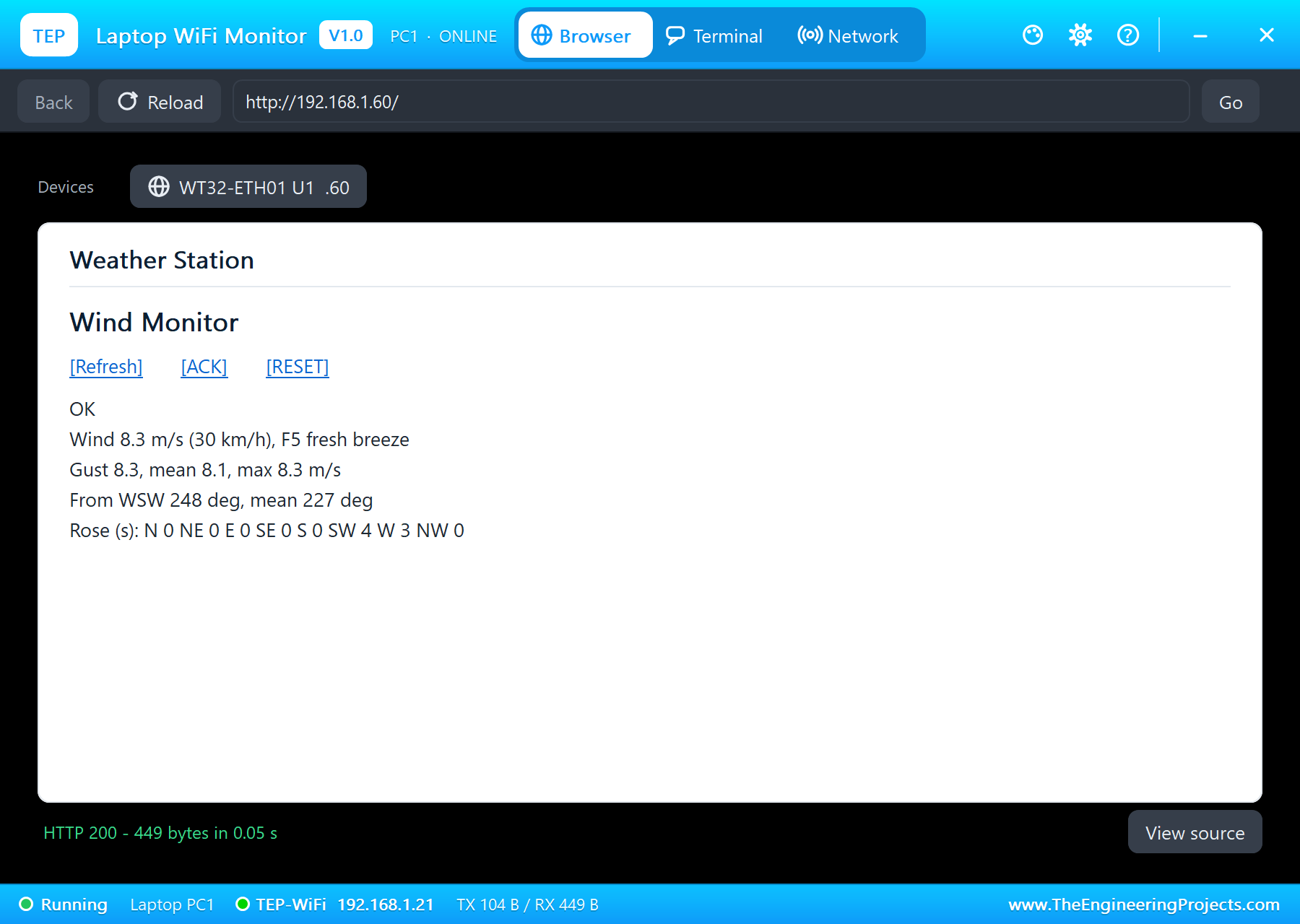
    * Laptop WiFi Monitor (PC1) and Mobile WiFi Monitor (MOB1) open http://192.168.1.60/ through the router.
  The rules (at the top of the sketch):
    * every second: the wind from the pulses counted on an interrupt, the direction from the vane's voltage (the
      nearest of the sixteen resistances), the 3 s gust (the mean of the last three seconds, as the WMO gust), the
      10 s mean (120 s or 600 s on a real mast) and the mean direction as vectors (350 and 10 degrees give 0, not 180);
    * WARN from a 14 m/s gust (off after 5 s under 12 m/s); STOP from a 20 m/s gust, LATCHED: it clears only after the
      gusts stay under 15 m/s for 5 s AND someone presses ACK on the dashboard - an ACK in a gale is refused.
  Its pages:
    /          the dashboard: the controls, the state, the wind, the gust, the mean, the direction, the rose, events
    /ack       acknowledge the STOP alarm            /reset     the maximum gust and the wind rose start again
    /data      everything as JSON
  Libraries: ETH, WebServer and WiFi (the events) - all part of the ESP32 core.

TEST STATUS
  Tested in Proteus 8 Professional on Windows 11, the run that made the tutorial's screenshots (the sketch's times):
  - At the start: "ETH link up", "ETH address 192.168.1.60 (fixed)"; a gusty breeze from the south-west: 6.9 - 9.3 m/s,
    gust 8.3, mean 8.1 m/s, from SSW / SW / WSW / W, the mean direction 223 - 229 deg.
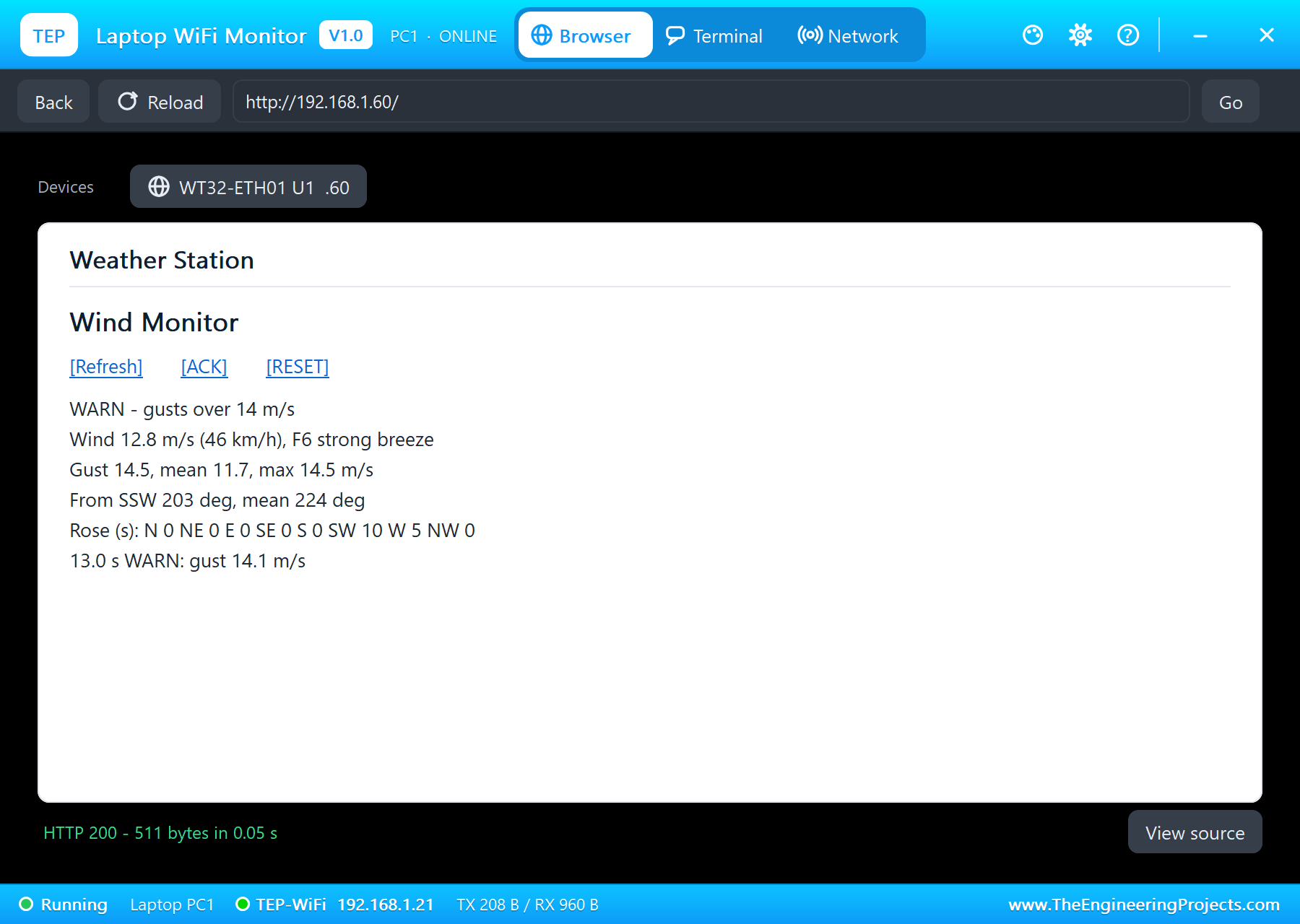
  - 9.4 s: Strong 14 on the anemometer's pop-up: 13.0 s "WARN: gust 14.1 m/s", the amber LED on.
  - 16.8 s: Gale 20: 20.0 s "STOP: gust 20.4 m/s - latched" (24.5 m/s, 88 km/h, force 9 in that second), the red LED.
  - 23.6 s: the vane's W chip: the vane on W 270 deg, the mean direction veers from 225 to 270 deg in 9 s.
  - 27.5 s: ACK from the laptop in the gale: "ACK refused: gust 20.3 m/s - wait for 5 s under 15".
  - 28.8 s: Breeze 8: the gusts under 15 m/s from 31 s; 35.0 s "STOP: the wind is down - ACK to clear"; 36.0 s WARN
    cleared; 36.8 s ACK from the phone: "ACK: STOP cleared from the dashboard" - OK again.
  - The strongest gust 20.6 m/s; the rose at the end SW 15 s, W 24 s. 41.2 s of simulation in 289 s.

INSTALLATION
  1. Close Proteus. Extract the WHOLE zip file, for example to your Desktop.
  2. Copy the files from "Proteus Library Files" into the LIBRARY folder of Proteus, for example
     C:\Program Files (x86)\Labcenter Electronics\Proteus 8 Professional\LIBRARY
  3. Copy the files from "Proteus Model Files" into the MODELS folder (next to LIBRARY).
  4. Start Proteus. Press P in the schematic and search for WT32-ETH01, WINDSPEEDSENSORTEP or WINDVANETEP to check
     that the parts are there.

RUN THE SIMULATION
  1. Open "Proteus Simulation\ESP32-Ethernet-Weather-Station.pdsprj". Keep the HEX and the DLL files beside it.
  2. Press Play. The board comes up on the cable at 192.168.1.60; its serial monitor prints a line a second.
  3. Click the anemometer for its pop-up and pick the wind: Strong 14 raises WARN, Gale 20 raises STOP. Click the vane
     for its pop-up to turn the wind (N, E, S, W).
  4. Open the Laptop WiFi Monitor (PC1) or the Mobile WiFi Monitor (MOB1) and press Go: ACK and RESET.
  Your own sketch: compile it for the WT32-ETH01, export the compiled binary and set U1's PROGRAM property to it.

PROPERTIES USED IN THIS PROJECT
  U1 WT32-ETH01                PROGRAM=ESP32_Ethernet_Weather_Station.hex, AUTOOPEN=YES, CABLE=IN (192.168.1.60)
  AN1 WINDSPEEDSENSORTEP       WIND=8, PROFILE=GUSTS (the run changes the wind from the pop-up's chips)
  WV1 WINDVANETEP              DIRECTION=225, WIND=8, PROFILE=GUSTS
  D1 LED5MMYELLOWTEP, D2 LED5MMREDTEP; R1, R2 220 ohm, R3 10 kohm (the vane's pull-up), R4 27 kohm + R5 10 kohm
  PC1, MOB1                    HOMEPAGE=http://192.168.1.60/

TROUBLESHOOTING
  * The wind reads 0: no +12V on the anemometer's VCC, or OUT not reaching IO14 through the divider.
  * The direction jumps between E, ENE and ESE: those three lie close together (0.21 - 0.30 V with 3.3 V) - check the
    pull-up is 10 kohm.
  * The page does not open: the RJ45 cable is out (click the board's jack) or the monitor is not on TEP-WiFi.
  * ACK does nothing: STOP clears only after 5 s of gusts under 15 m/s.

LICENCES
  * The project, the sketch, the parts (LIB files) and the models (DLL files) are made by The Engineering Projects
    and are free for learning and for your own projects. The models use only standard Windows libraries.
    The C++ source code of the models is not included; the source code is not included for any model.
  * Proteus is a product of Labcenter Electronics and is not included. ESP32 is a product of Espressif Systems; the
    WT32-ETH01 of Wireless-Tag; the LAN8720 of Microchip. This project is not made or endorsed by them.

VERSION
  V1.0 - the first release of the project.
===============================================================================================================Development1 release
 Development1 release
-
V1.0ESP32 Ethernet Wind Monitor (WT32-ETH01) in Proteus Simulation V1.0this page
V1.0 is the only release in the Download Center so far. When a newer version is published, it appears above with its own download page.
Installation8 steps
 Installation8 steps
From the download to a working project, in order. The steps follow what the package contains.
You will need
- Proteus Design SuiteProteus 8 or newer (Labcenter), on Windows
- Arduino IDE1.8 or 2.x, with the board of the tutorial chosen under Tools → Board
- Any archive toolWindows, macOS and Linux extract ZIP files on their own
Steps
- 1
Extract the archive
Right-click 2c7579f4270e4b078ba350fdebec2652.zip and choose Extract All (or open it with 7-Zip or WinRAR) into a folder you can find again. Keep its folder structure (ESP32-Ethernet-Weather-Station-TEP-v1.0) as it is.
- 2
Copy the library files into Proteus
Move TEPANEMO.LIB, TEPLAPTOP.LIB and TEPLED5MM.LIB and 4 more and the files into the LIBRARY folder of your Proteus installation: C:\Program Files (x86)\Labcenter Electronics\Proteus 8 Professional\LIBRARY for Proteus 8, or the matching Proteus 7 folder. Older versions keep it under ProgramData\Labcenter Electronics. If Proteus is open, close it first.
- 3
Add the simulation model
Copy TEPANEMO.DLL, TEPLED5MM.DLL and TEPNET.DLL and 2 more into the MODELS folder next to LIBRARY, so the component can run, not only be drawn.
- 4
Restart Proteus and place the component
Start Proteus, open a schematic, press P (Pick Devices) and search for the component by the name used in the tutorial. It appears with its pins ready to wire.
- 5
Open the sketch in the Arduino IDE
Open ESP32_Ethernet_Weather_Station.ino, select your board and port under Tools, then Verify. Sketch → Export Compiled Binary writes the HEX file a simulation needs.
- 6
Load the HEX file
In Proteus double-click the microcontroller, set Program File to ESP32_Ethernet_Weather_Station.hex and run the simulation. For real hardware, flash the same file with your programmer.
- 7
Open the example simulation
Open ESP32-Ethernet-Weather-Station.pdsprj in Proteus to see the wiring exactly as in the tutorial. Check the controller's Program File path, then press Play.
- 8
Follow the tutorial
Proteus Simulation of an ESP32 Ethernet Wind Monitor (WT32-ETH01) explains every connection and setting in order; keep it open beside the files while you build.
FAQs9 questionsContact TEP
 FAQs9 questions
How do I download ESP32 Ethernet Wind Monitor (WT32-ETH01) in Proteus Simulation V1.0?
Wait for the 30-second guest countdown on this page, then press the download button; the file comes straight from our storage. Members who are logged in skip the wait. If the browser opens the file instead of saving it, use its Save as option. The download link is made for you when the countdown ends and works for 15 minutes; a saved or shared link stops working, so share this page instead.
What is inside the archive?
ESP32 Ethernet Wind Monitor (WT32-ETH01) in Proteus Simulation V1.0 comes as a ZIP archive of 21 files (4.0 MB, 8.8 MB unpacked) holding Proteus library files, simulation model DLLs, a Proteus simulation, an Arduino sketch and compiled HEX firmware. Open the File Structure tab for the full list of 21 files.
What should I do if the download does not start?
Check the browser's download list first; an ad blocker or a company firewall can also hold it back, so try another browser or network. If the file arrives incomplete, download it again. For an installation problem, read the Install tab or tell us in the comments with your software version and the exact error message.
Is this file free?
Yes. Every file in the TEP Download Center is free for learning, personal and student projects. If you share it, link back to this page or the tutorial so others find the latest version.
How do I check that the file arrived complete?
Compare its SHA-256 with the one on this page, c84663571cd0f15b1fed94c18052dabc40f2510cad1abef51acae3a55a894285. In PowerShell run Get-FileHash "2c7579f4270e4b078ba350fdebec2652.zip"; on macOS or Linux run shasum -a 256 "2c7579f4270e4b078ba350fdebec2652.zip". The same value means the file is exactly the one in our storage; a different one means the download broke off, so download it again.
Do I need WinRAR to open the ZIP file?
No. Windows, macOS and Linux open ZIP archives on their own (Extract All, or double-click). WinRAR and 7-Zip work too. Extract the whole archive before using the files.
Where do I put the LIB and IDX files?
Both files go into the LIBRARY folder of your Proteus installation (Proteus 8: C:\Program Files (x86)\Labcenter Electronics\Proteus 8 Professional\LIBRARY; Proteus 7 has the same folder under its own name). Restart Proteus afterwards and search for the component with P.
Which Proteus version does the library need?
The tutorial names the Proteus version the library was made and tested with. Most TEP libraries work in Proteus 7 and Proteus 8; if the component does not appear after a restart, check that both the LIB and the IDX file were copied and that Proteus was fully closed while copying.
How do I get the HEX file into the simulation?
Compile the sketch in the Arduino IDE (Sketch → Export Compiled Binary gives you the HEX next to the sketch), then in Proteus double-click the board, set Program File to that HEX and run.
Members skip the wait. Log in or join TEP.

- 0Total downloads
- 4%Popularity
- ESP32 ProjectsCategory
- 0Comments
- ssyedzainnasirUploaded by
- 17 Nov 2026Uploaded at


 SHA-256
c84663571cd0f15b1fed94c18052dabc40f2510cad1abef51acae3a55a894285


 Need help with this file?
 Tags
Related ESP32 Projects
All ESP32 Projects tutorials



More ESP32 project files
All ESP32 tutorials


Comments
0