


Project Files of IoT Digital Compass with Raspberry Pi 5 - Proteus Simulation
 Libraries
 Code
 Projects
 Simulation
8054a18dd346410ebe08a53a703e84cc.zip

IoT Digital Compass with Raspberry Pi 5 - Proteus Simulation V1.0
IoT Digital Compass with Raspberry Pi 5 - Proteus Simulation V1.0 comes as a ZIP archive of 135 files (13.4 MB, 26.2 MB unpacked) holding Proteus library files, simulation model DLLs, a Proteus simulation, source code and a nested archive.
- LIBProteus library
- DLLProteus model
- DSNProteus simulation
- SRCSource code
- ZIPNested archive
Description
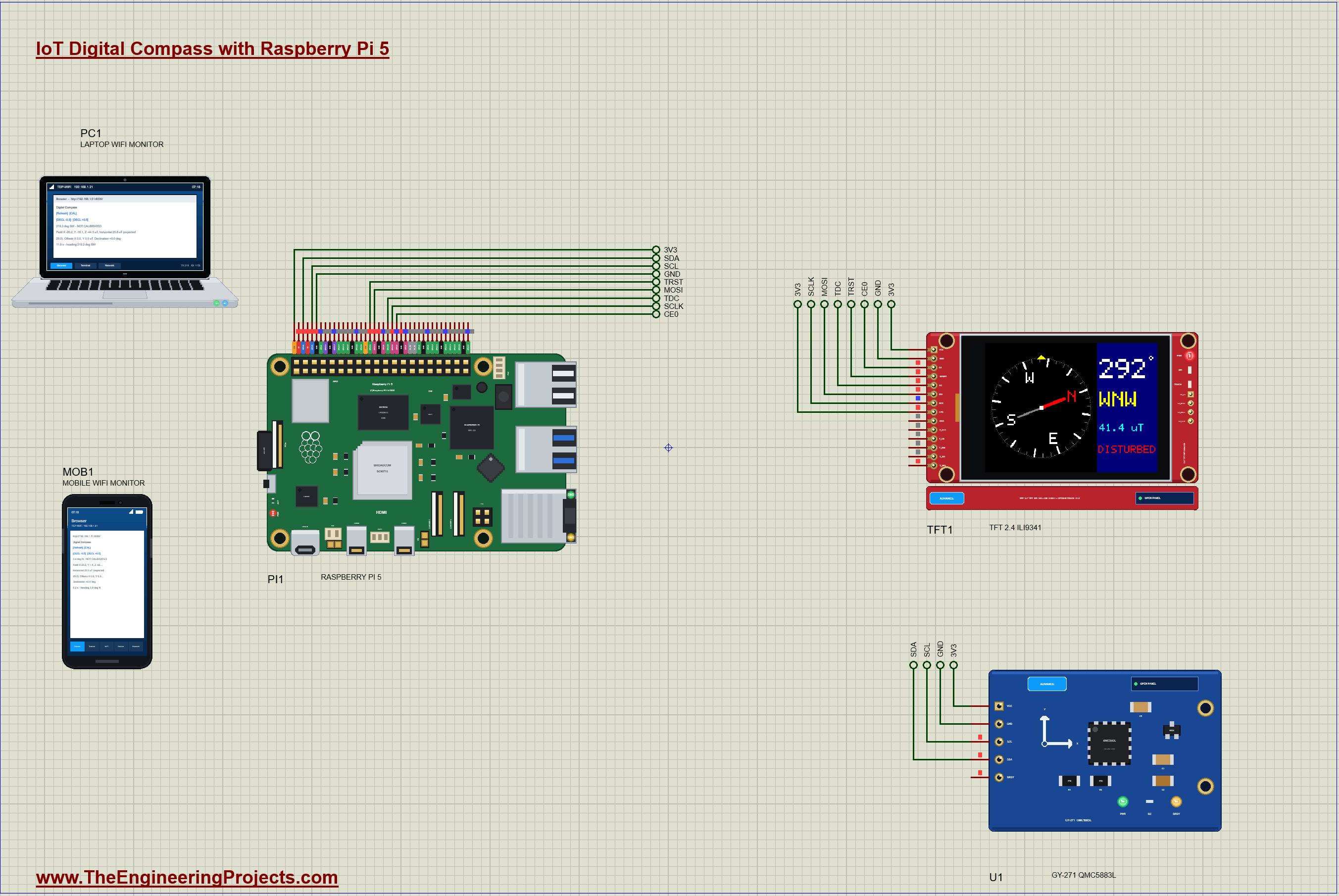
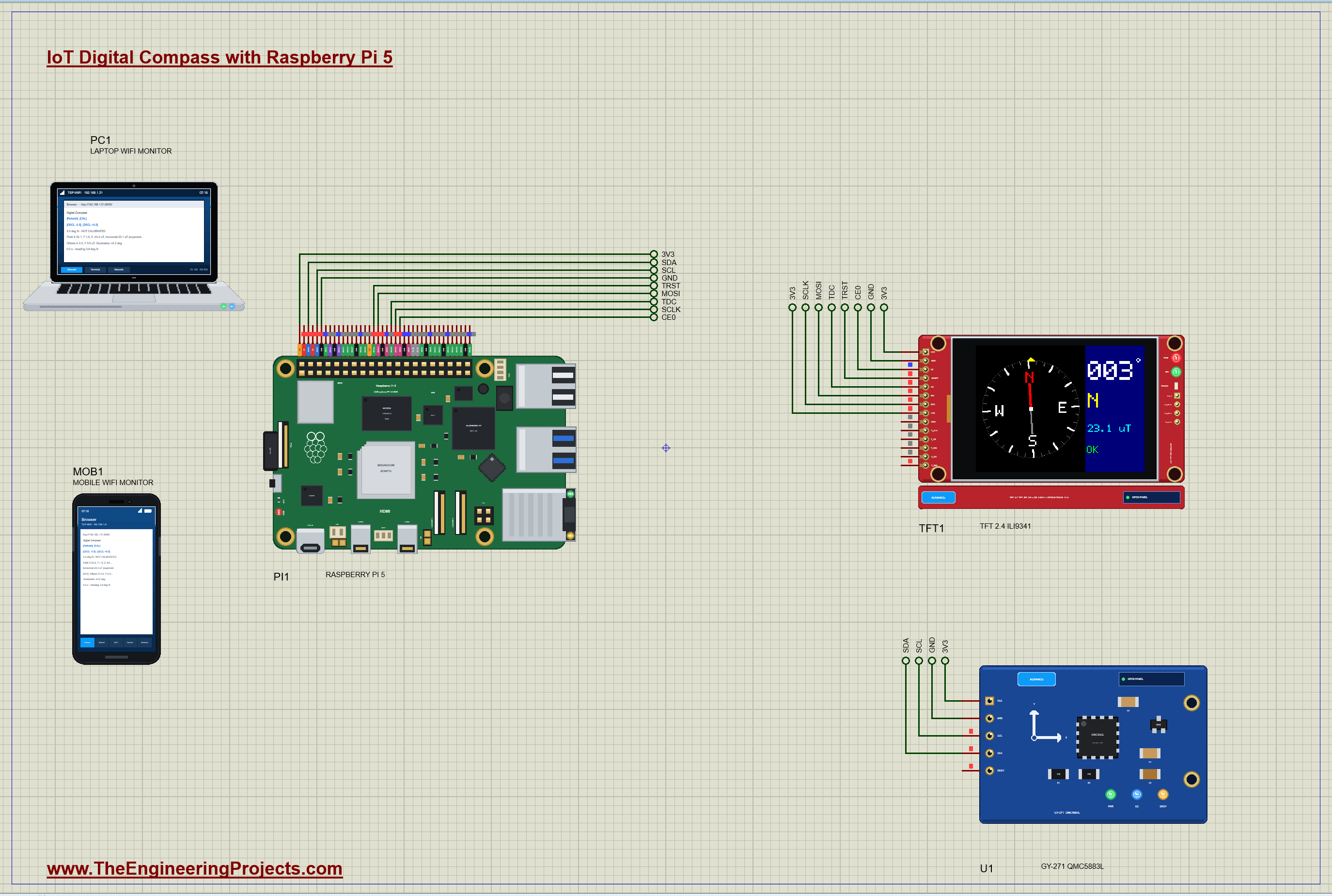
IoT-Digital-Compass-Raspberry-Pi-5-Proteus-Simulation-v1.0.zip: the complete Proteus simulation project (Raspberry Pi 5, GY-271 QMC5883L, TFT 2.4" ILI9341, the Laptop and Mobile WiFi Monitors), the Python program digital_compass.py, every LIB and DLL the simulation needs, the TEPPi Python runtime and a README.

File Structure
 File Structure
122.4 KB127.8 KB39.5 KB13.1 KB60.5 KB3.3 MB34.3 KB620.8 KB36 KB169.8 KB628.1 KB99.3 KB65.3 KB4.8 MB4.1 MB80 B97.8 KB26.8 KB1.2 MB1.1 MB88.9 KB27.3 KB55.8 KB79.8 KB105.8 KB193.8 KB113.8 KB48.8 KB145.8 KB36.8 KB29.3 KB42.3 KB28.8 KB67.3 KB89.3 KB153.8 KB22.8 KB38.8 KB2.1 KB9.9 KB4.1 KB1.3 KB4.7 KB431 B2.5 KB17.5 KB283 B6.5 KB37.9 KB11.1 KB5.5 KB885 B13.6 KB9 KB878 B1.5 KB4 KB1004 B10 B110 B2.6 KB1.1 KB8.9 KB58.5 KB12.4 KB6.6 KB18.5 KB20.7 KB27.8 KB21.1 KB7.1 KB7.7 KB2.7 KB51.2 KB100.9 KB1.2 KB24.3 KB7.4 KB53.6 KB26.1 KB20.5 KB60.5 KB19.6 KB1.6 KB8.4 KB20.9 KB2.6 KB539 B1.4 KB9.7 KB2.8 KB21 B92 B7.9 KB264 B3.4 KB3.8 KB17.5 KB55.2 KB3.3 KB10.8 KB1.5 KB4.2 KB7.3 KB2.5 KB32.6 KB14.5 KB283 B17.4 KB257 B691 B14.5 KB12.8 KB3.6 KB1.7 KB37 KB418 B6.2 KB7 KB37.3 KB10.6 KB23.7 KB28.7 KB8.8 KB16.9 KB320.5 KB353.5 KB2.9 MB16.4 KB30.8 KB320.5 KB353.5 KB2.9 MB16.4 KB9.8 KBGallery12 images from the tutorialOpen the tutorial
 Gallery12 images from the tutorial
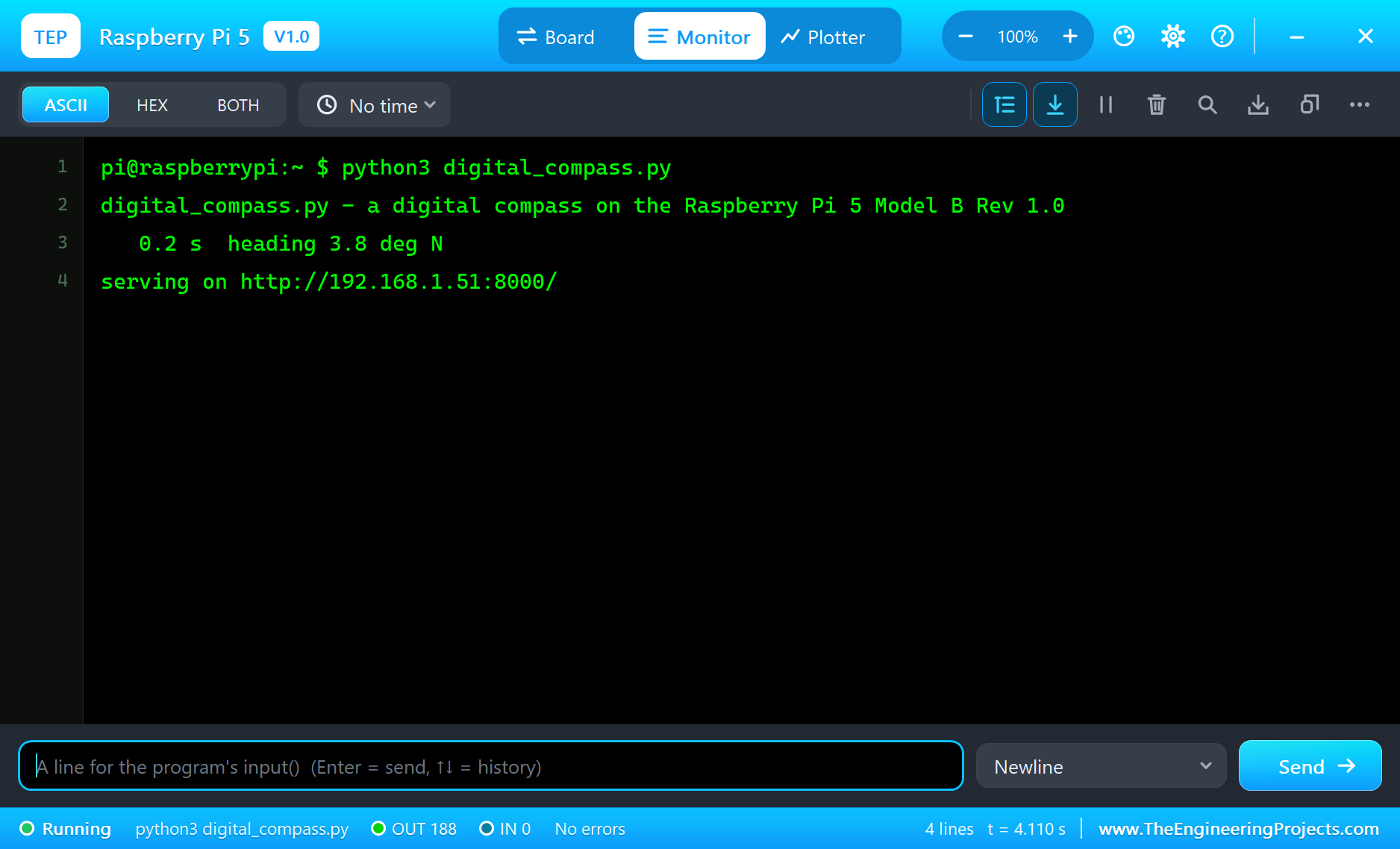
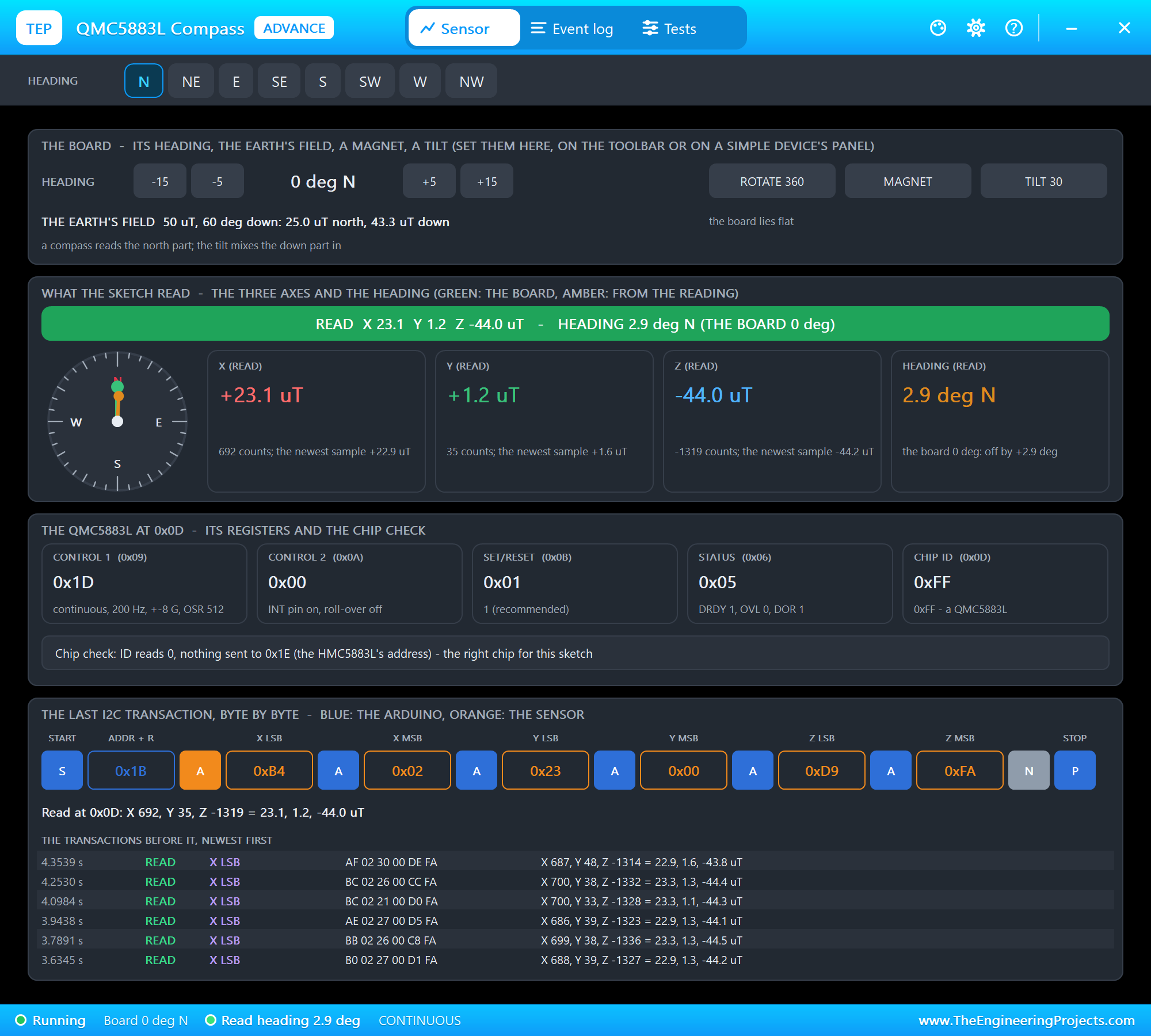
The circuit, the board and the results as they appear in IoT Digital Compass with Raspberry Pi 5 - Proteus Simulation. Open an image for its full size.
README
 README
===============================================================================================================
  IoT Digital Compass with Raspberry Pi 5 - Proteus Simulation Project V1.0
  The Engineering Projects - www.TheEngineeringProjects.com
===============================================================================================================

IMPORTANT LINKS
  The project tutorial (circuit, code, simulation results):
    https://www.theengineeringprojects.com/2026/11/iot-digital-compass-raspberry-pi-5-proteus-simulation.html
  The libraries this project is built from (each post has its own full download and tutorial):
    Raspberry Pi 5 board:
      https://www.theengineeringprojects.com/2026/10/raspberry-pi-5-library-for-proteus.html
    GY-271 compass (HMC5883L / QMC5883L):
      https://www.theengineeringprojects.com/2026/10/hmc5883l-qmc5883l-compass-library-for-proteus-v1-0.html
    TFT ILI9341 (2.4" / 2.8"):
      https://www.theengineeringprojects.com/2026/10/tft-ili9341-library-for-proteus-v1-0.html
    Laptop WiFi Monitor:
      https://www.theengineeringprojects.com/2026/10/laptop-wifi-monitor-library-for-proteus.html
    Mobile WiFi Monitor:
      https://www.theengineeringprojects.com/2026/10/mobile-wifi-monitor-library-for-proteus.html
  Support our free work: https://www.theengineeringprojects.com/donate

FILE STRUCTURE
Pi-5-Digital-Compass-TEP-v1.0/
|-- Proteus Library Files/
|   |-- TEPCOMPASS.LIB                                122.4 KB   a part of the project -> LIBRARY folder
|   |-- TEPILI9341.LIB                                127.8 KB   a part of the project -> LIBRARY folder
|   |-- TEPLAPTOP.LIB                                  39.5 KB   a part of the project -> LIBRARY folder
|   |-- TEPMOBILE.LIB                                  13.1 KB   a part of the project -> LIBRARY folder
|   |-- TEPRPI5.LIB                                    60.5 KB   a part of the project -> LIBRARY folder
|-- Proteus Model Files/
|   |-- TEPCOMPASS.DLL                                320.5 KB   a model -> MODELS folder
|   |-- TEPILI9341.DLL                                353.5 KB   a model -> MODELS folder
|   |-- TEPNET.DLL                                     2.89 MB   a model -> MODELS folder
|   |-- TEPPi/python/                                 17.54 MB   Python 3.11 embeddable -> MODELS\TEPPi (33 files)
|   |-- TEPPi/runtime/                                 1.11 MB   TEP Pi runtime, gpiozero -> MODELS\TEPPi (87 files)
|-- Proteus Simulation/
|   |-- digital_compass.py                             16.4 KB   the program PI1 runs
|   |-- Pi-5-Digital-Compass.pdsprj                    30.8 KB   the project simulation
|   |-- TEPCOMPASS.DLL                                320.5 KB   copy of the model
|   |-- TEPILI9341.DLL                                353.5 KB   copy of the model
|   |-- TEPNET.DLL                                     2.89 MB   copy of the model
|-- Python Code/
|   |-- digital_compass.py                             16.4 KB   the program (the same file)
|-- README.txt                                        ~10.3 KB   this file
Total: 26.18 MB (unzipped). The C++ source code of the models is not included.

WHAT IS IT?
  A digital compass you can run in Proteus: a Raspberry Pi 5 reads a GY-271 magnetometer, works out the heading,
  draws a turning compass card on a 2.4" TFT, calibrates out the magnets near it, adds the declination and serves a
  web dashboard.
    * GY-271 with the QMC5883L (QMC5883LADVTEP, U1) on I2C1 at 0x0D: VCC on the Pi's 3.3 V (pin 1), SDA GPIO2 (pin 3),
      SCL GPIO3 (pin 5), GND. Continuous mode, +-8 G (3000 counts a gauss = 30 counts a microtesla), 200 Hz.
    * TFT 2.4" ILI9341 (TFT24ILI9341ADVTEP, TFT1), 320 x 240 in landscape (MADCTL 0xE8): VCC and LED (the backlight)
      on the Pi's 3.3 V (pin 1), GND (pin 6), CS CE0 GPIO8 (pin 24), SDI
      MOSI GPIO10 (pin 19), SCK SCLK GPIO11 (pin 23), DC GPIO25 (pin 22), RESET GPIO24 (pin 18);
      SPI0 mode 0, 10 MHz asked (the ILI9341's limit for writes; the simulated bus ran at 8 MHz), 16-bit colour
      (RGB565). The touch pins stay open.
    * RASPBERRY PI 5 (PI1) runs digital_compass.py on Ethernet at 192.168.1.51 (port 8000).
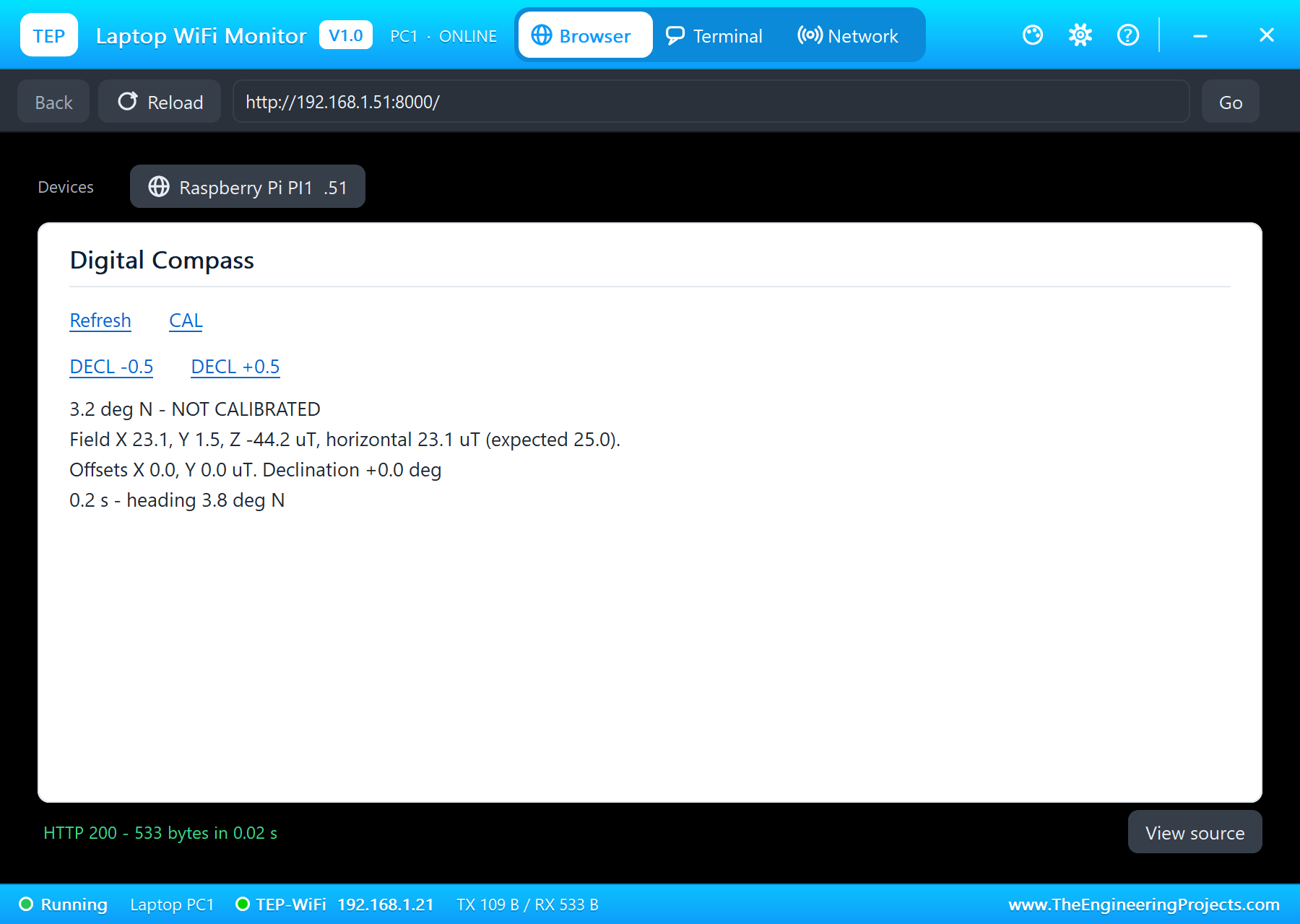
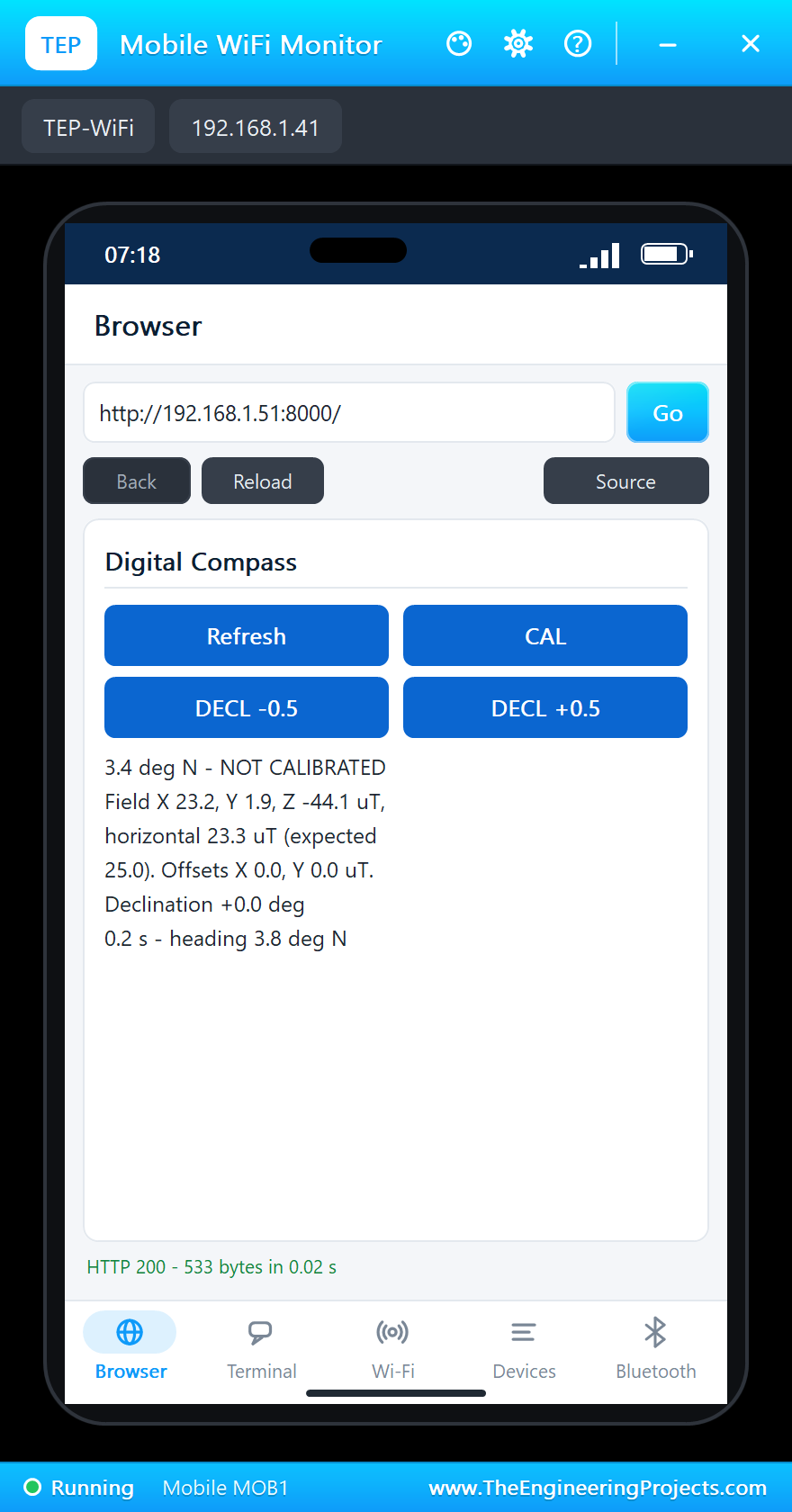
    * Laptop WiFi Monitor (PC1) and Mobile WiFi Monitor (MOB1) open http://192.168.1.51:8000/.
  The rules (at the top of the program):
    * heading = atan2(Y - offset Y, X - offset X) + the declination, 0 - 360 degrees clockwise from magnetic north,
      averaged over four readings as vectors; 16 compass points (N, NNE, NE ...);
    * CAL: 10 s of readings while the board turns a full circle - the middle of each axis' range is its hard-iron
      offset (a magnet or steel fixed near the sensor), half the range is the horizontal field;
    * DISTURBED: the horizontal field more than 25 % off the calibrated value (25 uT before a calibration);
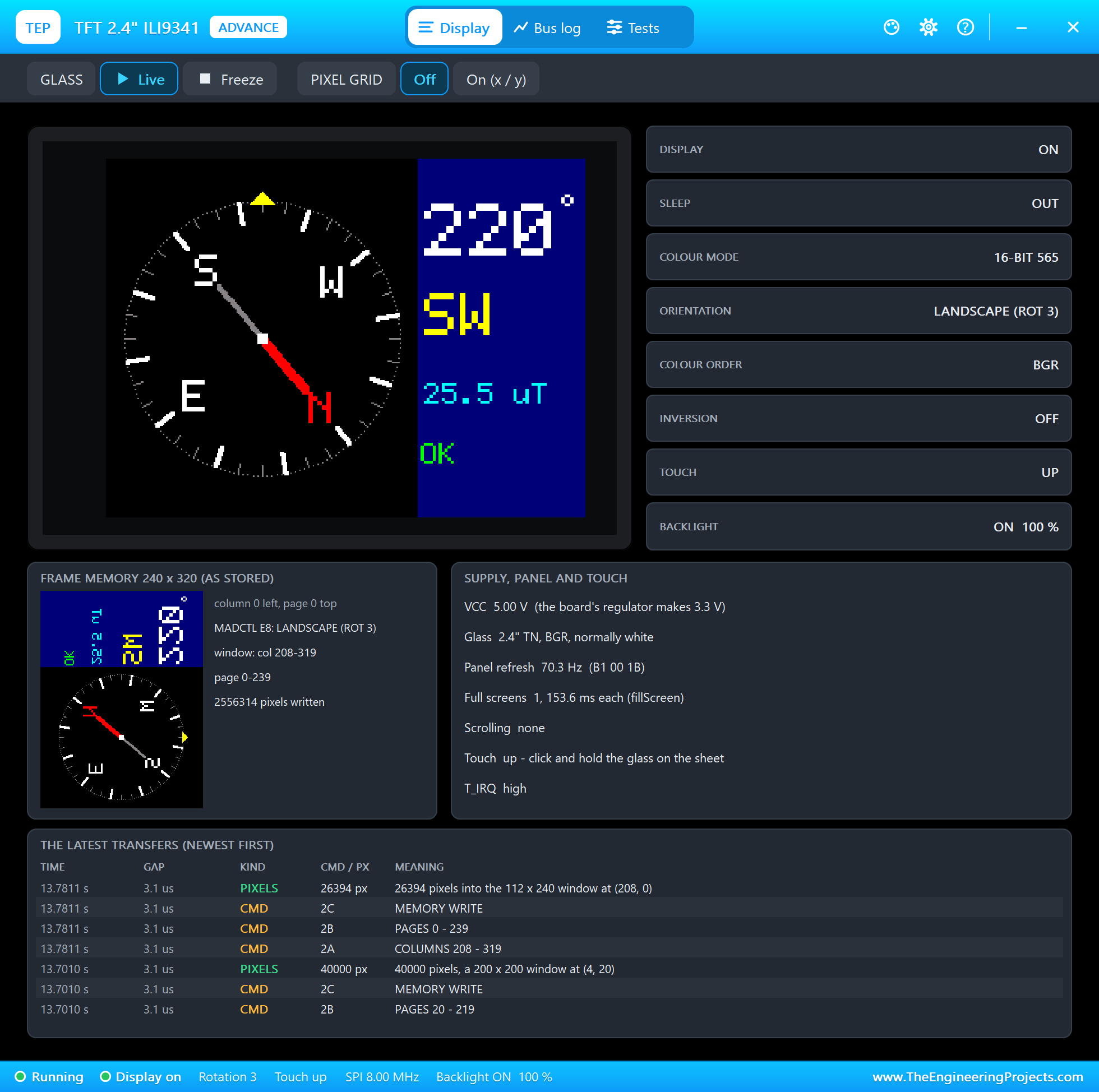
    * the screen: the compass card (200 x 200 pixels) turns so N points to magnetic north, the yellow mark at the top
      shows where the board points; the heading, the direction, the field and the state on the right. Each part is
      drawn in a frame buffer and sent to its window with one SPI write.
  Its pages:
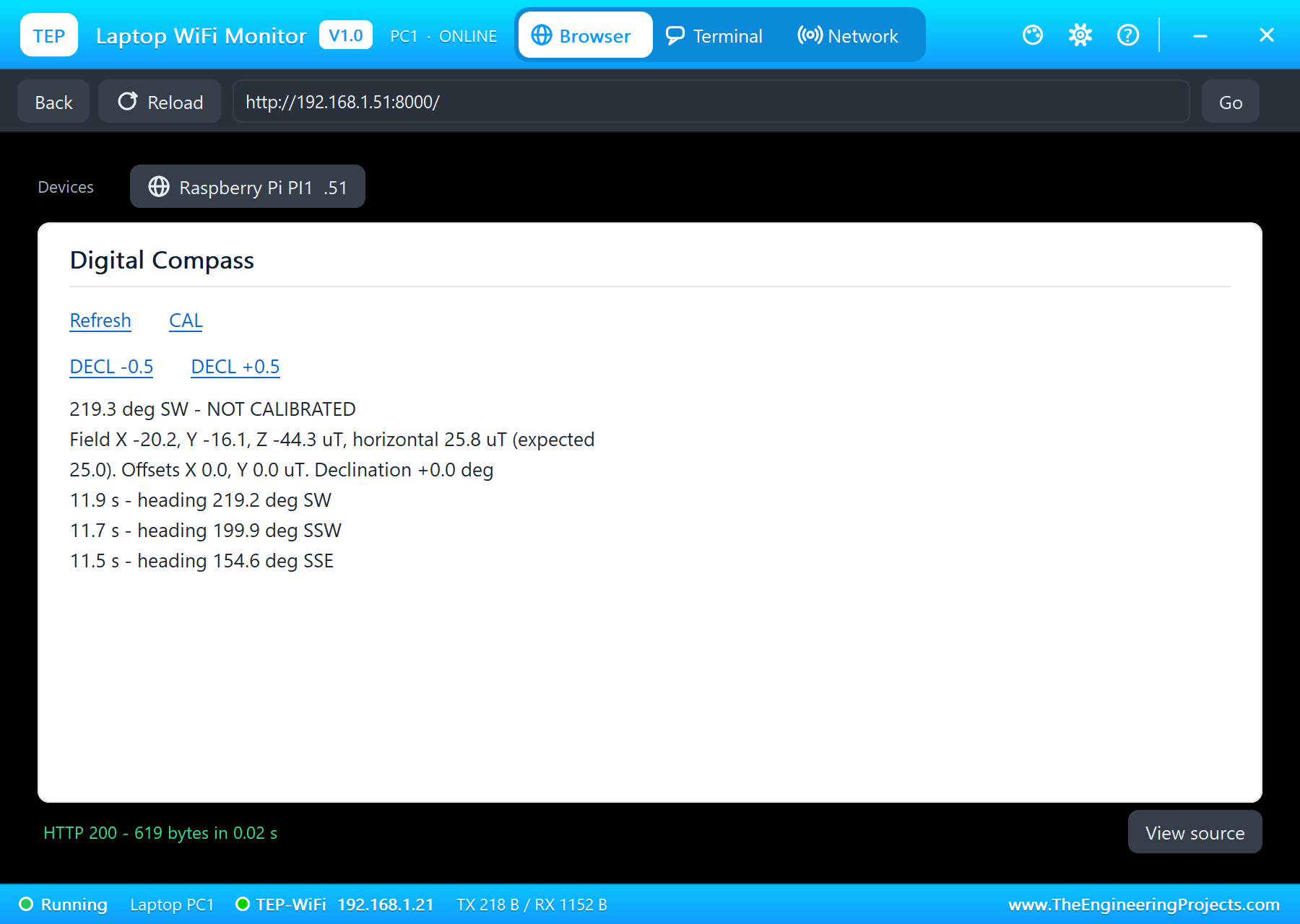
    /            the dashboard: the controls, the heading, the field, the offsets, the declination, the events
    /cal         a 10-second calibration (turn the board a full circle)
    /decl_down   /decl_up   the declination -/+ 0.5 degree
    /data        everything as JSON
  No extra Python library: lgpio and spidev (in the TEPPi runtime and on Raspberry Pi OS), math, threading, http.server.

TEST STATUS
  Tested in Proteus 8 Professional on Windows 11, the run that made the tutorial's screenshots (the program's times):
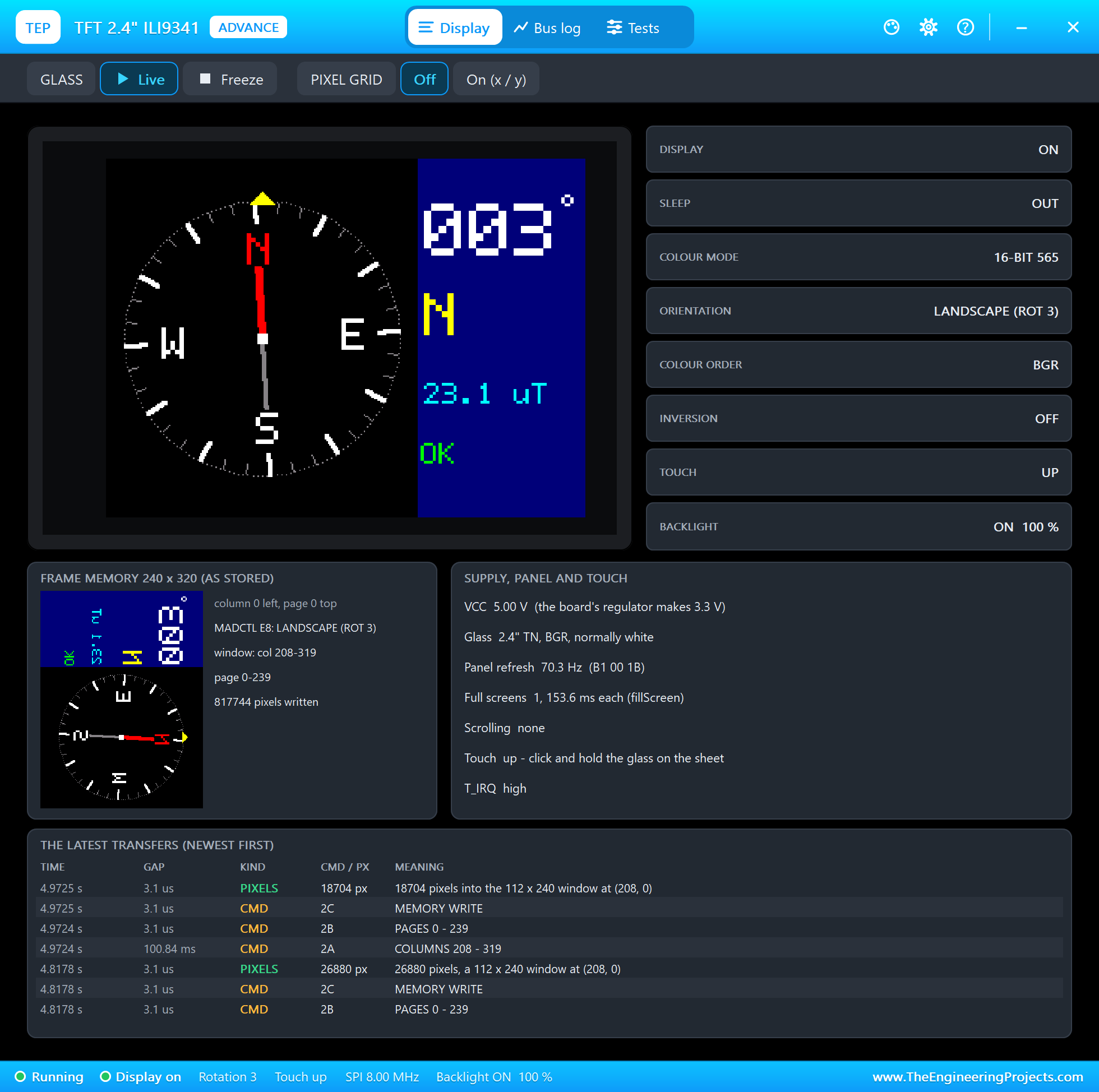
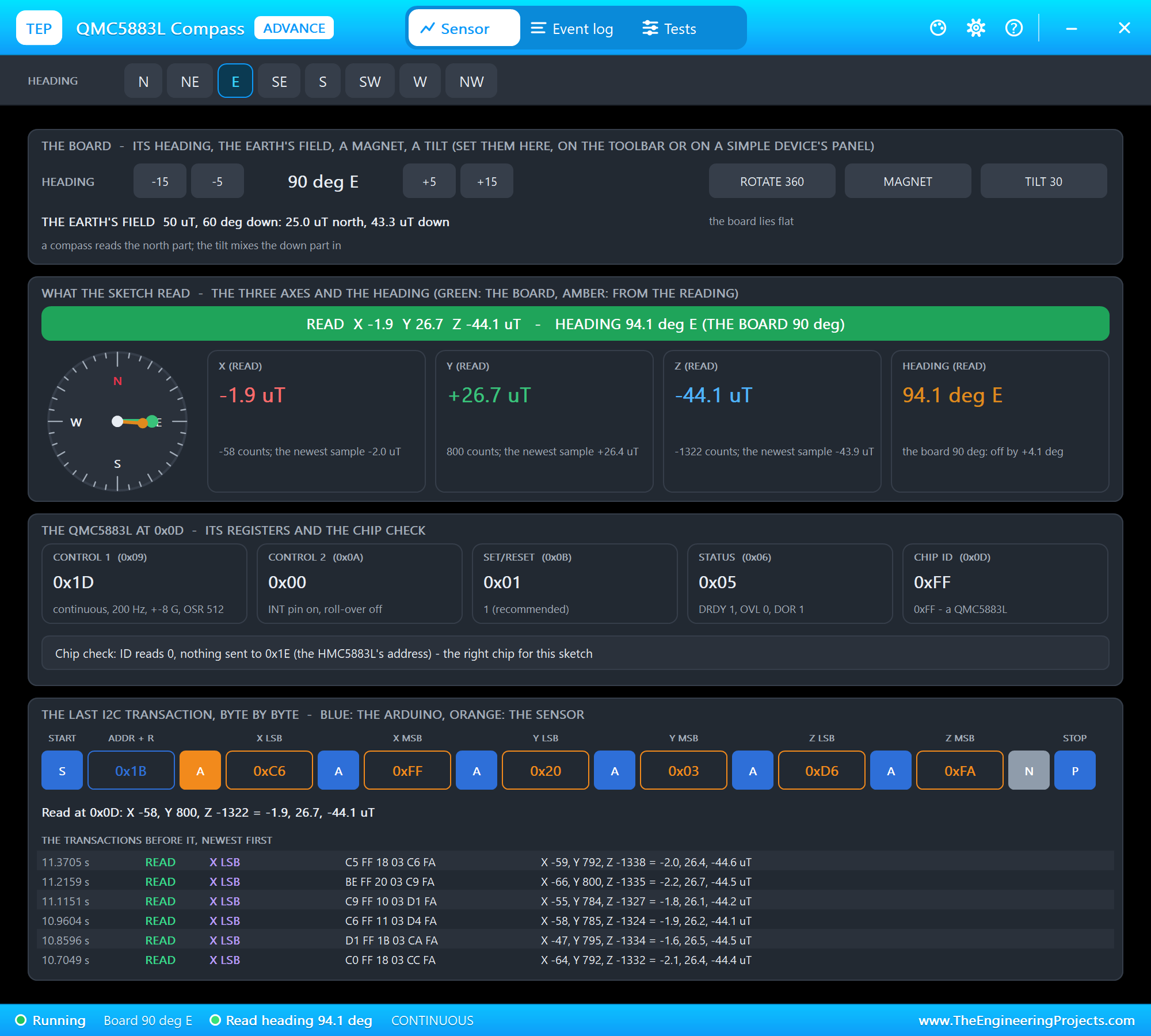
  - 0.2 s: the board at north reads 3.8 deg N (the chip's own small offsets), horizontal field 23.1 uT; the TFT card
    at N (MADCTL E8 = landscape, rotation 3; one full-screen clear, 153.6 ms; the bus measured at 8 MHz).
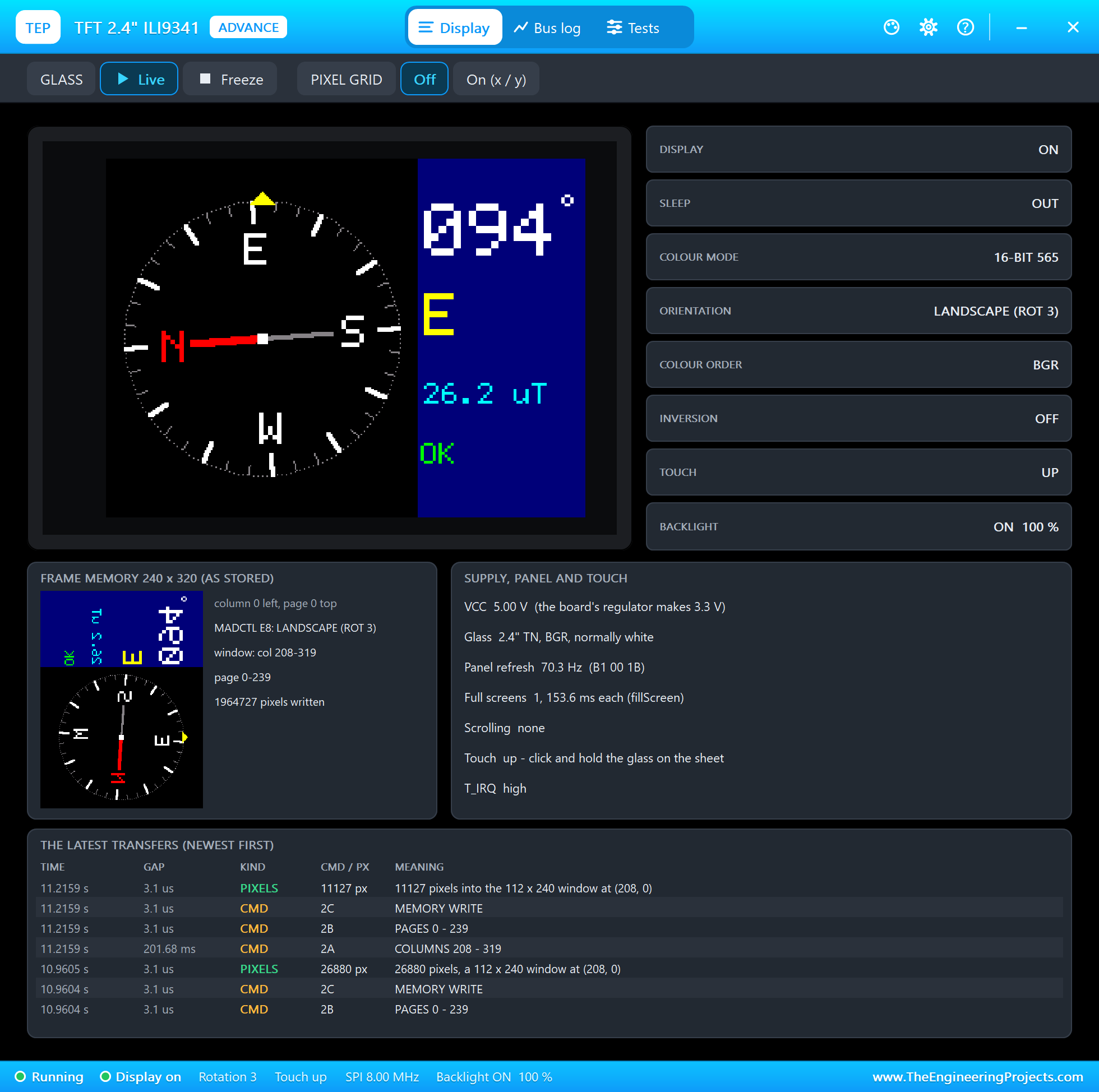
  - 8.4 - 9.1 s: the board turned to east: the card turns through NNE, NE, ENE to 94.3 deg E.
  - 11.2 - 11.9 s: to southwest: 219.2 deg SW.
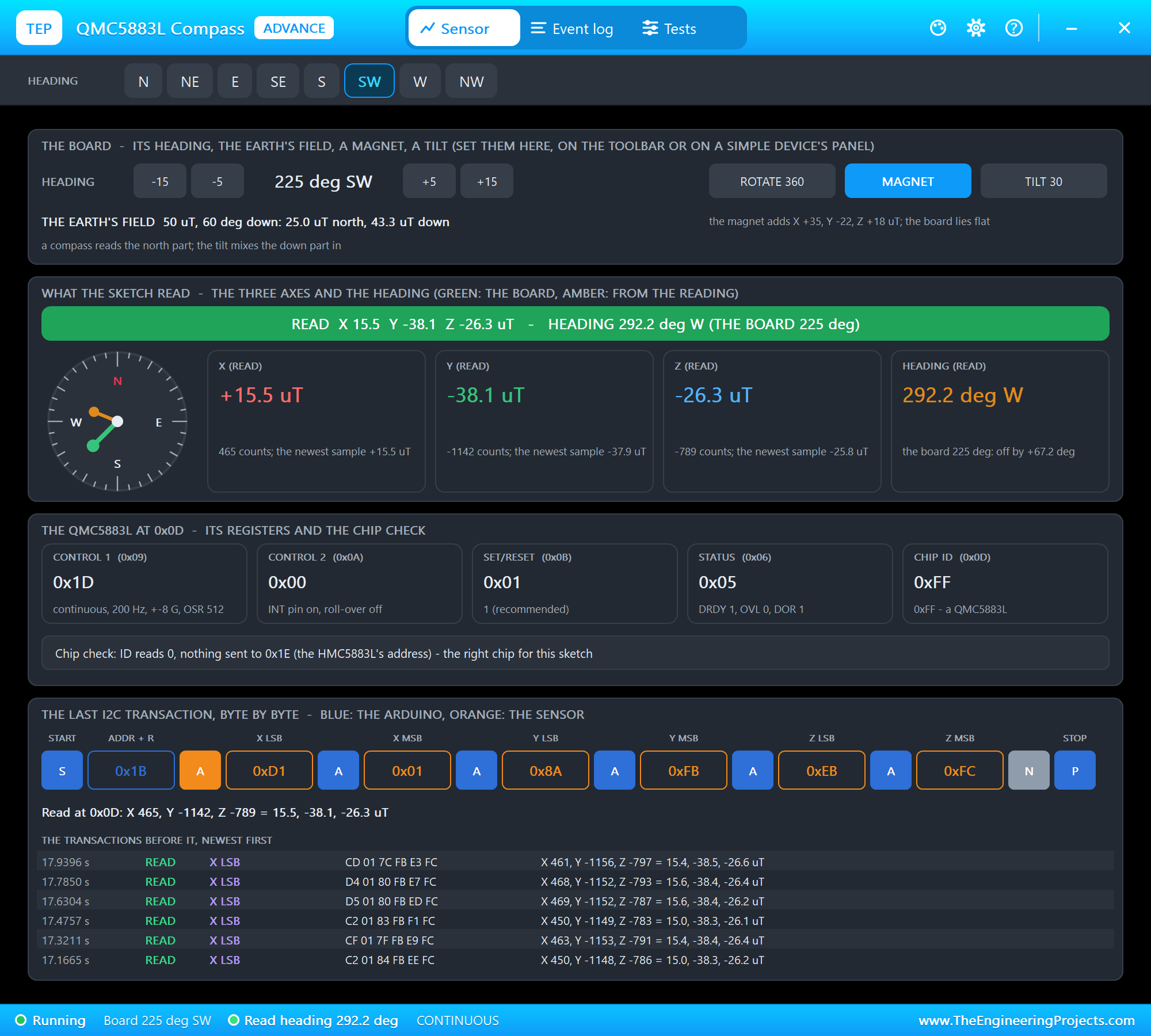
  - 14.5 s: a MAGNET on the board: the heading jumps to 291.8 deg WNW, DISTURBED (horizontal 41.6 uT, expected 25.0).
  - 20.0 s: CAL from the laptop + ROTATE 360: the heading swings back and forth instead of going round (the
    magnet's field is bigger than the Earth's).
  - 30.0 s: "CAL done: X 8.4 to 58.0, Y -45.8 to 4.5 uT - offsets X 33.2, Y -20.6 uT, the horizontal field 25.0 uT";
    with the magnet still on, the heading reads 224.4 deg SW (the board at 225).
  - 33.8 - 36.5 s: DECL +0.5 four times from the phone: the declination +2.0 deg.
  - 38.6 s: TILT 30 deg: DISTURBED (41.1 uT), 207.2 deg SSW - 20 deg off without tilt compensation.
  - 43.0 s: flat again: the field normal (25.3 uT), the heading 226.5 deg SW (225 + 2 deg declination).
  - 47.46 s of simulation in 412 s; 8,155,437 pixels written to the TFT.

INSTALLATION
  1. Close Proteus. Extract the WHOLE zip file, for example to your Desktop.
  2. Copy the files from "Proteus Library Files" into the LIBRARY folder of Proteus, for example
     C:\Program Files (x86)\Labcenter Electronics\Proteus 8 Professional\LIBRARY
  3. Copy everything in "Proteus Model Files" - the DLL files and the TEPPi folder - into the MODELS folder (next
     to LIBRARY).
  4. Start Proteus. Press P in the schematic and search for RASPBERRY PI 5, QMC5883LADVTEP or TFT24ILI9341ADVTEP to
     check that the parts are there.

RUN THE SIMULATION
  1. Open "Proteus Simulation\Pi-5-Digital-Compass.pdsprj". Keep digital_compass.py and the DLL files beside it.
  2. Press Play. The Pi's terminal opens, the TFT shows the compass card.
  3. In the GY-271's pop-up (U1) turn the board (HEADING -/+, the compass points), put a MAGNET on it, TILT it.
  4. Open the Laptop WiFi Monitor (PC1) or the Mobile WiFi Monitor (MOB1) and press Go. Press CAL and, within 10 s,
     ROTATE 360 in the GY-271's pop-up.
  Your own program: edit digital_compass.py beside the project (PI1's PROGRAM property) and press Play again.

PROPERTIES USED IN THIS PROJECT
  PI1 RASPBERRY PI 5           PROGRAM=digital_compass.py, ETHERNET=IN (192.168.1.51)
  U1 QMC5883LADVTEP            (no changes: the Earth's field 50 uT, 60 degrees down)
  TFT1 TFT24ILI9341ADVTEP      (no changes)
  PC1, MOB1                    HOMEPAGE=http://192.168.1.51:8000/

TROUBLESHOOTING
  * The heading is off by a fixed amount whatever the direction: the declination, or the board's forward axis is not X.
  * The heading swings unevenly as the board turns: hard iron - run CAL with a full turn.
  * DISTURBED all the time: something magnetic near the sensor, or the board is tilted (no tilt compensation here).
  * The TFT stays dark: VCC or LED without power, or RESET held low.
  * Garbled pictures: the SPI clock above 10 MHz, or DC swapped with CS.
  * The terminal cannot start Python: the TEPPi folder is not in MODELS.

LICENCES
  * The project, the program, the parts (LIB files) and the models (DLL files) are made by The Engineering Projects
    and are free for learning and for your own projects. The models use only standard Windows libraries.
    The C++ source code of the models is not included; the source code is not included for any model.
  * TEPPi\python is the Python 3.11 Windows embeddable package (Python Software Foundation License); TEPPi\runtime
    holds our TEP Pi runtime with gpiozero and colorzero (BSD licences) - their licence files are inside the folders.
  * Proteus is a product of Labcenter Electronics and is not included. Raspberry Pi is a trademark of Raspberry Pi
    Ltd; QMC5883L is a product of QST and ILI9341 of Ilitek. This project is not made or endorsed by them.

VERSION
  V1.0 - the first release of the project.
===============================================================================================================Development1 release
 Development1 release
-
V1.0IoT Digital Compass with Raspberry Pi 5 - Proteus Simulation V1.0this page
V1.0 is the only release in the Download Center so far. When a newer version is published, it appears above with its own download page.
Installation7 steps
 Installation7 steps
From the download to a working project, in order. The steps follow what the package contains.
You will need
- Proteus Design SuiteProteus 8 or newer (Labcenter), on Windows
- Pythonto build the source files into firmware
- Any archive toolWindows, macOS and Linux extract ZIP files on their own

Steps
- 1
Extract the archive
Right-click 8054a18dd346410ebe08a53a703e84cc.zip and choose Extract All (or open it with 7-Zip or WinRAR) into a folder you can find again. Keep its folder structure (Pi-5-Digital-Compass-TEP-v1.0) as it is.
- 2
Copy the library files into Proteus
Move TEPCOMPASS.LIB, TEPILI9341.LIB and TEPLAPTOP.LIB and 2 more and the files into the LIBRARY folder of your Proteus installation: C:\Program Files (x86)\Labcenter Electronics\Proteus 8 Professional\LIBRARY for Proteus 8, or the matching Proteus 7 folder. Older versions keep it under ProgramData\Labcenter Electronics. If Proteus is open, close it first.
- 3
Add the simulation model
Copy TEPCOMPASS.DLL, TEPILI9341.DLL and TEPNET.DLL and 7 more into the MODELS folder next to LIBRARY, so the component can run, not only be drawn.
- 4
Restart Proteus and place the component
Start Proteus, open a schematic, press P (Pick Devices) and search for the component by the name used in the tutorial. It appears with its pins ready to wire.
- 5
Build the source code
Open digital_compass.py, attr.py and color.py and 28 more in the compiler named in the tutorial (MikroC, Keil, MPLAB, Code Composer or the Arduino IDE) and build it to get the firmware.
- 6
Open the example simulation
Open Pi-5-Digital-Compass.pdsprj in Proteus to see the wiring exactly as in the tutorial. Check the controller's Program File path, then press Play.
- 7
Follow the tutorial
IoT Digital Compass with Raspberry Pi 5 - Proteus Simulation explains every connection and setting in order; keep it open beside the files while you build.
FAQs8 questionsContact TEP
 FAQs8 questions
How do I download IoT Digital Compass with Raspberry Pi 5 - Proteus Simulation V1.0?
Wait for the 30-second guest countdown on this page, then press the download button; the file comes straight from our storage. Members who are logged in skip the wait. If the browser opens the file instead of saving it, use its Save as option. The download link is made for you when the countdown ends and works for 15 minutes; a saved or shared link stops working, so share this page instead.
What is inside the archive?
IoT Digital Compass with Raspberry Pi 5 - Proteus Simulation V1.0 comes as a ZIP archive of 135 files (13.4 MB, 26.2 MB unpacked) holding Proteus library files, simulation model DLLs, a Proteus simulation, source code and a nested archive. Open the File Structure tab for the full list of 135 files.
What should I do if the download does not start?
Check the browser's download list first; an ad blocker or a company firewall can also hold it back, so try another browser or network. If the file arrives incomplete, download it again. For an installation problem, read the Install tab or tell us in the comments with your software version and the exact error message.
Is this file free?
Yes. Every file in the TEP Download Center is free for learning, personal and student projects. If you share it, link back to this page or the tutorial so others find the latest version.
How do I check that the file arrived complete?
Compare its SHA-256 with the one on this page, 316c01c579b2cc6d83e57ae48183cc52237bef823a3ec34be8a76c7a220dc081. In PowerShell run Get-FileHash "8054a18dd346410ebe08a53a703e84cc.zip"; on macOS or Linux run shasum -a 256 "8054a18dd346410ebe08a53a703e84cc.zip". The same value means the file is exactly the one in our storage; a different one means the download broke off, so download it again.
Do I need WinRAR to open the ZIP file?
No. Windows, macOS and Linux open ZIP archives on their own (Extract All, or double-click). WinRAR and 7-Zip work too. Extract the whole archive before using the files.
Where do I put the LIB and IDX files?
Both files go into the LIBRARY folder of your Proteus installation (Proteus 8: C:\Program Files (x86)\Labcenter Electronics\Proteus 8 Professional\LIBRARY; Proteus 7 has the same folder under its own name). Restart Proteus afterwards and search for the component with P.
Which Proteus version does the library need?
The tutorial names the Proteus version the library was made and tested with. Most TEP libraries work in Proteus 7 and Proteus 8; if the component does not appear after a restart, check that both the LIB and the IDX file were copied and that Proteus was fully closed while copying.
Members skip the wait. Log in or join TEP.

- 0Total downloads
- 4%Popularity
- Raspberry PiCategory
- 0Comments
- ssyedzainnasirUploaded by
- 16 Nov 2026Uploaded at


 SHA-256
316c01c579b2cc6d83e57ae48183cc52237bef823a3ec34be8a76c7a220dc081


 Need help with this file?
 Tags
Related Raspberry Pi
All Raspberry Pi tutorials




More Raspberry Pi project files
All Raspberry Pi tutorials




Comments
0