


ESP32 Capacitive Touch Sensor in Arduino IDE


Hello readers, I hope you are all doing great. Welcome to the 2nd lecture of Section 5(ESP32 Sensors) in the ESP32 Programming Series. In the previous tutorial, we discussed the built-in ESP32 Hall Effect Sensor. In this tutorial, we will discuss another inbuilt sensor of the ESP32 i.e. Capacitive Touch Sensor.
ESP32 Board has 10 built-in capacitive touch pins, which generate an electrical signal when someone touches these pins. These ESP32 touch pins are normally used to wake up the board from deep sleep mode. These touch pins are also used to replace the normal mechanical buttons with touch pads, improving the presentation of the IoT projects.
Here's the video demonstration of the ESP32 Capacitive Touch Sensor:
Before going forward, let's first understand how this touch sensor works:
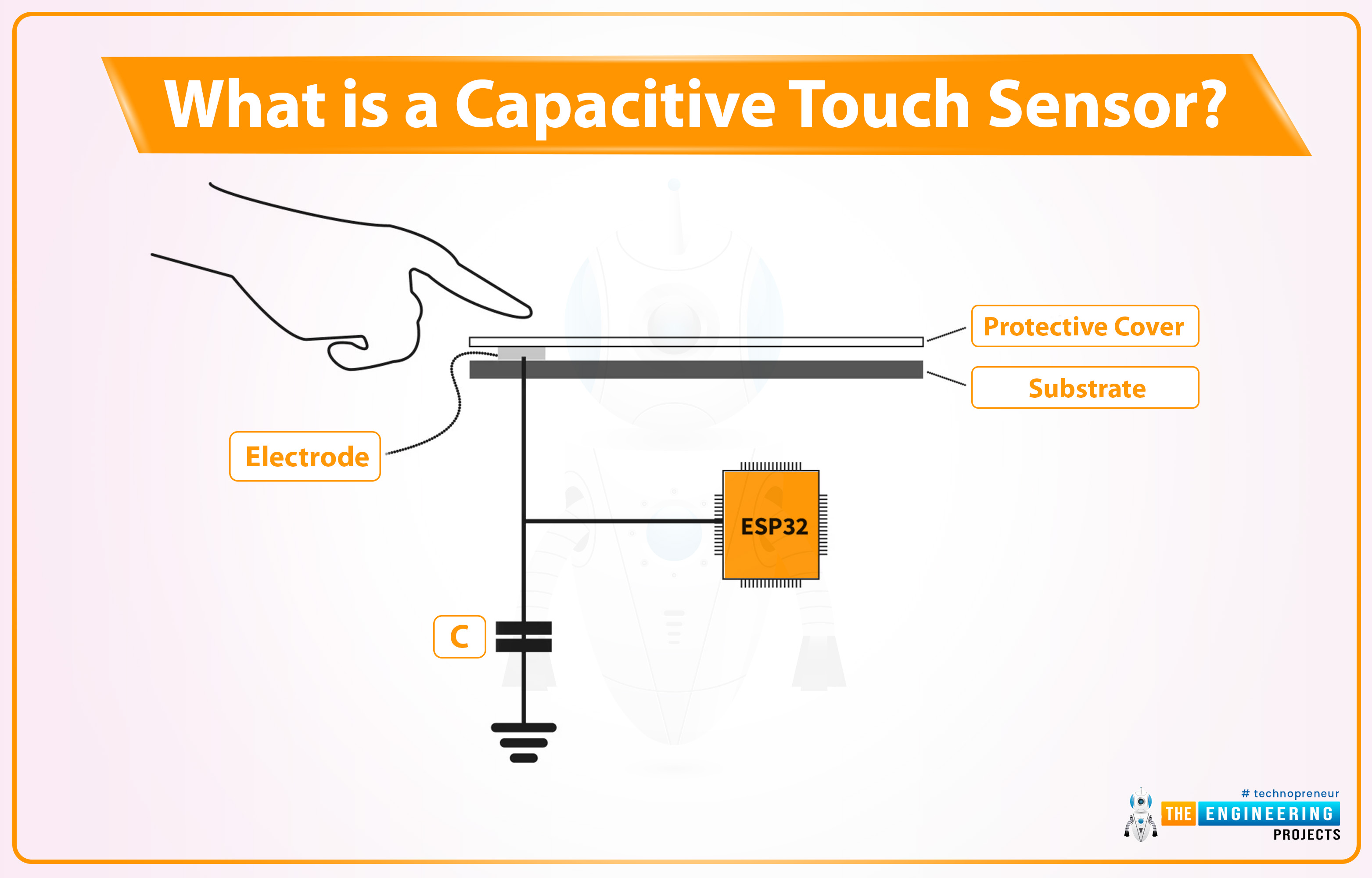
What is a Capacitive Touch Sensor?
Capacitance is determined by the geometry of the conductors and the dielectric materials used. Changing any of these factors will result in changing the capacitance.
C = Ad
As we know, the human body also carries a small electric charge. So, when a body approaches the metallic plates(of a capacitor), the mutual capacitance between the two metal plates decreases. This change in capacitance is used to detect the touch in these capacitive sensors.
Capacitive touch sensor in ESP32
- ESP32 offers 10 Capacitive-sensitive GPIO pins, operating at a normally HIGH state.
- So, at open state, these pins provide +5V at the output but when someone touches any of these pins, the respective pin voltage drops to 0.
- These ESP32 Capacitive Touch Sensor Pins are labeled in the below figure:(for detailed pinout, please read ESP32 Pinout)
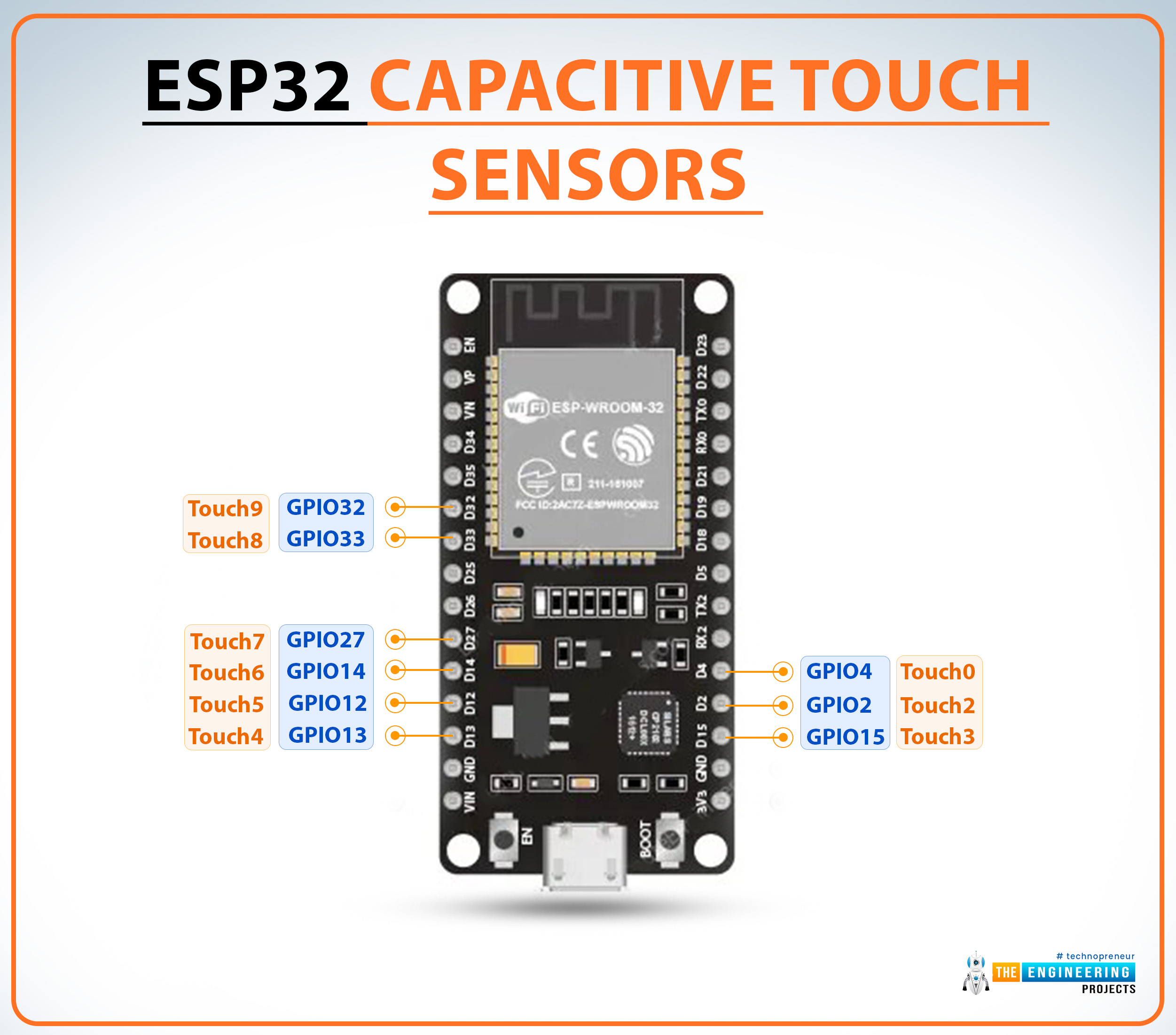
So, if someone touches any of these pins, ESP32 can easily detect it. The pin mapping of touch-sensitive pins in DOIT ESP32 DevKit V1 with GPIO pins is shown below:
| ESP32 Capacitive Touch Pins | ||||
|---|---|---|---|---|
| No. | Parameter Name | Parameter Value | ||
| 1 |
Touch0 | GPIO4 | ||
| 2 |
Touch1 | GPIO0(not available in DOIT ESP32 Dev-kit V1 30-pin module but available in the 36-pin module) | ||
| 3 |
Touch2 | GPIO2 | ||
| 4 |
Touch3 | GPIO15 | ||
| 5 |
Touch4 | GPIO13 | ||
| 6 |
Touch5 | GPIO12 | ||
| 7 |
Touch6 | GPIO14 | ||
| 8 |
Touch7 | GPIO27 | ||
| 9 |
Touch8 | GPIO33 | ||
| 10 |
Touch9 | GPIO32 | ||
Programming ESP32 Capacitive Sensor
We are using the Arduino IDE development environment for programming ESP32. If you are new to Arduino IDE, read out How to Install ESP32 in Arduino IDE. Let's use the builtin Touch Sensor example in Arduino IDE:
- Open the Arduino IDE, go to File > Examples > ESP32 > Touch. An image from Arduino IDE is attached below for your reference:
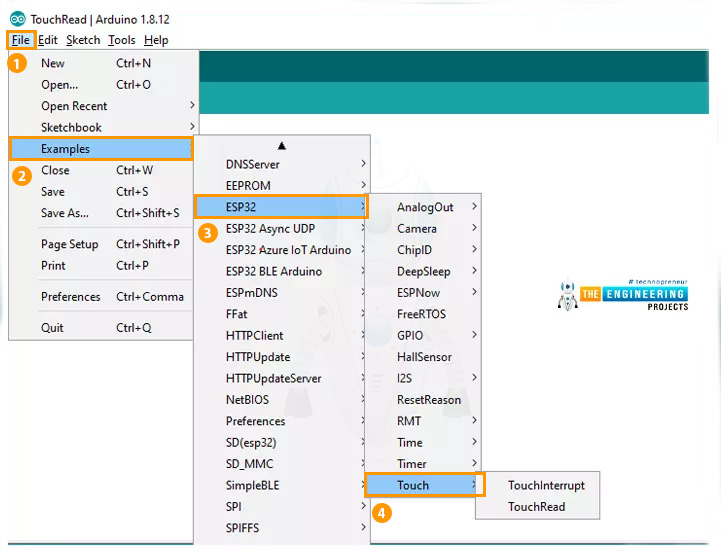
In Arduino IDE there are two example codes available for the ESP32 touch sensor. We will discuss and implement both example codes in this tutorial. So, let's first open the TouchRead Code:
ESP32 TouchRead Example
Here's the code for the TouchRead Example:
// ESP32 Touch Test
void setup()
{
    Serial.begin(115200);
    delay(1000); // give me time to bring up serial monitor
    Serial.println("ESP32 Touch Test");
}

void loop()
{
    Serial.println(touchRead(T0)); // get value using T0
    delay(1000);
}
Code Description
- This is a basic code to test/understand the touch sensor feature of ESP32.
- In this code, we are using a touch-sensitive pin to read the variation in capacitance and print the respective readings on the serial monitor.
Setup() Function
Inside the setup() function, the serial monitor is initialized at a baud rate of 115200 to display the sensor readings. Finally, we printed the message(ESP32 Touch Test) on the Serial Monitor:
void setup()
{
    Serial.begin(115200);
    delay(1000); // give me time to bring up serial monitor
    Serial.println("ESP32 Touch Test");
}
Loop() Function
- Inside the loop function, the touchRead(T0) function takes the T0 capacitive sensor pin as an argument and reads the output of T0(GPIO Pin4).
- The observed output is continuously printed on the serial monitor with a delay of 1 sec.
void loop()
{
    Serial.println(touchRead(T0)); // get value using T0
    delay(1000);
}
Testing/Result
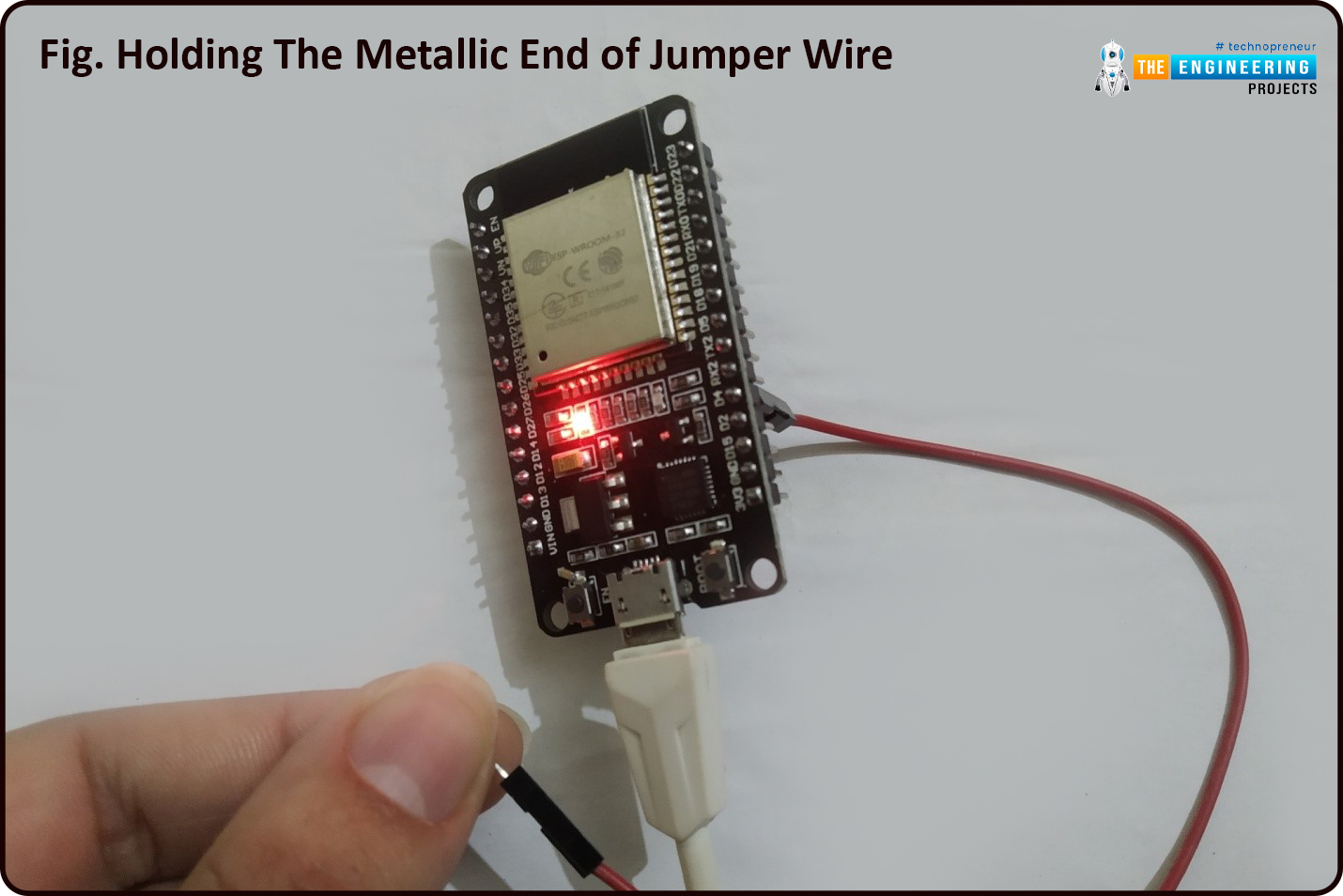
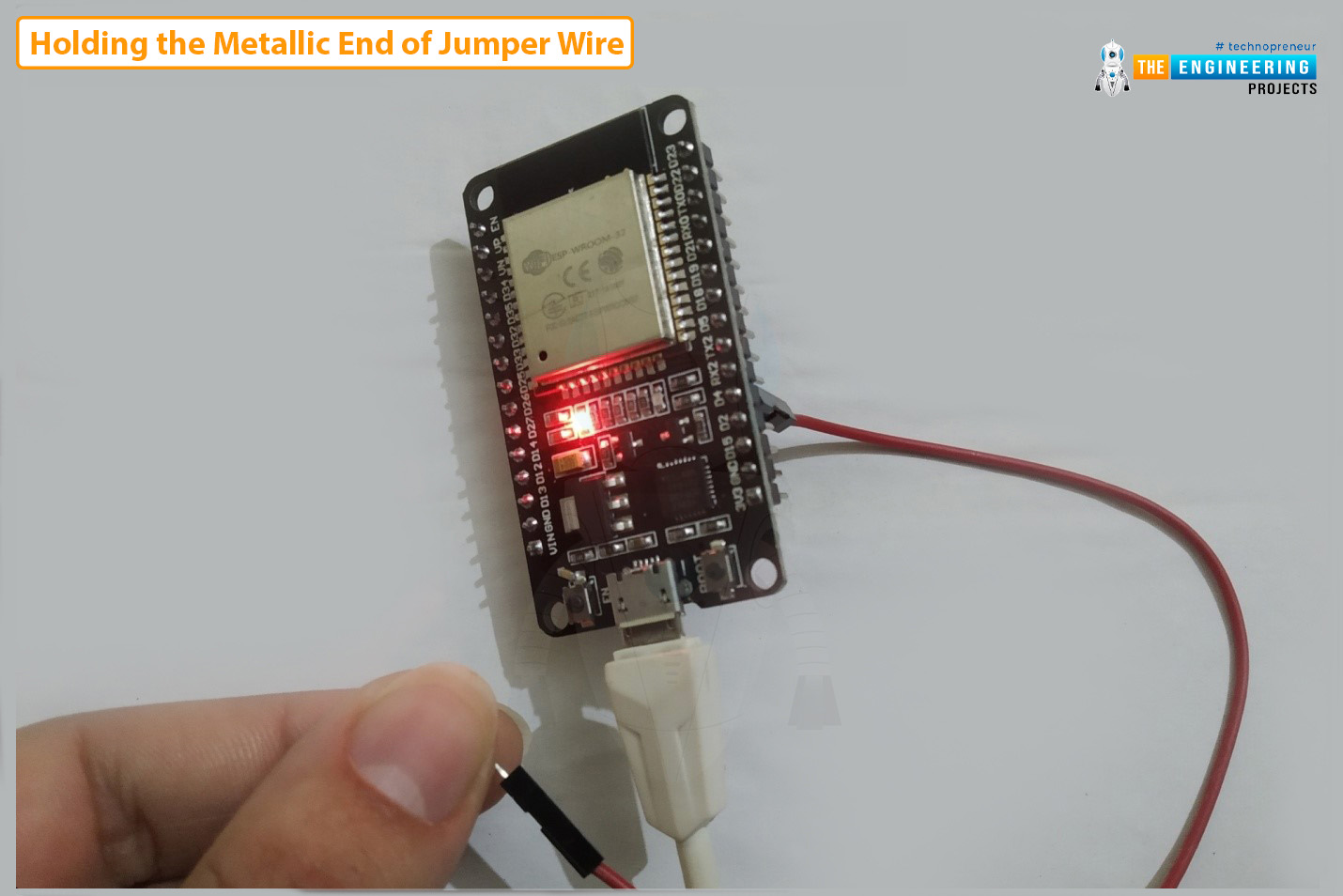
- Upload the above code into the ESP32 development board and connect a jumper wire to the T0 capacitive sensor pin(GPIO4).
- To open the serial monitor in Arduino IDE, go to Tools > Serial monitor or use the Ctrl+Shift+M shortcut key.
- Select the 115200 baud rate on the serial monitor.
- Now hold the metal end of the jumper wire connected to the GPIO4.
- To check the results, open the serial plotter, go to Toole > Serial Plotter or use Ctrl+Shift+L shortcut keys.
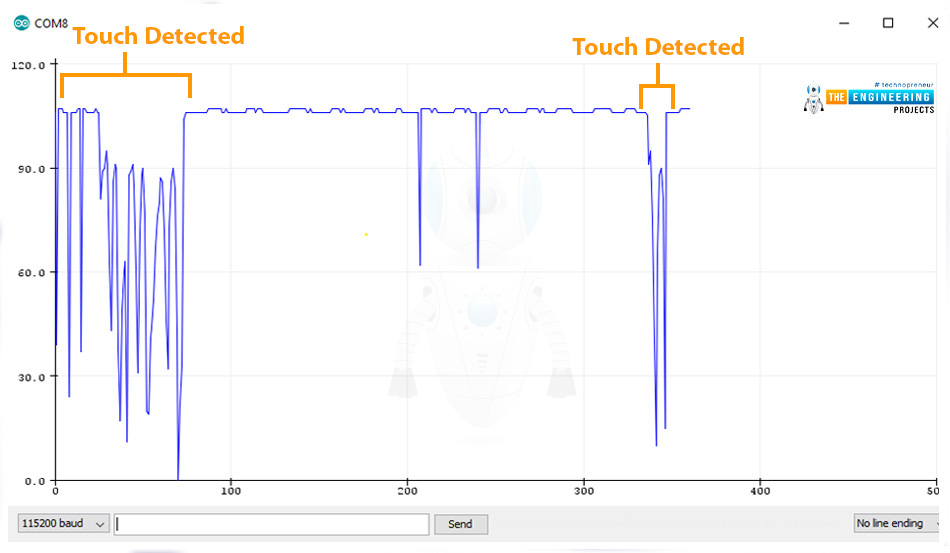
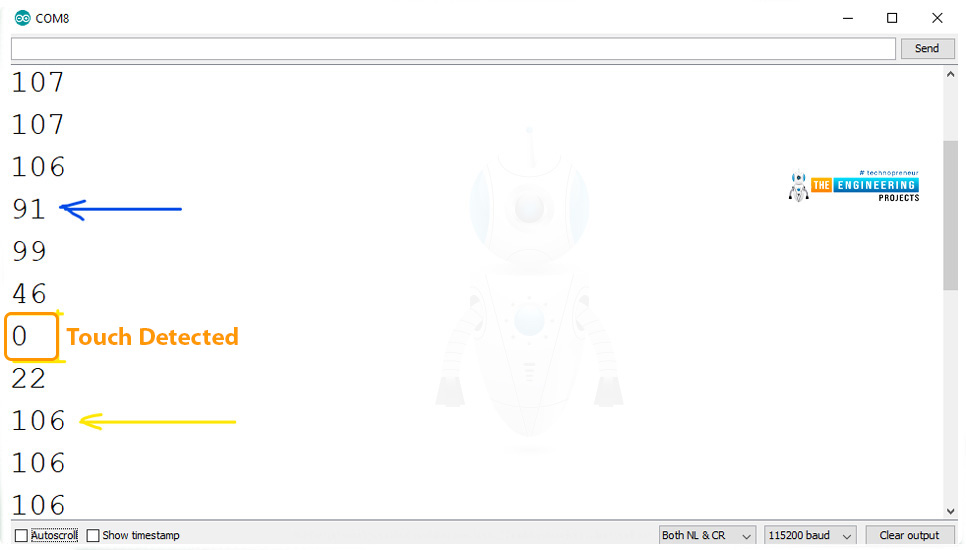
- As you can see in the above figure, the sensor's value drops to 0 when we touch the metallic part of the capacitive sensor pin.
- When we are not touching the sensor pin, the normal sensor output is around 107.
- Here's the Serial Monitor showing the touch results:
ESP32 Touch Interrupt Example
These capacitive touch sensor pins are mainly used to generate an external interrupt for waking up ESP32 from low power modes(deep sleep mode). Moreover, can also be used to control external peripherals like LED blinking or tuning on a DC motor, when a capacitive touch-interrupt is observed. So, let's have a look at How to Generate external interrupt by touching the ESP32 capacitive touch pins:
ESP32 Touch Interrupt Code
Here's the ESP32 Touch Interrupt Code:
const int CAPACITIVE_TOUCH_INPUT_PIN = T0; // GPIO pin 4
const int LED_OUTPUT_PIN = LED_BUILTIN;
const int TOUCH_THRESHOLD = 40; // turn on light if touchRead value < this threshold
volatile boolean _touchDetected = false;

void setup()
{
    Serial.begin(115200);
    pinMode(LED_OUTPUT_PIN, OUTPUT);
    pinMode(LED_OUTPUT_PIN, LOW);
    touchAttachInterrupt(CAPACITIVE_TOUCH_INPUT_PIN, touchDetected, TOUCH_THRESHOLD);
}

void touchDetected()
{
    _touchDetected = true;
}

void loop()
{
    if(_touchDetected)
    {
        Serial.println("Touch detected.");
        _touchDetected = false;

        Serial.println("blink the LED");
        digitalWrite(LED_OUTPUT_PIN, HIGH);
        delay(1000);
        digitalWrite(LED_OUTPUT_PIN, LOW);
        delay(1000);
    }
}
Let's understand the code by parts:
Variables Initialization
- The first step is to select the GPIO or touch sensor input pin to trigger an interrupt. We are using T0 or GPIO4 as an interrupt pin.
- Select the LED output pin which will react or blink on the occurrence of an interrupt.
- In the code, we are using the threshold value of 40. When a body, containing an electric charge touches a touch-sensitive pin, the threshold value decreases below 40.
- The default state of the touchDetect variable is set to false.
const int CAPACITIVE_TOUCH_INPUT_PIN = T0; // GPIO pin 4
const int LED_OUTPUT_PIN = LED_BUILTIN;
const int TOUCH_THRESHOLD = 40; // turn on light if touchRead value < this threshold
volatile boolean _touchDetected = false;
Setup() Function
- In the Setup Function, we initialized the serial monitor with a baud rate of 115200 so that you can display the results on the serial monitor for debugging purposes.
- Set the LED pin as output and set the default state to LOW.
- Attach the interrupt with the capacitive touch pin T0 using touchAttachInterrupt(), it takes the T0 pin, touchDetected and threshold value as arguments.
void setup()
{
    Serial.begin(115200);
    pinMode(LED_OUTPUT_PIN, OUTPUT);
    pinMode(LED_OUTPUT_PIN, LOW);
    touchAttachInterrupt(CAPACITIVE_TOUCH_INPUT_PIN, touchDetected, TOUCH_THRESHOLD);
}- touchDetected() function will be called when an interrupt is triggered i.e. someone touches the T0 Pin.
- This Function will change the state of the "_touchDetected" variable to true.
void touchDetected()
{
    _touchDetected = true;
}
Loop() Function
- Inside the loop() function, we are using the ‘if’ statement which is continuously checking the state of variable "_touchDetected".
- Once the variable state is changed to true, an interrupt is triggered and the output LED (inbuilt LED) will start blinking with a delay of 1 second.
- The result will be printed on the serial monitor.
void loop()
{
    if(_touchDetected)
    {
        Serial.println("Touch detected.");
        _touchDetected = false;

        Serial.println("blink the LED");
        digitalWrite(LED_OUTPUT_PIN, HIGH);
        delay(1000);
        digitalWrite(LED_OUTPUT_PIN, LOW);
        delay(1000);
    }
}
Testing of ESP32 Touch Sensitive Pin
- Open the serial monitor with a 115200 baud rate.
- Connect a male-to-female jumper wire with T0 or GPIO 4 of ESP32.
- Hold the metallic end of the jumper wire.
- LED will blink with a delay of 1 sec.
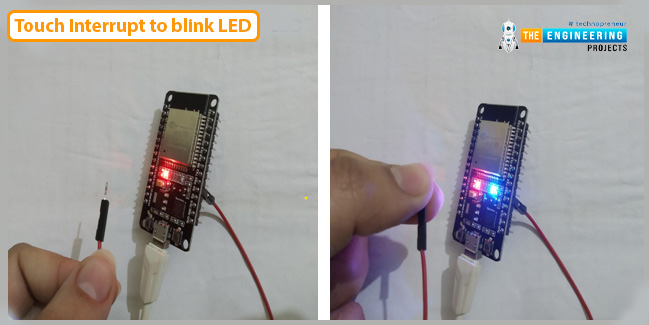
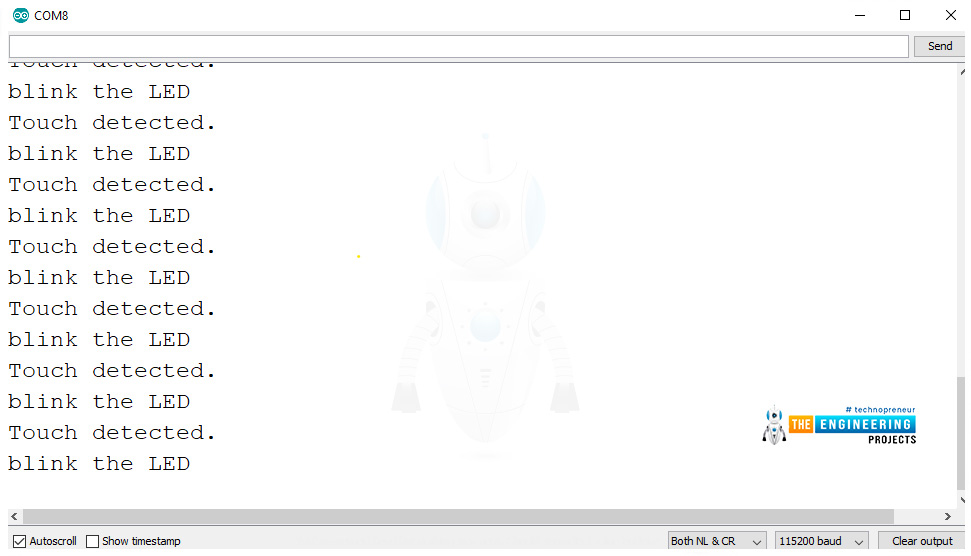
- See the results displayed on the serial monitor.
This concludes the tutorial; I hope you found this helpful and also hope to see you again with a new tutorial on ESP32.

Comments
0