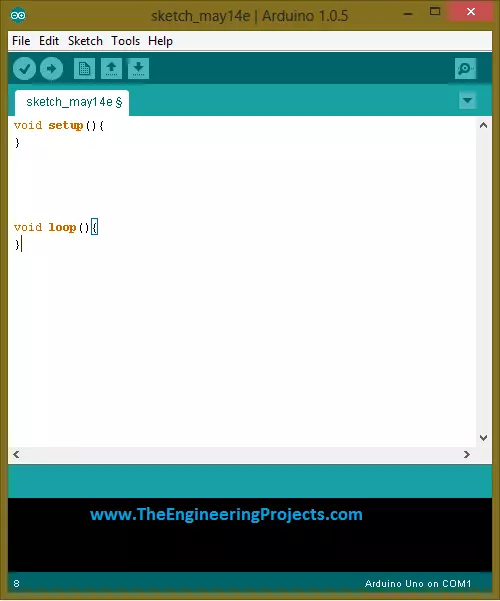
Hello friends! Today we will get started with Arduino programming by learning how a sketch is organized and how it interacts with the board's pins. We will begin with comments and the setup and loop functions, then move through digital input, digital output, analog measurement and pulse-width modulation. Libraries Arduino Simulation Libraries Arduino boards: UNO · Mega 2560 · Mega 1280 · Nano · Pro Mini · Mini (V4.0) All six V4.0 boards in one package: Arduino Library for Proteus V4.0 Helping Tools Serial Monitor Advance : a serial terminal window for the UART of your board Serial Monitor Expert : the serial monitor with extra debugging tools LCD Library for Proteus V3.0 : 16x2, 20x4 and I2C LCDs to show your readings If you have not installed the software or uploaded your first sketch, be ...
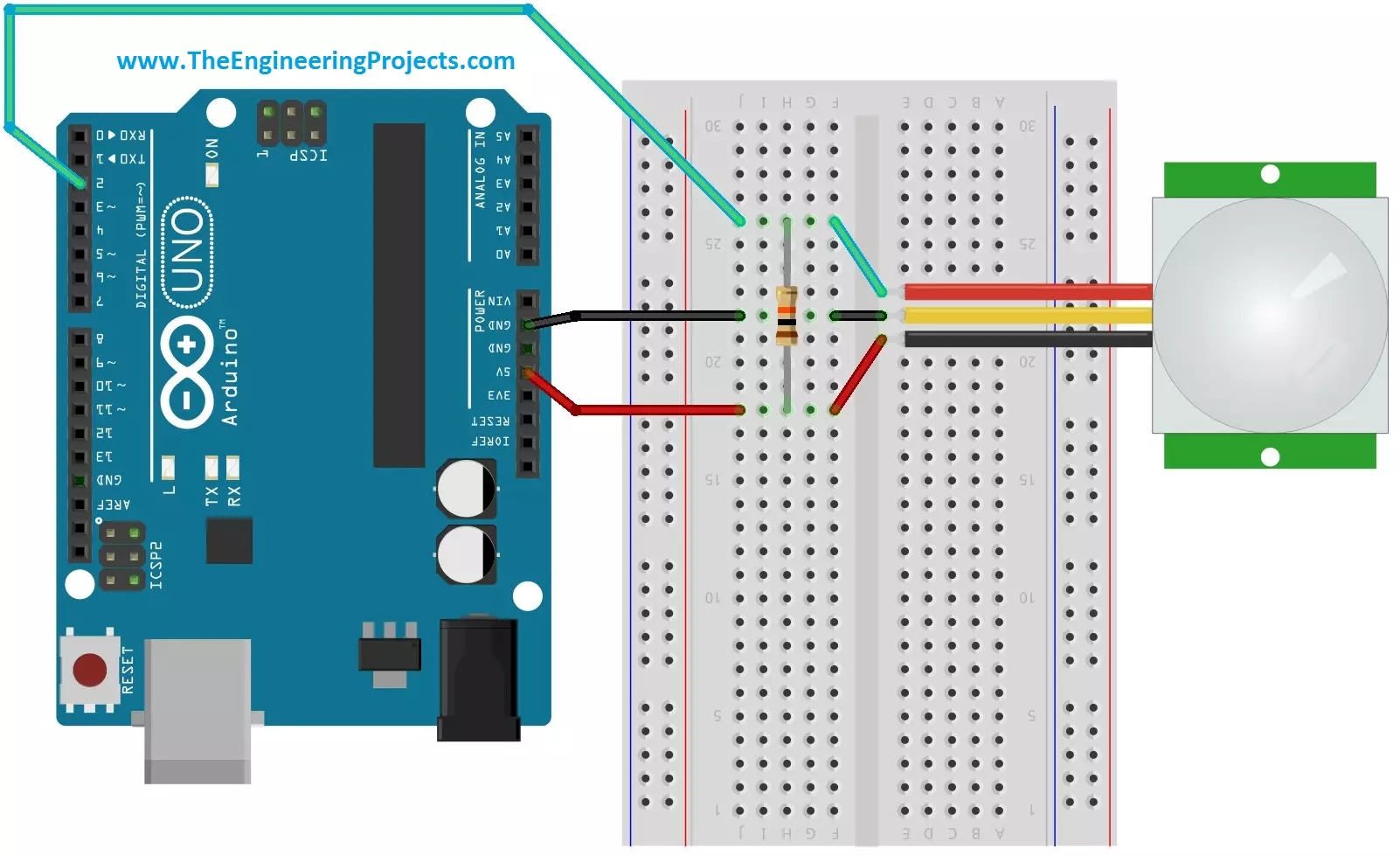
Hello friends! Today we will interface a PIR sensor with Arduino and build a motion indicator that reports when activity starts and when the sensor has been quiet for a selected time. We will begin with the sensing principle, connect the module, and then write a sketch that separates sensor startup, motion detection and the delay before switching an output off. Libraries PIR Sensor Simulation Libraries Latest library: PIR Sensor Library for Proteus V4.0 (October 2026): HC-SR501 with time delay, the H / L jumper, warm-up, Simple and Advance devices and an Arduino demo Other distance and motion sensors: Ultrasonic HC-SR04 · JSN-SR04T · Sharp IR · TF-Luna LiDAR · VL53L0X · RCWL-0516 · IR Obstacle FC-51 Helping Tools Serial Monitor Advance : a serial terminal window for the UART of your board ...
Hello friends! Today, we will get started with Arduino software and upload our first sketch. If you have just connected an Arduino board and are wondering what to do next, this tutorial will take you through the essential steps: installing the editor, selecting the board, writing a small program, compiling it and transferring it to the hardware. Libraries Arduino Simulation Libraries Arduino boards: UNO · Mega 2560 · Mega 1280 · Nano · Pro Mini · Mini (V4.0) All six V4.0 boards in one package: Arduino Library for Proteus V4.0 Helping Tools Serial Monitor Advance : a serial terminal window for the UART of your board Serial Monitor Expert : the serial monitor with extra debugging tools LCD Library for Proteus V3.0 : 16x2, 20x4 and I2C LCDs to show your readings The original article used Ardu ...
Hello friends! Today we will read analog voltages with an Arduino Uno and display both the ADC readings and calculated voltages on a 20 × 4 LCD. We will build the circuit in Proteus, connect the display, write the sketch and work through the conversion from a digital count to volts. Libraries LCD Simulation Libraries Latest library: LCD Library for Proteus V3.0 (October 2026): LCD 16x2, LCD 20x4 and both I2C LCDs in one library, with our own HD44780 model and an Arduino demo One LCD only? LCD 16x2 · LCD 20x4 · I2C LCD 16x2 · I2C LCD 20x4 Helping Tools Serial Monitor Advance : a serial terminal window for the UART of your board Serial Monitor Expert : the serial monitor with extra debugging tools The central idea is simple: analogRead() returns a number that represents the input relative to ...
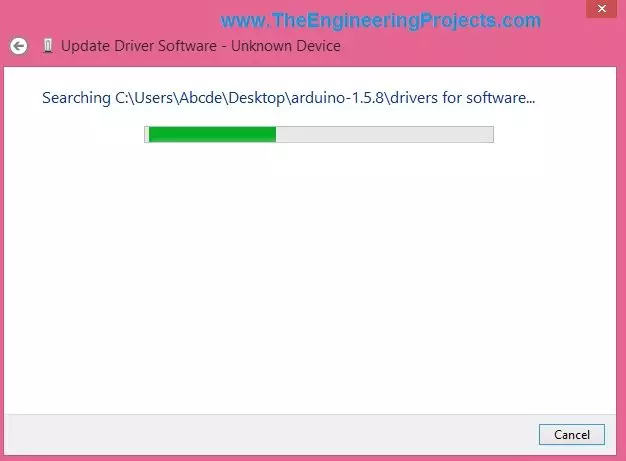
Hello friends! Today we will install or troubleshoot an Arduino USB driver in Windows. If you have followed our introduction to what Arduino is , this is the next practical step: making sure the computer can recognize your board before uploading a sketch. Many boards work as soon as they are connected because Windows already has a suitable driver. Others need a board package or a driver for their USB interface. We will first identify which situation applies, then use Device Manager to inspect the connection and complete a small upload test. The screenshots below come from the original Windows tutorial. They remain useful for understanding the manual installation sequence, but their dialog labels and Arduino software version are historical. Follow the corresponding controls in your Windows ...
Hello friends! Today we will answer a basic question: what is Arduino, and how do we use it? If you have seen projects that read a sensor, flash an LED or move a small motor, you have probably encountered an Arduino board. This introduction explains the board, the program and the surrounding circuit as separate parts of one system. Libraries Arduino Simulation Libraries Arduino boards: UNO · Mega 2560 · Mega 1280 · Nano · Pro Mini · Mini (V4.0) All six V4.0 boards in one package: Arduino Library for Proteus V4.0 Helping Tools Serial Monitor Advance : a serial terminal window for the UART of your board Serial Monitor Expert : the serial monitor with extra debugging tools LCD Library for Proteus V3.0 : 16x2, 20x4 and I2C LCDs to show your readings We will use the classic Arduino Uno R3 as ou ...
Hello friends! This page organizes our Arduino projects into a practical learning path. We will begin with board setup and a first sketch, then move through displays, sensors, communication and combined applications. The aim is to help you choose the next useful exercise instead of searching through an unrelated collection of links. Work through the projects actively. Read the circuit, predict the result, run a small example and explain any difference you observe. You can also explore our Arduino projects for beginners and the corresponding PIC microcontroller project guide when comparing learning paths. The collection includes historical boards, software and simulation packages. Keep each tutorial's exact hardware and version requirements in mind. An example written for a classic Uno or a ...
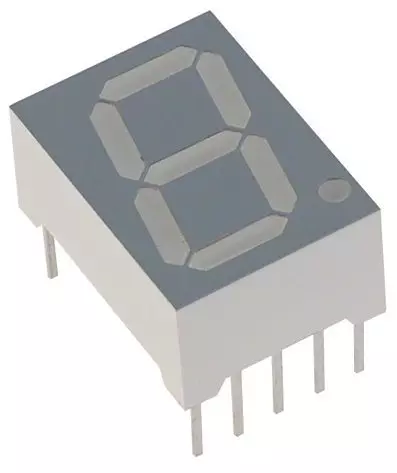
Hello friends! Today we will interface a seven-segment display with an Arduino Uno in Proteus. We will build a single-digit counter, load the Arduino program into the simulated board, and check that the display counts from zero to nine before returning to zero. This tutorial uses our Arduino Library for Seven Segment Display . That is a sketch library, while the Arduino Library for Proteus supplies a board model for the simulator. They belong to different applications and cannot replace one another. We will retain the original circuit images and downloadable project, but correct the counting logic and explain the electrical details that a simple simulation can hide. The objective is to understand how a requested digit becomes seven output signals, not merely to watch an animation. Figure: ...
Hello friends! Today I am sharing our Arduino library for a single seven-segment display. The original library was written for a small project that needed to show decimal digits without introducing a complicated display framework. Its interface is deliberately simple: assign seven Arduino pins, then pass the character you want to display. We will keep that straightforward approach while explaining the actual capabilities of the download. A library can choose which LEDs should light, but the display type, segment wiring and current-limiting resistors still determine whether the circuit works correctly. We will install the library, examine its two public operations and build a corrected counting example. For the complete simulator circuit, continue with Interfacing a Seven-Segment Display wi ...
Hello friends! Today we will connect a DS18B20 temperature sensor to an Arduino Uno and display its reading in the Serial Monitor and on a 20 x 4 LCD. This is a useful first project when you want a digital temperature measurement without building an analog amplifier or calculating an ADC reference voltage. The original project used the Dallas 18B20 name and demonstrated the result on real hardware. We will retain those photographs and the demonstration video while making the wiring, library installation and measurement handling clearer. In particular, we need to distinguish a sensor's resolution from its accuracy and explain why its power connection matters. We will begin with one externally powered sensor on Arduino pin D2. Once that works reliably, the same data line can support several ...