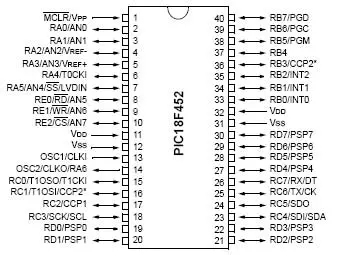
Hello friends! In the previous tutorial, we discussed getting started with PIC microcontrollers and the minimum circuit needed to run a PIC18F452. Today, we will examine its ports, timers, communication interfaces and other useful hardware functions. We will refer to the 40-pin PDIP package throughout this lesson. The signal names are more important than the physical pin numbers, because other packages can place those signals differently. Always match the package drawing to the component you actually have. The main goal is to help you allocate pins and select peripherals for a project. We will also work through timer, ADC, PWM and baud-rate calculations so the datasheet values become practical design tools rather than a list of unfamiliar abbreviations. Figure: PIC18F452 reference for port ...
Hello friends! In the previous lesson, we discussed microcontroller basics . Today, we will apply those ideas to a PIC18F452 and identify everything needed to make a simple program run on real hardware. We will use the 40-pin PDIP version of the PIC18F452, matching the original circuit in this tutorial. Our first output is an LED on RD0. Before writing the application, we will work through power, reset, the external clock, programming connections and the distinction between the IDE and compiler. The original lesson used older MPLAB tools and a socket-style programming workflow. Those are useful historical references, but a supported in-circuit programmer can program the PIC while it remains in the target circuit. The exact combination of device, programmer and software must be checked befo ...
Hello friends! Today, we are starting our microcontroller tutorial series from the basics. Before connecting a PIC, installing a compiler or writing an LED-blinking program, we need to understand what a microcontroller does and how its software interacts with an electrical circuit. Think of a project that reads a push button, changes a pattern of lights and reports its operating state. A microcontroller can coordinate those actions by repeatedly reading inputs, applying programmed rules and updating outputs. The same basic idea appears in sensor loggers, small robots, appliance controls and many other embedded systems. In this series, our detailed hardware example will be the PIC18F452. We will first learn the general ideas, then study that device's connections and development tools. You d ...
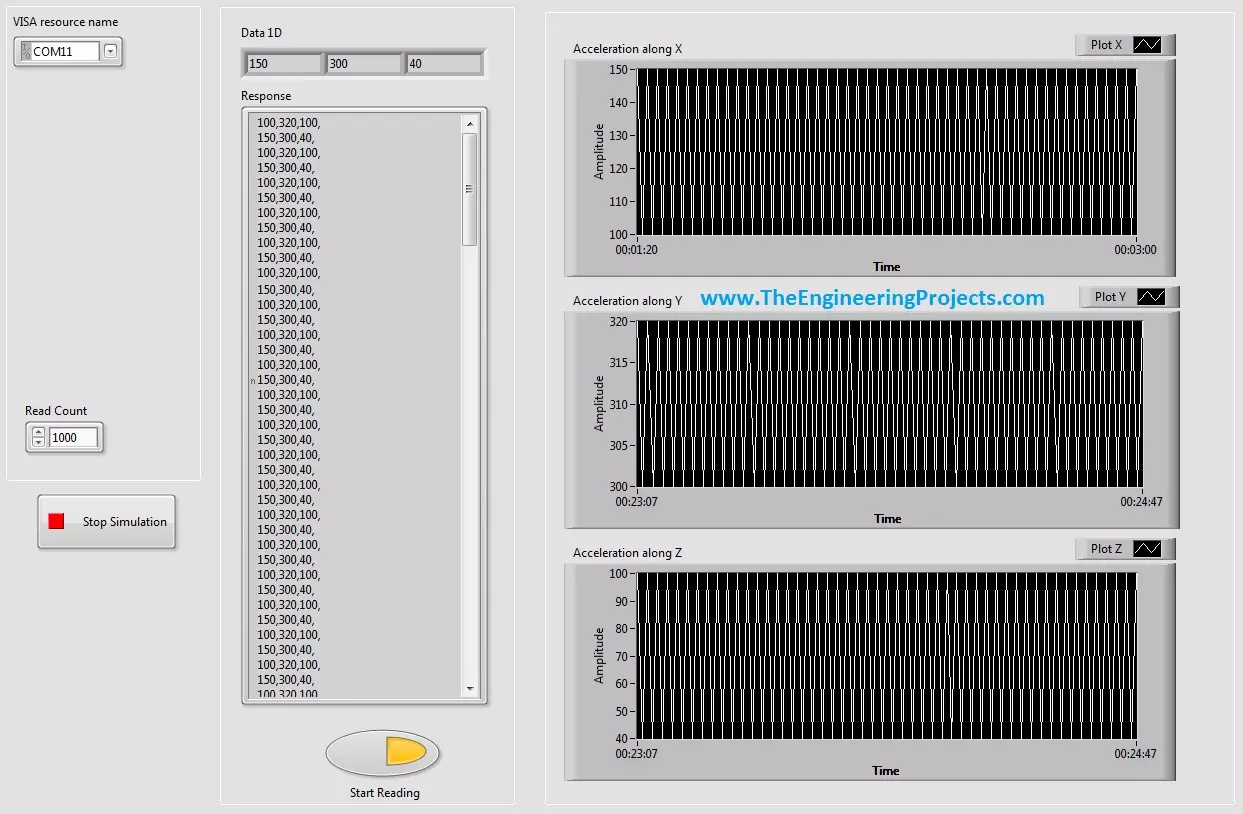
Hello friends! In this tutorial, we will display serial data on live plots in LabVIEW. In the previous lesson, we received comma-separated records from a COM port and converted them into a numeric array. We will now take the three values in that array and display each channel as a changing trace. If you have not built the serial reader yet, start with getting continuous data from a COM port in LabVIEW . The plotting stage assumes that a complete record has been received and validated. A graph cannot correct an incomplete message or determine which sensor a badly parsed number belongs to. We will preserve the original three-channel example and screenshots, then explain the differences between charts and graphs, how to label the time axis honestly, and how to keep the display responsive. Her ...
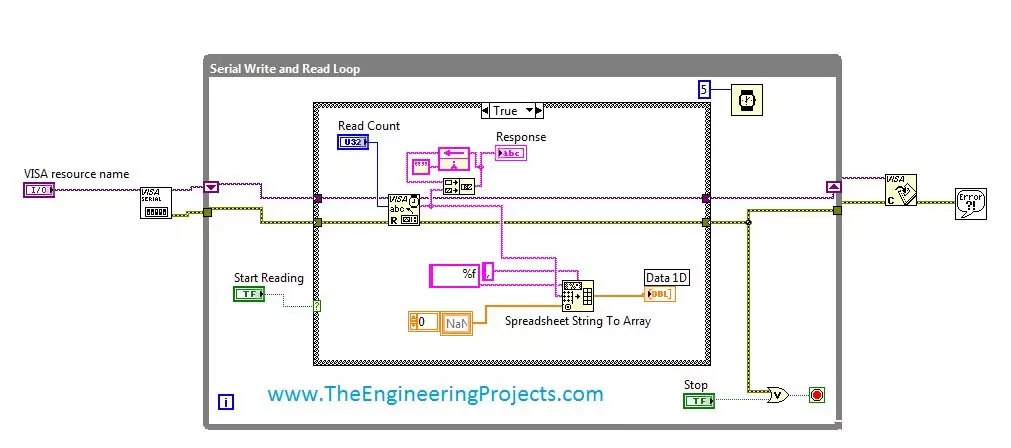
Hello friends! Today, we will receive continuous data from a COM port in LabVIEW and display both the incoming text and its individual values. This is a useful first step when connecting a microcontroller, measurement instrument or serial sensor to a computer. Our original example receives comma-separated values and places them in a one-dimensional array. We will keep that flow, but also explain how the program knows where one complete record ends. Without that step, a serial reader can appear to work during a short demonstration and then occasionally display incomplete or mixed measurements. We will start with the software and serial settings, build the front panel and block diagram, then discuss parsing, timeouts and stopping the reader cleanly. The original VI remains available near the ...
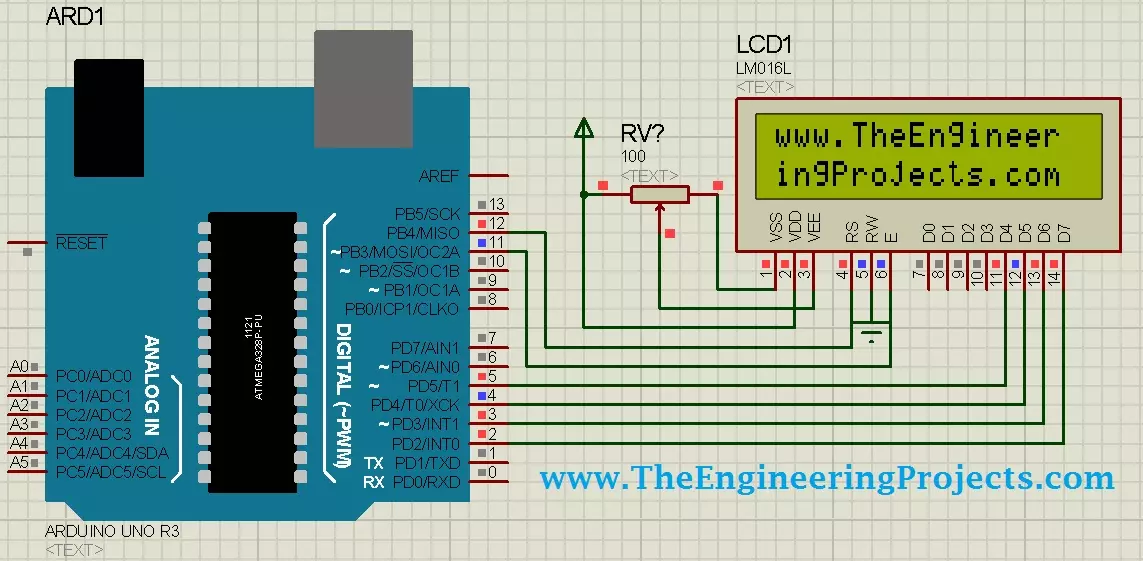
Hello friends! Today, we will design a circuit containing an Arduino UNO and a 16 × 2 character LCD in Proteus ISIS. We will connect the display, write a small Arduino sketch, compile it and load the resulting program into the simulated UNO. Our first result will be the website name displayed across two rows. This is a useful beginner project because the visible result is simple while the underlying connections teach several important ideas: control signals, a four-bit data bus, contrast adjustment and the relationship between source code and a compiled program. We will examine each part before adding changing values to the display. If Arduino components are not available in your Proteus installation, begin with our Arduino Library for Proteus tutorial . The exact device library and simula ...
Hello friends! Today, we will work through the EasyVR message Training Error: Recognition Failed . I originally encountered this error while training voice commands for an Arduino UNO project. Commander connected to the board, but the training attempt failed when I spoke the first command. Repeating the same attempt did not solve it. In my original setup, loading an appropriate EasyVR example and changing the shield's J12 connection from PC to SW allowed training to continue. That observation is useful, but it needs an important explanation: the correct jumper position depends on the shield revision and the communication path being used. SW is not a universal cure for every recognition error. We will separate communication problems from training and microphone problems, then return to the ...
Hello friends! Today, we will send an SMS with an Arduino UNO and a SIM900D GSM module using AT commands. We will start with the connections, check that the modem can communicate with the mobile network, and then let the Arduino submit one message. You will also learn how to tell the difference between a successful command and a message that has actually reached its recipient. The SIM900D handles the radio connection and SMS service. The Arduino sends instructions through a serial connection and reads the modem's replies. We do not need a separate GSM control library for this example; we will use the Arduino serial facilities and send the commands ourselves. This makes the exchange easier to follow when something goes wrong. This tutorial concerns a legacy 2G modem. Before building the cir ...
Hello everyone! Today we will explore the Arduino Yún and connect it to a local network. This board combines familiar Arduino programming with an onboard Linux system, allowing a project to read physical inputs and communicate with network services without keeping a desktop computer attached. We will start by understanding its two processors, then follow the original illustrated Wi-Fi configuration procedure. After that, we will upload a simple sketch, distinguish USB communication from Bridge communication, and plan a small sensor-logging application. This tutorial concerns the original Arduino Yún, a legacy board. Its screenshots show the original configuration interface, so menu details can differ with the installed Linux image and development tools. Identify your board revision before ...
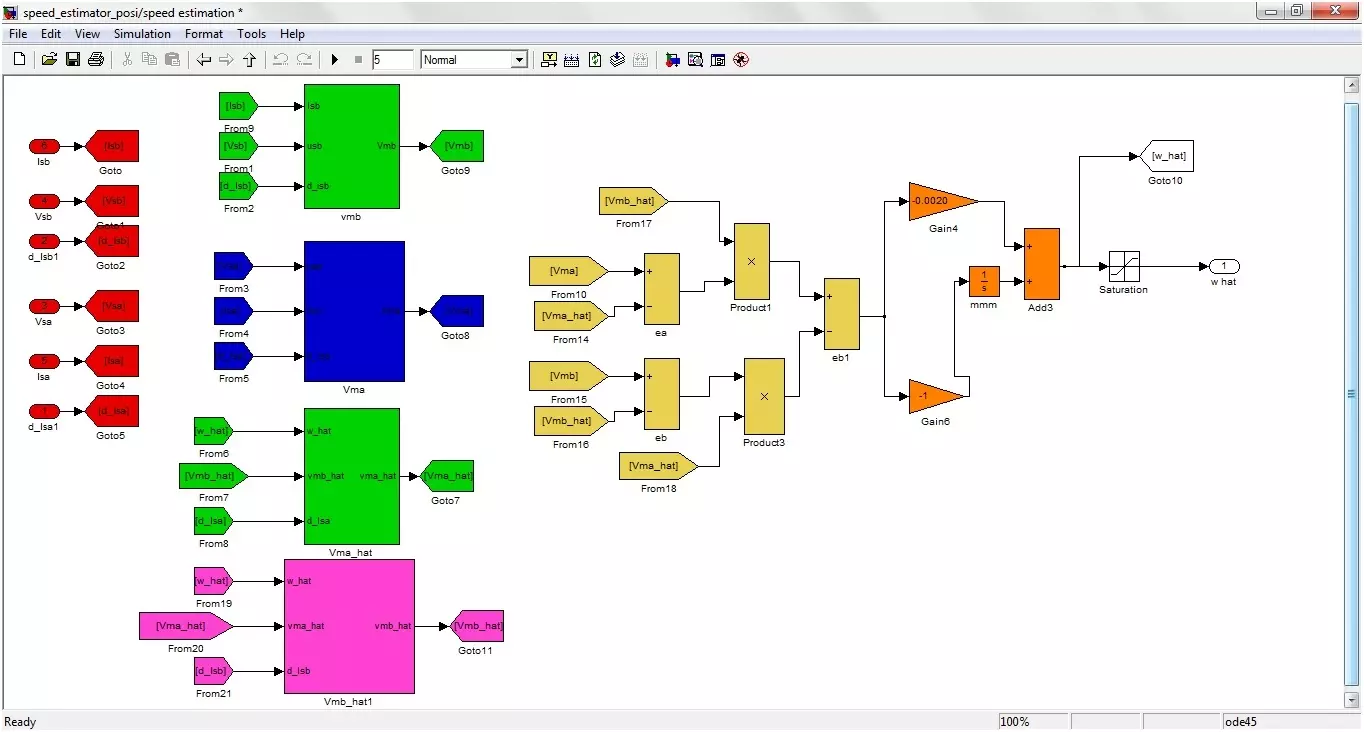
Hello friends! Today we will study sensorless speed estimation of an induction motor in MATLAB and Simulink. We will follow the original project's adaptive-estimation approach, beginning with the motor equations and then connecting those equations to the illustrated simulation blocks. The aim is to estimate rotor speed from electrical quantities rather than feed a measured shaft-speed signal into the estimator. In simulation, the motor model still provides a true speed for comparison. Keeping that reference separate from the estimator inputs is essential: otherwise, a model can appear sensorless while quietly using the answer it is supposed to estimate. The original project was developed in the MATLAB 2010 era and described as used with later 2012 and 2013 releases. The diagrams below docu ...