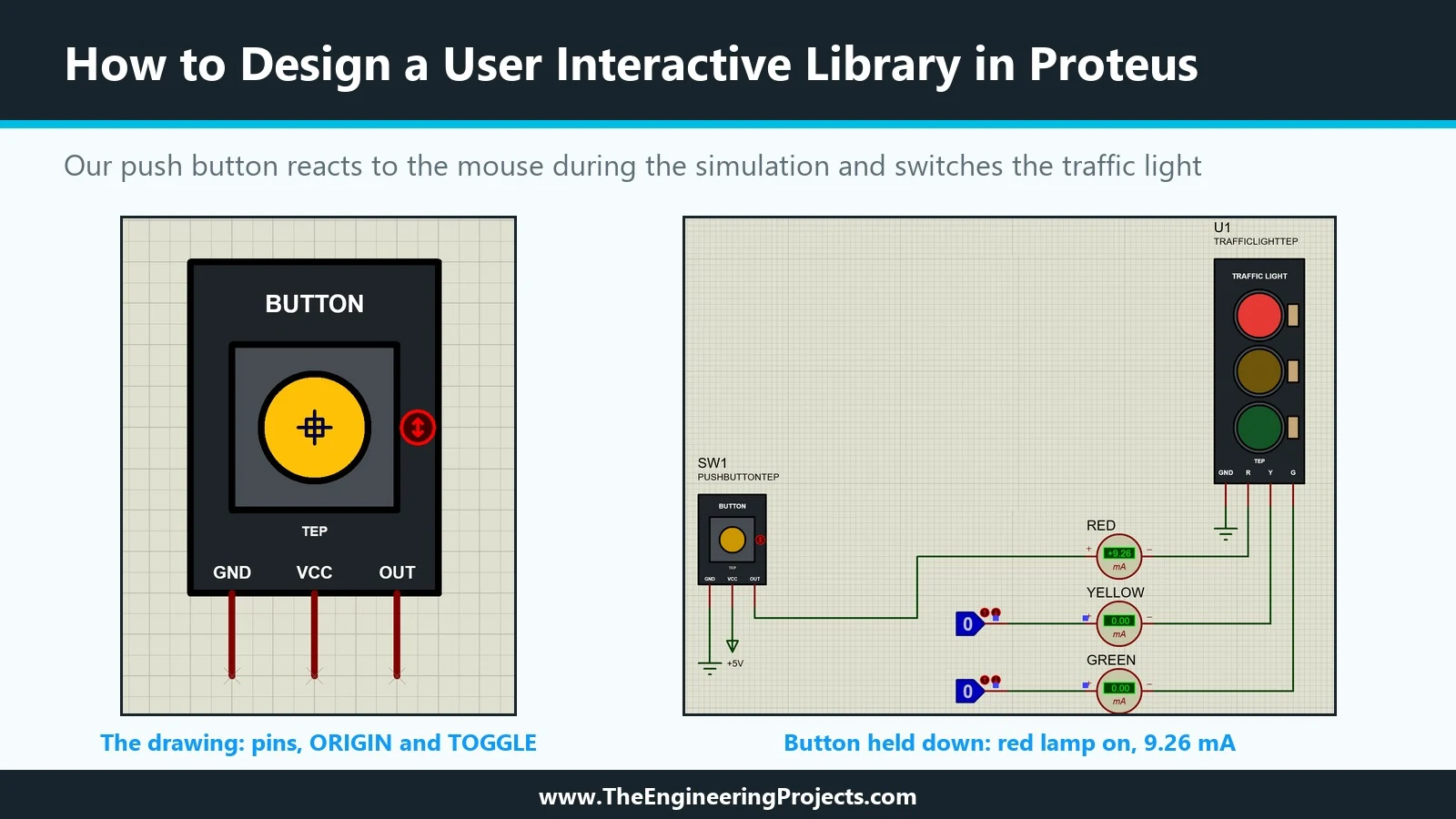
Hello friends, I hope you are doing well. This is the sixteenth tutorial in our series on how to create a Proteus library. In the previous tutorial, How to Create an Animated Component in Proteus , our Traffic Light Module learned to show its lamps: state symbols, a common symbol and real time current probes in the model. That part is an indicator; it shows what the circuit does. Today, we build the opposite kind of part, one that the user operates with the mouse while the simulation runs. Our topic is how to design a user interactive library in Proteus . Updates Proteus Component Designing This course: Part 16 of 20, Animated and Interactive Components Previous part: Animated Component Next part: Simulation Model DLL in C++ Course start: How a Proteus Library Works Add libraries to Proteu ...
Hello friends, I hope you all are doing great. Today, I am going to share the new PN532 NFC Library for Proteus V1.1 . The PN532 is NXP's NFC controller for 13.56 MHz cards and tags, best known on the red Elechouse PN532 NFC RFID module V3 . With this PN532 NFC Library for Proteus , you place cards on the reader with a click, and your Arduino reads them over SPI or I2C with the same Adafruit PN532 library you use on real hardware. Updates PN532 NFC Library for Proteus Latest version: V1.1 (September 2026, this tutorial) Other RFID / NFC readers: MFRC522 · EM18 Helping Tools Serial Monitor Advance : a serial terminal window for the UART of your board Serial Monitor Expert : the serial monitor with extra debugging tools LCD Library for Proteus V3.0 : 16x2, 20x4 and I2C LCDs to show your read ...
Hello friends, I hope you all are doing great. Today, I am going to share the new EM18 RFID Library for Proteus V1.1 . The EM-18 is a small black 125 kHz RFID reader: hold a card or a keyfob near it, and it sends the tag's number to your Arduino as 12 characters on a serial line. With this EM18 RFID Library for Proteus , you place tags on the reader with a click, at a distance you choose, and your Arduino reads them exactly like a real EM-18. Updates EM18 RFID Library for Proteus Latest version: V1.1 (September 2026, this tutorial) Other RFID / NFC readers: MFRC522 · PN532 NFC Helping Tools Serial Monitor Advance : a serial terminal window for the UART of your board Serial Monitor Expert : the serial monitor with extra debugging tools LCD Library for Proteus V3.0 : 16x2, 20x4 and I2C LCDs ...
Hello friends, I hope you all are doing great. Today, I am going to share the new MFRC522 RFID Library for Proteus V1.1 . The MFRC522 is NXP's 13.56 MHz RFID reader chip, and the blue RFID-RC522 board built around it is the first card reader most of us connect to an Arduino. With this MFRC522 Library for Proteus , you place MIFARE cards on the reader with a click, and your Arduino reads their UID and memory over SPI with the same MFRC522 Arduino library you use on real hardware. Updates MFRC522 Library for Proteus Latest version: V1.1 (September 2026, this tutorial) Other RFID / NFC readers: PN532 NFC · EM18 Helping Tools Serial Monitor Advance : a serial terminal window for the UART of your board Serial Monitor Expert : the serial monitor with extra debugging tools LCD Library for Proteus ...
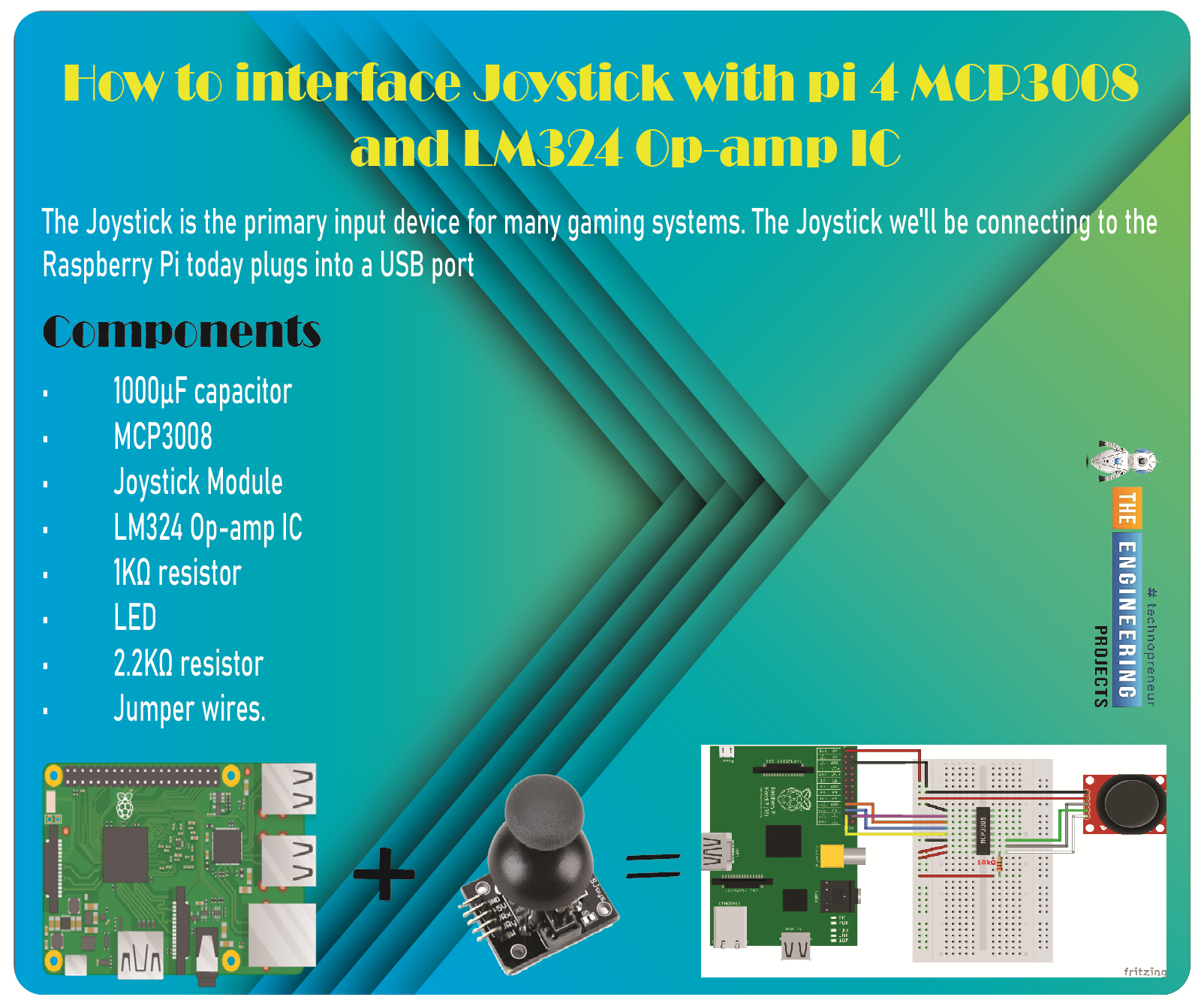
Greetings, and welcome to the next tutorial in our series on programming for the Raspberry Pi 4. The previous tutorial showed us how to connect a 4x4 keypad to a Raspberry Pi 4. In the previous tutorial, we examined the inner workings of the 4-by-4 keyboard; in this one, we'll use the MCP3008 and the LM324 Op-amp IC to connect a joystick to the Raspberry Pi 4. The Joystick is the primary input device for many gaming systems. The Joystick we'll be connecting to the Raspberry Pi today plugs into a USB port, but there are plenty of situations when having access to the Pi's GPIO pins would be useful. We'll review the steps for preparing the circuit for each interface technique and creating a corresponding python script. So let’s dive in! Components The hardware utilized in this instance is a P ...
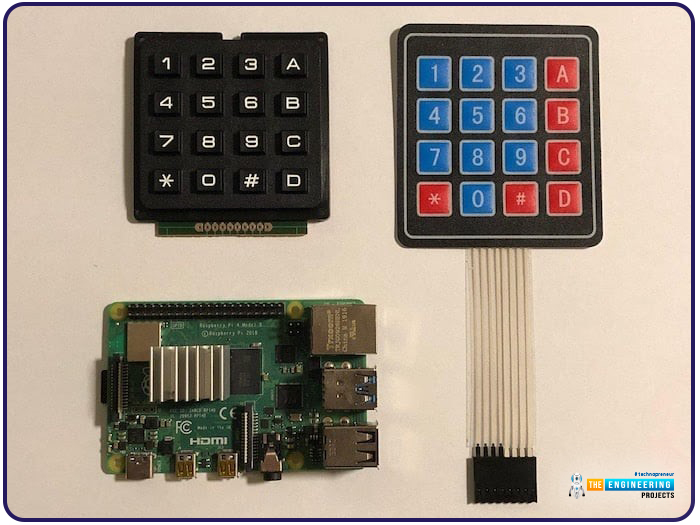
Hello friends, I hope you all are doing well. Welcome to the next tutorial of our Raspberry Pi 4 programming course. In the previous lecture, we interfaced LCD 16x2 with Raspberry Pi 4 . Today, we will interface a keypad 4x4 to Raspberry Pi 4. In embedded projects, a keypad is used to get user input i.e. calculator, ATM keypad etc. Different types of Keypads are available i.e. 4x4, 4x3 etc. So, let's get started: Components Required We will need the following components in our today's project: Raspberry Pi 4 Keypad 4x4 Breadboard Connecting Wires Keypad 4x4 A keypad is a collection of push buttons, arranged in a matrix form. Keypad 4x3 means the keypad has 4 rows and 3 columns and 12 buttons in total. A 4 by 4 keypad membrane has 8 pins in total, its first 4 pins devoted to its rows and it ...
Welcome to the next tutorial of our raspberry pi 4 programming course. A previous article covered connecting a Remote Control Radio Frequency Module (433 MHz) to a Raspberry Pi 4. To turn things on and off wirelessly, we programmed a Raspberry Pi 4 to act as a radio-frequency (RF) remote control. However, this guide will study how to wirelessly pair a Raspberry Pi 4 and an ESP32. After reading this article, you'll get a good grounding in the fundamentals of Bluetooth module operation between two ESP32 and Pi 4 communication. When it comes to sharing data over short distances using Ultra High-Frequency Radio Waves, Bluetooth is one of the most reliable and effective short-range wireless communication solutions. Since Bluetooth Technology was initially conceived as a cable substitution techn ...
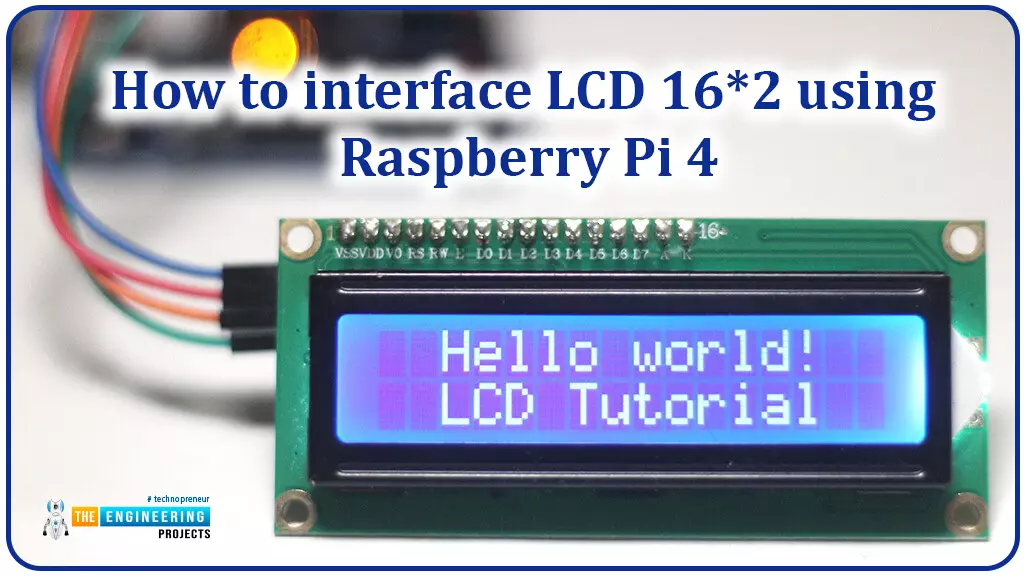
Hello friends, I hope you all are doing great. Today, I am going to share the 6th lecture in the Raspberry Pi 4 Programming series. We're glad you could join us for another lesson in our comprehensive Raspberry Pi programming guide. In today's guide, I'll show you how to interface a 16x2 LCD screen with Raspberry Pi 4. So, let's get started: Interface LCD 16x2 with Raspberry Pi 4 Today, we are going to interface a 16x2 LCD screen with Raspberry Pi 4. At first, we will print the "Hello World" text on the LCD, and in the last section, we will implement the scrolling and blinking of text on the LCD. Here's the video tutorial on LCD interfacing with Raspberry Pi 4: Components Required We will need the following components for today's project: Raspberry Pi 4. Micro SD Card. 16x2 LCD. Breadboard ...
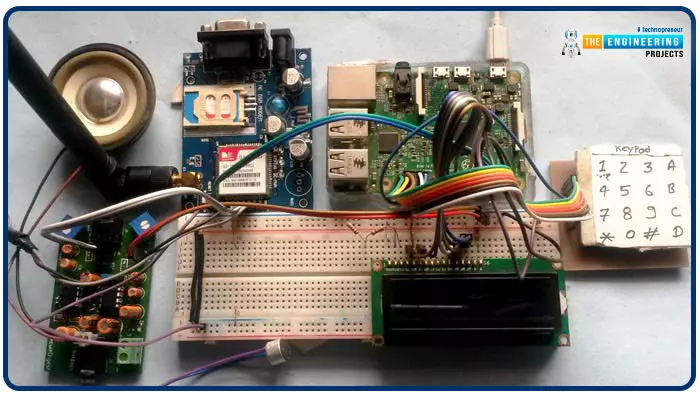
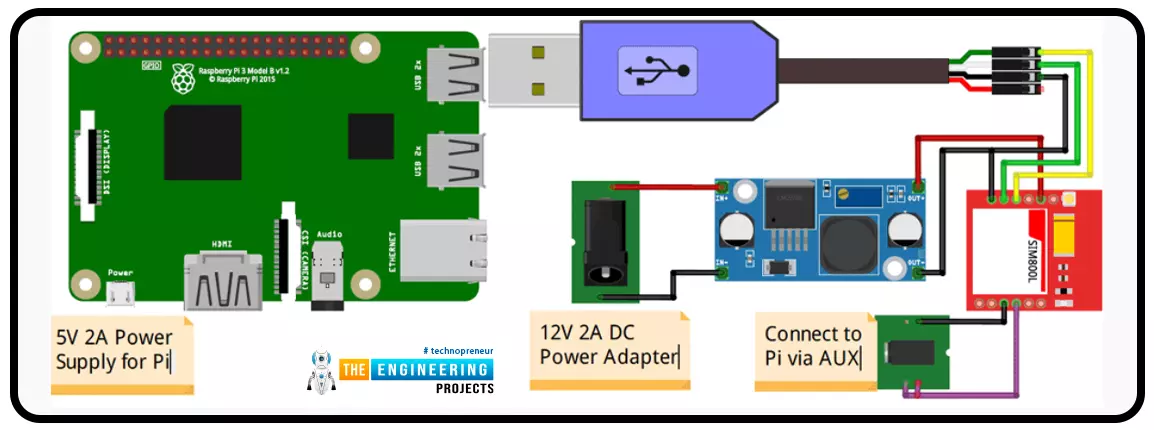
Greetings, and welcome to another tutorial in our series on the raspberry pi 4 Python programming. The previous guide covered the basics of transmitting data over the radio using the nrf24l01 chip in Pi 4. We also learned about interfacing Arduino and raspberry pi 4 and sending radio signals between the two devices. However, this tutorial will walk you through building a Raspberry Pi-based mobile phone with a microphone and speaker for making and receiving calls and reading text messages (SMS). This Project also serves as a proper GSM Module for the Raspberry Pi interface, with all the necessary Code to run the most fundamental features of any modern smartphone. First, we will understand what gsm is, its architecture and how it works, then we will learn how to program it in our pi 4; there ...
A low-literate audience can nevertheless have their voices heard and their questions answered by using an IVR system, as has been proven time and time again. However, achieving such aims in a development setting calls for a cheap system that welcomes input from various parties. RASP-IVR is an inexpensive IVR system that operates on a PI 4 and a local Global System for Mobile Communications modem. RASP-IVR was designed as an open-source, community-driven solution. It's unusual to find a customer-focused company that still uses human operators rather than an interactive voice response system. Credit card companies typically have IVR systems that can be used to make payments or file fraud reports. Airlines use elaborate IVR systems to schedule flights and check their current status. To facili ...