


A7670C 4G LTE Module Library for Proteus Simulation


Hello friends, I hope you all are doing great. Today, I am going to share the new A7670C 4G LTE Module Library for Proteus Simulation. The A7670C is a small LTE Cat-1 modem: it puts an Arduino or an ESP32 on the 4G mobile network through a plain UART and AT commands. With it a board can send and receive SMS, call a web server over HTTP and stay online where there is no Wi-Fi - the reason it shows up in so many trackers, alarms and remote sensors now that the old 2G networks are switching off. With this library you can run a full Proteus simulation of an A7670C breakout: the power key, the start-up messages, the network registration, SMS in text mode, HTTP GET and POST, and the RI line that tells your board a message has arrived.
A7670C 4G LTE Module Library for Proteus
Latest version: V1.0 (November 2026, this tutorial)
Helping Tools
- Serial Monitor Advance: a serial terminal window for the UART of your board
- Serial Monitor Expert: the serial monitor with extra debugging tools
- LCD Library for Proteus V3.0: 16x2, 20x4 and I2C LCDs to show your readings
The modem in the simulation has its own small network and web server, so every command gets an answer just as on a real SIM card - without a SIM, an antenna or a data plan. The demo sends an SMS, reads the time from a web server, posts a report, and then waits for an SMS that switches an LED.
NOTICE: Our team has put a lot of effort into these small parts: the bodies, the animation and the pop-ups are all our own design, and you get them free. Your feedback is the fuel that keeps us going, so please tell us what you think in the comments below or in the GSM and 4G board of our forum. And if our free libraries help you, you can buy us a coffee. So, let's get started with the A7670C 4G LTE Module Library for Proteus Simulation:
What Is the A7670C 4G LTE Module?
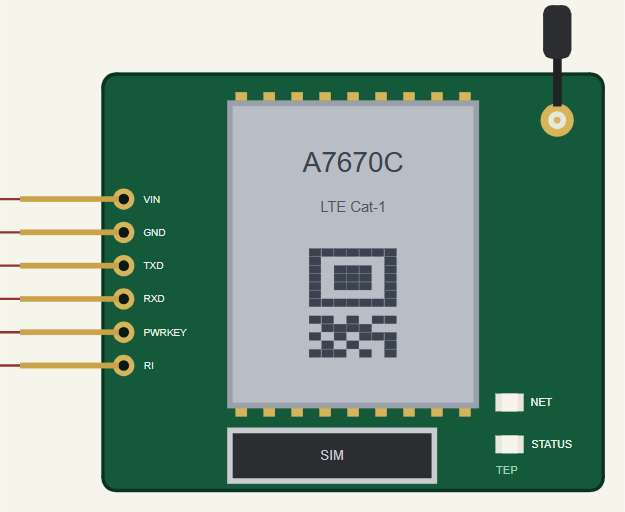
The A7670C belongs to a family of LTE Cat-1 modules made for the Internet of Things. Cat-1 is the low end of 4G: up to about 10 Mbit/s down and 5 Mbit/s up, far more than a sensor needs, with the coverage and low cost of ordinary LTE networks. The module needs a SIM card and an antenna, and it talks to its host over a UART. The usual breakout board adds a regulator, the SIM holder, the antenna connector, two LEDs and a header with VIN, GND, TXD, RXD, PWRKEY and RI. The "C" version is aimed at Chinese networks; other letters cover other regions, with the same commands.
| A7670C 4G LTE module breakout | |
|---|---|
| Network | LTE Cat-1 (4G), with 2G fallback on some versions |
| Interface | UART with AT commands, 115200 baud from the factory |
| Functions | SMS, voice, TCP / UDP, HTTP(S), MQTT, FTP |
| Pins | VIN, GND, TXD, RXD, PWRKEY, RI |
| Supply | 5 V on the breakout, up to 2 A peaks while transmitting |
| Uses | trackers, alarms, remote sensors, data loggers |
PWRKEY and the Start-Up Messages
A cellular modem does not start just because it has power. Its PWRKEY pin must be held low for a moment - 50 ms is enough for the A7670C - and then the module boots its firmware. While it starts it sends a few messages by itself: *ATREADY: 1 when the AT interface is ready, +CPIN: READY when the SIM is unlocked, and SMS DONE and PB DONE when the message store and the phone book are loaded. A sketch that waits for PB DONE knows the modem is ready for everything. Holding PWRKEY low for about 2.5 s switches the modem off again, as does AT+CPOWD=1.
AT Commands, Answers and URCs
Every command starts with AT and ends with a carriage return. The modem answers with lines framed by CR LF: maybe some data such as +CSQ: 23,99, and always a final OK or an error - ERROR, +CME ERROR: <code> or +CMS ERROR: <code> for messages. Until you send ATE0 the modem also echoes every character back. Some lines arrive without a command: they are called unsolicited result codes, or URCs. +CMTI: "SM",<index> announces a new SMS, +HTTPACTION announces a finished web request. A good sketch reads every line, handles the URCs wherever they appear, and does not mistake them for the answer to its last command.
Signal, Registration and the Operator
Three questions tell you whether the modem can work. AT+CSQ gives the signal quality as a number from 0 to 31 - roughly -113 dBm plus two dBm per step, so 23 means about -67 dBm, a good signal. AT+CEREG? gives the LTE registration: 0,2 means searching, 0,1 registered at home, 0,5 registered while roaming. AT+COPS? names the operator and the access technology - 7 is LTE. Only a registered modem can send SMS or open a data connection, so every sketch should wait for +CEREG: 0,1 before it does anything else.
SMS in Text Mode
The modem can handle SMS in PDU mode, a binary format, or in text mode, which is much easier from a sketch. AT+CMGF=1 selects text mode. To send, write AT+CMGS="<number>"; the modem answers with a "> " prompt, you write the text and end it with Ctrl-Z, character 26. A few seconds later the modem reports +CMGS: <reference> and OK. Incoming messages are stored in the SIM's memory; with AT+CNMI=2,1,0,0,0 the modem announces each one with +CMTI and its index, AT+CMGR=<index> reads it - the sender, the time and the text - and AT+CMGD=<index> deletes it. At the same moment the RI pin goes low for a short pulse, so a board can even wake up from sleep for a message.
HTTP Without a TCP Stack
An Arduino UNO has no TCP/IP stack, but it does not need one: the modem has a built-in HTTP client. AT+HTTPINIT starts it, AT+HTTPPARA="URL","http://..." sets the address, and AT+HTTPACTION=0 sends a GET (1 is POST, 2 is HEAD). The modem answers OK at once and later +HTTPACTION: <method>,<status>,<length> - 200 for success, 404 for a missing page. AT+HTTPREAD then hands over the body. For a POST you first send AT+HTTPDATA=<length>,<timeout>, wait for DOWNLOAD and write exactly that many bytes. AT+HTTPTERM ends the service.
A Network in the Simulation
A Proteus sheet has no cell tower, so the model brings its own network, "TEP Mobile". It registers the modem two seconds after PB DONE with the signal quality from the SIGNAL property, delivers an SMS in two seconds and answers a web request in 1.2 seconds. Behind the HTTP client is a small built-in web server: /time returns the simulation's clock as JSON, /echo sends a POST body back, /status/404 answers 404, and any other path returns {"ok":true}. The SMS property can make an "LED ON" message arrive ten seconds after registration, so the receiving side of a sketch can be tested too. The rules are the modem's own: no SMS before registration, no HTTPINIT before the modem is attached, no CMGS outside text mode, each with the error code a real module gives.
Features of the A7670C 4G LTE Module Library for Proteus Simulation
- A real-looking module: the 36 x 30 mm breakout at its real size, the modem's shield, the SIM holder, the antenna connector and stub, the NET and STATUS LEDs and the six-pin header.
- The real start-up: PWRKEY low for 50 ms, then *ATREADY, +CPIN: READY, SMS DONE and PB DONE; AT+CPOWD or a long PWRKEY switches it off.
- The real commands: AT, ATE, ATI, AT+CPIN?, AT+CSQ, AT+CREG? / CEREG? / CGREG?, AT+COPS?, AT+CGATT?, AT+CPSI?, AT+CFUN, AT+IPR, AT+CMGF, AT+CMGS, AT+CMGR, AT+CMGL, AT+CMGD, AT+CNMI, AT+HTTPINIT, AT+HTTPPARA, AT+HTTPDATA, AT+HTTPACTION, AT+HTTPREAD, AT+HTTPTERM and more.
- SMS both ways: sending with the prompt and Ctrl-Z, receiving with +CMTI, RI and the message store.
- HTTP GET and POST: against a built-in web server, with real status codes and bodies.
- A pop-up: the network banner, the UART log, the SMS conversation, the web requests and eight tiles - graphs, an event log and a check page.
- A complete package: about 2.0 MB with the library, our Arduino UNO V4.0 and the demo, without the source code of the model.
The A7670C in Proteus
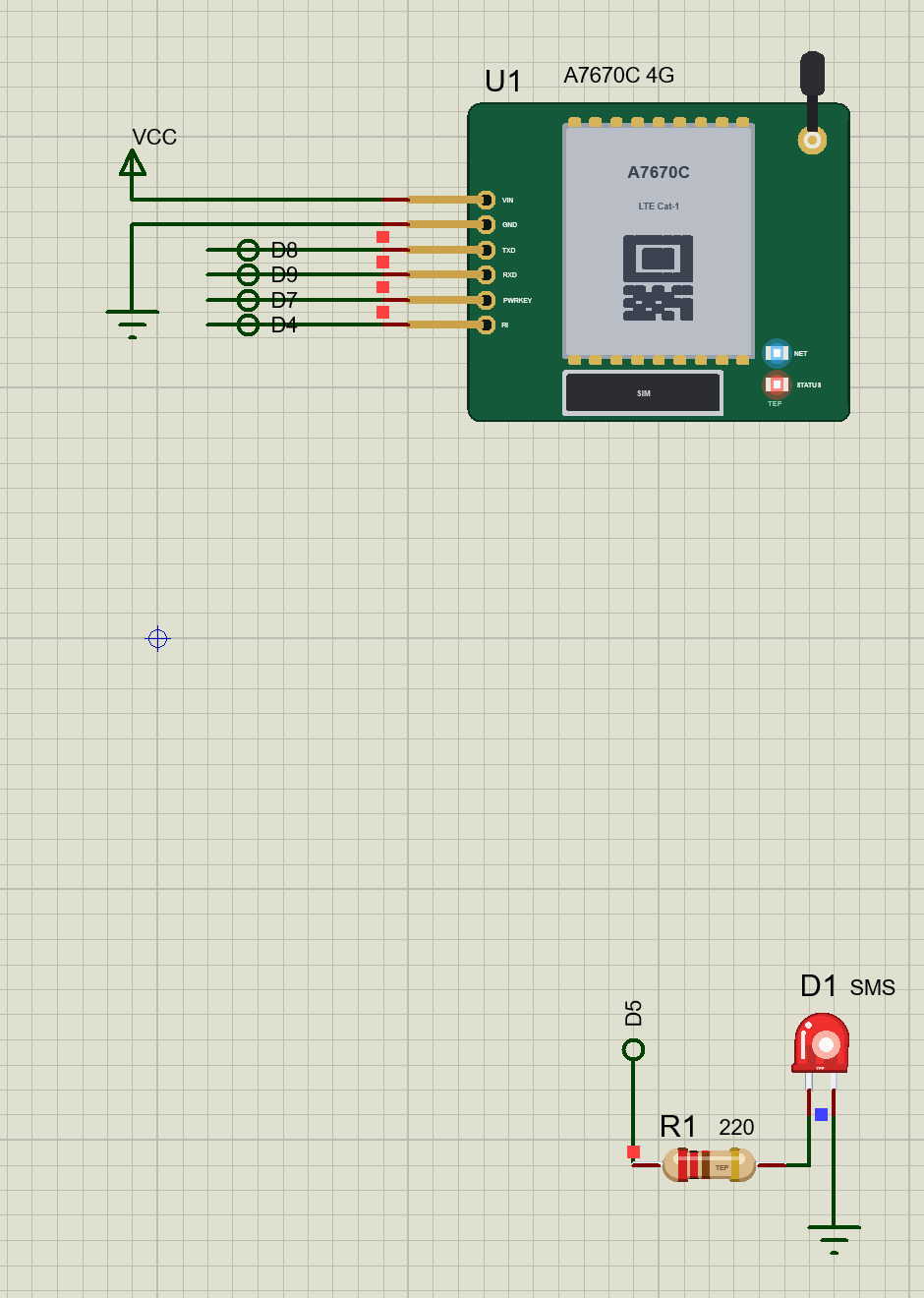
The device is LTEA7670CTEP in TEPA7670C.LIB, under Modules > GSM / LTE, with the prefix U and the model TEPA7670C.DLL. Search A7670C or 4G in Pick Devices. Six pins on the left: VIN, GND, TXD, RXD, PWRKEY and RI. Three properties: BAUD is the UART rate stored in the modem (115200 from the factory, as AT+IPR would store it), SIGNAL the signal quality from 0 to 31, and SMS chooses whether the demo message arrives.
Download A7670C 4G LTE Module Library for Proteus Simulation
Click the button below to download A7670C-4G-LTE-Module-Library-for-Proteus-v1.0.zip (about 2.0 MB, without the source code of the models):
A7670C 4G LTE Module Library for Proteus V1.0- README.txt: installation, the demo, the wiring, troubleshooting and the limits of the simulation.
- Proteus Library Files:
TEPA7670C.LIB,TEPLED5MM.LIB,TEPRESISTOR.LIBandArduinoV4TEP.LIB. - Proteus Model Files:
TEPA7670C.DLL,TEPLED5MM.DLL,TEPRESISTOR.DLLandTEPARDUINO.DLL. - Arduino Code: the demo sketch (AltSoftSerial, no modem library).
- Proteus Simulation: the demo project, its HEX file and copies of the DLLs.
No Proteus yet? Read How to Download and Install Proteus 7 and 8. New to libraries? Follow How to Install a New Library in Proteus.
How to Install A7670C 4G LTE Module Library for Proteus Simulation
- Close Proteus and extract the whole zip file, for example to your Desktop.
- Copy the files from Proteus Library Files into the LIBRARY folder of Proteus.
- Copy the files from Proteus Model Files into the MODELS folder.
- Delete
TEPA7670C.IDXfrom the LIBRARY folder if it is there. - Start Proteus, press P and search for A7670C.
Proteus Simulation of a 4G Modem
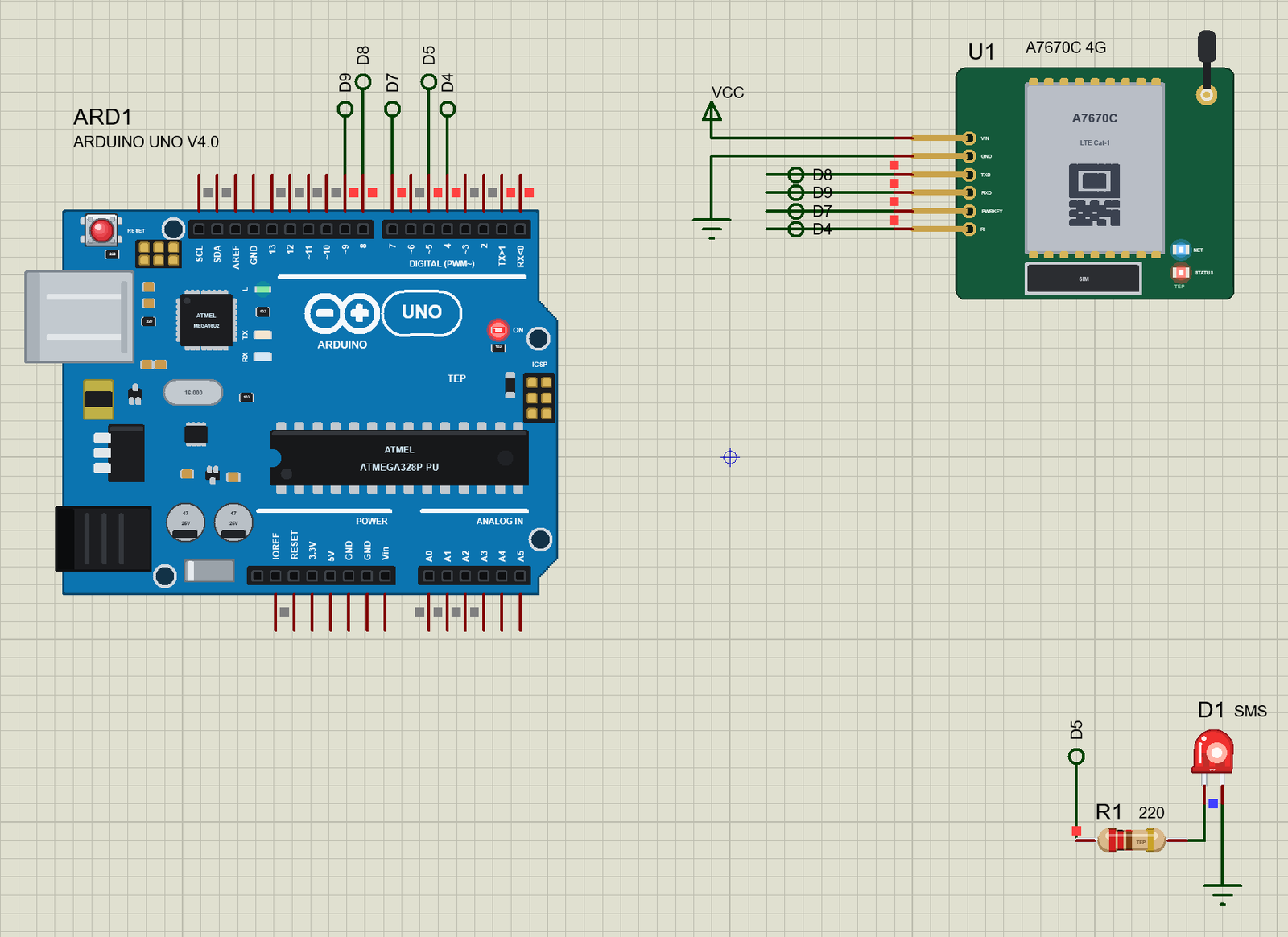
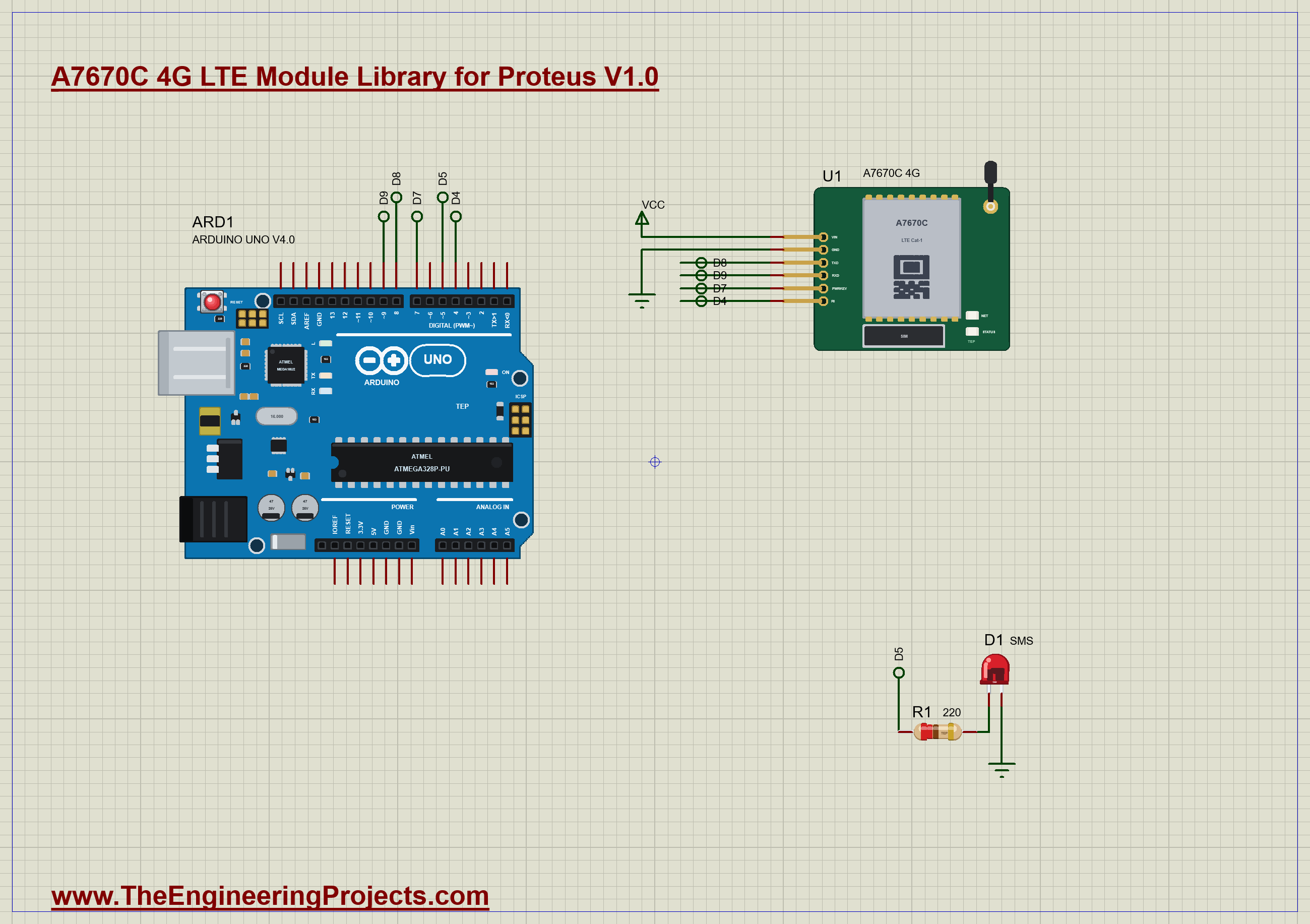
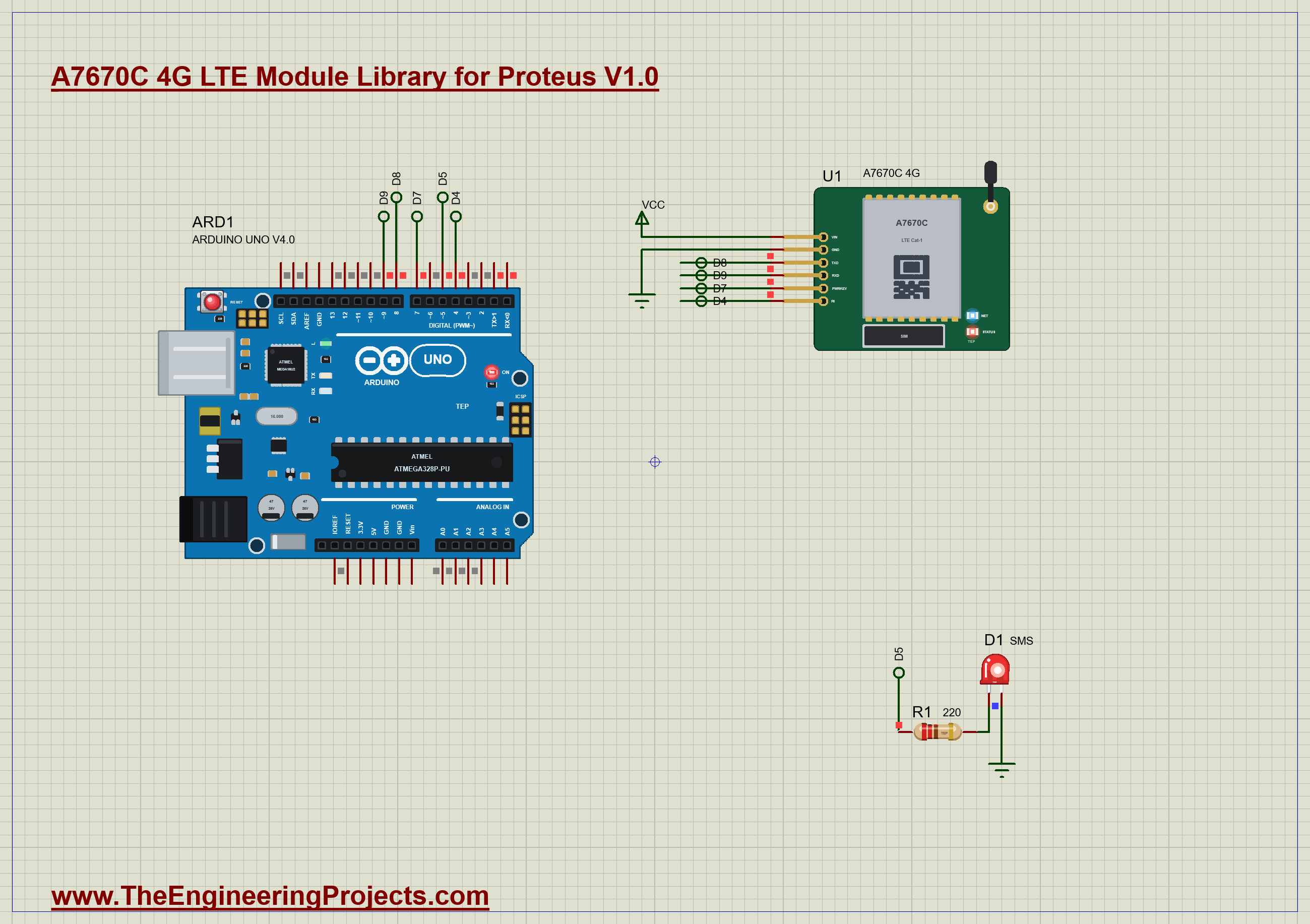
The demo uses an A4 sheet with our Arduino UNO Library for Proteus V4.0 and the modem U1. VIN goes to VCC and GND to ground; the modem's TXD goes to D8 and its RXD to D9, the pins of AltSoftSerial; PWRKEY is on D7 and RI on D4. The LED D1 with its 220 ohm resistor sits on D5. U1's BAUD property is 9600 - the rate a real module would have stored after AT+IPR=9600, because software serial on an UNO cannot run at 115200. The Arduino's monitor is built in, the same window as our TEP Serial Monitor Advance for Proteus. Open A7670C-4G-SMS-HTTP-ArduinoUnoV4.pdsprj.
The Sketch
The sketch uses no modem library - just lines of text. It switches the modem on with the power key:
digitalWrite(PIN_PWRKEY, LOW); delay(100); digitalWrite(PIN_PWRKEY, HIGH); // the power keyIts line reader skips empty lines and returns the SMS prompt on its own, because "> " has no line end:
if (c == '>' && lineN == 0) { line[0] = '>'; line[1] = 0; return true; } // the SMS prompt "> " has no line endEvery line it reads is also checked for the new-SMS report, wherever it turns up:
if (!strncmp(line, "+CMTI:", 6)) { const char* c = strrchr(line, ','); if (c) newSms = atoi(c + 1); }It asks for the registration once a second until the modem is on the network:
for (byte i = 0; i < 30 && !reg; i++) { reg = at(F("AT+CEREG?"), "+CEREG: 0,1"); if (!reg) delay(1000); }Sending an SMS is the command, the prompt, the text and Ctrl-Z:
  modem.print(F("AT+CMGS=\"")); modem.print(to); modem.print(F("\"\r"));
  if (!answer(">", 3000)) { Serial.println(F("  no \"> \" prompt (no network?)")); return false; }
  modem.print(text); modem.write(26);                       // the text, then Ctrl-Z sends it
A web request answers twice - OK at once, then +HTTPACTION when the server has replied:
if (!answer("OK", 2000) || !waitFor("+HTTPACTION:", 10000)) return -1;For the POST, the body goes in after DOWNLOAD:
if (waitFor("DOWNLOAD", 3000)) { modem.print(body); answer("OK", 3000); }And a message that says LED ON switches the LED and gets an answer:
if (strstr(text, "LED ON")) { digitalWrite(PIN_LED, HIGH); Serial.println(F(" -> the LED on D5 is ON")); sendSms(from, F("LED IS ON")); }A7670C Simulation Results
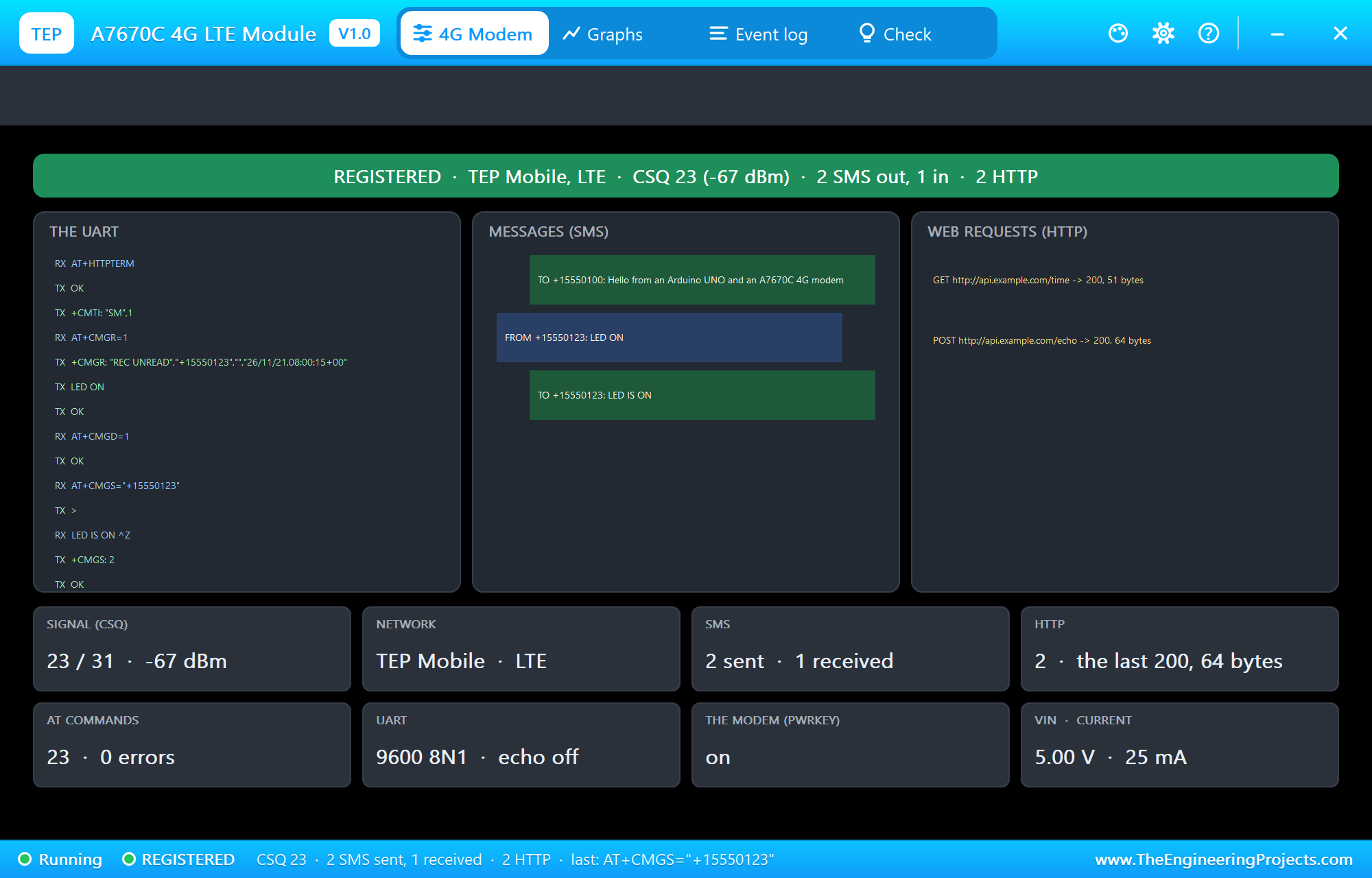
Open the project and press Run. The demo runs 19.3 simulated seconds and took about three minutes on our PC with the pop-ups open and the pictures being taken. Click the modem for its pop-up. Every number below comes from one simulation run, the demo exactly as it ships.
The Start
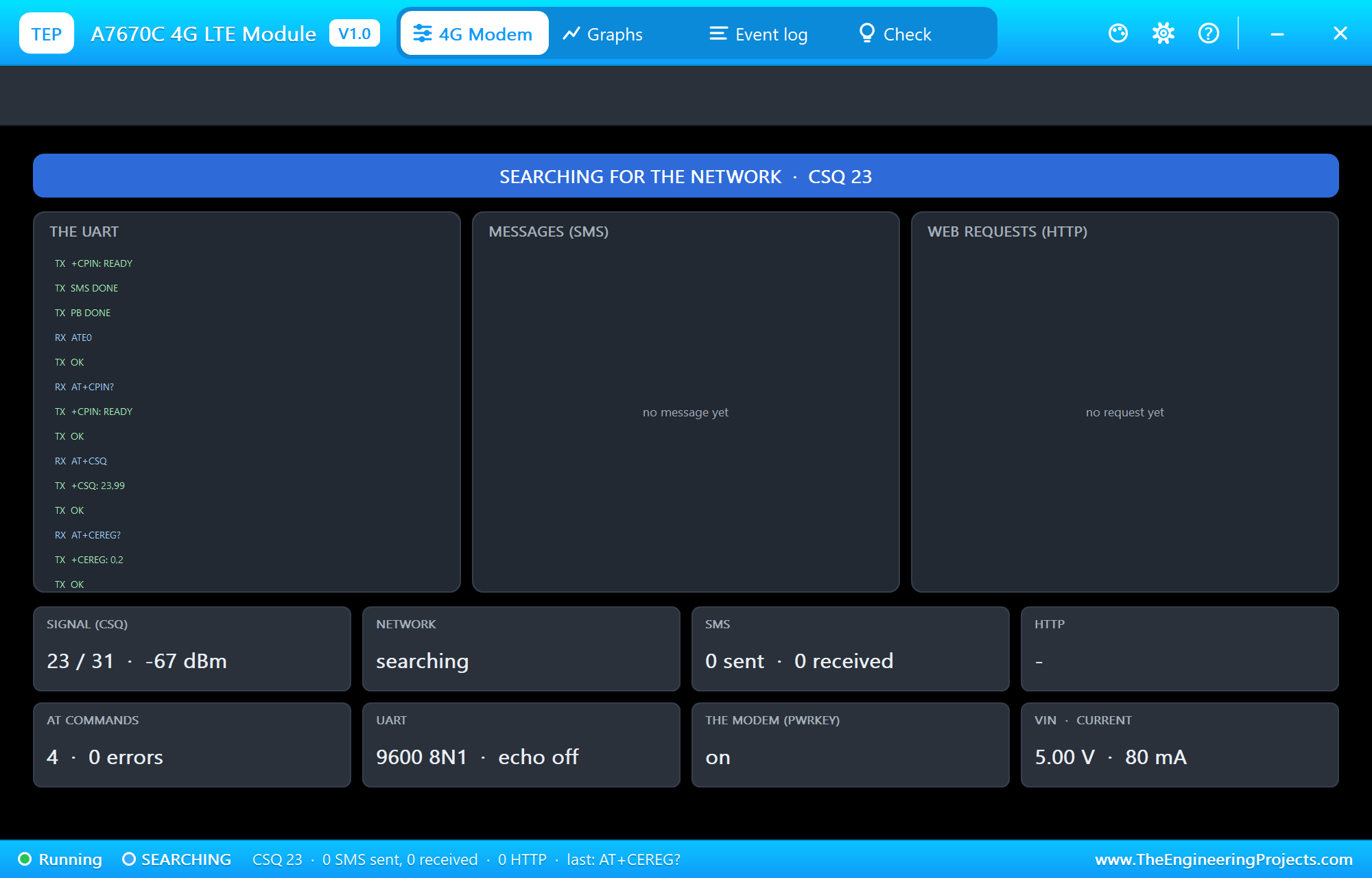
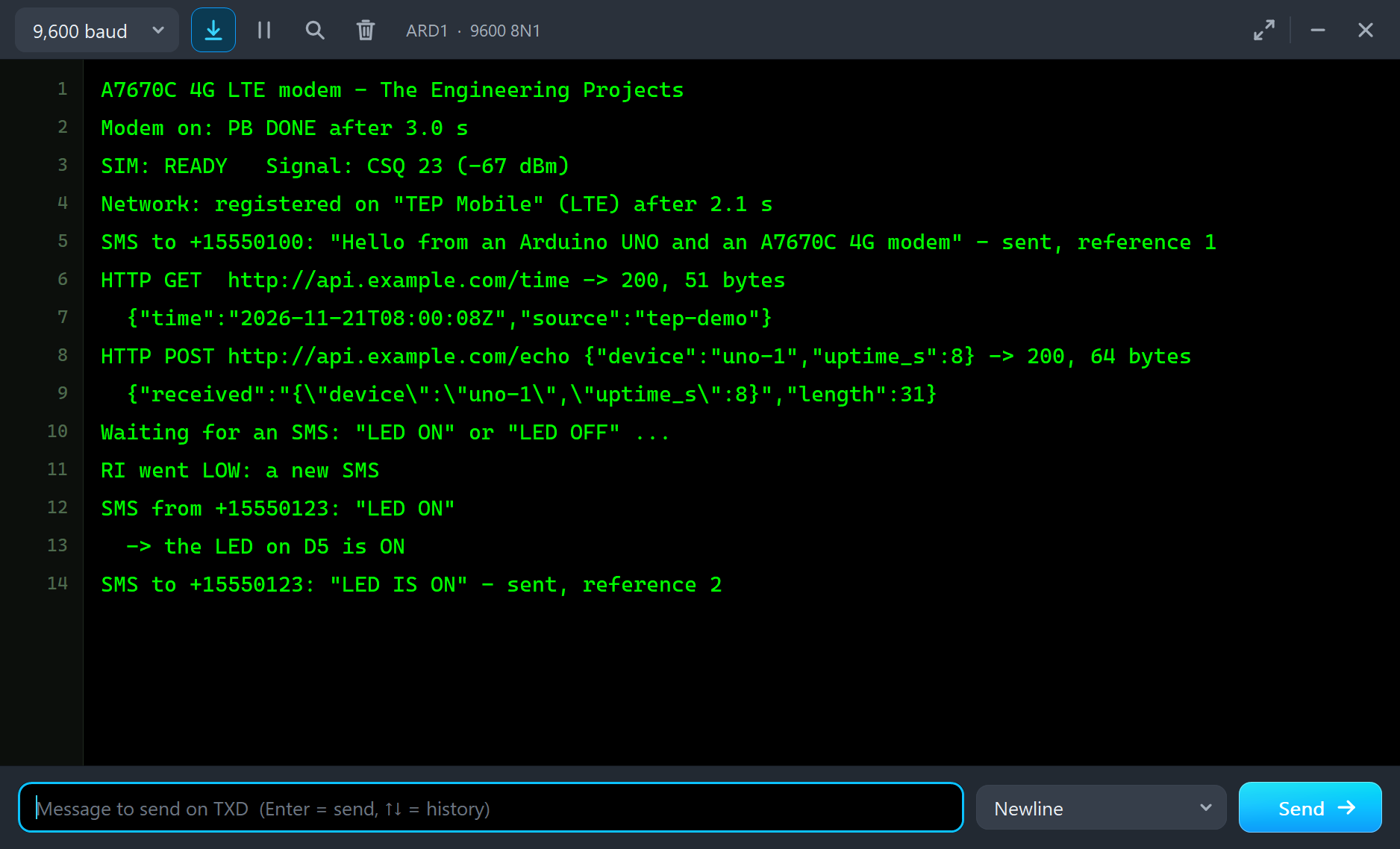
VIN comes up at 5.00 V and the modem waits: it stays off until PWRKEY has been low for 50 ms. The sketch pulls D7 low for 100 ms; at 117 ms the modem starts and its STATUS LED lights. At about 1.6 s it sends *ATREADY: 1, then +CPIN: READY, SMS DONE and finally PB DONE at 3.117 s - the sketch prints "Modem on: PB DONE after 3.0 s". It turns the echo off with ATE0, reads +CPIN: READY and +CSQ: 23,99 - CSQ 23 is about -67 dBm - and starts asking AT+CEREG?. The answer is +CEREG: 0,2, searching, and the NET LED stays lit.
On the Network
At 5.117 s the modem registers. The next AT+CEREG? answers +CEREG: 0,1, AT+COPS? names the network "TEP Mobile" with access technology 7 (LTE), and the sketch prints "registered ... after 2.1 s". From now on the NET LED blinks 800 ms on and 800 ms off, the pattern of a registered modem.
The First SMS
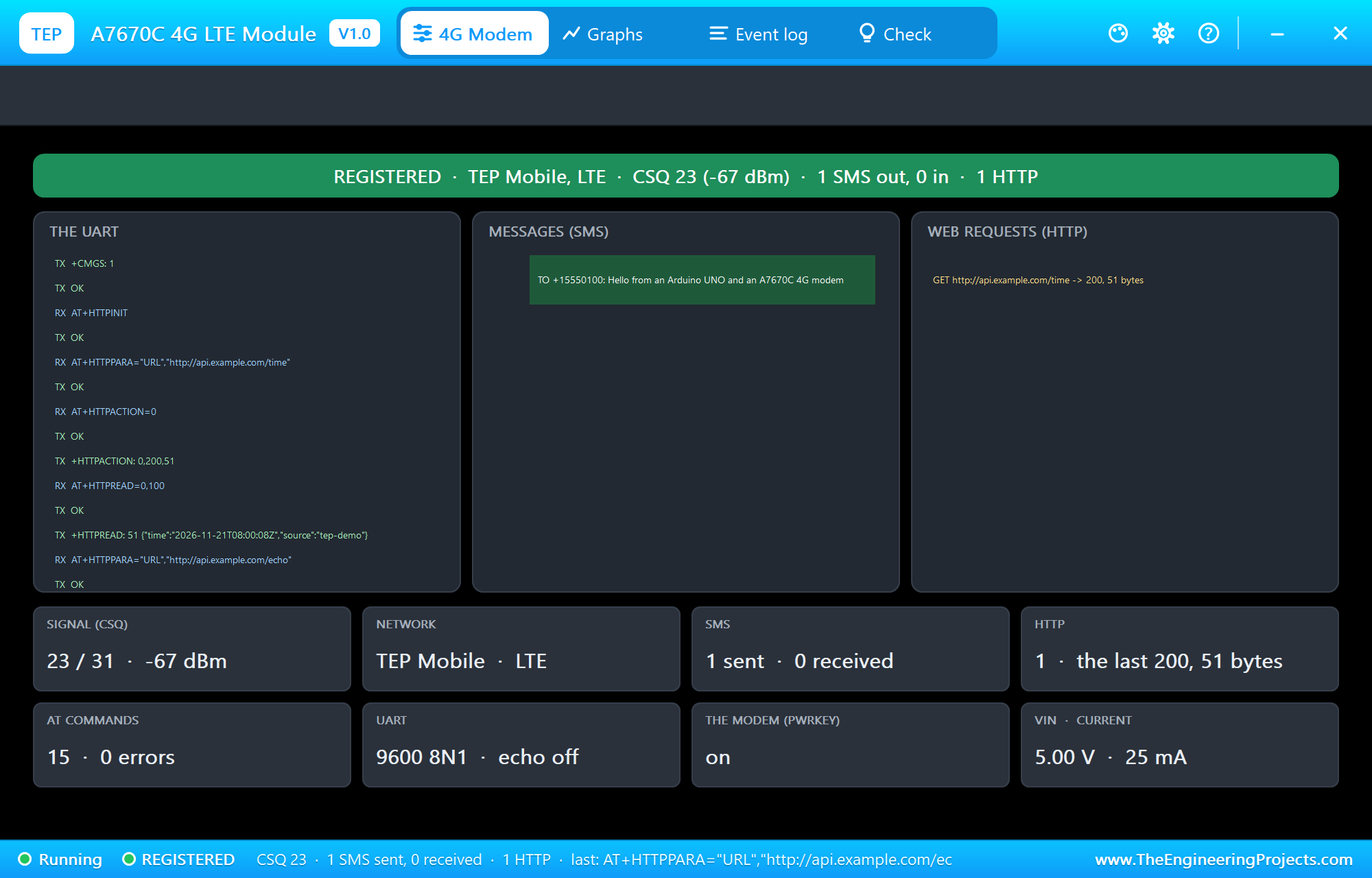
The sketch switches SMS to text mode (AT+CMGF=1), asks for +CMTI reports of new messages (AT+CNMI=2,1,0,0,0) and sends AT+CMGS="+15550100". The modem answers with the "> " prompt, the sketch writes its 48-character greeting and ends it with Ctrl-Z at 5.462 s. While the message travels, the NET LED blinks fast; at 7.463 s the modem reports +CMGS: 1 and OK - the message went out with reference 1.
HTTP GET and POST
Next comes the web. AT+HTTPINIT starts the HTTP service, AT+HTTPPARA="URL","http://api.example.com/time" sets the address and AT+HTTPACTION=0 starts a GET. The modem answers OK at once and, at 8.800 s, +HTTPACTION: 0,200,51: status 200, 51 bytes. AT+HTTPREAD=0,100 brings the body: {"time":"2026-11-21T08:00:08Z","source":"tep-demo"}. Then the sketch posts a small JSON report - {"device":"uno-1","uptime_s":8} - to /echo: AT+HTTPDATA=31,5000 gets DOWNLOAD, the 31 bytes go in, and AT+HTTPACTION=1 answers +HTTPACTION: 1,200,64 at 10.333 s. The server sends the report back, and AT+HTTPTERM closes the service.
An SMS Comes In
Ten seconds after registration the demo's SMS arrives: at 15.118 s the modem stores "LED ON" from +15550123 at index 1, sends +CMTI: "SM",1 and pulls RI low for 120 ms. The sketch notices both - "RI went LOW: a new SMS" - reads the message with AT+CMGR=1, deletes it with AT+CMGD=1, switches the LED on D5 on and answers the sender with "LED IS ON" at 15.277 s. At 17.278 s the reply is out: +CMGS: 2.
The Graphs, the Event Log and the Check Page
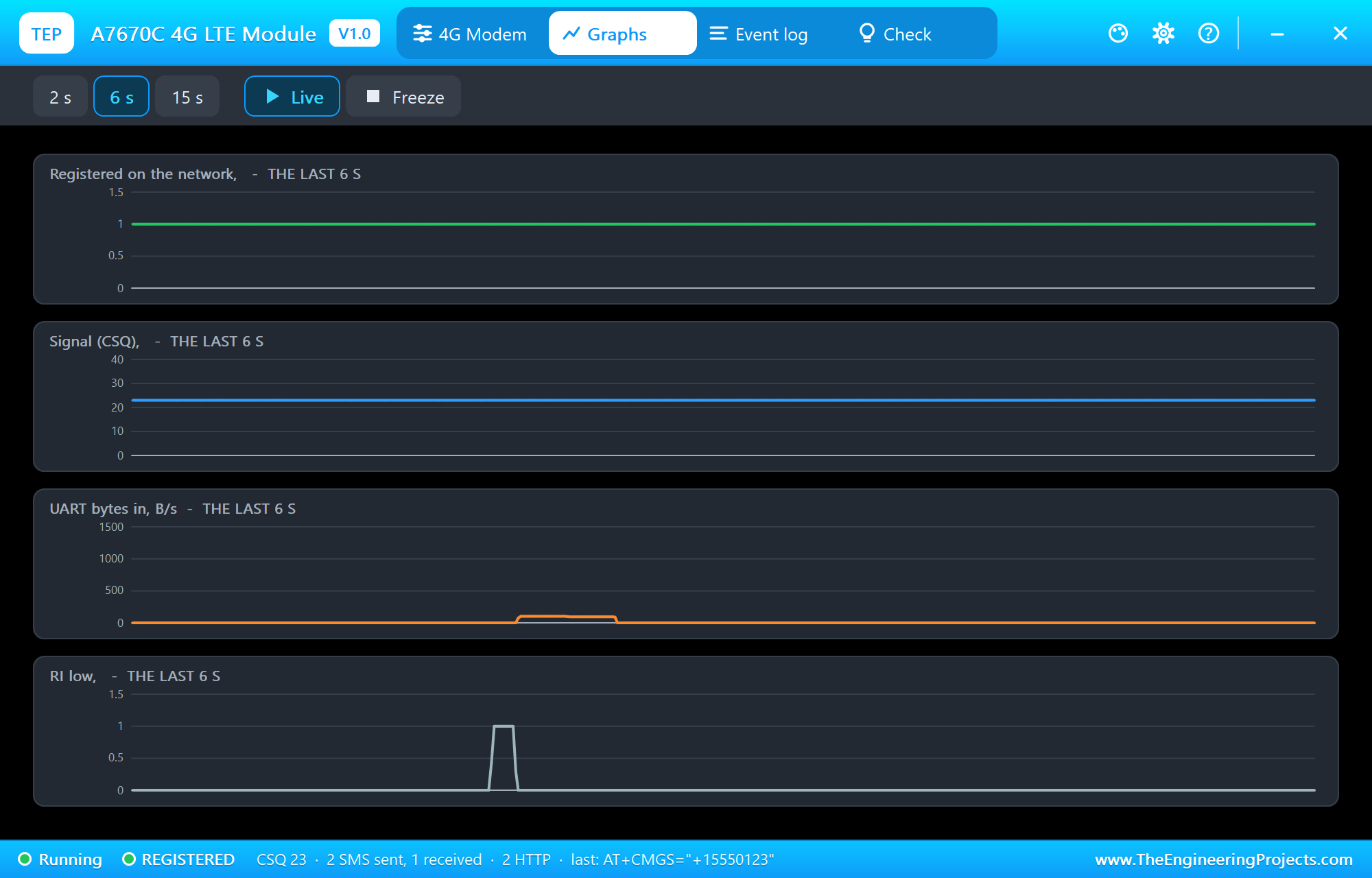
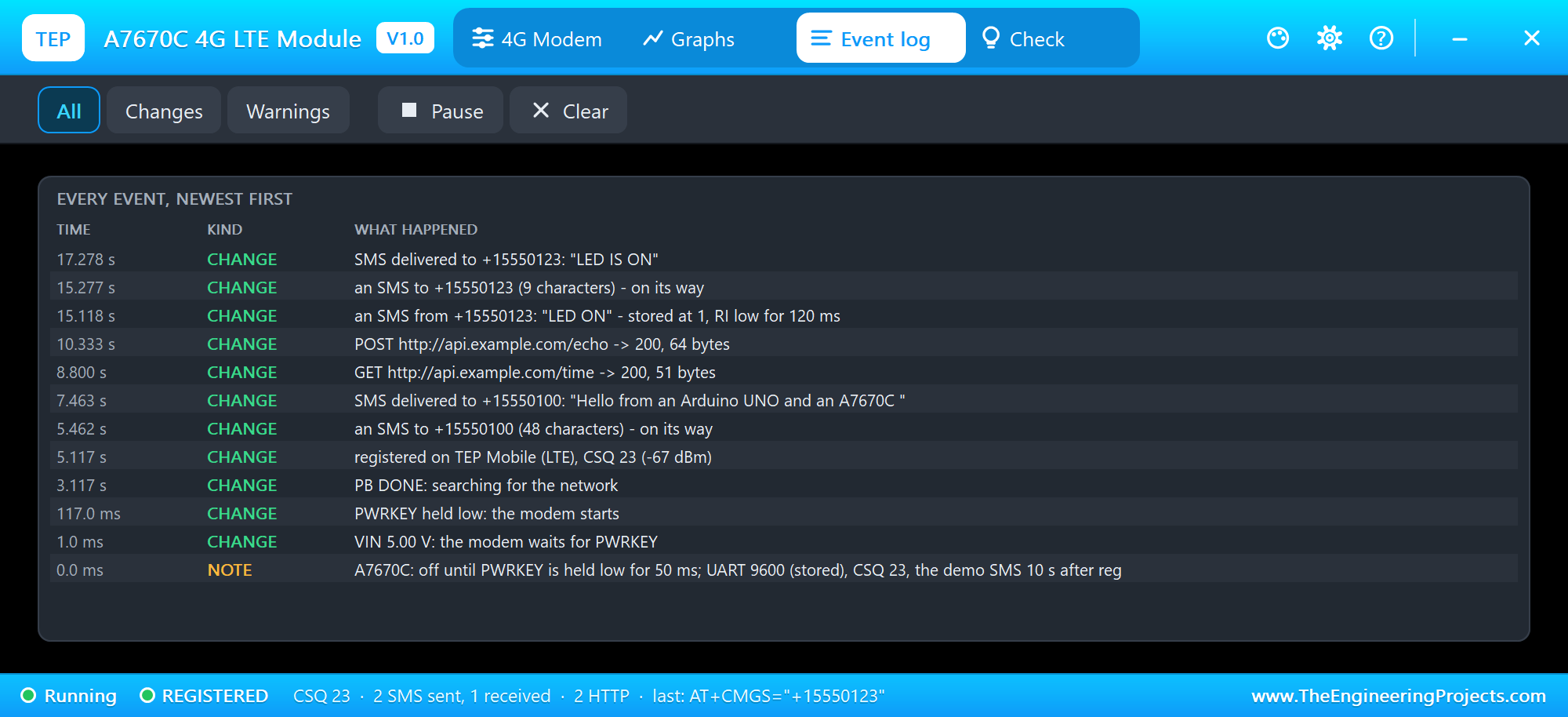
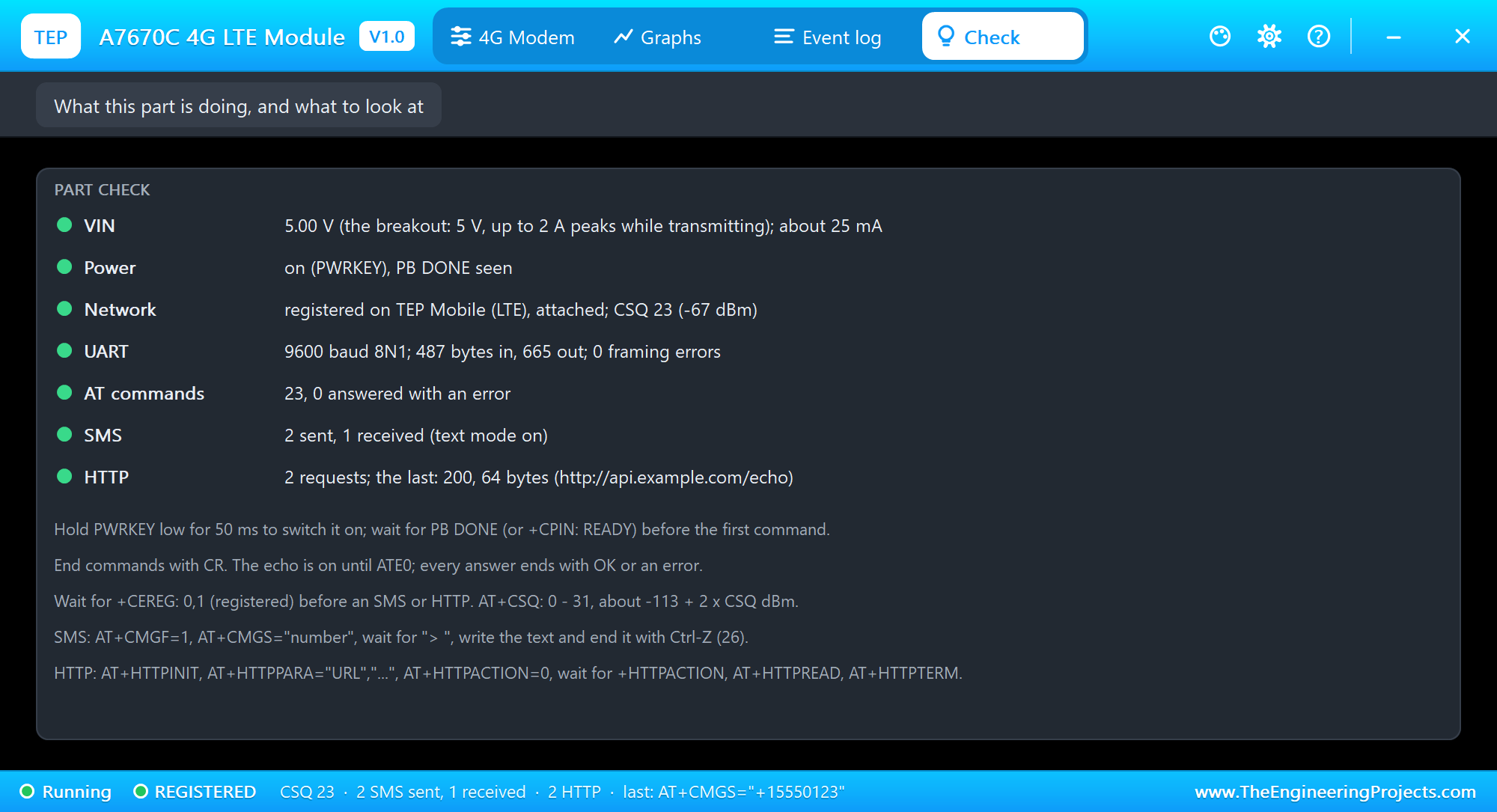
The Graphs page plots the registration, the signal quality, the bytes from the board and the RI line - its 120 ms pulse marks the incoming SMS. The Event log keeps the whole story with times: the supply, the power key, PB DONE, the registration, each SMS on its way and delivered, each web request with its status, the incoming message. The Check page sums up the run: VIN at 5.00 V with about 25 mA (the modem idle and registered), the power on with PB DONE seen, the network registered on TEP Mobile (LTE) and attached with CSQ 23, the UART at 9600 baud 8N1 with 487 bytes in, 665 out and no framing error, 23 AT commands with none answered by an error, 2 SMS sent and 1 received in text mode, and 2 HTTP requests, the last one 200 with 64 bytes. Every line is green.
The Arduino's monitor tells the same story from the sketch's side, line by line.
2G, 4G or a Board With the Modem on It?
Our SIM800L Library for Proteus covers the classic 2G modules, still the cheapest way to send an SMS where 2G networks remain. The A7670C does the same jobs on 4G, which is where networks are heading as 2G and 3G close. If you want the modem and a microcontroller on one board, look at our LilyGO T-SIM7600 Library for Proteus: an ESP32 with a 4G modem already wired to it. The AT commands in this article - CSQ, CEREG, CMGS, HTTPACTION - are close relatives across all of them, so what you learn here carries over.
Try It Yourself
- Set U1's SIGNAL to 10 and watch the dBm value the sketch prints and the pop-up shows.
- Set SMS to NONE: no message arrives, and the sketch keeps waiting after its web requests with the LED off.
- Change the GET address to http://api.example.com/status/404 and print the status code.
- Send AT+CMGS before AT+CMGF=1 and read the +CMS ERROR the modem returns.
- Turn SHOW_AT on in the sketch and follow every command and answer on the monitor.
Ideas to Extend the Demo
- A tank alarm that sends an SMS when a float switch closes and answers "STATUS" with the level.
- A data logger that posts a sensor reading every minute and blinks an LED when the server answers 200.
- A remote relay with a list of allowed phone numbers.
Your Own Sketches
The demo sketch is in the zip file, and you can change it in the Arduino IDE. New to Arduino? Start with our Arduino Tutorial for Beginners. Export the compiled binary, and set the UNO's PROGRAM property to the new file. Our guide on How to get the HEX file from Arduino shows you where the file ends up.
Things to Know Before Using a Real A7670C
- Power: the modem draws peaks of up to 2 A while it transmits - a USB port or a weak regulator resets it.
- Baud rate: store a rate your board can handle (AT+IPR=9600, then AT&W) before you move to software serial.
- APN: a real network needs the operator's APN for data, set with AT+CGDCONT.
- Logic levels: check whether your breakout's TXD / RXD are 3.3 V or 5 V tolerant.
- HTTPS: secure sites need SSL settings and certificates; this demo uses plain HTTP.
Troubleshooting
- No answer at all: no VIN, PWRKEY never held low for 50 ms, TXD and RXD crossed wrong, or the board's baud rate is not the BAUD property.
- +CMS ERROR: 331 on AT+CMGS: no network yet - wait for +CEREG: 0,1.
- +CMS ERROR: 304: send AT+CMGF=1 first, and put the number in quotes.
- ERROR on AT+HTTPINIT: the modem is not attached yet, or HTTPINIT was sent twice without AT+HTTPTERM.
- The part is not simulated:
TEPA7670C.DLLis missing from MODELS and from the project folder.
Limitations of the Simulation
- PWRKEY, the start-up messages, the UART, the network commands, SMS in text mode and HTTP follow the SIMCom A76xx command set; the breakout is our own drawing.
- Our own choices: the network "TEP Mobile" and its timing, the built-in web server, the test SIM, the demo SMS, the LED patterns and the supply current.
- Not modelled: a real network or Internet, voice calls, PDU-mode SMS, TCP / UDP sockets, MQTT, HTTPS, GNSS and the sleep modes.
- Arduino is a name of Arduino; this library is not made or endorsed by Arduino, Labcenter or the module's maker.
- Tested in Proteus 8.5 in November 2026 (the demo as shipped). Proteus 7 is not supported.
So, that was all about the A7670C 4G LTE Module Library for Proteus Simulation. I hope it helps you get the power key, the waits and the AT commands right before you put a SIM card in a real modem - so that your first SMS and your first web request work in the simulation before they cost you anything. If you have any questions, ask in the comments and I will help you out. Till the next tutorial, take care and have fun!

Comments
0